A single overloaded prompt can freeze your entire ChatGPT workflow, developers see the “chatgpt too many concurrent requests” error spike just as deadlines hit, not when they’re testing. OpenAI’s API documentation is clear about concurrency limits, but the real world throws more curveballs: team members hit “chatgpt too many requests” warnings even with light use, and bulk jobs can stall for hours if you don’t watch your queue. The root cause isn’t always obvious, sometimes it’s a runaway script, other times it’s a misconfigured automation or a dashboard refresh that quietly triggers dozens of calls at once. Some devs try to fix it by slowing down their requests, but that just leaves users waiting longer. Others jump between proxies or batch jobs, but still run into the same “chatgpt api too many concurrent requests” roadblock.
Ignoring these errors only leads to stuck tasks, broken automations, and lost productivity. The real fix is understanding what trips the concurrency limit, how to detect the risk early, and what practical steps actually work, before your workflow grinds to a halt. This guide cuts through guesswork and shows how real teams control requests, avoid hidden traps, and get ChatGPT back to work fast. Here’s what to watch for and what to change first.
What Does 'Too Many Concurrent Requests' Mean on ChatGPT?
When you see “chatgpt too many concurrent requests,” it means ChatGPT is blocking new API calls because too many are running at the same time. This isn’t just about sending requests too quickly, it’s about how many requests are active right now. If you hit this error, your script, automation, or browser session is trying to handle more than ChatGPT’s concurrency limit allows.
How ChatGPT Handles Concurrent Requests
Concurrent requests are API calls made at the same moment, not just in rapid sequence. For ChatGPT, this means multiple prompts, chats, or job runs are being processed together. If you open five browser tabs with ChatGPT, that’s five concurrent requests. If your automation fires off a batch of API calls all at once, each counts toward the limit.
Concurrency is different from rate limits. Rate limiting tracks how many requests you make in a set time (like per minute). Concurrency looks at how many are actually being handled at the same moment. You could stay within the rate limit but still trigger the “chatgpt api too many concurrent requests” error if your workflow piles up too many jobs at once.
Why ChatGPT Imposes Concurrency Limits
ChatGPT’s concurrency limits are there to keep the service stable for everyone. If hundreds of users or scripts all ran jobs at the same time, the system would slow down or fail. Limiting concurrent requests helps manage memory, CPU, and keeps response times steady.
These limits also block abuse. Without them, someone could flood the system with bulk jobs, breaking normal usage for others. Services like OpenAI’s API documentation explain these controls in detail. Teams running high-volume tasks often use tools to queue or stagger requests so they don’t trip the chatgpt concurrency limit, otherwise, work stops until the backlog clears.
What Usually Triggers the 'Too Many Concurrent Requests' Error?
Hitting the "chatgpt too many concurrent requests" message is rarely a surprise for power users, but even casual users get stuck here. This error means you, or your scripts, are sending more requests at once than OpenAI’s servers allow. It often shows up fast, with no warning, and can stall both manual and automated workflows. The triggers fall into three main groups.
Typical User Behaviors That Cause the Error
The most common cause is rapid-fire actions. If you type one prompt after another without waiting, or keep refreshing the ChatGPT page, you pile up requests faster than the system can handle. Running several browser tabs with the same account, or even using different devices at the same time, stacks up concurrent connections. Each one might seem harmless, but together they quickly hit the chatgpt concurrency limit.
Another problem is when users think refreshing will "unstick" a slow response. In reality, each refresh just adds more live requests, and the error shows up even faster.
How Team Use and Account Sharing Can Trigger Limits
In team settings, sharing a single ChatGPT account creates a silent risk. If two or more people send prompts at the same time, every action counts toward the same concurrency cap. This problem gets worse if someone runs an automation script or a bot on top of regular user activity.
It’s easy to miss when another team member is running a bulk job or using RPA, so the "chatgpt too many concurrent requests" error can hit everyone sharing that account.
API Usage Patterns That Hit Concurrency Caps
Developers often trigger "chatgpt api too many concurrent requests" by launching batch jobs or firing off parallel API calls. Without a built-in retry or backoff strategy, even a small script can flood the system.
Some scripts ignore HTTP 429 errors and keep hammering the API, making it impossible for any single call to succeed. The real risk is thinking the cap is high, when OpenAI’s actual concurrency limits are much lower than expected. See OpenAI's API documentation for details.
Workflows that don’t control concurrency or respect rate limits will always hit these errors, no matter how much you spread requests across devices or proxies.
What Are the Risks of Repeatedly Hitting ChatGPT’s Concurrency Limit?
Running into “chatgpt too many concurrent requests” isn’t just an annoyance, it can lock you out, trigger security flags, and break team workflows. Here’s what happens when you ignore these errors and keep pushing the concurrency limit.
Temporary Account Restrictions and Lockouts
OpenAI’s systems will temporarily block access if you hit the chatgpt concurrency limit too often in a short period. These lockouts usually last anywhere from a few minutes up to several hours, depending on how many times the limit was crossed. If you keep triggering “chatgpt too many requests” errors, the system may extend the restriction window each time.
Trying to bypass the lockout by switching browsers, using different proxies, or logging in from new devices often doesn’t help. OpenAI tracks usage patterns across sessions, so repeated attempts can actually extend your restriction. This means even simple automations or innocent refresh loops can end up freezing your account for the rest of your workday.
Impact on Team Productivity and Automation
Teams running shared accounts or automations get hit the hardest. When one user or a bot triggers “chatgpt api too many concurrent requests,” it can break scheduled jobs, stop batch processing, or cause chatbots to go silent. For example, if your workflow relies on regular API calls for customer support or content generation, a lockout can leave users waiting and tasks unfinished.
Even after access returns, some queued requests might fail or get dropped. This forces manual rework and wastes time across the team. If automations depend on tight schedules, a single concurrency error can throw off a whole day’s workflow.
Long-Term Account Health and Flagging
Repeatedly ignoring “chatgpt too many concurrent requests” can lead to bigger problems. If the system sees frequent spikes, it may flag your account for review. This can result in permanent limits, longer cooldowns on future requests, or even removal of API access for suspicious patterns.
The most serious risk is getting your account flagged for abuse, which can permanently restrict access to ChatGPT’s features. OpenAI’s Usage Policies spell out these rules, and flagged accounts may lose the ability to use the API at all. It’s easier to fix workflows early than to recover from a blocked account.
How to Fix 'Too Many Concurrent Requests' on ChatGPT Right Now
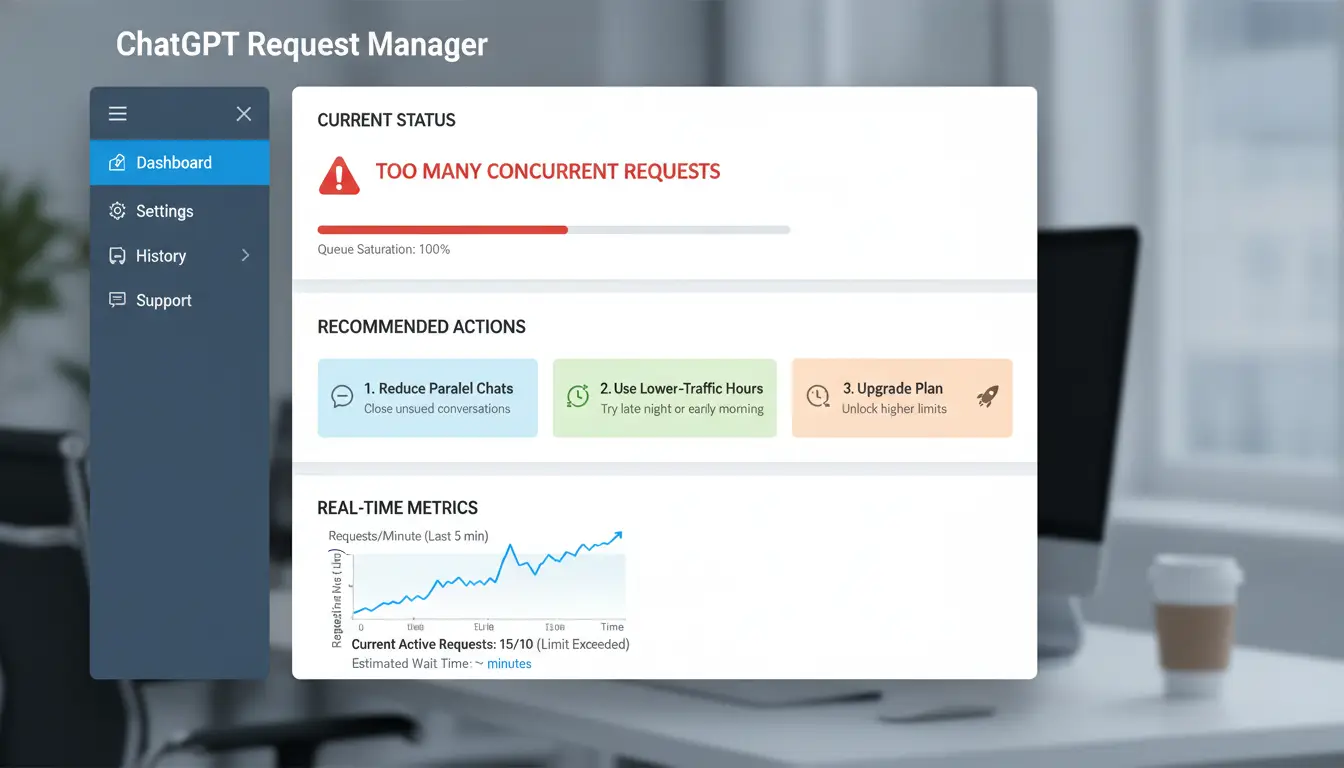
Running into the "chatgpt too many concurrent requests" error can stop your work cold. This usually means you, or your app, are sending more requests at once than OpenAI allows. Here’s how to get back on track, whether you’re using ChatGPT on the web or via the API.
Quick Fixes for Web Users
When ChatGPT says “too many requests,” it’s often a sign you’ve clicked or refreshed too quickly. Step back for 30–60 seconds, then try again. If waiting doesn’t help, log out completely, then log back in, this can reset your session and clear any stuck processes. Avoid opening multiple ChatGPT tabs at once, since each tab counts against the concurrency limit.
Troubleshooting for API Users
If you see "chatgpt api too many concurrent requests," check your OpenAI API usage dashboard for current limits. Free-tier users may only have a handful of concurrent calls allowed, while paid tiers get more. Implement exponential backoff in your code: when a request fails, wait a bit longer before trying again. For example, wait 1 second after the first error, then 2, then 4, and so on. This stops your app from flooding the API and getting blocked repeatedly.
When to Contact OpenAI Support
If you keep hitting errors even after waiting and adjusting your requests, or if the error appears without clear cause, contact OpenAI support. Be ready to share your account email, request timestamps, and any relevant error messages. Giving clear details speeds up troubleshooting and resolution.
When Upgrading Your Plan Might Help
Higher ChatGPT plans, like Plus or Pro, usually offer a higher chatgpt concurrency limit and priority access. If you regularly need more simultaneous requests, compare plan features and decide if upgrading fits your usage. For details, visit the ChatGPT official page.
How to Prevent 'Too Many Concurrent Requests' Errors in Team and Shared Account Scenarios
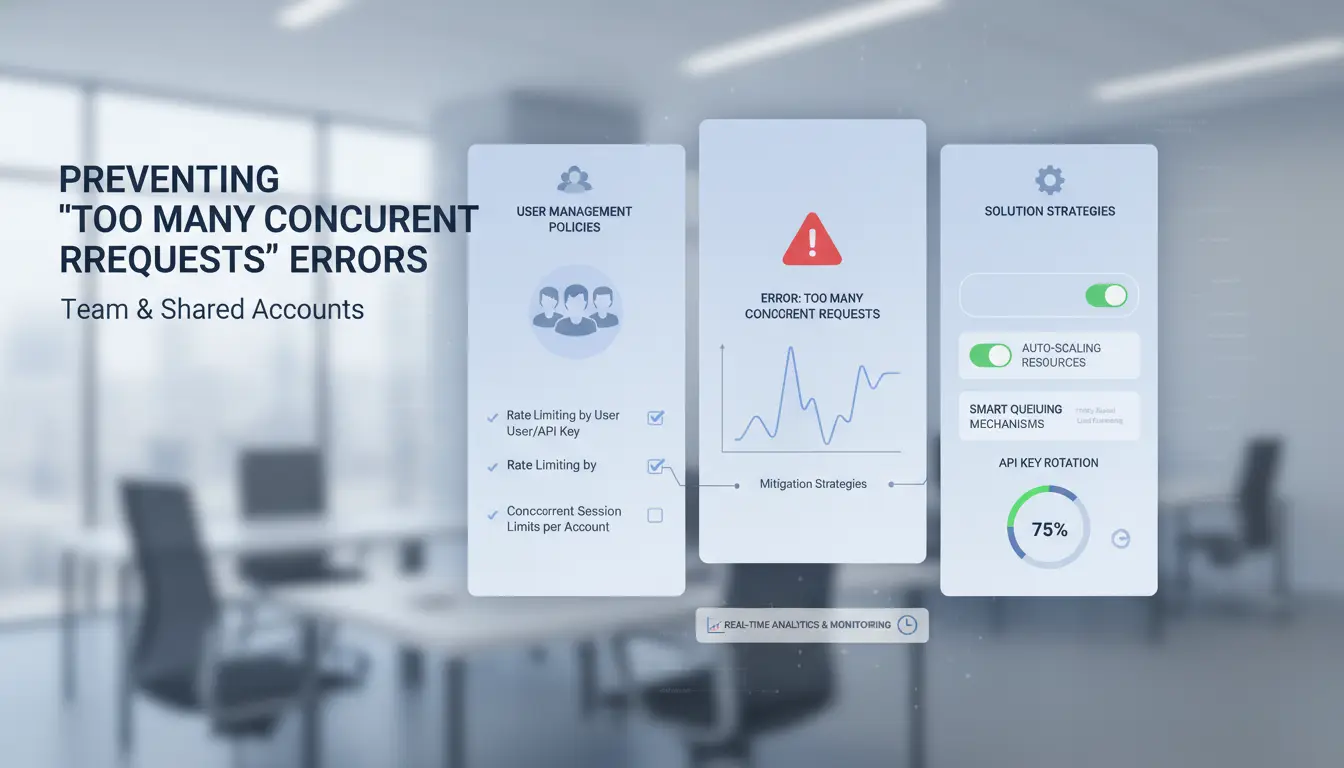
Getting the “chatgpt too many concurrent requests” warning is a sure sign that team workflows or shared accounts are clashing in real time. When several people or bots hit ChatGPT at once, the system will reject new requests until the backlog clears. Fixing this means more than just slowing down scripts, it takes team rules, technical changes, and clear boundaries.
Coordinating Team Access to Shared ChatGPT Accounts
The fastest way to trip the chatgpt concurrency limit is letting everyone jump in whenever they want. Teams should set usage schedules, so only one person or script uses the account at a time. Shared Google Docs or Slack channels work well for posting who’s using the account and when. A simple schedule cuts down on overlap and surprise errors.
Limiting Simultaneous Logins and Sessions
More logins mean more chances for overlapping requests. Each active device or browser session can send calls at once, raising the risk of hitting the “chatgpt too many requests” wall. Teams should log out from unused devices, close extra browser tabs, and avoid running parallel automations on the same account. Keeping sessions to a minimum is the simplest way to lower error rates.
Optimizing API Workflows for Teams
Pushing lots of API calls in parallel is a common cause of “chatgpt api too many concurrent requests” failures. Batch requests where possible, collect questions, send them one at a time, and wait for a response before the next. Set up queues and retry logic to hold requests until ChatGPT is ready. Even basic queueing tools or scripts can keep workflows moving without constant errors.
When to Consider Separate Accounts or Upgrades
If team demand keeps breaking limits, it’s time to weigh the cost of separate accounts or plan upgrades. Individual licenses remove most concurrency headaches, while shared logins increase risk and slowdowns. OpenAI’s pricing page lists current options. Teams with strict audit needs or lots of users should avoid account sharing and choose plans that fit their real workflow.
How DICloak Makes ChatGPT Account Sharing Safer and More Reliable for Teams
Sharing a ChatGPT account among team members often leads to “chatgpt too many concurrent requests” errors. When several people log in from different devices or IPs, the platform flags unusual patterns, sometimes locking out everyone. The real issue isn’t just speed, but mismatched browser fingerprints and scattered proxies.
How DICloak Unifies Browser Fingerprints and IPs for Shared Accounts
You can use DICloak to set up unified browser fingerprints and assign consistent proxy IPs for each shared ChatGPT profile. This stops detection scripts from spotting account hopping or sudden location shifts. Keeping fingerprints aligned cuts down on lockouts and reduces the chance of hitting the chatgpt concurrency limit.
Protecting Credentials and Preventing Account Theft
DICloak isolates credentials and session data for every user. Owners keep full control while letting others access without exposing passwords or recovery info. This setup stops accidental leaks and keeps the main account safe, even during busy team use.
Scaling Team Access Without Triggering Concurrency Errors
Assigning profiles and permissions lets teams work at scale without overlap. Routine tasks can be automated using DICloak’s RPA tools, so you avoid manual mistakes that trigger “chatgpt api too many concurrent requests” issues.
When DICloak Is the Right Fit for Your Team’s ChatGPT Usage
If your team wants to save on licenses and reduce lockout risks, DICloak suits shared workflows. Teams needing higher capacity can upgrade to dedicated plans. See OpenAI’s official docs and DICloak’s features page for deeper details.
Common Mistakes That Make 'Too Many Concurrent Requests' Worse (and How to Avoid Them)
Getting hit with “chatgpt too many concurrent requests” is usually not about bad luck, it’s about small, avoidable errors stacking up. Most users fall into the same traps: opening too many browser tabs, ignoring OpenAI’s published limits, failing to coordinate within teams, or running scripts that flood the API. Fixing these habits is the fastest way to stop lockouts and keep ChatGPT working when you need it.
Opening Too Many Tabs or Devices at Once
Every browser tab or device counts as a separate session, and each one adds to your total request load. If you have ChatGPT open on your laptop, phone, and two extra browsers, you’re already pushing against the concurrency limit. Teams that use shared accounts often multiply the problem without realizing it. The practical fix is to consolidate usage, stick to one active device, close extra tabs, and avoid simultaneous logins.
Ignoring API Rate Limit Documentation
OpenAI’s docs spell out the concurrency rules, but many users never check them. Missing these details means you’ll keep triggering “chatgpt api too many concurrent requests” without knowing why. The published limits change by account type, so you need to check OpenAI's API docs for your plan. Exceeding these limits can cascade into failures, stalled scripts, and even temporary bans.
Not Communicating Within Teams About Account Usage
If your team shares a ChatGPT account, a lack of coordination quickly leads to lockouts. One person runs a script, another opens three tabs, and suddenly everyone’s blocked. Using simple tools like Slack or shared Google Sheets to track who is running what can prevent overlap. The most reliable teams set clear windows for automation and manual use.
Using Automation Without Proper Throttling
Running scripts without throttling is a direct path to “chatgpt too many requests.” Unthrottled bots can fire dozens of calls in seconds, breaking the concurrency limit and causing forced waits. The fix is to set request intervals and add checks for current load. You can use tools like DICloak's RPA automation to batch requests safely and avoid accidental overloads. The key is to always throttle automation, never let scripts run unchecked.
When Upgrading, Splitting Accounts, or Using Proxies Makes Sense
Getting hit with “chatgpt too many concurrent requests” means your workflow is pushing limits. Sometimes, the only real fix is to change how you access ChatGPT.
When a Paid ChatGPT Plan Is Worth It
Paid plans like ChatGPT Plus raise both concurrency and rate limits. This can cut down wait times and error messages during busy hours. For teams running scripts or heavy requests, the price often matches the saved time. Here’s a quick comparison:
| Plan |
Concurrency |
Cost (USD) |
| Free |
Low |
$0 |
| Plus |
Higher |
$20/month |
Source: OpenAI Pricing
When to Split Workflows Across Multiple Accounts
If you hit the “chatgpt concurrency limit” often, spreading tasks across extra accounts can keep jobs moving. Use a team password manager to avoid losing control of shared logins.
How Proxies Can Help Manage Location-Based Restrictions
Proxies let you assign each profile a different location, helping avoid IP-based lockouts or “chatgpt too many requests” errors. Just match each proxy to a unique account to limit overlap.
When to Combine Solutions for Maximum Reliability
Mixing upgrades, split accounts, and proxies often covers more risk than any one fix alone. But adding too many layers can create more problems than it solves. Stick to what your team actually needs.
Frequently Asked Questions
Does “chatgpt too many concurrent requests” mean my account is banned?
No, seeing the "chatgpt too many concurrent requests" error does not mean your account is banned. This message usually means you or others on your account are sending too many requests at the same time. It’s a temporary block for safety, not a permanent ban. You should be able to use ChatGPT again after a short wait.
How long do I have to wait after getting the chatgpt too many requests error?
Most users only need to wait a few minutes before trying again after getting a "chatgpt too many requests" error. The exact time depends on how many requests were sent. If you see the error, pause usage for 2–5 minutes, then retry. Refreshing your browser can also help clear the error message.
Can proxies help avoid the chatgpt api too many concurrent requests error?
Using proxies might help manage multiple accounts, but proxies don’t bypass the main chatgpt api too many concurrent requests limits. OpenAI tracks usage per account and IP. If you exceed the allowed requests, you’ll still get errors. Proxies are mainly useful for teams with different accounts, not for avoiding concurrency limits.
Is it safe to share a ChatGPT account with my team?
Sharing a ChatGPT account can be safe if you organize how and when team members use it. Tools like DICloak allow secure login sharing without giving out passwords. However, if too many people use the account at once, you might hit the chatgpt concurrency limit and see errors.
What’s the difference between rate limits and concurrency limits on ChatGPT?
Rate limits control how many total requests you can send to ChatGPT within a set time, like per minute or hour. Concurrency limits, such as the chatgpt concurrency limit, control how many requests you can run at the same moment. Both limits help keep the service stable for everyone.
Dealing with "too many concurrent requests" on ChatGPT can be frustrating, especially during peak usage times when server resources are stretched. Exploring alternative solutions or tools that offer reliable access and fewer disruptions can help maintain productivity and workflow. Try DICloak For Free
 Web Proxy Tools
 Free Tools
 Cookie Plugin
 UA Generator
 MAC Address Generator
 IP Generator
 IP Address List
 2FA Code Generator
 World Clock
 Anonymous Check
 WebRTC Leak Test
 UUID Generator
 Free Web Proxy Site
 Proxy Checker
 FB Ad Checker
 AI Web Scraping
 Free SMM Tools
 Twitter Shadowban Checker
 Instagram Name Checker
 UTM Generator
 Username Generator
 AI Hashtag Generator
 LinkedIn Headline Generator
 Social Media Image Resizer