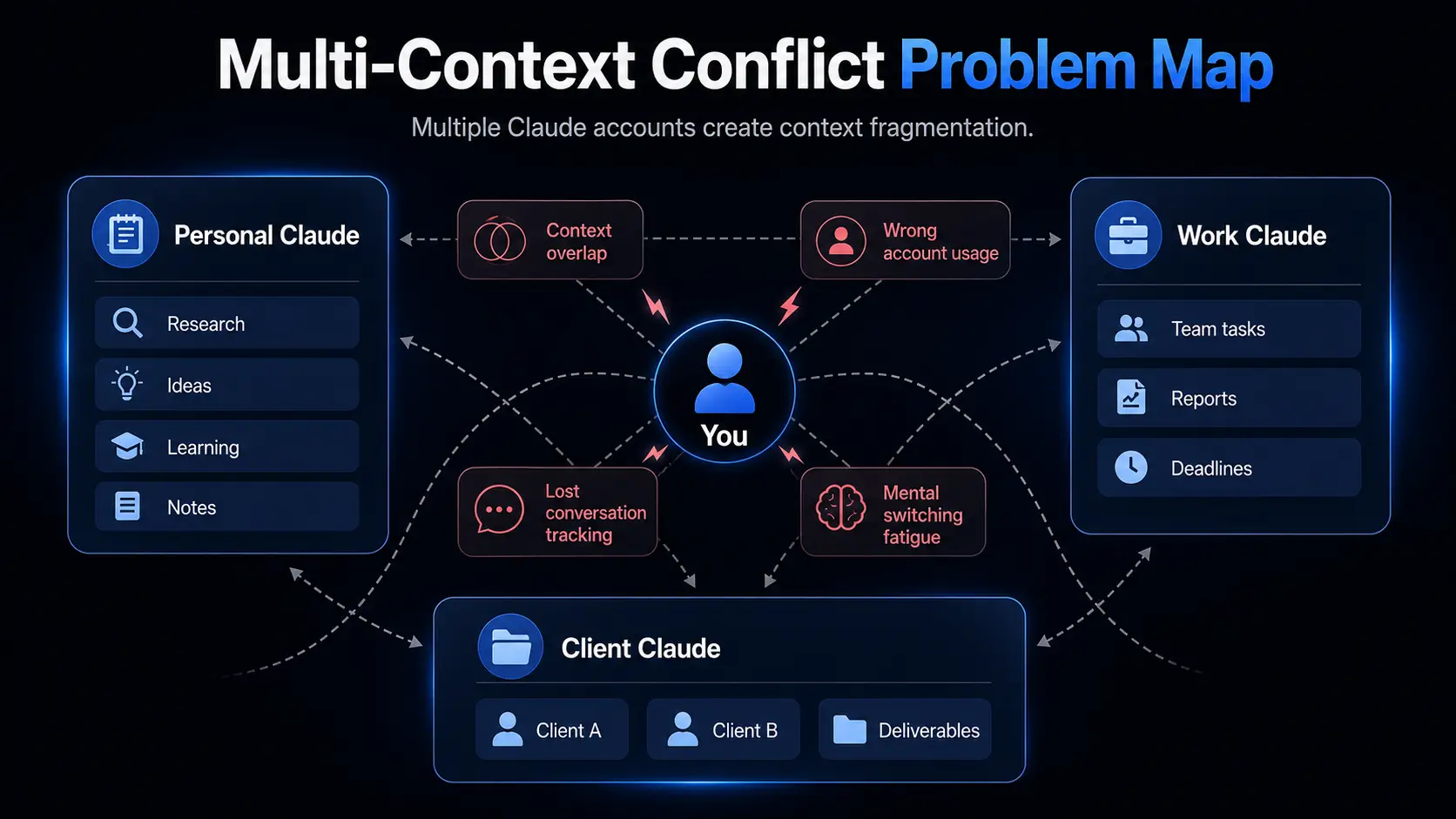
It is a normal workday, and you are switching between three different Claude contexts. You use a personal Claude account for research and writing. Your company gives you a Team account for work projects. You also have access to a client workspace for ongoing freelance tasks. At some point, you are jumping between tabs, logging in and out, and trying not to mix up conversations. It starts to feel messy and slow.
This is why people ask can i use multiple claude accounts. The short answer is yes, many users do use more than one account for different contexts. However, there is an important difference between legitimate multi-context usage and actions that may create account or workflow risk if handled incorrectly.
In this article, you will learn why people need multiple accounts, what is officially supported, how switching works in practice, common mistakes to avoid, and how to manage everything more smoothly across personal, work, and client environments including personal Claude account and work account setups.
Why Would You Need Multiple Claude Accounts?
Many users do not want multiple accounts for convenience. They need them because their work, clients, and personal tasks naturally happen in separate environments. The challenge is keeping everything organized without mixing contexts or losing track of conversations.
Separating personal Claude account and work account
Using a personal Claude account and work account helps you keep two very different worlds apart. Personal usage is usually casual, like learning, brainstorming, or exploring ideas. Work usage is more structured, often tied to deadlines, documentation, or team expectations. Mixing these two can quickly create confusion, especially when prompts, outputs, or references overlap. Keeping them separate helps you maintain clarity, avoid accidental reuse of work content, and protect sensitive professional information. It also makes it easier to switch your mindset depending on the task, instead of mentally filtering through unrelated conversations inside the same account.
Freelancers managing multiple client projects
Freelancers often work with several clients at the same time, and each client may require a completely different tone, context, and knowledge base. One client might focus on marketing content, while another might involve technical writing or research. Keeping everything in one account can lead to accidental mixing of ideas or even using the wrong client context in a response. Separate Claude accounts help maintain clean boundaries. Each client gets its own history, prompts, and outputs, which reduces mistakes and makes it easier to revisit past work without digging through unrelated conversations.
Teams and multi-user workflows
In team environments, multiple people often need access to Claude for different tasks such as writing, analysis, or planning. When everyone shares one account, it becomes hard to track who did what, and conversations can get overwritten or mixed. Separate accounts for each team member solve this problem by giving each person their own workspace and history. It improves accountability and reduces errors caused by overlapping usage. It also makes collaboration smoother because each user can work independently without interfering with others’ sessions or ongoing tasks.
Many users ask this after they start juggling different workflows and realize one account is not enough for everything. The answer depends on how the accounts are used and whether they follow platform rules and intended usage patterns.
What Claude officially supports
Anthropic’s documentation and product structure are centered around one primary account per user identity, with optional team-based plans for collaborative work. In practice, this means you can have a normal individual account and also participate in a Claude Team or Enterprise workspace if your organization provides one. These are designed to coexist because they serve different roles: personal use versus organizational access.
What is not supported is creating multiple separate personal accounts for the same individual in order to work around usage limits or system restrictions. This type of behavior is generally considered outside intended usage patterns and may lead to account-level restrictions if detected. The key distinction is purpose: legitimate separation of roles is acceptable, while duplication to bypass system limits is not.
When multiple accounts are considered legitimate
There are a few situations where multiple accounts are generally considered acceptable in practice. One common example is having a personal Claude account for individual tasks and an authorized work Team account provided by an employer. These are separate environments tied to different responsibilities and access permissions.
Another legitimate case is when accounts are created for clearly distinct and authorized purposes, such as one account used for personal research and another tied to a business entity or client-managed workspace where access is formally granted. The important factor is that each account represents a different role or permission boundary, not repeated accounts for the same usage context.
Reddit scenario — users hitting limits and creating extra accounts
A common real-world situation appears when users reach usage limits during high-pressure work. One reported case on Reddit involved a user on a Claude Pro plan who hit their usage cap during an urgent internship project. To continue working, they used “Continue with Google” to quickly create additional accounts and keep the workflow going. However, shortly after, all related accounts were suspended.
This type of situation is often driven by urgency, not intent to violate rules. Many users can relate to the frustration of hitting limits at the worst possible time. However, it highlights an important risk: creating additional accounts to bypass limits can trigger automated safety systems.
The better approach is to wait for the usage reset window, upgrade to a higher plan if consistent usage is needed, or use official usage credit options instead of creating new accounts.
How to Set Up and Switch Between Multiple Claude Accounts on the Same Device
Once you start using Claude for different roles like personal work, job tasks, or client projects, switching between accounts becomes part of your daily workflow. The key challenge is doing it in a clean way so you don’t mix sessions or lose context. This is where setup and switching methods matter most, especially for how to switch between claude accounts, switch between work and personal accounts, and multiple Claude accounts without logging out scenarios.
Basic setup methods (browser profiles and manual switching)
There are two practical ways most users manage multiple Claude accounts on the same device.
The first method is the native account switcher. If your personal account and Team or Enterprise account are linked to the same login identity, you can usually switch from the account menu inside Claude. In most cases, you click your profile initials in the lower-left corner, then select the workspace or account you want to access. This is the simplest way to handle built-in multi-workspace switching when it is available.
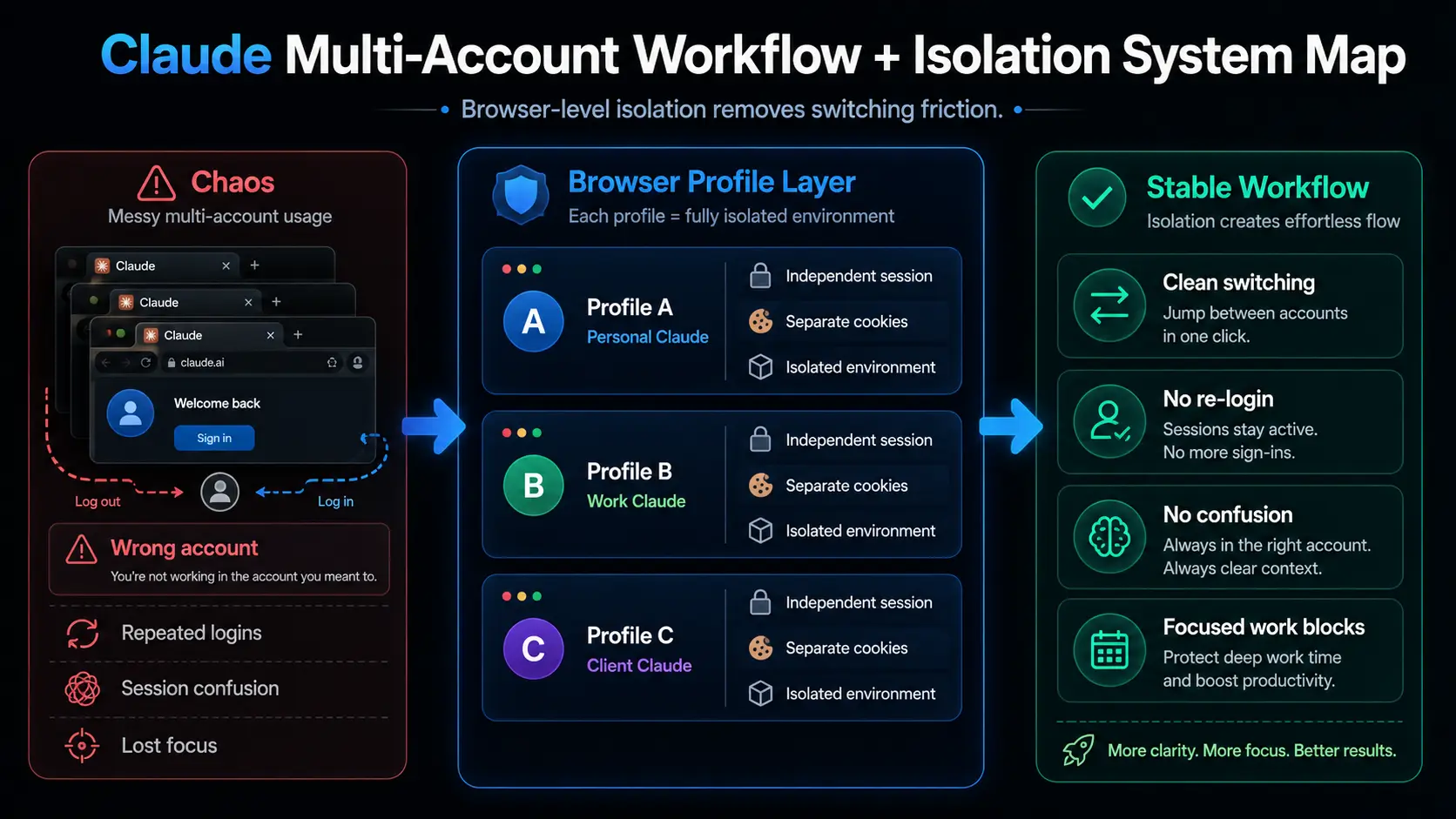
The second method is using separate browser profiles. For accounts tied to different emails, this is the most reliable approach. Chrome or Edge profiles allow each Claude login to run in its own isolated environment. Each profile keeps its own cookies, sessions, and login state, so you can open one profile for work and another for personal use without interference. This approach is widely used because it keeps accounts cleanly separated and reduces accidental cross-login issues.
Common problems to avoid (session confusion, wrong-account usage)
Even with proper setup, users still run into workflow issues when managing multiple accounts. One common problem is opening the wrong account and not realizing it until halfway through a conversation or project. This can lead to wasted time and inconsistent outputs.
Another issue is context mixing. When multiple accounts are used in the same browser profile, chat history or project references can become confusing, especially if you are switching between client work and personal tasks frequently. This often forces users to rebuild context from scratch after noticing they were in the wrong account.
A simple but important habit is to always check which account is currently active before starting a new conversation or project. This small step prevents most switching-related mistakes and keeps workflows predictable.
What to do when you hit usage limits instead of creating more accounts
When you reach usage limits, the most important step is to avoid reacting by creating additional accounts. Instead, go to Settings and check the Usage section to understand your reset timing. Many users find that their usage resets within a few hours, depending on their plan.
If you are on a plan with session-based limits, waiting for the reset window is often the simplest solution. In some cases, enabling Usage Credits (if available on your plan) can help extend capacity without changing accounts. If you consistently hit limits during your workflow, upgrading to a higher tier such as Pro or Max is usually a more stable long-term option.
It is worth noting that repeated account creation during high-pressure moments has led to negative outcomes for some users, especially when systems detect unusual patterns. Taking a structured approach to usage limits is safer and more sustainable than trying to work around them.
After setting up accounts and understanding switching challenges, the next step is building a more stable workflow at the browser level. A structured approach for teams usually starts with separating environments before anything else. This is where you can manage multiple claude accounts, reduce friction from multiple Claude accounts without logging out, and organize Claude accounts in different browser profiles in a more controlled way. While Claude’s own rules, usage limits, and Team or Enterprise permissions are still handled inside Anthropic’s system, the browser layer helps you keep sessions structured and predictable.
Run Each Claude Account in Its Own Isolated Browser Profile
Imagine you are a freelancer managing three client Claude workspaces at the same time. One client is for content writing, another is for research-heavy tasks, and a third is for marketing strategy. Without isolation, sessions can easily overlap. You might open the wrong tab, reuse the wrong prompt, or accidentally continue a conversation in the wrong client context. Even small mistakes like that can lead to confusion, inconsistent outputs, or client-facing errors.
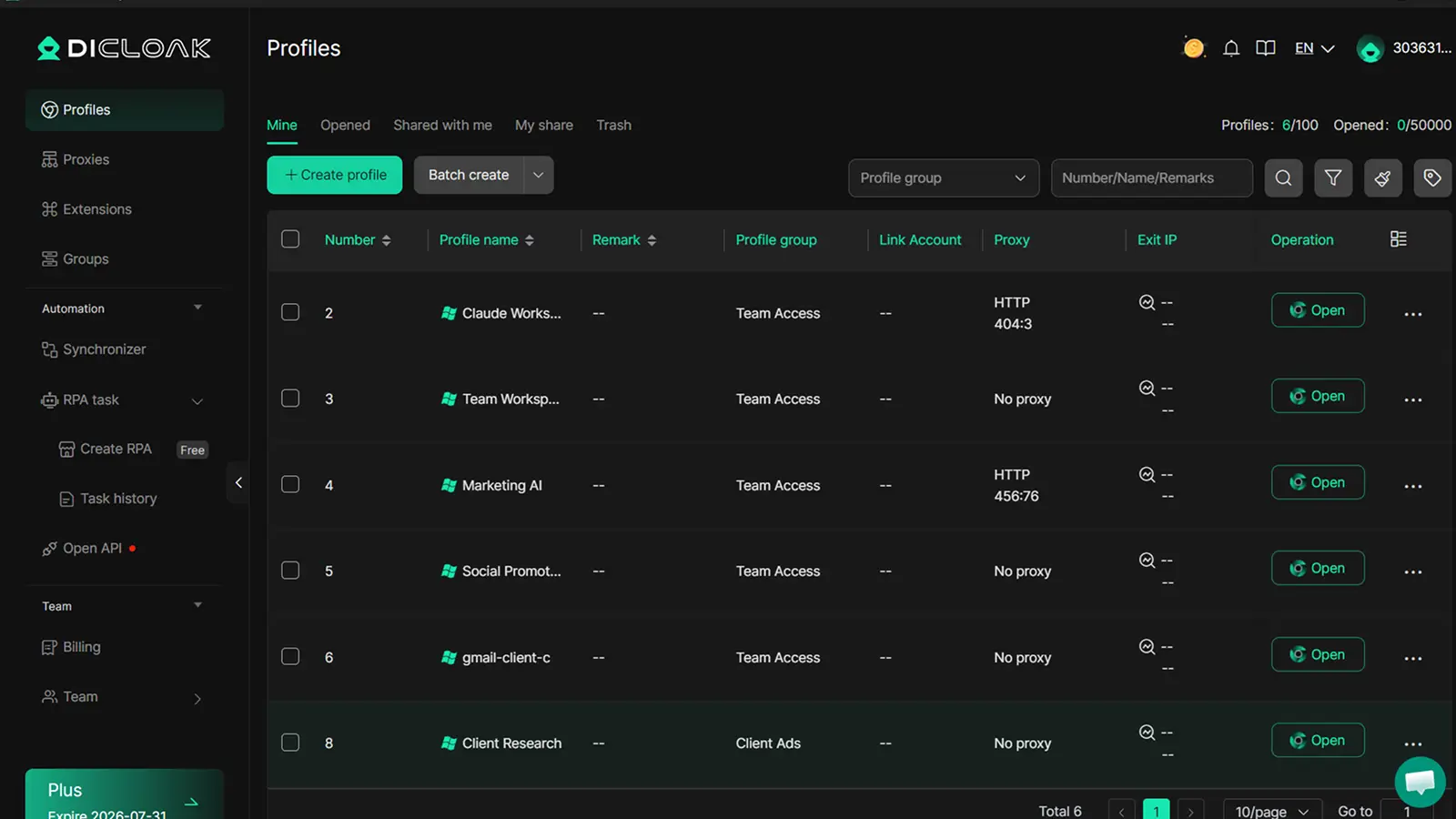
With DICloak, you can create a separate browser Profile for each Claude account. Each Profile runs in its own isolated environment with a unique fingerprint, independent cookies, and a dedicated login state. One client’s Claude session never interferes with another, even when everything runs on the same device. From your perspective, each Profile feels like a separate browser completely dedicated to one account.
This is especially useful when you switch quickly between tasks. You are not mentally checking which account is active—you are simply opening the correct Profile and working immediately, with no risk of mixing personal research with client deliverables or sending a prompt from the wrong account.
Switch Between Accounts Without Logging Out
In a typical workday, you might start with your personal Claude account for brainstorming, move to a client account for content generation, and then switch back to work tasks in a team workspace. Normally, this means logging out and logging back in multiple times, which breaks focus and wastes time. It also increases the chance of landing in the wrong account during fast switching.
With DICloak, switching means opening a different Profile instead of logging out. Each Profile is already authenticated, so your accounts are ready the moment you open them. For example, you can finish writing a draft in a client workspace, close that Profile, and immediately open another Profile for internal team analysis without any re-login steps. Even if you switch ten times in a day, the workflow stays smooth and predictable.
This is what multiple Claude accounts without logging out looks like in practice. It also saves small but frequent interruptions, like re-entering verification codes, waiting for session reloads, or accidentally refreshing a page and losing your current context.
Manage Team Access With Profile Sharing and Member Permissions
Now imagine you are a team lead working with a contractor on a short-term client project. You need them to access a specific Claude workspace, but you do not want to share your main account password or expose other client environments.
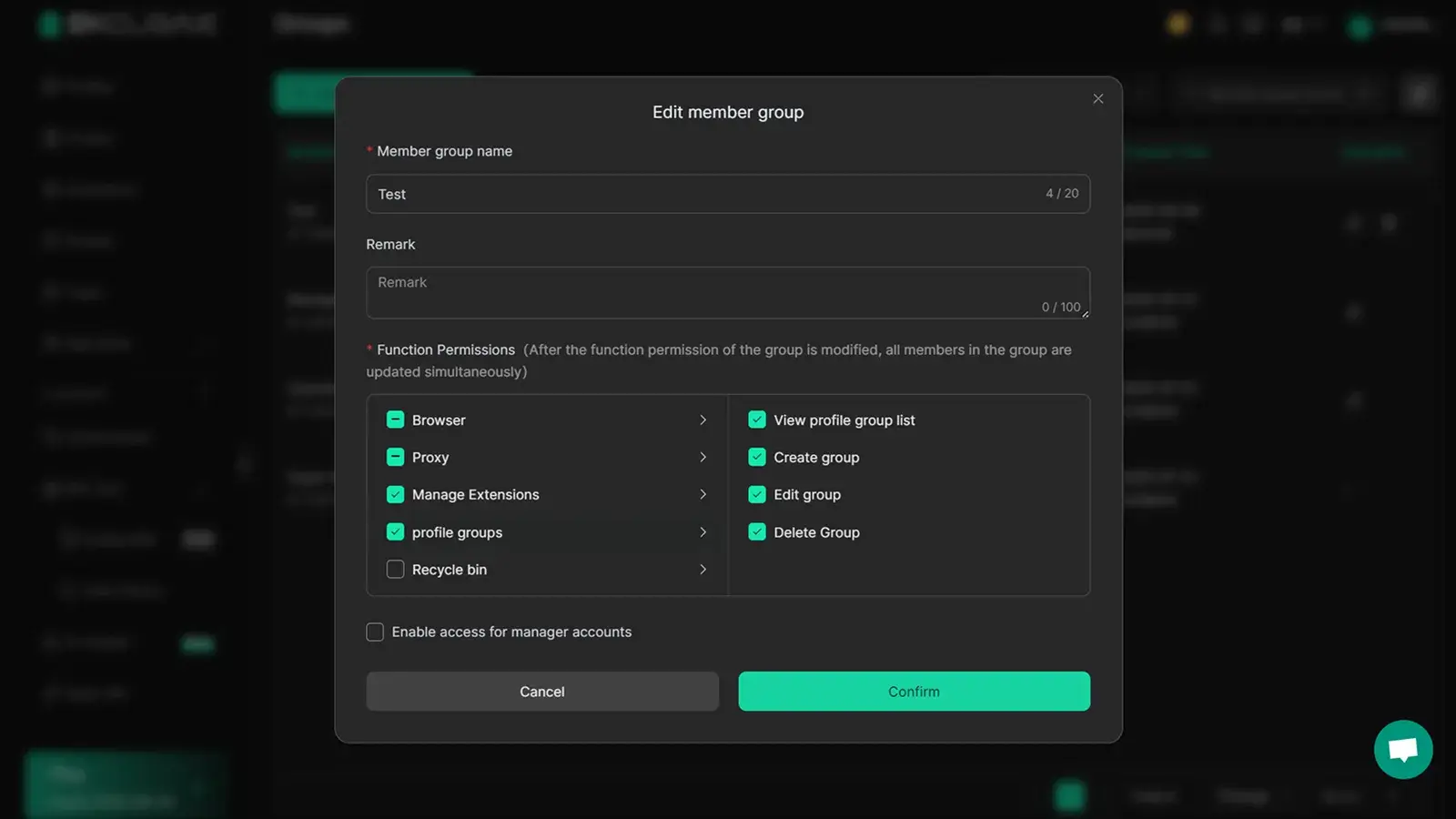
With DICloak, you can share a specific browser Profile with that contractor. They open it and immediately land inside the correct Claude workspace, already logged in and ready to work. There is no setup process, no credential exchange, and no need to configure anything on their side. From their perspective, it feels like the workspace is already fully prepared and waiting for them, so they can start working immediately without onboarding delays.
You can also control access through permissions. When the project ends, you can revoke that Profile without affecting other team members or disrupting other client workspaces. This makes collaboration cleaner and more controlled, especially when working with multiple contractors or short-term partners across different Claude accounts.
FAQs about multiple claude accounts
How to run two different Claude accounts?
To how to run two different Claude accounts, the simplest way is to use separate browser profiles or different browsers. Each profile keeps its own login, cookies, and session, so accounts do not interfere with each other. You can also log out and switch accounts manually, but this is slower and increases the chance of mistakes. Most users prefer browser separation because it keeps work, personal, and client contexts clean and easier to manage.
Can I use two Claude accounts on the same computer?
Yes, you can use multiple Claude accounts on the same computer. The key is separation. Use different browser profiles or browsers so each account stays in its own session. This prevents login conflicts and mixing of conversations. Many freelancers and teams use this setup to handle personal, work, and client tasks on one device without switching issues or losing track of which account is active.
Does Claude ban multiple accounts?
Whether does Claude ban multiple accounts depends on usage patterns. Having multiple accounts for legitimate needs like personal and work separation is generally fine. However, creating multiple accounts to bypass system limits or restrictions may trigger risk checks. Platforms usually focus on behavior rather than account count. Consistent, transparent usage across clearly defined purposes is safer than rapidly creating new accounts under pressure.
Can I use one Claude account for multiple businesses?
Yes, one Claude account can support multiple businesses, especially for freelancers or small operators. However, all projects, chats, and outputs stay in one workspace. As usage grows, it becomes harder to separate client contexts clearly. This can lead to confusion or accidental mixing of work. Many users eventually prefer structured separation once they manage multiple clients or need clearer project boundaries.
How to switch between Claude accounts safely?
The safest method is to use separate browser profiles for each account or rely on built-in workspace switching when available. Avoid frequent logins and logouts, as this increases errors like using the wrong account. Always check which account is active before starting work. A structured setup helps reduce confusion and keeps personal, work, and client environments clearly separated during daily use.
Managing multiple Claude accounts works best when you keep each context clear, separate, and easy to switch between. Instead of mixing personal, work, and client usage in one place, structured browser Profiles help you stay organized and avoid unnecessary confusion.
DICloak helps you organize browser Profiles, separate Claude accounts cleanly, and reduce session mix-ups when you work across different projects or teams. Try DICloak for Free.
 Web Proxy Tools
 Free Tools
 Cookie Plugin
 UA Generator
 MAC Address Generator
 IP Generator
 IP Address List
 2FA Code Generator
 World Clock
 Anonymous Check
 WebRTC Leak Test
 UUID Generator
 Free Web Proxy Site
 Proxy Checker
 FB Ad Checker
 AI Web Scraping
 Free SMM Tools
 Twitter Shadowban Checker
 Instagram Name Checker
 UTM Generator
 Username Generator
 AI Hashtag Generator
 LinkedIn Headline Generator
 Social Media Image Resizer