If your team uses ChatPDF for reports, research, contracts, or client documents, sooner or later someone else may need access to the same work. At that point, the question is no longer just how to send a PDF. You may need to share a ChatPDF account with teams, keep the existing login session, or let another teammate continue from the same workspace.
ChatPDF offers its own sharing options, but they do not solve every team workflow in the same way. This guide explains what ChatPDF Free and Plus actually support, the practical ways teams can share access, and when using a shared browser Profile with an antidetect browser like DICloak may make more sense than passing the account password around.
Can You Share a ChatPDF Account with Your Team?
Yes, teams can share work from ChatPDF, but its built-in sharing is mainly designed for specific documents rather than full account access. You can create a link for a PDF, send it to a teammate, and manage or revoke that access later. The person opening the shared document can view the PDF, but they do not get access to your private chat or the rest of your ChatPDF account.
For many teams, that is enough. For example, if an analyst uses ChatPDF to review a client report and a manager only needs to read the source document, sharing that PDF is much simpler than giving the manager access to the whole account. The situation changes when a teammate needs to continue work inside the existing ChatPDF account, use other uploaded files, or pick up an ongoing research workflow.
This distinction matters if you want to share a ChatPDF account with teams rather than simply share one PDF. A document link gives someone access to selected content; it does not make that person another user of your full ChatPDF account. If several teammates need the same account environment instead, the next questions are whether ChatPDF's current plans support that workflow and what its account-sharing rules actually allow.
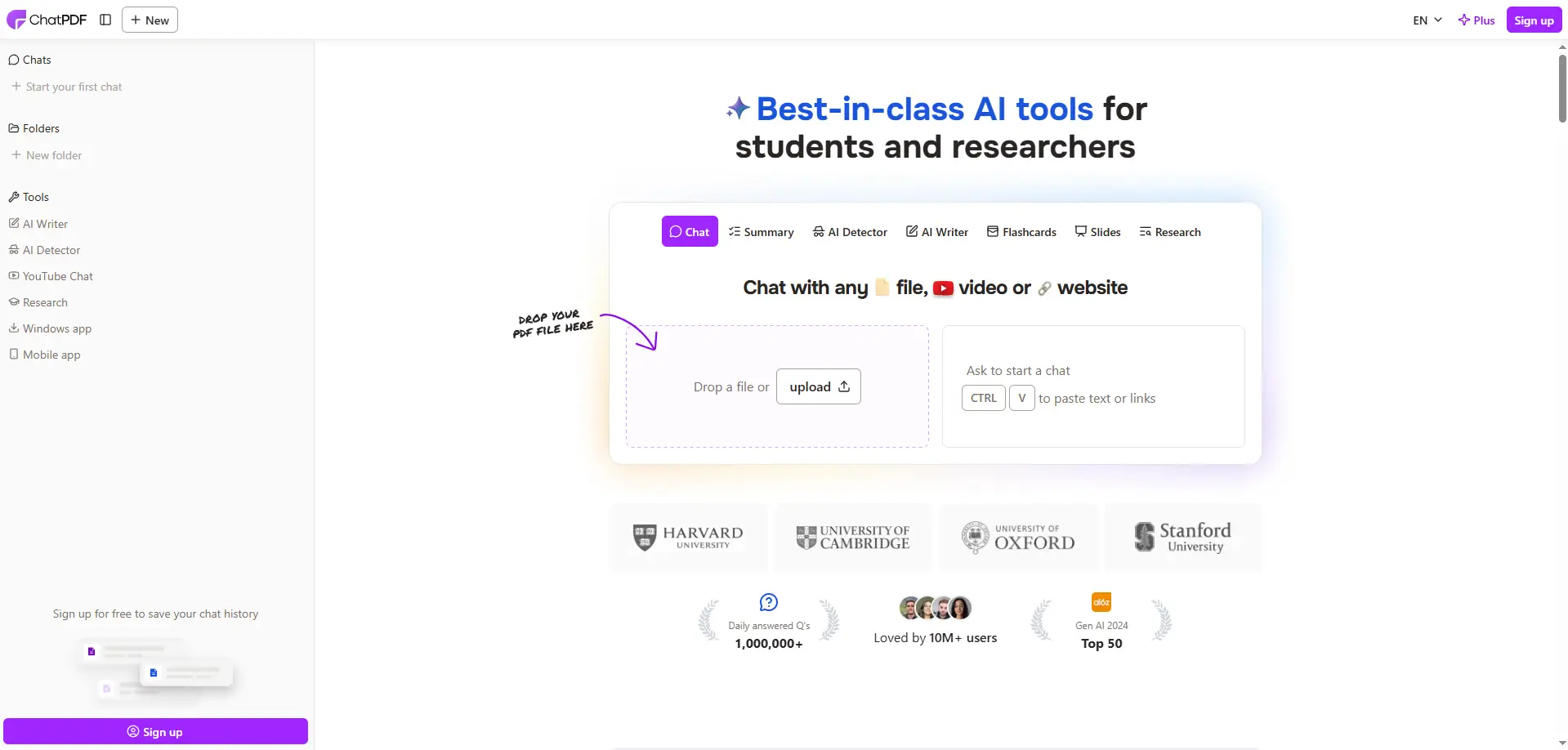
What Do ChatPDF Pricing and Account-Sharing Rules Mean for Teams?
ChatPDF Plus gives one account much more room to work with PDFs, but it should not be treated as a team subscription. For teams, the bigger question is not only how many documents the plan can handle, but whether several people need their own access to the same workspace.
What Does ChatPDF Free vs Plus Actually Change?
The Free plan is better suited to light or occasional use, while Plus removes many of the limits that become noticeable when someone works with PDFs every day. ChatPDF Plus currently includes unlimited PDFs and questions, up to 2,000 pages per PDF, up to 50 PDFs per folder, and access to a higher-quality model. ChatPDF Plus costs £10.99 per month in the UK, or £6.58 per month with annual billing. The yearly option is 40% cheaper, though pricing may vary by region. For example, if one analyst reviews several reports every week, Plus can make sense because the main problem is usage volume. But the situation is different when a project manager, analyst, and freelancer all need to work from the same account. More PDF capacity solves a usage problem; it does not create separate users for a team.
Does ChatPDF Have a Native Team or Multi-User Plan?
ChatPDF currently focuses on individual Free and Plus accounts rather than a traditional seat-based team plan with separate member logins, roles, and admin controls. Its built-in sharing is more useful when someone needs access to a specific document, not when several coworkers need to work as separate users inside the same paid account.
This difference matters in everyday team work. If a manager only needs to review one report, sharing that document may already solve the problem. But if several teammates need the same saved files, ongoing work, and paid account environment, upgrading to Plus alone does not give each person their own identity or permissions.
What Are the Ways to Share ChatPDF with a Team?
Teams usually have three practical options: share a specific PDF, give trusted coworkers the same ChatPDF login, or let them work from the same browser Profile through an antidetect browser. The right choice depends on whether the teammate needs one document or access to the existing ChatPDF account and its working environment.
Share a PDF with ChatPDF's Native Link
If a teammate only needs one document, ChatPDF's own sharing option is usually the simplest choice. You can send a link to that PDF instead of giving someone access to the whole account. This works well when an analyst wants a manager to review a report, or when a project member only needs one source file rather than every document saved in the account.
The limit is scope. A document link is useful for sharing selected content, but it does not turn the recipient into another user of your full ChatPDF account. If the job can be completed with one shared PDF, there is little reason to give account-level access.
Give Teammates the Same ChatPDF Login
Sharing the same email and password gives teammates direct access to the account, so it may seem like the fastest option for a small trusted team. It can make sense when two coworkers need the same saved files and ongoing work, but everyone is also using the same account identity. That means access is not separated by a person, and removing one teammate may require changing credentials or adjusting access for everyone else.
The real issue is not simply that a password is being shared. It is that one shared login gives several people the same level of account access with little separation between them. For a short handoff between trusted coworkers, that may be manageable, but it becomes harder to organize as more people need access.
Use an Antidetect Browser
When teammates need the same existing ChatPDF account but you do not want password sharing to be the normal handoff method, a shared browser Profile is another option. With an antidetect browser like DICloak, a team can keep the logged-in ChatPDF session inside one browser Profile and share access to that Profile with selected members. Team permissions can then be used to control which coworkers are allowed to open it.
This approach fits a different use case from ChatPDF's native link. For example, if one researcher has already logged in, uploaded several documents, and another trusted teammate needs to continue working in that same account environment, sharing the browser Profile can be more practical than starting again from a fresh login. An antidetect browser is most relevant when the team needs continued access to the same ChatPDF account, not when a simple document link already solves the task.
| Method |
Best for |
Full account access |
| ChatPDF native link |
Sharing one PDF |
No |
| Same ChatPDF login |
Small trusted teams using one account |
Yes |
| Shared browser Profile |
Trusted teammates continuing the same account session |
Yes |
Why Use DICloak to Share a ChatPDF Account with Teams?
If trusted teammates need continued access to the same ChatPDF account, sharing a browser profile can be easier to manage than passing the login around. With DICloak Antidetect Browser, teams can keep the active ChatPDF session in one Profile and control who can access it.
This is most useful when the account already contains files, chats, or ongoing work that another teammate needs to continue. In that situation, an antidetect browser is useful because the team is managing access to the existing account environment, not just sharing a single document. The main advantages are:
- Keep the existing ChatPDF session together. With profile sharing, an authorized teammate can open the same assigned Profile without making the raw password the normal handoff method.
- Control who gets access. Team permissions help limit the Profile to the coworkers who actually need it, which is useful for temporary staff or project-based access.
- Manage shared use more clearly. Operation logs can help teams review activity around the shared Profile and remove access when someone leaves the project.
Using an antidetect browser like DICloak makes more sense when the team needs continued access to the same existing ChatPDF account and wants more control over that access.
How to Share a ChatPDF Account with Your Team Using DICloak
If your team needs to keep working from the same existing ChatPDF account, you can place the signed-in session inside one dedicated browser Profile and share that Profile with selected teammates. With DICloak, the Profile is created once and can then be assigned to the people who need access.
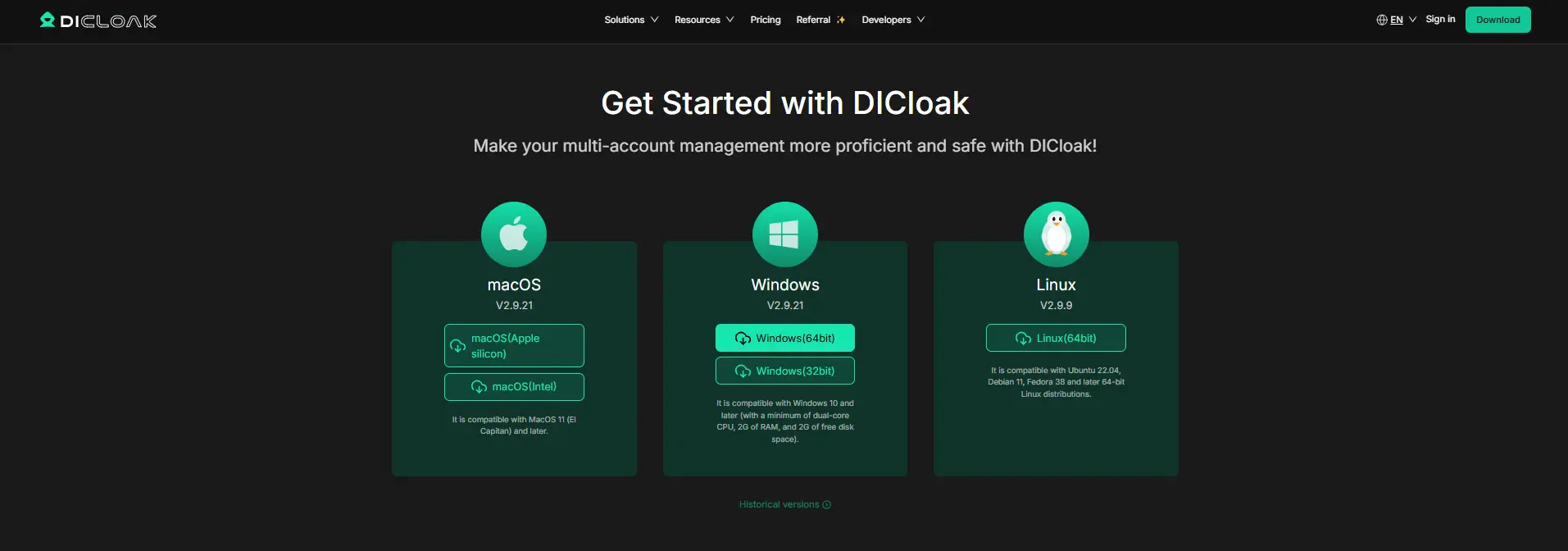
Step 1: Install DICloak and Choose a Team Plan
Download DICloak, create an account, and install the desktop app. Choose a plan based mainly on how many teammates need access and how many browser Profiles your team plans to manage.
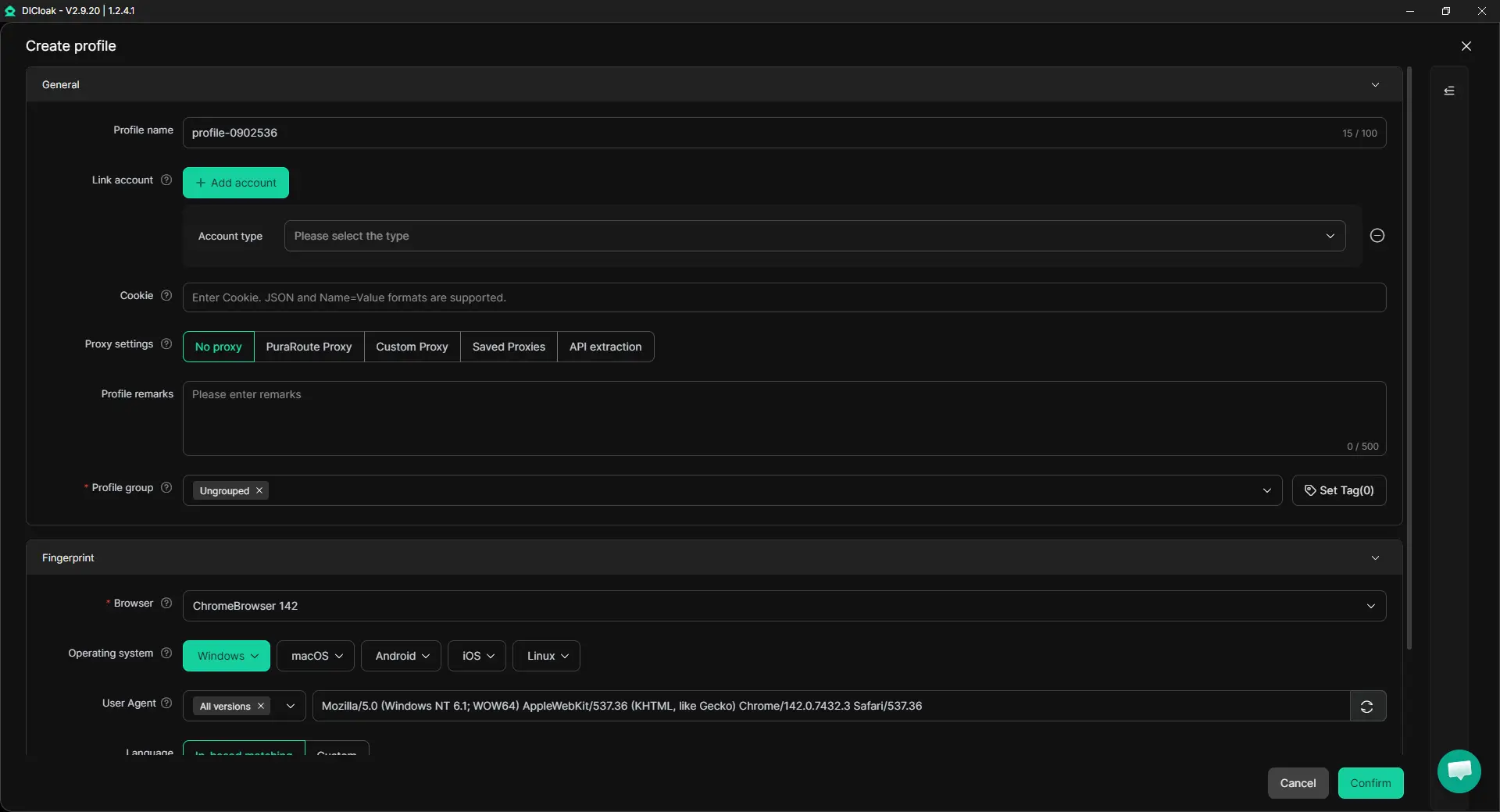
Step 2: Create a Dedicated ChatPDF Browser Profile
Create one browser Profile for the ChatPDF account you want to share. The Profile keeps the login state, cookies, and browser settings together. If needed, you can use your own proxy or choose a Static IP or Dynamic IP inside DICloak. For shared access, features like Multiple Sessions and Hide Password can also help teams manage the account without exposing saved credentials unnecessarily.
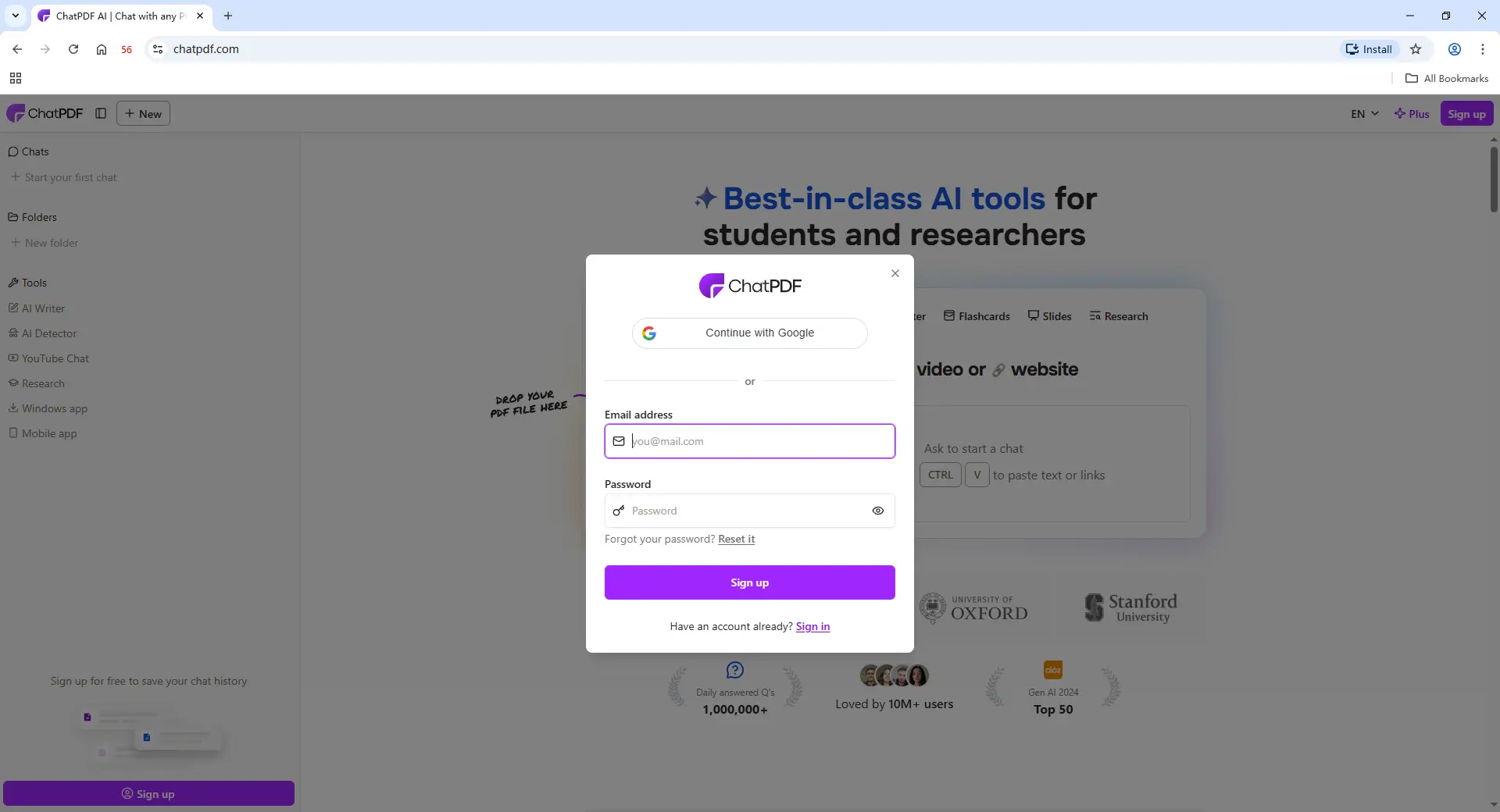
Step 3: Sign In to ChatPDF
Open the new Profile and sign in to the ChatPDF account your team uses. Once the session is saved in that Profile, another authorized teammate can continue from the same logged-in environment.
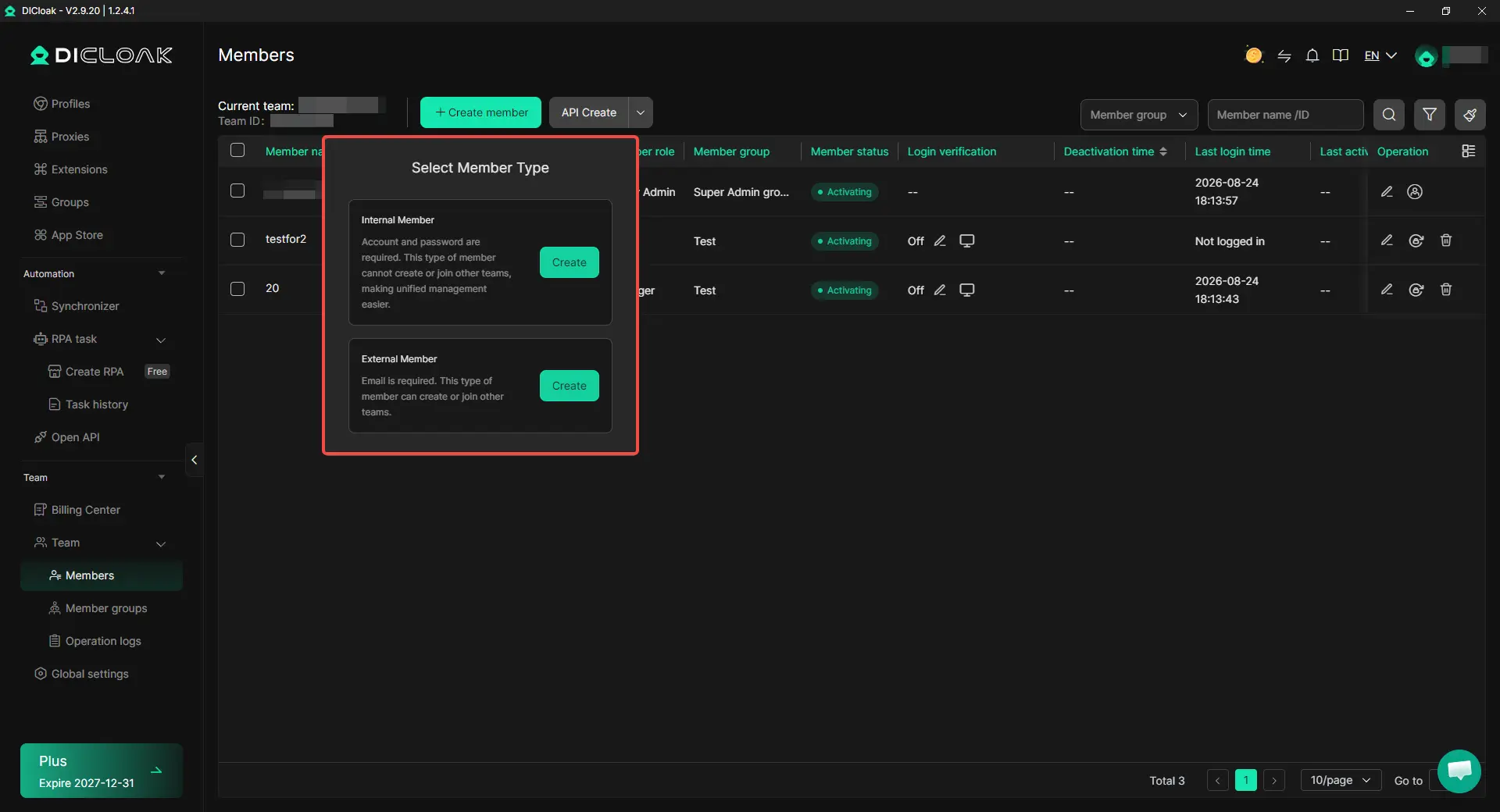
Step 4: Add Team Members and Share the Profile
Invite the teammates who need access and assign the ChatPDF Profile through DICloak's team and Profile-sharing controls. Keep access limited to the people who actually work with that account.
Step 5: Open the Shared Profile and Continue the Work
Once access is assigned, a teammate can open the shared Profile from their own DICloak account and continue using the existing ChatPDF account. This is useful when work moves between people and the team wants to keep the same browser session instead of setting it up again for every handoff.

As roles change, Profile access can be updated or removed for teammates who no longer need the account. For teams that need the same ChatPDF account rather than just one shared PDF, a shared browser Profile keeps the login session and team access in one place.
Frequently Asked Questions About Sharing a ChatPDF Account with Teams
Can multiple team members use the same ChatPDF account?
Several trusted teammates may need access to the same ChatPDF account when they are working with the same files or ongoing research, but one shared login does not give each person a separate user identity or permission level. If the team only needs to share a document, a ChatPDF share link is usually simpler. If teammates need to continue working inside the same existing account, a managed shared browser Profile may be easier to organize than passing the login around.
Can I share ChatPDF with a teammate without giving them my password?
Yes. If your teammate only needs a specific PDF, ChatPDF's native sharing option is the simplest choice because it does not require full account access. When a trusted teammate needs the existing logged-in ChatPDF environment instead, an antidetect browser like DICloak can be used to share the browser Profile while keeping the saved login inside that Profile rather than making the password the normal handoff method.
Does ChatPDF Plus include team members or separate user seats?
ChatPDF Plus increases how much one account can do, but it should not be treated as a seat-based team plan. Teams that need separate logins, individual permissions, and member-level access management should distinguish those needs from simply upgrading the usage limits of one ChatPDF account.
What is the easiest way to give a freelancer temporary access to a ChatPDF account?
If the freelancer only needs one document, send the document instead of giving account-level access. If they need to continue work inside the existing ChatPDF account, sharing a dedicated browser Profile with DICloak Antidetect Browser can make temporary access easier to manage because the Profile can be assigned to that person and their access can be removed when the project ends.
Can you remove a teammate's access without changing the ChatPDF account itself?
Yes, if the team is sharing access through a managed browser Profile instead of giving everyone the same credentials. With DICloak Antidetect Browser, access to the shared ChatPDF Profile can be removed for a specific teammate when a project ends or responsibilities change, while the remaining team can keep using the same account environment.
Conclusion
Teams can share a ChatPDF account with teams in several ways, but the right method depends on what coworkers actually need. If someone only needs one PDF, ChatPDF's native sharing is usually enough. If trusted teammates need to continue working inside the same existing account, sharing the login directly is possible in practice but gives everyone the same level of access, while a shared browser Profile can make that access easier to manage.
The simplest rule is to match the sharing method to the level of access required. Use ChatPDF's own link for document-level sharing, and consider a managed shared Profile with an antidetect browser like DICloak when teammates need the same logged-in ChatPDF environment, shared session, and controlled team access.
 Web Proxy Tools
 Free Tools
 Cookie Plugin
 UA Generator
 MAC Address Generator
 IP Generator
 IP Address List
 2FA Code Generator
 World Clock
 Anonymous Check
 WebRTC Leak Test
 UUID Generator
 Free Web Proxy Site
 Proxy Checker
 FB Ad Checker
 AI Web Scraping
 Free SMM Tools
 Twitter Shadowban Checker
 Instagram Name Checker
 UTM Generator
 Username Generator
 AI Hashtag Generator
 LinkedIn Headline Generator
 Social Media Image Resizer