You set up your browser, import X cookies, and expect your session to work, only to see login prompts or errors instead. X cookies not working after import is a common issue that hits right when you need fast access, but the session just won’t restore. Sometimes the cookie file imports without any error, but you still get stuck with "X cookies import failed" or "X session not restored after cookie import" on the next page load. Even worse, the account can show as invalid, or the platform blocks the session as soon as you try to refresh.
A lot of people assume the cookie file is the problem, but the real headache is often hidden in mismatched browser fingerprints, missing permission fields, or platform-side security checks that kill imported sessions before you even notice. If you only focus on the cookie format, you risk missing deeper issues, especially when running multiple accounts or switching devices.
What you really need is a practical checklist for getting imported cookies to work reliably, and a way to spot failures before you waste hours on broken sessions. This guide walks through the main causes, common mistakes, and safer workflows for multi-account setups. Next up: the real reasons imported cookies fail.
What Usually Causes X Cookies to Fail After Import?
If your imported X cookies don’t restore your session, the problem is almost never “just a bad file.” Most failures come from mismatched browser setups, incomplete cookie exports, or platform security checks that spot something out of place and block the session right away.
Browser and Profile Mismatches
Even if the cookie file looks fine, switching browsers or using a different device profile can break the session. X cookies often tie to exact browser versions or environment fingerprints. Change the fingerprint or user agent, and the platform may reject the cookie silently, no login, no error, just a stuck session.
Corrupted or Incomplete Cookie Files
A lot of cookie imports fail because the export was missing fields, or the import tool didn’t handle the file right. For example, exporting from one browser extension and importing into another can drop critical fields like “SameSite” or “httpOnly.” If you edit the file manually or move it between platforms, you might break the JSON structure or lose key attributes. In practice, a single missing bracket or a field mismatch can stop the whole session from loading, but the browser usually won’t tell you exactly what’s wrong. Instead, you’ll see one of two things: either the account page keeps redirecting to login, or your session looks active but actions fail, like sending messages or loading account data. This kind of silent failure is common when trying to use cookies across different tools or after hand-editing.
Platform Security and Device Checks
- X checks if the login comes from an unknown device or location.
- Any mismatch between cookie data and device fingerprint can trigger a forced logout or verification prompt.
- Cookie sessions missing anti-CSRF tokens or recent activity stamps are quickly flagged as suspicious.
If your session fails right after import, don’t just blame the file. The real blocker is often a mismatch that the platform’s backend catches, sometimes before you even load the page.
Spotting which of these issues you’re facing is the next critical step. The section ahead covers how to check if your imported X cookies are actually valid, so you can stop guessing and start fixing the real problem.
How to Check If Your Imported X Cookies Are Valid
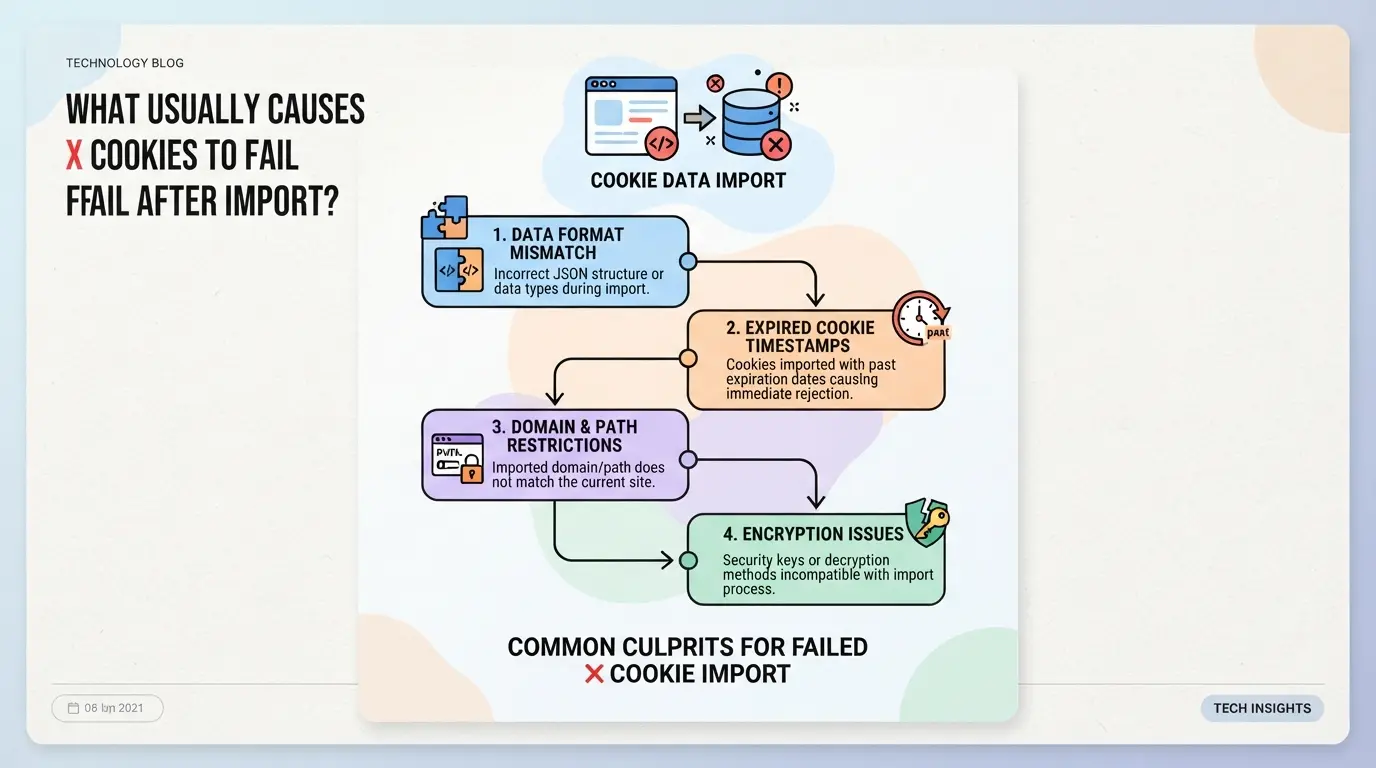
If you just imported X cookies and the session isn’t working, the fastest way to spot the problem is to check file structure, expiration, and test in a clean profile. This lets you separate a cookie issue from platform-side blocks or profile contamination.
Inspecting Cookie File Structure
Every X cookie import depends on the right format. JSON and Netscape formats are not interchangeable, most platforms want one or the other. For X sessions, you need fields like name, value, domain, path, expires, and httpOnly. Skip these, and the platform ignores your cookies or throws a parsing error. If you see a blank session or a login page after import, structure is the first thing to check.
Checking for Expired or Invalid Cookies
- Check if any
expires field is dated in the past, expired cookies are useless.
- Look for missing
auth_token or other platform-required cookies; missing these kills session restore.
- Scan for blank
value fields, these act as deleted cookies and break the session.
Testing Import in a Clean Profile
Importing into a fresh profile helps rule out old session leftovers as the cause. If your cookies are valid but you use a profile with stale cache or conflicting cookies, X will often ignore the new session.
- Create a new, empty browser profile before importing cookies.
- Clear all site data for X before the import, skip this, and hidden session data can override your cookies.
- If the session still fails on a clean profile, the issue is almost always the cookies themselves or a platform security block.
If your imported cookies pass all these checks but still don’t restore your session, the next step is to consider platform security triggers. That’s where most users hit a wall, platform blocks can look just like a cookie problem but need a different fix.
Why Platform Security Blocks Imported Cookies (and How to Respond)
Platforms block imported cookies mainly to stop account theft and bot activity. The most common trigger isn’t a broken file, it’s a mismatch between your session details and what the platform expects. If your imported cookies don’t match the original device, browser fingerprint, or IP, the platform often flags the session and asks for extra verification or just blocks access outright. Knowing how these checks work means you can respond faster when your X cookies not working after import.
Device and Location Mismatch Detection
Platforms use security checks to spot suspicious logins. Here’s what usually sets off alerts:
- IP changes: Logging in from a new country or region triggers location-based verification.
- Device fingerprint mismatch: Switching devices or browsers creates a fingerprint gap, asking for confirmation.
- Time gap: Trying to restore a session days or weeks after the cookie export makes the session look stale.
If you see a verification prompt right after import, the platform is reacting to one of these mismatches.
Handling Verification Challenges
When the platform blocks your imported session or asks for verification, the best move is to handle the request directly, don’t try to brute force past it or keep re-importing the same cookies. For example, if the platform asks for a phone code or email confirmation, respond using the original recovery method tied to the account. If you don’t have access to the recovery channel, pause and reassess. Trying to guess codes or loop through reset links usually leads to a lockout or more severe restrictions.
A common failure mode: importing cookies from a seller and getting hit with a device verification prompt, but not having the linked phone. If you keep retrying, the platform can escalate to full account suspension. The strongest practical response is to prepare for verification before import, have the recovery channel ready and expect a challenge if your device or IP changes. This lowers the risk of permanent lockout.
If you do get blocked, review what triggered the prompt. Was it an IP mismatch, browser change, or time gap? Fixing the root cause, like using a matching proxy or device fingerprint, can help you get through verification, but only if you have the original recovery info.
Next up: practical steps for fixing imported cookie failures, including how to recover sessions without risking account bans.
Step-by-Step: Fixing X Cookies Not Working After Import
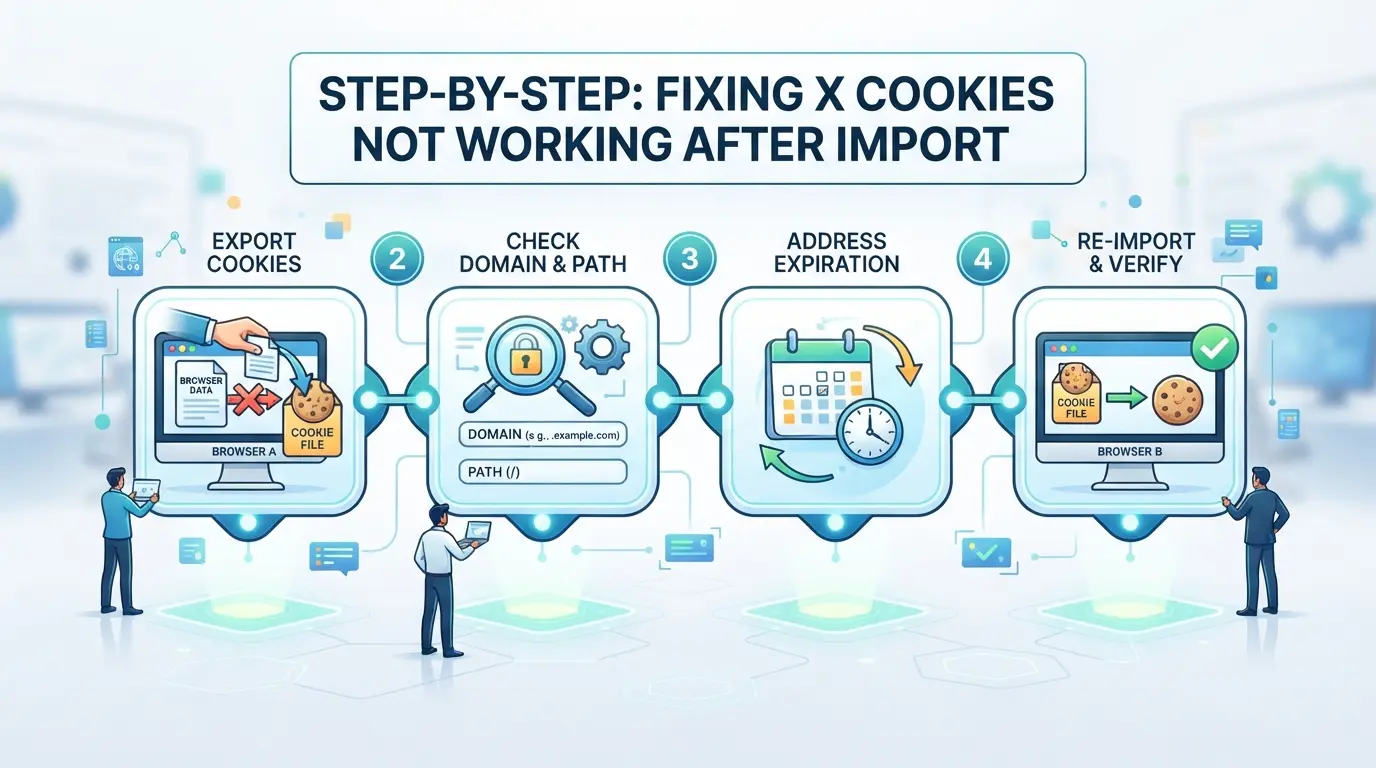
Fixing X cookies that don’t work after import comes down to matching the environment, not just the file. If you skip even one of the key steps below, you’ll either get stuck on login, see endless verification loops, or break all sessions for that account. Here’s the practical sequence that solves most “X cookies not working after import” issues for account operators.
Import Cookies Using the Correct Format
- Pick a tool that matches X’s accepted cookie format, export from Chrome as JSON if possible.
- Double-check the cookie file: missing fields or wrong delimiters kill the session instantly.
- Run a quick import to a test profile. If the session expires on first load, the file is likely corrupted or in the wrong structure.
Check and Match Browser Fingerprint Settings
- Set the user agent to match the original device, X checks for even minor mismatches.
- Align OS and device type (Windows, Mac, mobile) for the same reason.
- If the fingerprint is off, X treats the session as suspicious and blocks the cookies, even if the file is perfect.
Configure a Consistent Proxy or Network Environment
- Use a proxy that matches the last login’s country and IP type.
- Test the proxy before importing, if it drops or leaks location, X will ask for verification or log you out.
- Avoid public proxies; platform security often flags reused or datacenter IPs.
Test Login and Respond to Any Verification Prompts
- Load X with the imported cookies. If you see a login page instead of your feed, the import failed, start over from step one.
- If prompted for verification (SMS, email, or captcha), complete it on the spot.
- Do not refresh or switch tabs, each failed attempt increases the chance of a lock or cooldown.
Prepare a Clean Browser Profile
- Start with a new, empty browser profile. Old data or leftover cache will break cookie imports.
- Import cookies only after the profile is created.
- Never mix cookies from different accounts, cross-contamination triggers instant invalidation.
If you follow this exact sequence, you catch most hidden mismatches before X blocks your session. The real shortcut is always in controlling browser, network, and profile variables, not just re-importing files. Up next: how teams running multiple X accounts avoid cross-account leaks and keep sessions stable at scale.
Managing Multiple X Accounts in DICloak: Isolated Profiles and Proxy Setup
Fixing a single session is one thing, but handling multiple X accounts day-to-day is where technical mistakes pile up. After troubleshooting cookie import failures, most teams want a setup that keeps accounts apart and reduces the chance of session breaks or forced logins. The usual problem? One small mix-up in browser storage or IP can cause “X cookies not working after import” to come back with a new account, wasting hours and risking more lockouts. This is where using DICloak for profile and proxy isolation fits real workflows.
Using Isolated Browser Profiles and Fingerprint Configuration for Each Account
Operators juggling several platform accounts can’t afford to let browser storage or fingerprints overlap. In DICloak, users create a separate browser profile for each account, keeping cookies, cache, and other data walled off. Each profile can be configured with its own User Agent, time zone, language, screen resolution, and other fingerprint signals. For example, a team member sets up a new DICloak profile, matches the interface language and timezone to the account’s previous session, and confirms that content language and geolocation settings are consistent. This sharply reduces cross-account contamination, the most common hidden cause when imported sessions fail. The scope stays at the browser-profile layer; it does not change the linked X account or guarantee platform acceptance.

Assigning User-Owned Proxies to Profiles for Network Consistency
Many platforms treat network fingerprints as another layer of account identity, so operators often need to keep each account’s browser profile tied to its usual network location. DICloak profiles support user-provided proxies, letting teams assign, edit, and test a proxy for each profile before starting a session. For example, an operator enters a custom SOCKS5 proxy for one account, checks the exit IP, country, and time zone, and repeats with a different proxy for another profile. The platform never sees two accounts from the same IP in the same window, unless the user configures it that way. It’s up to the operator to select, test, and maintain their own proxy inventory; DICloak simply stores and applies the setup per profile. This step stays entirely at the profile-network layer and does not touch X platform authentication or session logic.

Rushing through profile or proxy setup usually leads straight to the next round of mistakes, often the ones that get overlooked until accounts start failing again.
Common Mistakes That Cause X Cookie Imports to Fail
Most "X cookies not working after import" errors come down to environment mismatches or missing data, not just a bad file. If you've already checked your proxy and browser settings, these are the mistakes that trip up even experienced users.
Mixing Cookies from Different Devices or Browsers
When you import cookies grabbed from another device or browser, the session often breaks right away. The platform uses device IDs, user-agent, and fingerprint data to spot mismatches. If you use the same cookies across multiple setups, expect logouts or forced re-verification fast. Always keep each account's cookies in the same browser and fingerprint environment.
Importing Expired or Incomplete Cookies
- Check if the cookie file has a recent "expires" timestamp (not in the past).
- Look for missing fields like "auth_token" or "sessionid", without these, login fails.
- Confirm the cookie isn't truncated, tiny files (under 1 KB) are often incomplete.
Ignoring Platform Security Signals
Platforms don't just read cookies, they scan for warning signs. Ignoring these cues leads to lockouts or flagged accounts.
- Watch for new device or location warnings after import, respond quickly or risk suspension.
- Don’t ignore forced password resets; they mean your import triggered a security event.
- If you see "unusual login" popups, stop and check your import method before retrying.
When Cookie Import Is Not Enough: Alternatives for Reliable X Account Access
If X cookies not working after import keeps happening, switching to a different method can save time and cut risk fast, especially when platform checks or device mismatches break every new session.
Manual Login and Session Handoff
| Method |
When to Use |
Main Risk |
| Manual Login |
New device, failed cookie import |
Human error, lockout |
| Session Handoff |
Trusted operator, high-value acc |
Session hijack, leak |
Manual login is usually safer when repeated cookie imports fail or the platform flags your device right away.
Using Automation Tools for Account Management
Automation can speed up logins and handle session creation, but breaks if the platform updates security or detects scripts. Use it only if you control both the device and the entry point, otherwise you risk mass lockouts.
Frequently Asked Questions About X cookies not working after import
Can I fix X cookies not working after import without re-exporting them?
Sometimes you can fix X cookies not working after import if the cookies are still valid and not expired or corrupted. Try clearing your browser cache or double-checking the cookie format. If the cookies have expired or are missing data, you must do a fresh export from the original device.
Do I need to match the original device and IP when importing X cookies?
Yes, you should match the original device, browser fingerprint, and IP address as closely as possible. Many platforms link cookies to a specific environment. If your device, browser, or location changes, the platform may block the session or require extra verification, causing X cookies import to fail.
Is it safe to use third-party tools to import X cookies?
Only use well-known, trusted tools to import cookies. Some third-party tools can corrupt the format or expose your private data. Always check reviews and community feedback before using any new tool. Avoid browser extensions or apps that ask for extra permissions unrelated to cookies.
Why do I get verification challenges after importing X cookies?
Platforms use security systems to track device and location changes. If the device, browser, or IP address is different from the original, you may get verification prompts like CAPTCHAs or email codes. This helps protect your account when X cookies are invalid after import or used on a new device.
Can I use the same X cookies on multiple devices or browsers?
You usually can't use the same cookies on different devices or browsers reliably. Session cookies often tie to the fingerprint, device, or network where they were created. If you import them elsewhere, the X session may not restore, or you might get logged out or flagged for review.
Consider testing alternative import methods or using dedicated tools to ensure your cookies are recognized and function correctly. Taking proactive steps now can help prevent future access issues and simplify your workflow. Try DICloak For Free
 Web Proxy Tools
 Free Tools
 Cookie Plugin
 UA Generator
 MAC Address Generator
 IP Generator
 IP Address List
 2FA Code Generator
 World Clock
 Anonymous Check
 WebRTC Leak Test
 UUID Generator
 Free Web Proxy Site
 Proxy Checker
 FB Ad Checker
 AI Web Scraping
 Free SMM Tools
 Twitter Shadowban Checker
 Instagram Name Checker
 UTM Generator
 Username Generator
 AI Hashtag Generator
 LinkedIn Headline Generator
 Social Media Image Resizer