If you’re asking why is ChatGPT not working, you’re not alone. Many users face sudden issues like slow loading, login errors, blank screens, or no responses at all. These problems can happen even when ChatGPT worked fine just moments ago. The good news is that most issues have clear causes and quick fixes. This guide breaks down the most common reasons ChatGPT stops working and shows you simple, practical steps to get it running again fast.
Why Is ChatGPT Not Working for Many Users?
When people ask why is ChatGPT not working, the answer can be many things. ChatGPT may be slow, fail to load, or not let you log in to chatgpt.com or ChatGPT free accounts. Sometimes, ChatGPT down errors happen for reasons you can fix fast. Other times, the problem is on the server side, and you just have to wait.
It matters to find the real cause early. If you know the correct issue, you can save time. For example, a bad internet link can block ChatGPT. Checking your Wi-Fi first, before trying other ideas, can make the tool work again fast. Other times, OpenAI (the maker of ChatGPT AI) has a temporary outage. For instance, in June 2025, users worldwide reported the service was down all day with error messages like “something went wrong,” because of a large outage that OpenAI confirmed on its status page.
If you jump into fixes without knowing the real problem, you might waste minutes on the wrong steps. A simple check of the ChatGPT login screen can tell you if the site is responding at all. If it keeps spinning or shows a blank page, the issue could be server-side. But if the login box appears and won’t accept your password, the problem might be your account or browser.
Getting the right start saves you time and stress. This is especially true if you are using ChatGPT Plus or a heavy project that cannot wait. Once you spot the pattern of the problem, the rest of the fixes in this guide will make sense, and you can go back to work with confidence.

Common Issues Leading to ChatGPT Malfunctions
When you still ask: why is ChatGPT not working, the cause often falls into a few big groups. Knowing these groups helps you fix the problem faster. Problems can happen on the server, your network, or the browser you use.
Server Issues
Server Outages
One common reason ChatGPT down happens is server outages. ChatGPT AI runs on servers owned by OpenAI. Sometimes these servers go offline for maintenance or due to errors. When that happens, chatgpt.com may not load at all. For example, in 2025 there were times when many users around the world saw errors like “Something went wrong” because the server was overloaded or under repair.
If the problem is on the server side, you might see messages that say the site is unavailable or don’t see anything on the screen after ChatGPT login. In these cases, refreshing the page won’t help. You need to check a status page or wait for OpenAI to fix the issue.
High Traffic and Performance Degradation
Sometimes servers are not completely down, but they slow down. This happens when too many people use the service at once. High demand can make ChatGPT free users wait longer or see delays in responses. Even ChatGPT Plus subscribers may notice a slowdown at peak times. This is different from a full outage but still affects how the AI works.
If ChatGPT is slow but not fully broken, the issue is likely performance, not a complete outage.
Network Problems
Internet Connectivity Issues
Your internet connection plays a big role in whether ChatGPT AI works. If Wi-Fi or mobile data is slow or unstable, ChatGPT might not load messages, or you may get errors saying a network problem occurred.
A good example: you open chatgpt.com, but nothing appears. You try other websites and they also load slowly — this means your internet might be the issue. Restarting your router or switching to another network often fixes this.
Regional Restrictions Affecting Access
Some countries or networks block or limit access to AI services like ChatGPT. This can make the site not load or stop you from using certain features even after you log in. In these cases, you might see a blank screen or a message about restricted content when you try to use ChatGPT login.
Trying a different network or checking local restrictions can help confirm if this is the issue.
Browser-Related Issues
Clearing Cache and Cookies
Your web browser saves data like images, cookies, and cached files. Sometimes this data becomes outdated or corrupt and can prevent chatgpt.com from loading correctly. For example, many users report that clearing the cache and cookies fixed loading problems or login issues when they saw an error after entering their password.
To fix this:
- Go to your browser settings
- Clear cache and cookies
- Then close and reopen the browser
This simple step often fixes common errors.
Browser Compatibility and Extensions
Some browsers or browser extensions can interfere with ChatGPT. Extensions like ad blockers or privacy tools may block scripts that the site needs to run. If ChatGPT does not load or you cannot get past the ChatGPT login screen, try turning off extensions or opening the site in a private window. Many users find that ChatGPT works well in browsers like Chrome, Firefox, or Safari when extensions are disabled.
Switching to another browser can quickly tell you if the problem is with your current setup.
Blocked Access to ChatGPT
Reasons for Being Blocked
ChatGPT may block access to protect users and the system. This often happens when you use a proxy, or shared network. Schools, offices, and public Wi-Fi can trigger security filters. Too many login attempts can also cause a temporary block.
For example, users sometimes see a block message even though is ChatGPT down is false. This means the service is up, but your access is limited.
Steps to Resolve Access Issues
Start simple. Turn off proxy tool. Refresh chatgpt.com. Try a different network, such as mobile data. Clearing browser cookies can also help.
If the block stays, contact support from the ChatGPT login page and explain what happened.
Login Problems
Common Login Issues
Login errors are another common reason why is ChatGPT not working. You may see a loading loop, a blank page, or a failed sign-in message. These issues affect both ChatGPT free and ChatGPT Plus users.
A common fix is to open an incognito window and log in again. This bypasses broken browser data.
How to Recover Your Account
If you forgot your password, use the reset link on the login screen. If your account was locked or disabled, follow the email from OpenAI or submit an appeal.
If access cannot be restored quickly and your work is urgent, using a ChatGPT alternative may help while waiting.
Why Is ChatGPT Not Working Even After Login
Even after fixing access and login issues, you may still wonder why is ChatGPT not working when you get strange messages or no reply at all. Many of these problems come from glitches or errors in the system or tool behavior. Knowing what these messages mean helps you fix them faster.
Understanding Error Messages from ChatGPT
Common ChatGPT Error Messages Explained
When you use chatgpt.com or chatgpt free, you might see messages like “Something went wrong”, “A network error occurred”, or an internal server error. These often happen when the system cannot process your request. They do not always mean ChatGPT is down everywhere — the error can be local to your session or device. These general messages are common and can appear for many reasons, including slow servers or temporary disruptions. Checking OpenAI’s status page can tell you if there’s a wider outage.
For example, many users see the “Something went wrong” alert when too many requests hit ChatGPT’s servers at peak hours. This tells you the problem might be on the server, not in your browser or network.
How to Troubleshoot ChatGPT Error Messages
First, try simple steps. Refresh the page or click “Try again.” Refreshing often solves quick glitches. If that fails, clear the browser cache and cookies. You can also open ChatGPT in a private or incognito window to rule out old settings interfering.
If errors continue, check your internet connection and switch networks if possible. A quick test is to open another site — if it loads fine, the issue is more specific to ChatGPT AI. If all else fails and ChatGPT Plus still shows errors, try again later or look for a ChatGPT alternative while the issue gets fixed.
Why Is ChatGPT Not Responding
Errors are not only about messages — sometimes ChatGPT fails to reply to your prompt or the response feels odd. These are separate technical glitches that affect your experience.
When ChatGPT Doesn’t Respond
Sometimes you submit a prompt and nothing happens. This can feel like the tool is frozen. Often this is due to a backend timeout or an overloaded server. It can also happen if your prompt is too long or complex. Breaking long text into smaller parts can help ChatGPT process and respond. Users often find that splitting their request into short questions leads to faster answers.
If chatgpt.com gives no answer after a long wait, refresh the page or restart the app. This simple step reconnects your session and often brings back normal responses.
Factors That Affect ChatGPT Response Quality
Even when ChatGPT responds, the quality may vary. The AI might repeat itself, give unclear replies, or seem to miss parts of your question. This is not always a sign of error — sometimes the prompt is unclear or hard to interpret. Writing clear, short prompts helps get better output.
Another factor is server load. When many users are active — especially during peak times — response quality and speed can drop. In those times, users on ChatGPT free plans may notice slower answers than ChatGPT Plus subscribers, who get priority access.
If poor responses persist, try a ChatGPT alternative to compare results. This can help determine if the issue is with ChatGPT AI or the way the question was asked.
Effective Troubleshooting Steps for ChatGPT Not Working
After learning about errors and glitches in the last section, you now know the types of problems that cause why is ChatGPT not working experiences. In this part, we explain usable steps you can take to fix common problems on ChatGPT AI. These steps go from simple checks to deeper fixes.
Basic Troubleshooting Techniques
Refreshing the Page and Restarting
One of the easiest ways to fix problems is to refresh the page. If you see a blank screen or error after chatgpt login, press the refresh button. This can reload the connection and clear small glitches. Many users report the page works again after a quick refresh when the issue was only temporary. If refreshing does not work, close the browser or app and open it again.
For example, when ChatGPT is slow but not completely down, refreshing often fixes short delays caused by a momentary connection hiccup. This also works if you see “Something went wrong” after typing a prompt.
Switching Browsers or Using Incognito Mode
Sometimes your browser causes issues. Extensions, old cache, or cookies can block parts of ChatGPT from loading. A simple test is to open chatgpt.com in a different browser like Firefox, Safari, or Chrome. If the site works there, your main browser may be the problem.
Using incognito or private mode is another quick way to test this. Incognito windows don’t use old cookies or extensions. If ChatGPT loads fine in private mode, then the problem likely comes from your normal browser settings. Many users find this method helps solve login or load issues without changing anything else.
Advanced Troubleshooting Solutions
Checking Developer Tools for Errors
For users who want deeper clues, your browser’s developer tools can show technical errors. Press F12 on many browsers to open these tools. Look at the “Console” tab. If you see messages like “404” or “Failed to load resource,” it may show broken parts of the site.
This step is more helpful if you share your findings with support. For example, developers can use these error logs to spot issues with scripts or loading files that might stop ChatGPT AI from functioning.
Contacting OpenAI Support for Assistance
If you have tried all basic steps and the problem still happens, it is time to contact support. OpenAI has a help center where you can send a ticket about your issue. Include these details:
- What you tried (refreshing, switching browsers, network checks)
- The exact message you see
- Whether you use ChatGPT Plus or ChatGPT free
- Screenshots if possible
A case from user forums shows that many people who saw repeated login errors got answers from OpenAI support within a day when they included clear details. This often leads to faster resolution than vague messages like “It still does not work.”
If you need answers while waiting, you could also try a ChatGPT alternative to keep working. Some alternatives may offer quick AI responses on similar tasks, but keep in mind they are different from the official service and may vary in quality.
User Tips to Prevent ChatGPT Not Working in the Future
Now that you know how to fix problems when ChatGPT is not working, it helps to prevent them from happening again. These steps make your use of chatgpt.com, chatgpt free, and ChatGPT Plus smoother. They also help reduce frustrating errors and wasted time.
Keeping Your Browser Updated
An old browser can cause problems with ChatGPT login, errors, or slow responses. Modern browsers like Chrome, Firefox, and Safari update often to work well with tools like ChatGPT AI. For example, older versions of Chrome sometimes fail to load the site properly or show layout issues that newer versions fix automatically. Updating your browser keeps you compatible with the latest web standards and reduces errors.
It’s easy to check for updates in your browser’s settings. New updates often improve speed and security — things that help ChatGPT run better.
Ensuring a Stable Internet Connection
A fast, stable internet connection is essential for ChatGPT to work. If your connection keeps dropping or lags, the chatbot may not load responses, or it might show errors like “network problem” or fail after chatgpt login.
To prevent this, try:
- Using reliable Wi-Fi or strong mobile data.
- Restarting your router if the connection drops.
- Switching networks if one is unstable.
Staying Informed About Server Status
Sometimes, only the ChatGPT servers have issues — not your device or network. Official tools like the OpenAI Status Page show whether the system is working or if ChatGPT is down globally.
Resources for Checking Server Health
To check server health:
- Visit the OpenAI Status Page.
- Use real-time report sites like DownDetector where users report problems.
- Follow OpenAI’s official social media for outage alerts.
If servers are down, you may only need to wait. Knowing this early prevents wasted troubleshooting when the issue is not on your side.
Using an Antidetect Browser Like DICloak
If you use multiple accounts or log in to ChatGPT from different locations or devices often, standard browsers can show extra security checks or blocks. An antidetect browser like DICloak can help with smoother login and account handling. DICloak lets you create isolated browser profiles with unique digital fingerprints, which reduces account flags and blocks. This means fewer interruptions when using tools like chatgpt.com repeatedly across accounts.
Many users who manage multiple AI accounts or marketing campaigns find that these browsers help keep things stable. Instead of retrying chatgpt login many times because of security blocks, you can switch between profiles that look like different devices.
Using such tools is especially useful in work settings where uptime and reliability matter. But keep in mind that these are advanced methods — they’re most helpful when you need stable, repeatable access across many accounts.
How DICloak Makes ChatGPT Account Sharing Safe
DICloak provides a set of features that allow multiple users to share one ChatGPT account securely and at the same time, without triggering security warnings or interruptions.
With DICloak’s Multi-open mode, several team members can access the same ChatGPT account at once. No one gets logged out, even when multiple people are working simultaneously.
By assigning a static residential proxy to the browser profile, all logins appear to come from one consistent location. You can think of an IP address as a digital house key. Using the same key every day feels normal to the system. But if many different keys from different places suddenly open the same door, alarms go off. A static proxy ensures your whole team uses the same trusted “key,” so OpenAI’s security systems stay calm.
The Data Sync feature keeps the login session active. After the main user signs in once, other team members can open the profile and use ChatGPT without typing the password again.
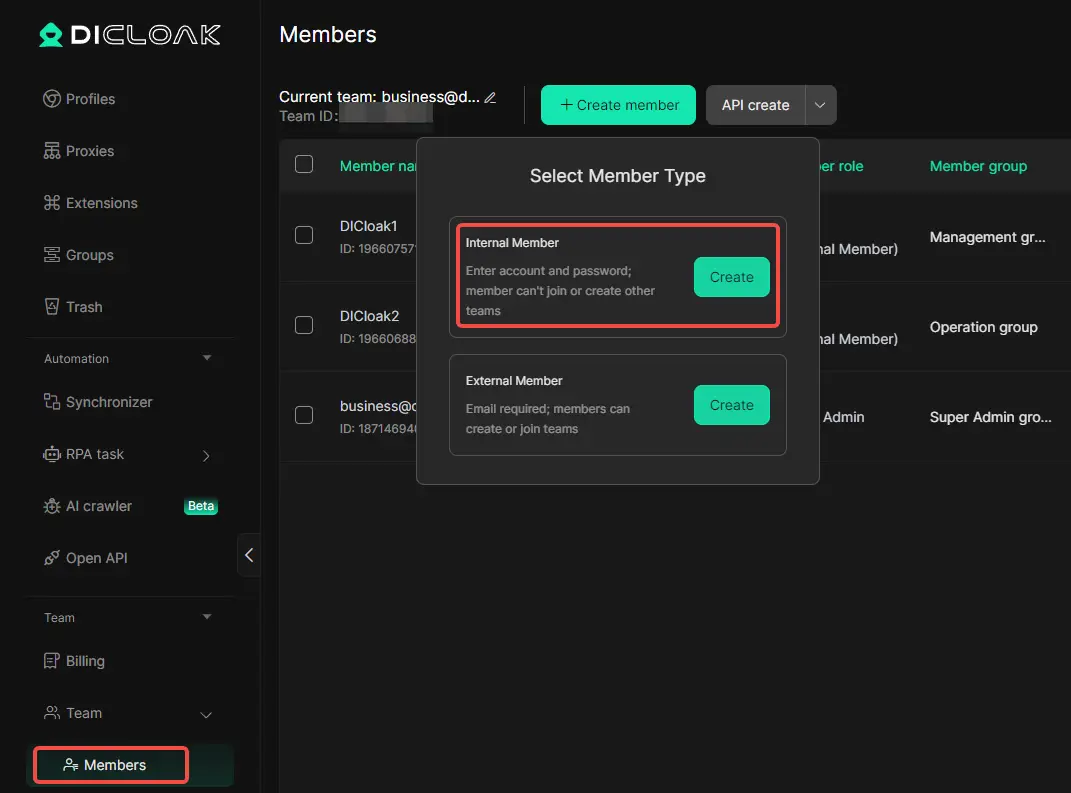
DICloak lets you create individual team member accounts and assign access only to the specific ChatGPT browser profile. Your other browser profiles and personal accounts remain fully private.
Step-by-Step Guide to Securely Sharing a ChatGPT Account with DICloak
Sharing a ChatGPT account with DICloak is simple and does not require technical experience.
1. Download and Install DICloak
Go to the official DICloak website, sign up for an account, and download the application. Install it on your computer.
2. Select the Appropriate Plan
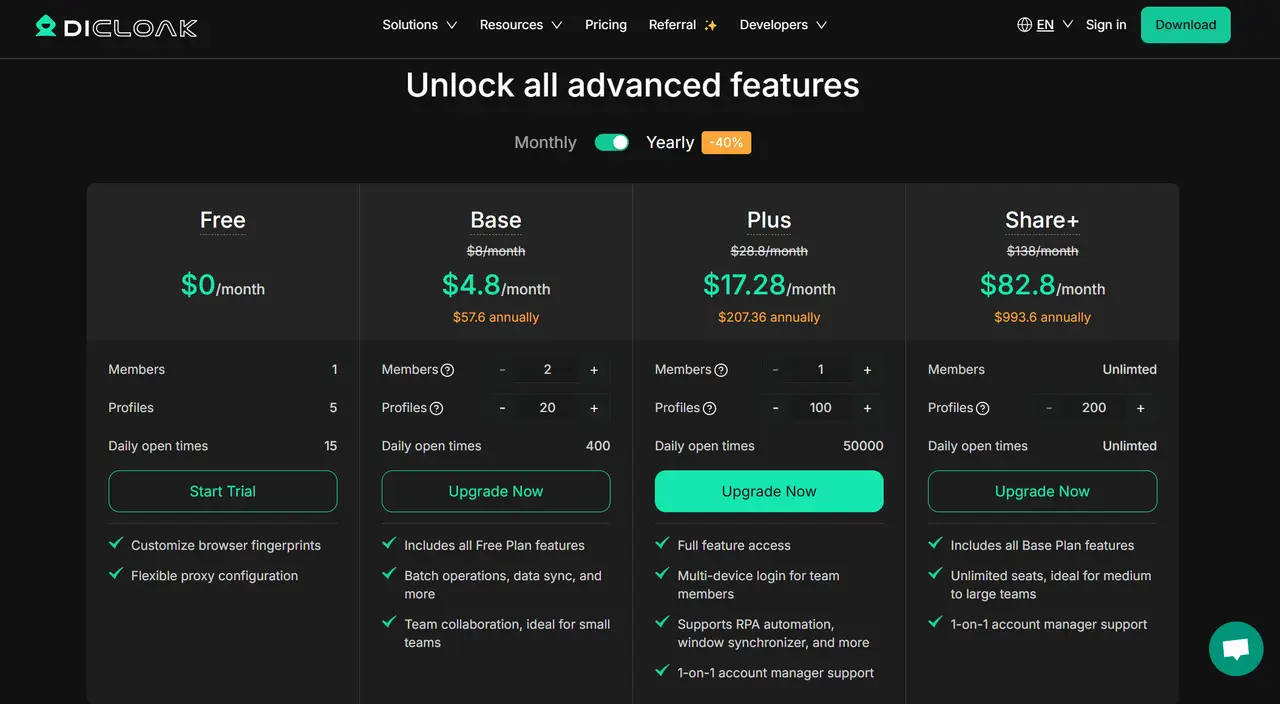
To share browser profiles, you need an active DICloak subscription. Choose a plan based on your team size. The Base Plan works well for small teams, while the Share+ Plan is better for larger teams that need unlimited members.
3. Set Up a Static Residential Proxy (Recommended)
Although optional, using a single static residential proxy is strongly advised. It gives your shared profile a fixed IP address, which prevents security flags caused by logins from multiple locations. This greatly lowers the chance of forced logouts or account checks. DICloak does not sell proxies directly but integrates with trusted third-party providers.
4. Create a Dedicated Browser Profile
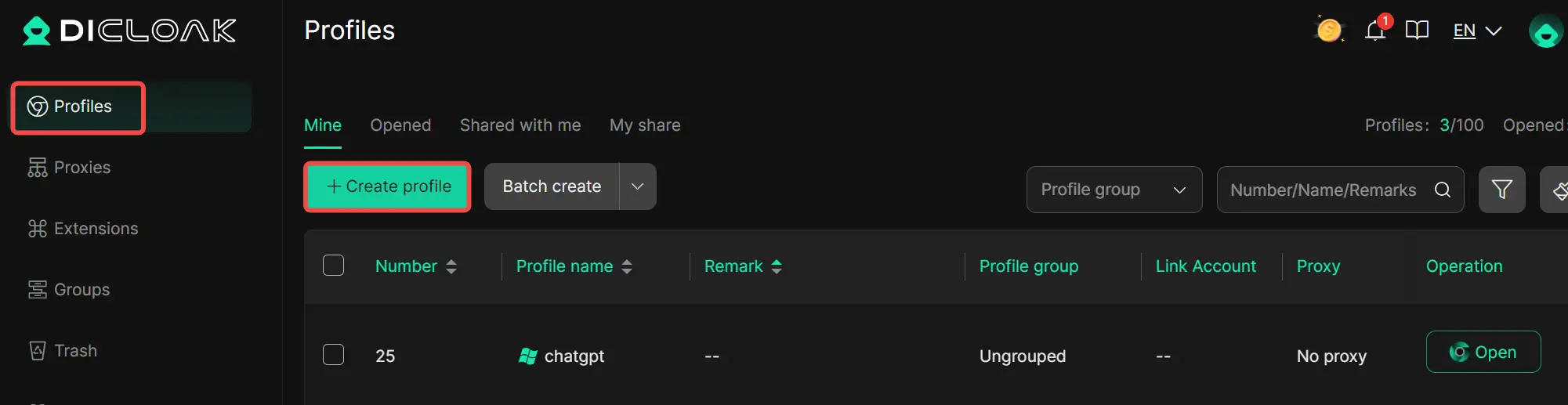
Inside the DICloak app, create a new browser profile. This profile will act as the secure environment for the shared ChatGPT account.
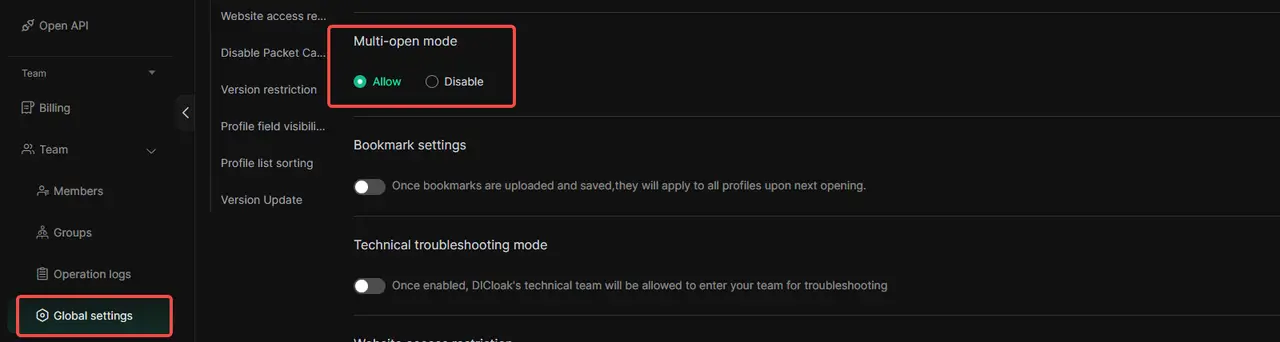
5. Enable Multi-open Mode
Open Global Settings, locate Multi-open mode, and set it to Allow. This enables multiple users to open and use the same ChatGPT account at the same time.
6. Log In to ChatGPT
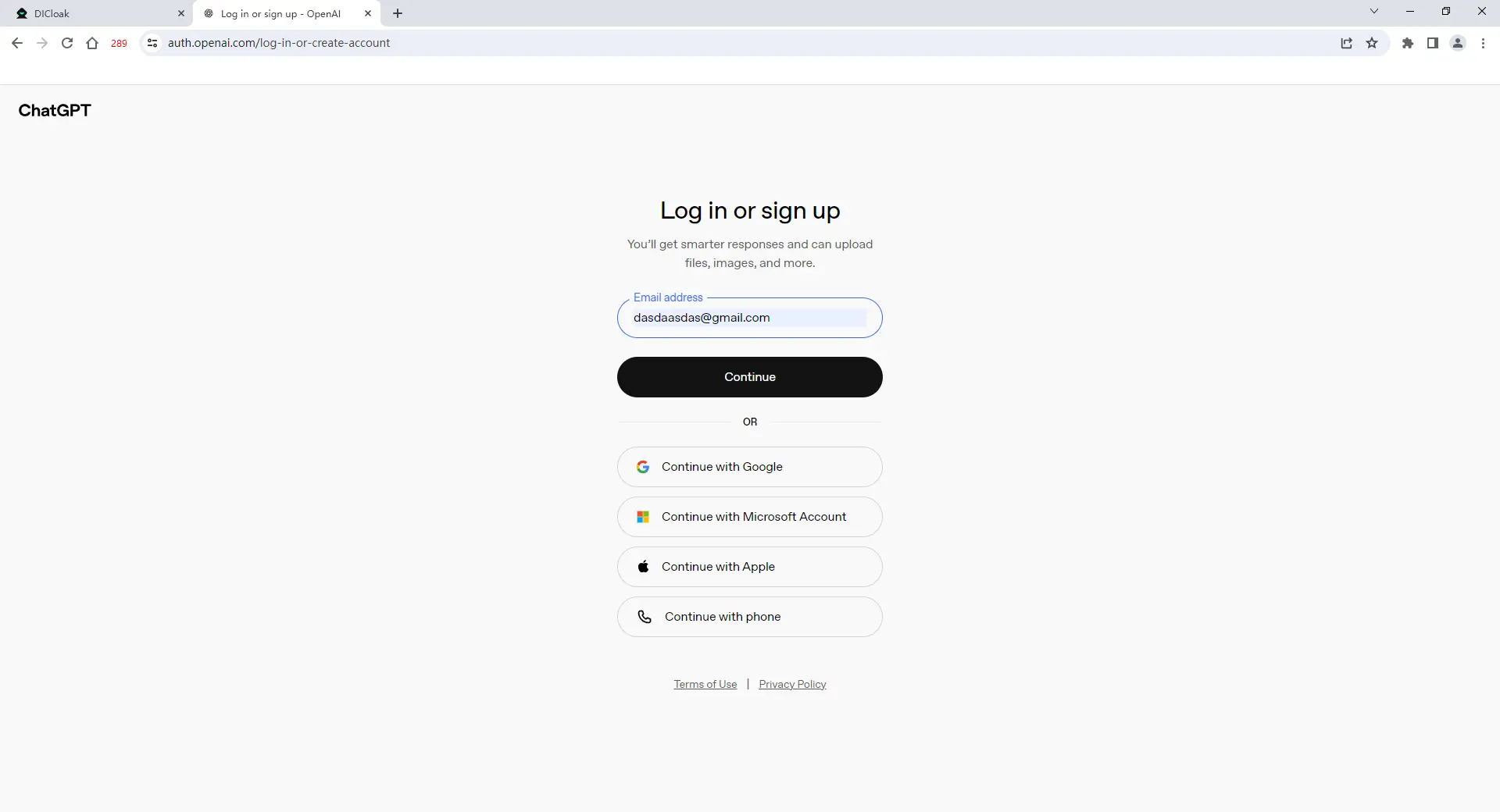
Launch the new browser profile. A secure browser window will open. Visit the official ChatGPT website and log in normally.
7. Invite Team Members
Return to the DICloak dashboard and use the team feature to create member accounts. Invite your teammates to join your DICloak team.
8. Start Using the Shared Account
Once a teammate accepts the invitation, the shared browser profile will appear in their DICloak app. They can open it from their own device and will already be logged into the same ChatGPT profile.
Advanced DICloak Controls to Protect a Shared ChatGPT Account
Beyond shared access, DICloak includes advanced controls that help protect the account owner from misuse or data leaks.
- Password Protection: DICloak’s built-in password manager allows one-click login without ever showing the real password to team members.
- Protection Against Cookie and Session Theft: You can disable browser developer tools and block extension installation, which stops common methods used to steal session data.
- Network Monitoring Defense: DICloak can automatically block packet-sniffing tools such as Wireshark or Fiddler, preventing network-level inspection of login data.
- Website Access Control: URL whitelisting lets you limit browsing to approved sites like chat.openai.com, ensuring users cannot open other websites inside the shared profile.
- Sensitive Data Masking: The Web Element Hider feature allows you to hide specific parts of the ChatGPT interface, such as billing information, subscription details, or account settings, from shared users.
Frequently Asked Questions About ChatGPT Not Working
Why is ChatGPT not working even though the website is online?
This usually means the issue is not a full outage. When users ask why is ChatGPT not working, common reasons include browser cache problems, network instability, or account-level restrictions. Even if chatgpt.com loads, login sessions can fail or requests may time out. Trying incognito mode or switching networks often fixes this.
Why is ChatGPT not working for my account but working for others?
If you wonder why is ChatGPT not working only for you, the issue is often account-related. Repeated login attempts or shared IP addresses can trigger security checks. This may cause temporary blocks or failed responses while others can still access the service normally.
Why is ChatGPT not working on one browser but works on another?
A common answer to why is ChatGPT not working is browser interference. Old cookies, cached files, or extensions like ad blockers can stop ChatGPT from loading correctly. If it works in another browser or incognito mode, clearing cache and disabling extensions usually solves the problem.
Why is ChatGPT not working during peak hours?
High traffic is a major reason why is ChatGPT not working at certain times. When many users access ChatGPT at once, servers can slow down. This can lead to delayed responses, errors, or no replies at all. Waiting a few minutes or trying again later often restores normal performance.
Why is ChatGPT not working when sharing an account with others?
If you are sharing an account, why is ChatGPT not working may be caused by multiple logins from different locations or IP addresses. This behavior can trigger security systems and force logouts. Using a stable browser profile and consistent IP setup helps reduce this risk.
Conclusion
If you’re asking why is ChatGPT not working, the answer usually comes down to a few key areas: server status, network stability, browser setup, or account-related issues. In most cases, simple actions like refreshing the page, clearing cache, switching browsers, or checking whether ChatGPT is down can fix the problem quickly.
Understanding these common causes helps you react faster and avoid repeated disruptions. By keeping your browser updated, using a stable internet connection, and staying aware of service status, you can reduce future issues. And when account sharing is needed, using controlled tools and secure setups can help keep access stable and reliable.
 Web Proxy Tools
 Free Tools
 Cookie Plugin
 UA Generator
 MAC Address Generator
 IP Generator
 IP Address List
 2FA Code Generator
 World Clock
 Anonymous Check
 WebRTC Leak Test
 UUID Generator
 Free Web Proxy Site
 Proxy Checker
 FB Ad Checker
 AI Web Scraping
 Free SMM Tools
 Twitter Shadowban Checker
 Instagram Name Checker
 UTM Generator
 Username Generator
 AI Hashtag Generator
 LinkedIn Headline Generator
 Social Media Image Resizer