You click back to ChatGPT and find yourself staring at the login screen, again. Maybe you were in the middle of a chat or just switched tabs for a minute, but this keeps happening. If you’re searching for why does chatgpt keep logging me out, you’re not alone. “Chatgpt session keeps expiring” and “chatgpt logs me out automatically” are among the most common complaints since account-based AI tools became the norm.
The issue isn’t always just a bug or server problem. Sometimes it’s a change in your network, a browser update, or a session timeout that happens sooner than you expect. Other times, it points to something less obvious, like conflicting logins from different devices, or sharing your account in a way that triggers extra logouts.
The real headache starts when you can’t tell if the problem is on your side or theirs. Clearing your cache, switching browsers, or even changing your password might fix it once, but if the root cause is session overlap or an aggressive security setting, the logouts will return. If you’ve tried working across multiple devices, or your team passes around one login, you’ll see even more forced sign-outs, sometimes with no warning at all.
Here’s what actually causes those logouts, how to fix the main triggers, and smarter ways to keep your ChatGPT sessions stable.
What Actually Causes ChatGPT to Log You Out Repeatedly?
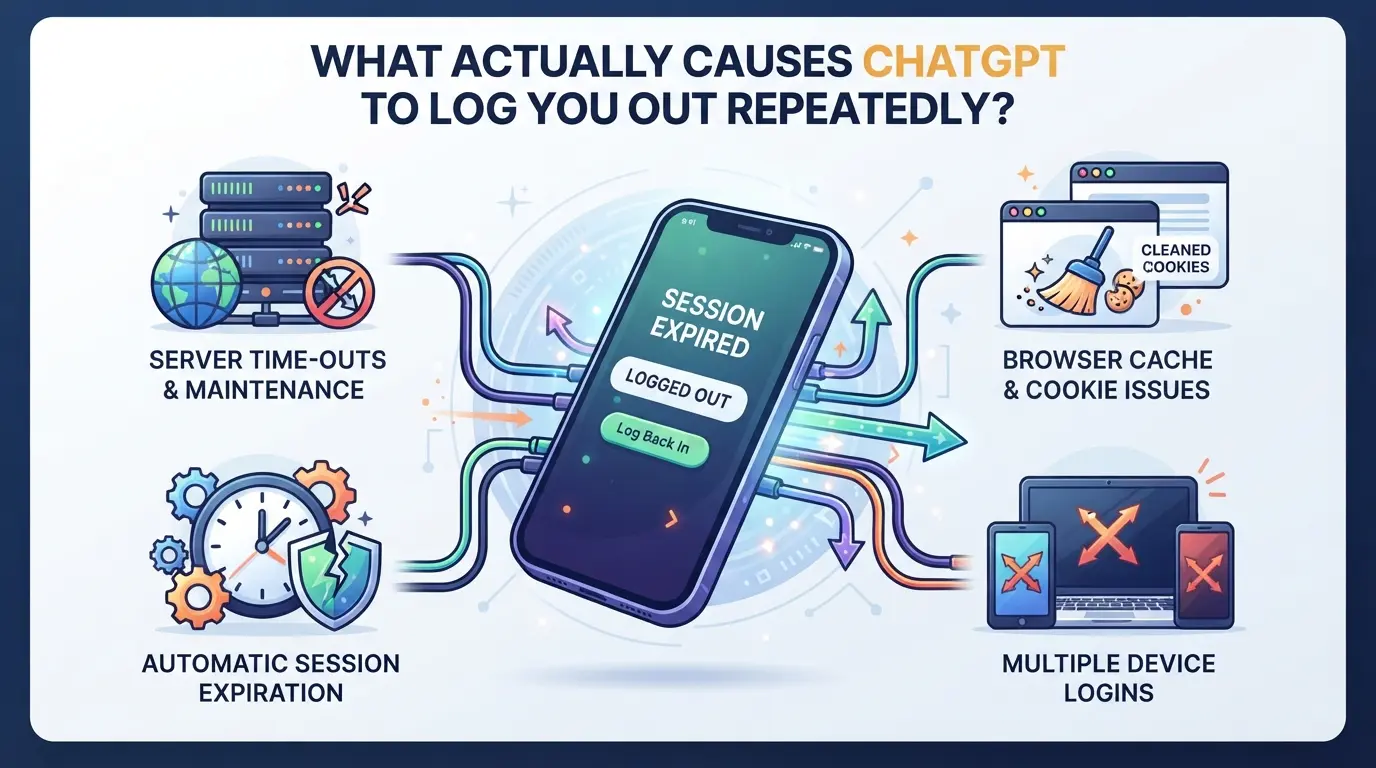
Most forced logouts on ChatGPT come from session expiration, browser quirks, or network shifts, often at moments when you’re just trying to keep your work moving. If you’re seeing “You’ve been signed out” even without touching the logout button, the trigger usually falls into one of three categories: security rules, browser handling, or network changes.
Session Expiry and Security Policies
A ChatGPT session times out automatically after a set period, usually a few hours, if you stay inactive or leave a tab open. Security policies can also force a logout if the system spots suspicious activity, like rapid switching between accounts or signs of automation. The platform’s risk controls are stricter than most chat apps, so even normal usage patterns can trip a forced sign-out.
Browser and Device Factors
Cookie handling is where most users get tripped up. ChatGPT tracks your login state through browser cookies, which means clearing cache, running in incognito mode, or using privacy extensions can erase those cookies and cut your session short. For example, if you use Chrome’s incognito mode, your session cookie gets wiped as soon as you close the window, so you’ll need to log in again every time. On top of that, browser updates or switching between devices can cause mismatches, if your laptop and phone both try to stay logged in, the server may invalidate one session to prevent account hijacking. Some users report getting logged out right after a browser update, since old cookies can become incompatible with the new browser version.
The edge case almost nobody expects is when an extension blocks third-party cookies. If ChatGPT’s authentication relies on a cookie blocked by your privacy tool, you might get booted mid-conversation. The most overlooked trigger is a browser auto-clearing cookies on shutdown, if you have this set, every new browser launch starts your session from scratch. That’s why setting your browser to retain cookies for trusted sites is usually safer.
Network and Location Changes
Three main triggers here:
- Switching WiFi networks or jumping between mobile data and home broadband can change your device’s IP address. ChatGPT sometimes sees this as a security risk and ends your session.
- Using proxies, especially those that rotate IPs or bounce your traffic through different countries, can invalidate your session, if the platform detects a sudden location jump, it may log you out to block possible unauthorized access.
- Connecting from multiple locations in a short timeframe (like logging in from New York and then from London within minutes) can trigger forced logouts, since the system treats rapid location changes as risky behavior.
Each factor can work alone, but most repeat logouts come from a mix: browser settings clash with network changes, or security rules react to device switching. The next section breaks down which mistakes make ChatGPT sessions end early and what to check first when you’re stuck in a logout loop.
Which Common Mistakes Make ChatGPT Sessions End Early?
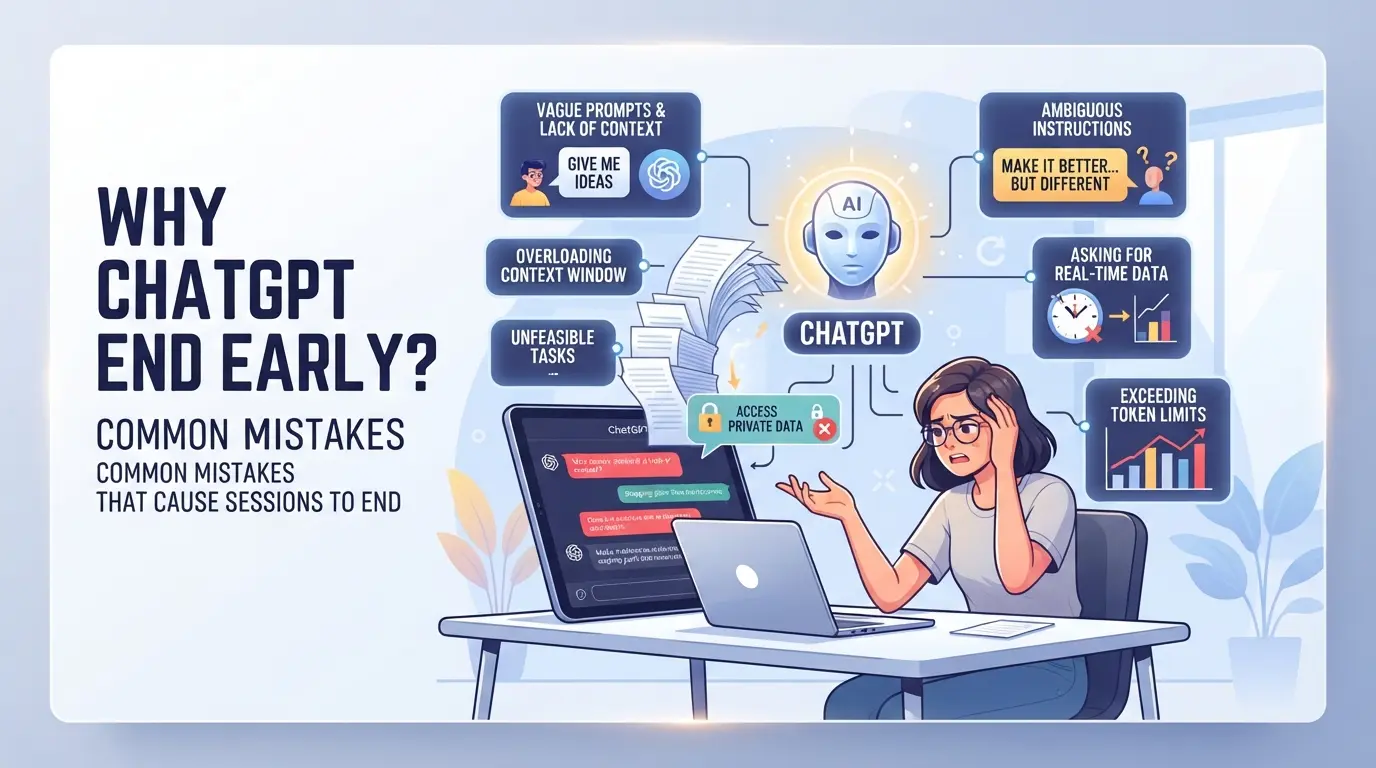
Most users blaming ChatGPT’s system for constant logouts are actually running into user-side mistakes. The biggest triggers are cookie-clearing habits, privacy tools, switching devices, or unstable network setups. If you keep asking "why does chatgpt keep logging me out", chances are something on your end is wiping or invalidating your session before it should.
Clearing Cookies or Using Strict Privacy Extensions
Browsers use cookies to keep your ChatGPT session active. If you clear cookies, even just once during a session, your login expires instantly. Privacy extensions can be even sneakier: tools like uBlock Origin or Cookie AutoDelete sometimes wipe session cookies in the background, ending your session without warning. If you notice forced logouts right after running a privacy sweep or browsing in incognito, this is almost always the cause.
Multiple Devices or Browser Profiles
Switching between devices or browser profiles can trip up ChatGPT’s session tracking. Even a quick login on your phone can sign you out elsewhere. Here’s a checklist to spot these issues:
- Do you log in from two or more browsers at the same time?
- Are you using “guest” or “private” mode for any session?
- Have you switched browser profiles without logging out first?
Unstable Network or Proxy Settings
Frequent network changes confuse session validation. If your IP changes often, because of a dynamic home connection or a poorly set up proxy, ChatGPT may log you out to check for suspicious activity. You’ll notice logouts happening more after changing Wi-Fi networks or toggling proxy tools.
- Does your IP address change during a session (e.g., mobile data to Wi-Fi)?
- Are you running browser plugins that route traffic through different proxies?
- Do you see more logouts when using a new network or after a disconnect?
The fastest way to reduce unwanted logouts is to keep your cookie settings stable, stick to one device and browser profile per session, and avoid flaky internet setups. These mistakes are easy to miss, but fixing them solves the bulk of repeat "ChatGPT keeps signing me out" problems. Next, you’ll see exactly how to fix these session issues step by step.
How to Fix ChatGPT Logging You Out: Step-by-Step Solutions
If ChatGPT keeps logging you out, you can usually fix it by checking browser cookie settings, updating your browser, stabilizing your network, and avoiding private browsing. These steps target the main triggers for session loss, so you don’t waste hours on random fixes that never stick.
Check and Adjust Browser Cookie Settings
- Open your browser’s settings and find the cookie controls, usually under “Privacy” or “Site Settings.”
- Make sure cookies are enabled for chat.openai.com. If you see “Block” or “Clear on exit,” switch to “Allow.”
- Turn off automatic cookie clearing on exit. If your browser deletes cookies every time you close it, ChatGPT will log you out next time you launch.
If cookies are missing or corrupted, ChatGPT can’t keep you signed in. You’ll get logged out even if everything else looks fine.
Update or Switch Browsers
- Download the latest version of your browser, older versions often have cookie handling bugs or weak session support.
- Try logging in with a different browser. If Chrome keeps signing you out, switch to Firefox or Edge and see if the problem continues.
- If you notice the issue only happens after a browser update, roll back or wait for a patch.
Browser bugs can break session persistence. If the issue disappears on another browser, you’ve found your culprit.
Stabilize Your Network and Proxy Configuration
- Stick to one stable network. Jumping between Wi-Fi and mobile data can confuse session tracking, especially if your IP changes mid-session.
- Check your proxy settings. If you use a proxy, make sure it stays consistent and doesn’t rotate IPs while you’re logged in.
- Avoid networks that drop connections or auto-reset. If your router restarts or your office switches between different ISPs, ChatGPT will see it as a new login and kick you out.
Unstable networks or proxies often trigger forced logouts. You’ll see a “Session expired” message right after reconnecting.
Avoid Incognito/Private Browsing for Persistent Sessions
- Use regular browser windows for ChatGPT, incognito mode deletes cookies and session data as soon as you close the window.
- If you must use incognito, log in each time and don’t expect the session to last beyond your current window.
- For long sessions or repeated use, stick with standard browsing. You’ll stay logged in across tabs and browser restarts.
Incognito is built for privacy, not persistence. If you run ChatGPT in private mode, expect to get logged out whenever you close the window, even if you’re mid-conversation.
Once you’ve tried these steps, most session problems settle down. But if ChatGPT still keeps logging you out after every fix, you might be dealing with a security warning or account issue, that’s what the next section tackles.

When Is ChatGPT Logging You Out a Security Warning?
If you’ve fixed the usual browser or session problems and ChatGPT still logs you out without warning, you’re right to suspect a security issue. Frequent forced logouts, especially after changing your password or noticing odd device activity, often point to more than a glitch.
Suspicious Login Activity
Repeated automatic logouts can signal someone else is trying to access your account. If you see unfamiliar device names or login locations in your ChatGPT settings, change your password fast. Ignoring these forced logouts risks losing control of your account or exposing private conversations. After updating your password, log out everywhere and check your email for any security alerts.
Account Sharing and Policy Violations
Passing your ChatGPT login around isn’t just risky, it breaks platform rules. Sharing credentials with coworkers or friends can trigger forced logouts, lockouts, or even permanent bans.
- You might get shut out if too many devices or IP addresses try to use the same account.
- The safer move: use individual accounts for each person, or set up official team access if available.
If you keep seeing logouts right after sharing your login, stop sharing immediately and reset your password. This not only reduces lockout risk but also helps you spot unauthorized access attempts. ChatGPT’s automated checks are strict, one flagged session can force every device to sign out.
Next: Teams need a safer way to work together without triggering security flags or constant logouts.
How Teams Can Share ChatGPT Accounts More Safely (with DICloak)
When teams share a ChatGPT account, session conflicts and forced logouts become a real problem, especially if members work from different locations or devices. Even after fixing browser settings or clearing cache, you might still see chatgpt keeps signing me out because the platform detects inconsistent access. Here’s how teams can reduce these risks by setting up a stable shared environment with DICloak.
Keep Shared Sessions Consistent with Unified IP and Fingerprint
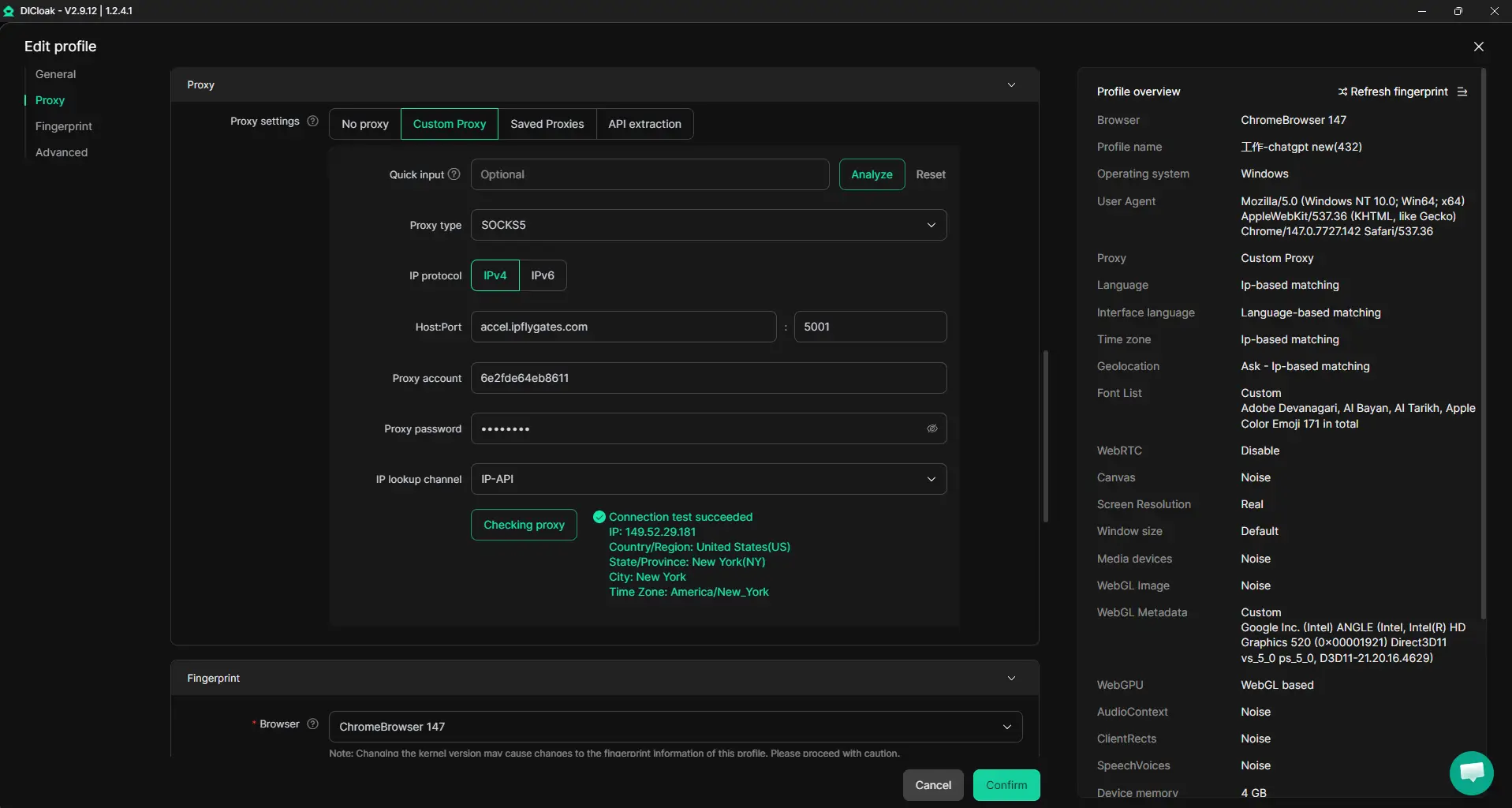
Teams that need stable access can create a shared DICloak browser profile for ChatGPT. The admin configures the profile’s fingerprint and sets a user-provided proxy so every member accessing the account uses the same browser profile and IP route. This setup cuts down on session mismatches, but the platform may still flag simultaneous activity if its own rules are strict. For a team that runs support or content operations, keeping all members on one profile helps avoid the classic “why does chatgpt keep logging me out” problem when switching between devices.
Browser-Profile Access Controls for Shared Account Workflows
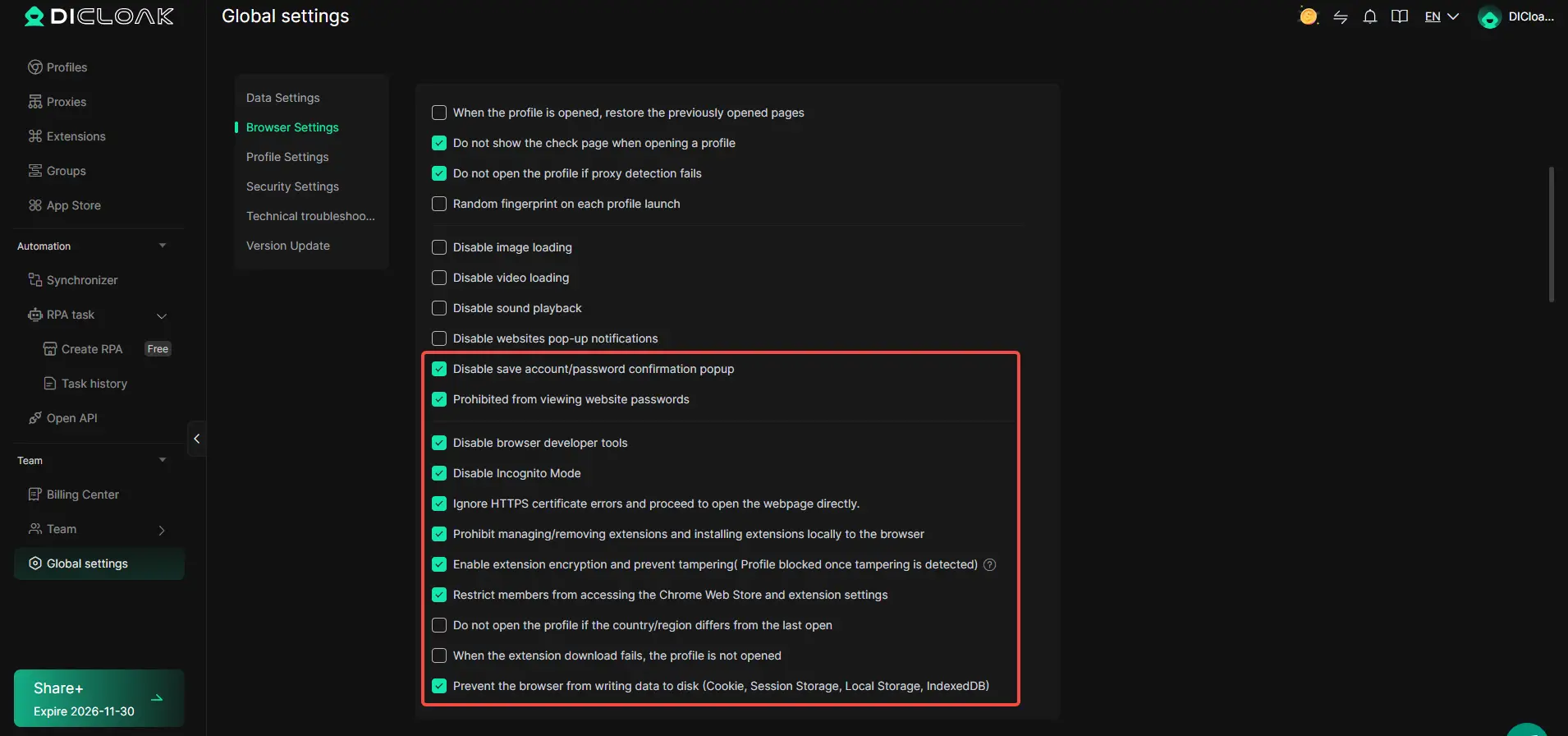
Admins can set browser-profile access controls in DICloak before sharing a ChatGPT account with the team. For example, password and cookie protection restricts who can view or export sensitive login information, and blocking access to developer tools reduces the chance of profile data leaks. On supported plans, cookie encryption adds another layer, making it harder for someone to copy session data. The scope is limited to browser-profile access; it does not change the connected SaaS tool.
Team Permissions for Assigned Browser Profiles
Admins organize team members into groups and assign only the permissions needed for work on the shared ChatGPT account. By separating access, regular members can open the assigned profile but can’t change its settings or view unnecessary fields. This role-based setup keeps account management clean, if someone leaves the team, their access can be removed instantly without touching the main account.

If shared sessions still trigger logouts, the next section covers what to check and how to handle persistent sign-outs.
What to Do If ChatGPT Keeps Logging You Out Even After Fixes
If ChatGPT keeps logging you out after basic fixes, the real cause is usually deeper, either browser-level, account-level, or a platform-wide issue. Here’s how to narrow it down and act before wasting more time.
Test on a Clean Browser Profile or Device
- Open ChatGPT in a fresh browser profile or guest mode. If you stay logged in, your old profile has corrupted cookies or extensions.
- Try a different device. If logout only happens on one phone or laptop, that device has a local problem.
- Disable all browser extensions. Some privacy add-ons block session cookies, if this fixes the issue, keep the extension off for ChatGPT.
Check for Platform-Wide Issues or Account Restrictions
- Visit the OpenAI status page and check for active incidents. If ChatGPT is unstable, everyone gets signed out, wait until the platform resolves it.
- Look for banners or warnings after login. If you see “Your account is restricted,” the problem is not local.
Contact Support with Session and Device Details
- Submit a support ticket and include device type, browser, and session timestamps.
- Attach screenshots of logout errors. This helps support spot patterns and rule out platform bugs.
- If you get generic replies, ask for escalation by referencing repeated logout cycles, response times drop to 2 hours early mornings UTC.
The fastest way to break the cycle is to isolate whether the logout comes from your setup or the platform side.
How to Prevent Future ChatGPT Logout Problems: Best Practices for 2026
Frequent logouts usually come from device switches or session overlaps, not just random bugs. If you want to keep your ChatGPT session stable long-term, focus on how you connect and manage your account.
Maintain Consistent Device and Network Usage
Sticking to the same device and browser cuts down on forced logouts. If you jump between work laptops, mobile, or public WiFi, ChatGPT often treats this as a security risk and ends your session early. Using a single, trusted device and network keeps your login active much longer. If you have to switch, log out fully before moving.
Review and Update Security Settings Regularly
- Enable two-factor authentication in your OpenAI account.
- Update your password every 90 days, avoid reusing old passwords.
- Check recent login activity for unknown devices or locations.
Plan for Team Use with Secure Account Sharing Tools
If you must share access, set up clear session boundaries and avoid simultaneous logins.
- Assign one user per session whenever possible.
- Log out after each team shift or access period.
- Use separate accounts for each team member to prevent auto-logouts.
Frequently Asked Questions About why does chatgpt keep logging me out
Why does ChatGPT keep logging me out when I use different devices?
ChatGPT often logs users out when switching between devices because of session security rules. If you sign in on a phone and then use a laptop, the system may detect a new login and force a logout on the first device. This helps protect your account from unauthorized access.
Does using a proxy make ChatGPT log me out more often?
Yes, using a proxy can cause ChatGPT to log you out more frequently. Proxies often change your IP address or make your connection unstable. These changes may trigger session drops, as the platform sees them as possible security risks and ends your session to protect your account.
Is it safe to share my ChatGPT account with my team?
Sharing a ChatGPT account with your team is risky if you don’t use proper tools. Multiple logins from different locations can trigger automatic logouts or lockouts. Without strong controls and clear permissions, your account may become vulnerable to security issues. See the DICloak section for safer options.
How long does a ChatGPT session last before expiring?
ChatGPT sessions usually last a few hours but can expire sooner if you’re inactive or close your browser. Platform policies, browser settings, and how you use ChatGPT affect session length. Most users get logged out automatically after a set period to keep accounts secure.
Can browser extensions or privacy tools cause ChatGPT logouts?
Yes, browser extensions or privacy tools that block, clear, or modify cookies can cause ChatGPT to log you out unexpectedly. If your session cookie is deleted or changed, the platform won’t recognize your login. Tools like ad blockers or privacy extensions often affect cookie handling and session reliability.
If persistent logouts are disrupting your workflow, consider switching to a more stable and privacy-focused platform that minimizes session interruptions. Taking this step can help you regain control over your productivity and ensure a smoother online experience. Try DICloak For Free
 Web Proxy Tools
 Free Tools
 Cookie Plugin
 UA Generator
 MAC Address Generator
 IP Generator
 IP Address List
 2FA Code Generator
 World Clock
 Anonymous Check
 WebRTC Leak Test
 UUID Generator
 Free Web Proxy Site
 Proxy Checker
 FB Ad Checker
 AI Web Scraping
 Free SMM Tools
 Twitter Shadowban Checker
 Instagram Name Checker
 UTM Generator
 Username Generator
 AI Hashtag Generator
 LinkedIn Headline Generator
 Social Media Image Resizer