A PayPal account isn’t erased just by clicking “Delete”, it’s a process that can leave traces, trigger unexpected restrictions, or block you from future access. One user found out the hard way: after trying to erase their PayPal account, they were locked out of linked services and lost refund options for recent purchases. If you search how to erase a paypal account, you’ll see guides that skip over the messy parts, like hidden fees, unresolved disputes, or how deleted accounts affect connected apps and subscriptions. PayPal’s official page walks you through closing an account, but misses the risks: once erased, you can’t recover history, and some sellers may block you from future payments.
But the real problem isn’t just “How do I erase it?”, it’s “What gets lost, what risks come up, and what steps are safest before and after?” This guide breaks down every step, from checking pending transactions to wiping sensitive info, and shows what to watch for so you don’t get caught by hidden limits or lose access to refunds. If you’re handling multiple accounts for your team, or need to keep records for tax or compliance, erasing the wrong way can cause headaches.
Start by seeing what needs to be checked before you erase, here’s what most users miss.
What Should You Check Before Erasing Your PayPal Account?
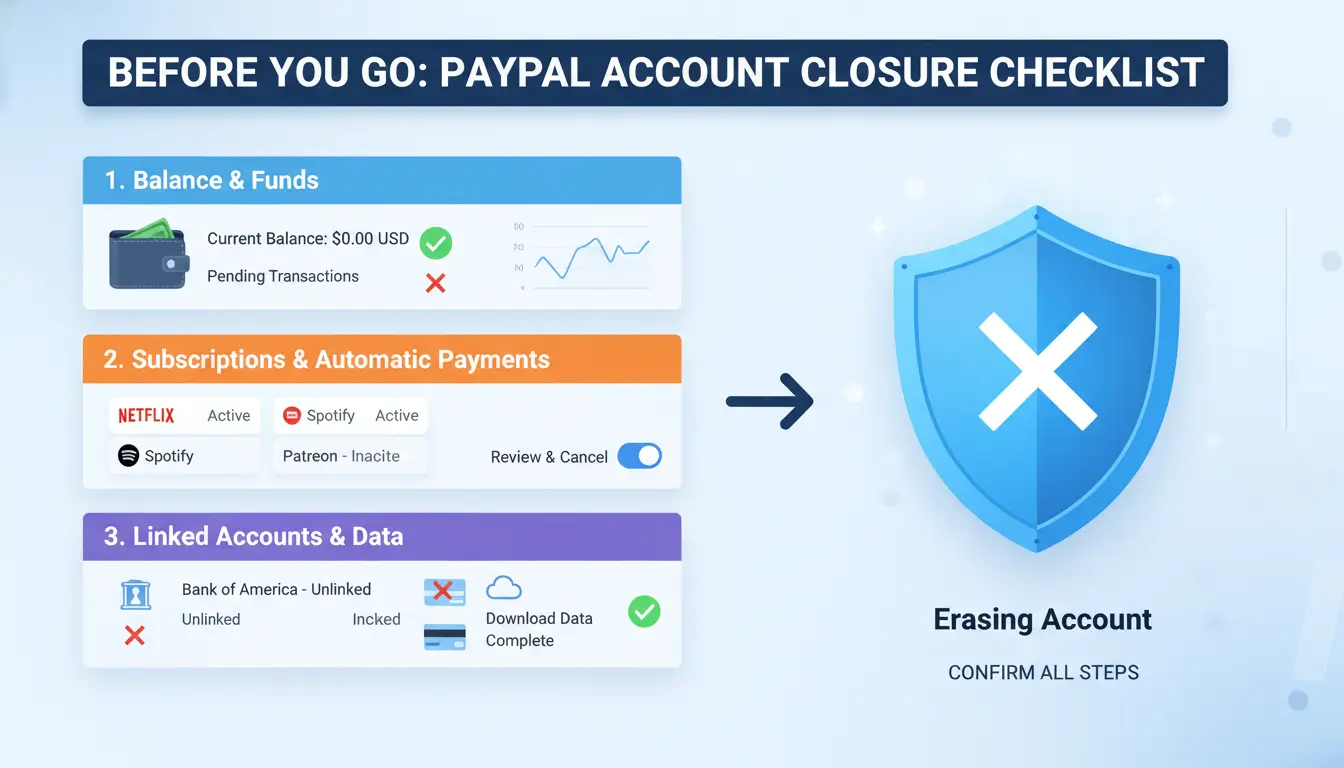
Before you start the process for how to erase a PayPal account, slow down, missing a single step can cost you real money or make tax time a mess. The most common mistakes come from skipping checks on balances, unresolved issues, or forgetting to download records you can’t get back.
Transfer Out Remaining Balance and Linked Funds
Always clear your PayPal balance before closing. Go to your wallet and withdraw the full amount to your linked bank account. If you leave even a small amount, PayPal can block deletion until your balance is zero. Don’t forget to unlink any cards or bank accounts. If you skip this, you might face delays or locked funds. For step-by-step help, see PayPal’s official guide.
Resolve Pending Transactions, Disputes, or Holds
Check your activity for pending payments, open disputes, or any money on hold. PayPal won’t let you erase the account until every transaction is finished and disputes are closed. If you close an account with open issues, you risk losing access to buyer protection or refunds, these can’t be recovered after deletion. This PayPal help page explains why unresolved items block closure.
Download Your Transaction History and Data
Once your account is erased, there’s no way to recover transaction history, receipts, or statements. Download your full data set from the Settings > Data & Privacy section. You might need these records for taxes, chargebacks, or business audits. Missing this step is the number one cause of regret for users who rush deletion.
How to Erase a PayPal Account: Step-by-Step Instructions
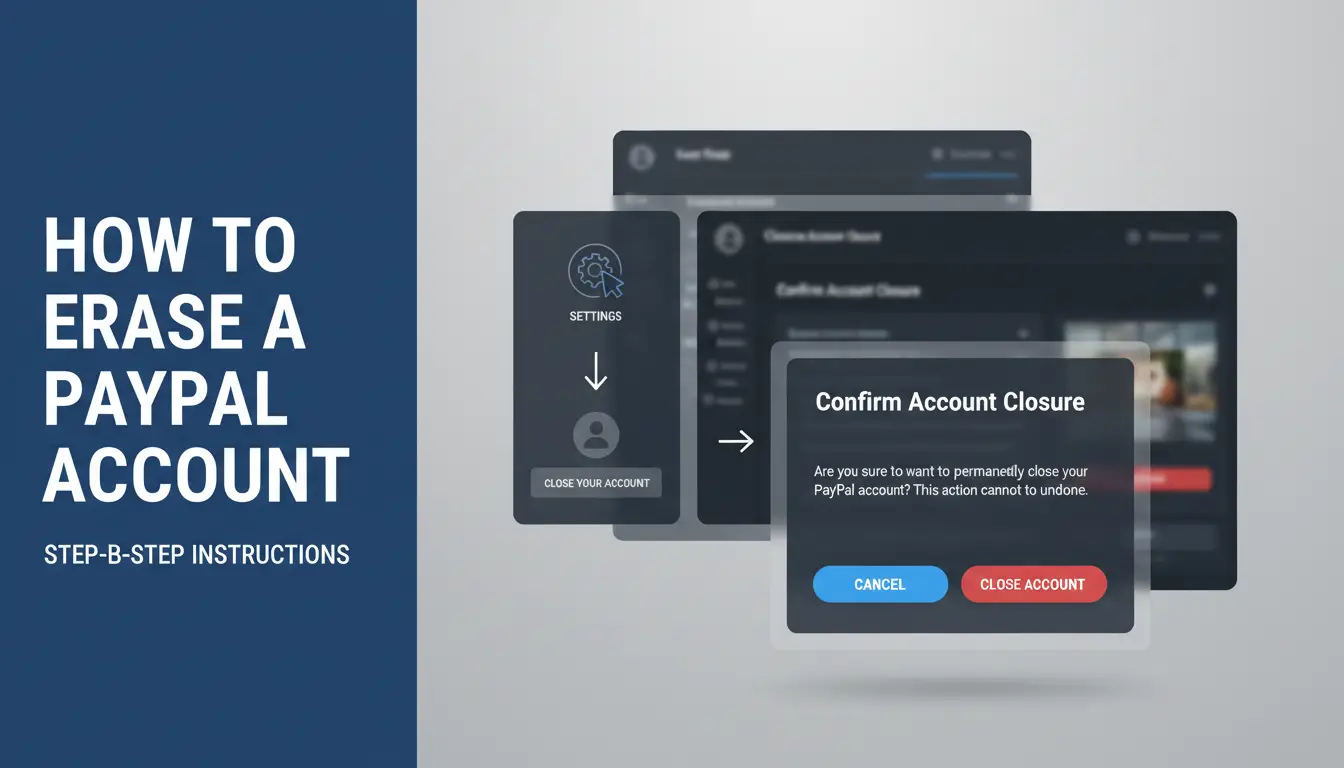
Erasing your PayPal account deletes your entire payment history and blocks future access, so double-check you’re ready before moving ahead. Here’s exactly how to erase a PayPal account on both desktop and mobile, plus what to do if you can’t log in.
Deleting Your PayPal Account on Desktop
Log in at paypal.com. Click the settings gear in the top right, then choose “Account” and scroll down to “Close your account.” If you have pending transactions or unresolved disputes, you’ll need to clear those first. After clicking “Close,” follow the prompts to confirm deletion. Make sure you download any needed statements before you erase your account, since you can’t access them once it’s closed.
Erasing Your PayPal Account from the Mobile App
On the mobile app, tap your profile icon, open “Settings,” then tap “Account info.” Scroll to find “Close your account.” If you don’t see this, your app may need updating, or you may need to clear unresolved issues. Some users report bugs with the close option not appearing, logging out and back in can help.
What to Do If You Can’t Log In or Access Your Account
If you’re locked out, start with PayPal’s password reset page. For restricted or frozen accounts, you’ll need to contact PayPal support directly. You can’t erase a PayPal account without access, so recovery comes first.
Why Some Users Can’t Delete Their PayPal Account (and How to Fix It)
Trying to figure out how to erase a PayPal account, only to see the “can’t close account” message? You’re not alone. Most blockages come from unfinished business on your account, not technical errors. Here’s what usually holds people back, and what you can do.
Pending Transactions or Account Limitations
Any pending payments, disputes, or account limitations will stop you from deleting your account. PayPal wants everything closed out first. To check, log in and look for alerts on your dashboard. If you see “Resolution Center” notices, click through to review open cases or payment holds. Make sure all refunds, disputes, and chargebacks are fully settled. If your account is limited, follow the steps in PayPal’s Resolution Center to clear the issues. Only after every flag is gone will the system let you move forward.
Active Subscriptions or Recurring Payments
Active subscriptions or recurring payments also block deletion. These might include monthly services, app payments, or automatic billing. To find them, in your PayPal dashboard go to “Payments” > “Manage automatic payments.” Cancel each subscription, just closing your account won’t stop charges. Missing this step is the most common reason users can’t erase their PayPal account. Once every recurring payment is cancelled and you get a confirmation, try again to close the account.
Account Verification and Security Checks
Sometimes PayPal asks for more ID or proof before you can erase your account. If you see requests for documents or verification, submit clear copies as asked. Common flags include mismatched names, unverified bank accounts, or recent password resets. For stuck cases, contact PayPal support directly. Once your account passes all checks, deletion is unlocked.
What Happens After You Erase Your PayPal Account?
When you follow steps for how to erase a PayPal account, the platform removes your login, profile, payment history, and linked cards. But some data stays behind, understanding what remains and what’s gone matters most if you rely on records or need compliance.
Is Your Data Really Gone? What PayPal Retains
PayPal deletes your access and most transaction history, but keeps records for legal reasons like anti-fraud and tax compliance. Details such as account opening dates, certain payment logs, and dispute info can stay in PayPal’s database for up to 7 years. You can check this in PayPal’s privacy policy.
Can You Reopen or Recover a Closed PayPal Account?
Closed accounts can’t be reopened. If you try to reactivate, PayPal blocks the old email and login. You may create a new account, but you’ll need a new email and will lose all previous records, refunds, disputes, and payment histories won’t transfer.
Impact on Linked Services and Online Purchases
Closing your account breaks links to subscriptions, online stores, and automatic payments. You must update billing info on platforms like Amazon or eBay, or risk service interruptions.
What Privacy and Security Risks Should You Watch for When Deleting a PayPal Account?
Shutting down a PayPal account is not just about clicking “close.” If you’re searching how to erase a PayPal account, you need to watch for what’s left behind and what can go wrong, especially if you handle business, e-commerce, or multiple accounts.
Potential Privacy Gaps After Account Deletion
When you delete your PayPal account, not all traces vanish. PayPal may keep some data for compliance and fraud monitoring, as explained in PayPal’s privacy policy. Old transaction records, email addresses, and linked bank info could still exist in PayPal’s system or on your linked devices. To shrink your digital footprint, always clear saved browser logins, remove payment methods, and disconnect any third-party integrations before starting account deletion. Simply closing the account doesn’t erase every record tied to your identity.
If you run several PayPal accounts (for business, team, or marketplaces), deleting one account may trigger review of others. PayPal uses device fingerprints, cookies, and IP addresses to spot linked accounts, see PayPal community discussions on this. Accidentally logging in from the same browser or IP can tie accounts together. For safer management, separate browsers and dedicated proxies help keep accounts isolated.
Safer Workflows for Teams and E-Commerce Businesses
Teams handling sensitive PayPal data should coordinate before closing any account. Failing to wipe shared browser profiles or leaving login traces on team devices can expose business info. Using isolated browser profiles and proxies, like DICloak’s browser profile isolation, lets teams close accounts without leaking connections or risking unwanted reviews. This approach reduces accidental cross-account exposure and keeps team data safer. 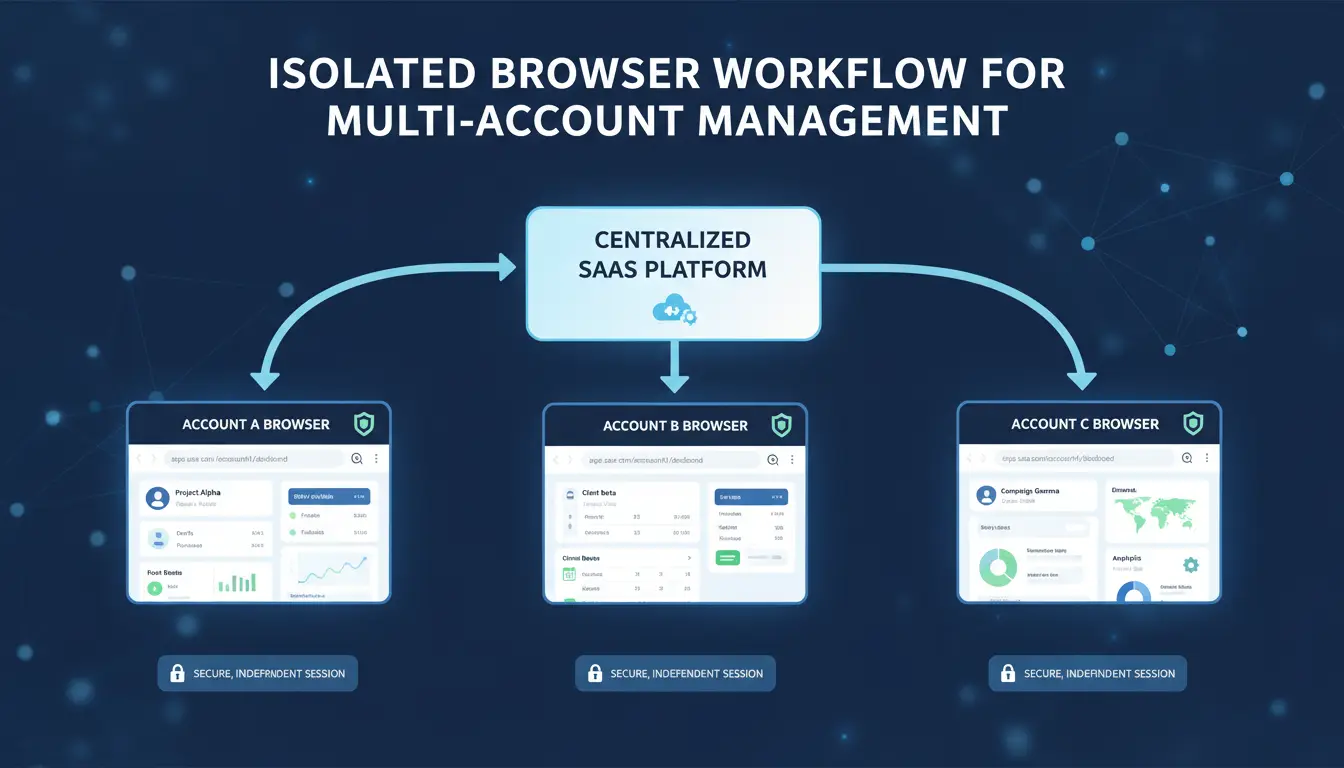
How DICloak Helps E-Commerce and Teams Safely Manage and Erase Multiple PayPal Accounts
When handling how to erase a PayPal account, e-commerce teams face a big risk: PayPal may link accounts by browser fingerprint, IP, or sloppy team handoff. Deleting one account can flag others if the same device or network is used. DICloak helps by letting you isolate every step.
Isolated Browser Profiles to Prevent Account Linking
You can use DICloak to create a separate browser profile for each PayPal account. Each profile has its own digital fingerprint, cookies, user agent, and device settings never overlap. This lowers the chance that PayPal will detect you’re running more than one account from the same team or company.
Flexible Proxy Configuration for Safer Account Closure
Assigning a different proxy to each account is easy with DICloak. This means every account logs in from a unique location, which is key for privacy and to avoid triggering compliance checks. PayPal’s help center notes sudden location changes can freeze access.
Team Collaboration and Audit Trails for Secure Workflows
DICloak’s permission controls let you decide which team member can erase which PayPal account. Operation logs track who did what, reducing the risk of accidental deletion or leaking sensitive info.
Automating Multi-Account Tasks with RPA and Bulk Tools
Bulk actions and RPA tools in DICloak automate steps like logging out, clearing sessions, or batch closing accounts. This speeds up workflows and cuts manual mistakes, crucial when managing dozens of accounts.
Common Mistakes to Avoid When Deleting a PayPal Account
Erasing a PayPal account is more than clicking “close.” Small mistakes at this step can leave you exposed to new charges, lost records, or even account theft. Before you move forward with how to erase a PayPal account, check these common pitfalls, most problems come from missing just one detail.
Forgetting to Cancel Subscriptions or Linked Services
If you skip canceling subscriptions, automatic payments might keep running in the background. PayPal will not always block these right away, so an active subscription can stop account closure or even restart it after deletion. For example, streaming services or SaaS tools linked to your PayPal may keep billing you. Missed cancellations can lock your funds or trigger surprise charges weeks later. Always review your pre-approved payments list in PayPal and cancel each one before you request deletion.
Not Backing Up Important Data or Transaction Records
PayPal erases your transaction history as soon as your account closes. If you haven’t saved invoices, receipts, or dispute records, you lose access forever. This can become a problem if you need proof for tax filing, refunds, or business compliance. Download all records directly from the PayPal dashboard, look for “Statements” or “Activity Download”, before you start the closure process.
Attempting to Delete Accounts from Untrusted Devices or Networks
Trying to erase your PayPal account on public Wi-Fi or from a borrowed device puts you at risk. Hackers can grab your login or intercept account details. For safer closure, use your own secure device and a trusted network. Always log out fully and clear your browser session once finished.
What to Do After Erasing Your PayPal Account: Next Steps and Safer Alternatives
Deleting your PayPal account is not the last step, what you do next will decide if you face missed payments, service lockouts, or even fraud risk. Anyone searching “how to erase a paypal account” often forgets the follow-up. Here’s what to handle right after closing your account:
Update Payment Methods on Other Platforms
Once your PayPal is gone, any linked services, like Netflix, Spotify, Amazon, or eBay, will fail to bill you. Go into each service’s payment settings and switch to a new card or bank account. Missing this step can mean lost access or late fees. It’s easy to forget subscriptions or old app stores, so check your email for payment alerts tied to PayPal. For business users, double-check any SaaS platforms or supplier portals that had recurring charges.
Consider Alternative Payment Solutions
No single replacement fits everyone, but some of the most popular PayPal alternatives include Stripe, Wise, and Skrill. Look for options with strong buyer protection, easy dispute resolution, and clear privacy policies. This table highlights key differences:
| Provider |
Buyer Protection |
Fees |
Business Tools |
| Stripe |
Yes |
Medium |
Advanced |
| Wise |
Limited |
Low |
Basic |
| Skrill |
Some |
Medium |
Moderate |
Source: Official provider sites
Monitor for Unusual Activity or Data Leaks
Even after erasing your PayPal account, your old email or data could show up in leaks. Watch for unexpected emails about failed payments or account changes. If you see anything odd, change your passwords and check Have I Been Pwned for data breaches. Act fast if you spot fraud, waiting gives scammers more time.
Frequently Asked Questions
Can I erase my PayPal account without logging in?
To erase a PayPal account, you usually need to log in first. If you can’t access your account because you forgot your password or lost access to your email, contact PayPal’s customer support. They may help you close the account after they verify your identity, but you cannot delete it completely without some form of verification.
What happens to my transaction history after I erase my PayPal account?
When you erase a PayPal account, you lose access to all your transaction history in your profile. However, PayPal keeps some records for legal and regulatory reasons, like fraud prevention. You will not be able to view or download previous payments or invoices, so save any important documents before closing your account.
Can I use the same email to create a new PayPal account after deletion?
Yes, you can often use the same email to make a new PayPal account after you erase your PayPal account. However, you may have to wait until PayPal fully closes and removes your old account from their system. Make sure you get a confirmation that your previous account is deleted before you try to sign up again.
Are there risks to deleting a PayPal account used for business or e-commerce?
Yes, deleting a business PayPal account can disrupt payments, cancel subscriptions, and remove access to business records. Before you erase a PayPal account used for business, move your funds, notify partners, and save important data. Handle all pending transactions first to avoid payment issues or losing important records.
How can I make sure my personal data is protected after deleting my PayPal account?
After you erase your PayPal account, ask PayPal to delete your personal data. Clear saved passwords from your devices and watch for any unfamiliar emails or charges. Following privacy best practices and checking for suspicious activity will help protect your information even after your account is gone.
Deleting your PayPal account is a straightforward process, but it’s important to ensure all transactions are completed and any remaining balances are withdrawn before starting. Carefully following the proper steps will help you securely erase your account and protect your financial information. Try DICloak For Free
 Web Proxy Tools
 Free Tools
 Cookie Plugin
 UA Generator
 MAC Address Generator
 IP Generator
 IP Address List
 2FA Code Generator
 World Clock
 Anonymous Check
 WebRTC Leak Test
 UUID Generator
 Free Web Proxy Site
 Proxy Checker
 FB Ad Checker
 AI Web Scraping
 Free SMM Tools
 Twitter Shadowban Checker
 Instagram Name Checker
 UTM Generator
 Username Generator
 AI Hashtag Generator
 LinkedIn Headline Generator
 Social Media Image Resizer