A funny reaction GIF can say more than a full sentence, which is why so many people want to save them from X. The problem is that it is often not as simple as tapping “download.” Many users quickly find out that Twitter GIFs do not work like normal image files, which makes the whole process more confusing than expected.
That is where a good Twitter GIF downloader becomes useful. With the right method, you can save GIFs on iPhone, Android, Windows, or Mac without wasting time on broken links or complicated steps. In this guide, you will learn why Twitter GIFs are hard to save, which tools work best in 2026, how to download them safely on any device, and how to make the whole process easier for both personal use and professional workflows.
Why You Need a Twitter GIF Downloader
Saving a GIF from X looks easy at first. You see something funny or useful and want to keep it like a normal image. But when you try, it often becomes confusing. That is why many users look for a Twitter GIF downloader.
The main reason is simple. Twitter GIFs are usually not stored as normal GIF files. They are often delivered in a video-like format, which helps them load faster and play more smoothly. This is good for viewing, but it makes saving harder.
That is why downloading GIF from Twitter does not work the way many people expect. Right-clicking or long-pressing often gives you only the post link, a still image, or no useful option at all. On mobile, it can feel even more inconvenient. A gif downloader Twitter tool helps solve this problem and makes saving much easier.
What makes Twitter GIFs hard to save?
Before choosing a tool, it helps to know what causes the problem. The main reasons are:
- Twitter GIFs are often delivered as video-style media, not classic .gif files
- Most posts do not have a direct “Save GIF” button
- Right-click or long-press actions often do not give the real moving file
- Mobile users usually have fewer quick save options
These small problems are why a gif Twitter downloader is useful. It turns an annoying process into a simple one.
Benefits of Downloading GIFs from Twitter
People save Twitter GIFs for both personal and professional reasons. A good Twitter GIF downloader helps in both cases.
For personal use
For everyday users, downloading GIFs is mostly about convenience. Common uses include:
- Sharing GIFs with friends in chat apps
- Keeping favorite reactions for later
- Editing clips into memes
- Saving content for hobby folders or mood boards
For example, if you see a perfect reaction GIF during a live sports game, saving it right away is much easier than trying to find the same post again later.
For professional use
For creators, marketers, and social media teams, GIFs can also be useful work material. They may download them to:
- Collect ideas for future posts
- Study viral content styles
- Build internal content libraries
- Save useful examples before posts disappear
For example, a social media manager may save a reaction GIF from a viral post and later use that tone as inspiration for a campaign.
A simple backup benefit
There is also a practical reason to save GIFs from X. Posts can get buried, deleted, or lost over time. If you find something useful, saving it early is often much easier than searching for it again later.
For personal reference, internal review, or approved creative work, using a Twitter GIF downloader is often more useful than relying only on bookmarks.

Methods to Download GIFs from Twitter
Once you know why people save Twitter GIFs, the next step is choosing the right method. A good Twitter GIF downloader can make the process much easier, especially since X does not offer a simple built-in way to save GIFs directly from posts. The best option usually depends on how often you download content and how much control you need.
Using Online Twitter GIF Downloader Tools
For most users, online tools are the easiest way to start downloading GIF from Twitter. They work in a browser, so there is nothing to install. In most cases, you just copy the X post link, paste it into the tool, and download the media file. Because Twitter GIFs are often delivered in a video-like format, the file may be saved as MP4 first.
This method is fast and convenient, which makes it a good choice for one-time or occasional downloads. But some sites may have too many ads, extra steps, or unstable results, so it is better to use tools that only ask for a public post link and do not require your login.
Downloading GIFs via Mobile Apps
If you save GIFs often, a mobile app may feel smoother than a browser-based gif downloader Twitter tool. Apps can reduce steps by letting you send the post link directly through the share menu, which is useful for people who collect reaction GIFs or content ideas on a regular basis.
The main advantage here is speed. But before installing any app, it is still important to check ratings, update history, and permissions. A basic downloader should not ask for unnecessary access or your X password.
Manual Methods for Saving GIFs on Desktop
Desktop users often have more control. One option is using a browser extension that detects media on the page more easily than a normal right-click menu. Another common method is to save the file as MP4 first and then convert it back to GIF if needed.
This approach takes a little more effort, but it can be useful for creators, editors, and marketers who save media often and want better control over quality or file type.
In short, there is no single best method for everyone. An online Twitter GIF downloader is usually enough for quick saves, while apps and desktop tools are often better for repeated use or more flexible workflows.
Device-Specific Guides for Downloading Twitter GIFs
Now that we have looked at the main methods, the next step is choosing the one that fits your device. A Twitter GIF downloader does not work exactly the same way on iPhone, Android, and desktop. The basic goal is the same, but the steps are a little different. That is why it helps to follow a guide made for your screen, browser, and download habits. X supports GIFs in posts, but it still does not offer a simple built-in button for saving them directly from a post, so device-specific workarounds are still the practical choice.
How to Save GIFs from Twitter on iPhone
On iPhone, the easiest path is usually an app or a browser-based Twitter GIF downloader. A known option is GIFwrapped, which is available on the App Store and is built for collecting, managing, and sharing GIFs. Apple also notes that files downloaded from the internet on iPhone or iPad are usually stored in the Downloads folder inside the Files app, which helps when you are trying to find the saved file afterward.
A simple iPhone workflow looks like this:
- Open the X post with the GIF
- Tap Share and copy the post link
- Paste the link into a browser-based gif downloader Twitter tool, or send it to an app like GIFwrapped
- Download the file
- Check the Files app if the file does not appear in Photos right away
This works well for casual use. For example, if you find a funny reaction GIF during a live event, you can copy the post link, open your downloader, and save it in less than a minute. The main thing to remember is that the file may save as MP4 first, because many Twitter GIFs are delivered more like video than like a classic .gif image.
To stay safe on iPhone, only install apps from the App Store, check the app’s privacy details, and avoid any tool that asks for your X password just to save a public GIF. GIFwrapped’s App Store listing includes privacy information, which is one small sign that it is easier to review before installing.
How to Save GIFs from Twitter on Android
Android gives you a little more flexibility. You can use a mobile app, or you can use Chrome with an online Twitter GIF downloader. Google’s Chrome Help says downloaded files on Android can be found through Chrome’s Downloads section, and it also explains that you can touch and hold downloadable items on a page to save them when a site supports that.
For apps, the most common pattern is simple. Several Google Play listings for X/Twitter downloaders describe the same basic flow: open the X post, tap Share, choose the downloader app, and let it save the file. Current Play listings such as Download Twitter Videos - GIF, X Downloader - video&gif, and Twitter/X Downloader all describe saving X videos and GIFs through shared links.
A simple Android guide looks like this:
- Open the X post with the GIF
- Tap Share and copy the link, or choose the downloader app directly from the share menu
- Let the app detect the media
- Save the file to your phone
- Open Chrome or your file manager if you want to check the download location later
This is often the fastest option for people who save content often. For example, a meme-page editor using Android may collect reaction GIFs through the share menu several times a day. In that case, an app-based gif Twitter downloader usually feels faster than copying and pasting links into a browser every time.
Just like on iPhone, safety matters. Download apps only from Google Play, check recent update dates and permissions, and avoid tools that ask for account login when a public post link should be enough. Some Play listings clearly say they work without login, which is usually a better sign for basic public downloads.
How to Save GIFs from Twitter on Desktop (Windows and Mac)
On desktop, downloading GIF from Twitter is usually easier because you have more screen space and more tool choices. Windows and Mac users can both use browser-based downloaders, browser extensions, or an MP4-first workflow. Since Twitter GIFs are often delivered as video-style media, a browser extension can sometimes detect the file more reliably than a right-click menu. Video DownloadHelper is listed in both the Firefox Add-ons site and the Chrome Web Store as a downloader for web media, which is why many desktop users rely on tools like it.
A simple desktop workflow for both Windows and Mac looks like this:
- Open the public X post in Chrome, Firefox, or Safari
- Copy the post link and test it in an online Twitter GIF downloader
- If that does not work well, try a browser extension that can detect media on the page
- Download the file, which may arrive as MP4
- Convert it back to GIF if you need a true .gif file for editing or sharing elsewhere
This method is useful for heavier workflows. For example, a social media manager on a MacBook may save reaction clips for trend research, while a designer on Windows may download a looping media file and convert it into GIF format for a mood board or client draft. In both cases, a desktop Twitter GIF downloader offers more control than mobile.
There is one practical difference between Windows and Mac: on Windows, most users will manage downloaded files through the normal Downloads folder and browser extensions; on Mac, many users also use Safari and may move files between Downloads, Photos, or creative apps later. But the core workflow stays almost the same on both systems: get the post link, save the media file, and convert it only if needed.
In short, the best device guide depends on how you use X. iPhone users often prefer app-plus-browser simplicity. Android users often benefit from share-menu downloader apps. Desktop users usually get the most control from browser tools and MP4-to-GIF workflows. No matter which device you use, the right Twitter GIF downloader should make the process faster, cleaner, and easier to repeat.
Best Twitter GIF Downloader Tools in 2026
After choosing the right method for your device, the next step is picking the right tool. A good Twitter GIF downloader should be easy to use, work with public post links, and fit your daily needs. Some tools are best for quick saves. Others are better for editing, organizing, or repeated downloads.
Top Online Tools for Downloading Twitter GIFs
For most users, online tools are the easiest way to start downloading GIF from Twitter.
- TWDownload is a simple web tool for quick saves. Paste the tweet link, let it detect the media, and download the file. It is best for fast one-time use.
- EZGIF is better for conversion and editing. If your file downloads as MP4, you can use EZGIF to trim it, resize it, and turn it back into a looping GIF.
For example, if you save a reaction clip from X and want to turn it into a meme, TWDownload can help you get the file, and EZGIF can help you edit it.
Best Mobile Apps for Twitter GIF Downloads
If you save GIFs often on your phone, a mobile app may feel easier than a browser-based Twitter GIF downloader.
- TwiMate is a popular Android option. It works well through the share menu and is useful for users who save content often.
- GIFwrapped is a strong choice for iPhone. It is not just for saving GIFs. It also helps users organize and manage them more easily.
This is helpful for people who keep reaction folders, meme libraries, or content inspiration collections.
Advanced Tools for Power Users
Some users need more than a basic gif downloader Twitter tool. If you download media often on desktop, advanced tools may work better.
- Video DownloadHelper is a browser extension that can detect media on the page and download it more easily than normal right-click actions.
- Tools like yt-dlp or JDownloader are better for advanced users who want more control or need to handle many links.
For example, a creator or social media manager who saves multiple reaction clips every day may prefer these tools because they make repeated downloads faster.
Which Tool Is Best?
The best Twitter GIF downloader depends on what you need:
- TWDownload for quick browser saves
- EZGIF for GIF conversion and editing
- TwiMate for Android downloads
- GIFwrapped for iPhone users
- Video DownloadHelper for desktop and repeated use
So if you only want a fast save, an online gif Twitter downloader is enough. If you also want editing or better workflow control, a more advanced tool may be the better choice.
Safety and Privacy Tips for Using Twitter GIF Downloaders
Choosing the right Twitter GIF downloader is not only about speed. Safety matters too. Some tools work well with just a public post link. Others may show too many ads, ask for strange permissions, or push you to install unknown files. Google says Play Protect helps scan apps for harmful behavior, and Apple shows privacy details on App Store pages, which can help users make safer choices.
How to Choose a Safe Twitter GIF Downloader
A safe Twitter GIF downloader should do one simple job: save media from a public post. Be careful if a tool asks for your X password, sends you through many pop-ups, or wants access that does not match the task. Before downloading GIF from Twitter, it is smart to check:
- recent user reviews
- update dates
- app permissions
- whether the tool works with public links only
A basic gif downloader Twitter tool should not need much more than the post link.
Protecting Your Privacy While Downloading GIFs
Privacy is just as important as convenience. When using a gif Twitter downloader, stick to tools from the App Store or Google Play when possible, and avoid random installer files from unknown websites. It is also a good idea to test the tool with a public post first before using it often. Google and Apple both provide app privacy and safety information, which makes it easier to avoid risky tools.
In short, the best Twitter GIF downloader is not just easy to use. It should also be simple, low-risk, and clear about how it handles your data.
Once you start saving GIFs often, the challenge is no longer just downloading GIF from Twitter. The real issue becomes how to manage multiple accounts, keep workflows organized, and avoid repeated manual steps. This is where a more advanced setup can help.
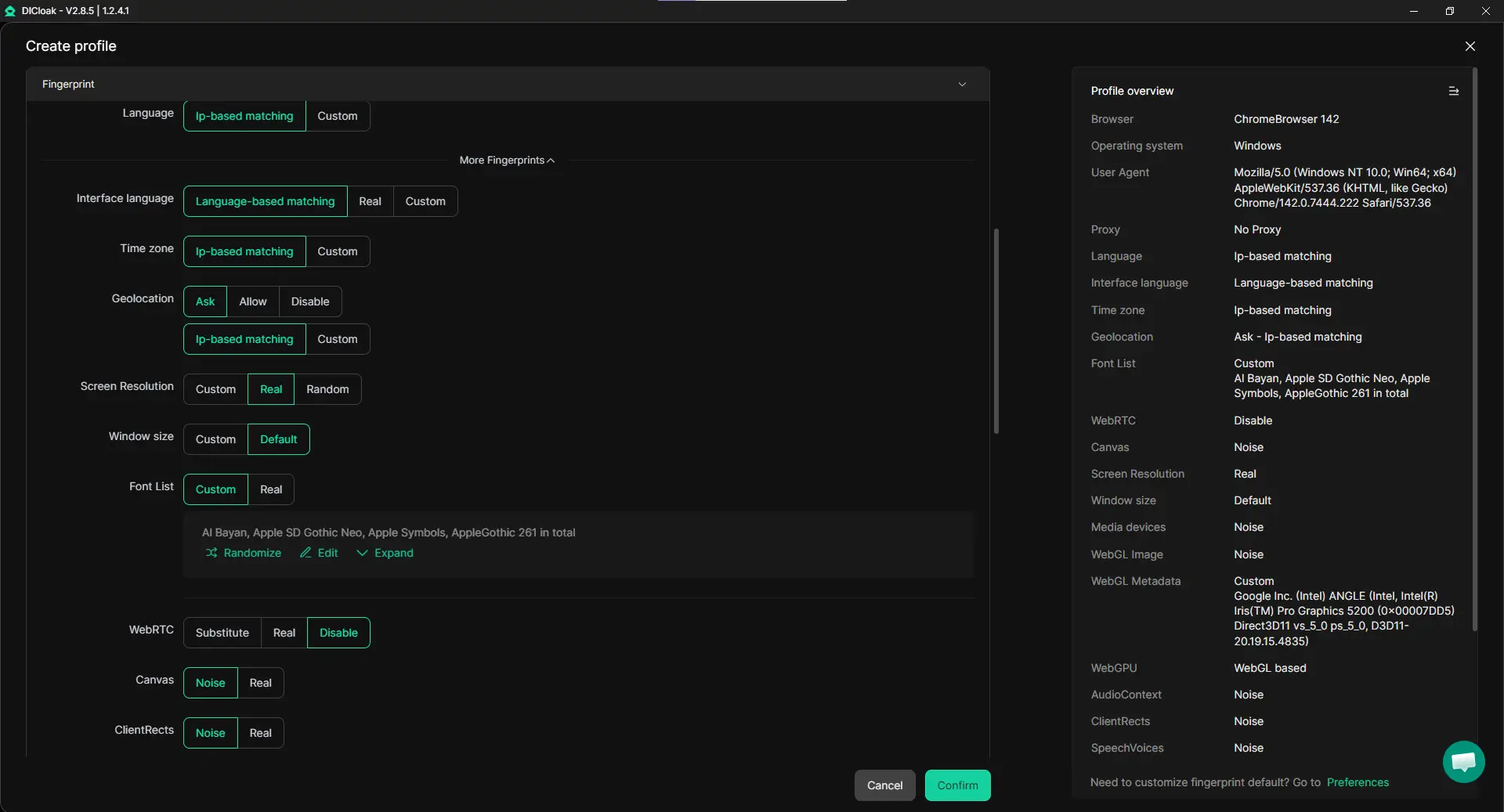
For users who work with multiple X accounts such as social media content creators or marketers, using a structured browser profile can make a big difference. Instead of running everything in one browser, you can separate each account into its own profile with a unique fingerprint and environment. This helps keep accounts independent and reduces the risk of conflicts or account linking.
Manage Multiple Accounts for Seamless GIF Sharing
When handling multiple accounts, switching between logins in a regular browser can quickly become messy. With isolated browser profiles, each account runs in its own environment, with separate cookies, sessions, and device fingerprints.
This setup is especially useful when collecting and sharing GIFs across accounts. For example, one account can focus on content discovery, while another handles posting or engagement. Everything stays organized, and you avoid mixing sessions or triggering suspicious activity patterns.
Keep Accounts Stable with Custom Proxy Setup
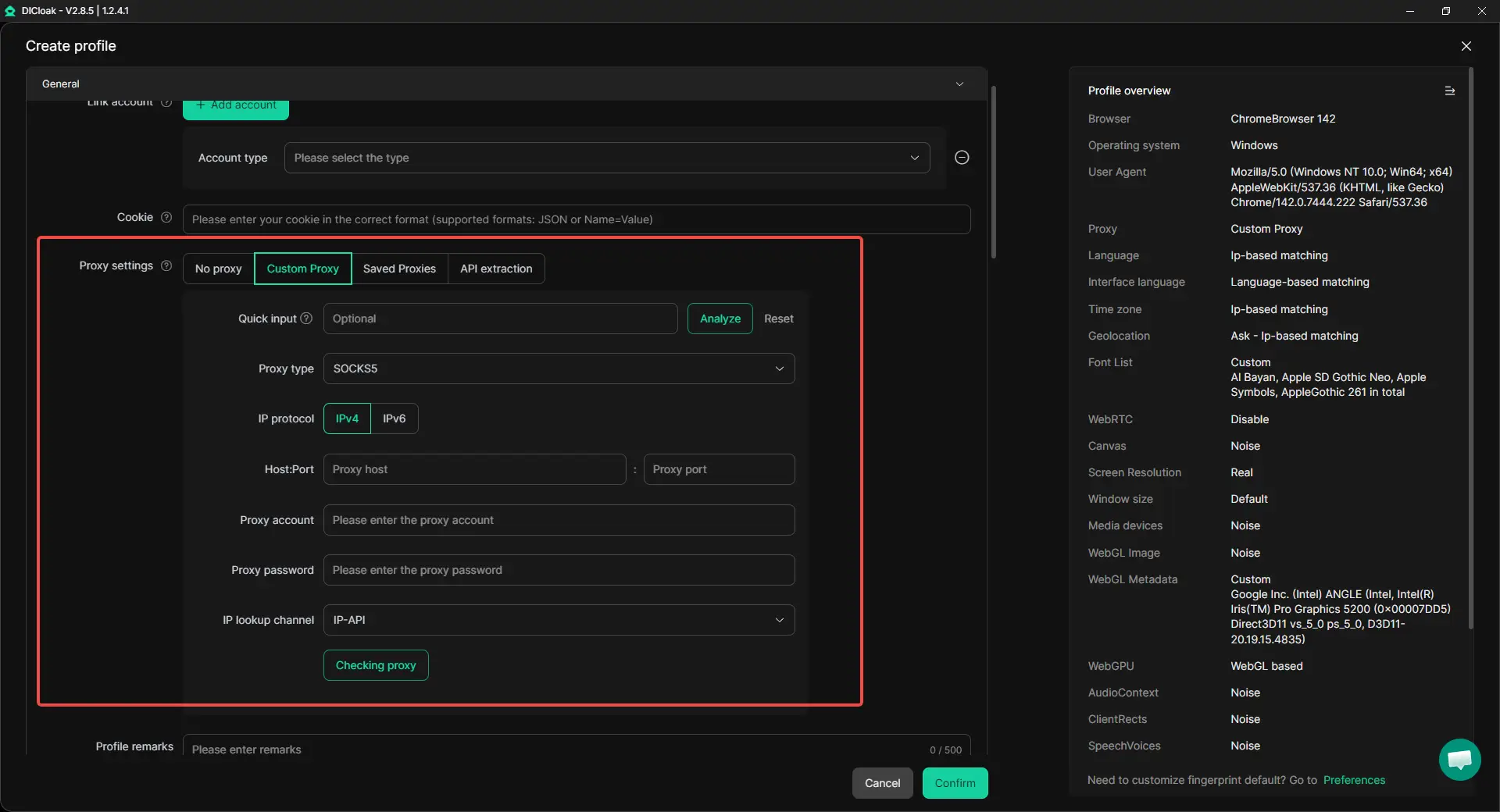
When working across multiple accounts, network consistency also matters. Assigning a separate proxy to each profile helps keep activity more stable and consistent.
With flexible proxy configuration (such as HTTP or SOCKS5), each account can run with its own IP setup. This makes it easier to manage different accounts at scale without relying on one shared connection. For users managing multiple X profiles daily, this creates a cleaner and more controlled workflow.
Use Synchronizer to Repeat Actions Faster
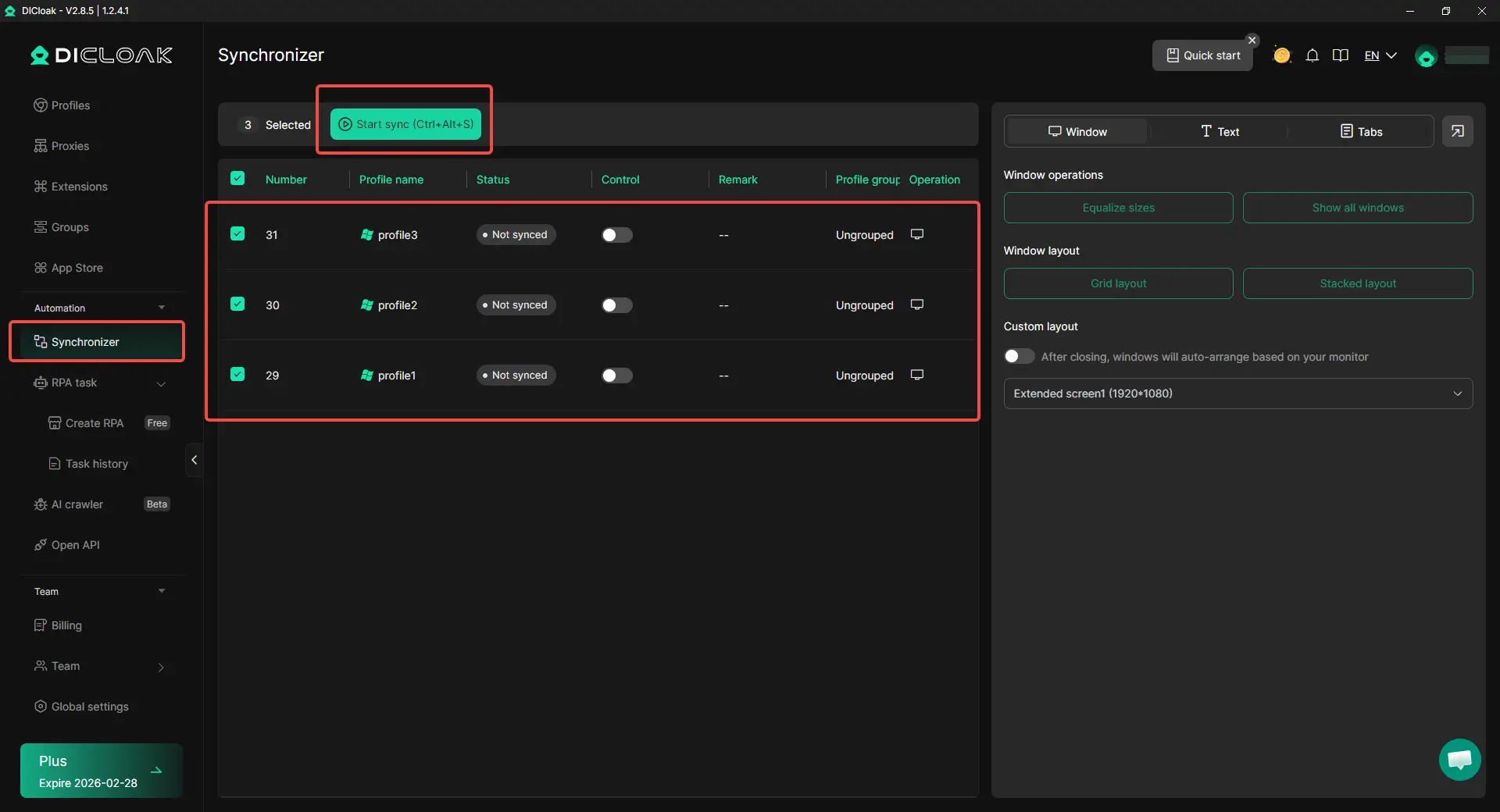
When the same actions need to be repeated across multiple accounts, manual work becomes slow. The multi-window synchronizer allows actions like clicking, typing, and opening pages to be mirrored across several profiles at the same time.
For example, if you want to open the same tweet, review GIF content, or prepare posts across multiple accounts, you can do it once and apply it everywhere. This is especially useful for users who manage multiple content pipelines or track trends across accounts.
Simplify Team Collaboration and Account Management
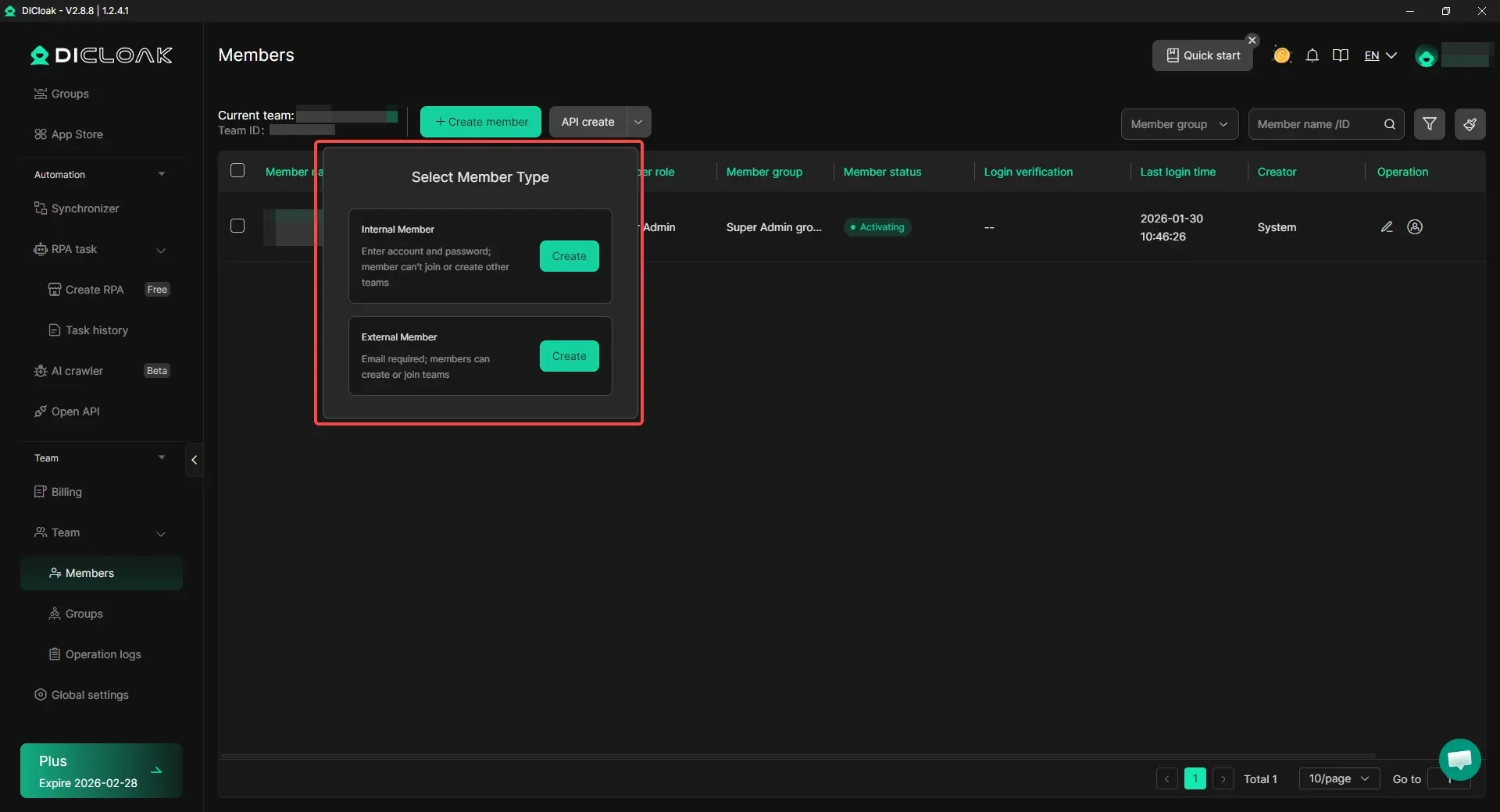
For teams, GIF workflows are often shared tasks. One person may collect trending reactions, another edits them, and another schedules posts.
With profile sharing, permission settings, and operation logs, teams can manage access without exposing full account control. Each member can work within their role while keeping data separated. This helps teams stay organized and reduces mistakes when multiple people handle the same accounts.
Conclusion
In the end, using a Twitter GIF downloader is the easiest way to save GIFs from X when the platform does not offer a simple built-in download option. Since Twitter GIFs are usually delivered in a video-like format, many users find that saving them is not as direct as saving a normal image. That is why different methods matter. Some people prefer quick online tools, some rely on mobile apps, and others use desktop extensions or MP4-to-GIF workflows for more control.
The best choice depends on your device and how often you save content. Casual users may only need a simple browser tool for fast downloads, while creators, marketers, and social media teams may need a more stable workflow for collecting, organizing, and reusing GIFs. No matter which method you choose, it is important to use a safe Twitter GIF downloader, avoid risky tools, and protect your privacy while downloading.
For users who handle many accounts or work with GIFs at scale, a more structured setup can also make the process smoother. With isolated browser profiles, custom proxy settings, team collaboration tools, and synchronizer features, it becomes easier to manage repeated tasks and keep multi-account workflows organized. Overall, the right Twitter GIF downloader solution can save time, reduce frustration, and make GIF sharing and management much easier on any device.
FAQs About Twitter GIF Downloaders
What is the best Twitter GIF downloader in 2026?
The best Twitter GIF downloader depends on your device and needs. If you want a quick web-based option, online tools like TWDownload are simple and fast. If you need to edit or convert files, EZGIF is more useful. For mobile users, apps like TwiMate on Android or GIFwrapped on iPhone may feel more convenient.
Why can’t I save a Twitter GIF directly from X?
Many users look for a Twitter GIF downloader because Twitter GIFs are usually not stored as normal GIF files. In most cases, they are delivered in a video-like format, which makes them easy to play on X but harder to save directly like a normal image.
Is it safe to use a Twitter GIF downloader?
Yes, but only if you choose carefully. A safe Twitter GIF downloader should work with a public post link and should not ask for your X password. It is also smart to avoid tools with too many pop-ups, unknown downloads, or unnecessary permissions.
Can a Twitter GIF downloader save files on iPhone and Android?
Yes. A Twitter GIF downloader can work on both iPhone and Android, but the method may be different. On iPhone, users often save GIFs through Safari or apps like GIFwrapped. On Android, many people use browser tools or apps that work through the share menu.
Can I use a Twitter GIF downloader for work or content creation?
Yes. A Twitter GIF downloader is useful not only for personal sharing but also for professional work. Social media managers, creators, and marketers often use saved GIFs for content research, reaction libraries, trend tracking, and creative inspiration.
 Web Proxy Tools
 Free Tools
 Cookie Plugin
 UA Generator
 MAC Address Generator
 IP Generator
 IP Address List
 2FA Code Generator
 World Clock
 Anonymous Check
 WebRTC Leak Test
 UUID Generator
 Free Web Proxy Site
 Proxy Checker
 FB Ad Checker
 AI Web Scraping
 Free SMM Tools
 Twitter Shadowban Checker
 Instagram Name Checker
 UTM Generator
 Username Generator
 AI Hashtag Generator
 LinkedIn Headline Generator
 Social Media Image Resizer