Imagine you're trying to access your favorite website, but suddenly you see the message, “Your IP has been banned.” It’s frustrating, especially if you’re unsure why it happened or how to fix it. Whether you’re working, shopping, or just browsing, an IP ban can completely disrupt your online activities. But don’t worry — understanding the reasons behind it and knowing how to resolve it can quickly get you back on track. In this guide, we’ll walk you through everything you need to know about IP bans, from identifying the cause to preventing them in the future. Let’s get started!
What Is an IP Address?
First, let's understand what an IP address is.
In fact, an IP address is like your device’s street address on the Internet. When you use a computer, phone, or tablet to go online, your device gets an IP address. That address is a unique number that helps websites and services know where to send data — just like the post office needs your home address to deliver a letter.
There are different kinds of IP addresses. Some are “public.” These are visible to the wider Internet. Some are “private.” These stay inside your home or office network.
What Does “Your IP Has Been Banned” Error Mean?
Because your public IP is how online services see you, that number becomes very important. If a website or platform blocks or bans that IP address, then any device that uses it will lose access. That is exactly what “your ip has been banned” means.
This block stops you from using that site from your current internet connection. It does not matter which device you use — computer, phone, or tablet — if they share the same public IP, the ban applies to all of them.
An IP ban is often triggered when a website detects suspicious or unwanted behavior from your IP. This could be many quick login attempts, repeated failed tries, or automated traffic.
When the error appears, you cannot browse, log in, or register — all requests from your IP are denied.
Understanding this helps you see what “your ip has been banned” really means. It shows that the block is about your connection — not about your account or device. This clarity sets the stage for diagnosing and fixing the issue.
Types of IP Bans
When your screen shows “your ip has been banned”, not all bans are the same. The ban could be short‑term. Or it could be for good. Understanding the difference helps you decide what to do next.
A temporary ban happens when a website detects unusual behavior, such as too many requests in a short time. This ban lasts for a set period, after which access is usually restored automatically.
A permanent ban occurs when a site believes the behavior is a serious violation or repeated multiple times. The ban remains in place indefinitely unless you change your IP or contact support for resolution.
Common Reasons for IP Bans
When you see the error “your ip has been banned”, it usually happens for one of a few common reasons. Here are the main causes that websites use to block an IP — and why they matter.
Excessive Requests
If a website gets too many hits from the same IP in a short time, it may mark that IP as abusive. Frequent page reloads, many fast requests, or automated tools (bots) can trigger this.
This helps protect the site from server overload or service disruption for other users.
Malicious Activities
Sites may ban an IP if they see harmful behavior coming from it. This can include hacking attempts, spam, or other forms of cyber‑attacks.
Such bans help protect the site’s data and the wider community from abuse or danger.
Violations of Terms of Service
Every website has rules—its terms of service. If a user breaks those rules, the site may block the user’s IP. This may include unauthorized scraping, posting forbidden content, or misusing site tools.
When rules are broken, the site often uses an IP ban as a clear way to cut off access.
Geographical Restrictions
Some websites limit access by region. If your IP comes from a blocked location, the site may ban or block it.
This happens especially with services that must follow laws or licensing rules about where their content can go.
Impact of an IP Ban
An IP ban can have several effects:
- Loss of Access: You can no longer access the website. Any attempts to open it will show an error message, like “403 Forbidden.”
- Affects All Devices on the Same IP: If multiple devices use the same public IP (e.g., on a home Wi-Fi), they will all be blocked from accessing the site.
- Impact on Work or Services: For users who rely on online services — like shopping, emailing, or streaming — an IP ban can interrupt essential tasks and cause frustration.
- Damage to Reputation: Repeated bans can make it harder to regain access and harm your reputation with the website, even if future activity is normal.
How to Determine if Your IP Has Been Banned
If you suspect your ip has been banned, here’s how to confirm:
Checking for Specific Error Messages
Look for error messages like "IP blocked", "Access denied", or "Your IP has been banned". If these appear across multiple devices on the same network, it likely means your IP is banned.
Using Blacklist Check Tools
Use online tools like MXToolbox or WhatIsMyIPAddress.com to check if your IP is listed on public blacklists. If your IP is flagged, it's likely banned.
Testing Different Internet Connections
Try accessing the site from a different network, such as mobile data or a friend's Wi‑Fi. If the site loads fine on another network, your IP is likely banned.
What to do When You IP Has Been Banned
If you see “your ip has been banned”, here are practical steps you can take to try to fix it.
1. Identify the Cause of the Ban
Check if you broke any rules on the website. Did you send many requests fast, or do something the site forbids? If yes, the ban may be because of that. Some sites send a notice or email that explains the reason.
2. Restart Your Router
If your Internet Service Provider (ISP) gives you a changing (dynamic) IP address, turning your router off and on might give you a new IP. This often lifts a ban when it is linked to your old IP.
3. Contact Platform Support
Reach out to the website’s support team. Explain your situation politely and ask if the ban can be removed. Many sites allow you to appeal.
4. Switch Networks
Try connecting from a different network, such as a public Wi‑Fi or mobile data. If the site works on another network, it shows your original IP was banned.
5. Avoid Suspicious Activities
Do not send too many requests, avoid automated tools or repeated logins. Stay within the site’s rules. That reduces risk of getting banned again.
6. Consider a Static or Clean IP
If you often run into bans and your current IP changes often, think about using an IP that is stable and clean. A “fresh” IP may avoid past ban marks.
7. Use a Proxy Server
A proxy server routes your connection through another IP. That way, the site sees the proxy’s IP — not your banned one. This can restore access if the ban is keyed to your IP.
Here are a few popular Proxy Servers you can use:
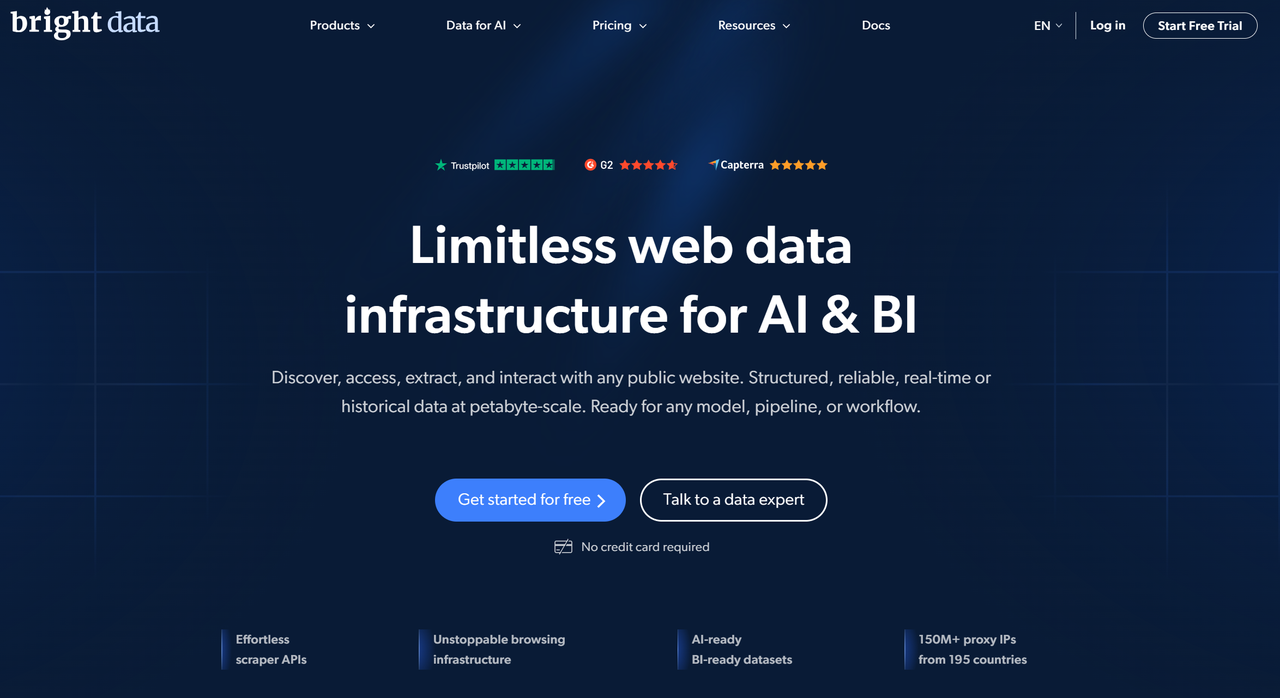
- Bright Data (formerly Luminati): Offers residential proxies with a vast pool of IPs worldwide. Ideal for web scraping, market research, and avoiding IP bans.
- Smartproxy: Provides fast and reliable residential proxies, with access to millions of IPs across multiple locations. Great for social media management and data collection.
- Oxylabs: Known for its premium proxies, Oxylabs offers residential and data center proxies for large-scale projects like SEO, data scraping, and ad verification.
Best Practices to Avoid Getting Banned Again
Do not send too many requests too fast. If you reload pages or make many clicks quickly, websites might treat this as suspicious and ban your IP. (Many guides warn that high request rates often trigger IP bans.)
- Avoid Unauthorized Automated Tools
Automated scripts or bots can make many requests fast. Sites often detect and block them. If you use tools, make sure they follow the site’s rules — or avoid them altogether.
- Keep Security Software Updated
Use up-to-date antivirus or firewall software. This helps prevent malware or unwanted scripts from sending strange traffic from your IP. Good security reduces the risk of your IP being used for malicious activity.
Maintaining Responsible Online Behavior
Tips for Safe Browsing:
- Only visit trusted sites.
- Avoid clicking suspicious links or running unknown programs.
- Log out when done on shared networks.
- Do not share your public IP widely — avoid letting many people use the same IP if you can.
By following these habits, you lower the risk of ip banned and increase your chances to keep smooth, stable access online.
Why choose DICloak Antidetect Browsers for your business?
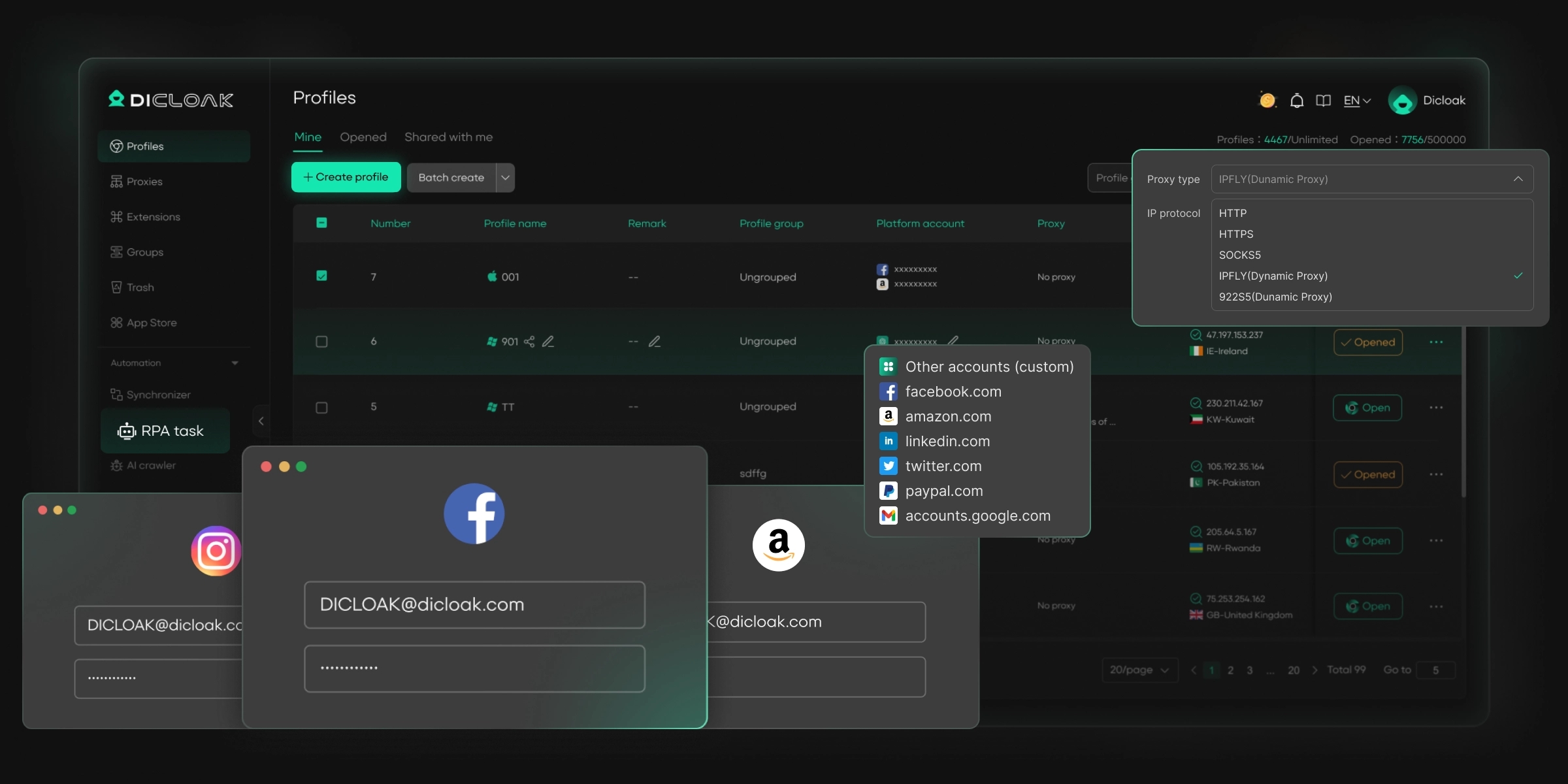
⚡The DICloak Antidetect Browser has become a global favorite for its unparalleled ability to efficiently and securely manage multiple accounts. Designed for professionals in social media management, affiliate marketing, traffic arbitrage, e-commerce, account farming, airdrops, and more, DICloak offers powerful features like RPA automation, bulk operations, and synchronizer. Additionally, it allows you to customize fingerprints and integrate proxies for each profile, ensuring top-level security and operational efficiency. It’s the ultimate tool for seamless, secure, and scalable operations.
What Makes DICloak Stand Out?
✅ Manage 1,000+ Accounts on One Device: Stop wasting money on extra hardware! DICloak allows you to manage multiple accounts on a single device, cutting costs and boosting efficiency.
✅ Guaranteed Account Safety, No Ban Risks: Every account gets its own isolated browser profile with custom fingerprints and IPs, drastically reducing the risk of bans. Your accounts, your control!
✅ Flexible Proxy Configuration for Maximum Performance: Seamlessly integrate with all major proxy protocols (HTTP/HTTPS, SOCKS5) and manage your proxy pool with bulk operations. No more struggling with IP management—DICloak has you covered.
✅ Streamlined Team Collaboration for Better Results: Easily manage your team with advanced tools like profile sharing, permission settings, data isolation, and operation logs. Your team works smarter, not harder.
✅ Automate the Grind with RPA: DICloak's built-in RPA saves you hours of manual work. Automate repetitive tasks, streamline workflows, and focus on what really matters—growing your business.
✅ Powerful Bulk Tools to Scale Your Operations: Create, import, and launch multiple browser profiles in one click. DICloak makes scaling your business as easy as it gets.
✅ Compatible with All Major Operating Systems: Based on the Chrome core, DICloak supports simulating Windows, Mac, iOS, Android, and Linux operating systems. No matter what platform you need, DICloak has you covered.
🔗 Ready to Get Started?
Visit the DICloak website to explore more details and choose the plan that’s right for you. Start for free today and experience the power of secure, efficient, and scalable multi-account management!
Conclusion
In summary, when your IP has been banned, it can disrupt your online activities. Understanding the causes, such as excessive requests or malicious activity, helps you take the right steps to resolve the issue. Whether by restarting your router, contacting support, or using a proxy, there are ways to regain access. To prevent future bans, follow best practices like respecting usage limits, avoiding automated tools, and maintaining responsible online behavior. By staying mindful of these precautions, you can reduce the chances of facing IP banned messages in the future.
FAQs About IP Bans
What does it mean when your IP has been banned?
When your IP is banned, it means a website or service has blocked your IP address from accessing its content, usually due to suspicious or rule-breaking activity.
Why has my IP been banned, and how do I know?
Your IP can be banned for reasons like excessive requests, malicious activity, or violating the site's terms. Error messages like "Access Denied" or "403 Forbidden" usually indicate a ban.
How can I fix the issue if my IP has been banned?
You can restart your router to get a new IP, contact the website’s support, or use a different network to bypass the ban.
What are the most common reasons for an IP to be banned?
The most common reasons for IP banned are excessive login attempts, scraping, using automated bots, or violating terms of service.
How do I prevent my IP from being banned in the future?
To avoid getting your IP banned, respect usage limits, avoid suspicious activities, and ensure your security software is up to date.
 Web Proxy Tools
 Free Tools
 Cookie Plugin
 UA Generator
 MAC Address Generator
 IP Generator
 IP Address List
 2FA Code Generator
 World Clock
 Anonymous Check
 WebRTC Leak Test
 UUID Generator
 Free Web Proxy Site
 Proxy Checker
 FB Ad Checker
 AI Web Scraping
 Free SMM Tools
 Twitter Shadowban Checker
 Instagram Name Checker
 UTM Generator
 Username Generator
 AI Hashtag Generator
 LinkedIn Headline Generator
 Social Media Image Resizer