You open Discord, but nothing loads, no messages, no servers, just a spinning icon or a blank screen. Maybe your friends are chatting away in another group, or maybe the problem is bigger. The question running through your mind is simple: is discord down right now, or is it just your connection acting up again?
The trouble is, not every outage is a platform-wide Discord outage today. Sometimes the discord server status page says “all clear,” but your app keeps crashing or refusing to connect. Local network issues, browser cache problems, or even device updates can break Discord for you when it’s working fine for everyone else.
What actually matters is knowing how to tell the difference. Waiting for Discord support to post an update wastes time if the problem is on your end, but restarting your computer over and over won’t help if there’s a real outage. The fastest way to get back online is to check the right sources, rule out your own setup, and take clear steps based on what you find.
Start by checking the main Discord status indicators, here’s what to look for and how to break down the results.
How Can You Tell If Discord Is Down Right Now?
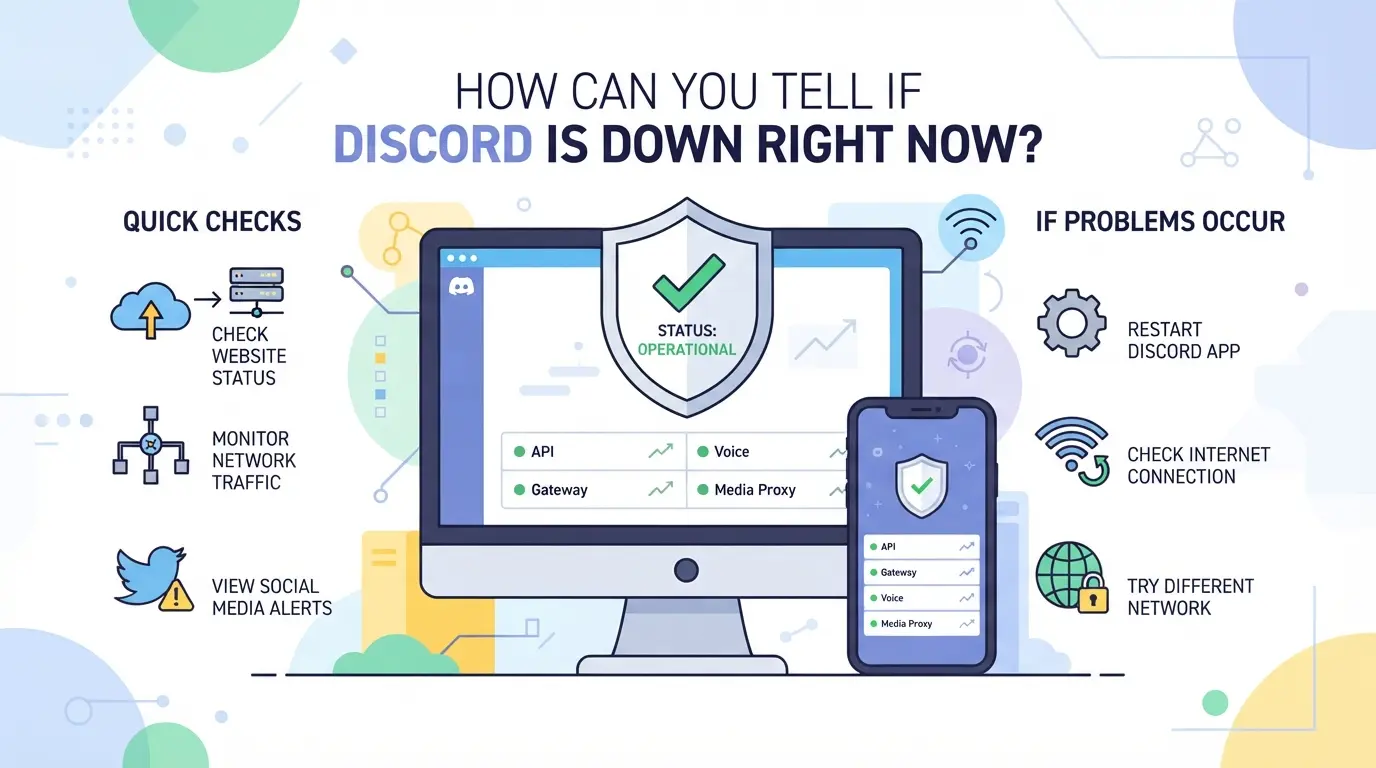 There’s a quick way to answer, “is discord down right now?”, check the official status page, user reports, and community noise. If Discord is down for everyone, you’ll see clear signs. If not, the problem sits closer to home, and local troubleshooting makes more sense.
Official Discord Status Page: What It Shows and What It Misses
The Discord status page shows if the platform is having major issues, like login failures or voice outages. It’s the fastest official source, but updates lag when outages start or only affect certain regions.
Third-Party Outage Trackers and User Reports
Third-party outage sites like Downdetector track spikes in user complaints almost in real time. If you see thousands of new reports in the last 15 minutes, odds are high the issue is platform-wide and not just your device. These trackers pull from user reports, so they react faster than official channels, sometimes within five minutes of an outage starting. But this method isn’t perfect. If a small group has a local network problem, a burst of reports might look like a worldwide Discord outage when only a few cities are affected. Checking the comment feed below the outage chart helps, users often post what region they’re in, what device they’re using, and whether the problem is login, voice, or something else. If you notice most complaints are from one country, that’s a clue it’s not a global Discord server status issue. On the other hand, an “all clear” on these trackers doesn’t always mean there’s no problem, niche outages, like certain Discord bots breaking, might not trigger the meter. The strongest signal is when you see both the official page and user tracker spike at the same time.
Quick Checks: Social Media, Community Forums, and Discord's Own Channels
- Search “Discord down” on Twitter/X for a flood of real-time user posts, look at timestamps to see if it’s current.
- Check Discord’s official Twitter for outage updates; they post quickly during major downtime.
- Scan r/discordapp on Reddit for threads marked “Outage” or “Can’t Connect”, these pop up fast when service breaks for many.
If none of these show a pattern, the odds point to a local issue, maybe your network, device, or browser.
Knowing where the outage signal is coming from saves time and frustration. If the crowd says Discord is up but you’re still stuck, it’s time to dig into what else could be breaking your connection.
Why Discord Might Not Be Working for You (Even If It's Not Down)
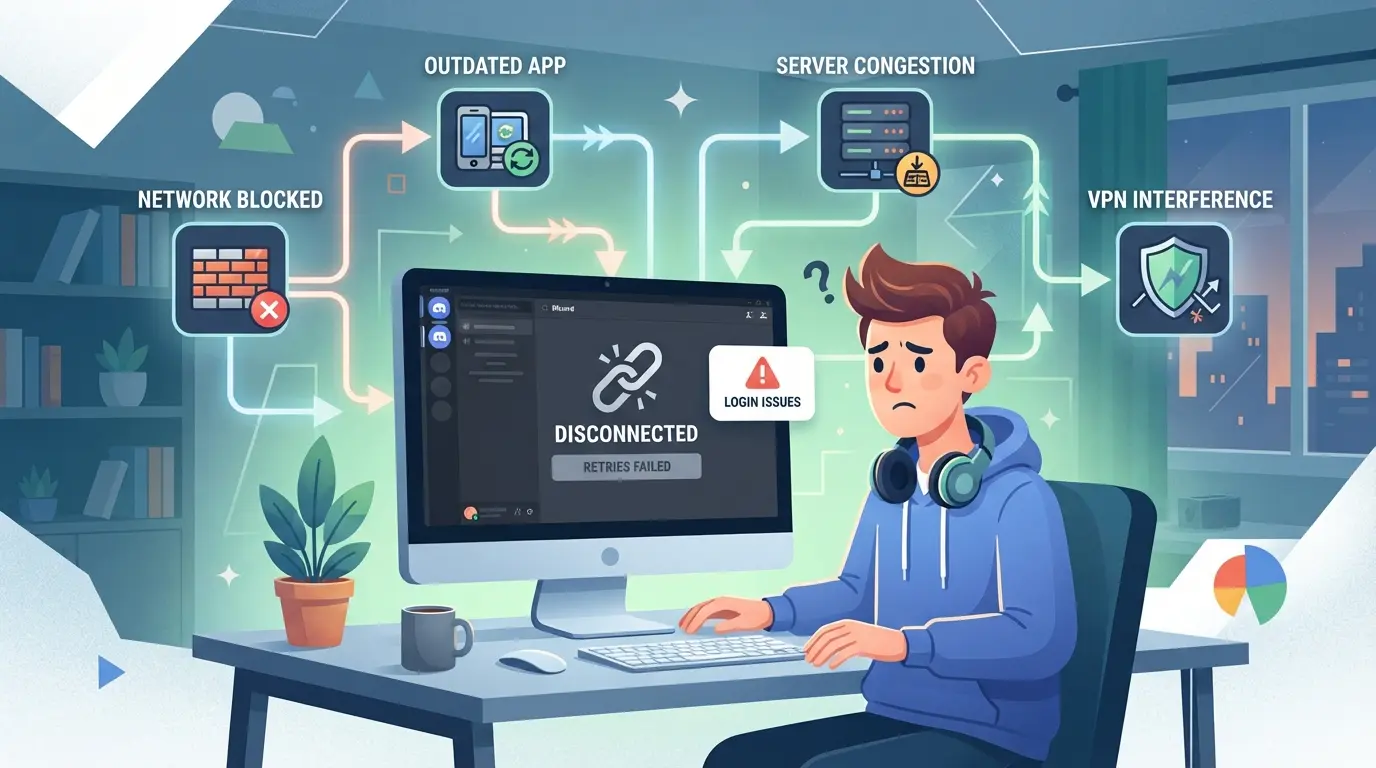 Just because the Discord status page shows no issues doesn’t mean you’re in the clear, local problems often break Discord for one person while it works fine for everyone else. If you’ve checked “is discord down right now” and see no outage, your next move should be to look for causes on your end before waiting for Discord support.
Local Network Problems: Wi-Fi, Firewalls, and ISP Restrictions
Home and work networks cause Discord loading failures more often than people think. Routers with parental controls, strict firewalls, or ISPs that block certain ports can quietly block Discord traffic. If you only see loading circles or “connecting” forever, check your Wi-Fi first, then review firewall rules or try a mobile hotspot to see if the issue is your main network.
Device-Specific Issues: App Glitches, Updates, and Cache
A fresh Discord install doesn’t guarantee smooth running forever, over time, device-specific glitches crop up. The desktop app sometimes gets stuck after a failed update or when a corrupted cache blocks normal startup. For example, if Discord closes itself right after launch or freezes at the logo, outdated files are usually to blame. Force-closing the app and deleting its cache folder often fixes these silent crashes. On Windows, you’ll find the cache under %AppData%\discord\Cache; on Mac, it’s in ~/Library/Application Support/discord/Cache. If clearing cache changes nothing, check for pending updates, an old app version can’t always connect after Discord changes its API. Sometimes you’ll get a vague “update failed” message; other times, it just hangs with no error at all. Even browser-based Discord can choke on stale cookies, especially if you switch between accounts or devices often. In that case, clear browser cache and cookies, then log in fresh. The single most overlooked fix is to completely exit Discord (not just close the window), clear the cache, and only then restart. Skipping this step leaves broken files in place, so the same error keeps coming back.
Account Restrictions and Suspensions
- If you see “account disabled” or “banned for suspicious activity,” you’re not facing a server outage, your account is limited.
- Check your email (including spam) for Discord’s suspension or restriction notice; these have a direct appeal link.
- If login works but features are greyed out, you may have a temporary restriction, try logging in from a different device or network to confirm.
When Discord works for others but not you, pinpointing whether it’s a network, device, or account issue saves hours of guesswork. If you’ve checked each layer and still can’t connect, you’ll need a step-by-step approach, which the next section covers.
What Steps Should You Take If Discord Isn't Working?
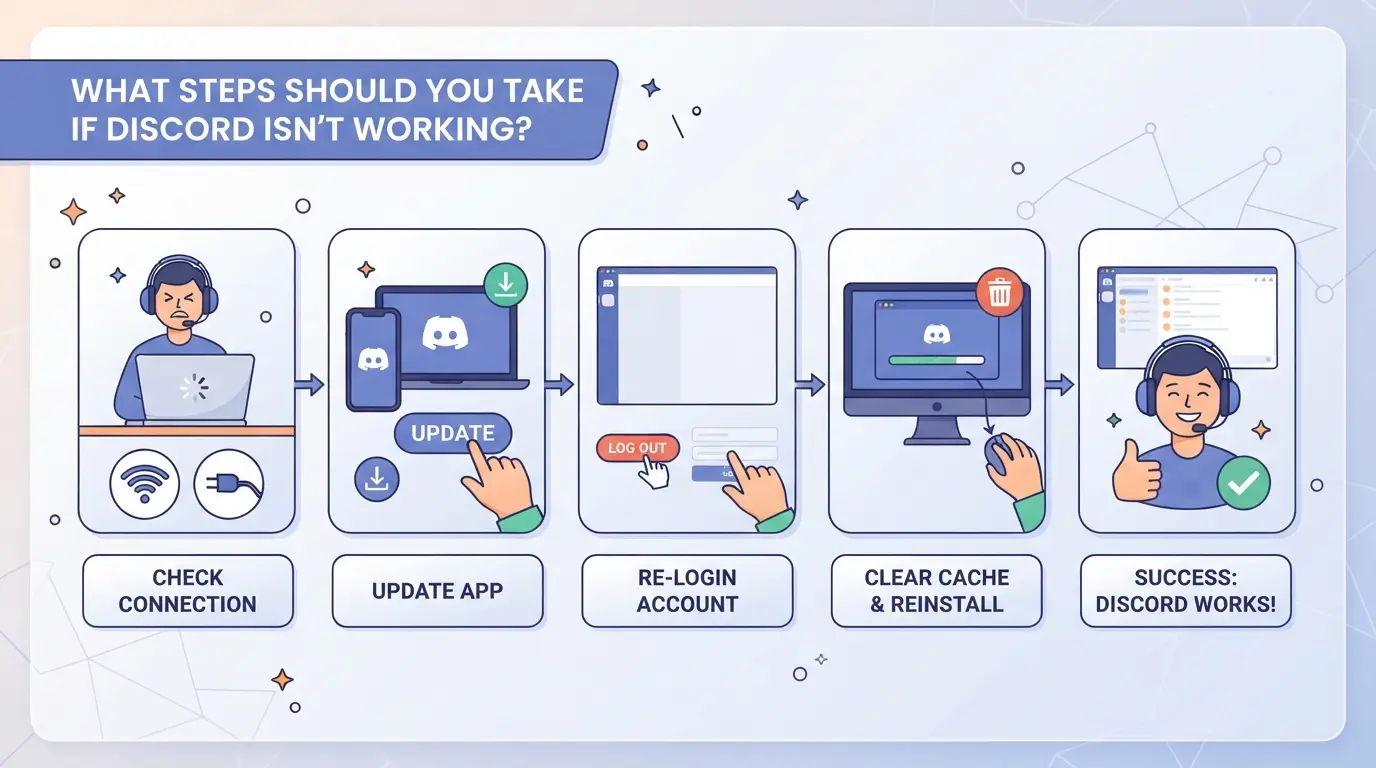
If Discord won’t load, don’t just assume a global outage, you can rule out easy fixes and avoid waiting hours for something you could solve in minutes. Most connection problems come down to local device issues, account restrictions, or regional limits, not Discord-wide downtime. Here’s a concrete checklist to help you narrow it down fast.
Step 1: Confirm Discord Status Across Multiple Sources
Check the official Discord server status and a third-party tracker. If both say everything is operational, but your app still won’t connect, the issue is almost always on your end. Relying on just one status page can leave you chasing false positives, use at least two sources before moving on.
Step 2: Restart Your Device and Network Equipment
- Power off your computer or phone completely, don’t just sleep or lock it.
- Unplug your router for 30 seconds, then plug it back in.
- Wait until all lights on your router are stable before reconnecting.
Step 3: Update or Reinstall the Discord App
Open your app store (or Discord’s website) and check for an update. If you’re already on the latest version but still see loading errors, uninstall Discord and reinstall it fresh, this clears up most app corruption issues.
Step 4: Test on a Different Device or Network
Try logging in from another phone, computer, or tablet. If Discord loads there, your main device or network is the problem. If the error follows you on every device, it’s more likely an account block or a real Discord outage.
Step 5: Check for Account or Regional Restrictions
Short bans, regional blocks, or flagged accounts can look just like a connection problem. Here’s what to check:
- Try logging in with a different Discord account, if that works, your main account may be flagged.
- Switch to mobile data or a different Wi-Fi network to test for IP or region-based restrictions.
- Scan your email (and spam folder) for any Discord messages about account action.
If none of these steps fix the issue, you’re likely dealing with a broader network or platform problem. The next section covers how to tell if your connection or region is at fault instead of Discord itself.
How to Distinguish Between a Discord Outage and Local Network Issues
If Discord suddenly won't load, the fastest way to tell if it's a platform outage or your own network is to compare error patterns, global outages show up everywhere, while local problems only affect you.
Symptoms of a Platform-Wide Discord Outage
| Symptom |
Platform Outage |
Local Issue |
| Discord status page |
Reports "Major Outage" |
Shows "All Systems Operational" |
| Other users (Reddit/Twitter) |
Many reports in same hour |
No new complaints |
| Error message in app |
"Unable to connect to servers" |
"Check your internet connection" or app just spins |
If the Discord status page or social feeds light up with complaints, it's almost always a real outage. Ignore local fixes, wait for updates.
Signs of a Local or ISP-Specific Problem
If only your devices fail to connect but status pages and other users have no issue, the cause is usually your connection, browser, or router. Try switching to mobile data or rebooting your router before reporting anything.
Handling several Discord accounts, especially for business or community work, means facing extra risks that single-account users rarely see. The biggest problems come from how Discord tracks logins and flags unusual activity, not just from “is discord down right now” checks.
Why Multi-Account Management Gets Risky on Discord
- Discord can spot repeat logins from the same browser or device fingerprint.
- IP address overlaps often trigger extra verification or temporary lockouts.
- Session or cookie mix-ups make it easy for Discord to link accounts together.
Best Practices for Keeping Accounts Separate
Running multiple Discord accounts safely means never letting browser sessions cross over. Use a separate browser profile and a unique proxy for each account, otherwise, Discord may flag your logins as suspicious. For example, sharing the same device or WiFi for both work and personal accounts can lead to both being restricted if one triggers an alert. The only reliable way to avoid this is to fully isolate each account’s device, network, and browser profile. Even logging out isn’t enough if traces remain; a clean profile and a fresh proxy make the difference.
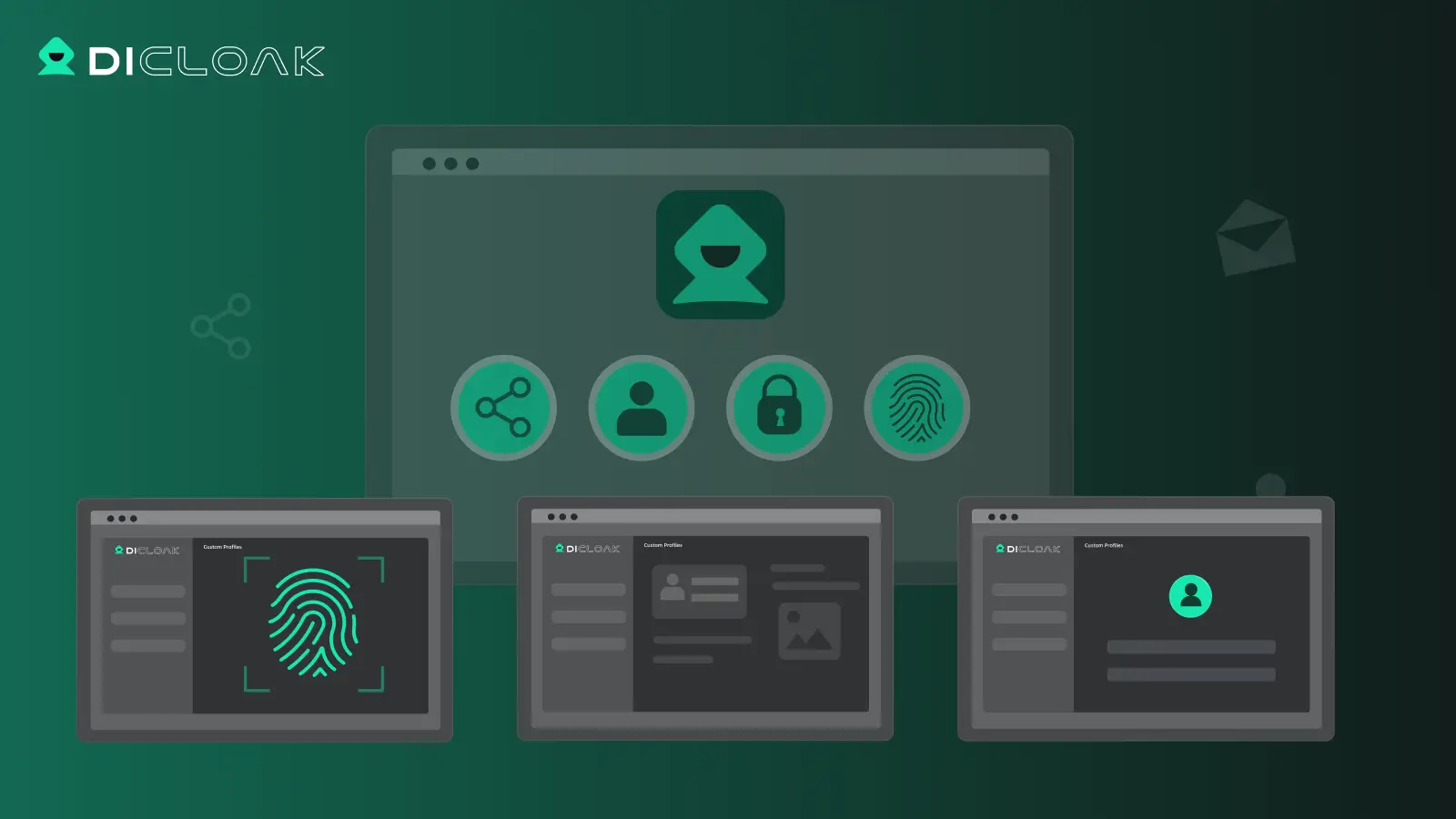
How to Set Up Isolated Browser Profiles and Proxies for Discord Accounts in DICloak
Social media teams and power users running more than one Discord account often need to keep sessions, browser storage, and network connections separated. If you’re handling multiple Discord logins for business, support, or community work, the right setup in DICloak reduces the risk of session overlap or accidental account linkage. This workflow doesn’t affect whether Discord is down or experiencing issues, but it gives operators more control over their own side of the environment.
Creating Separate Browser Profiles with Custom Fingerprints
Operators can create a new browser profile in DICloak for each Discord account, so every session stays in its own environment with its own browser storage, fingerprint, and configuration. The main benefit: team members can log into different Discord accounts without cross-contaminating cookies or browser signals. Supported fingerprint settings in DICloak include operating system, browser version, timezone, WebRTC handling, and screen resolution. Keeping each account in a separate profile is the step that actually blocks accidental session leaks between team members. The scope is limited to browser-profile isolation and does not control what happens inside Discord. 
Assigning User-Provided Proxies to Each Profile
For workflows that require distinct network identities, users can assign their own proxy to each DICloak browser profile. This means one account can use a home IP, another can use a datacenter proxy, and a third can use a mobile proxy, each set up and tested by the operator before logging into Discord. DICloak does not supply proxies; the proxy source, quality, and compliance are up to the user. This proxy setting stays with the profile so switching between Discord accounts does not switch network connections by accident. 
This workflow keeps Discord sessions separated, making it easier to respond to platform-side outages and troubleshoot only what you control.
When to Wait, Report, or Try Again: Responding to Discord Outages in 2026
If Discord isn’t connecting or features suddenly stop working, don’t rush to report a bug, start by checking the discord server status page or social feeds before taking action.
When to Wait It Out vs. When to Report an Issue
- Wait 10–15 minutes if Discord’s status page says there’s an outage, staff often post updates quickly.
- Report only if your problem lasts longer than the official outage window or isn’t mentioned on status channels.
- Use the in-app report tool or official Discord support, avoid spamming Twitter replies.
What to Expect During Partial Outages or Rolling Restarts
Partial outages mean some features come back before others. Discord often staggers restarts, messaging might return fast, while voice channels or login issues can lag by up to 30 minutes. Refresh every 10 minutes but avoid repeated logins, which can lock you out.
Common Mistakes to Avoid When Diagnosing Discord Connection Problems
Most people lose time by guessing or repeating the same fix when Discord won't connect. The real trap is acting on one clue and missing the bigger picture, especially if you only check one status page or forum post.
Jumping to Conclusions Without Checking Multiple Sources
Relying on a single “is discord down right now” report often leads to chasing the wrong problem. Always double-check with Discord’s official status page, plus a trusted third-party outage tracker, before you assume there’s a platform issue.
Ignoring Local Device or Network Issues
- Restart your router and device, not just the app.
- Try Discord on cellular data or another WiFi to rule out your home network.
- Sign in from a different browser or device to spot app-specific bugs.
Using Untrusted Tools or Sharing Sensitive Info
Quick fixes from random sites may steal your login or worsen the problem.
- Only download the Discord app from official sources.
- Never give your account credentials to “helper” bots or websites.
- Avoid browser extensions claiming to “fix” Discord unless verified.
Frequently Asked Questions About is discord down right now
Is Discord down right now in my country?
To check if Discord is down in your country, visit the official Discord Status page or use third-party sites like Downdetector. These sites show outage reports by region. Sometimes, problems affect only certain countries or ISPs, so checking these resources can help you find out if others nearby are having the same issue.
Why can't I connect to Discord even though it's not down?
If you can’t connect but Discord isn’t reporting an outage, the issue may be on your end. Try restarting your device, checking your internet connection, or switching networks. Sometimes browser extensions, proxys, or firewall settings block Discord. If problems continue, try logging in from another device to isolate the cause.
How often does Discord experience outages in 2026?
Major Discord outages in 2026 are rare, but minor service disruptions and regional slowdowns still happen. Most issues get fixed within a few hours. You can view Discord’s status history to see patterns of downtime and check if there are frequent problems affecting server status or connectivity.
Can I use a proxy to access Discord if it's blocked on my network?
Yes, you can use a proxy or proxy to access Discord if it’s blocked at school or work, but be sure to follow Discord’s terms of service and local laws. Some proxies may slow down your connection or cause login problems, so choose a reliable service and configure it correctly.
What should I do if my Discord account is suspended during an outage?
If your Discord account gets suspended during an outage, wait until the service is fully restored. Sometimes account actions can be triggered by technical glitches. If your account remains suspended after Discord comes back online, contact Discord support directly for help resolving the issue.
If you're experiencing issues connecting to the platform, consider checking official status pages or reliable outage trackers to confirm if there's a widespread problem. While waiting for service to resume, you might want to explore alternative communication tools to stay connected with your community. Try DICloak For Free
 Web Proxy Tools
 Free Tools
 Cookie Plugin
 UA Generator
 MAC Address Generator
 IP Generator
 IP Address List
 2FA Code Generator
 World Clock
 Anonymous Check
 WebRTC Leak Test
 UUID Generator
 Free Web Proxy Site
 Proxy Checker
 FB Ad Checker
 AI Web Scraping
 Free SMM Tools
 Twitter Shadowban Checker
 Instagram Name Checker
 UTM Generator
 Username Generator
 AI Hashtag Generator
 LinkedIn Headline Generator
 Social Media Image Resizer