Juggling more than one Outlook account always seems easier than it is. Whether you’re running client inboxes, switching between work and personal email, or maintaining multiple Outlook profiles for team workflows, the real headache pops up when session conflicts, sync errors, or lost attachments start stacking. Trying to manage multiple Outlook accounts in 2026 means dealing with stricter login controls, browser fingerprint mismatches, and the risk of cross-profile mistakes, especially if you rely on the built-in account switcher or keep merging accounts on one device.
It’s tempting to use quick hacks like browser incognito windows or toggling between profiles, but these shortcuts rarely hold up when you need stable access and clean separation. One misstep can leave drafts stuck, auto-logins confused, or sensitive messages sent from the wrong address. Even tech-savvy users often miss how Outlook ties session data and cookies to local storage, which can trigger permission issues or force unexpected logouts if you juggle accounts too aggressively.
The trick isn’t just about avoiding technical errors, it’s about building a routine that lets you switch between Outlook accounts reliably without risking data leaks or slowdowns. You want a setup that keeps your inboxes separate, lets you access what you need fast, and protects each account from accidental exposure. That means picking the right tools and workflow before problems snowball.
Here’s how you can set up Outlook multi-account management that actually works.
Why Managing Multiple Outlook Accounts Gets Risky Fast
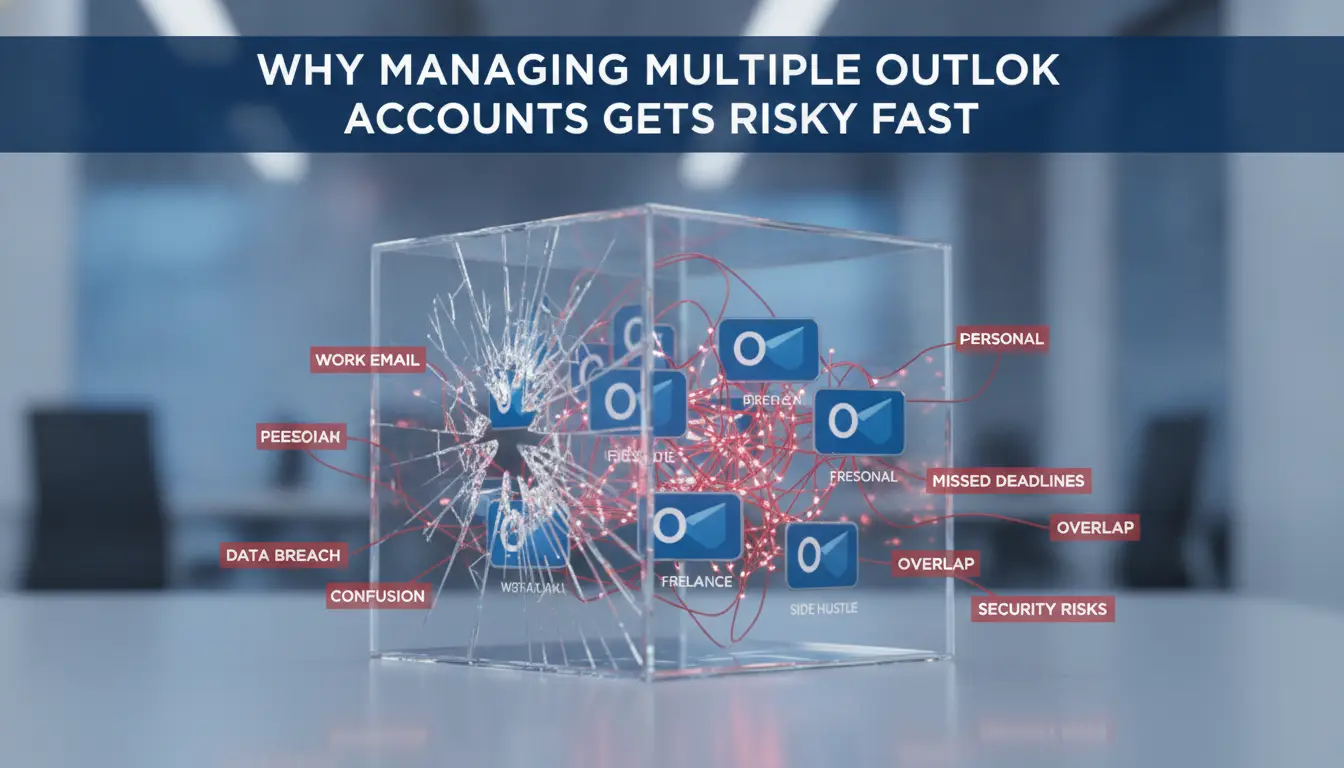
Trying to manage multiple Outlook accounts on one device isn’t just a hassle, it opens the door to hidden risks. One wrong move can leave you locked out, expose confidential messages, or trigger restrictions that take days to fix. The main problem isn’t technical, it’s about how Outlook ties each account’s session, cookies, and device signals to your local profile. When you mix accounts or rush the setup, these signals overlap and Outlook starts flagging unusual activity.
How Outlook Detects Suspicious Multi-Account Activity
Outlook checks for “fingerprints” every time you log in. If you use several profiles from the same device, the platform watches for signals like browser cookies, session IDs, and even mouse movement patterns. Sudden changes, such as logging in from two accounts with different IPs, or switching locations between sessions, can trigger risk checks. If Outlook sees logins from the same browser but different accounts, it often flags the session for review. Even a simple switch between accounts can set off alarms if the device signals don’t match the previous login.
Common Mistakes That Trigger Account Restrictions
The most common failure comes from mixing sessions. For example, you might log in with Account A, switch tabs to Account B, and forget which inbox you’re using. Send a sensitive email from the wrong address, and you’ve got a privacy breach. Even worse, auto-complete can fill in the wrong sender if your browser keeps cached data from earlier sessions. Accidentally letting browser cookies overlap between accounts is the fastest way to trigger Outlook’s restriction algorithms. Once flagged, you’ll see warning popups, forced logouts, or even temporary blocks that freeze access for hours. Trying to fix this by clearing cookies helps, unless you miss a step and the browser still remembers your old logins. This gets trickier if you manage accounts for different clients or business units; one small slip can leak information or break compliance rules.
When Teams Share Access: Extra Risks
- No easy way to trace who sent which message, audit trails get messy fast.
- Shared devices mean profile data can bleed between accounts, exposing attachments or drafts.
- One team member’s mistake can lock everyone out or trigger security reviews across all accounts.
Moving from solo use to a team setup adds layers of risk. If accountability drops or someone mishandles a shared inbox, the fallout affects everyone, not just the person who made the mistake.
Staying on top of these risks is step one. Before you add new accounts, it’s worth checking the basics, what device setup, browser habits, and session routines can avoid Outlook’s restriction traps. The next section breaks down what you need to prepare before adding multiple Outlook accounts.
What to Prepare Before Adding Multiple Outlook Accounts
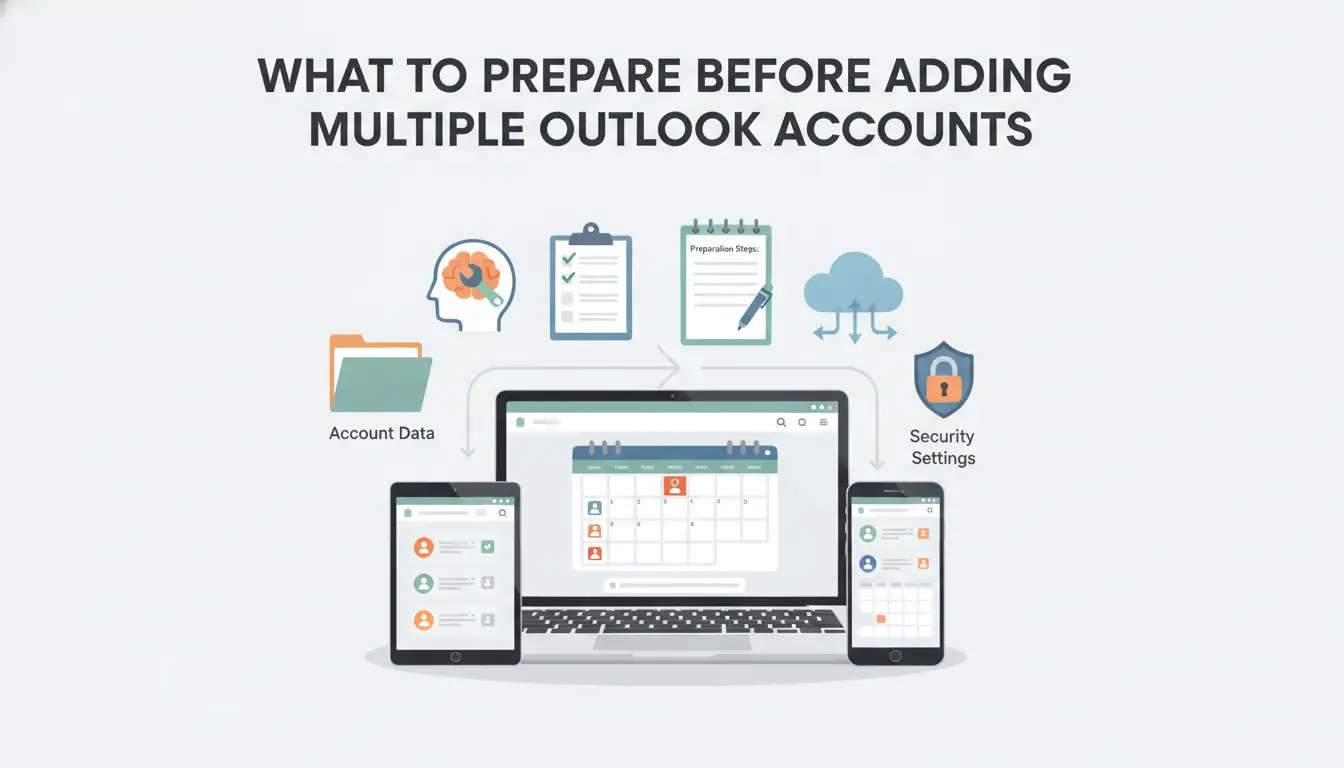
Adding more than one Outlook account isn’t just about typing in extra logins. If you skip a check or mix up profiles, you can lock yourself out, trigger security holds, or cross up emails between accounts. Here’s what to check before you even touch the “Add account” button.
Check Account Types and Compatibility
Personal Outlook.com accounts and work or school (Microsoft 365) accounts don’t always play nice together, especially if you’re running older Outlook versions or switching between desktop and web. Outlook 2016 and later supports separate profiles, but some features, like Focused Inbox or shared calendars, can break if you mix types. If you’re on a Mac, expect fewer profile options. Before you go further, confirm which Outlook version you’re using and whether it supports the kind of accounts you need to add.
Decide on Profiles vs. Separate Browsers
- Use Outlook profiles if you want true separation and less risk of calendars, drafts, or contacts crossing over.
- Open different browsers (or use browser containers) if you need to switch between accounts that might fight for the same session.
- Stick with profiles for desktop apps; use browser containers for webmail to avoid login confusion.
Plan for Password and Security Management
If you add several accounts but skip security prep, you’ll run into password resets, lockouts, or delayed logins, especially when two-factor authentication kicks in. Don’t wait until you’re juggling codes on deadline.
- Turn on two-factor authentication for every account you plan to add.
- Store passwords in a password manager before you start linking accounts.
- Check that each account’s recovery email and phone number are current.
Checklist: What to Do Before You Add Multiple Outlook Accounts
- Verify your Outlook version supports multiple accounts and profiles.
- List each account: label as personal, work, or school.
- Decide if you’ll use profiles, browser containers, or both.
- Update passwords and recovery details for all accounts.
- Enable two-factor authentication on every account.
- Back up your current Outlook data (PST/OST files) in case of sync errors.
- Test sign-in for each account in a private/incognito window.
- Log out of all accounts before starting, to avoid session bleed.
Rushing this setup leaves you chasing login errors or dealing with account lockouts when you least expect it. With these checks done, you’re ready to actually add, switch, and organize your Outlook accounts, without surprises.
How to Add, Switch, and Organize Multiple Outlook Accounts (Step-by-Step)
Getting multiple Outlook accounts set up is simple, keeping them from mixing up is where most users trip up. The safest routine is to add each account cleanly, switch using built-in tools, and organize inboxes so you always know which account you’re using. Skip any step and you’ll see permissions errors, wrong sender addresses, or lost drafts.
Adding Multiple Accounts in Outlook (Desktop & Web)
- Open Account Settings On Outlook 2026 desktop, go to File → Account Settings → Add Account. On the web, click your profile icon → Add Account.
- Enter Credentials One by One Add each Outlook email address separately. If you rush this, Outlook sometimes auto-links accounts based on cached cookies, suddenly, inboxes merge and rules break.
- Confirm Sync and Permissions After each account is added, check that mail and calendar sync are working. If you see “permission denied” or stuck sync, log out and clear browser cookies before retrying.
- Check Active Sessions In web Outlook, click your profile icon → View Account → Sign-in Activity. If you spot overlapping sessions, close them. That prevents auto-login confusion across accounts.
Switching Between Accounts and Profiles
- Use Outlook’s Switcher On desktop, click your avatar in the top right and pick the account you want. On web, the profile icon gives you the same option. If you see both accounts blended, you missed the separation step above.
- Create Separate Profiles (Desktop Only) For clean separation, use Control Panel → Mail → Show Profiles. Make a profile for each account. This keeps cookies, drafts, and sessions apart. If you skip this, Outlook often merges drafts or autofill data.
- Switch Profiles for True Isolation When you launch Outlook, pick the right profile for your task. If you’re handling sensitive work, this is the only way to avoid cross-account leaks.
Organizing Accounts for Clarity and Safety
- Rename Accounts Clearly In account settings, edit each account’s display name. Use job titles, team names, or project codes. This makes inboxes easier to spot and reduces the risk of sending from the wrong address.
- Apply Color-Coding (Web Only) Assign colors to each account’s inbox or calendar. Outlook web lets you do this in Settings → Appearance. If you handle five accounts, this is the fastest way to spot mistakes.
- Set Up Folders and Rules For each account, create folders for projects or clients. Use Outlook rules to auto-sort incoming mail. If you skip rules, emails from different accounts can get mixed, making it hard to track conversations.
- Check Rule Conflicts After setting up, test your rules. If emails aren’t sorting as expected, check for overlapping triggers. Fixing this now prevents lost or misfiled messages.
The right setup keeps accounts separate and organized, so you won’t waste time untangling inbox confusion or chasing missing drafts. Next, you’ll want to watch for the most common mistakes that derail multi-account management.
How to Avoid Common Pitfalls When Handling Multiple Outlook Accounts
Managing several Outlook accounts at once leads to predictable mistakes, most come down to sending from the wrong address, losing track of which account is active, or triggering security alerts if you rush the process. Here’s how to avoid the issues that trip up even experienced users.
Mixing Up Senders and Recipients
The biggest headache is firing off a message from the wrong account. Always check the "From" field before sending, especially if you use Outlook’s quick-reply or reply-all features. Set your default account to the one you use most, but double-check on replies, Outlook sometimes flips sender fields on new threads.
Losing Track of Which Account Is Active
- Color-code each account’s inbox or calendar for instant visual cues.
- Open each Outlook account in a dedicated browser window or profile; never stack them as tabs.
- Pin a sticky note or use a desktop widget to remind yourself which window is which.
Triggering Security Alerts or Lockouts
Rapid switching or logging in from new devices can flag accounts for extra checks. If you see repeated verification requests, slow down, complete each login step before switching again. Ignoring these warnings can leave you locked out for hours.
Accidental Data Sharing or Forwarding
A single misconfigured rule can leak data across accounts.
- Review forwarding rules to make sure no sensitive mail crosses accounts by default.
- Remove shared mailbox permissions when switching roles or projects.
- Audit any “send as” rights monthly, old settings can go unnoticed and create legal risk.
Next, see how to keep accounts truly separate with profiles and advanced tools.
How to Keep Outlook Accounts Truly Separate: Profiles, Proxies, and Advanced Tools
If you want to keep Outlook accounts from overlapping, you need more than just careful login habits. True separation means isolating profiles, using proxy setups, and picking workflow tools that avoid cross-contamination, a must for privacy and compliance.
Using Outlook Profiles and Separate User Accounts
Windows or Mac user accounts are the fastest way to wall off Outlook sessions. For lighter setups, Outlook profiles let you split inboxes without mixing cookies or permissions. If your machine is shared, always use separate OS accounts to avoid accidental leaks.
Configuring Proxies for Account Separation
Proxies matter when you’re running Outlook accounts that need different IPs or location identities. Set each Outlook session to a distinct proxy, especially for accounts tied to regional rules or sensitive workflows. If you skip this, Outlook may link activity and trigger alerts.
When to Use Advanced Multi-Account Tools
- Use browser containers for web Outlook to isolate sessions
- Switch to session managers if you handle 5+ accounts daily
- Automate routine logins only if you can monitor for mix-ups
This level of isolation lets teams scale up without risking account confusion or compliance surprises.
How Teams and Agencies Can Manage Multiple Outlook Accounts Without Losing Control (with DICloak)
Managing Outlook accounts as a team can turn messy fast, one person clicks the wrong account, another leaves a session open, and suddenly sensitive emails or permissions are exposed. You need a system that keeps access organized and every action traceable.
The Main Challenges for Teams Managing Outlook Accounts
The hardest parts are setting clear permission boundaries and tracking who did what. Even with account separation, mistakes often happen when operators share devices or skip logout routines. Teams must prevent overlap, but also spot accidental errors before they cause real damage.
How DICloak Supports Team-Based Multi-Account Workflows
Teams can use DICloak to set up a dedicated browser profile for each Outlook account. That means every session, cookie, and login stays isolated, no more cross-logins or shared cache issues. Operators get only the access they need, and admins can check operation logs for every profile. This setup gives teams real control over access and accountability without relying on memory or manual logs. But keep in mind, DICloak doesn’t control the Outlook platform itself; it manages browser profiles and workflow boundaries.
Best Practices for Teams Using DICloak
- Assign profiles per operator, never share a profile across accounts.
- Use DICloak’s operation logs to review actions and spot unusual activity.
- Transfer profiles only with full log review, so nothing slips through during handoff.
This structure makes it easier to scale without losing track, now you can focus on smart automation decisions next.
When to Automate Outlook Account Management, and When to Avoid It
Automation can help when you handle routine Outlook tasks for several accounts, but it’s easy to lose track or trigger security warnings if you overdo it. The safest move is to automate only what’s repetitive and low-risk, never critical actions or anything tied to permission changes.
Tasks That Benefit from Automation
| Task |
Automation Value |
Common Pitfall |
| Bulk email sorting/labeling |
High |
Overwrites custom folders |
| Routine login/status check |
Medium |
Can trigger security flags |
Automate repetitive sorting and status checks, manual review is still needed for permission or security-related actions.
Risks of Over-Automating Outlook Workflows
Outlook’s security system spots unusual patterns fast. If you automate logins or send messages from multiple accounts too quickly, you can get flagged or locked out. Automation removes oversight, mistakes compound before you notice.
How to Safely Integrate Automation Tools
Stick to reputable tools with clear audit logs. Always leave manual overrides in place so you can step in if a script fails or Outlook shows unexpected warnings. If a tool doesn’t offer audit or rollback, skip it, recovery is much harder without them.
Quick Reference: Outlook Multi-Account Management Tips for 2026
Managing multiple Outlook accounts gets tricky, most users slip up by mixing inboxes or skipping profile separation. The key is setting clear boundaries and routines so you don’t end up with cross-account confusion or accidental data leaks.
Top 10 Do’s and Don’ts for Multi-Account Outlook Users
- Always create a new profile for each sensitive Outlook account. This keeps session data and cookies isolated, so one mistake won’t spill into another mailbox.
- Never share account passwords through email or chat, real breaches often start with shortcut sharing.
- Turn off auto-login for accounts you rarely use. You want manual control if a session goes stale or you need to debug unexpected logouts.
Frequently Asked Questions About manage multiple Outlook accounts
Can I use multiple Outlook accounts on one device without getting locked out?
Yes, you can manage multiple Outlook accounts on a single device if you keep each session separate. Use different browser profiles or Outlook desktop app profiles to avoid mixing logins. Rapidly switching between accounts or logging in from unusual locations can trigger security alerts. Always log out before switching and avoid suspicious behavior to stay safe.
What’s the safest way to share Outlook account access with a team?
The safest way is to set up permission controls within Outlook or Microsoft 365. Assign access rights or delegate mailbox access rather than sharing passwords. Use isolated profiles for each team member, so everyone logs in with their own credentials. This keeps your account secure and lets you track activity easily.
How do I keep work and personal Outlook accounts completely separate?
Create different Outlook profiles in the desktop app, or use separate browsers for each account. You can also use different user accounts on your computer. Never cross-login between work and personal accounts, and avoid saving credentials in the same browser. This prevents accidental data mixing and keeps your information private.
Will using proxies help prevent Outlook account bans?
Proxies can help by separating accounts with different IP addresses, making it harder for Outlook to link them. However, proxies alone aren’t foolproof. If you switch accounts quickly or use the same device fingerprint, Microsoft’s security may still flag your activity. Combine proxies with unique profiles and careful login habits for better safety.
Are there tools to automate managing multiple Outlook accounts?
There are automation tools and browser extensions that can help with Outlook multi-account management. These tools can schedule logins or switch profiles easily. However, using automation can trigger Microsoft’s security systems if not configured properly. Always test new tools with caution and avoid bulk actions that look suspicious.
Consider which tools or workflows fit best with your daily routine and security needs, then take steps to simplify how you access your email. By adopting the right solution, you can reduce hassle and stay organized as your communication demands grow. Try DICloak For Free
 Web Proxy Tools
 Free Tools
 Cookie Plugin
 UA Generator
 MAC Address Generator
 IP Generator
 IP Address List
 2FA Code Generator
 World Clock
 Anonymous Check
 WebRTC Leak Test
 UUID Generator
 Free Web Proxy Site
 Proxy Checker
 FB Ad Checker
 AI Web Scraping
 Free SMM Tools
 Twitter Shadowban Checker
 Instagram Name Checker
 UTM Generator
 Username Generator
 AI Hashtag Generator
 LinkedIn Headline Generator
 Social Media Image Resizer