You import Instagram cookies expecting instant access, but the login fails and nothing happens, just another round of “instagram cookies not working after import.” That’s where most users get stuck: the cookies look fine, the import seems to work, but Instagram still asks for a new login or throws a session error. Sometimes, you even see the cookie file accepted, but the Instagram session not restored with imported cookies, no profile loads, or you get bounced back to the login page.
Blaming the cookie file itself often misses the real issue. Instagram changes its session handling and security checks every few months. A cookie set that worked in May might break in August, even if you export and import it the same way. Rushed imports, mismatched device fingerprints, or skipping the user agent step can quietly break the whole process, wasting time and risking temporary blocks.
The real fix comes down to reading what Instagram expects, right browser fingerprint, matching user agent, and a cookie format that matches your import tool’s requirements. If you skip even one, the session fails quietly or triggers extra verification. The trick is spotting which step failed so you don’t repeat the cycle.
If your imported Instagram cookies aren’t working, start by checking these three areas before moving to deeper fixes.
Why Instagram Cookies Fail After Import: Core Causes Explained
When Instagram cookies won’t restore your login after import, the root cause is usually a mismatch between what Instagram expects and what your browser gives it. Even if your export and import steps look right, a small difference in browser fingerprint, cookie format, or session age can break the process. Here’s what to check to avoid chasing your tail with failed imports.
Browser Environment and Fingerprint Differences
Instagram doesn’t just check cookies, it reads your browser fingerprint to confirm it matches the original login. If you import cookies into a browser with a different device model, OS version, or user agent string, Instagram often flags the session as suspicious. This quiet mismatch can block the auto-login or trigger extra verification, even if the cookies themselves look fine.
Mismatch Between Cookie Format and Instagram Requirements
Instagram’s backend changes several times a year, which means cookie formats that worked in the past might fail without warning. If you export cookies in a Chrome format but import them into a tool expecting JSON or Netscape, fields like “expiry” or “domain” get lost or misread. For example, a cookie missing the “sessionid” field or with an invalid timestamp will not restore your Instagram session. Even minor mistakes, like pasting cookies with missing tabs or wrong delimiters, can break the process. When Instagram rolls out new requirements (such as stricter path scoping or SameSite rules), even properly formatted old cookies can suddenly stop working. The real risk is silent failure: your import looks successful, but the login never restores, and you waste time debugging everywhere except the cookie file itself.
Expired or Invalid Session Cookies
- Imported cookies with an “expiry” date in the past are ignored by the browser, no warning, just no login.
- If the “sessionid” is missing, empty, or too short, Instagram forces a fresh login even if other fields look valid.
- Cookies tied to a password change or security event become invalid, so importing them triggers immediate verification or a login screen.
If you suspect your cookies are expired or invalid, check the expiry field for a future timestamp, confirm all session-related fields are filled, and watch for Instagram prompts asking you to verify your identity right after import.
The next step is to look at what you can do before importing, because catching these problems early saves you from repeating the same failed cycle.

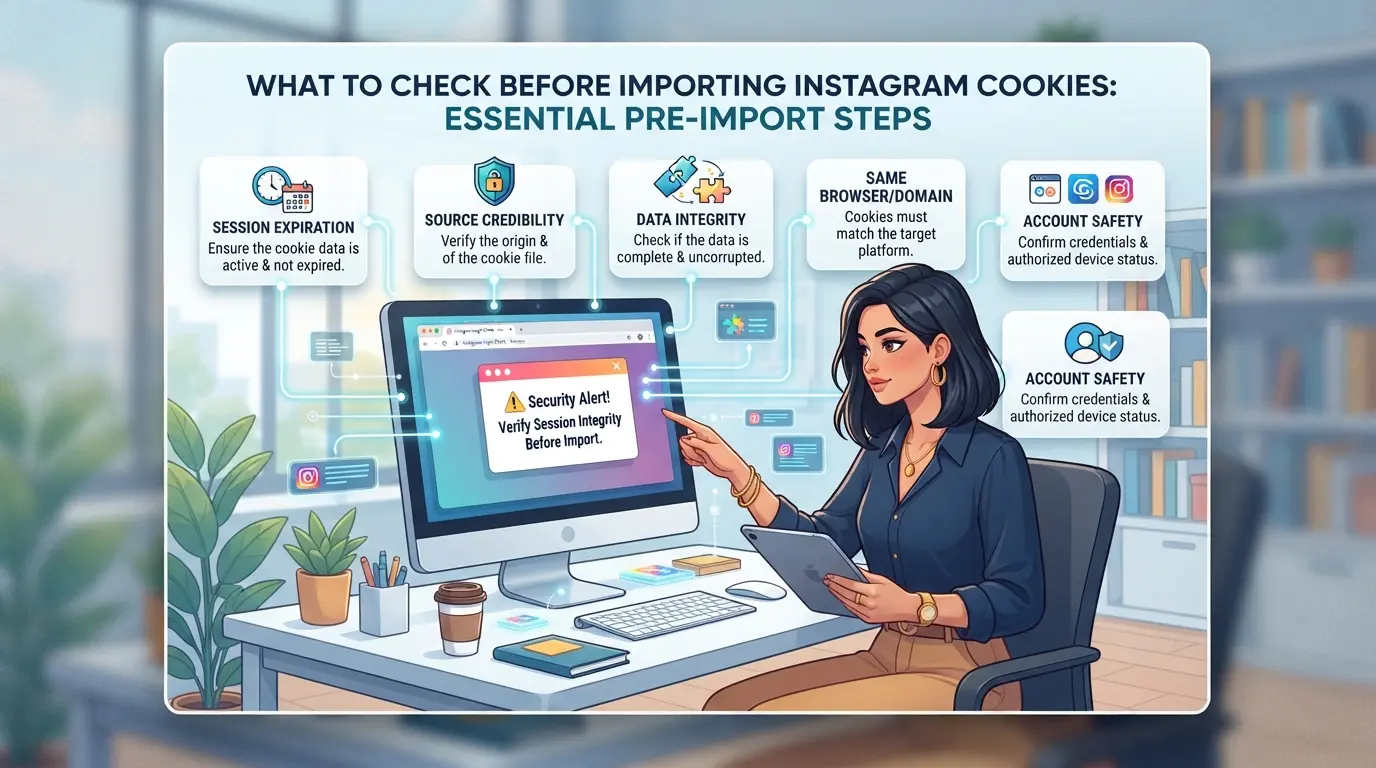
What to Check Before Importing Instagram Cookies: Essential Pre-Import Steps
If instagram cookies not working after import is your problem, the answer usually starts with missing a basic prep step. The browser and environment need to match what Instagram expects, not just what’s convenient for you. Get these details wrong and even a fresh cookie set fails to restore your session.
Verify Cookie Validity and Freshness
Imported cookies only work if they’re still valid and unbroken. Expired cookies won’t restore a session, check the expiry or expirationDate field before import. If the cookie file is incomplete (missing sessionid, ds_user_id, or csrftoken), or if you see strange characters or blank fields, treat it as corrupted. Even a cookie set grabbed an hour ago can fail if it’s missing key fields or was exported after a forced logout.
Match Browser Environment to Original Session
- Set the User-Agent string to match the device where cookies were exported.
- Use the same OS type and screen resolution as the original browser.
- Align timezone and language settings with the account’s last known values.
Prepare Proxy Settings for Instagram Access
If your login IP changes location, Instagram may flag the session as suspicious. A mismatched proxy is a top reason for an immediate checkpoint or forced re-login. Before importing cookies, run through these:
- Choose a proxy in the same country (and city, if possible) as the last login.
- Test the proxy for stable access to instagram.com before starting the import.
- Use a fresh proxy IP that hasn’t been blocked or flagged by Instagram recently.
Skipping these steps is the fastest way to run into instagram cookie import issues. Small mismatches, like a different device fingerprint or an expired proxy, cause most silent failures. Once these basics are confirmed, you’re ready to start troubleshooting if the session still won’t restore.
How to Troubleshoot Instagram Cookie Import Failures: Step-by-Step Fixes
If your imported cookies won’t restore your Instagram session, don’t waste time re-importing blindly. The fastest fix is to check for error messages, double-check your cookie format, and make sure your browser fingerprint matches your original login. Skipping even one step means you’ll keep hitting the same wall.
Diagnose the Error: Common Failure Messages and Logs
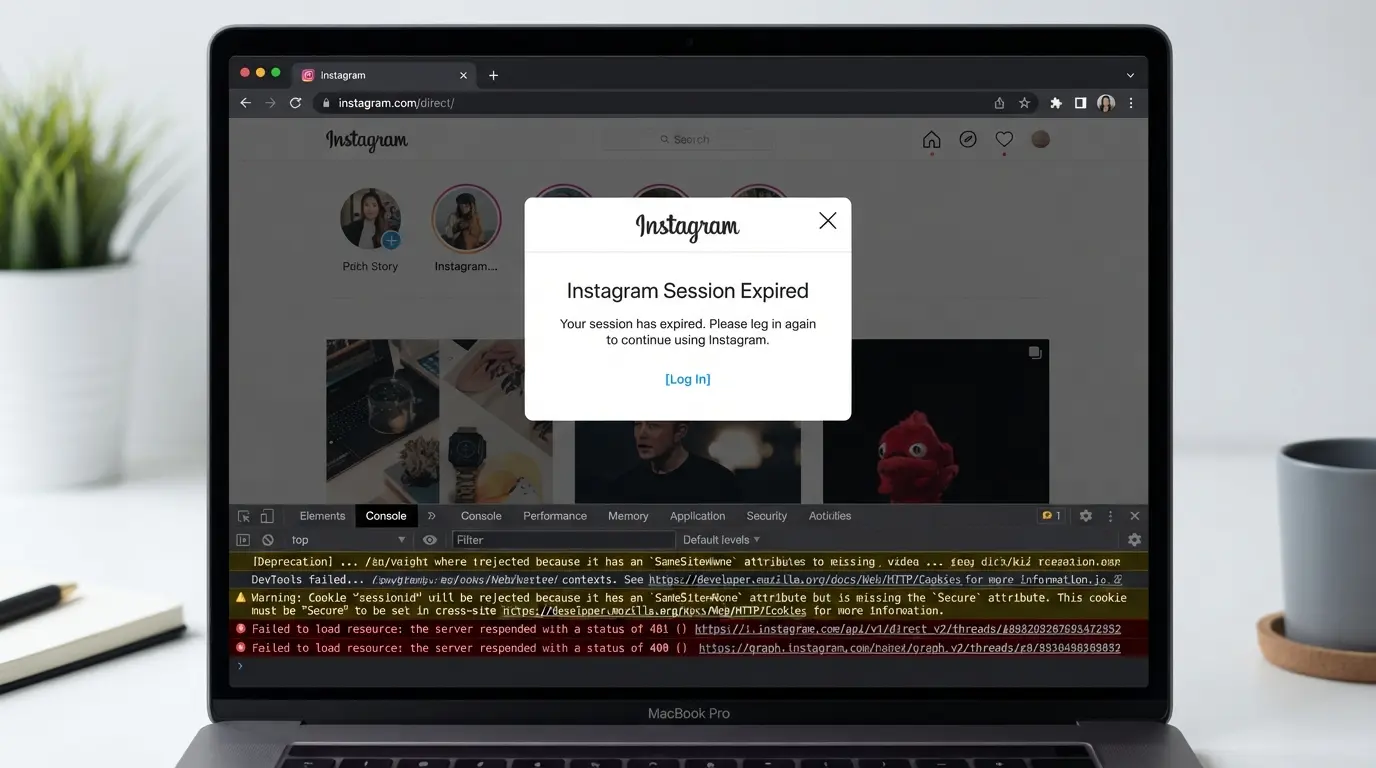
- Watch for “Session Expired” or “Please Log In Again” banners, these mean Instagram did not accept your cookies and wiped the session.
- If you get a “Suspicious Login Attempt” popup, the platform saw a mismatch between your device, location, or proxy and the original session.
- Check browser console logs for blocked requests or cookie rejection errors. In Chrome, press F12 and reload the page; look for red Xs or “Set-Cookie” warnings.
- Review your import tool’s logs. Some tools flag malformed cookies or missing fields but don’t always show a pop-up.
Re-Import Cookies with Correct Format
- Confirm your export format. Most tools and browser extensions support either JSON or Netscape. Instagram cookie imports usually fail if you mix formats or miss required fields like “sessionid” or “ds_user_id.”
- Open your cookie file and check for missing brackets, extra commas, or non-standard characters. A missing closing bracket in JSON or a tab in Netscape breaks the import.
- Use a plain text editor, not Word or Excel, to avoid hidden characters.
- Re-import and reload. If you still get the login screen, your cookies were likely expired or invalid at export.
Adjust Browser Fingerprint and Proxy Settings
- Match your browser user agent to the one that created the cookies. A mismatch, like switching from mobile Chrome to desktop Edge, triggers Instagram’s device verification.
- Set the same timezone, language, and screen resolution as the original login. Inconsistent signals can prompt Instagram to ignore your cookies and force a manual login.
- Use the same proxy or IP block. Changing locations or rotating proxies too soon will almost always result in “Suspicious Login” prompts or silent session drops.
- Clear all old cookies before each import. Mixing cookies from failed attempts contaminates your session and can cause a loop of failed logins.
If you still face “instagram cookies not working after import” errors after all these checks, your session may be expired or flagged server-side. In that case, even perfect cookies and matching fingerprints won’t restore access, the risk of forced verification or account lock increases with every failed attempt.
Moving forward, understanding these technical limits is just as important as troubleshooting steps. Next, see what risks and restrictions come with relying on Instagram cookie import for account access.
Risks and Limitations of Instagram Cookie Import: What Users Should Know
Even with careful troubleshooting, importing Instagram cookies can fail for reasons you can’t control. Some problems come from platform security, not your process.
Platform Security Changes and Detection
Instagram’s backend flags mismatched device fingerprints or reused cookies. Since late 2025, platform updates have made cookie imports far less reliable, old export methods that worked last year may now trigger forced logouts or silent blocks with no error message.
Account Lockout and Verification Triggers
Trying to log in with imported cookies can cause a sudden account lock or demand extra verification.
- You might get stuck in a loop: “suspicious login attempt” or forced 2FA, even if cookies are recent.
- The safer move: Always test imports on a clean browser profile before your main device. If you see immediate lockout, stop and reset your network or fingerprint before another try.
Legal and Compliance Considerations
Importing cookies can break regional privacy laws or Instagram’s own terms, especially in places with strict data rules. If you access accounts this way for work, check both local laws and company policies, since a failed import can expose your operation to compliance audits or sudden bans.
How Social Media Teams Can Manage Multiple Instagram Accounts Safely with DICloak
Teams running several Instagram accounts often run into problems when trying to import cookies, especially if those cookies were exported from different browsers or devices. Even after fixing the format or user agent, import failures keep happening because each login environment needs to look and behave like the original session. For teams, the real challenge is keeping sessions separate so one account’s problem doesn’t spill over to the rest. This is where careful browser profile and network setup matter more than any one-time cookie fix.
Profile Isolation and Fingerprint Configuration in DICloak
Operators managing multiple Instagram accounts can create a separate browser profile for each account in DICloak. Each profile saves its own set of browser signals, which means operators can configure details like device type, browser version, language, and screen size to match what Instagram expects for that account. This setup keeps the environment consistent from one session to the next, which directly addresses the most common reason for instagram cookies not working after import, environment mismatch. If teams skip profile separation or leave fingerprints at default settings, even the cleanest cookie import might still fail quietly, or force extra login checks that slow down the workflow. The scope here is limited to managing browser profiles and fingerprint settings; it does not change anything about the Instagram account itself. 
Proxy Configuration for Instagram Account Profiles
Sometimes, a team needs to connect each Instagram account through a different network, especially if the accounts were created in different countries or typically log in from different regions. Operators can assign a user-provided proxy to each DICloak profile, then test the connection right inside the profile settings. DICloak’s proxy check will show the exit IP, country, and time zone, so teams can confirm they’re matching the original login environment before opening the account. The operator controls which proxy to use and when to update it; DICloak simply applies the chosen settings per profile. The system does not provide proxies or promise network safety, decisions about quality, compliance, and maintenance stay with the team running the workflow. 
Getting the browser and network environment right is the foundation for any reliable multi-account Instagram workflow. Next, if cookie import still isn’t enough, it’s time to consider other access methods.
When Cookie Import Is Not Enough: Alternative Ways to Access Instagram Accounts
If instagram cookies not working after import keeps blocking you, switching methods is the only way forward, repeating imports rarely works once sessions are mismatched.
Manual Login and Session Recovery
Direct login solves most dead ends. Use a device and network Instagram already knows, fill in the username and password, and complete any extra code checks, this avoids tripping new device alerts. If you’re locked out, use Instagram’s "Forgot password?" link to trigger official recovery steps.
Using Session Tokens and App Passwords
Some users can generate app passwords or session tokens for tools like Meta Business Suite. These let you log in without sharing your main password. But don’t count on them for personal accounts, Instagram restricts this to business setups, and tokens can expire with no warning.
Safe Team Access and Account Sharing
- Share logins using a secure password manager, never plain text
- Set up two-factor authentication per user
- Avoid logging in from new locations or devices all at once, this often flags every linked account
Skipping these steps usually means more lockouts or forced resets.
Best Practices for Long-Term Instagram Account Management After Cookie Import
If you want stable access after importing cookies, focus on keeping your session environment consistent. Most account lockouts start when browser or proxy settings change, even small fingerprint mismatches can trigger new verification.
Maintain Consistent Browser and Proxy Settings
Stick to the exact browser profile, user agent, and proxy used during cookie import. Even minor changes, like an updated browser version or a switched IP, can force Instagram to trigger a checkpoint. Set a monthly reminder to review your proxy and browser setup for accidental changes.
Monitor Account Activity and Platform Alerts
- Check for login alerts or suspicious activity warnings each week.
- Respond quickly to verification requests, delays may cause session loss.
- Watch for forced logouts, which often signal new risk checks.
Backup Cookie and Profile Data Securely
Keep backup copies of cookies and browser profile data on encrypted storage. Restore from these backups if you lose access or face session errors.
- Export cookies and profile data after each stable login.
- Store backups in a password-protected archive.
- Test restores on a separate machine before relying on them.
Frequently Asked Questions About instagram cookies not working after import
Why do imported Instagram cookies fail to restore login?
Imported Instagram cookies may not restore your login because of session expiration, fingerprint mismatches, or Instagram security updates. If the session expired before export, the cookies won’t work. Instagram also checks device details like OS, browser, and IP. If these don’t match the original login, access is often blocked, causing instagram cookies not working after import.
How can I check if my Instagram cookies are still valid before import?
Check each cookie’s expiration date using browser developer tools or a cookie inspection tool. If the cookies have expired or are missing key session values like “sessionid,” they won’t restore your login. Testing the cookies in a private browser can also reveal if they still work before you attempt the import.
Does using a proxy help with Instagram cookie import success?
Using a proxy can help if the IP address matches the one used during the original login. Instagram tracks IP changes to prevent suspicious access. For best results, use a proxy from the same region or even the exact city where the account was first logged in to avoid triggering security checks.
Can DICloak guarantee Instagram accounts won’t be banned after cookie import?
DICloak helps isolate browser profiles and adjust fingerprints, but it can’t guarantee Instagram accounts won’t get banned after cookie import. Instagram may still flag accounts for unusual activity or mismatched login details, regardless of the tools used for import.
What are safe alternatives if cookie import never works for Instagram?
If instagram cookie import issues continue, try manual login with the username and password, use Instagram’s session recovery options, or set up team-based access with account owners. These methods reduce the risk of lockouts and let you regain access if instagram session not restored with imported cookies.
If standard troubleshooting steps haven’t resolved your access issues, it may be time to consider a more reliable solution for managing your browser sessions and authentication data. Advanced tools can help simplify the process and minimize disruptions, ensuring smoother automation and account management. Try DICloak For Free
 Web Proxy Tools
 Free Tools
 Cookie Plugin
 UA Generator
 MAC Address Generator
 IP Generator
 IP Address List
 2FA Code Generator
 World Clock
 Anonymous Check
 WebRTC Leak Test
 UUID Generator
 Free Web Proxy Site
 Proxy Checker
 FB Ad Checker
 AI Web Scraping
 Free SMM Tools
 Twitter Shadowban Checker
 Instagram Name Checker
 UTM Generator
 Username Generator
 AI Hashtag Generator
 LinkedIn Headline Generator
 Social Media Image Resizer