You try to connect a new app or verify business ownership, but the dashboard keeps asking for a Facebook Page ID you can’t seem to find. Even after clicking through every tab, the number isn’t where you’d expect, and Facebook’s own interface keeps moving things around with every update. If you’re searching “how to find facebook page id” and coming up empty, you’re not alone, this is one of those details that Facebook never puts front and center.
Digging for your unique Page ID gets confusing fast. Some guides point you to the About section, but that only works for classic Pages. Others tell you to look at the page’s URL, but several recent updates show a username instead. If you grab the wrong number, you can waste time troubleshooting connection errors that make no sense until you realize you were copying the wrong string the whole time.
What actually works in 2026 is a step-by-step check of the most current Facebook layout, because what worked last year can break overnight after a redesign. Copy-pasting from the wrong place or using a browser autofill can leave you with a username instead of the numeric ID. The safest approach is to use Facebook’s native tools and check both the desktop and mobile views, since some IDs only show up in one place. If you manage multiple Pages, mistakes here can even lock you out of integrations or ad accounts.
Start by checking your Facebook Page settings, here’s what to look for.
What Is a Facebook Page ID and Why Does It Matter in 2026?
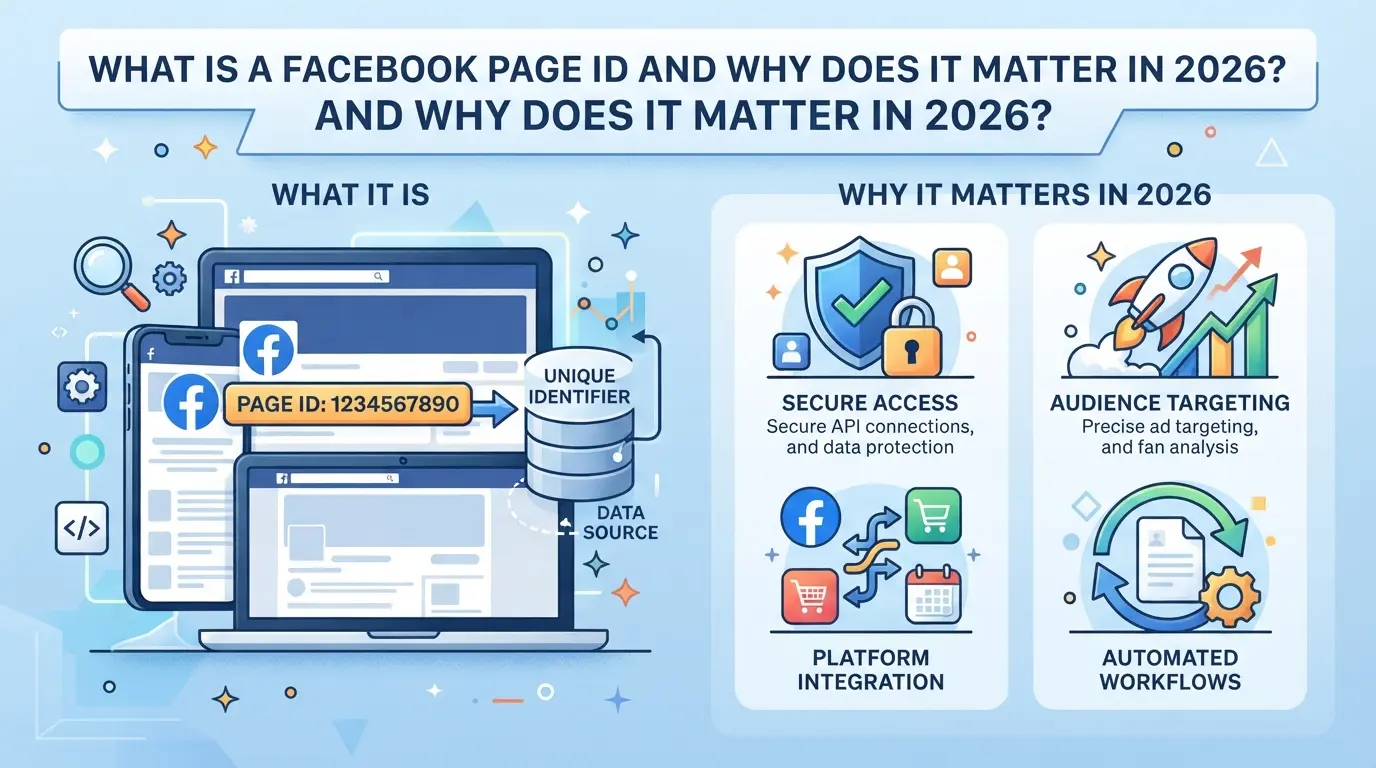
A Facebook Page ID is a unique number assigned to every Facebook Page, no two Pages share the same one. If you’re setting up integrations, running ads, or tracking analytics, this number often matters more than a visible username. Using the wrong value, like a display name or a vanity URL, can break connections and cause hours of frustration. If you’re searching for how to find facebook page id, you probably need it for a specific tool or platform, not just curiosity.
How Facebook Page IDs Work in 2026
The Page ID is a fixed numeric string that Facebook assigns when a Page is created. Unlike a username, which owners can change, the Page ID never changes, even if you rename, merge, or transfer the Page. In 2026, Facebook’s backend and most third-party tools recognize Pages by this ID, not by name. Here’s where it comes up:
- Linking Pages to business integrations (like scheduling or analytics apps)
- Identifying Pages in Facebook’s API or ad manager
- Troubleshooting or verifying Page ownership with support
If you skip the Page ID and use a username, many automation tools will fail to connect or pull the wrong account. That’s why knowing where to find this number is still a basic requirement for account admins.
Common Reasons You Need Your Page ID Today
Most people only hunt for their Page ID when something breaks, like a chatbot can’t send messages, a scheduling tool can’t post, or a support agent asks for it during an ad review. Facebook’s interface now hides the Page ID from the main profile view, assuming users will stick to the public username. But when you try to connect a third-party app, the setup form rarely accepts a name; it wants the numeric ID.
Picture this: You’re linking a Facebook Page to a CRM. You copy the Page’s URL, paste it, and get a “Page not found” error. The CRM’s help docs point to using the Page ID, but you can’t see it anywhere obvious. If you enter the wrong value, like the display name or a typo in the username, the integration will silently fail, sometimes without a clear error message. That means you might spend hours troubleshooting, only to discover you were using the wrong identifier the entire time. Double-checking the actual Page ID in your settings saves you from this loop and gets integrations working the first time.
If you run multiple Pages or manage client accounts, IDs are also how you keep track of which Page is which, especially if clients use similar names.
Next, you’ll see exactly where to look for your Facebook Page ID on desktop, using the current 2026 layout.
How to Find Your Facebook Page ID on Desktop (2026 Edition)
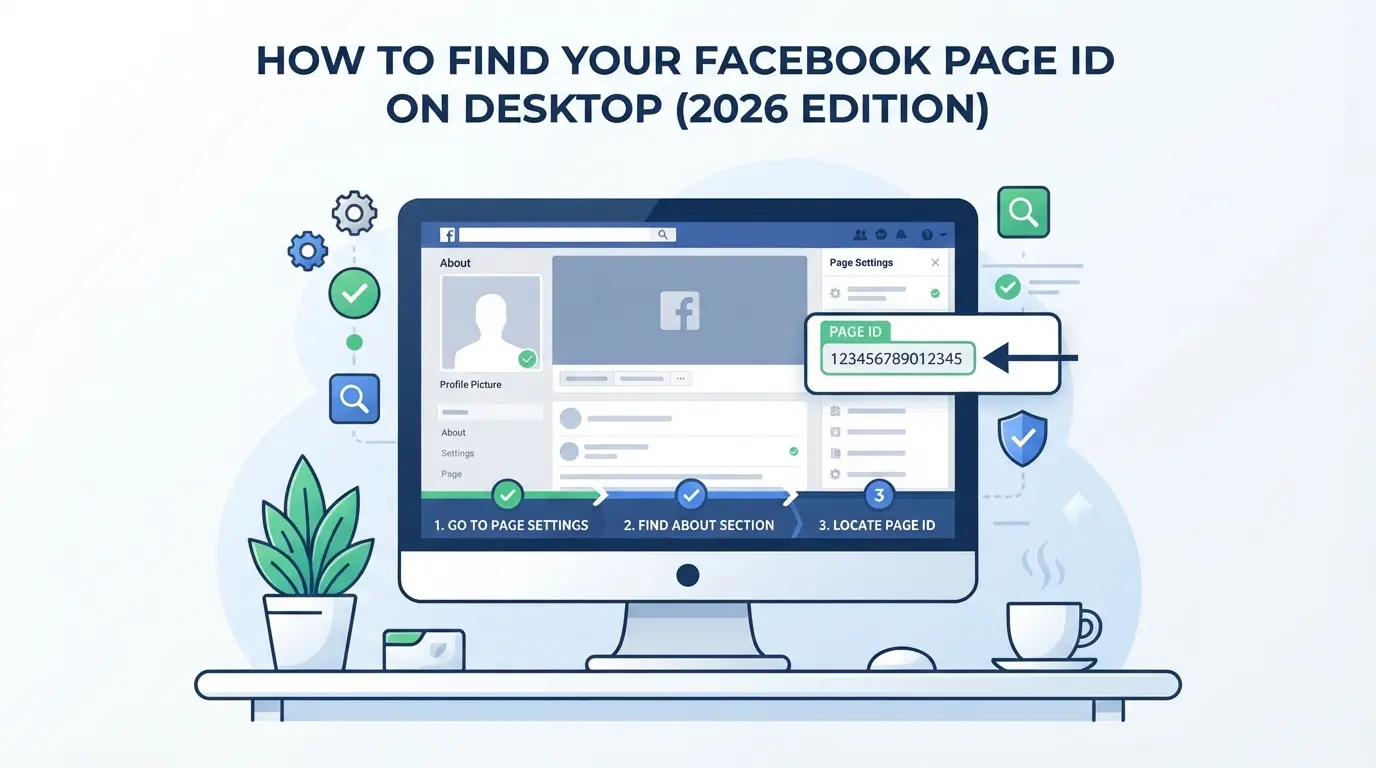
You can find your Facebook Page ID on desktop in under a minute, if you know where to look in the current 2026 interface. The Page ID is not always visible by default, and quick searches or guessing at the URL can now produce the wrong result. Here’s how to get the correct numeric ID with the fewest missteps.
Step-by-Step: Locating Page ID in Facebook’s 2026 Desktop Layout
- Go to your Facebook Page Open Facebook in your desktop browser and navigate directly to the Page you manage. Skip the main News Feed, Page settings are only visible if you’re on the actual Page, not your timeline.
- Click “Settings” in the left sidebar The “Settings” link sits at the very bottom of the left navigation. If you don’t see it, scroll down or expand the menu. This is also where most admin features live now.
- Find “Page ID” in the “Page Info” section Inside Settings, click “Page Info.” The numeric Page ID typically appears at the bottom of this section, right under the Page name and description fields. If you see only a username or vanity URL, don’t copy that string; it won’t work for integrations or API calls.
- Alternate: Check the Page URL if Settings Fail If the “Page Info” panel is missing, try this: while you’re on your Page, look at the browser’s address bar. Some Pages display the numeric ID after “facebook.com/pages/your-page-name/” and before a long string of numbers. If you see only text or a username, this method won’t show your ID, stick to the Settings panel instead.
What to Do If You Can’t See Your Page ID
- Check Your Page Role If you’re not an admin, Facebook hides the Page ID in Settings. Editors and moderators often can’t see it. Ask an admin to check for you, or request temporary admin access if you need to set up API connections.
- Look for Facebook Layout Changes Facebook’s layout changes can move or hide the Page ID field without warning. If “Page Info” is gone, search for new “About” or “Advanced” tabs in Settings. Sometimes features get shifted in a redesign and will reappear in a different spot.
- Try Incognito or Another Browser Extensions, browser autofill, or old cached data can sometimes block or mislabel the Page Info panel. Open an incognito window or try another browser, this clears out stuck elements and sometimes reveals hidden fields.
- Log Out and Back In, Then Refresh If the ID still won’t display, log out of Facebook completely, close your browser, then log back in and reload the Page. Session bugs or permission errors can hide details until you start a new session.
Next, if you need to check a Page ID from your phone or tablet, the process changes again, some menus move or disappear in the mobile app.
How to Find Your Facebook Page ID on Mobile Devices
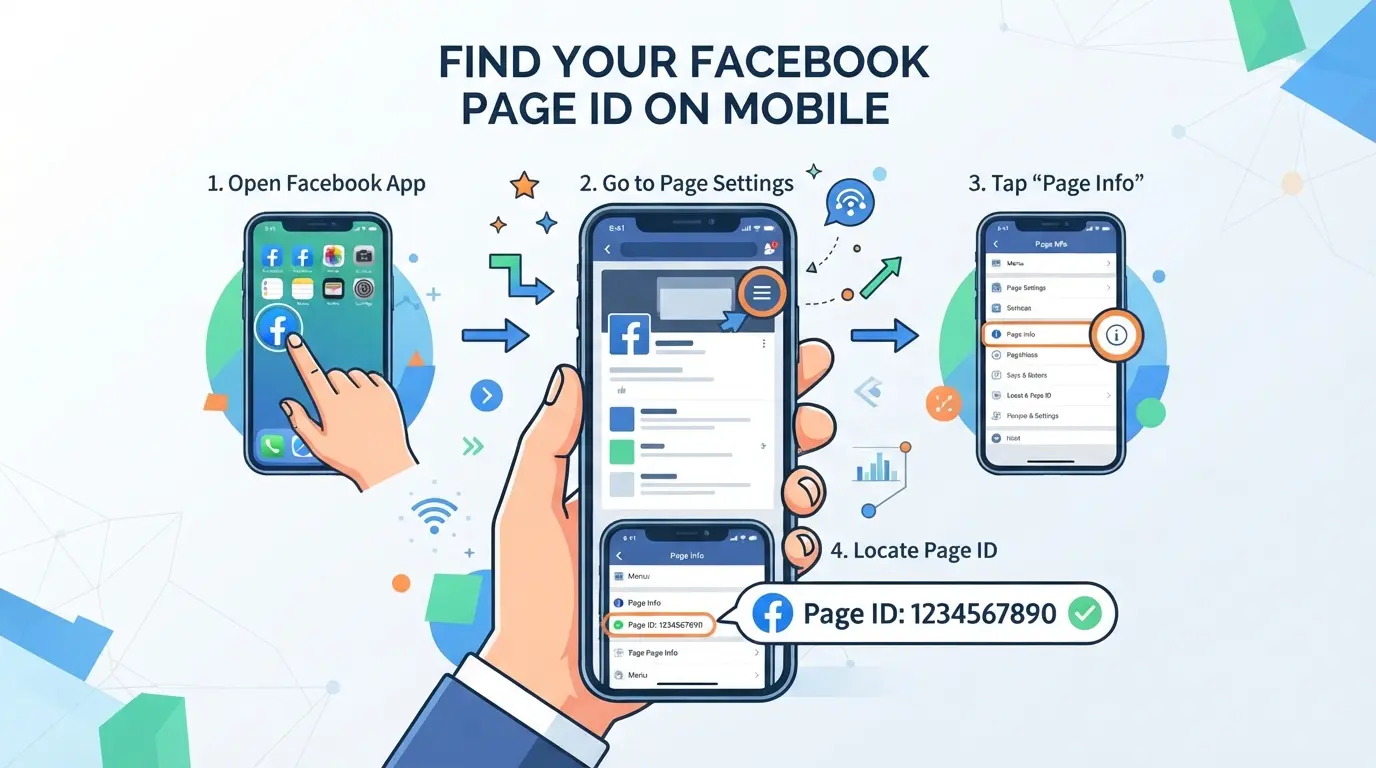
You can pull up your Facebook Page ID directly from your phone, no desktop needed. This process only works if you follow the right path in the app or your mobile browser, since Facebook hides the ID deeper now than it did a few years ago. If you grab a username or the wrong string, integrations and support requests will fail or get rejected.
Finding Page ID in the Facebook App (iOS & Android)
The Facebook app on iOS and Android uses the same menu structure, but button layouts can shift after each update. The one step that trips people up most is missing the "More" menu, skip it, and you only see your Page name, not the ID.
- Open the Facebook app and log in. Tap the menu (three lines or your profile picture), then tap "Pages." Pick the Page you want.
- Tap the gear icon (Settings) in the upper right. Scroll down and select "Page Settings." You may need to wait for the menu to load, slow connections can cause it to hang.
- Scroll to the "Page ID" entry. On some versions, you’ll find this under "Page Info." If you only see a username or email, the app version may be out of date or your role on the Page is too limited.
- Tap and hold the Page ID to copy. Some devices don’t show a copy option, if so, screenshot the ID and enter it manually, but check for typos.
Using a Mobile Browser to Access Page ID
Mobile browsers handle Facebook differently than the app. Some older guides tell you to look in the URL bar, this stopped working after Facebook moved to user-facing usernames for most URLs.
- Go to facebook.com in your mobile browser and log in. Tap the menu and choose "Pages," then select your Page.
- Tap the "About" or "Page Info" section. Scroll down, Page ID sometimes appears here, but not always. If it’s missing, tap "Edit Page Info"; some users report the numeric ID is visible only in edit mode.
- If you can’t find the Page ID, switch your browser to "Desktop Site" mode. This forces Facebook to load the desktop layout, which usually reveals the full ID under "Page Transparency" or "Page Info."
- To copy the ID, tap and hold the number, some browsers will highlight and show a copy popup, but Safari and Chrome on iOS can be finicky. If copy fails, take a screenshot and retype.
Trying both the app and mobile browser covers most scenarios. If your Page ID still doesn’t show up, the next section covers the common mistakes that block access to the right number.
Common Mistakes and Risks When Sharing or Using Facebook Page IDs
Sharing your Page ID in the wrong place opens you to spam, fake support requests, or even data scraping, especially if you run ads or have admin rights tied to your business. Getting sloppy with IDs can also mean you hand out more access than you meant, or mix up your Page with your personal profile by accident.
Mistakes That Can Expose Your Page or Data
Handing the Page ID to outside contractors or posting it in public groups can bring targeted phishing and unwanted messages. Mixing up the Page ID with your personal account ID is another common slip, this mistake can expose your private profile or send requests to the wrong account.
How to Keep Your Page ID Secure in Team Environments
Don’t post Page IDs in open channels or docs. Instead, set clear rules for who can access or share this info, especially if you work with outside vendors or rotate team members.
- Only share Page IDs with team members who need direct access.
- Store Page IDs in a secure, access-controlled document (not in public spreadsheets).
- Never send Page IDs over unencrypted chat or email.
How to Manage Multiple Facebook Pages and Keep IDs Organized
If you handle more than a few Facebook Pages, a messy ID list will slow you down or even break integrations. The right system makes it easy to find, update, and share Page IDs with your team.
Best Ways to Track and Store Page IDs
Start with a shared spreadsheet or database, one row for each Page with columns for ID, admin, last update, and notes. For agencies, use a secure password manager or a team workspace so everyone pulls the latest info. The most reliable setup is one where only trusted staff can edit IDs, but everyone else can view.
When to Update or Audit Your Page ID Records
Page IDs rarely change, but account migrations, rebrands, or lost access mean your list can get stale fast.
- Check for new or merged Pages after any major client update.
- Remove IDs if Facebook deletes or restricts a Page.
- Audit your list if logins start failing or integrations break.
How Social Media Teams Can Safely Separate Facebook Accounts and Profiles with DICloak
If you’re working with multiple Facebook accounts, whether you’re running ads, posting content, or just keeping Page IDs organized, it only works if each account stays truly separate. Mistakes with browser storage or network settings can cross-link accounts, leave traces, or make troubleshooting almost impossible. For teams that also need to manage several Facebook environments on one device, DICloak supports this by giving every account its own browser profile and connection setup.
Creating Isolated Browser Profiles and Fingerprint Settings for Each Facebook Account
A social media manager can set up a dedicated DICloak profile for every Facebook account, making sure no session data or browser signals overlap between them. Each profile stores its own name, group, and remarks, and the manager can configure details like operating system, time zone, window size, and WebRTC settings. This means every Facebook login happens in its own controlled environment, no accidental crossover. The scope stays at the browser-profile level and does not reach into Facebook’s internal settings or Page ID management.

User-Provided Proxy Configuration for Assigned Profiles
Operators who need a steady network for each account can assign a specific HTTP, HTTPS, or SOCKS5 proxy to each DICloak profile. After entering proxy details, they can test the connection to confirm the right exit IP and region before any Facebook session begins. Proxy quality and rotation rules are up to the team, DICloak simply applies the settings per profile.

This setup helps keep Facebook accounts organized and reduces the risk of cross-account mix-ups, if you still struggle to find or confirm a Facebook Page ID, the next section covers troubleshooting steps.
Troubleshooting: What to Do If You Still Can’t Find Your Facebook Page ID
If your Facebook Page ID is missing or just won’t show up, you’re not alone, this happens most often during Facebook updates or if your account permissions changed. Here’s how to get unstuck fast.
Checking Page Roles, Permissions, and Facebook Updates
- Make sure you’re logged into the correct Facebook profile, wrong logins hide Page IDs.
- Check your Page role under “Settings > Page Roles.” Only admins and editors can view the ID; lower roles can’t.
- Try switching browsers or using Incognito. Some updates roll out to certain users first and can temporarily hide the ID.
- If Facebook recently changed its layout, wait a few hours. IDs sometimes disappear and reappear during staged rollouts.
Contacting Facebook Support or Using Third-Party Tools
- If you still can’t find your Page ID, use Facebook’s Help Center to report the issue, describe your steps and attach a screenshot.
- For urgent needs, use a trusted third-party Page ID lookup tool, but avoid entering personal data, stick to public page URLs only.
If these steps don’t work, the next section gives a quick lookup methods table for reference.
Quick Reference Table: Facebook Page ID Lookup Methods (2026)
There’s no single right method, how to find a Facebook Page ID depends on what device you use and whether you need more than the basics. Here’s a fast side-by-side to help you pick.
Comparison of Lookup Methods
| Method |
Steps Needed |
Speed |
When to Use |
Requires Login? |
| Desktop |
Open Page > Settings > Copy ID |
Fast |
Managing Pages, most users |
Yes |
| Mobile |
Menu > Page Info > Copy ID |
Medium |
On-the-go, limited options |
Yes |
| API/Advanced |
Use Meta Graph API or inspect |
Slowest |
Bulk lookup, devs only |
Yes/API token |
Table: Comparison of 2026 Facebook Page ID lookup methods by device and use case.
Most people just need the desktop path, it's still the quickest way to get the numeric ID for integrations or support. Mobile works, but sometimes hides the ID under extra taps. Only use the API if you’re running batch operations or automation.
Frequently Asked Questions About how to find facebook page id
Can I find my Facebook Page ID if I’m not an admin?
You do not need to be an admin to view a Facebook Page ID. Anyone can find it by visiting the Page, viewing the Page’s source code, or using the “About” section if it’s visible. However, admins may have easier access through Page settings, but the ID itself is public information.
Is my Facebook Page ID the same as my personal profile ID?
No, your Facebook Page ID is different from your personal profile ID. Each Facebook Page has a unique numeric ID, separate from your individual Facebook account. For example, if you manage a business Page, its ID will not match your own user profile ID.
Does my Facebook Page ID ever change?
A Facebook Page ID almost never changes. It stays the same even if you update your Page’s name or username. The only time it might change is if Facebook merges your Page with another or if the Page is deleted and recreated. Otherwise, the ID remains constant.
Why do some tools or plugins ask for my Facebook Page ID?
Many tools, plugins, or widgets need your Facebook Page ID to connect to your Page. This helps them fetch posts, display feeds, run analytics, or automate tasks. For example, social media dashboards and chatbots use the ID to link directly to your Page’s data and features.
Is it safe to share my Facebook Page ID with third-party services?
Sharing your Facebook Page ID is generally safe because it’s public information. However, always check that third-party services are trustworthy before providing any additional permissions. Never share your admin login or password, as the Page ID alone does not give access to manage your Page.
Once you have identified your page's unique ID, you can confidently proceed with tasks like integrating third-party tools or managing your digital assets more efficiently. If you're looking for a smooth way to safeguard your Facebook activities or improve your privacy, consider exploring solutions designed for secure social media management. Try DICloak For Free
 Web Proxy Tools
 Free Tools
 Cookie Plugin
 UA Generator
 MAC Address Generator
 IP Generator
 IP Address List
 2FA Code Generator
 World Clock
 Anonymous Check
 WebRTC Leak Test
 UUID Generator
 Free Web Proxy Site
 Proxy Checker
 FB Ad Checker
 AI Web Scraping
 Free SMM Tools
 Twitter Shadowban Checker
 Instagram Name Checker
 UTM Generator
 Username Generator
 AI Hashtag Generator
 LinkedIn Headline Generator
 Social Media Image Resizer