Facebook Marketplace is useful because it shows items near you. But when the location is wrong, the results can quickly become confusing. You may see furniture from your old city, miss better deals nearby, or post a listing that reaches the wrong buyers.
If you are moving, traveling, selling locally, or dealing with a Facebook Marketplace location not updating issue, knowing how to change Facebook Marketplace location can save time and prevent mistakes. This guide explains how Marketplace location works, how to change it in the app and browser, how to fix listing location, and how to use Marketplace more safely.
What Does Facebook Marketplace Location Mean?
Facebook Marketplace location is the area Facebook uses to show local items near you. It affects what buyers see, what sellers can reach, and why some users search for how to change Facebook Marketplace location when results appear in the wrong city.
Marketplace location is not always the same as your Facebook profile location. Your profile may show where you live, but your Marketplace browsing location controls the items you see in search. For example, if you live in San Diego but plan to move to Irvine, you can set your Facebook Marketplace search location to Irvine to check desks, sofas, or used appliances nearby.
Marketplace browsing location vs. Facebook profile location
Your browsing location is used for Marketplace search. Your profile location is part of your personal Facebook information. Changing one does not always change the other.
This is why a Facebook Marketplace wrong location issue can still happen after you update your profile city. The app may still use an old Marketplace location, saved search area, browser data, or device location setting.
How location affects search results and listing visibility
Location changes what items appear first. A search for “bike” in Brooklyn will show different results than the same search in Queens. Distance also matters because many buyers only want items they can pick up nearby.
For sellers, location affects who sees the item. If a stroller in Jersey City appears under the wrong city, local buyers may miss it. So if you want to browse another area, you need to change location on Facebook Marketplace app or browser. If you are selling, you may need to change Facebook Marketplace listing location instead.
Why You May Need to Change Facebook Marketplace Location
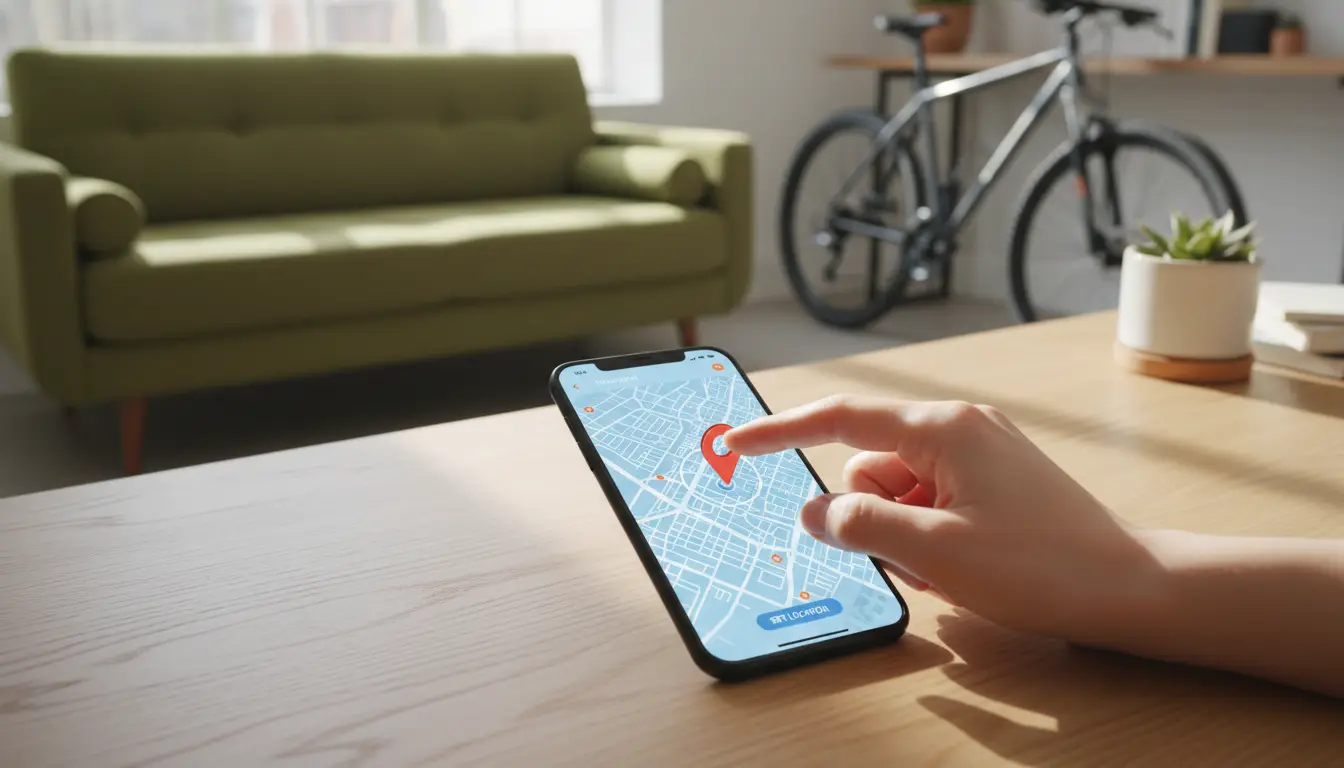
After you understand how Marketplace location works, the next question is when you should change it. Most users do it because the items shown do not match where they live, where they plan to go, or where they want to sell. Marketplace lets users search by location and distance, and listing location can also be chosen when setting up a new item for sale.
- Moving to a new city: Moving is one of the most common reasons to learn how to change Facebook Marketplace location. If you are moving from Phoenix to Denver, you may want to look for a bed frame, desk, or used sofa before you arrive. Changing your Facebook Marketplace search location helps you see items near your new home instead of your old address.
- Searching for items in another area: Sometimes the best deal is not in your own town. A buyer in San Jose may search in San Francisco for a used camera. A parent may check a nearby college town for cheaper furniture at the end of the semester. In this case, you can change location on Facebook Marketplace app or in a browser, then adjust the distance range.
- Selling to the right local buyers: Sellers also need the right location. A listing shown in the wrong city may get fewer messages, even if the item is good. For example, a stroller in Jersey City may not attract the right buyers if it appears closer to Manhattan. If the item is already live, you may need to change Facebook Marketplace listing location instead of changing only the search location.
- Fixing an old or incorrect Marketplace location: A Facebook Marketplace wrong location issue can happen after travel, moving, app updates, or old saved settings. You may still see items from your old city. When Facebook Marketplace location not updating, check the Marketplace location field first. Then check app location permission, browser cache, cookies, and any old saved search area.
How to Change Facebook Marketplace Location in the App
After you know why location matters, it is easier to fix it in the app. The Facebook app lets users change the location of items they are looking for and sort Marketplace results by distance. This is the main mobile path for users who want to learn how to change Facebook Marketplace location without changing their whole profile.
How to change location on iPhone
Open the Facebook app on your iPhone and tap Marketplace. Tap the current location shown near the top of Marketplace or open the location filter. Enter a city, neighborhood, or ZIP code. Then choose the area you want and apply the change.
For example, if you live in Miami but want to buy a used dresser in Orlando before moving, set your Facebook Marketplace search location to Orlando. After the page refreshes, your results should start showing items near that area.
How to change location on Android
The steps on Android are almost the same. Open Facebook, go to Marketplace, then tap the current location or location filter. Search for the city or ZIP code you want. Choose the correct result and save it.
This is usually the easiest way to change location on Facebook Marketplace app. If you only want to browse another city, you do not need to change your profile city. Marketplace search location is enough.
How to adjust the search radius
After choosing a location, adjust the distance range. A smaller radius helps when you only want nearby pickup. A wider radius helps when you are open to driving farther for a better price.
For instance, a buyer looking for a cheap used bike may start with 10 miles. If there are not enough results, they can try 25 or 50 miles. Facebook Marketplace supports location and distance filters for browsing items, so radius can change what you see very quickly.
What to check if the app still shows the wrong location
If you still see a Facebook Marketplace wrong location, refresh the app first. Then close and reopen Facebook. If Facebook Marketplace location not updating, check these items:
- Make sure the new city or ZIP code was saved in Marketplace.
- Check your phone location permission for the Facebook app.
- Update the Facebook app.
- Log out and log back in.
- Check whether you changed search location or listing location.
This last point matters for sellers. If your item is already posted in the wrong city, changing search location may not fix it. You may need to change Facebook Marketplace listing location from the listing itself.
How to Change Facebook Marketplace Location in a Browser
If the Facebook app still shows the wrong area, try changing the location in a browser. This can help when Facebook Marketplace location not updating on mobile. It also gives you a clearer view of filters, distance, and saved search results.
How to update Marketplace location on desktop
Open Facebook in your browser and go to Marketplace. Look for the current location near the search or filter area. Click it, then enter the city, neighborhood, or ZIP code you want to search in. Choose the right result and save the change.
For example, if you live in Austin but want to check used furniture in Dallas, set your Facebook Marketplace search location to Dallas. After the page refreshes, your search results should focus more on that area. Facebook allows users to change the location of items they are looking for and sort results by distance.
How to use location filters for local searches
Location filters help you control how far you want to search. A small distance range works better for heavy items, like a sofa or washing machine. A wider range can help when you are looking for something rare, like a used camera lens or a specific car part.
This is different from learning how to change Facebook Marketplace listing location. Search filters affect what you see as a buyer. Listing location affects where your item appears as a seller. Mixing these two up is one reason users think they have a Facebook Marketplace wrong location problem.
How to clear old location results in your browser
Sometimes the browser keeps showing old results even after you change the city. Refresh the page first. Then try signing out and signing back in. If the old area still appears, clear Facebook cookies and cached site data in your browser.
You can also test the same Marketplace search in another browser. For instance, if Chrome still shows your old city but Edge shows the new one, the issue is likely old browser data. If both browsers show the wrong area, check the Marketplace location field again before changing your profile. This is also a good time to confirm whether you need to change location on Facebook Marketplace app too, especially if you switch between phone and desktop often.
How to Change or Fix the Location of a Facebook Marketplace Listing
The browser steps above help you control what you see as a buyer. Sellers need to check one more place. A listing has its own location, and that location affects where the item may appear to nearby buyers. Facebook lets users choose a location when setting up a new Marketplace listing.
Why listing location is different from search location
Your Facebook Marketplace search location controls the items you see. Your listing location controls where your item is shown to buyers.
For example, you may search Marketplace in Dallas because you want to buy a table there. But if you are selling a chair in Fort Worth, your listing should use Fort Worth. If you only change your search area, your item may still appear in the wrong place. This is a common reason users think they have a Facebook Marketplace wrong location issue.
How to set the right location when creating a listing
When you create a new listing, check the location field before you publish. Add the city, area, or ZIP code that matches where the item can be picked up. Do not use your exact home address.
For instance, if you sell a baby stroller in Brooklyn, set the listing near Brooklyn instead of using a saved Manhattan location. This helps local buyers understand the pickup area before they message you. It also reduces wasted chats from people who are too far away.
How to update the location of an existing listing
If an item is already live, open the listing and choose the edit option. Review the listing details and look for the location field. Change it to the correct city or area, then save the update. Facebook has a separate help page for editing Marketplace listings, so sellers should treat listing edits as different from buyer search filters.
If Facebook Marketplace location not updating after you edit the listing, refresh Marketplace and check the listing from another browser or device. You can also compare it with the app. Sometimes users change location on Facebook Marketplace app for browsing, but forget to update the active listing itself. For sellers, learning how to change Facebook Marketplace location means checking both places: the search area and the listing location.
What to Do If Facebook Marketplace Location Is Not Updating
After you change the search area or listing location, Marketplace should show the new place. But sometimes it still shows the old city. This is a common Facebook Marketplace location not updating problem. It can happen in the app, in a browser, or only on one listing.
Common reasons your location change fails
The first thing to check is whether you changed the right location. Your Facebook Marketplace search location controls what you see as a buyer. Your listing location controls where your item appears as a seller. Facebook treats these as separate settings, so changing one may not fix the other.
For example, a seller may move from Boston to Chicago and update their Marketplace search area. But an old chair listing may still show Boston. In that case, the seller needs to edit the listing itself, not only the search filter. This is why learning how to change Facebook Marketplace location should include both buyer and seller settings.
How app permissions, cache, and cookies can affect location results
If you already changed the right setting, check your app and browser data. On mobile, the Facebook app may use old location permission or old app data. Try closing the app, updating it, and checking location permission in your phone settings.
In a browser, old cookies or cache can keep showing old Marketplace results. Refresh the page first. If the Facebook Marketplace wrong location still appears, clear Facebook site data or test another browser. If another browser shows the correct city, the issue is likely saved browser data.
This also matters when you switch between phone and desktop. You may change location on Facebook Marketplace app, but your browser can still show an older search area for a while.
When Marketplace access limits may be the real problem
Sometimes the issue is not only location. Marketplace access can be limited by account status, region, age, or feature availability. Facebook help pages also note that some Marketplace features, such as shipping or checkout, may not be available in every location.
If the location field will not save, the listing page will not load, or Marketplace disappears from your menu, check your account access first. Try using the main Facebook profile, update the app, and open Marketplace from a browser. If the problem continues, use Facebook Help Center or support options. For sellers, also check whether you need to change Facebook Marketplace listing location instead of changing only your search area.
How to Use Facebook Marketplace More Safely After Changing Location
Once your location is correct, the next step is to keep the deal safe. A new city can mean new sellers, new pickup areas, and less local knowledge. That is why safety matters when you learn how to change Facebook Marketplace location, especially during travel or a move.
Avoid sharing your exact home address
Do not put your full home address in a listing. Use a nearby area, ZIP code, or public pickup spot instead. This is safer for sellers and still gives buyers enough location context.
For example, if you sell a desk in Seattle, you can list the pickup area as Capitol Hill instead of showing your street. This is also helpful if you need to change Facebook Marketplace listing location after moving. The listing can stay local without exposing your exact home.
Check buyer and seller profiles before meeting
Before you meet, look at the person’s profile, activity, and Marketplace history. A real profile does not guarantee safety, but it can help you spot obvious red flags. Be careful with brand-new profiles, strange messages, or people who rush the deal.
Facebook also recommends stopping contact and reporting suspected scams when something feels wrong. Scam signs can include moving the conversation away from Facebook too early, asking for unusual payment steps, or offering a deal that feels too good to be true.
Avoid scams caused by location mismatches
A Facebook Marketplace wrong location can create trust problems. A buyer may think the item is nearby, then find out pickup is two hours away. A seller may get messages from people outside the real pickup area. These gaps can waste time and make scams easier.
For instance, a seller may post a phone in one city, but ask the buyer to meet far away after payment. That should be treated with care. Keep the item location, pickup area, and chat details clear. If Facebook Marketplace location not updating, fix it before you agree to meet.
Tips for using Marketplace while traveling or relocating
If you are traveling, use your Facebook Marketplace search location to browse the area first. Start with a smaller distance range so you do not message sellers too far from your hotel or new home.
If you are moving, search before you arrive, but avoid paying deposits too early. For large items, ask clear questions about pickup time, building access, and item condition. If you change location on Facebook Marketplace app while switching between cities, double-check the location before sending messages. This small step can prevent confusion and make the deal feel more normal for both sides.
A More Stable Way to Manage Facebook Marketplace Access with DICloak
Changing Marketplace location is enough for most personal users. But if you manage several Facebook accounts, saved cities, cookies, login states, and location settings can get mixed. This may lead to wrong results or Facebook Marketplace location not updating problems.
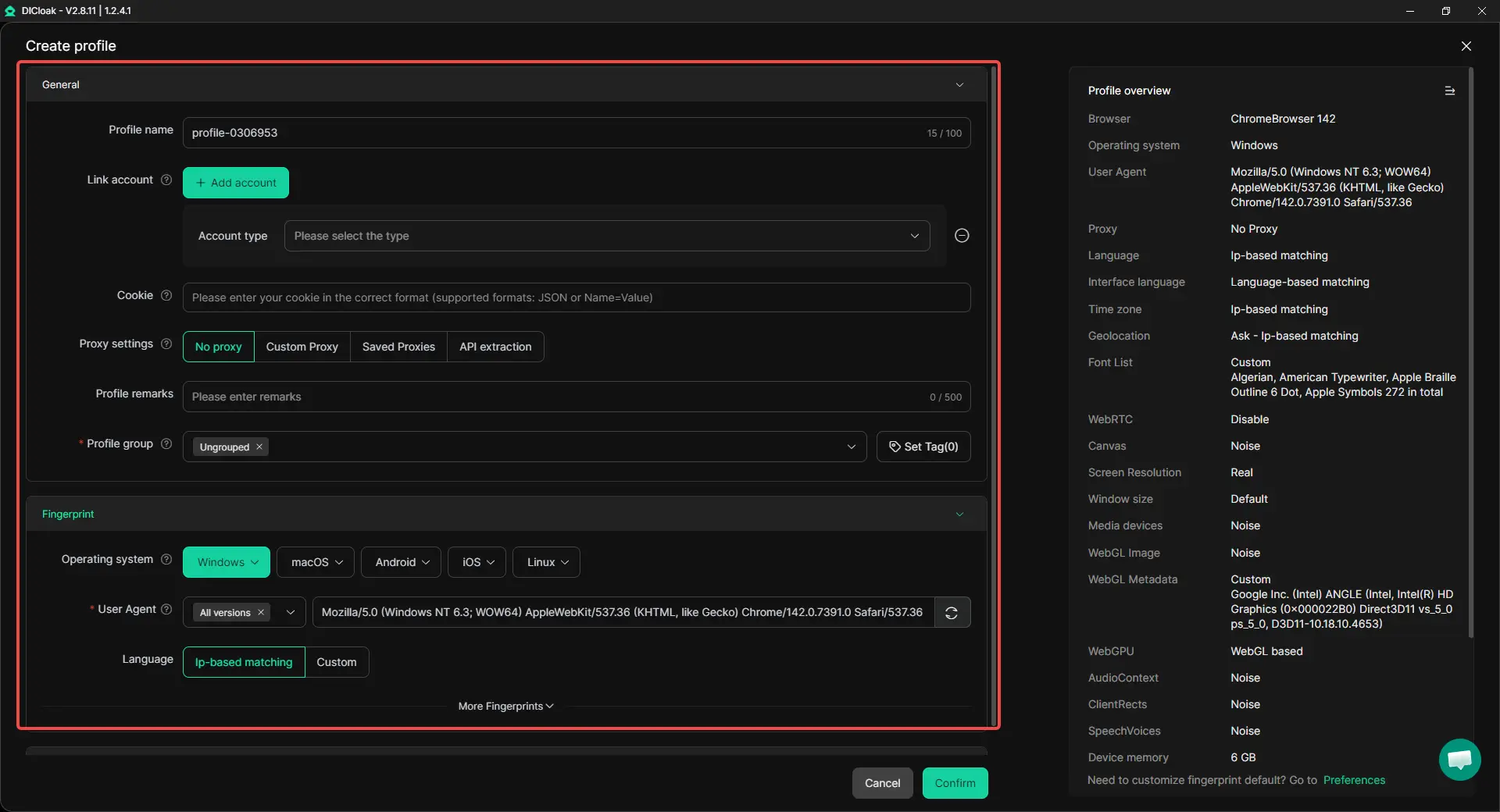
Keep each Facebook account in a separate browser profile
With DICloak, users can keep each Facebook account in its own browser profile. Each profile has separate cookies, cache, sessions, fingerprint, and browser data. For example, one profile can be used for a New York Marketplace account, while another stays separate for a Los Angeles account.
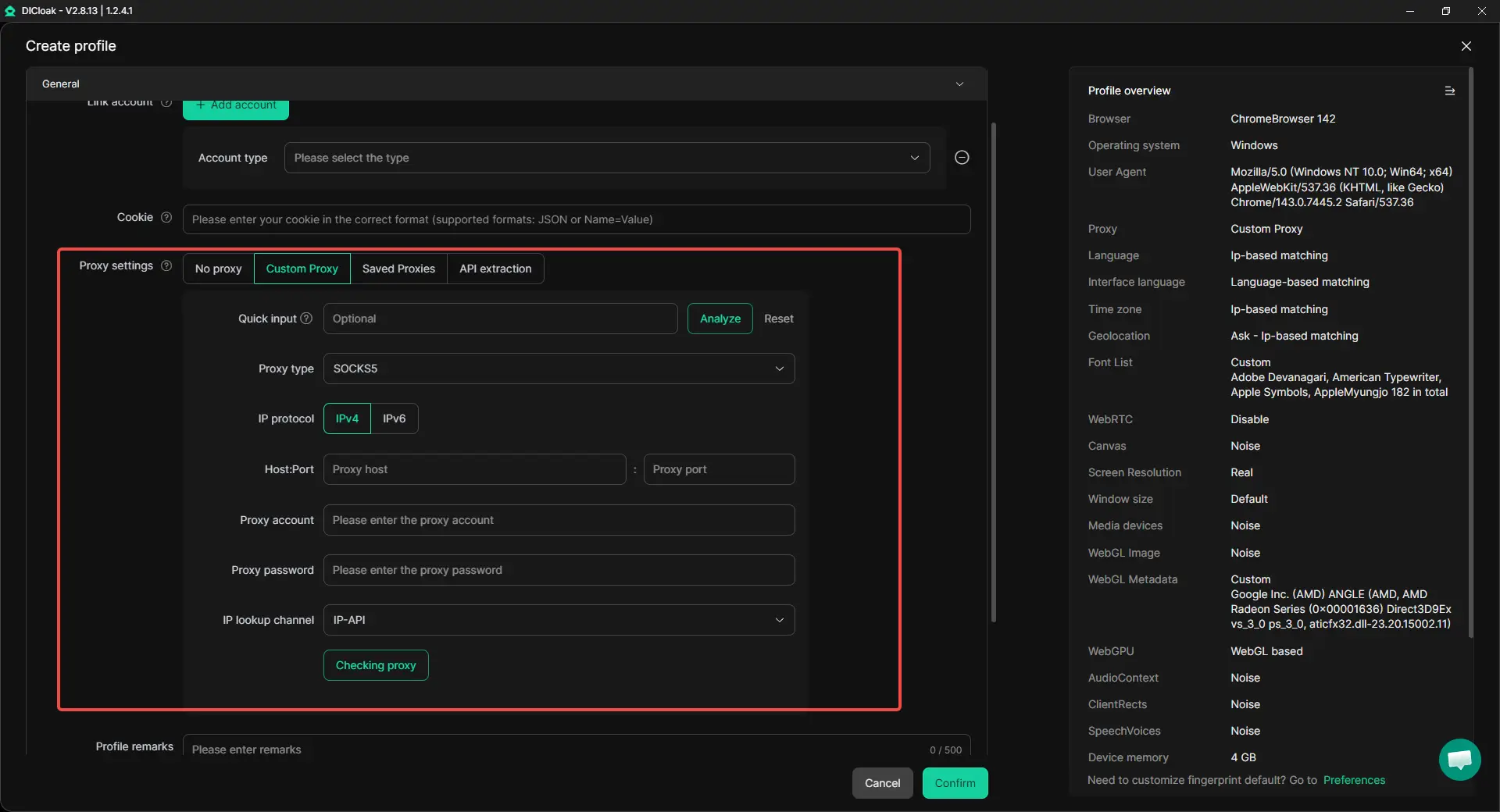
Reduce location conflicts with custom proxy configuration
Users can set a custom proxy for each profile. This helps each account keep a more stable region setup. It does not replace the need to set the right Marketplace search location or listing location, but it can reduce location conflicts when managing multiple accounts.
Use automation for repeated Marketplace tasks
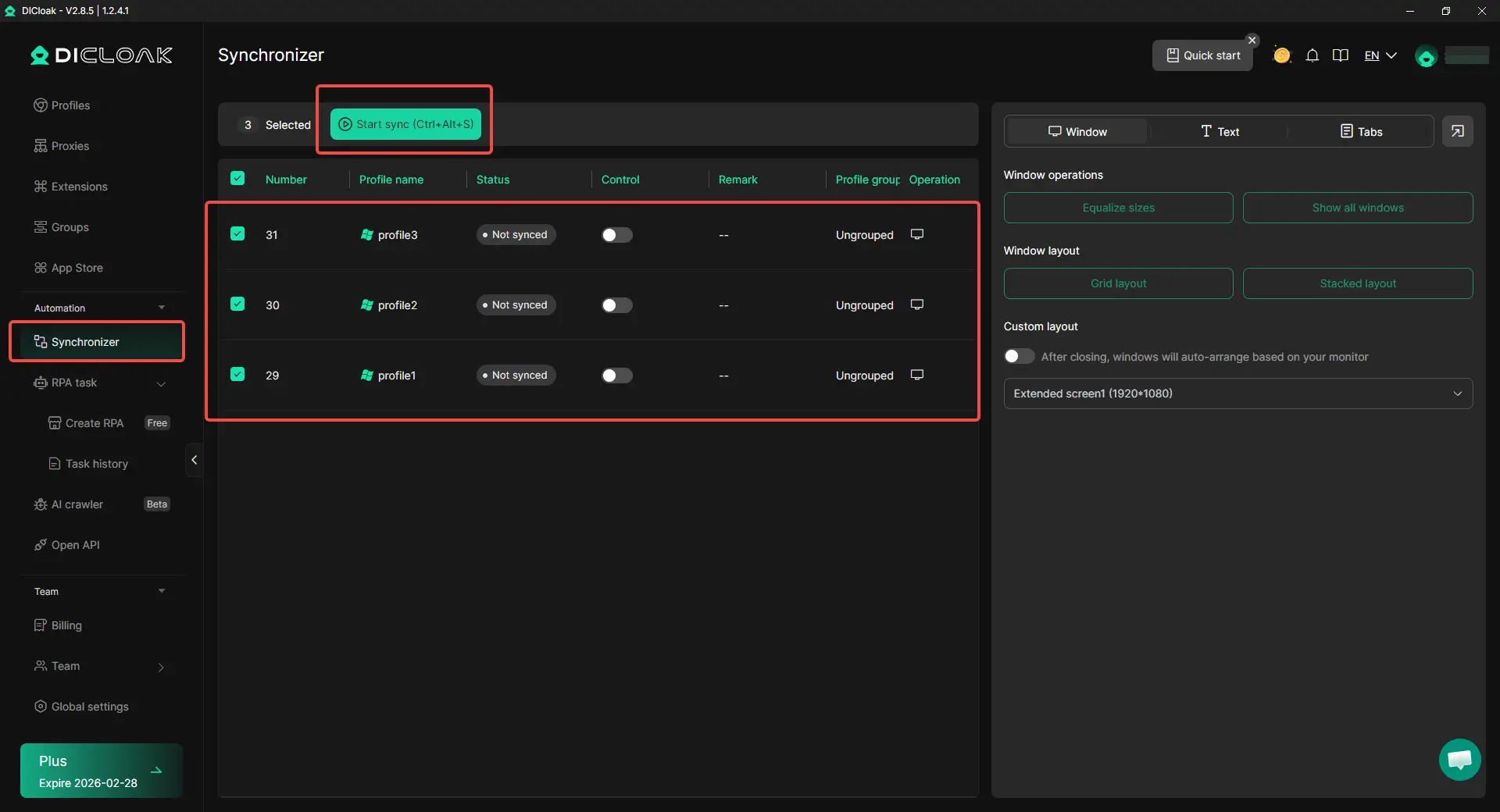
For teams or resellers, DICloak also supports bulk profile management and the Synchronizer. These tools can reduce repeated steps, such as opening profiles, checking listings, or handling routine account checks. For single-account users, manual settings may be enough. For multi-account Marketplace work, DICloak offers a cleaner setup.
FAQ About How to Change Facebook Marketplace Location
1. How to change Facebook Marketplace location on the app?
To change Facebook Marketplace location on the app, open Facebook and go to Marketplace. Tap the current location or location filter, enter a city or ZIP code, choose the right area, and save the change. You can also adjust the distance range to see items closer to or farther from that location.
2. Why is my Facebook Marketplace location not updating?
Your Facebook Marketplace location may not update because the app saved an old location, your phone location permission is off, or your browser has old cookies and cache. It can also happen if you changed your search location but not your listing location. When learning how to change Facebook Marketplace location, always check both the buyer search area and seller listing location.
3. Does changing Facebook Marketplace location affect my existing listings?
Changing your Marketplace search location usually affects what you see as a buyer. It does not always change your existing listings. If a listing shows the wrong city, you need to edit the listing itself and update its location field.
4. Can I search Facebook Marketplace in another city?
Yes. You can search Facebook Marketplace in another city by changing your Marketplace search location. For example, if you live in Phoenix but plan to move to Denver, you can set your search location to Denver and check local furniture, appliances, or cars before you arrive.
5. Can I hide my exact location on Facebook Marketplace?
Yes, you can avoid sharing your exact home address. Use a nearby area, ZIP code, or public pickup spot instead. This keeps buyers informed without giving away private details. It is also safer when selling large items or meeting buyers in a new city.
Conclusion
Changing Facebook Marketplace location helps buyers find better local items and helps sellers reach the right nearby audience. In this guide, you learned how to change Facebook Marketplace location in the app and browser, how to adjust the search radius, and why Marketplace search location is different from Facebook profile location.
If Facebook Marketplace shows the wrong location or does not update, the issue may come from app permissions, browser cache, cookies, saved search settings, or listing location. For safer use, avoid sharing your exact address, check profiles before meeting, and keep location details clear. With DICloak, users managing multiple Facebook accounts can keep each account in a separate profile with cleaner cookies, sessions, and custom proxy configuration.
 Web Proxy Tools
 Free Tools
 Cookie Plugin
 UA Generator
 MAC Address Generator
 IP Generator
 IP Address List
 2FA Code Generator
 World Clock
 Anonymous Check
 WebRTC Leak Test
 UUID Generator
 Free Web Proxy Site
 Proxy Checker
 FB Ad Checker
 AI Web Scraping
 Free SMM Tools
 Twitter Shadowban Checker
 Instagram Name Checker
 UTM Generator
 Username Generator
 AI Hashtag Generator
 LinkedIn Headline Generator
 Social Media Image Resizer