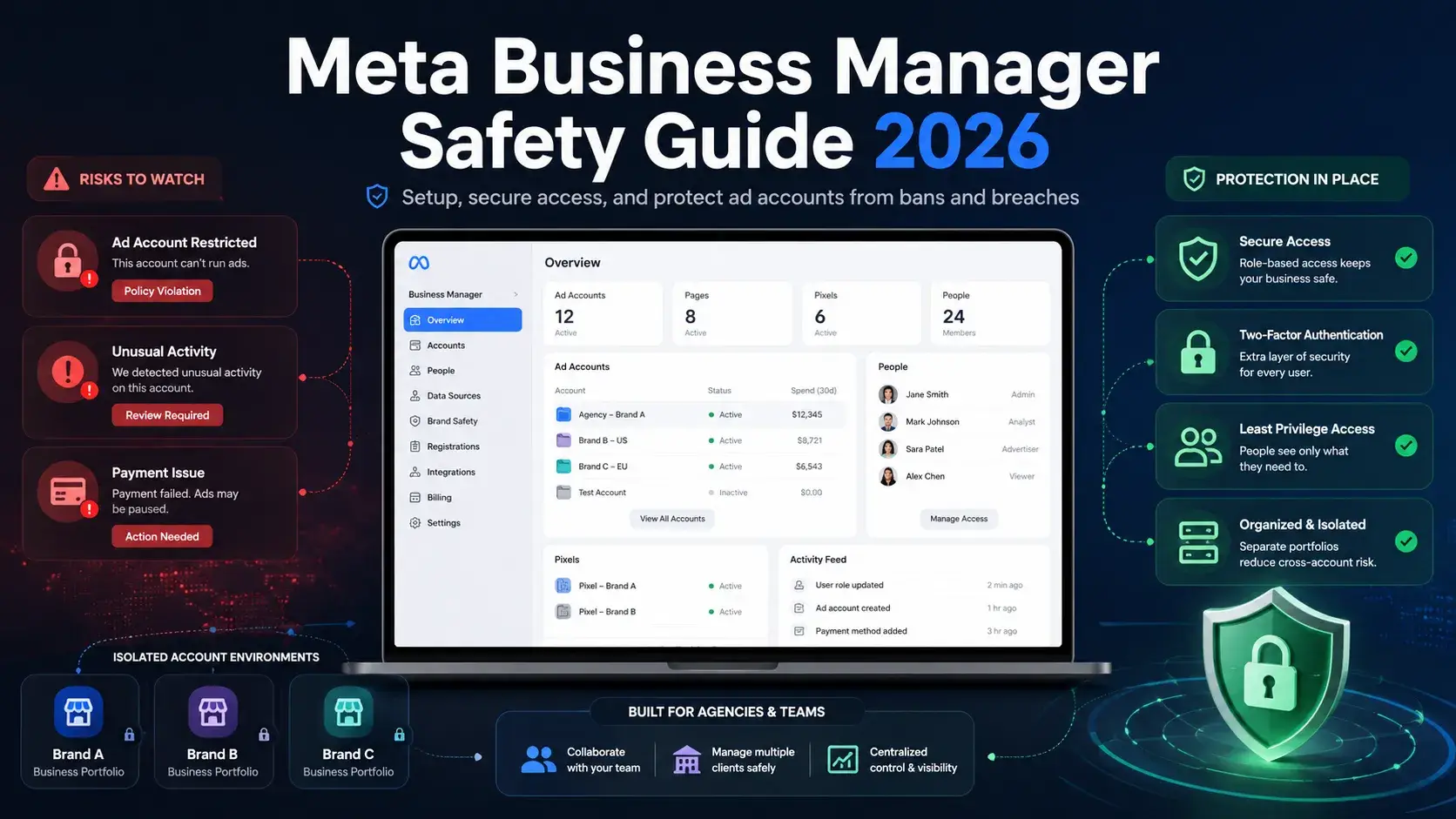
“You wake up and open Ads Manager. Three of your ad accounts show restricted. Your Business Manager is flagged. Campaigns that were running fine yesterday are now paused. You have no clear reason why — just a generic message from Meta. This happens more than most guides admit.”
If you’ve been in paid ads for more than a few months, you’ve probably seen something like this. Most guides will only show you how to set up a meta business manager, but they skip the real problems that cost people money: sudden restrictions, agency access mistakes, and account links that quietly trigger risk flags.
In this article, you’ll learn what actually keeps ad accounts safe in 2026: how to give agency access without exposing your assets, how to manage multiple accounts without triggering platform flags, what to do when your Business Manager gets restricted or hacked, and how you can automate routine ad work without looking like a bot to Meta systems.
Before you fix anything, you need to understand what Meta Business Manager actually is — and how it really works behind the scenes.
What Is Meta Business Manager?
Meta Business Manager is the control center where you organize your ad accounts, Pages, pixels, and team access in one structured system. If Ads Manager is where you run ads, Business Manager is where you control who can touch what.
Most account problems start here because people misunderstand its role. It is not just a dashboard — it is an asset and permission layer that determines how Meta connects your business activity.
Meta Business Manager vs Business Suite vs Ads Manager
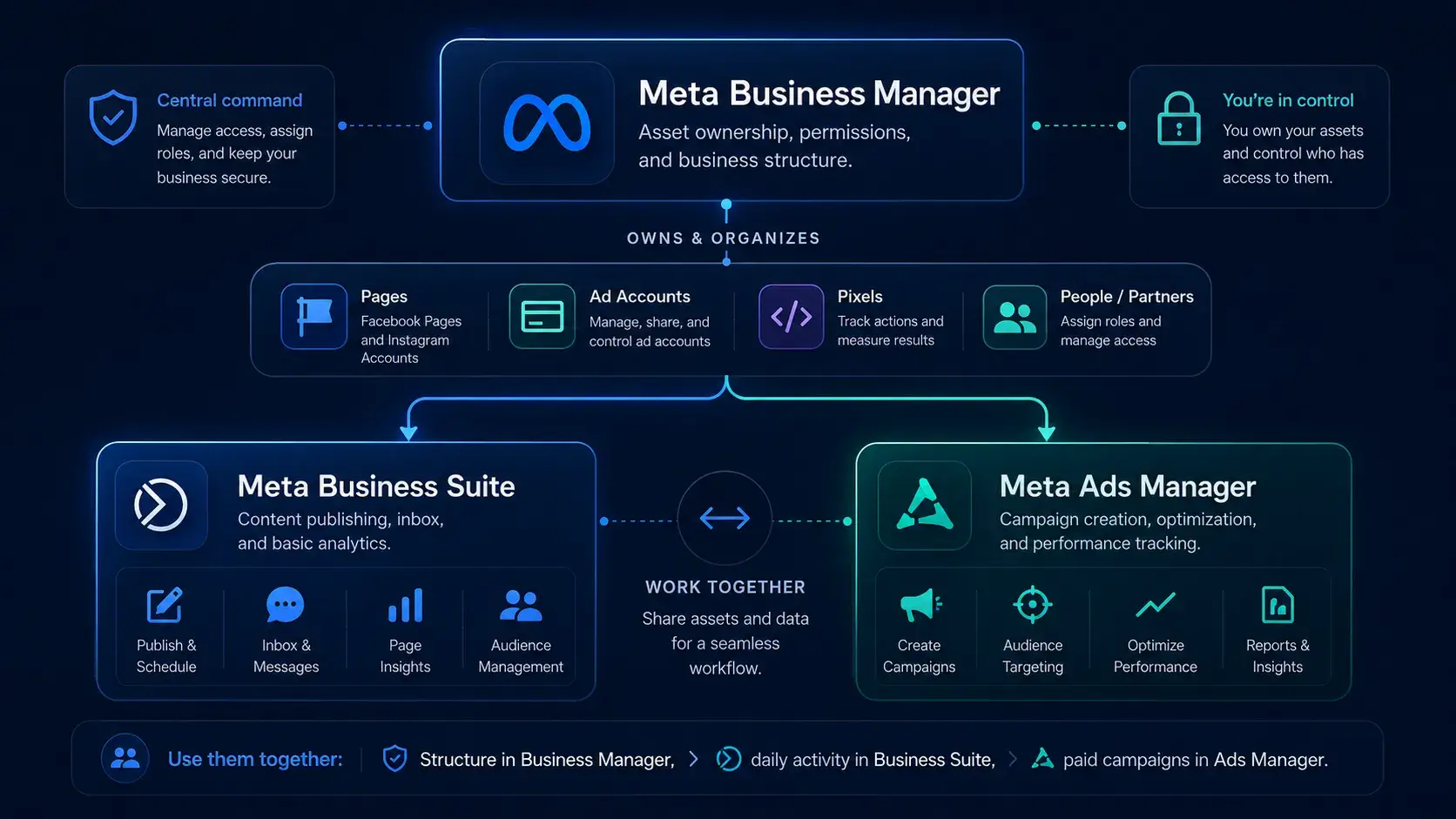
Many advertisers confuse all three tools and end up using the wrong one for the wrong task. Each tool has a very specific job:
| Tool |
What it's for |
Use it when |
| Meta Business Manager |
Asset ownership, permissions, structure |
Setting up accounts, managing team access, working with agencies |
| Meta Business Suite |
Daily content management, scheduling, inbox |
Publishing posts, replying to messages, basic analytics |
| Meta Ads Manager |
Running and optimizing paid campaigns |
Creating ads, tracking performance, A/B testing |
Meta Business Manager sits at the top as the “control layer.” Business Suite handles your organic activity like posts and messages. Ads Manager is purely for campaign execution and optimization.
In real operations, these three work together: you create structure in Business Manager, manage daily engagement in Business Suite, and run performance-driven campaigns in Ads Manager. If any one of these is misused — especially Business Manager — you can end up with disorganized assets or sudden access issues across your entire ad system.
Who actually needs it?
Not everyone needs deep Business Manager setup, but most advertisers reach that point faster than they expect.
- Freelance media buyer: manages 3–5 client accounts and needs strict separation so one client’s issue doesn’t affect others.
- Marketing agency: assigns roles to team members across regions without sharing login credentials or risking password leaks.
- E-commerce brand: runs multiple product lines, each with separate pixels, budgets, and conversion tracking setups.
If you spend more than $1,000/month on Meta ads or manage more than one brand, Business Manager is not optional — it becomes the foundation of how safely you scale.
Next, we’ll go step by step through how to set it up correctly in 2026 so you don’t build on a structure that later gets you flagged.
How to Set Up Meta Business Manager Step-by-Step in 2026
Setting up your meta business manager correctly is not just about getting access to tools. It is about building a clean structure that Meta can understand and trust. Most account issues later come from setup mistakes made at this stage.
Follow these steps carefully so your ad account, Pages, and team access are organized from day one.
Step 1 — Create your Business Manager account
This step matters because it defines the main identity Meta will associate with all your advertising assets.
Go to business.facebook.com and click Create Account. Enter your business name, your name, and a work email address. After that, confirm your account through the verification email sent by Meta.
Note: always use a real business email tied to your domain, not a personal Gmail or Outlook account, because personal emails are more likely to cause trust issues when scaling ad accounts.
Step 2 — Add your Facebook Page
This step matters because your Facebook Page is the core identity that connects your brand to your ad account inside Meta Business Manager.
Go to Business Settings → Accounts → Pages → Add. You will see three options: Add a Page, Request Access, or Create New.
If you are an agency or working with clients, always choose Request Access. Adding a Page directly transfers ownership into your Business Manager, which often creates disputes or permanent access problems when clients try to reclaim control later.
Note: never “Add a Page” for client assets unless you legally own the Page.
Step 3 — Add your ad account
This step matters because your ad account is where all spending, tracking, and performance data lives inside your meta business manager.
Go to Business Settings → Accounts → Ad Accounts → Add. You can choose to add an existing ad account, request access, or create a new one.
Important warning: your time zone and currency are locked after creation, so even a small mistake here can permanently affect reporting and billing structure.
Note: agencies should always use Request Access for client ad accounts. Never create a client ad account under your own Business Manager unless you are intentionally owning the entire advertising structure.
Step 4 — Add team members and set permissions
This step matters because improper permissions are one of the fastest ways to cause account leaks, accidental changes, or billing issues.
Go to Business Settings → Users → People → Add, then enter the team member’s email and assign a role: Admin or Employee.
After that, assign asset-level permissions such as Advertiser, Analyst, or Finance Editor depending on their job.
For example, a media buyer gets Advertiser access, a client gets Analyst view-only access, and a finance manager only gets billing control.
Note: avoid giving Admin access unless the person truly needs full control over the entire meta business manager structure.
Step 5 — Connect Instagram and set up Meta Pixel
This step matters because without Instagram and Meta Pixel properly connected, your tracking and retargeting data will be incomplete or inaccurate.
To connect Instagram, go to Business Settings → Instagram Accounts → Add and log in to authorize the account.
To set up the Meta Pixel, go to Business Settings → Data Sources → Pixels → Add, name your pixel, and attach it to your ad account.
Always test it using Meta’s Test Events tool before launching campaigns to confirm that events like PageView and Purchase are firing correctly.
Note: you can create up to 100 pixels inside one Business Manager, which is especially useful for agencies managing multiple clients or multiple tracking setups.
If your structure is set up correctly at this stage, you reduce most of the common scaling risks before they even appear. Next, we will go into one of the most important but misunderstood topics: how to safely give agency access to your Meta Business Manager without risking your entire ad system.
How to Safely Give an Agency Access to Your Meta Business Manager
If you are asking, “Which access is safe to give my agency without risking my entire meta business manager setup?” — you are asking the right question. I’ve seen businesses lose full ad control just because they gave the wrong level of access at the start. This section breaks down exactly what is necessary and what is dangerous.
The goal is simple: your agency should be able to run ads, but never own your assets.
What access does an agency actually need?
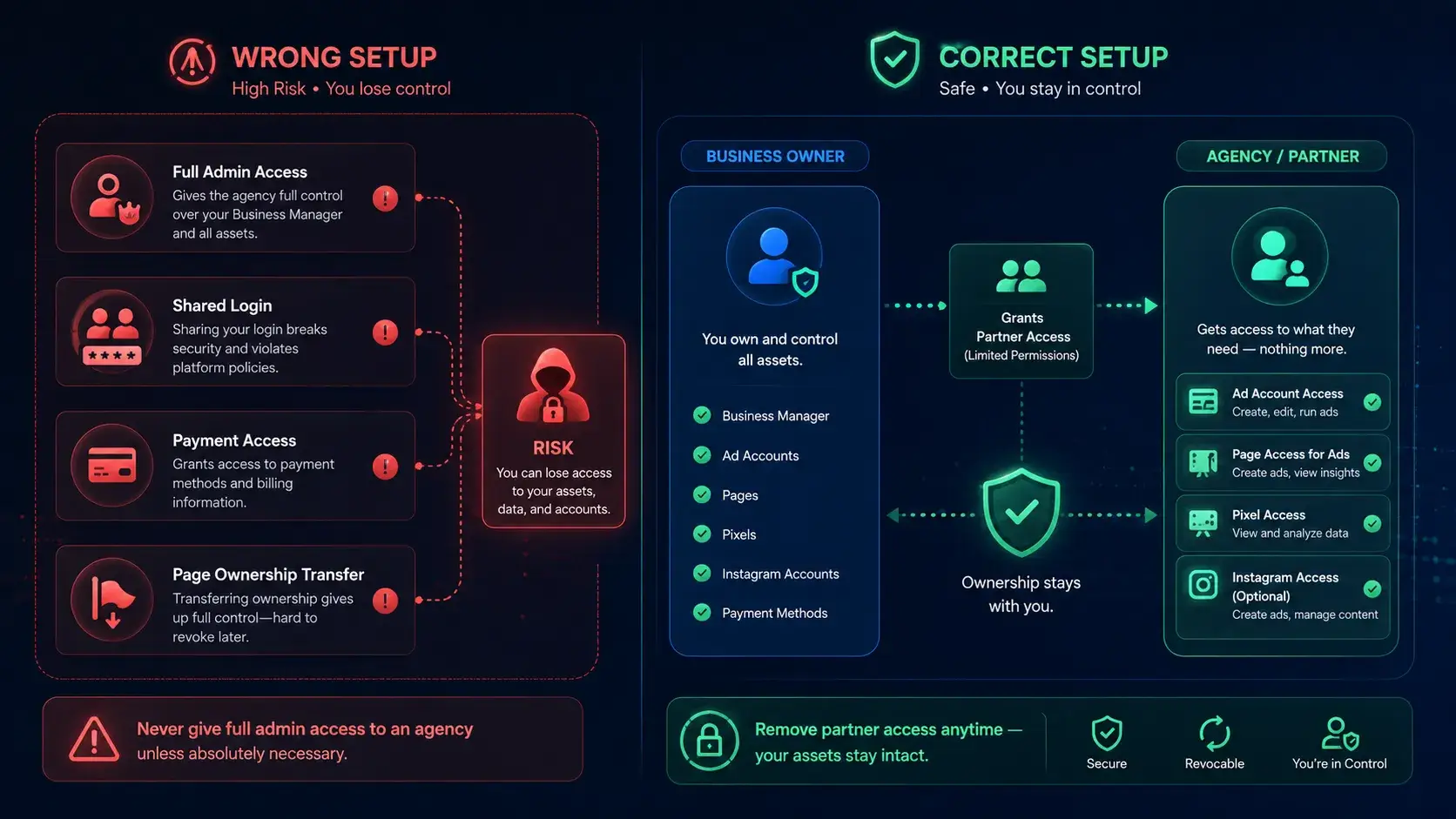
An agency only needs enough access to execute campaigns inside your ad account — nothing more. A professional setup keeps ownership fully on your side while giving execution permissions to the agency.
Here is what they actually need:
- Ad account access (Advertiser role) — to create, manage, and optimize campaigns
- Facebook Page access — to run ads using your Page identity
- Meta Pixel access — to read conversion data and optimize performance
- Instagram access (optional) — only if ads are running on IG placements
Now here is what they do NOT need:
- Admin access to your Business Manager
- Ownership of your Facebook Page
- Access to payment methods or billing settings
- Access to custom audiences (unless there is a very specific optimization reason)
I’ve seen cases where a brand gave full Admin access “for convenience,” and later spent weeks trying to untangle ownership disputes when the relationship ended. A legitimate agency will never ask for more than what is required to manage your ad account properly.
Partner access vs adding a person: which one protects you?
This is one of the most important decisions inside meta business manager, and most people get it wrong.
- Adding a person means you invite an individual into your Business Manager. That person gets assigned roles directly, and if they leave the agency, you must remove them one by one. It becomes messy fast when multiple employees are involved.
- Partner access means you grant access to the agency’s Business Manager instead of individuals. Their system connects to yours, but ownership of your assets stays fully with you.
Here’s a real scenario I’ve seen:
A client added five agency employees as individual users. When the contract ended, two people still had access for weeks because they were never removed properly. One of them still had ad account access and accidentally paused a running campaign.
With partner access, the client could have removed everything in one click.
That is why the recommendation is simple: always use partner access for agencies, never add individual agency employees into your system.
How to remove agency access without losing your assets
If the relationship ends or you want to switch agencies, removing access should be clean and immediate — without affecting your ad account or pages.
Here is how you do it:
- Go to Business Settings → Partners
- Find the agency partner in the list
- Click Remove
- Confirm removal
Once you do this, their access to all assigned assets — including your meta business manager ad account, Pages, and Pixels — is revoked instantly.
Important reassurance: removing a partner does NOT delete anything. Your Pages, ad accounts, and Pixels remain fully intact. Only access is removed.
The risk comes if you previously added individual users with Admin access. In that case, you must also go to Business Settings → People and manually review who still has access before ending the relationship.
I’ve seen businesses assume removal was complete, only to discover a former freelancer still had ad access months later.
Now that your access structure is clear, the next critical issue is how to manage multiple ad accounts safely without triggering Meta’s risk systems — especially when scaling campaigns or working across teams.
How to Manage Multiple Ad Accounts Without Getting Banned
Once you start scaling, you are rarely managing just one ad account. Most agencies and advertisers quickly end up handling multiple clients inside their meta business manager, and that is where risk starts to appear if your workflow is not structured correctly.
The problem is not the number of accounts — it is how they are accessed, switched, and separated on the same device.
Why Meta flags multiple accounts from the same device
Here’s a real scenario I’ve seen inside agency operations: a media buyer logs into six different client ad accounts in one morning from the same browser. By the afternoon, three of those accounts show “unusual activity” warnings inside Ads Manager, even though nothing changed in the campaigns.
The reason is simple. Meta does not only track login credentials — it tracks behavioral patterns across sessions. When one device is rapidly switching between multiple ad accounts, it creates signals that look similar to automated or coordinated activity.
This becomes even more sensitive when accounts are completely different: different industries, different GEOs, and very different spending levels. A small e-commerce account and a high-spend SaaS account sharing the same session pattern can easily trigger risk checks inside your ad account ecosystem.
The browser fingerprint problem most advertisers don't know about
Most advertisers think logging in with the correct password is enough. It is not.
Your browser actually sends a hidden set of signals every time you open Meta Business Manager. This is called a browser fingerprint. It includes things like screen size, timezone, language settings, fonts, cookies, and even installed extensions. Together, these create a unique identity for your device.
If two different ad accounts are accessed from the same fingerprint repeatedly, Meta can start linking them. Once one account gets flagged, the others connected to the same pattern can also be reviewed or restricted.
This is exactly why some users report getting restricted for “automation that doesn't follow our rules,” even when they were manually managing campaigns. From Meta’s perspective, repeated identical device behavior across multiple accounts can resemble automated systems rather than natural human usage.
Setting up isolated profiles with DICloak
The real issue is not how many ad accounts you manage inside meta business manager — it is that they often all run through the same browser identity. Once you separate those identities, your workflow becomes far more stable.
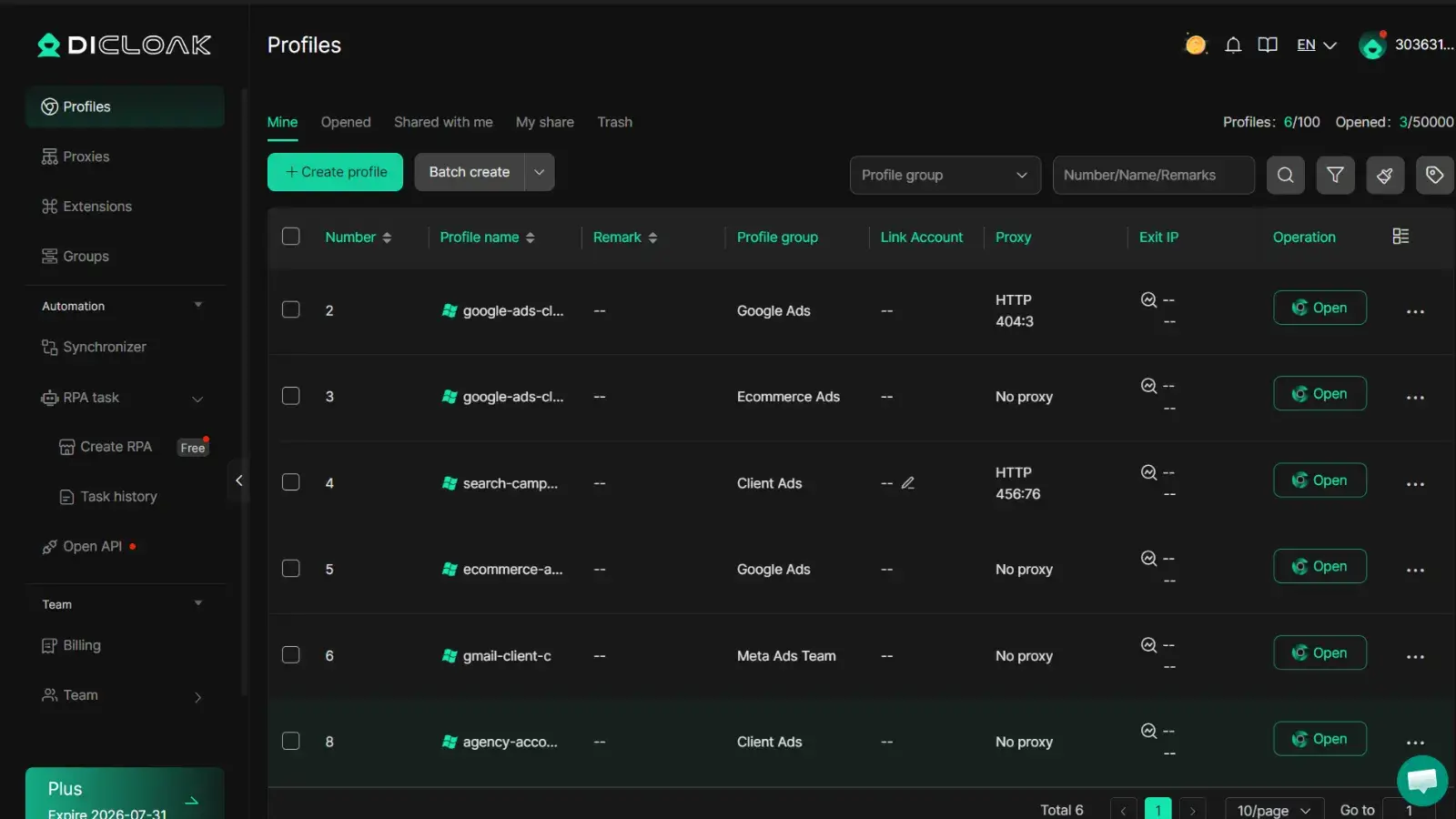
With DICloak, you can create a separate browser profile for each client ad account — each with its own unique fingerprint, cookies, and session — so switching between accounts never creates cross-detection signals.
You can run accounts across Facebook Ads, Google Ads, TikTok, and Instagram from one device, with each profile behaving like a completely independent machine.
You can also conduct A/B testing across separate isolated profiles, keeping test data clean and results directly comparable without cross-contamination between campaigns.
This setup is especially useful when you are scaling multiple ad account operations and want to avoid accidental linking inside your meta business manager ecosystem.
Once your account structure and isolation are properly handled, the next challenge is what happens when things still go wrong — especially when your Business Manager gets restricted or hacked, and you need to recover fast without losing control of your assets.
What to Do When Your Meta Business Manager Gets Restricted or Hacked
When your meta business manager gets restricted or hacked, everything feels urgent at once. Ad accounts stop spending, clients start asking questions, and you are locked out of systems that were running fine hours before. I’ve seen both situations happen inside agencies, and the speed of your response often decides how much you can recover.
This section is not theory. It is what you do when your ad account is already in trouble.
Why accounts get restricted — and the real reasons Meta won't always tell you
Meta rarely gives a clear explanation. Most messages say things like “unusual activity” or “violates advertising policies,” which is not helpful when you are trying to fix the issue quickly.
From what I’ve seen, most business manager restricted cases come from four real triggers:
First, shared browser fingerprints across multiple accounts can make normal activity look coordinated or automated. This often overlaps with multi-account setups discussed earlier.
Second, policy violations — even small ones — can trigger restrictions. I’ve seen ads get flagged just for using phrases like “guaranteed ROI” or making indirect income claims.
Third, unusual spending behavior is a big one. For example, increasing ad spend from $50/day to $800/day within 48 hours can trigger fraud protection systems inside your ad account.
Fourth, security signals matter more than people expect. Logging into Business Manager from a new device, location, or without proper two-factor authentication can instantly trigger review.
None of these are always clearly labeled in Meta’s notifications, which is why many advertisers feel confused when restrictions happen.
Step-by-step: how to appeal a restriction
When your account is restricted, speed and structure matter more than emotion.
Step 1: Go to the Meta Business Help Center, open Account Quality, and locate the restricted asset inside your meta business manager.
Step 2: Click Request Review. Keep your explanation short and factual. Describe what you were doing, but avoid emotional language or arguing with Meta in the message.
Step 3: If you do not receive a response within 5–7 days, submit another request through Meta’s support chat (if available in your region or account type).
Step 4: Always check the Support Inbox inside Business Manager for hidden updates or requests from Meta.
If your Business Manager was hacked, the process changes immediately:
Go to facebook.com/hacked and use the Secure It flow to lock access. Then go into Business Settings → Security Center, review all active sessions, and remove any device you do not recognize. After that, submit a breach report through Meta’s hacked account form.
Recovery can take anywhere from a few days to several weeks depending on severity. During this time, document every ticket, response, and change — it helps if you need escalation later.
How to protect your BM before it happens
Most people only think about security after something breaks. The advertisers who scale safely treat protection as part of daily operations.
First, enable two-factor authentication for everyone: go to Business Settings → Security Center → Two-Factor Authentication and set it to “Everyone.”
Second, audit access regularly. Every 30 days, review your People and Partners lists inside meta business manager and remove anyone who no longer needs access to your ad account.
Third, never share login credentials. In almost every hacked Business Manager case I’ve seen, the entry point was a shared password or reused login across devices.
Fourth, isolate access at the browser level. With DICloak, you can give each team member their own isolated browser profile — so even if one session is compromised, it cannot spread across other client ad accounts. You can also share campaign access securely without sharing passwords, since each person operates inside their own controlled environment with assigned permissions.
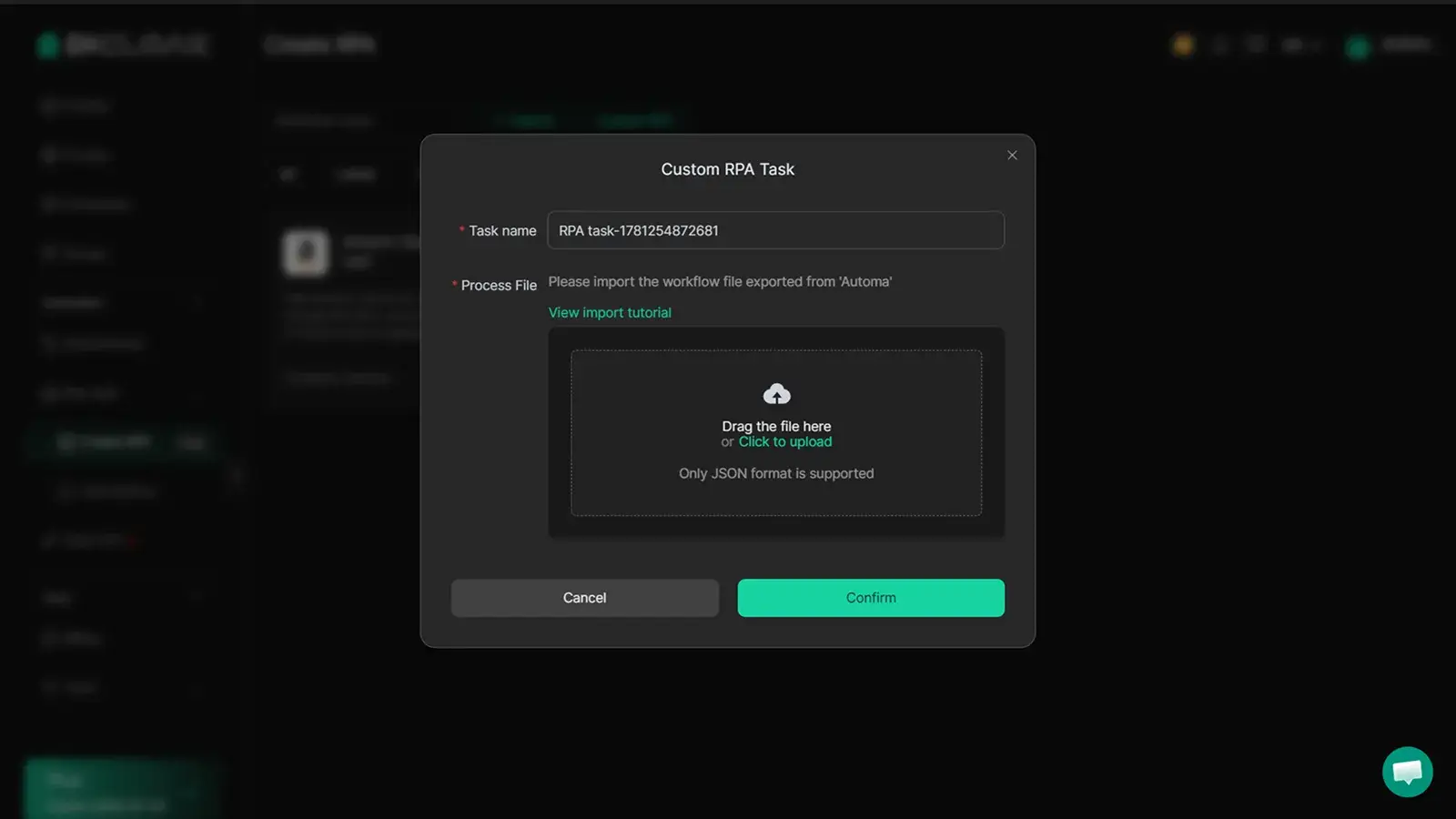
Fifth, use compliant automation carefully. If you automate repetitive ad tasks, it should behave like a real user. With DICloak’s RPA support, you can automate routine workflows such as managing profiles, running research, and scaling campaigns in a way that mimics natural user behavior instead of triggering Meta’s bot detection systems.
These are not “advanced tricks” — they are basic protection layers used by agencies that cannot afford downtime.
If you survive the crisis phase, the next step is understanding the most common questions advertisers still have about Meta Business Manager — especially around safety, setup, and long-term scaling.
FAQs about Meta Business Manager
What is meta business manager used for?
Meta business manager is used to organize and control your Facebook Pages, ad accounts, pixels, and team access in one place. It helps businesses separate ownership from execution, so you can manage ads, assign roles, and track assets securely without sharing personal logins.
Is meta business manager necessary for running ads?
Yes, if you are running serious ad campaigns. Meta business manager is essential when you manage more than one ad account, work with a team, or run ads for clients. It prevents asset confusion and gives you structured control over permissions and billing.
How do I safely give agency access in meta business manager?
In meta business manager, always use Partner access instead of adding individual users. Give only what is needed: ad account access, Page access, and pixel access. Avoid giving admin rights or billing access unless absolutely required for operations.
Why did my meta business manager get restricted?
Most meta business manager restrictions come from unusual activity signals, policy violations, rapid ad spend changes, or security issues like unverified logins. In many cases, Meta does not provide full details, so you need to review Account Quality and request a manual review.
Can I manage multiple ad accounts in one meta business manager safely?
Yes, but only if your structure is clean. Meta business manager supports multiple ad accounts, but you must separate access properly, avoid shared logins, and ensure consistent security settings. Poor setup or shared environments can increase the risk of flags or restrictions.
Meta Business Manager setup is just the starting point. Scaling safely requires the right structure — isolated environments, controlled access, and consistent account protection from day one. Try DICloak For Free.
 Web Proxy Tools
 Free Tools
 Cookie Plugin
 UA Generator
 MAC Address Generator
 IP Generator
 IP Address List
 2FA Code Generator
 World Clock
 Anonymous Check
 WebRTC Leak Test
 UUID Generator
 Free Web Proxy Site
 Proxy Checker
 FB Ad Checker
 AI Web Scraping
 Free SMM Tools
 Twitter Shadowban Checker
 Instagram Name Checker
 UTM Generator
 Username Generator
 AI Hashtag Generator
 LinkedIn Headline Generator
 Social Media Image Resizer