Seeing “You Are Visiting Too Frequently” on TikTok can be confusing, especially when you are simply trying to log in.
The message usually points to an unusual access pattern rather than an automatic account ban. Repeated logins, quick account switching, a new device, or changes in your network can all be part of the pattern TikTok is checking.
The best response is not to keep trying the same login again and again. First find out what changed, then test one fix at a time.
What Does “You Are Visiting Too Frequently” Mean on TikTok
TikTok has not published an exact rule or login limit for this message.
In many cases, “You Are Visiting Too Frequently” is better understood as a temporary security or access check. TikTok may see the current login as different from the account's normal activity.
For example, an account may normally use the same phone and network every day. If it suddenly appears on several devices, switches accounts repeatedly, and changes networks in a short period, the overall access pattern looks very different.
That does not mean TikTok has confirmed abuse. It means the platform may want to check the login more carefully.
TikTok Looks at More Than Your Password
TikTok can recognize trusted and unfamiliar devices. It may also request extra verification when an account is opened from a device it does not recognize.
This means a correct password does not always make a login look normal.
A simple way to understand it is:
- Stable pattern: same account, familiar device, familiar login behavior
- Changed pattern: same account, new device, repeated login attempts, different network conditions
Several changes happening together may lead to additional checks.
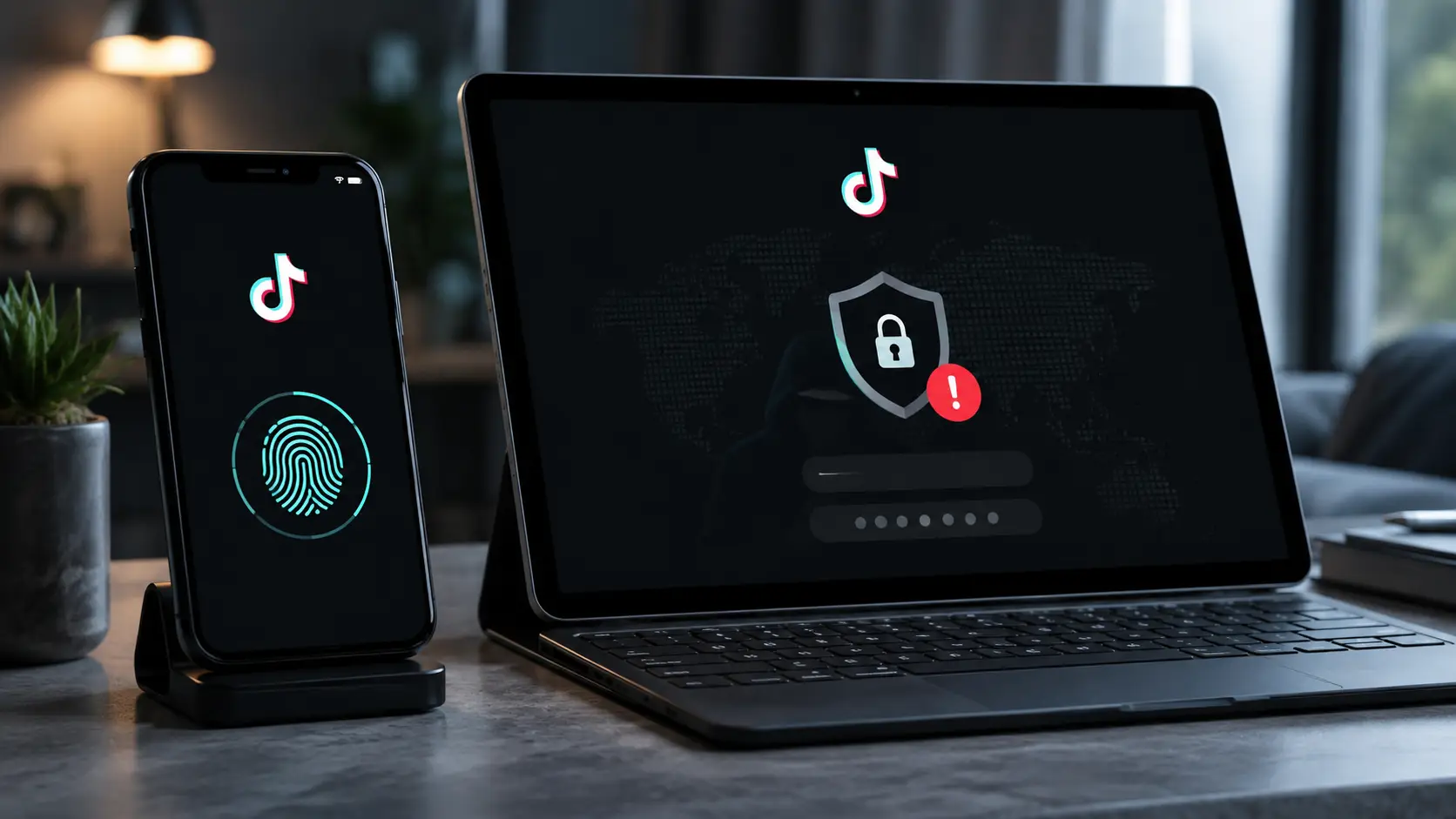
Pure image, no text. Show one TikTok account in a stable phone and network setup on one side, while the same account appears across several new devices and changing networks on the other. Use visual warning signals only.

Common Reasons for the TikTok “Visiting Too Frequently” Error
TikTok does not provide a complete public list of triggers. However, several situations often appear around this type of login problem.
Repeated Login Attempts
One of the first things to check is how many times you tried to log in.
You may enter the wrong password, request a code, refresh the page, and try again several times. From your point of view, this is normal troubleshooting.
To a security system, it can look like a burst of repeated login requests.
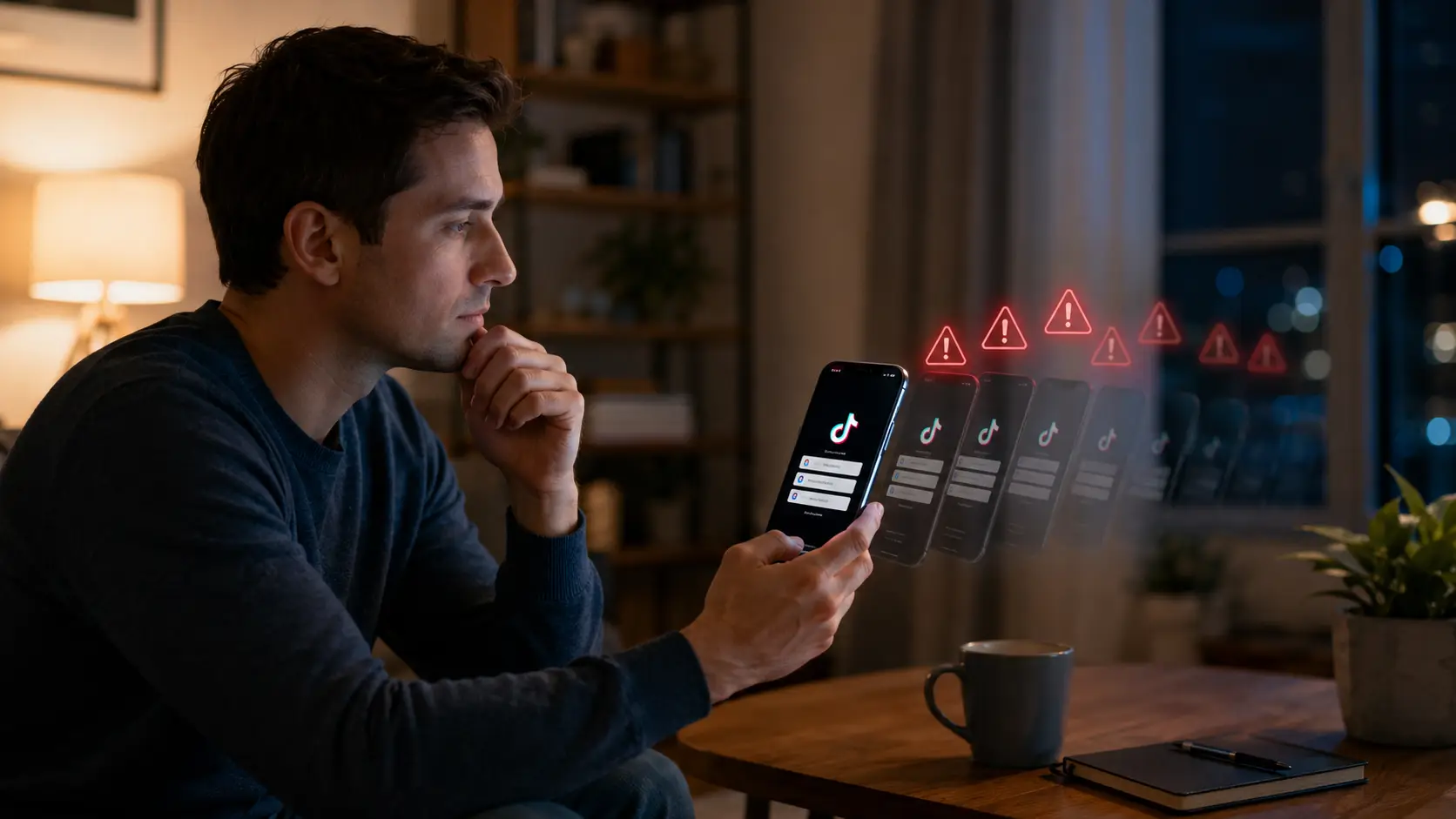
If TikTok starts rejecting the login, continuing to send more requests usually does not help. Pure image, no text. Show one user repeatedly trying to log in on a phone while warning icons gradually increase around the device. The visual message should be “more retries create more problems.”
Switching Between Multiple TikTok Accounts Quickly
Managing several TikTok accounts is not automatically a problem. Social media managers, agencies, and businesses may have valid reasons to work with different accounts.
The issue is how those accounts are accessed.
If one browser is constantly doing this:
Account A → log out → Account B → log out → Account C → log out
the browser creates much more login activity than a setup where each account keeps its own session.
TikTok does not publish a fixed number of accounts that automatically triggers this warning. Avoid claims such as “more than X accounts on one device will cause the error.”
Logging In From a New Device
TikTok officially recognizes familiar and unfamiliar devices.
If an account suddenly moves from its usual phone to a new laptop, browser, or app environment, extra verification may appear.
This becomes more important when the device change happens at the same time as repeated logins or network changes.
Changing Networks Too Often
Moving between home Wi-Fi, mobile data, office Wi-Fi, VPNs, or other connections changes the network context around a login.
A network change does not automatically cause the error. It is simply one clue to check.
This is why advice such as “just change your IP” is incomplete. The real problem may be the device, browser session, repeated login activity, or several factors together.
Automation or Emulator Activity
Fast automated actions can create access patterns that are very different from normal human use.
TikTok also prohibits automation used for platform manipulation, such as operating accounts in bulk for spam or fake engagement.
This does not mean every automation tool causes the “You Are Visiting Too Frequently” message. TikTok has not said that this error specifically means automation was detected.
Emulators are similar. If TikTok works normally on a physical phone but repeatedly fails inside an emulator, the emulator environment becomes one reasonable thing to test.

How to Fix “You Are Visiting Too Frequently” on TikTok
The best approach is simple:
Change one thing, test again, and avoid creating more login activity while troubleshooting.
1. Stop Repeating the Login
If the warning appeared after several failed attempts, stop trying for a while.
Do not keep refreshing the page or requesting new verification codes every few seconds. More requests can continue the same unusual pattern that triggered the problem.
When you try again, make one normal login attempt with the correct information.
2. Clear the TikTok Cache
TikTok recommends clearing the app cache as a basic troubleshooting step.
In the TikTok app, you can usually find this under:
Profile → Menu → Settings and privacy → Free up space
Clearing the cache removes temporary app data. It may help if the app has become unstable after repeated page loads or account switching.
However, clearing cache will not necessarily remove a real temporary security restriction.
3. Restart TikTok and Your Device
Fully close TikTok and restart the device.
This can clear temporary app processes and start a cleaner session.
After restarting, avoid immediately sending another series of login attempts. Test once.

4. Test a Trusted Network
If the problem started on Wi-Fi, try your normal mobile data once. If it started on mobile data, test another trusted connection.
This helps you learn whether the current network is part of the problem.
If TikTok works on one trusted connection but not another, the original network deserves more attention.
If the same error follows the account across several normal networks, changing networks again and again is less useful.
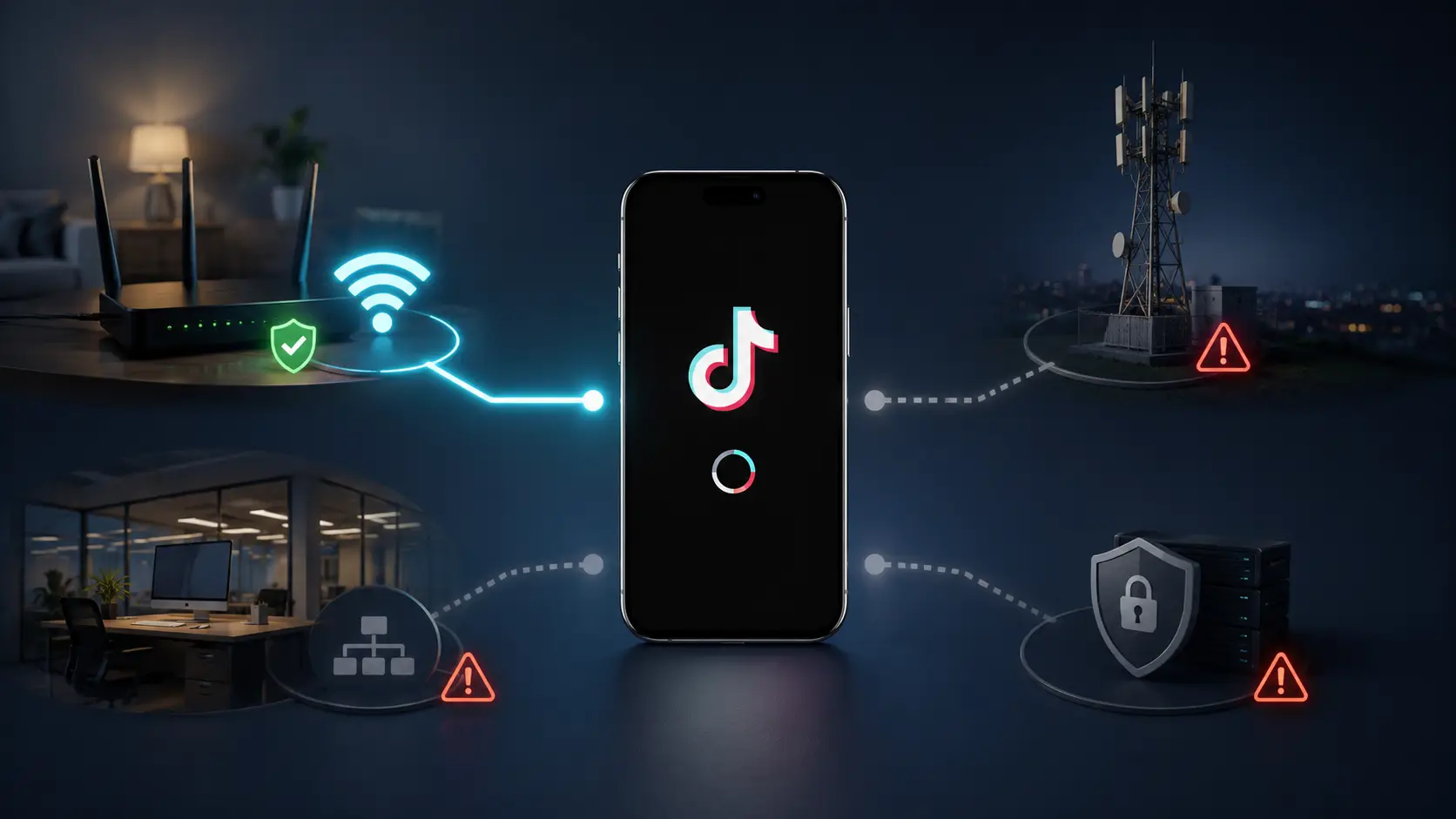
Change one thing at a time. Pure image, no text. Show one phone in the center with several possible network paths around it: home Wi-Fi, mobile data, office network, and VPN. Only one connection should be active at a time to visually show controlled testing.
5. Wait Before Trying Again
Sometimes the best fix is simply to stop.
TikTok does not publish a fixed waiting time for this exact error. Claims that it always disappears after 24 hours are not reliable.
Still, if the message appeared after fast account switching or repeated login attempts, giving the activity time to settle is more useful than sending another 20 requests.
Return later using a familiar device and normal connection, then test the login once.
6. Update TikTok
If the issue continues, make sure TikTok and your device operating system are up to date.
An outdated app can sometimes create login or connection problems that look similar to an access restriction.
After updating, restart the device and test again once.
7. Check Your Account and Contact TikTok
If normal troubleshooting does not work, check whether TikTok shows a real restriction on the account.
You can also report the problem through:
Profile → Menu → Settings and privacy → Report a problem
When contacting support, include useful details such as:
- When the problem started
- Whether it happens in the app, browser, or both
- Whether another account works on the same device
- Whether the account works on another trusted device
- Which fixes you already tried
- A screenshot of the message
This gives TikTok more information than simply saying the app does not work.
How to Prevent the Error From Coming Back
You cannot guarantee that TikTok will never show another security check.
What you can do is keep your account activity more stable and avoid unnecessary changes.
Avoid Excessive Login Activity
Do not repeatedly sign in and out when it is not necessary.
If a login fails, check the password or verification method first instead of sending the same request again and again.
For multi-account work, keeping sessions organized is usually better than constantly rebuilding them.
Keep Devices and Networks Organized
TikTok provides tools for reviewing trusted devices and account security activity.
Remove old or unknown devices when they are no longer needed. This is especially useful for brand accounts that have been used by several employees.
Network changes are normal too. The goal is not to use one Wi-Fi connection forever.
The goal is to notice patterns.
If the error always appears on one setup but disappears on your normal device and connection, that gives you a useful troubleshooting clue.
Follow TikTok’s Platform Rules
A technical workaround does not make prohibited activity acceptable.
TikTok does not allow spam, fake engagement, or automation designed to manipulate the platform.
There is an important difference between a social media manager using approved tools to manage normal business work and a system mass-creating accounts or generating fake engagement.
Keep automation limited to workflows that are allowed by the platform and relevant rules.
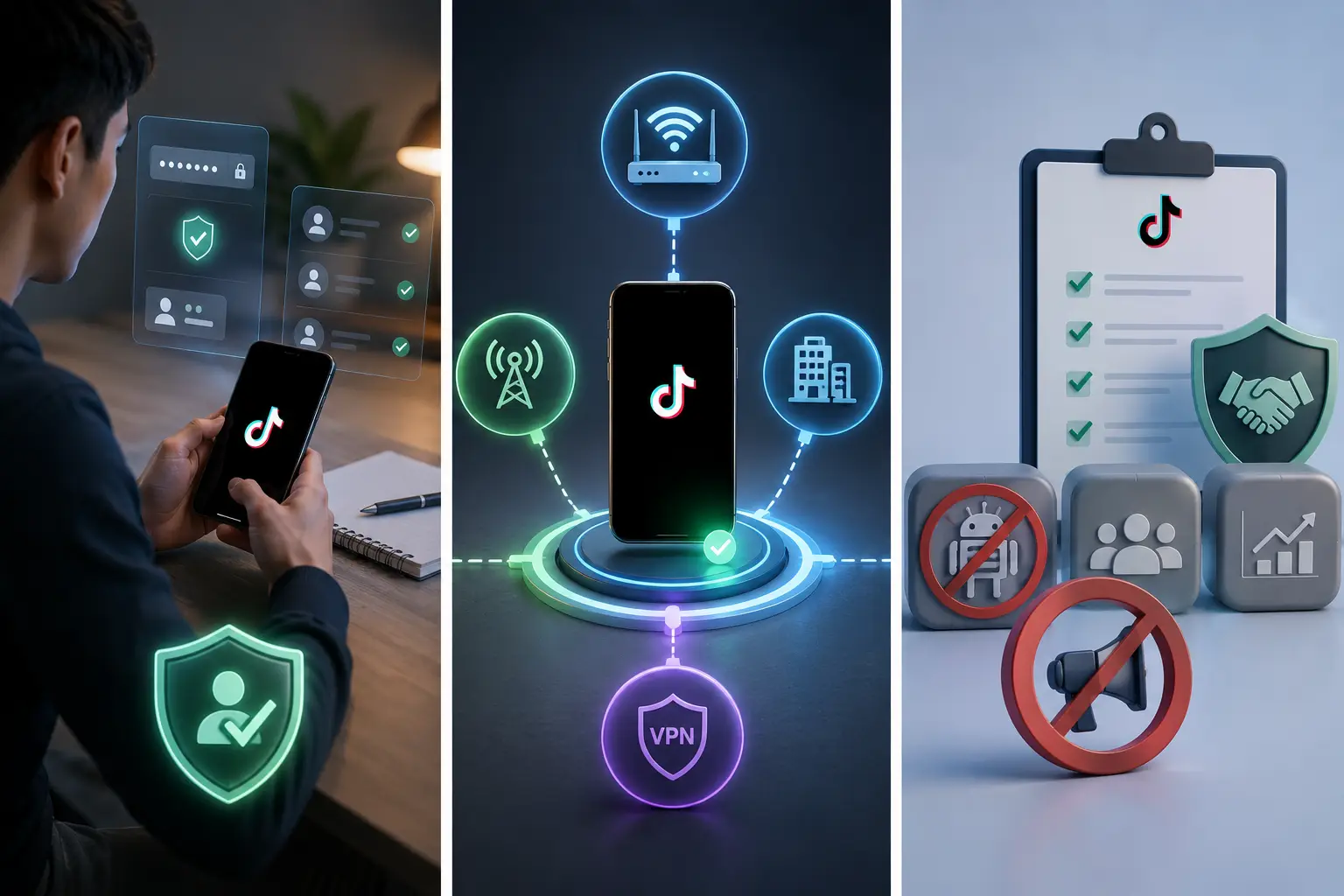
Why TikTok May React to an Access Pattern Instead of One Actio
TikTok does not publish a simple formula such as:
“Five logins = blocked.”
Its security and moderation systems work with many signals.
A new device by itself is not proof of suspicious activity. A new network is not proof either. Managing more than one account is also not automatically a violation.
The pattern becomes more unusual when several changes happen together:
- Multiple login attempts
- New devices
- Several accounts
- New network conditions
- Repeated failed requests
That is the most useful way to understand this warning.
TikTok may be reacting to the pattern around the login, not one single action.
How DICloak Helps With Multiple TikTok Accounts
For someone managing one personal TikTok account, a dedicated multi-account browser setup may not be necessary.
The situation changes for agencies, social media managers, and businesses handling several accounts.
Constantly logging Account A out, opening Account B, clearing cookies, then starting again for Account C creates more work and makes sessions harder to organize.
DICloak provides a different structure.
Keep Each TikTok Account in Its Own Profile
Each TikTok account can use a separate browser Profile.
For example:
- TikTok Account A → Profile A
- TikTok Account B → Profile B
- TikTok Account C → Profile C
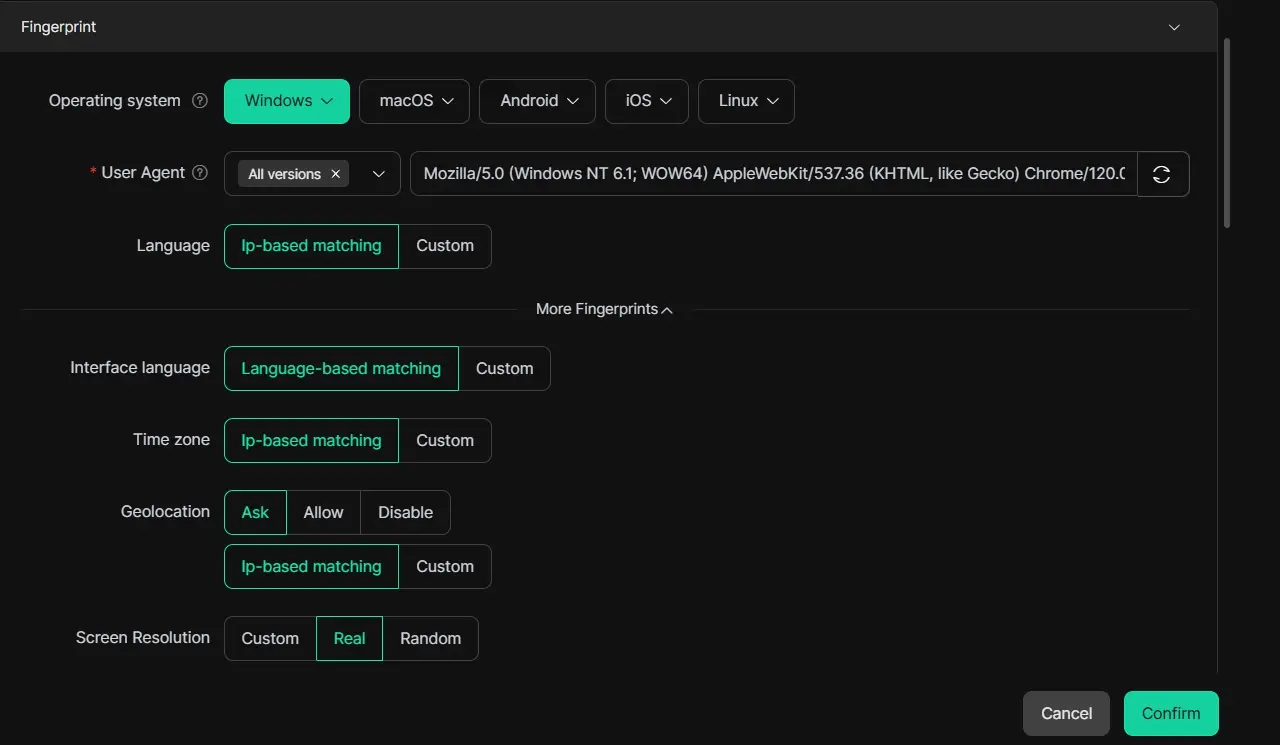
Each Profile keeps its own browser data, cookies, session, and fingerprint settings.
This means you do not need to clear one account's session every time you want to open another.
The main benefit is consistency.
Once an account already has a working Profile, avoid changing its browser settings without a clear reason.
Pure image, no text. Show one computer with several clearly separated browser workspaces, each holding one different TikTok account. Each workspace should look isolated and stable rather than connected together.

Configure a Proxy When Your Workflow Needs One
A user-configured proxy can also stay attached to the correct Profile.
DICloak supports common protocols such as HTTP, HTTPS, and SOCKS5.
The important point is not to keep changing the proxy. It is to keep the Profile configuration consistent when your workflow requires one.

Manage TikTok Accounts With a Team
DICloak also supports Profile sharing and member permissions.
This can be useful when different employees handle different brand or client accounts.
Instead of rebuilding a browser session on every employee's computer, the team can assign access to the Profile that already contains the working session.
Permissions and operation logs also make responsibilities easier to organize.

Reduce Repetitive Browser Work
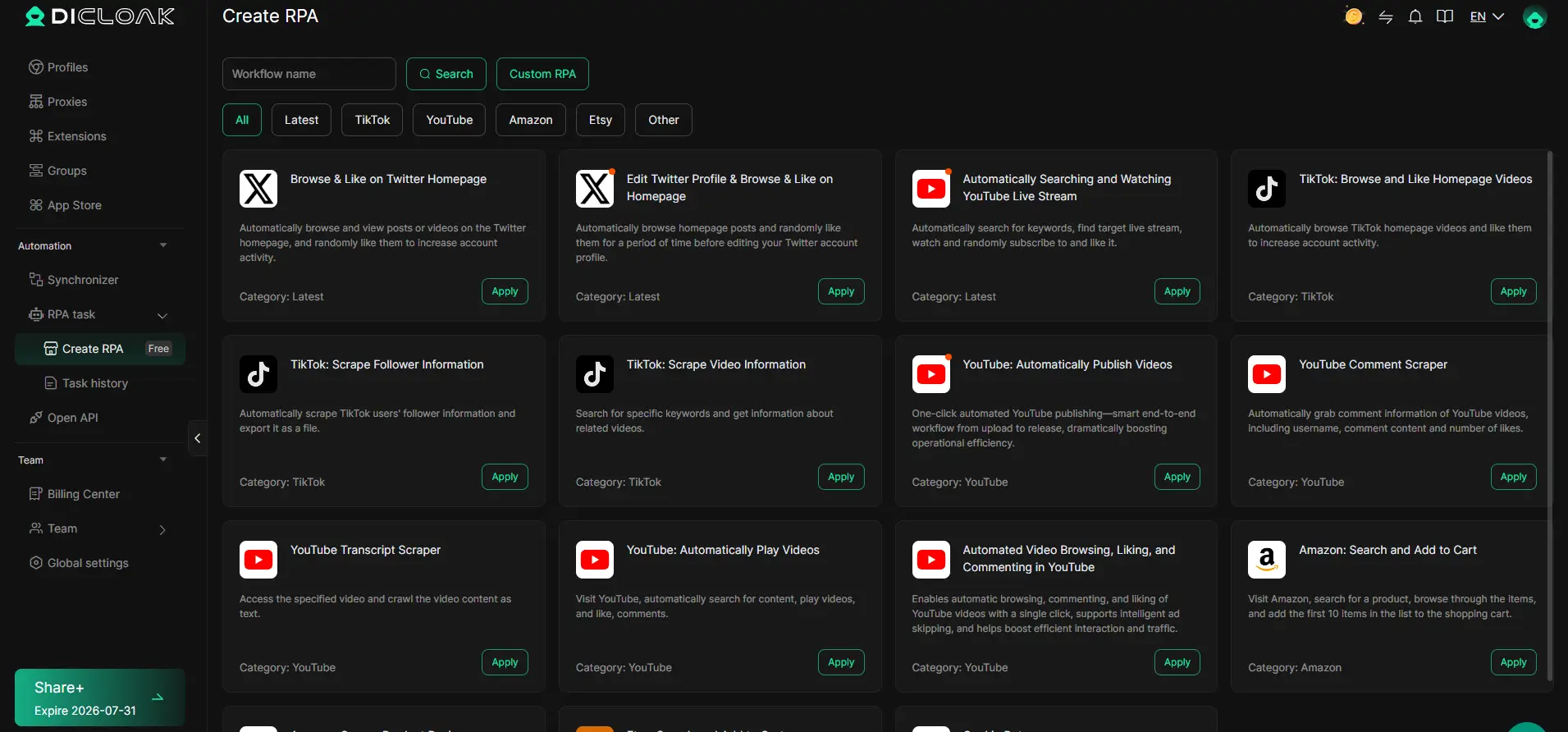
For permitted repetitive workflows, DICloak also provides tools such as the Multi-Window Synchronizer and RPA automation.
These features can reduce manual work when the same allowed browser task needs to be repeated across several Profiles.
The goal is not to perform more actions as quickly as possible.
The goal is to keep accounts organized and reduce unnecessary manual switching.
How to Set Up DICloak for TikTok Account Management
The setup can stay simple.
Step 1: Create One Profile Per TikTok Account
Create a dedicated Profile and give it a clear name based on the brand, client, or account purpose.
Step 2: Configure the Profile
Set up the browser Profile and add a user-configured proxy if your workflow requires one.
Step 3: Log In Normally
Open TikTok inside that Profile and sign in.
Let the session stay inside the Profile instead of repeatedly logging the same account into different browser profiles.
Step 4: Repeat for Other Accounts
Give every TikTok account its own Profile.
Avoid moving multiple accounts through the same browser session.
Step 5: Add Team Access When Needed
Assign Profiles only to team members who need them.
Use permissions to keep responsibilities clear.
Step 6: Add Automation Only When It Helps
If a permitted task repeats across many Profiles, consider using the Synchronizer or RPA.
Start with a stable account setup first. Add automation later.
Frequently Asked Questions About TikTok “You Are Visiting Too Frequently”
How long does “You Are Visiting Too Frequently” last on TikTok?
TikTok does not publish a fixed duration for this specific error. If it appears after repeated logins or fast account switching, stop retrying and return later using your normal device and connection.
Does “You Are Visiting Too Frequently” mean TikTok banned my IP?
Not necessarily. Network conditions may be one factor, but TikTok has not confirmed that this message always means an IP block. Device changes, login frequency, account switching, and recent session activity may also matter.
Can switching between multiple TikTok accounts cause the error?
Fast account switching may contribute to an unusual access pattern, especially when it happens together with repeated logins, new devices, or network changes. TikTok does not publish a fixed number of accounts that triggers the warning.
Should I keep trying to log in when TikTok shows this message?
No. Repeating the same login request can create even more login activity. Stop, wait, and make one normal attempt later.
For legitimate multi-account workflows, DICloak can keep each TikTok account in a separate browser Profile with its own cookies, session, fingerprint settings, and optional proxy configuration. It also supports Profile sharing, member permissions, and repetitive workflow tools for teams.
Conclusion
The TikTok “You Are Visiting Too Frequently” error usually means the current access pattern looks unusual. It does not automatically mean the account has been banned.
Start with simple fixes. Stop repeated login attempts, clear the cache, restart TikTok, test a trusted network, and give temporary restrictions time to settle.
For people managing several TikTok accounts, prevention matters too. Keeping accounts in stable, separate browser profiles reduces unnecessary login switching and makes daily work easier to organize.
An antidetect browser such as DICloak can support that workflow by giving each TikTok account its own Profile, session, fingerprint configuration, optional proxy settings, and team access controls.
The main rule is simple:
Keep the account setup consistent, avoid unnecessary switching, and change one part of the environment at a time when troubleshooting.
 Web Proxy Tools
 Free Tools
 Cookie Plugin
 UA Generator
 MAC Address Generator
 IP Generator
 IP Address List
 2FA Code Generator
 World Clock
 Anonymous Check
 WebRTC Leak Test
 UUID Generator
 Free Web Proxy Site
 Proxy Checker
 FB Ad Checker
 AI Web Scraping
 Free SMM Tools
 Twitter Shadowban Checker
 Instagram Name Checker
 UTM Generator
 Username Generator
 AI Hashtag Generator
 LinkedIn Headline Generator
 Social Media Image Resizer