LinkedIn sessions drop out more often than people expect, especially if you switch devices, run multiple accounts, or leave a session idle for just an hour. The real headache isn’t just logging back in, but dealing with unexpected logouts that kill workflow, force two-factor prompts, and sometimes lock you out mid-task. Many users try to keep LinkedIn logged in by tweaking browser settings or disabling automatic logouts, but these fixes rarely stick. What actually causes session instability is usually a mix of cookie expiration, browser fingerprint mismatches, and platform rules that aren’t obvious until your session vanishes.
Trying to prevent LinkedIn session logout by only managing browser settings misses most of the hidden triggers. For anyone who juggles several LinkedIn accounts, session management gets even trickier, one slip and you’re flagged for suspicious activity, or forced to verify again. Even basic steps like clearing cookies or disabling extensions can backfire if you don’t understand how LinkedIn handles authentication and device recognition.
Instead of guessing at easy fixes, the practical approach is to understand which session triggers matter, which browser or device behaviors LinkedIn tracks, and how multi-account tools change the risk. You’ll need to balance convenience against security checks, and know what to do when a session fails, especially if you rely on LinkedIn for outreach, recruiting, or reporting.
Here’s how to keep LinkedIn sessions logged in without getting tripped up by hidden logout triggers.
Why LinkedIn Sessions Log Out Unexpectedly
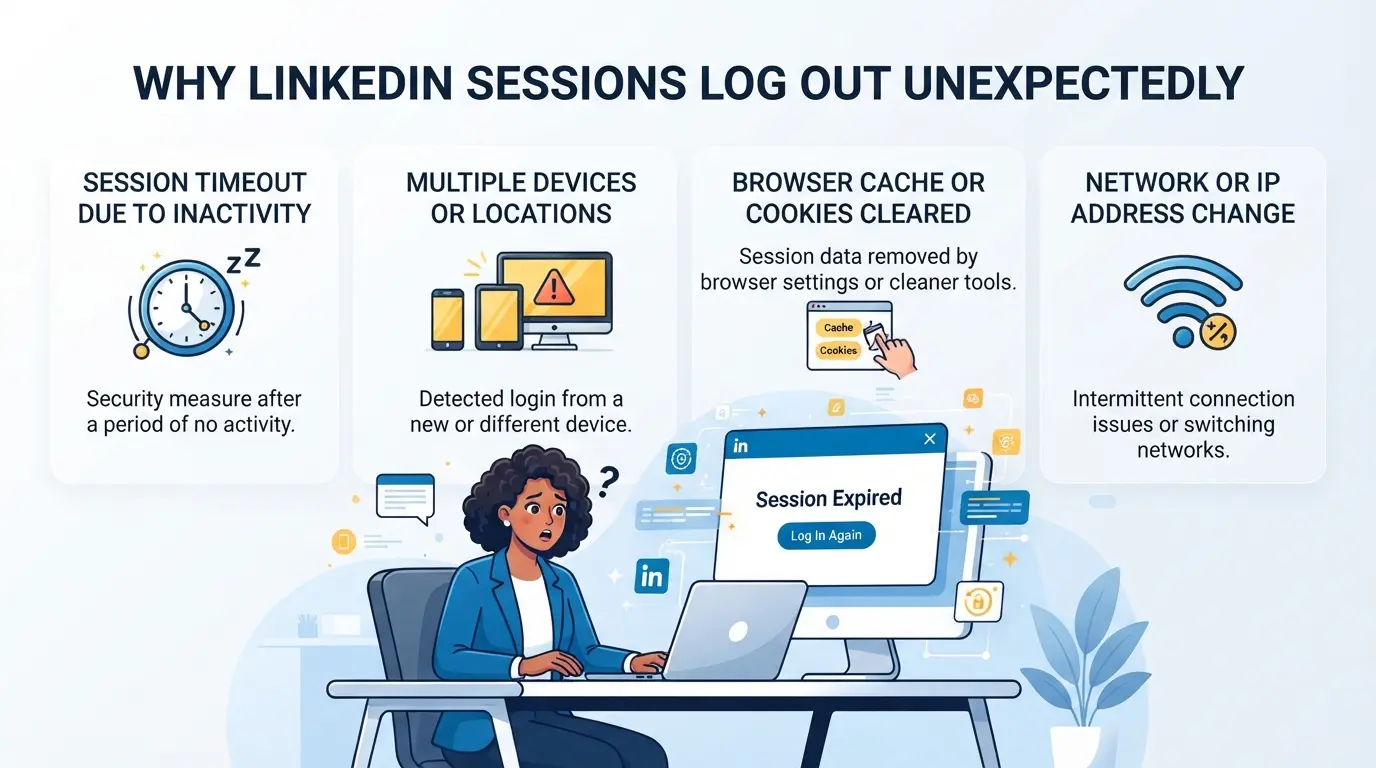
LinkedIn logs users out mid-session for reasons that aren’t always obvious, losing access isn’t just about closing your browser or forgetting your password. Most session failures trace back to how the platform sees your device, browser, and network, then ties them to its own security checks. The most common session loss comes from LinkedIn detecting a mismatch or change in your session footprint, not simply inactivity or a random bug.
Browser and Device Factors
Cookie expiration or deletion is the quickest way to get logged out, especially if you use private browsing or clear cache regularly. Even a browser update can reset session data, if your extension settings change or your browser version jumps, LinkedIn treats you as a new device and forces a logout.
LinkedIn Security Policies
LinkedIn applies session timeout rules that vary by account type and region. For most users, inactivity of 90 minutes can trigger a forced logout. But the real trouble starts when LinkedIn detects suspicious activity, logging in from two devices at once, switching browsers without logging out, or using extensions that interfere with page scripts. For example, if you run LinkedIn in Chrome and Firefox simultaneously, the platform may flag that as a session clash, forcing both browsers to log out and requiring re-authentication. This isn’t about security settings alone; it’s about LinkedIn’s risk scoring. If you use automation tools, or even just rapidly switch accounts, LinkedIn can lock your session after a single failed login attempt, assuming you might be a bot or someone trying to bypass standard controls. When this happens, you’ll see the login screen pop up even if you didn’t close the tab, and sometimes a verification prompt instead of your feed. Waiting it out rarely works, session resets are tied to server-side checks, and only logging in again with a recognized device will restore access.
Network and IP Changes
- Logging in from a new IP address can trigger an immediate session reset.
- Proxy misconfiguration, such as route changes or mismatched protocols, often breaks session continuity.
- Switching between Wi-Fi and mobile data mid-session is another common logout trigger.
If you’re careful with browser settings but ignore IP changes, LinkedIn will still see you as a new user and force a logout. It’s not just about device fingerprinting; the platform cross-checks network and browser signals before deciding whether to keep your session alive.
LinkedIn’s logout triggers are layered, if you only fix browser issues but keep swapping networks, you’ll still get kicked out. To troubleshoot or prevent session loss, you need to check all three angles before trying fixes. The next step is to look at what to check before you try to keep LinkedIn logged in.
What to Check Before Trying to Keep LinkedIn Logged In
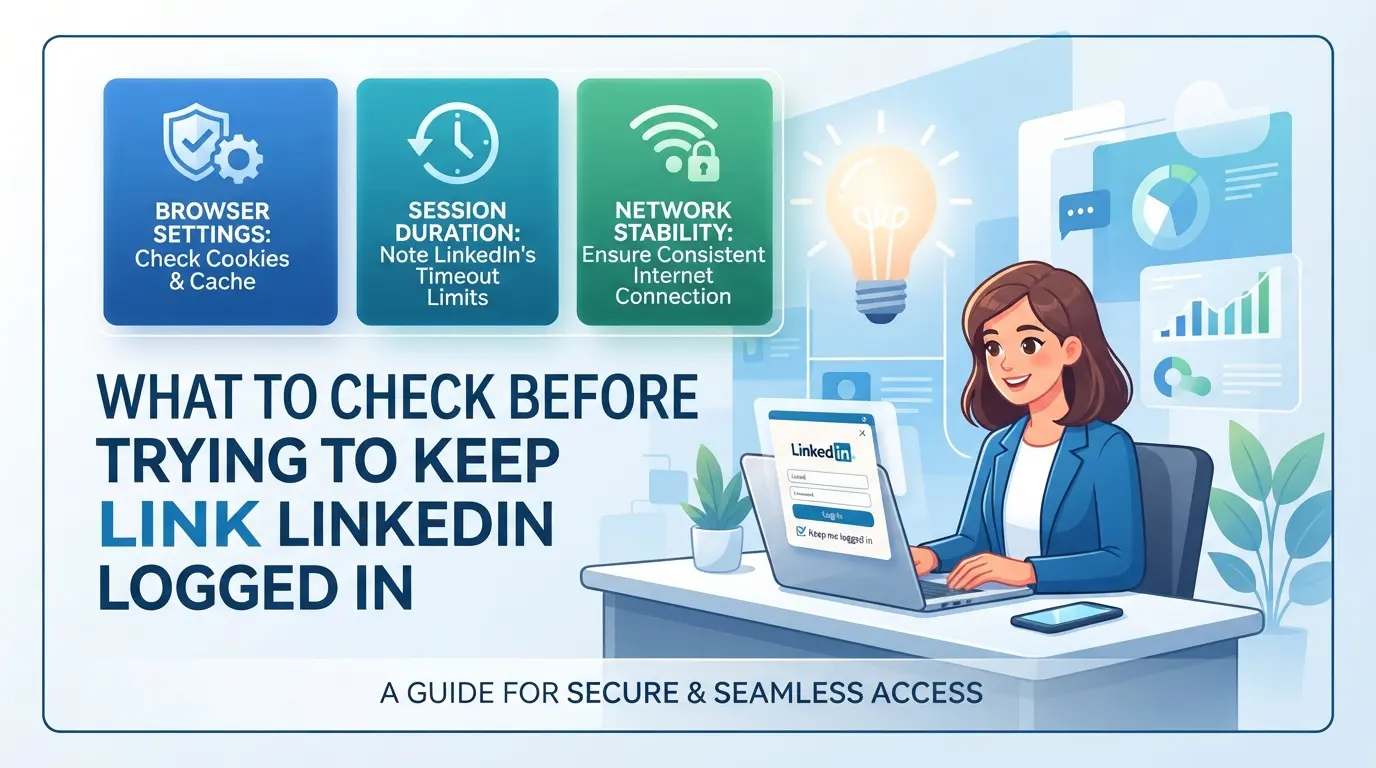
Before you waste time on browser tweaks or third-party tools, double-check the basics below. Missing just one of these can make every “keep me logged in” tip useless, no matter how many tricks you try.
Browser Settings and Extensions
Cookie or cache wipes will break any LinkedIn session, if your browser auto-clears data on close, you’ll log out every time. Extension conflicts can also disrupt authentication: password managers, privacy blockers, or even auto-refresh plugins sometimes inject scripts that trigger LinkedIn’s security checks. The real risk is thinking your setup is fine, but silent extension updates or “privacy” settings start forcing new logins behind your back.
Device and OS Consistency
- Avoid switching devices, each device triggers new LinkedIn session checks.
- Check for recent OS updates; these can reset device fingerprints and prompt logouts.
- Make sure time zones and system clocks match across devices, or LinkedIn may flag the session as suspicious.
Network Stability
Even a solid setup fails if your IP jumps around. LinkedIn tracks IP changes to flag risky logins, so shifting between networks or random proxies can kill your session fast.
- Use a stable, residential IP, avoid mobile data or public Wi-Fi for session stability.
- Review your proxy setup, make sure IPs stay consistent within each session.
- Don’t let your router auto-reboot or rotate IPs overnight; a new IP at 3am often means a forced logout by morning.
Miss just one item here and you’ll keep getting logged out, even if everything else seems right. Next, you’ll see step-by-step fixes for keeping LinkedIn sessions active.
How to Keep LinkedIn Sessions Logged In: Step-by-Step Solutions
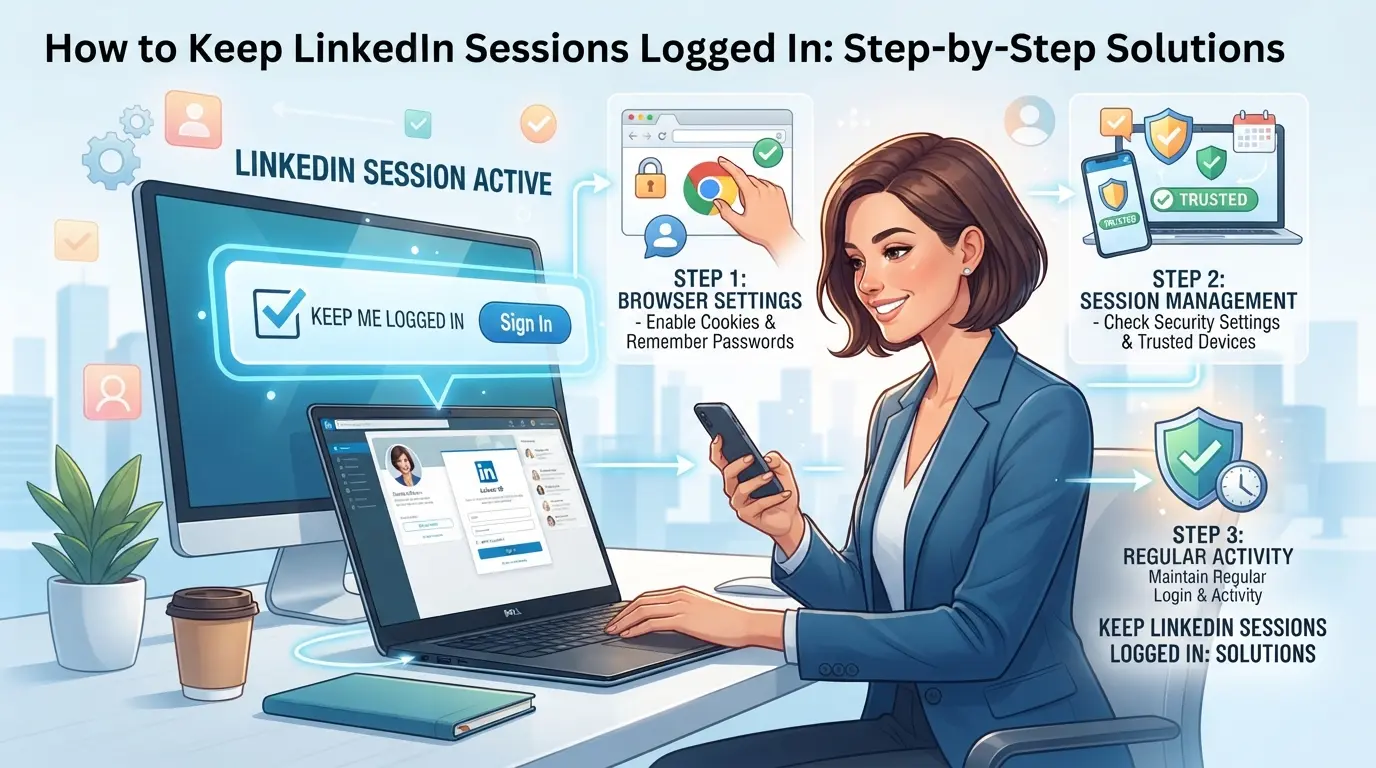
If you’re tired of LinkedIn logging you out at random, the fix isn’t just “stay signed in”, it’s about setting up your browser, avoiding session traps, and keeping your network stable. Here’s the exact order to follow if you want your session to last, not just survive a few hours.
Configure Browser for Session Persistence
Staying logged in starts with locking down browser settings. Missing one step here can mean LinkedIn dumps your session next time you close the tab.
- Enable cookie retention. Go to browser settings, find the privacy or security section, and set cookies to “keep until they expire.” If you set “delete on exit,” LinkedIn will log you out after every restart.
- Disable automatic cache clearing. Make sure “clear cache on exit” is turned off. If your browser wipes cache each session, LinkedIn may force a new login, even after a successful authentication.
- Whitelist LinkedIn in your cookie exceptions. If you use stricter privacy tools, add linkedin.com to the “never clear” list. Forgetting this creates random logouts even when other sites stay signed in.
Avoid Common Session-Killing Mistakes
Small errors can wreck session persistence, especially if you bounce between devices or use private browsing.
- Do not use incognito mode. Incognito tabs erase cookies and session data as soon as you close them. LinkedIn sees this as a new device every time.
- Avoid logging in from multiple devices at once. LinkedIn tracks device fingerprints. If you sign in on your phone and laptop simultaneously, you risk triggering security checks.
- Don’t manually clear cookies. If you clear cookies for linkedin.com, you’ll lose all session tokens, expect to re-authenticate next visit.
Manage Network and Proxy Consistency
LinkedIn sessions depend on IP and proxy consistency. Sudden changes can trigger forced logouts or verification requests.
- Use a stable IP address. If your IP changes mid-session (especially with mobile data or rotating proxies), LinkedIn may flag the session as suspicious and force logout.
- Check proxy settings for session compatibility. Some proxies rotate IPs or drop cookies. Stick to static residential proxies for LinkedIn, changing IPs mid-session almost always leads to a forced re-login.
- Avoid switching networks (WiFi to cellular) while logged in. LinkedIn cross-references device and network, switching networks mid-session can break authentication.
Sticking to these steps cuts down most random logouts. But the real tripwire comes from mistakes that seem harmless, like toggling privacy settings or jumping between browser profiles. Next up: the most common errors that trigger LinkedIn session loss, and how to spot them before your session gets wiped.
Common Mistakes That Trigger LinkedIn Logouts
Tiny slip-ups can break your session, even after you set things up right. Most forced logouts come from device changes, unstable proxies, or browser extensions that mess with cookies. Here’s what triggers those logouts and how to dodge them.
Switching Devices or Browsers
Changing devices or browsers, even with the same account, often invalidates your session. LinkedIn tracks device fingerprints and new logins can push out old ones. To avoid this, stick to one browser and device per account session, otherwise, you’ll face repeated code verifications.
Using Unreliable Proxies
Frequent IP changes or low-quality proxies almost always disrupt sessions.
- LinkedIn may see IP rotation or mismatched proxy locations as suspicious, leading to forced logouts or account checkpoints.
- Stick with a stable, region-matched proxy for each account and avoid switching networks during a single session.
Extensions that auto-clear cookies, block trackers, or rewrite scripts can break LinkedIn’s authentication flow. This usually ends with a sudden logout or a “session expired” message. Disable or remove any extension that touches cookies or modifies page scripts when using LinkedIn to keep your session steady.
How Teams and Multi-Account Users Can Keep LinkedIn Sessions Stable with DICloak
For anyone working with several LinkedIn accounts, whether you’re running outreach, campaigns, or managing a team, the usual session tricks rarely work for long. Once you move from solo use to team workflows, even small mistakes like overlapping browser storage or inconsistent IPs can log out your sessions or trigger more security checks. Instead of patching issues after they happen, teams can use DICloak as the control point for session stability and access, keeping every LinkedIn login isolated and team actions traceable. The scope here covers browser profile, proxy, and permission controls only, not LinkedIn account management itself.
Isolate LinkedIn Accounts with Separate Browser Profiles and Fingerprint Configuration
Teams handling multiple LinkedIn accounts quickly run into problems if sessions share the same browser storage or device signals. Operators can create a unique DICloak browser profile for each LinkedIn account, storing cookies, cache, and session data separately. The fingerprint settings, like OS, user agent, language, and screen size, are configurable per profile, so each account workflow keeps its own browser identity. This lets teams run different LinkedIn accounts without cross-contamination from shared browser artifacts or default settings. The separation happens on the environment and fingerprint level, not inside the LinkedIn platform itself.

Assign User-Owned Proxies for Each Profile to Maintain IP Consistency
One of the fastest ways to lose a LinkedIn session is to jump between IP addresses or use unreliable proxies. Operators can assign a user-owned proxy to each DICloak profile, entering the proxy’s details and testing the connection before starting a session. Supported protocols, HTTP, HTTPS, SOCKS5, cover most use cases, and the built-in proxy check shows the active IP, region, and time zone. If a proxy fails the test or rotates unexpectedly, you’ll see it before risking a session logout. The proxy’s quality and compliance are up to the team, and DICloak only stores and applies the settings, never provides proxies or checks platform policies.

Control Team Access and Permissions for Account Security
With more team members comes higher risk of accidental logouts or unwanted access. Administrators can set up profile groups in DICloak and assign them to specific team members, controlling exactly who can open which LinkedIn profiles and what actions they can take. Permissions include both functional access (like editing profile settings) and field visibility, so regular members only see what’s needed for their role. This least-privilege setup keeps session handling predictable, one missed permission or shared profile can disrupt the entire account workflow. The permission controls apply inside DICloak, not inside LinkedIn itself.

Stabilizing sessions at the browser profile, proxy, and permission layer is only part of the picture, next, you’ll see where session management meets deeper security and compliance risks.
When Session Management Alone Isn’t Enough: Account Security and Compliance Risks
Staying logged in is only one part of keeping a LinkedIn account safe, serious risks still come from weak password habits, policy violations, and privacy mistakes.
Credential Exposure and Password Management
Saving passwords in your browser makes account takeovers much easier if the device is lost or compromised. Use a dedicated password manager with strong master credentials, not browser autofill.
LinkedIn Policy Violations
Even if you know how to keep LinkedIn sessions logged in, automated tools or scripts can quickly flag your account. LinkedIn tracks patterns and device fingerprints, accounts acting too fast or logging in from mismatched locations often get locked or restricted. One misstep and you can lose access, sometimes with no warning.
Data Privacy and Compliance
- Check if team members are sharing account access in ways that break company policy.
- Make sure data export and storage follow GDPR or local rules.
- Use separate profiles for each person, mixing work and personal sessions risks privacy breaches.
Staying logged in helps, but ignoring these issues can still end with lost accounts or compliance trouble.
How to Troubleshoot LinkedIn Session Loss: Quick Recovery Steps
If your LinkedIn session logs out without warning, you need fast recovery that doesn’t risk your account. Here’s what to do, skip generic fixes and focus on the steps that actually restore access.
Check Browser and Cookie Status
- Open your browser’s privacy or settings menu and confirm cookies are enabled for LinkedIn. If cookies are blocked or deleted, the site will force a new login.
- Try reloading the LinkedIn tab. If you’re still logged out, check for any browser extensions that might clear cookies or run “privacy” features, these can wipe your session without notice.
- Restore cookies from a recent backup if you use a browser profile manager. This can get you back into your session without a full login.
Review Network and Proxy Settings
- Confirm your device is using a stable network, sudden IP address changes can kick you out of LinkedIn.
- If you use a proxy, make sure it’s still connected and set to the same region as your usual logins. LinkedIn tracks IP shifts and may flag them as suspicious.
- Run a quick IP check using a service like whatismyipaddress.com to verify you’re not bouncing between locations.
Re-authenticate Securely
- Go to the LinkedIn login page and enter your credentials, avoid using third-party autofill or password managers that sometimes trigger account locks.
- If LinkedIn asks for extra verification, use two-factor authentication. Don’t skip this step, forcing access with outdated codes can freeze your account.
- If you’re redirected to a security challenge, wait 10 minutes before trying again. Too many failed attempts in a short period can lock you out for hours.
The most reliable way to prevent future session loss is to combine careful cookie management with stable network habits, skipping one usually means more forced logins and extra security checks.
Frequently Asked Questions About how to keep linkedin sessions logged in
Can I keep LinkedIn logged in across multiple devices?
LinkedIn lets you stay logged in on several devices, but session stability drops when you switch between them. If you log in on a new phone or computer, LinkedIn may log you out elsewhere for security reasons. To keep linkedin logged in, try to use the same device and browser as much as possible.
Does using a proxy help keep LinkedIn sessions logged in?
A stable, consistent proxy can help prevent linkedin session logout, especially if you’re accessing LinkedIn from different locations. However, poor proxy quality or frequent IP address changes can trigger LinkedIn’s security checks and cause logouts. Use reliable proxies with fixed IP addresses for better session management.
How long does a LinkedIn session last before timeout?
LinkedIn sessions usually stay active until you log out, clear your cookies, or trigger a security event like a password change. There is no fixed timeout, but if you’re inactive for several hours or days, LinkedIn may require you to log in again. Keeping your browser open and cookies intact helps maintain your session.
Is it safe to use browser extensions to manage LinkedIn sessions?
Some browser extensions claim to help with linkedin session management, but use caution. Extensions can store your credentials or interfere with cookies, which may expose your account to risk or cause unwanted logouts. Only use well-reviewed extensions from trusted sources and avoid giving them access to sensitive data.
What should I do if LinkedIn logs me out repeatedly?
If LinkedIn keeps logging you out, check your browser settings, clear cache and cookies, and review any proxy or proxy setup. Make sure your device isn’t blocking cookies or running conflicting extensions. Review LinkedIn’s security policies and troubleshoot each step to pinpoint the cause and prevent future session issues.
Now that you know the steps to maintain uninterrupted access, consider which method best fits your daily workflow and security needs. Taking a proactive approach can help you stay connected without frequent logins or unnecessary interruptions.
Try DICloak For Free
 Web Proxy Tools
 Free Tools
 Cookie Plugin
 UA Generator
 MAC Address Generator
 IP Generator
 IP Address List
 2FA Code Generator
 World Clock
 Anonymous Check
 WebRTC Leak Test
 UUID Generator
 Free Web Proxy Site
 Proxy Checker
 FB Ad Checker
 AI Web Scraping
 Free SMM Tools
 Twitter Shadowban Checker
 Instagram Name Checker
 UTM Generator
 Username Generator
 AI Hashtag Generator
 LinkedIn Headline Generator
 Social Media Image Resizer