Wondering how to reset the Instagram algorithm because your Feed, Reels, or Explore page no longer matches your interests? Instagram now provides a built-in option called Reset suggested content. You can find it under Content preferences in the Instagram mobile app.
A full reset clears the recommendation direction Instagram has built for your Feed, Reels, and Explore page. It then starts personalizing these areas again based on the content and accounts you interact with. However, a full reset is not always necessary. A few irrelevant posts may only need a targeted adjustment, while a recommendation experience that feels wrong across the entire app may benefit from a fresh start. This guide will help you choose the right option and rebuild recommendations around what you actually want to see.
How to Reset the Instagram Algorithm on iPhone or Android
Instagram’s official reset feature is available in the Android and iPhone apps. It is not currently available on computers. Before starting, update Instagram to the latest version so the menu options are easier to find.
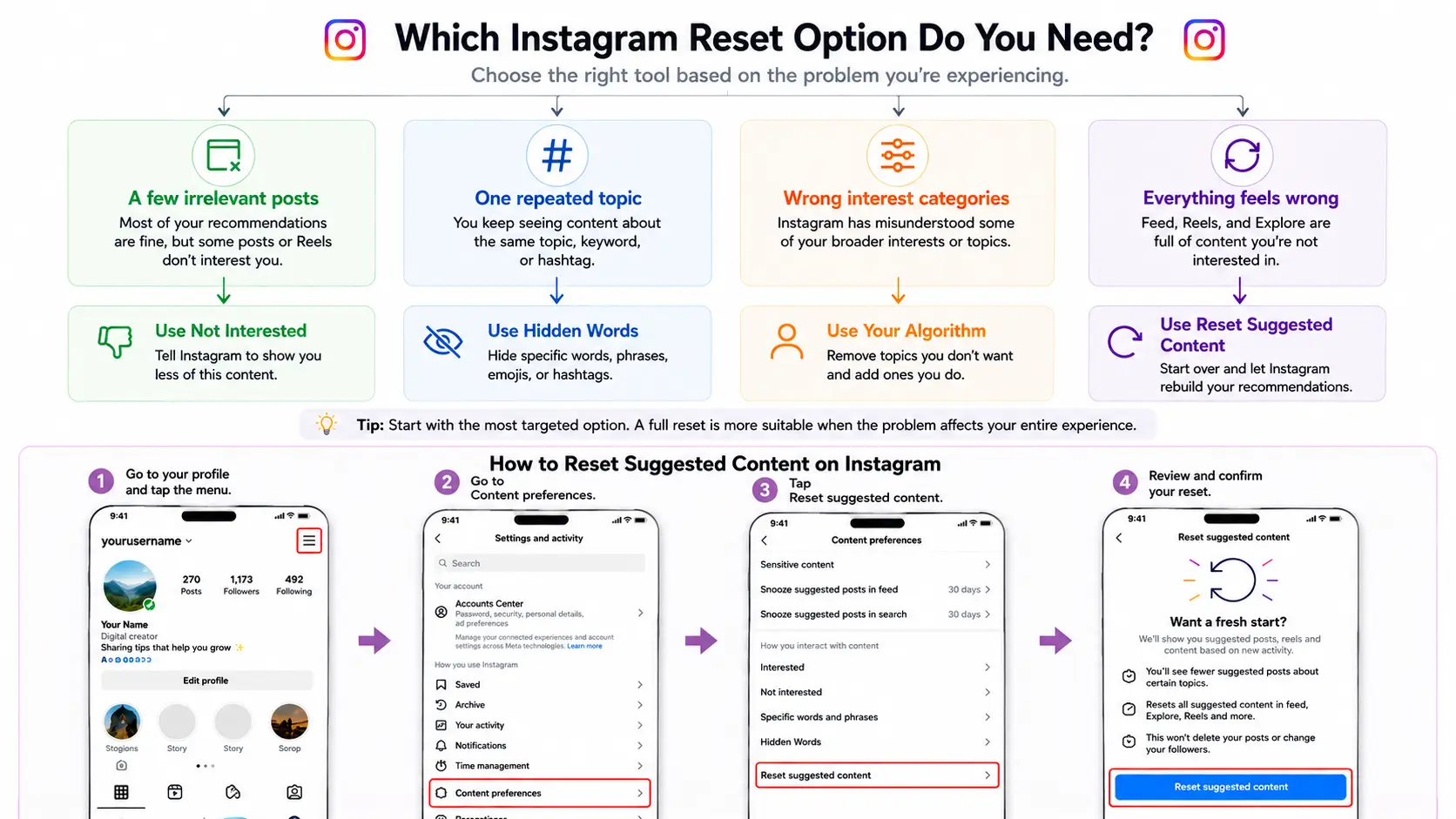
Step-by-Step: Use Reset Suggested Content
Follow these steps to reset Instagram recommendations:
- Open the Instagram app and tap your profile picture in the bottom-right corner.
- Tap the three-line menu in the top-right corner.
- Select Content preferences.
- Tap Reset suggested content.
- Review the information shown by Instagram.
- Tap Reset suggested content again to confirm.
During the process, Instagram may also give you the option to review the accounts you follow. You can unfollow accounts that no longer match your interests, but this step is optional. Instagram will not automatically remove them.
Menu names may look slightly different depending on your app version, language, or account. If you cannot find the option, update the app first and check Content preferences again.
What Changes After You Reset Instagram Recommendations?
Resetting suggested content gives three main recommendation areas a fresh start:
- Suggested posts in your Feed
- Recommended Reels
- Content shown on the Explore page
After the reset, these areas may initially show broader or less personalized content. Instagram will then begin adjusting them again based on the accounts and content you interact with over time.
This means that resetting the Instagram algorithm is not the same as choosing a new permanent Feed. The reset clears the current recommendation direction, but your next searches, views, follows, saves, and other interactions will influence what Instagram recommends afterward.
What Does an Instagram Algorithm Reset Not Delete?
Reset suggested content is limited to Instagram recommendations. It does not reset your whole account or erase your existing content.
The reset does not automatically delete:
- Your followers
- Accounts you follow
- Published posts or Reels
- Archived Stories
- Direct messages
- Your Instagram profile
You may choose to unfollow some accounts while reviewing your following list, but Instagram does not remove them unless you take that action yourself.
It is also important to separate recommendation problems from creator performance problems. Resetting what Instagram shows you should not be treated as a way to improve the reach or engagement of the content you publish. Instagram evaluates whether public content can be recommended to non-followers through a separate recommendation eligibility system, which professional accounts can review in Account Status.
Do You Really Need a Full Instagram Algorithm Reset?
A few irrelevant posts do not always mean you need to reset the Instagram algorithm. Instagram offers several controls, and the best choice depends on how widespread the problem is.
Use Not Interested for individual posts, Hidden Words for repeated keywords or topics, and Your Algorithm when Instagram has misunderstood some of your interests. A full Reset suggested content is more suitable when Feed, Reels, and Explore all feel disconnected from what you want to see.
Choosing the most targeted option can fix your Instagram recommendations without removing interests that are still accurate.
Use Not Interested for a Few Irrelevant Posts
Use Not Interested when your recommendations are generally relevant, but a few unwanted posts keep appearing.
For example, watching one wedding Reel out of curiosity may lead Instagram to recommend more wedding content. Instead of resetting everything, tap the three-dot menu on the post or Reel and select Not Interested. Instagram will remove the selected recommendation and use the feedback to reduce similar content.
Try not to repeatedly watch, reopen, or read comments on content you do not want. Even negative attention can make your preference less clear. Selecting Not Interested gives Instagram a more direct signal.
Use Hidden Words for Repeated Topics
Use Hidden Words when unwanted recommendations repeatedly contain the same words, phrases, emojis, or hashtags.
This may help when you want to see less content about a specific celebrity, product, trend, or sensitive topic while keeping the rest of your recommendations unchanged. Instagram can reduce suggested posts containing the terms you add to Hidden Words.
This option works best when the unwanted content has recognizable text in its captions or hashtags. It may not catch every related post, because creators can discuss the same subject without using the exact words you entered.
Edit Your Algorithm for Topic-Level Changes
Instagram’s Your Algorithm feature gives users more direct control over the topics shaping their recommendations.
It shows interests Instagram has associated with your activity. You can remove topics that are no longer relevant and add subjects you want to see more often. This makes it useful when Instagram understands part of your interest profile correctly but has made mistakes with a few broader topics.
For example, Instagram may correctly identify your interest in home workouts and photography but continue recommending luxury fashion content you no longer follow. Removing that topic is more precise than resetting all your recommendations.
Your Algorithm was introduced for Reels and later expanded to Explore and the main Feed. Its availability and exact location may still vary by account, region, language, and app version.
Use Your Algorithm when:
- Several recommendations around one broad topic feel wrong.
- Your interests have changed, but most recommendations are still useful.
- Not Interested is too narrow for the problem.
- You want to keep accurate interests rather than start over.
Use Reset Suggested Content When Everything Feels Wrong
A full Instagram algorithm reset makes more sense when irrelevant recommendations appear across Feed, Reels, and Explore—not just in one area.
Consider using Reset Suggested Content when:
- Old interests still dominate most recommendations.
- The purpose of the account has changed.
- Multiple topic-level adjustments have not helped.
- You want Instagram to rebuild recommendations from a cleaner starting point.
For example, an account once used mainly for entertainment may later become a professional research or content-planning account. If years of previous activity still shape nearly every recommendation, correcting posts one by one may not be practical.
The simplest way to choose is to match the tool to the size of the problem:
One irrelevant post needs feedback. A recurring topic needs targeted control. A partly inaccurate interest profile may need your algorithm. A recommendation experience that feels wrong everywhere may need a full reset.
How to Retrain the Instagram Algorithm After a Reset
Resetting suggested content gives Instagram a fresh starting point, but it does not create a finished Feed. Instagram will begin personalizing recommendations again based on the content and accounts you interact with over time.
The goal after a reset is not to perform as many interactions as possible. It is to make your real interests easier for Instagram to understand.
Choose the Topics You Actually Want to See
Before browsing again, decide what you want your new recommendations to focus on.
A practical approach is to start with two or three clear topics, such as:
- Home workouts
- Healthy recipes
- Street photography
Your interests do not have to stay this narrow forever. Starting with a clear direction simply makes it easier to judge whether the reset is working.
Search for those topics, visit relevant accounts, and browse content you genuinely want to see again. Avoid jumping between many unrelated subjects immediately after the reset. A mix of fitness videos, celebrity news, cryptocurrency posts, and travel research may make your new recommendation direction less clear.
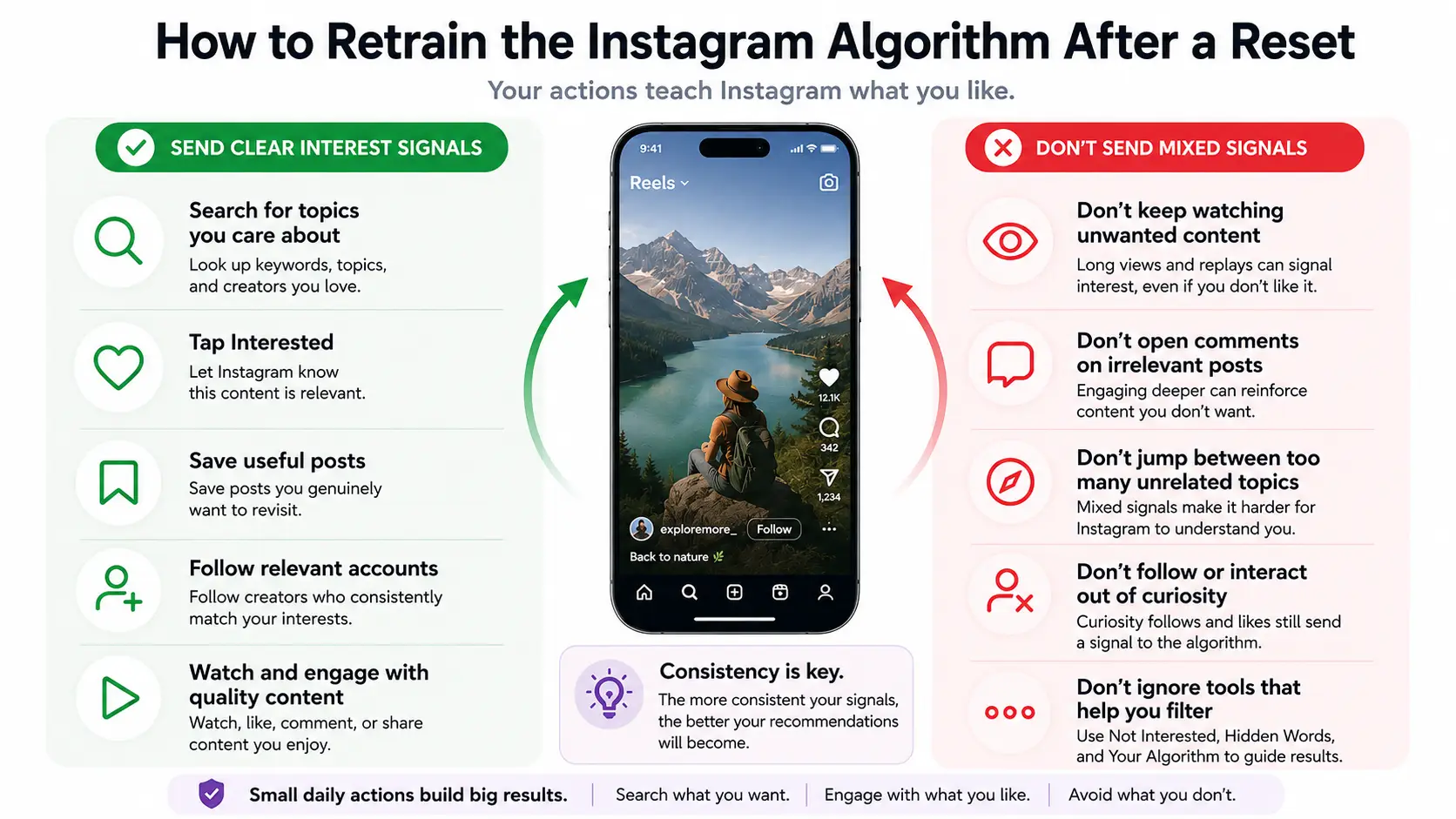
Send Clear and Consistent Interest Signals
Instagram uses a combination of behavior and direct feedback to predict which content may be relevant. Meta says no single signal is a perfect measure, so its systems consider multiple predictions together.
After the reset, focus on natural actions that reflect real interest:
- Search for topics you want to follow.
- Visit accounts that regularly cover those topics.
- Watch or read content you find useful.
- Select Interested on highly relevant recommendations.
- Save posts you genuinely plan to revisit.
- Follow accounts that consistently match your interests.
Do not worry about whether a save is “stronger” than a like or how many videos you must watch. Instagram has not published a universal formula for retraining recommendations. A consistent pattern of genuine behavior is more useful than mechanically repeating one action.
Stop Reinforcing Content You Do Not Want
Unwanted content can return when your behavior sends mixed signals.
For example, you may dislike a Reel but still watch it several times, open the creator’s profile, and spend several minutes reading the comments. Instagram uses previous activity to help predict what may interest you, so extended attention can make your preference harder to interpret. This is a practical inference from how Meta describes its recommendation systems, not a published ranking formula.
When irrelevant content appears:
- Select Not Interested instead of repeatedly viewing it.
- Avoid opening similar posts out of curiosity.
- Unfollow or mute accounts that no longer match your interests.
- Use Hidden Words when the same unwanted topic keeps returning.
Meta says Not Interested can reduce similar recommendations across areas such as Reels and Search.
Use Following and Favorites While Recommendations Relearn
Your recommendations may feel broad or less personal soon after a reset. During this period, Following and Favorites can give you a more controlled way to browse.
Following shows posts from accounts you follow in chronological order. Favorites also uses chronological order for selected accounts, while posts from those accounts may appear higher in your main Feed.
These options do not retrain the algorithm by themselves. They help you stay connected to trusted accounts while Instagram rebuilds its understanding of your interests.
The main principle is simple: search for what you want, respond clearly to what you do not want, and keep your browsing behavior aligned with the recommendations you hope to build.
How Long Does It Take for the Instagram Algorithm to Reset?
Instagram does not publish a fixed timeline for an algorithm reset. After you use Reset suggested content, recommendations begin personalizing again over time based on the content and accounts you interact with. The process may feel faster for some users and slower for others.
Instead of expecting your Feed, Reels, and Explore page to look perfect after a set number of days, watch for signs that Instagram is gradually understanding your interests again.
Signs Your Instagram Algorithm Reset Is Working
A successful reset does not mean every recommendation changes at once. Look for gradual improvements across different parts of the app:
- Explore shows more posts related to your chosen topics.
- Reels contains fewer unrelated themes.
- Suggested posts in your Feed become more relevant.
- Similar content appears after you search for or interact with a topic.
- Posts marked Not Interested begin appearing less often.
Instagram bases suggested posts on factors such as the accounts you follow and the posts you like, save, repost, or comment on. This means changes should be judged across a pattern of recommendations rather than one isolated post.
You can also review Your Algorithm if the feature is available on your account. Changes to the topics listed there may help show whether Instagram’s understanding of your interests is moving in the right direction. Meta describes the feature as a way to see more or less content about selected topics.
Why Recommendations May Look Random at First
Resetting suggested content removes the existing recommendation direction, but it does not immediately replace it with a completely new interest profile.
Instagram still needs new activity to decide what may be relevant. Early recommendations may therefore feel broad, generic, or less personal. This does not necessarily mean the reset failed. Meta states that recommendations start personalizing again over time after the reset.
The recommendations may also remain mixed when your new activity covers many unrelated topics. A clear pattern is easier to evaluate than rapidly switching between entertainment, fitness, shopping, news, and professional research.
Why Unwanted Content Keeps Coming Back
Unwanted content can continue appearing for several reasons:
- You still follow accounts that publish it.
- You continue searching for or opening similar posts.
- The topic is present in several different types of content.
- Your new interactions point in conflicting directions.
- You cleared search history or app data without using Reset suggested content.
It is also important to check where the content comes from. Resetting recommendations affects suggested content, but it does not automatically unfollow existing accounts. If an unwanted post comes from an account you still follow, muting or unfollowing that account may be more effective than resetting again.
Instagram recommendations can appear in Feed, Reels, and Explore, while the main Feed can also include content from accounts you already follow.
When Should You Reset the Instagram Algorithm Again?
There is no official schedule for repeating an Instagram algorithm reset. Avoid resetting again simply because the recommendations have not changed within a specific number of days.
Consider another full reset only when:
- Feed, Reels, and Explore remain widely irrelevant.
- Your account purpose has changed again.
- Targeted tools have not corrected the problem.
- You have given Instagram clear new interest signals, but the overall recommendation direction remains wrong.
For smaller problems, continue using Not Interested, Hidden Words, or Your Algorithm instead. Repeated full resets can restart the personalization process without addressing the behavior or following list that caused the unwanted recommendations to return.
The better question is not “How many days should I wait?” but “Are my recommendations gradually becoming more relevant?”
How to Keep Instagram Recommendations Focused Across Multiple Accounts
Keeping one personal Instagram account aligned with your interests is fairly simple. The challenge becomes greater when a social media manager handles several accounts for different brands, clients, or content strategies.
Each account may need to follow different creators, research different trends, and maintain a separate recommendation direction. Without a clear workflow, it is easy to search from the wrong account, mix personal browsing with client research, or influence one brand account with content meant for another.
Separate Personal Browsing From Content Research
Personal browsing and professional research often send very different interest signals.
A social media manager may use one account to study fitness trends, another to follow beauty creators, and a third to research SaaS marketing. If the same account is also used for entertainment, celebrity news, or unrelated shopping content, its recommendations can quickly become less useful for work.
A better approach is to keep each activity tied to the account where it belongs. Fitness research should stay with the fitness account, while personal browsing should remain separate. This makes each Feed, Reels page, and Explore page easier to evaluate and manage.
Keep Each Brand’s Content Interests Consistent
Different Instagram accounts usually serve different audiences.
For example:
- A fitness account may focus on workouts and healthy living.
- A beauty account may follow skincare and makeup trends.
- An e-commerce account may research products and competitors.
- A SaaS account may follow marketing and technology content.
Keeping these interests separate helps each account build a clearer recommendation environment. It also reduces the chance that short-term research for one client will influence another account’s Feed.
Teams should also use clear account names, groups, and assignments so members know which Instagram account they are working in before searching, following, or interacting with content.
How DICloak Keeps Instagram Account Workflows Organized
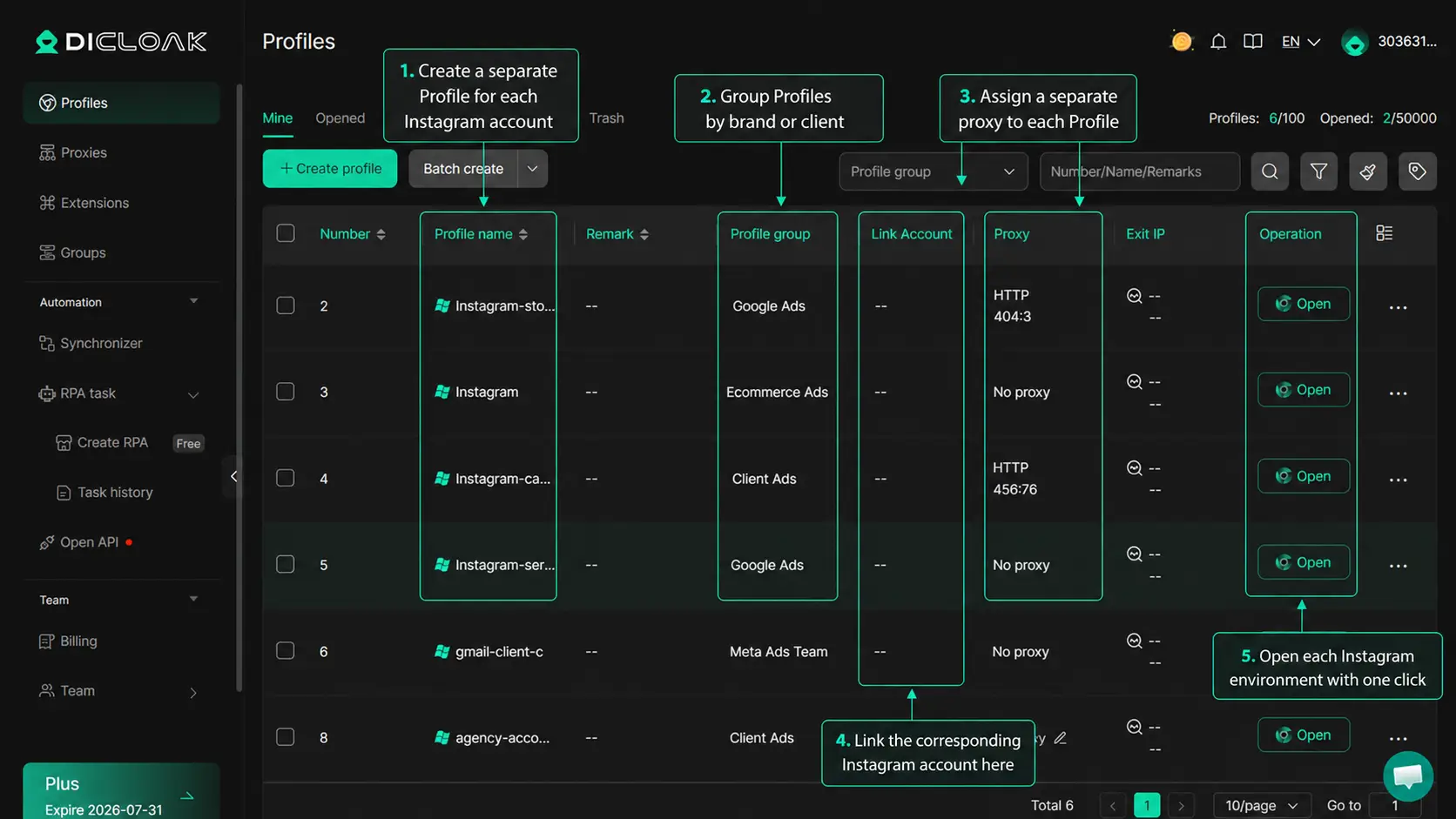
People use DICloak to create a separate browser Profile for each Instagram account. Each Profile keeps its own cookies, login session, browser data, and fingerprint settings, making it easier to organize accounts by brand, client, or purpose.
For example, a social media team can create separate Profiles for a fitness client, a beauty brand, and an e-commerce store. Each account remains logged in inside its assigned Profile, so team members can switch between accounts without repeatedly entering credentials or mixing sessions.
DICloak also supports team collaboration and Profile assignment. Managers can share selected Profiles with the appropriate members and keep different account workflows separate. Its social media use case is designed around managing multiple accounts on one device while maintaining independent browser profiles for each account.
This is especially useful for agencies and multi-brand teams that need to keep Instagram research, login sessions, and account responsibilities organized. A separate Profile for each account makes it easier to maintain distinct content interests and reduce accidental activity from the wrong account.
FAQ About Resetting the Instagram Algorithm
Can You Undo an Instagram Algorithm Reset?
Instagram does not offer a button to restore your previous recommendations. You can guide them back by searching for old interests, revisiting relevant accounts, and interacting with the content you want to see again.
Does Resetting the Instagram Algorithm Delete Followers or Posts?
No. Resetting suggested content does not delete your followers, posts, Reels, messages, or profile. Instagram may let you review your following list, but accounts are only unfollowed when you choose to remove them.
Does Clearing the Instagram Cache Reset the Algorithm?
No. Clearing the cache may fix loading or app performance issues, but it does not reset recommendations. To restart recommendations in Feed, Reels, and Explore, use Reset suggested content under Content preferences.
Does Resetting Instagram Improve Reach or Engagement?
No. The reset changes the content Instagram recommends to you, not how widely your own posts are distributed. For reach problems, review your content performance, audience fit, and Account Status instead.
How Often Should You Reset the Instagram Algorithm?
Instagram does not recommend a fixed reset schedule. Use a full reset only when recommendations across Feed, Reels, and Explore are widely irrelevant; smaller problems are usually better handled with Not Interested, Hidden Words, or Your Algorithm.
Resetting the Instagram algorithm starts with identifying whether the problem affects a few posts, one topic, or your entire recommendation experience. Use targeted controls first, then reset suggested content when Feed, Reels, and Explore all feel irrelevant.
Managing multiple Instagram accounts for different brands or clients? Use DICloak to keep each account’s cookies, login sessions, browser fingerprints, and user-configured proxies separate. Try DICloak for Free.
 Web Proxy Tools
 Free Tools
 Cookie Plugin
 UA Generator
 MAC Address Generator
 IP Generator
 IP Address List
 2FA Code Generator
 World Clock
 Anonymous Check
 WebRTC Leak Test
 UUID Generator
 Free Web Proxy Site
 Proxy Checker
 FB Ad Checker
 AI Web Scraping
 Free SMM Tools
 Twitter Shadowban Checker
 Instagram Name Checker
 UTM Generator
 Username Generator
 AI Hashtag Generator
 LinkedIn Headline Generator
 Social Media Image Resizer