Productivity isn’t just about working faster, most teams waste hours each week switching between apps, fixing errors from copy-paste, or digging for the right document. A recent McKinsey study found knowledge workers spend up to 30% of their time searching for information or handling repetitive tasks that AI could automate. Yet, most “AI productivity apps” promise easy wins but deliver little real impact once you try them with real workflows. What actually works depends less on slick features and more on how well the app fits your daily routine, handles privacy, and connects to the tools you already use.
If you’re searching for the best ai apps for productivity, the biggest mistake is chasing trending tools instead of focusing on what solves your actual bottlenecks. Real gains come from apps that cut out manual steps, prevent double entry, and keep your data secure. Whether you need smarter scheduling, faster document search, or bulk content generation, this guide breaks down what features matter, how to spot hype, and why some apps fail even when they look good in demos.
Ready to see which AI tools actually help you work smarter, and how to choose the right fit? Here’s what separates practical picks from wasted clicks.
What Makes an AI App Truly Boost Productivity?
When you’re sorting through the best ai apps for productivity, what actually matters gets lost behind shiny promises. The apps that really make a difference are the ones that fit your routine, automate the right steps, and don’t force you to learn dozens of new tricks just to get started. If a tool can save you time without adding new headaches, it’s worth attention. But plenty of so-called “AI” apps create more trouble than they solve.
How AI Apps Automate Repetitive Tasks
The strongest AI productivity apps tackle mindless tasks, like sorting emails, scheduling meetings, or updating spreadsheets. For example, Notion AI can generate summaries and auto-tag content, while Zapier connects apps to cut out manual copy-paste. If your calendar app uses AI to set meetings based on everyone’s preferences, that’s a real gain.
But automation isn’t always a win. If an app tries to handle too much, you may spend more time fixing errors or teaching it how your workflow really works. The best ai apps for productivity are those that automate the steps you repeat daily, without forcing you to redo work when things go sideways.
What Features Matter Most for Productivity Gains
Two features separate useful apps from hype. First, integration: If the AI tool connects smoothly with your calendar, email, or document system, you avoid double entry. Tools like Slack use AI to search across conversations and files, saving clicks.
Second, user experience. If the learning curve is steep, you lose more time than you gain. Apps with clear setup, fast onboarding, and simple controls are easier to fit into your day. The apps that boost productivity are those you can set up in minutes and trust to do the boring parts right.
If you’re unsure, look for apps with strong integration and a track record of making real tasks faster, not just promising “AI-powered” results.
Which Types of AI Apps Solve Real Productivity Problems?
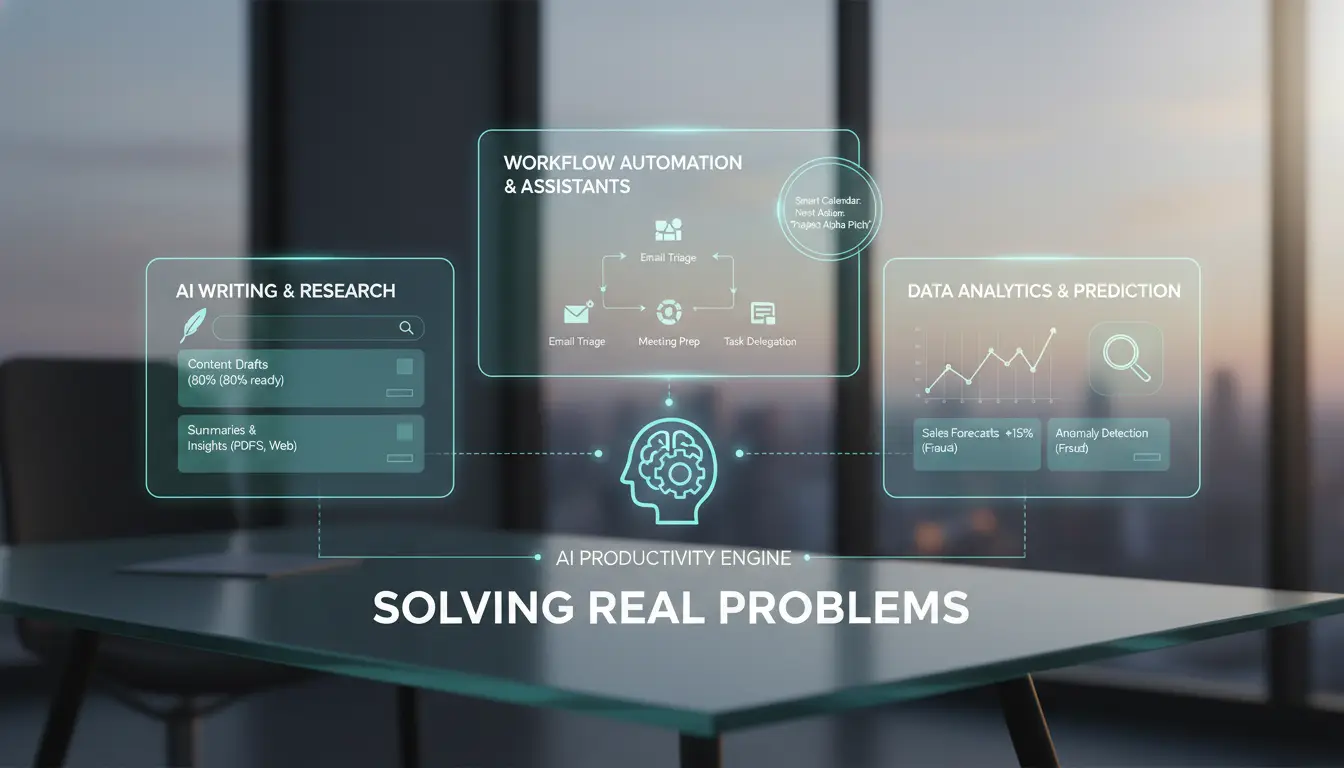
Not every AI app delivers true productivity. The right categories tackle daily pain points, like manual task tracking, messy communication, and forgotten meeting notes, without adding extra complexity. When choosing the best ai apps for productivity, focus on tools that actually remove friction from your workflow.
AI Apps for Task and Project Management
AI-driven task managers change the game by auto-sorting priorities, flagging missed deadlines, and syncing updates across teams. Tools like Notion and ClickUp use AI to suggest deadlines, spot bottlenecks, and even draft project plans. What matters most is whether the app fits your team's habits. For instance, if your current setup feels clunky, looking for a ClickUp alternative for teams can help you find a smoother workflow. Start with features like auto-reminders and smart scheduling, then check if the app connects with your existing tools. For team adoption, test with a small group before rolling out. If the app hides overdue tasks or lacks audit logs, that's a red flag.
AI Writing and Communication Tools
Writing and communication apps powered by AI speed up emails, summarize documents, and clean up grammar. Grammarly or Google Workspace can auto-correct, suggest clearer wording, and even draft replies. The biggest boost comes when tools cut down on repetitive typing, like auto-filling common phrases. But over-reliance brings risks: AI-generated content can miss context or look generic. An AI detector can also help review AI-generated text when originality or transparency matters. Always review drafts, especially when accuracy or tone matters. For sensitive work, check if the app stores your data or shares it with third parties.
AI Meeting Assistants and Transcription Apps
Smart meeting tools like Otter.ai and Fireflies.ai capture spoken notes, tag action items, and send summaries after calls. This saves hours lost to manual note-taking and follow-up emails. Look for apps that support speaker identification and timestamped transcripts. But privacy matters, recording meetings can expose confidential data. Make sure everyone knows when meetings are recorded, and check if transcripts are stored locally or in the cloud. If compliance is a concern, choose tools with clear privacy policies and granular access controls.
The most useful AI apps remove repetitive steps and surface actionable information, without making you change how you work.
How to Choose the Best AI Productivity Apps for Your Workflow
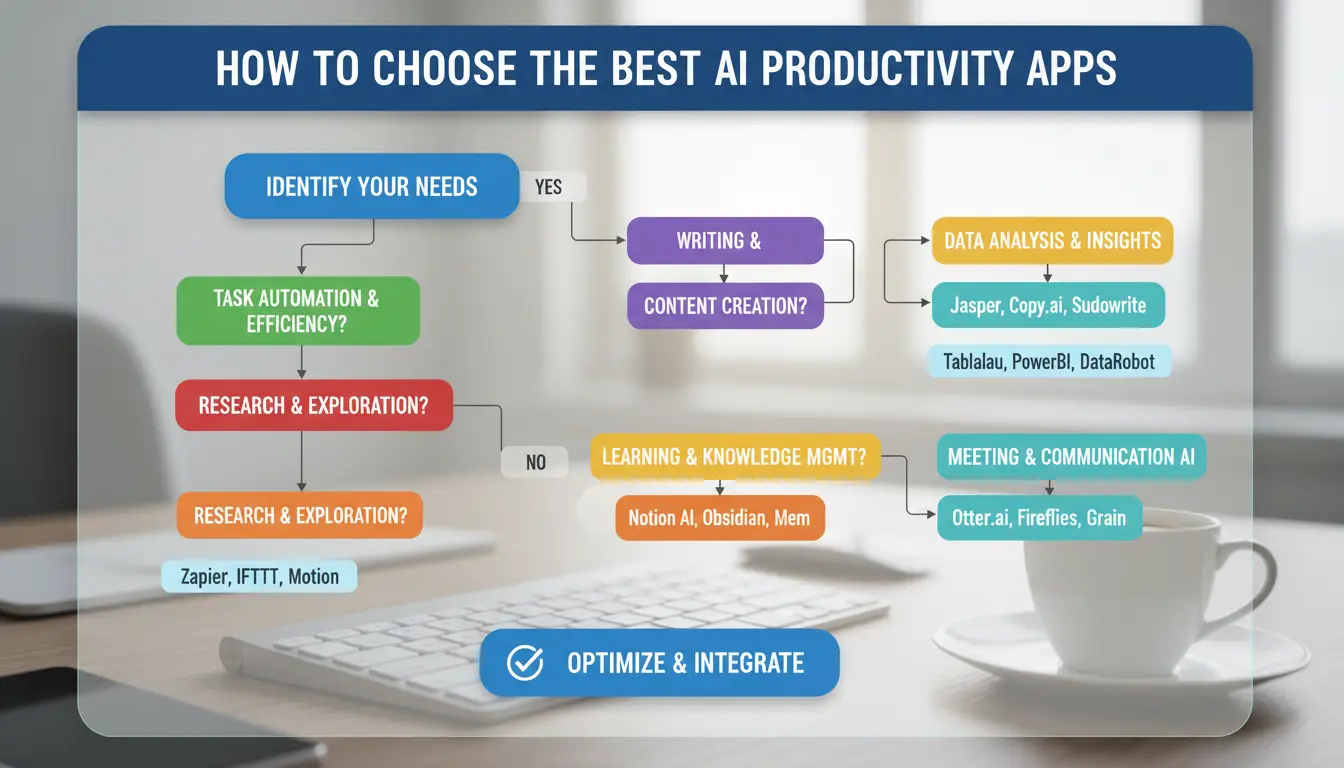
Chasing the "best ai apps for productivity" list rarely matches the real challenges in your day. What actually matters is fixing the parts of your workflow that drain the most energy or time. The smartest AI app isn’t always the one with the most features, it’s the one that clears your main roadblocks and fits how you work.
Identifying Your Biggest Productivity Bottlenecks
Start by looking at where you lose the most time. Is it searching emails, scheduling meetings, or rewriting the same text? Write down three tasks that slow you down each week. Only then should you look for AI apps that solve those exact pain points. For example, if you spend hours switching between tools, focus on apps that connect with Google Workspace or Microsoft 365. If your team struggles with repetitive browser tasks, a tool like DICloak can handle bulk actions in one place.
Testing and Comparing AI Apps Before Committing
Never buy based on a demo alone. Use free trials or pilot programs so you can test features on real tasks. Make a quick table comparing the top apps for your main needs:
| Feature |
App A |
App B |
| Bulk document search |
Yes |
No |
| Connects to Slack |
Yes |
Yes |
| Pricing (per month) |
$12 |
$9 |
Check user reviews on G2 and Capterra to spot issues that don’t show up in sales pitches. Look for feedback on speed, reliability, and privacy.
Avoiding Common Mistakes When Adopting AI Tools
Most people go wrong by adding complexity instead of removing it. If an app creates more steps, drop it. Always check what data the app collects and where it’s stored, especially if you handle client info. Never skip privacy checks just because an AI tool looks impressive. Simple, secure tools usually last longer in your workflow.
Which AI Apps Are Actually Worth Using in 2024?
Finding the best ai apps for productivity means skipping the hype and focusing on what actually saves you time. Below, see real pros and cons for top picks, so you can spot which tools will actually help, not just clog your workflow.
Best AI Apps for Task Management and Automation
Zapier makes it simple to connect different tools and automate repetitive work. Motion uses AI to plan your calendar and to-do list, but it can get messy if your schedule changes often. ClickUp combines project management with automation, but too many features can slow you down.
| App |
Best For |
Weakness |
| Zapier |
Linking apps |
Setup can break |
| Motion |
Smart scheduling |
Overwrites plans |
| ClickUp |
All-in-one tasks |
Overwhelming UI |
Use automation when your daily tasks repeat with little change. For jobs that need judgment, manual management is still safer.
Best AI Apps for Writing, Editing, and Communication
Grammarly is fast for grammar and clarity, but sometimes misses context in technical writing. ChatGPT and Jasper help generate drafts, brainstorm ideas, or summarize notes, just check facts, as AI content can be wrong or sound generic.
The key: Edit AI output before sharing. Don’t rely on it for anything sensitive or where accuracy matters most.
Best AI Apps for Meetings, Scheduling, and Knowledge Management
Fireflies records and transcribes meetings, freeing you from note-taking. Notion uses AI to organize notes and create quick summaries. Reclaim manages calendars and suggests meeting slots. Before adding sensitive info, check each tool’s privacy policy and data retention details, some keep your data longer than you expect.
If you want the best ai apps for productivity, choose based on your real workflow gaps, not just shiny features.
How to Safely Share AI App Accounts Across Your Team Without Getting Blocked
Why Account Sharing Is Common for AI Productivity Apps
Teams often share accounts for the best ai apps for productivity because buying separate licenses for each user drives costs up fast. When you’re running tools like ChatGPT, Canva, or project management platforms, splitting one subscription lets everyone access premium features without paying for extra seats. For small businesses, this means you get more value for less money. But sharing accounts on popular SaaS platforms is not risk-free. If too many people log in from different locations or devices, accounts can get locked or flagged for suspicious activity. The risk is not just losing access, your data or workflow can be interrupted at the worst time.
How Platforms Detect and Restrict Shared Accounts
Platforms use several methods to catch shared accounts. The most common is browser fingerprinting, which checks details like device type, operating system, and browser plugins. When two users log in from different cities, with different fingerprints, the system flags this as unusual. IP checks add another layer: if one account jumps between countries in a single day, it's a red flag. Some apps even track how you move your mouse or type, known as behavioral analysis. The usual triggers for bans or forced re-verification are:
- Logging in from multiple locations within hours
- Sudden changes in device or browser fingerprint
- Repeated failed login attempts
These controls are standard on Google Workspace, Notion, and most top SaaS apps.
How DICloak Makes Account Sharing Safe and Efficient
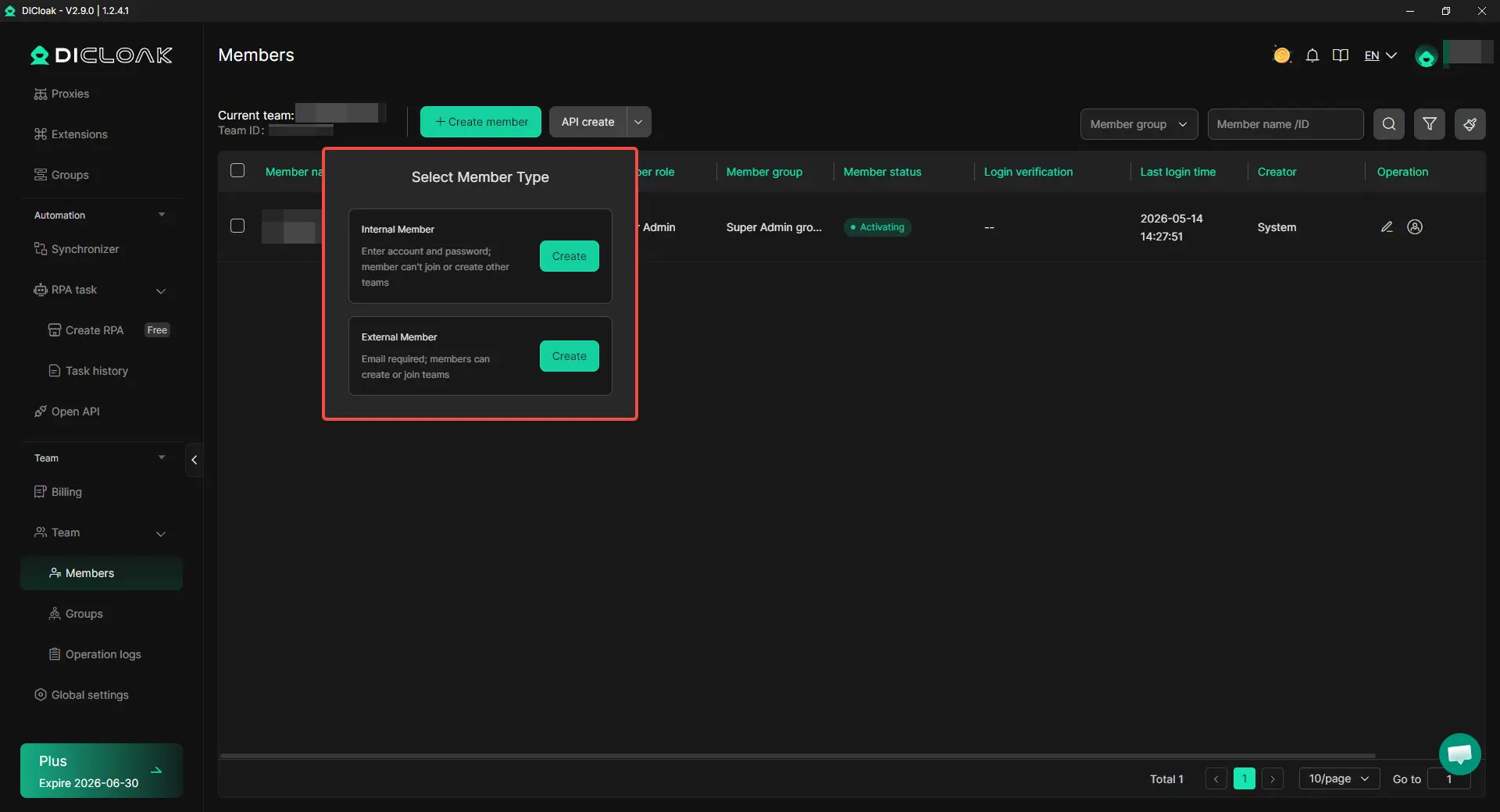
DICloak gives each team member a separate browser profile with unified fingerprint and proxy settings. This means everyone looks like they’re using the same device and location, no matter where they really are. It also stops credential leaks by keeping passwords and session data isolated. You can set up profiles for each user, share only what’s needed, and track activity with clear logs. This cuts the risk of account bans and keeps your team productive, without paying for unnecessary licenses.
What Security and Privacy Risks Should You Watch Out for When Using AI Productivity Apps?
AI apps for productivity often collect, store, and process large amounts of personal and work data. If you use the best ai apps for productivity, the real risk is not just what features they offer, but how they protect your information from leaks, misuse, or unauthorized access.
Data Privacy Concerns with AI Tools
Most AI productivity apps scan your files, emails, and documents to deliver results. Before you start, check if their privacy policy spells out where your data goes and how it's used. Look for clear language about third-party sharing and whether your input is stored for future training, as seen in OpenAI's privacy policy.
Protecting Sensitive Information When Using AI Apps
Always confirm that the app uses encryption for both stored and transferred files. Some tools let you set access controls or view who opened a document. Without these, even trusted staff can accidentally expose sensitive info. Avoid apps with weak storage or unclear backup policies.
Managing Permissions and Team Access Safely
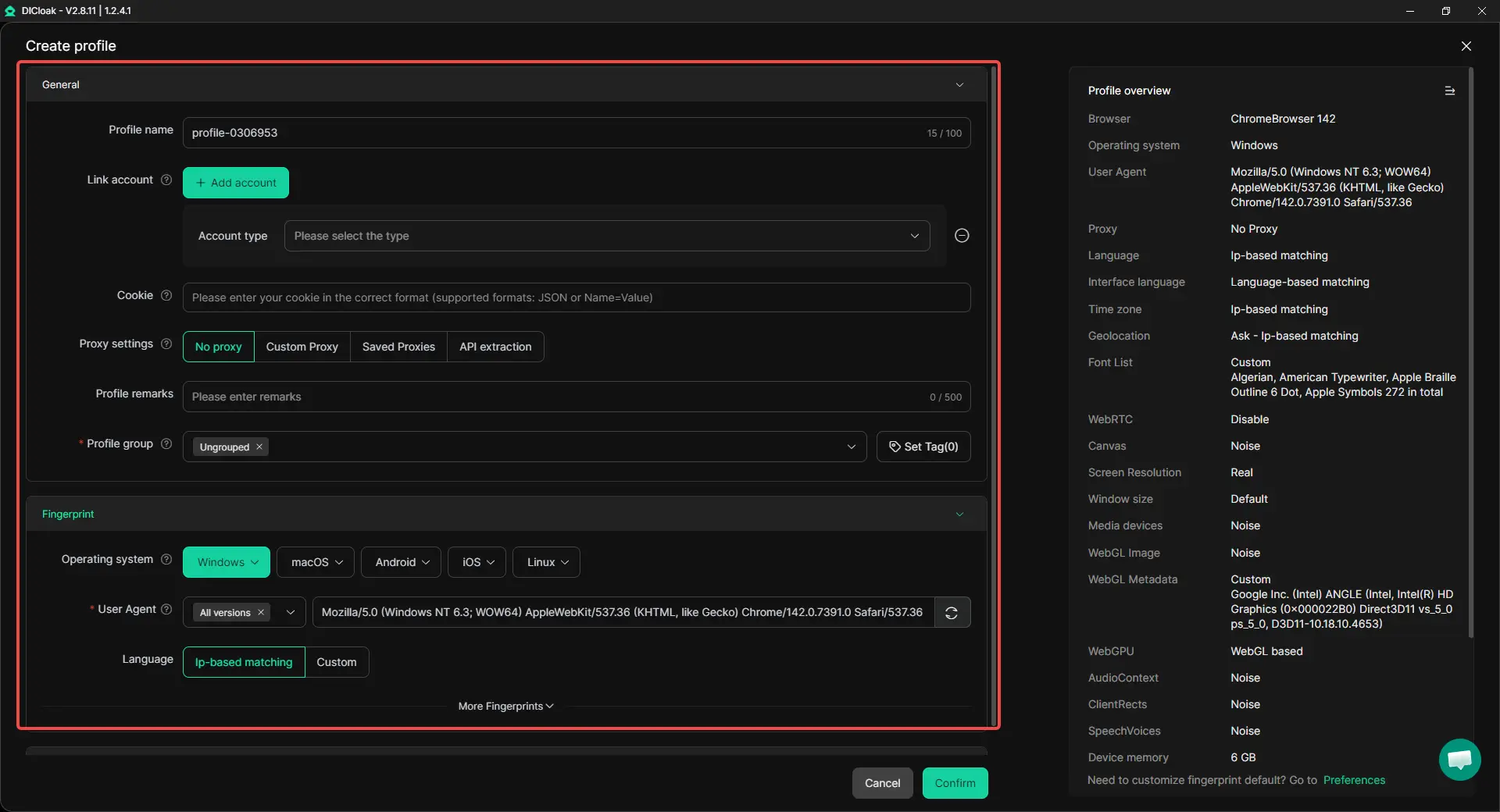
When teams share accounts for tools like Canva or ChatGPT, it’s easy to lose track of who did what. You can use DICloak to isolate browser profiles, unify fingerprints, and manage proxies. This keeps credentials safe and lets everyone appear as one legitimate user, reducing bans and credential theft. Audit logs in DICloak let you monitor account activity and spot suspicious actions before they become a problem.
How to Integrate Multiple AI Apps Without Creating Workflow Chaos
Juggling the best ai apps for productivity can quickly turn your workspace into a mess if you just stack tools without a plan. The real challenge isn’t grabbing every trending app, it’s making sure each one actually improves your workflow, not just adds more steps or creates confusion.
Mapping Out Your Current Workflow Before Adding AI Apps
Start by sketching out your daily routine. Write down every step, from scheduling meetings to drafting reports. Look for tasks that feel repetitive, like entering the same data in two places or copying information between apps. These are prime spots for automation. Next, check which tools you already use, email, calendars, document editors, before jumping into new AI apps. If you spot steps that could be handled by an app, but aren’t yet, that’s where a new tool might fit. Ignore tools that only add another layer without removing old steps.
Using Automation Platforms to Connect AI Tools
Once you see where AI can help, look for platforms that tie apps together. Services like Zapier and Make let you build simple flows, such as sending meeting notes from an AI-powered transcription app straight into Google Docs. This keeps your information moving without manual copy-paste. Avoid letting each app sit in a silo, if your data is trapped in one tool, you’ll waste time or lose track. For team use, make sure your integration supports permission controls and audit logs, so you can see who did what and keep things secure.
Common Pitfalls When Combining Multiple AI Apps
Stacking too many AI tools can backfire. Overlapping features mean you pay for two apps that both handle scheduling or text generation. This eats budget and can confuse your team. Security gets trickier, too, connecting lots of accounts with different access rules increases risk. Always check for feature overlap and review permissions before adding another app. If you need to manage browser profiles, tools like DICloak help isolate accounts and support safe sharing. Keep your stack lean and focus on what actually solves your workflow bottlenecks.
When AI Productivity Apps Aren’t the Right Fit: What to Do Instead
AI tools get a lot of hype, but not every situation calls for automation. Spotting when the best ai apps for productivity actually slow you down can save hours and frustration.
Signs That an AI App Is Overcomplicating Your Workflow
The biggest red flag is extra steps that don’t clearly save time. If you find yourself feeding data into a tool, fixing its output, and then re-checking results, the promised ROI vanishes. Too many pop-ups, logins, or settings are another warning. Teams often push back on apps that change routines without a clear win, if adoption stalls or people revert to old habits, it’s a sign the tool isn’t a fit. Some AI apps claim to “simplify” work but add layers of approval or require constant tweaking, which can drain focus instead of boosting it.
When Manual Methods or Simpler Tools Are Better
Sometimes a simple spreadsheet or checklist beats any AI workflow. For example, tracking project tasks in Google Sheets or Notion is faster when you need flexibility and instant edits. AI doesn’t always handle edge cases well, if your process changes often, manual control lets you adapt on the fly. Human judgment matters when details are messy or context-specific. Automation shines for repeatable, high-volume tasks, but for small teams or unique projects, basic tools often win.
| Scenario |
AI App Needed? |
Why Simple Wins |
| Dynamic, changing tasks |
No |
Manual edits are faster than re-training an app |
| Small teams (<5 people) |
Rarely |
Less overhead; easier to coordinate |
| Unique project requirements |
No |
AI can’t handle one-off exceptions well |
How to Reassess and improve Your Productivity Stack
Set a calendar reminder every 6 months to review your stack. Cut apps that nobody uses or that duplicate effort. Ask your team what actually saves them time versus what sits unused. If a tool doesn’t deliver clear gains, scale it back or switch to a lighter option. Real productivity comes from tools that solve your pain points, not add new ones.
Frequently Asked Questions
Are free AI productivity apps safe to use?
Free AI productivity apps can be safe, but you should check privacy policies and data handling practices first. Some free apps may collect or share your data with third parties. Look for end-to-end encryption and clear data retention policies. Always read reviews and avoid apps that ask for unnecessary permissions before using them with the best ai apps for productivity.
How can I avoid getting my shared AI app accounts banned?
To safely share accounts for the best ai apps for productivity, avoid triggering unified fingerprint detection by using different devices and browsers. Use secure proxies to mask IP addresses. Tools like DICloak help by creating separate, safe login profiles for each user, reducing the risk of bans from suspicious login patterns.
What’s the best way to test multiple AI apps before committing?
Start with free trials offered by the best ai apps for productivity. Use them on real projects to see how they work in your daily tasks. Ask team members for feedback and note any issues with features or integrations. Short pilot projects help you compare apps before you pay or roll out to your whole team.
Can AI productivity apps integrate with my existing workflow?
Most top AI productivity apps support integration platforms like Zapier or offer APIs for custom connections. Before choosing an app, check if it works with your current tools (like Google Workspace or Slack). Review documentation and test integrations with your workflow to avoid compatibility issues.
What are the biggest risks when using AI apps for team collaboration?
Security and data privacy are top concerns with AI apps for teams. Make sure to manage permissions carefully so only the right people access sensitive information. Some apps may store data on external servers, which can create risks. Always review privacy settings and choose apps with strong security features.
Harnessing the power of AI apps can transform the way you manage tasks, simplify communication, and boost your productivity. By choosing the right tools tailored to your needs, you can work more efficiently and stay ahead in your professional journey. Try DICloak For Free
 Web Proxy Tools
 Free Tools
 Cookie Plugin
 UA Generator
 MAC Address Generator
 IP Generator
 IP Address List
 2FA Code Generator
 World Clock
 Anonymous Check
 WebRTC Leak Test
 UUID Generator
 Free Web Proxy Site
 Proxy Checker
 FB Ad Checker
 AI Web Scraping
 Free SMM Tools
 Twitter Shadowban Checker
 Instagram Name Checker
 UTM Generator
 Username Generator
 AI Hashtag Generator
 LinkedIn Headline Generator
 Social Media Image Resizer