When ChatGPT stops working, it can feel confusing and frustrating. One moment it loads normally, and the next it freezes, logs you out, or refuses to respond. If you have been wondering why is chat gpt not working, the good news is that many problems have clear causes and simple fixes. In this guide, we will look at the most common reasons ChatGPT fails in 2026 and the practical steps you can take to get it working again.
What Causes Chat GPT to Fail Unexpectedly?
When people search why is chat gpt not working, the cause is often simpler than it looks. In many cases, the failure comes from one of three places: an error on the page, an unstable internet connection, or a problem with the device you are using. Sometimes ChatGPT is having a wider service issue. But just as often, the problem starts much closer to home, such as a broken browser session, blocked cookies, an extension conflict, or a weak network connection.
Common Error Messages and Their Meanings
Some messages are broad, but they still give useful clues. “Something went wrong” usually points to a temporary failure in the session. That can happen when the page cache is corrupted, cookies are outdated, or a browser tool interrupts how ChatGPT loads. A network error usually means the connection dropped while the request was still in progress. Endless loading often means the page opened, but part of the response never finished.
A very common example looks like this: ChatGPT opens normally, you type a prompt, and then the answer stops halfway or never appears. The site itself may not be fully down. A privacy extension, VPN, proxy, or filtering tool may be interrupting the request in the background. That is why the same account can fail in one browser and work fine in another.
How Internet Connectivity Impacts Chat GPT Performance
A weak internet connection does not always break ChatGPT in an obvious way. Sometimes the page loads, but replies take too long, fail to finish, or keep spinning. This happens a lot on public Wi-Fi, office networks, school networks, and connections running extra filtering or security layers. Even when other websites seem normal, ChatGPT can still struggle because it depends on a steady live connection, not just a quick page load.
For example, a person using hotel Wi-Fi may be able to open search engines, video sites, and email without trouble, but ChatGPT may freeze while sending a message. In that case, the issue is not always a full outage. It may be packet loss, login filtering, or a blocked request somewhere between the device and the service. Switching to mobile data or another network is often the fastest way to test that.
Device Compatibility Issues You Might Face
Sometimes the real problem is the device itself. ChatGPT may fail on a phone but work on a laptop, or fail in one browser but not another. That usually points to a local compatibility issue. Outdated browsers, blocked JavaScript, disabled cookies, old app versions, and certain device settings can all break login or page loading.
One common situation is this: a user thinks their account is broken because they cannot log in on mobile, but the same account opens normally on desktop. In many cases, the session on that device is outdated, the sign-in method is wrong, or the browser profile is interfering with the login flow. When that happens, trying a different browser or a desktop device can quickly show whether the issue is with the account or just with the device.
How to Troubleshoot Chat GPT Network Errors
When ChatGPT stops in the middle of a reply or shows a network warning, the problem is usually not random. In most cases, the connection between your device and ChatGPT is being interrupted by an unstable network, a VPN or proxy, a browser tool, or a filtered school or work connection. That is why the fix is often simple once you test the right thing in the right order.
Steps to Resolve "Network Error" Messages
A “Network Error” message usually means the connection was not stable enough to finish the request. Start with the fastest checks first. Refresh the page, resend the prompt, or open a new chat if the current conversation is long and stuck. If that does not help, turn off VPNs, proxies, secure DNS tools, and browser extensions that filter traffic or block scripts. These are common reasons a reply starts normally but fails before it finishes.
A simple example is when ChatGPT works for short prompts but breaks on longer ones. That often happens when the page session is unstable rather than fully broken. In that case, switching to another browser or another device can tell you very quickly whether the problem is your current setup. If the same error appears everywhere, then it makes more sense to check for a broader service issue.
Checking Your Internet Connection for Stability
A connection can look “fine” and still be bad enough to break ChatGPT. Web browsing, email, and video may still work while ChatGPT keeps spinning, because ChatGPT depends on a steady live connection and, for some features, WebSocket traffic over port 443. On managed networks, firewalls, TLS inspection, URL filters, or secure web gateways can interrupt that traffic and cause stalls, disconnects, or failed streaming replies.
This is why public Wi-Fi, office networks, and school networks cause so many access problems. If possible, switch from Wi-Fi to mobile data, or try a different network for a few minutes. If ChatGPT suddenly works, the issue is probably the network, not your account. On company networks, blocked OpenAI domains or blocked WebSocket upgrades are a common hidden cause.
Using Incognito Mode to Bypass Access Problems
Incognito mode is useful because it gives you a cleaner test. It starts a fresh browser session without most saved cookies, cached page data, and many active extensions. If ChatGPT works in incognito mode but not in your normal browser window, that usually points to a local browser problem such as corrupted cookies, stale cache, or an extension conflict.
A very common case is this: ChatGPT will not load, or it shows “There was a problem preparing your chat,” but the page opens normally in a private window. That usually means a content blocker, privacy tool, or script-filtering extension is interfering with the page. In that situation, incognito mode is not just a workaround. It helps you identify the real cause much faster.
Why Chat GPT Isn't Responding to Prompts
When ChatGPT stops responding, the cause is usually one of three things. The session is lagging, the browser or app is stuck, or the service is under heavy load. That is why the same prompt may work a few minutes later, or work on one device but not another. Recent OpenAI support guidance also treats slow, frozen, or unresponsive sessions as a common troubleshooting case rather than a rare one.
Identifying Lagging or Freezing Issues
Lagging and freezing do not always look dramatic. Sometimes ChatGPT starts answering, then stops halfway. Sometimes the text cursor keeps blinking, but nothing happens after you press enter. In other cases, the chat opens, but every reply takes much longer than normal. These are usually signs that the session is unstable, not that your account is broken. Long conversations can also make this worse, which is why starting a new chat often helps.
A common example is this: you paste a long prompt, the reply begins, and then the page hangs. If a fresh chat works better than the old one, the problem is often the session itself. If the same issue appears only in one browser, then the browser setup is the more likely cause.
How to Fix Unresponsive Chat GPT Sessions
The fastest fixes are usually simple. Refresh the page, restart the app, or open a new chat first. If that does not help, try private browsing, switch to another browser, or test another device. It also helps to turn off extensions, VPNs, proxies, or secure DNS tools that can interrupt the session in the background. Login-related problems can also come from stale cookies or using the wrong sign-in method, especially if the account was originally created through Google, Apple, or Microsoft.
A good practical check is this: if ChatGPT does not respond on your phone but works on desktop, the issue is probably local to that app or device. If it fails in your normal browser but works in incognito mode, the problem is often cache, cookies, or an extension conflict. That kind of comparison helps you narrow the problem down fast instead of guessing.
Recognizing When Server Overload Occurs
Sometimes the problem is not on your side at all. Server overload usually shows up as widespread slow replies, failed message sending, trouble loading conversations, or login issues that appear suddenly and affect many users at once. The clearest sign is when your setup seems normal, but ChatGPT is still slow or unresponsive across devices and networks. In that case, checking the OpenAI status page is the quickest way to see whether there is a broader service issue.
This matters because 2026 status history has included incidents involving increased latency, conversation errors, login errors, message-sending problems, and conversations not loading. So when people ask why is chat gpt not working, sometimes the real answer is simply that the service is temporarily overloaded or degraded.
Steps to Take When Chat GPT Stops Mid-Response
When ChatGPT stops halfway through an answer, the problem is usually temporary. The session may be unstable, the browser may be holding broken data, or the service may be under short-term strain. A good first move is to wait a few seconds, then stop the reply and try again. If the same thing keeps happening, move to simple cleanup steps instead of guessing.
Clearing Cache and Cookies for Better Performance
Old cache files and broken cookies can make ChatGPT load badly, freeze, or fail in the middle of a response. That is why clearing them often helps when the page looks normal at first but then stops working properly. A common case is when ChatGPT keeps hanging in one browser, but works fine in a private window or a different browser. In that situation, the saved browser data is often the real problem.
Refreshing the Page Without Losing Data
A refresh is often the fastest fix, especially when the page is stuck but not fully broken. A hard refresh can reload the session more cleanly than a normal one. If you are worried about losing your prompt, copy your text before refreshing the page. That small habit helps a lot when ChatGPT freezes right after you paste a long request. If a refresh does not help, starting a new chat is usually the next best step.
When to Restart Your Device for a Fresh Start
If ChatGPT still fails after refreshing the page, clearing browser data, and trying a private window, restarting your device is worth doing. This is most useful when the problem seems local to one app, one browser, or one device. A restart can clear stuck background processes, reset the browser session, and fix small connection issues that do not show up clearly on screen. If ChatGPT still stops mid-response on multiple devices and networks after that, the problem may be broader service load rather than your setup. Recent status history has included conversation errors, loading issues, and message failures during degraded periods.
How Device Type Affects Chat GPT Functionality
The device you use can change how ChatGPT behaves. A problem on mobile may not appear on desktop, and a browser issue may not affect the app at all. That is why one of the fastest ways to narrow down why is chat gpt not working is to test the same account on a different device or platform.
Troubleshooting on Mobile vs. Desktop
Desktop is often the easier place to troubleshoot. Login flows, cookies, and browser tools are easier to check there, and desktop browsers like Chrome or Edge tend to be more reliable for sign-in and account access. Mobile problems can be harder to spot because the issue may come from the app, the phone browser, saved sessions, or device settings.
A common example is this: ChatGPT keeps failing on your phone, but it opens normally on your laptop. That usually means the account itself is fine. The real problem is more likely a bad mobile session, blocked cookies, or an app-specific issue. On iPhone, even cookie settings can break login in some cases.
App-Specific Problems and Solutions
App issues are often different from browser issues. On iOS, subscription syncing may need a manual “Restore purchases” step. On Android, users also need the official OpenAI app, and some sign-in flows depend on using Chrome as the default browser. These are small details, but they can make ChatGPT look broken when the real issue is just the app setup.
If the app is slow, frozen, or not loading chats, the usual fixes are still simple: force reload, sign out and back in, clear cookies or site data where possible, and test another device. If ChatGPT works in a browser but not in the app, that is a strong sign the problem is app-specific, not a full service failure.
Adjusting Settings for Optimal Use
A few settings make a bigger difference than people expect. Enabled cookies, a modern browser, fewer content-blocking extensions, and no VPN or filtering layer during troubleshooting all help keep ChatGPT stable. On managed networks, connection filtering can also break web and app performance even when the page seems to load normally.
A good practical habit is to keep the app updated, use the same login method you used when creating the account, and switch to desktop when mobile keeps failing. These small checks often solve the problem faster than changing many settings at once.
When to Contact Chat GPT Support for Help
Most ChatGPT problems can be fixed with a few simple checks. But sometimes the issue keeps coming back no matter what you try. That is the point where support makes sense. If ChatGPT still fails after you test another browser, another device, a private window, and a different network, the problem is probably not just a small local glitch anymore. At that stage, contacting support can save time and help you avoid repeating the same steps.
Recognizing Persistent Issues That Need Expert Assistance
A problem usually needs extra help when it is consistent, repeatable, and not limited to one setup. For example, ChatGPT may fail on both mobile and desktop, your login may keep breaking even after clearing cache and cookies, or your chats may keep freezing across different networks. Another sign is when the issue affects billing, account access, or subscription syncing, since those often need account-level review instead of basic troubleshooting.
A simple example is this: ChatGPT will not load your conversations on Chrome, Safari, and the mobile app, and the problem is still there after signing out and back in. That usually means it is time to stop guessing and open a support request. It also helps to check the status page first, because if there is already a wider service issue, you may only need to wait instead of filing a ticket right away.
How to Document Problems for Effective Support
Good support requests are clear and easy to verify. The most useful approach is to write down exactly what happened, when it happened, and what you already tried. Screenshots or a short screen recording can make a big difference, especially when the problem is hard to describe in words. It also helps to note whether the issue happens in one browser only or across all devices, because that quickly shows whether the failure is local or account-related.
For example, instead of writing “ChatGPT is broken,” a much stronger report would say: “The page loads, but every prompt freezes after I press enter. This happens on Chrome and Edge on Windows, started on April 21, 2026 at about 9:30 AM Pacific Time, and still happens after cache clear, incognito mode, and switching networks.” That kind of detail is much easier to act on.
What Information to Provide for Faster Resolution
The fastest support requests usually include the sign-in email, the login method you used, the time the issue happened with your time zone, your device and browser details, and the exact steps that trigger the problem. If you are in a Business, Enterprise, or Edu workspace, the workspace name or ID also helps. Visual proof like screenshots, screen recordings, or code snippets can speed things up too, as long as they do not expose private or sensitive data. Support is reached through the chat bubble on the Help Center, where requests start with the virtual assistant and can be routed further if needed.
In practice, this means your request should help support recreate the issue fast. The less time they spend asking basic follow-up questions, the faster you usually get a useful answer.
Preventive Measures to Keep Chat GPT Running Smoothly
The best fix is often prevention. If you want ChatGPT to stay stable, keep your browser or app updated, avoid cluttered sessions, and pay attention to usage limits. Many problems that look random start with old cache, extension conflicts, unstable sessions, or heavy usage during busy periods. OpenAI’s recent status history also shows that slowdowns, message errors, login issues, and conversation problems do happen from time to time, so a clean setup makes those moments easier to handle.
Regular Updates and Maintenance Tips
A simple maintenance routine helps more than people expect. Keep your browser current, update the mobile app, and clear cache and cookies when ChatGPT starts feeling slow or inconsistent. It also helps to disable extensions, VPNs, proxies, or secure DNS tools when you troubleshoot, because these often interfere with loading, login, or response generation. If one chat becomes very long and starts lagging, opening a new chat is often a cleaner choice than forcing the same session to keep going.
A common example is this: ChatGPT works fine for days, then suddenly starts freezing in one browser only. In many cases, the service is not truly broken. The local browser session has simply become messy over time. A quick cleanup, a refresh, or a switch to a private window often solves that faster than changing many settings at once.
Monitoring Usage Limits to Avoid Overload
Usage limits matter too. When people use ChatGPT heavily, they may hit plan limits and mistake the change in behavior for a bug. OpenAI’s help pages show that limits vary by plan, and some plans switch to a lighter fallback model after a limit is reached instead of fully stopping access. That means slower or different responses are not always a technical failure. Sometimes they are a limit-related change in how the service is delivered.
A practical habit is to notice patterns. If ChatGPT gets less responsive only after long, repeated use in a short period, usage limits may be part of the reason. If it is failing across all devices and networks at the same time, the better guess is wider service strain, and the status page is the fastest place to confirm that.
Best Practices for Long-Term Stability
For long-term stability, keep your setup simple. Use a modern browser, avoid stacking too many privacy or script-blocking tools, stay on a reliable network, and test problems in incognito mode before making bigger changes. On desktop, Chrome or Edge tend to be the easiest environments for troubleshooting login and session issues. It also helps to keep the same sign-in method each time and move to a different device quickly when one device starts acting up.
The goal is not to make ChatGPT fail-proof, because no online service works perfectly all the time. The goal is to remove the avoidable problems on your side so that when a real outage or slowdown happens, you can spot it faster and waste less time chasing the wrong fix.
Using DICloak Antidetect Browser for Secure Account Sharing
How DICloak Enhances Account Security
When multiple users access the same account, the biggest risks are exposure of credentials, inconsistent login environments, and platform-triggered security checks. DICloak Antidetect Browser addresses these issues by isolating each shared account inside a dedicated browser profile with controlled access and environment consistency.
Key security advantages include:
- Profile-based isolation that prevents cross-account contamination
- Encrypted storage of cookies and session data
- Controlled profile access without exposing credentials
- Protection against accidental logouts or session invalidation
Managing Permissions with DICloak for Shared Access
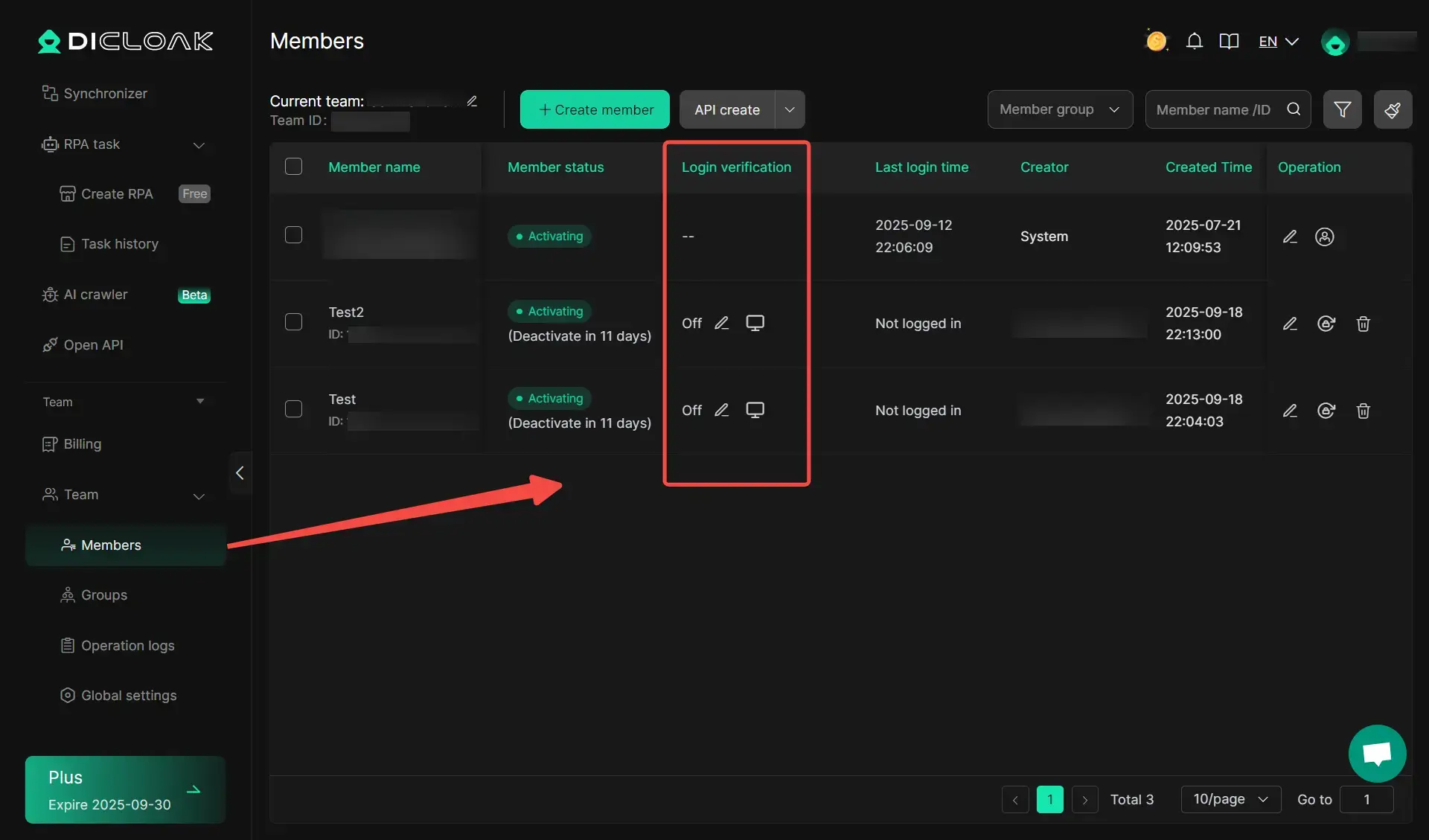
A major problem with shared accounts is the lack of control—once access is given, it’s hard to limit what others can do. DICloak solves this through built-in team collaboration and permission management features.
Practical permission controls include:
- Role-based access for different team members
- Profile sharing without exposing passwords
- Operation logs to track who did what and when
- Ability to revoke or adjust access instantly
Preventing Account Flagging with Unique Digital Fingerprints
You can use DICloak to prevent account flagging by standardizing how shared accounts appear to external platforms. Even if multiple users access the same account, they operate under a consistent browser fingerprint, making activity look like it comes from a single user.
How this reduces detection risk:
- Unified or controlled fingerprints across shared sessions
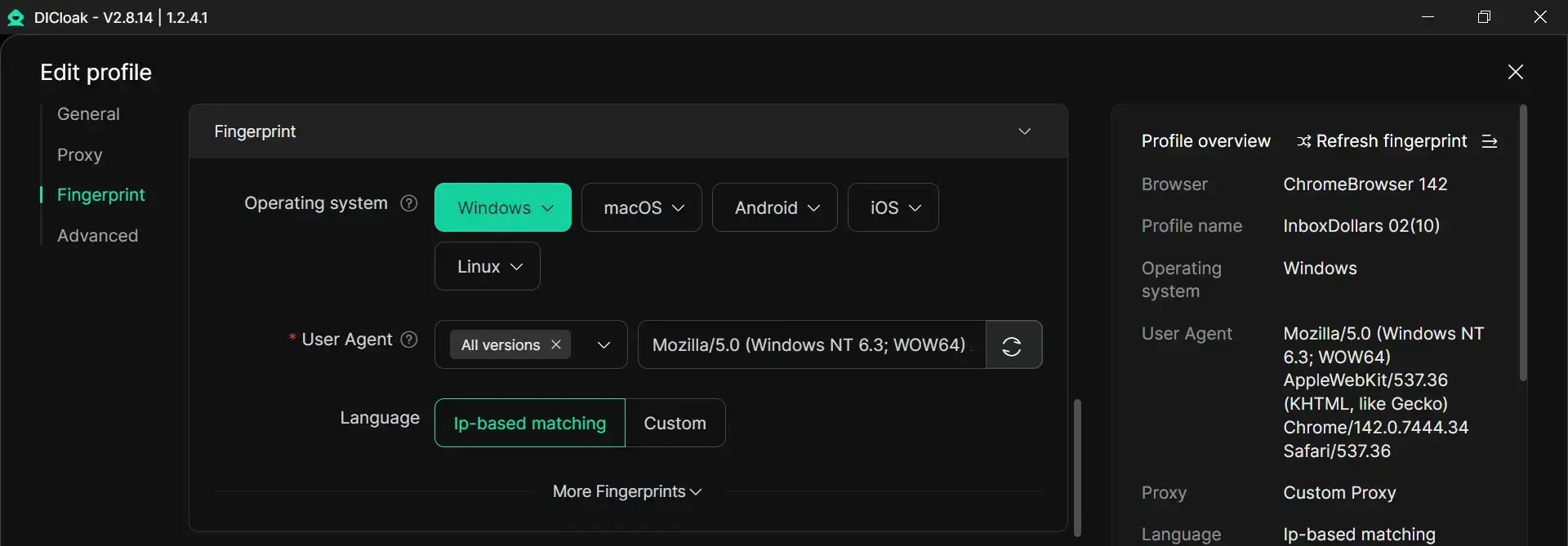
- Stable browser profiles that avoid anomaly detection
- Proxy configuration to maintain consistent IP behavior
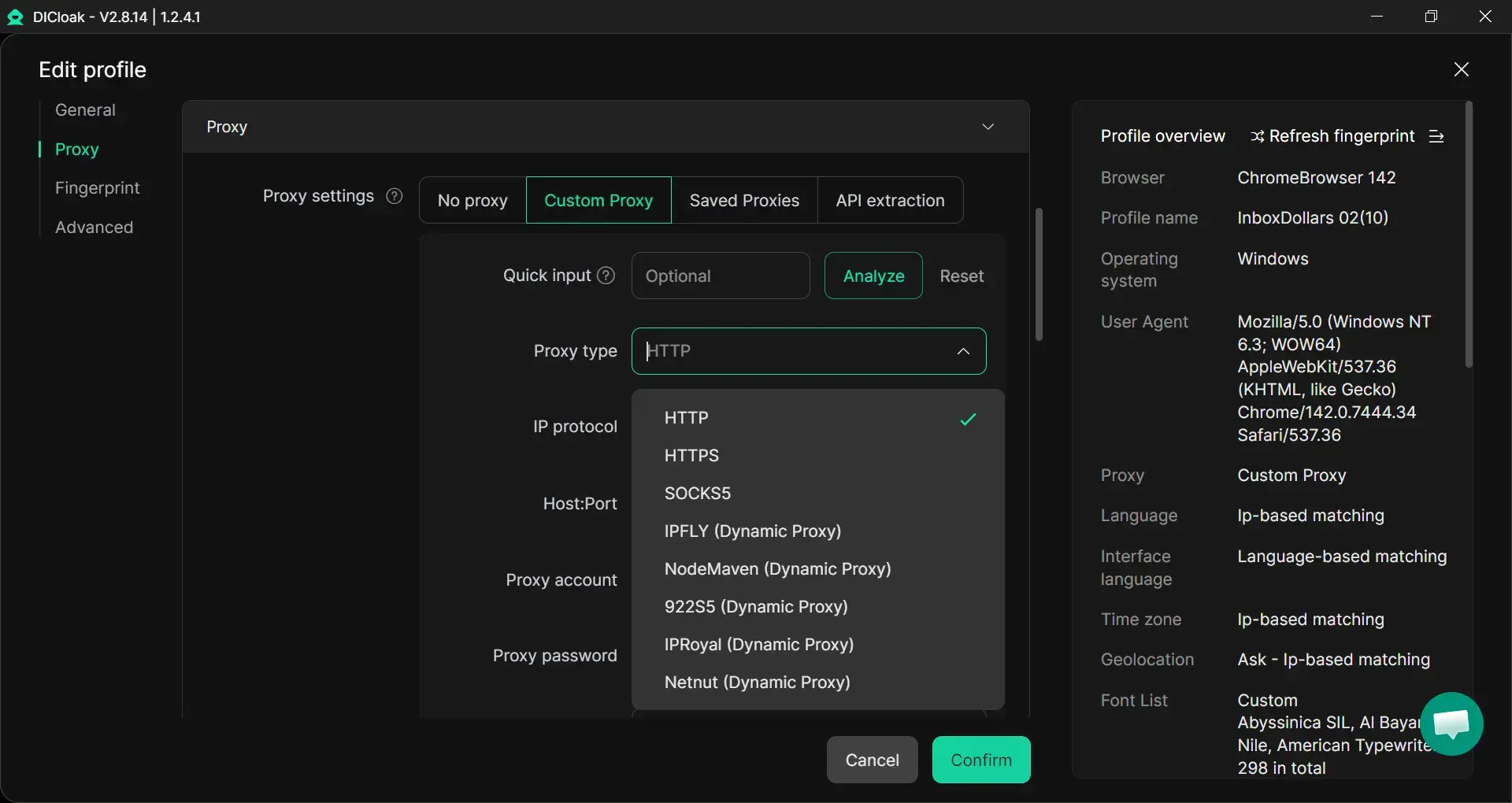
- Simulation of real-user interaction patterns
Warm Tips: If you ever run into issues (like ChatGPT Server Error), check out our helpful guides: Fix ChatGPT Internal Server Error or ChatGPT Ban Guide.
FAQ About Why is Chat GPT Not Working
Why does Chat GPT keep asking me to log in?
This usually happens when your browser session is not staying valid. Old cookies, blocked cookies, privacy tools, VPNs, proxies, or a broken login flow can all cause repeated sign-in requests. It can also happen when you try to sign in with a different method from the one you used when you first created the account, such as using email and password after signing up with Google or Apple.
How can I fix "Something went wrong" errors?
This error is broad, but the fixes are usually simple. Refresh the page, start a new chat, clear cache and cookies, try an incognito window, and turn off extensions, VPNs, proxies, or secure DNS tools that may be interfering with the session. If the error keeps showing up everywhere, check the status page before changing more settings.
Is there a way to speed up Chat GPT responses?
Sometimes, yes. Slow replies often improve when you start a new chat, refresh the page, restart the app, or switch to a cleaner browser session. Long conversations, unstable networks, extensions, VPNs, proxies, and secure DNS filters can all slow things down. If the service is having a broader incident, though, local fixes may help only a little until the service stabilizes.
Can I use Chat GPT offline?
No. ChatGPT needs an active internet connection to work. If your device cannot maintain a reliable connection to OpenAI’s servers, you may see network errors, endless loading, or replies that stop midway.
What should I do if Chat GPT crashes frequently?
Frequent crashes usually mean it is time to narrow the problem down step by step. Try a new chat, refresh the page, restart the app or browser, clear cache and cookies, and test incognito mode, another browser, another device, and another network. If the same crashing or freezing happens across all of them, gather the time of the issue and basic session details, then contact support.
Conclusion
If ChatGPT is not working, the problem is usually linked to your network, browser, device, app session, or a temporary service issue. The key is to check the most likely causes one by one instead of guessing. With the right steps, many errors can be fixed quickly. And if the issue keeps coming back, knowing how to test it, document it, and ask for help will save you time and frustration.
 Web Proxy Tools
 Free Tools
 Cookie Plugin
 UA Generator
 MAC Address Generator
 IP Generator
 IP Address List
 2FA Code Generator
 World Clock
 Anonymous Check
 WebRTC Leak Test
 UUID Generator
 Free Web Proxy Site
 Proxy Checker
 FB Ad Checker
 AI Web Scraping
 Free SMM Tools
 Twitter Shadowban Checker
 Instagram Name Checker
 UTM Generator
 Username Generator
 AI Hashtag Generator
 LinkedIn Headline Generator
 Social Media Image Resizer