Seeing a ChatGPT internal server error can be frustrating, especially when you need a quick answer and the page suddenly stops working. Many users think the problem always comes from ChatGPT itself, but that is not always true. Sometimes the issue is caused by server traffic, browser data, weak internet, or local setup problems.
In this guide, you will learn what ChatGPT internal server error means, what usually causes it, how to check whether ChatGPT is down, and what steps you can take to fix it. We will also look at a few simple ways to prevent the error in the future and explore backup AI tools you can use when ChatGPT is unavailable.
What is ChatGPT Internal Server Error?
A ChatGPT internal server error means the request reached ChatGPT, but something failed on the service side before the reply could be completed. In simple words, your browser or app asked ChatGPT to do something, and the system could not finish that job correctly. OpenAI’s help guidance groups this kind of problem with other error states and recommends first checking whether the issue is coming from the service itself, your session, or your network setup.
For many users, the error shows up without much detail. You may send a prompt, wait a few seconds, and then see a message instead of an answer. This can happen during a temporary platform problem, not just because of something wrong on your computer. OpenAI’s status history shows that ChatGPT has had periods of elevated errors, failed conversations, login issues, and short service disruptions, including incidents in 2025 and 2026 that affected normal use for many people.
Common Causes of ChatGPT Internal Server Error
A ChatGPT internal server error can happen for both server-side and local reasons. Here are the most common ones:
- Excessive Traffic: When too many users use ChatGPT at the same time, the servers can slow down or fail to process some requests. OpenAI’s status history shows that high traffic can lead to elevated error rates.
- Server Maintenance: Scheduled updates or unexpected maintenance can also cause temporary errors. Sometimes the problem is fully on the platform side, not on your device.
- Rate Limits: If too many requests are sent in a short time, OpenAI may block or delay them. This can stop replies from loading normally.
- Poor Internet Connection: If your network is weak or unstable, ChatGPT may fail to complete the request. This is common on public Wi-Fi or unstable mobile networks.
- Browser Cache and Cookies: Old or broken cache files can cause loading problems, session errors, or failed replies. OpenAI recommends clearing site data when ChatGPT behaves strangely.
- Attacks on Servers: Large malicious attacks, such as traffic flooding, can affect online services and lead to errors. For ChatGPT, OpenAI’s status page is the best place to check whether a wider incident is happening.
How to Check if ChatGPT is Down
Before trying fixes, it is important to know if the problem is on your side or ChatGPT’s side. A ChatGPT internal server error often happens during short service issues. Here are simple ways to check.
Verify Server Status (Official Method)
Go to OpenAI’s official status page. Look for ChatGPT or API status.
- If it shows “Operational,” the problem is likely on your device or network.
- If it shows “Degraded” or “Outage,” the issue is on the server side. In real cases, many users see errors at the same time during these incidents.
Use Third-Party Tools (Like DownDetector)
You can also check sites like DownDetector. Search “ChatGPT” and look at the outage graph.
- A sudden spike in reports usually means many users are facing the same issue.
- You can also read user comments to confirm if others see a ChatGPT internal server error.
Troubleshooting and Fixing ChatGPT Internal Server Error
Step 1: Check the OpenAI Status Page
Before changing anything on your device, first check whether ChatGPT is having a wider problem.
- Go to OpenAI’s official status page
- Look for notices like Degraded Performance, Partial Outage, or Major Outage
- If there is an active issue, the problem is likely not on your side
- If everything looks normal, move to the next step
This helps you avoid wasting time fixing something that is caused by the service itself.
Step 2: Refresh Your Browser
Sometimes the problem is only temporary.
- Press F5 on Windows or Command + R on Mac for a normal refresh
- Press Ctrl + Shift + R on Windows or Command + Shift + R on Mac for a hard refresh
A hard refresh forces the browser to load fresh page data instead of using old cached files.
Step 3: Log Out and Log Back In
A broken or expired session can also cause errors.
- Click your profile icon in the lower-left corner
- Choose Log out
- Close the browser fully
- Open it again and go to ChatGPT
- Log back into your account
This gives you a fresh session and can fix login-related problems.
Step 4: Clear Cache and Cookies
Old or damaged browser data can stop ChatGPT from working correctly.
For Chrome or Edge:
- Press Ctrl + Shift + Delete on Windows or Command + Shift + Delete on Mac
- Set the time range to All time
- Check Cookies and other site data
- Check Cached images and files
- Click Clear data
For Firefox:
- Press Ctrl + Shift + Delete on Windows or Command + Shift + Delete on Mac
- Set the time range to Everything
- Make sure Cookies and Cache are selected
- Click Clear Now
After that, reopen ChatGPT and test again.
Step 5: Test Your Internet Connection
A weak or unstable connection can trigger errors.
- Open another major website like Google
- Check whether it loads normally
- If other sites are also slow, your internet may be the issue
- Restart your modem and router
- Try another Wi-Fi network if possible
- You can also test with a mobile hotspot
A more stable connection can often solve the problem.
Step 6: Disable Browser Extensions
Some extensions can block scripts or page elements that ChatGPT needs.
- Open your browser settings
- Go to Extensions or Add-ons
- Turn off all extensions for a moment
- Reload ChatGPT
- If it works, turn extensions back on one by one to find the problem
Ad blockers and script blockers are common causes.
Step 7: Try Incognito or Private Mode
Private browsing is a quick way to test whether the issue comes from cache, cookies, or extensions.
- Open an incognito or private window
- Chrome: Ctrl + Shift + N
- Firefox: Ctrl + Shift + P
- Visit ChatGPT
- Log in and test it again
If ChatGPT works there, the problem is likely in your normal browser setup.
Step 8: Switch to Another Browser
Sometimes the issue only affects one browser.
- If you use Chrome, try Firefox, Edge, or Safari
- If ChatGPT works in another browser, your main browser may have a local problem
- Also make sure your browser is updated to the latest version
Older browsers can sometimes struggle with modern web apps.
Step 9: Try Another Device
Testing another device helps you quickly narrow down the cause.
- Open ChatGPT on your phone, tablet, or another computer
- If it works there, the issue is likely with your main device
- If it fails everywhere, the problem may be with your network or account
Preventative Tips
You cannot prevent every ChatGPT internal server error, but you can lower the chance of running into one.
- Regularly clear browser cache and cookies: Old site data can break sessions, slow loading, or cause strange page behavior. OpenAI also recommends clearing site data when ChatGPT is not working normally.
- Monitor OpenAI’s server status: Before important work, check the OpenAI status page. If ChatGPT is having degraded performance, you will know the issue is not on your side.
- Avoid exceeding rate limits: Do not send too many requests too quickly. Space out retries and avoid rapid repeated prompts when the service is already unstable. This helps reduce limit-related issues.
- Use a stable internet connection: Weak Wi-Fi and unstable networks can interrupt requests. OpenAI suggests trying a different network when troubleshooting.
ChatGPT Alternatives to Try
If ChatGPT is down, you can use another AI tool for simple tasks.
- Microsoft Copilot: Microsoft’s AI assistant can help with writing, research, and web-based questions. It is the current product name; Bing Chat was renamed to Copilot.
- Google Gemini: Google’s conversational AI tool can help with brainstorming, planning, and writing. It is the current name for what used to be called Bard.
- Poe: Poe is a platform that gives users access to multiple AI models in one place, including tools from different companies.
If you keep seeing a ChatGPT internal server error, the problem may not only be the server. In many cases, the issue comes from a messy browser setup. Mixed cookies, old cache, unstable proxies, and extension conflicts can all make ChatGPT less stable.
You can create a separate browser profile in DICloak just for ChatGPT. Each profile keeps its own fingerprint. This means one account does not interfere with another. It also gives the user a cleaner profile to test whether the error comes from the browser itself.
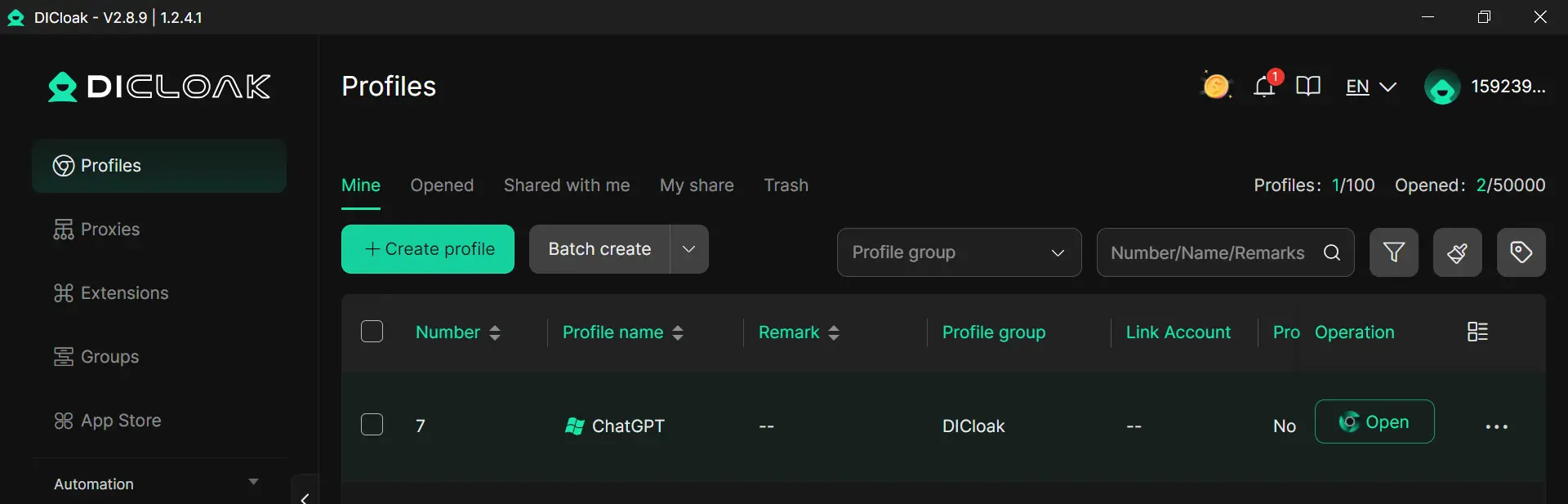
For example, if ChatGPT keeps failing in a normal browser, a user can open a fresh DICloak profile and log in again. If ChatGPT works there, the issue may be caused by the original browser’s cache, extensions, or mixed session data. This makes troubleshooting faster and clearer.
Besides, you can also keep network settings more consistent inside each profile. If you configure a proxy, it can be assigned to one profile only, instead of affecting the whole browser. This helps reduce connection mismatches that may interrupt requests.
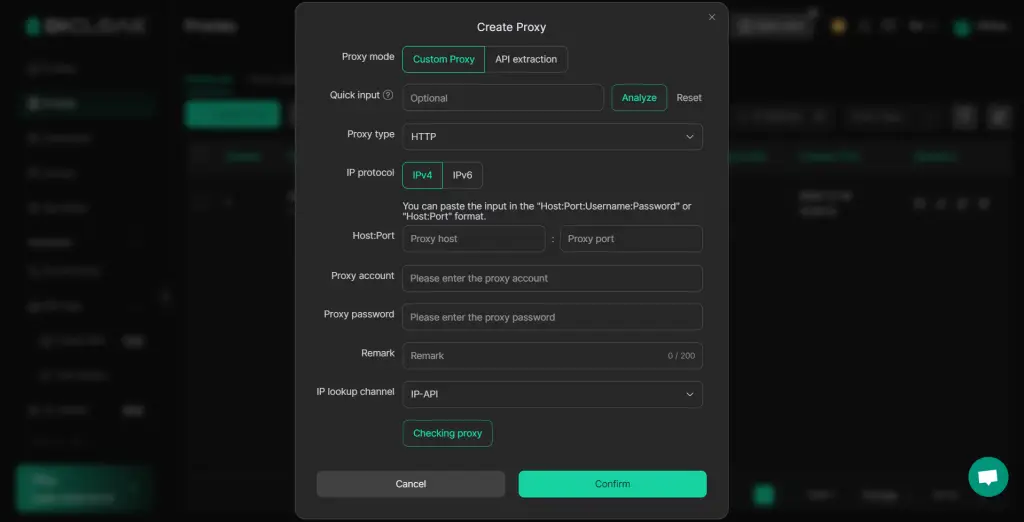
In simple terms, DICloak does not replace normal fixes like checking the OpenAI status page or clearing cookies. But it can give users a cleaner and more isolated way to test ChatGPT, reduce browser conflicts, and improve session stability during troubleshooting.
Conclusion
A ChatGPT internal server error does not always mean something is seriously wrong. In many cases, the problem is temporary and can be fixed with simple steps like checking the status page, refreshing the browser, clearing cache, or switching networks. The key is to find out whether the issue comes from OpenAI’s side or your own device.
If the error keeps happening, a cleaner browser setup can also help make troubleshooting easier. Overall, the best approach is simple: stay calm, test step by step, and use a stable browsing environment. That way, you can solve most ChatGPT internal server error issues faster and get back to work with less stress.
FAQs About How to Fix ChatGPT Internal Server Error
What does ChatGPT internal server error mean?
A ChatGPT internal server error means your request reached ChatGPT, but something failed before the answer could be completed. The cause may be on OpenAI’s side, or it may come from your browser, network, or session.
Why does ChatGPT internal server error keep happening?
If ChatGPT internal server error happens again and again, the most common reasons are high server traffic, browser cache problems, unstable internet, broken login sessions, or extension conflicts. Checking each one step by step is the best way to find the cause.
How do I fix ChatGPT internal server error quickly?
To fix ChatGPT internal server error quickly, first check the OpenAI status page. Then refresh the page, log out and back in, clear cache and cookies, disable extensions, and test another network or device.
Is ChatGPT internal server error always caused by OpenAI?
No. ChatGPT internal server error is not always caused by OpenAI servers. Sometimes the real issue is local, such as weak Wi-Fi, old browser data, or a browser extension blocking part of the page.
How can I prevent ChatGPT internal server error in the future?
You can reduce the chance of seeing ChatGPT internal server error by keeping your browser clean, using a stable internet connection, avoiding too many fast retries, and checking the OpenAI status page before important work.
 Web Proxy Tools
 Free Tools
 Cookie Plugin
 UA Generator
 MAC Address Generator
 IP Generator
 IP Address List
 2FA Code Generator
 World Clock
 Anonymous Check
 WebRTC Leak Test
 UUID Generator
 Free Web Proxy Site
 Proxy Checker
 FB Ad Checker
 AI Web Scraping
 Free SMM Tools
 Twitter Shadowban Checker
 Instagram Name Checker
 UTM Generator
 Username Generator
 AI Hashtag Generator
 LinkedIn Headline Generator
 Social Media Image Resizer