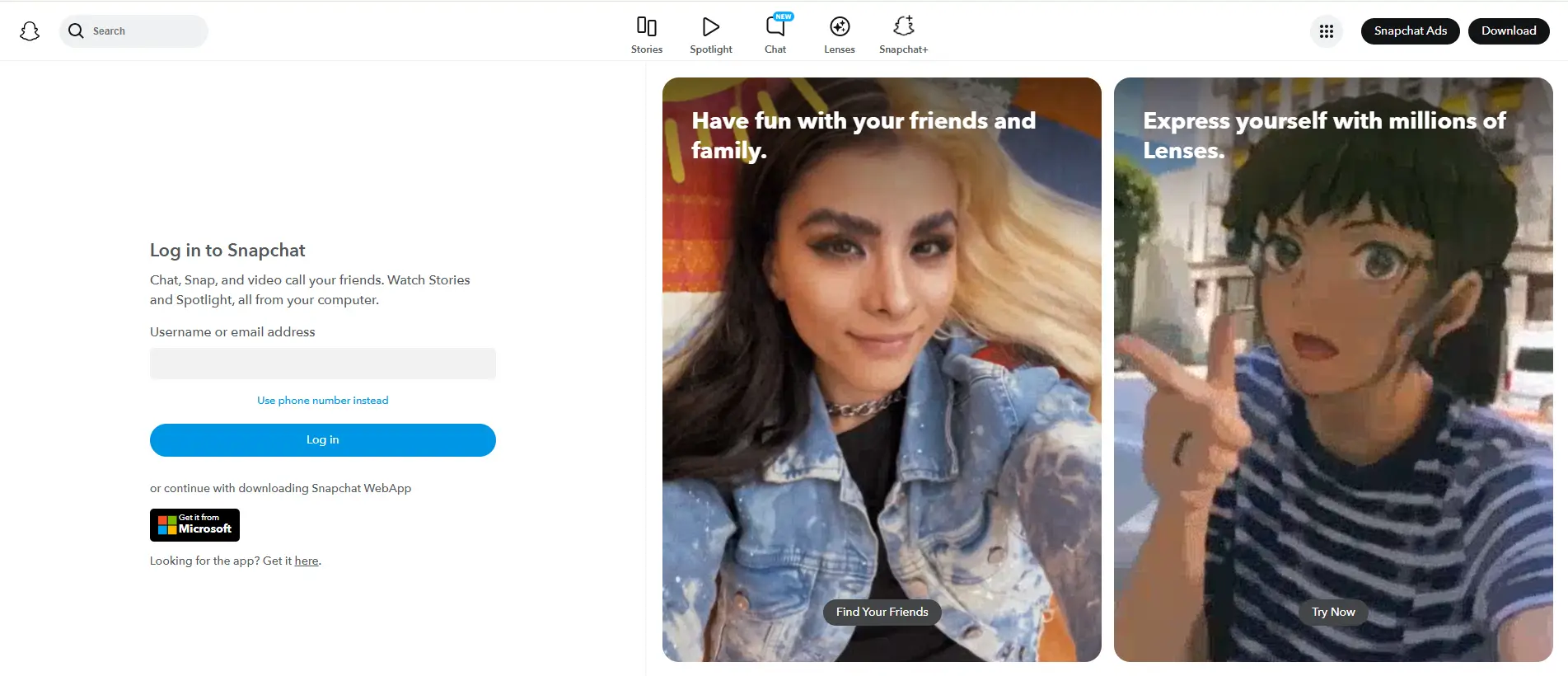
Snapchat suddenly not loading can be annoying, especially when you only want to reply to a friend, check a Snap, or open a group chat. But when Snapchat is blocked, the reason is not always clear. It may be school Wi-Fi, work network rules, parental controls, app cache, device settings, or even a login warning.
The good news is that many Snapchat unblocked issues can be fixed safely. You do not need to guess or keep changing settings. This guide will show you how to find the real cause, try simple fixes first, and keep your Snapchat access more stable in 2026.
Why Is Snapchat Blocked?
When people search for Snapchat unblocked, they often think Snapchat is blocked for one clear reason. But the cause may be different. It could be the Wi-Fi, the device, the account, or the app itself. Before learning how to get Snapchat unblocked, check where the problem happens. If Snapchat works on mobile data but not on Wi-Fi, the network is likely the issue. If it does not work anywhere, check your account, app, or device settings.
- Snapchat is blocked on school or work Wi-Fi: Many schools and offices block social apps to reduce distractions or save bandwidth. If Snapchat blocked at school only happens on campus Wi-Fi, but the same account works at home or on mobile data, your account is probably fine. The Wi-Fi is likely blocking Snapchat traffic.
- Parental controls or screen time limits are active: Snapchat may stop working if app limits, downtime, or content restrictions are turned on. For example, the app may work during the day but stop at night. In that case, reinstalling Snapchat may not help because the device rule is still active.
- Your Snapchat account may be locked or limited: Too many failed logins, unusual login activity, or unsafe third-party tools can lead to account limits. If Snapchat shows a lock or login warning, changing networks may not fix it. Slow down and follow the recovery option shown on the screen.
- The Snapchat app or device may have a technical issue: Snapchat not working on Wi-Fi can also happen because of an old app version, full storage, bad cache, or missing permissions. If the app keeps freezing, update Snapchat and clear the cache. You can also test Snapchat Web unblocked on a browser to see if the issue is only with the mobile app.
How to Get Snapchat Unblocked Safely
After you know the likely reason, choose the safest fix first. Do not change too many settings at once. A network block, app error, and account warning can look similar, but they need different fixes.
If your goal is how to get Snapchat unblocked, start with simple checks. This helps you avoid risky tools or repeated login attempts that may make the problem worse.
Switch from Wi-Fi to mobile data
If Snapchat not working on Wi-Fi is the problem, turn off Wi-Fi and use mobile data. Then open Snapchat again. Try to refresh Chat, load Stories, and send one simple message.
If Snapchat works on mobile data, the Wi-Fi network is likely blocking it. This is common when users face Snapchat blocked at school, in libraries, or on office networks. Your account may still be fine. Your phone may also be fine. The issue is likely the local network rule.
For exam
ple, a student may see Snapchat stuck on campus Wi-Fi, but the same account works right after switching to mobile data outside the classroom. In that case, reinstalling the app is not the first fix. The better move is to avoid that restricted Wi-Fi when personal use is allowed.
Try a mobile hotspot when local Wi-Fi blocks Snapchat
A mobile hotspot can help when you use Snapchat on a personal laptop, tablet, or Chromebook. It uses your phone’s mobile data instead of the blocked local Wi-Fi.
This can be useful if you want to unblock Snapchat at school during a break or use Snapchat Web on a personal computer. Turn on your phone hotspot, connect your device, and open Snapchat again. If Snapchat loads normally, the school or work Wi-Fi was likely the problem.
Still, use this with care. Some schools and workplaces have rules about hotspots and personal devices. It is safer to follow those rules and avoid using managed devices for personal social apps.
Use Snapchat Web when the app does not load
If the mobile app keeps freezing, Snapchat Web can be a helpful backup. Open it from a browser on a desktop or laptop. It can support Chat, Snaps, and calls, so it may help when the phone app is slow, stuck, or limited.
This is also a good way to test whether Snapchat Web unblocked works while the mobile app still fails. If the web version works but the app does not, the issue may be the app, phone storage, cache, or app permissions. If both fail on the same Wi-Fi, the network may be blocking Snapchat.
For instance, your phone app may stay on a loading screen, but Snapchat Web may open normally on your home computer. That points more toward an app or device issue, not a full Snapchat block.
Update Snapchat and clear the app cache
If Snapchat opens but loads slowly, update the app first. An old version may not work well with newer phone systems or Snapchat features. After updating, restart the app and test it again.
If it still freezes, clear the cache. Cache is temporary data that helps Snapchat load faster. But old cache can sometimes cause slow Stories, broken filters, stuck messages, or login errors. Clearing it can make the app smoother without removing your Memories. You should also check your phone storage. If the device is almost full, Snapchat may struggle to save or load media. Delete unused files or apps, restart the phone, and try again.
These steps are a safe starting point for Snapchat unblocked issues. They help you find out whether the block comes from Wi-Fi, the app, or the device before you move to more advanced options.
How to Use a Proxy Server for Snapchat Access
The earlier steps are safer for most users. Mobile data, a hotspot, Snapchat Web, and app fixes should come first. If those do not work, a proxy may help in some cases, but it needs to be used carefully. A proxy is not an account recovery tool, and it cannot fix a broken app. It is only useful when the problem is linked to the network.
When a proxy may help with Snapchat blocked issues
A proxy may help when Snapchat is blocked by the network you are using. For example, if Snapchat blocked at school only happens on campus Wi-Fi, but the same account works on mobile data, the block is likely network-based. In that case, a proxy can sometimes route browser traffic through another server and help with browser-based access. This may be useful for users who want Snapchat Web unblocked on a personal laptop.
Still, check the real cause before using one. If Snapchat not working on Wi-Fi is the only issue, the network may be the problem. But if your account shows a lock warning, a proxy will not solve it. Account limits usually need account recovery steps, not more connection changes.
How to set up proxy access on your device
Proxy setup is different on each device, but the basic idea is similar. On many phones, you can open the current Wi-Fi network settings, go to advanced options, and add a manual proxy. You usually need a server address, port, username, and password. Use a trusted proxy provider instead of random free proxy lists.
For Snapchat access, stability matters a lot. Do not switch proxy servers too often, especially after logging in. A clean and steady setup is better than changing locations many times in one day. If your goal is how to get Snapchat unblocked, treat the proxy as a network test, not as a quick trick.
How to test if Snapchat is accessible after setup
After setting up the proxy, test slowly. Open Snapchat once and check whether Chat, Stories, and Snaps load normally. If you use Snapchat Web, test Chat or calls from the browser. Do not keep logging in and out, because repeated attempts may create new login warnings.
If Snapchat works after the proxy setup, the earlier block was likely tied to the network. If it still fails on every network, the issue may be your account, app, or device. In that case, go back and check login warnings, app cache, storage, and permissions. A proxy should not be used to cover up an account problem.
Why free or unstable proxies may cause more problems
Free proxies can look useful, but they often create new issues. They may be slow, crowded, or unsafe. Some disconnect often, which can make Snapchat load badly. This can make Snaps fail to send, Stories freeze, and Chat stay stuck.
For users trying to keep Snapchat unblocked, a poor proxy can do the opposite. It may make the connection look unstable and make the app harder to use. A stable setup is much safer than jumping between free servers. For most normal users, mobile data, a hotspot, Snapchat Web, and app fixes should be tested first.
What to Do If Snapchat Is Still Blocked
If the proxy setup does not help, do not keep changing servers or logging in again and again. At this point, the problem may not be the network. To keep Snapchat unblocked in a safer way, slow down and check the cause one step at a time. This helps you avoid making a small access issue turn into a login warning.
1. Check if Snapchat works on another network
First, test Snapchat on another trusted network. If Snapchat not working on Wi-Fi only happens at school, work, or a public place, the local network is probably blocking it. For example, a student may see Snapchat blocked at school, but the same account works later on home Wi-Fi or mobile data. In that case, trying to unblock Snapchat at school with more settings may not be the right fix, especially if the network has clear rules.
2. Check whether your account shows a lock or login warning
If Snapchat does not work on any network, look for a lock message or login warning. Too many failed login attempts, unusual activity, or certain device-related errors can stop access for a period of time. In some cases, repeated failed attempts may require waiting before trying again, and some error codes point to device or login limits. If you want to know how to get Snapchat unblocked, this check matters because account limits need account recovery steps, not another network change.
3. Review device restrictions and app permissions
Next, check your device settings. Snapchat needs the right permissions to work well, such as camera, microphone, photos, and network access. If screen time limits, app limits, or content restrictions are active, Snapchat may open but not work normally. This can feel like a block, even when the account is fine. If Snapchat Web unblocked works on a personal browser but the app fails on your phone, the issue may be your phone settings or app permissions.
4. Restart your device or reinstall Snapchat if needed
If the account looks fine and the network test does not show a clear block, restart your device. Then update Snapchat and clear the app cache, because old temporary data can cause loading and storage issues. Snapchat cache is used to help the app run faster, but clearing it can help with some app problems. If the app still freezes, reinstall Snapchat after making sure you know your login details. This is often enough when Snaps, Stories, or Chat keep loading but the account itself is not locked.
Safe Tips to Keep Snapchat Unblocked
After Snapchat starts working again, the next goal is to keep it stable. Many Snapchat unblocked issues come back because users keep changing networks, devices, or login details too fast. This can make a normal access problem look like unusual activity. A few steady habits can help you avoid the same issue later.
Keep your login environment stable
Try to use Snapchat from a device and network you trust. If you often switch between school Wi-Fi, public Wi-Fi, mobile data, and different browsers, Snapchat may ask for extra checks. This matters even more if you use Snapchat Web on a laptop. If Snapchat Web unblocked works well on your personal computer, keep using the same browser and avoid clearing cookies every day.
For example, if Snapchat blocked at school was the original issue, do not test five different networks in one hour. Use mobile data or a personal hotspot when it is allowed, and keep the setup simple. This is a safer way to unblock Snapchat at school without making your account activity look messy.
Avoid too many failed login attempts
If you forget your password, do not keep guessing. Too many failed login attempts or unusual activity can lead to a temporary access limit, and some users may need to wait before trying again. If you are not sure about your password, use the reset option instead of entering different guesses again and again. This is an important part of how to get Snapchat unblocked when the issue is tied to login safety, not Wi-Fi.
A common case is a user trying to log in on a new phone after changing networks. They enter the wrong password several times, then try the same account on a laptop. Soon, Snapchat shows a warning. At that point, more login attempts will not help. Waiting, checking the message, and using the proper recovery option is safer.
Do not switch devices or locations too quickly
Fast changes can create problems, even when you are the real account owner. For instance, you may try Snapchat on school Wi-Fi, then mobile data, then a proxy, then another phone. If all of this happens in a short time, the login pattern may look less normal. This can be confusing because the user only wanted Snapchat unblocked, but the account may now need extra checks.
A better approach is to test one change at a time. If Snapchat not working on Wi-Fi is the issue, switch to mobile data and test it there. If that works, stop testing and use the stable option when allowed. Do not keep moving between devices unless you need to.
Protect your Snapchat account with a strong password
A strong password helps prevent account theft and future lock issues. Use a password that is not shared with your email, Instagram, TikTok, or other apps. Keep your recovery email and phone number updated, because login codes can only help when the contact method is already verified on the account. This matters a lot if you lose access later.
You should also avoid unsafe third-party tools that ask for your Snapchat login. Some tools can trigger account warnings or temporary locks. If your goal is to keep Snapchat working, simple account safety is just as important as network access. A clean login habit makes it easier to keep Snapchat unblocked over time.
A More Stable Way to Manage Snapchat Access with DICloak
Most users only need one Snapchat account on one phone. But social media teams, agencies, and account managers may handle several Snapchat accounts for different clients or regions. In that case, keeping Snapchat unblocked is not only about fixing Wi-Fi. It is also about keeping each account in a stable and separate browser profile.
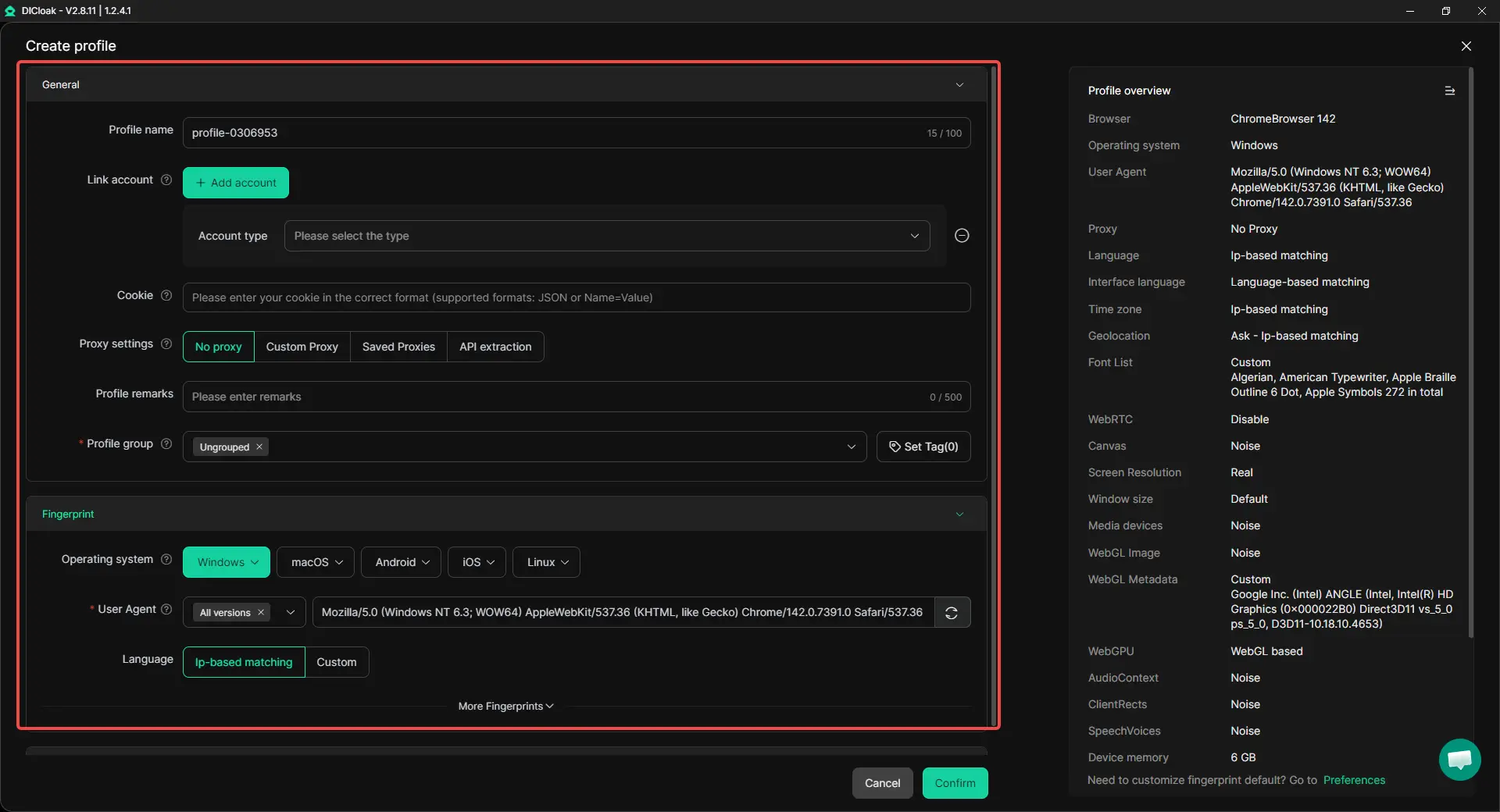
Create a separate browser profile for each Snapchat account
With DICloak, users can create one browser profile for each Snapchat account. Each profile can keep its own cookies, sessions, fingerprint settings, and login state. This helps reduce account mix-ups when using Snapchat Web or managing several accounts on one device.
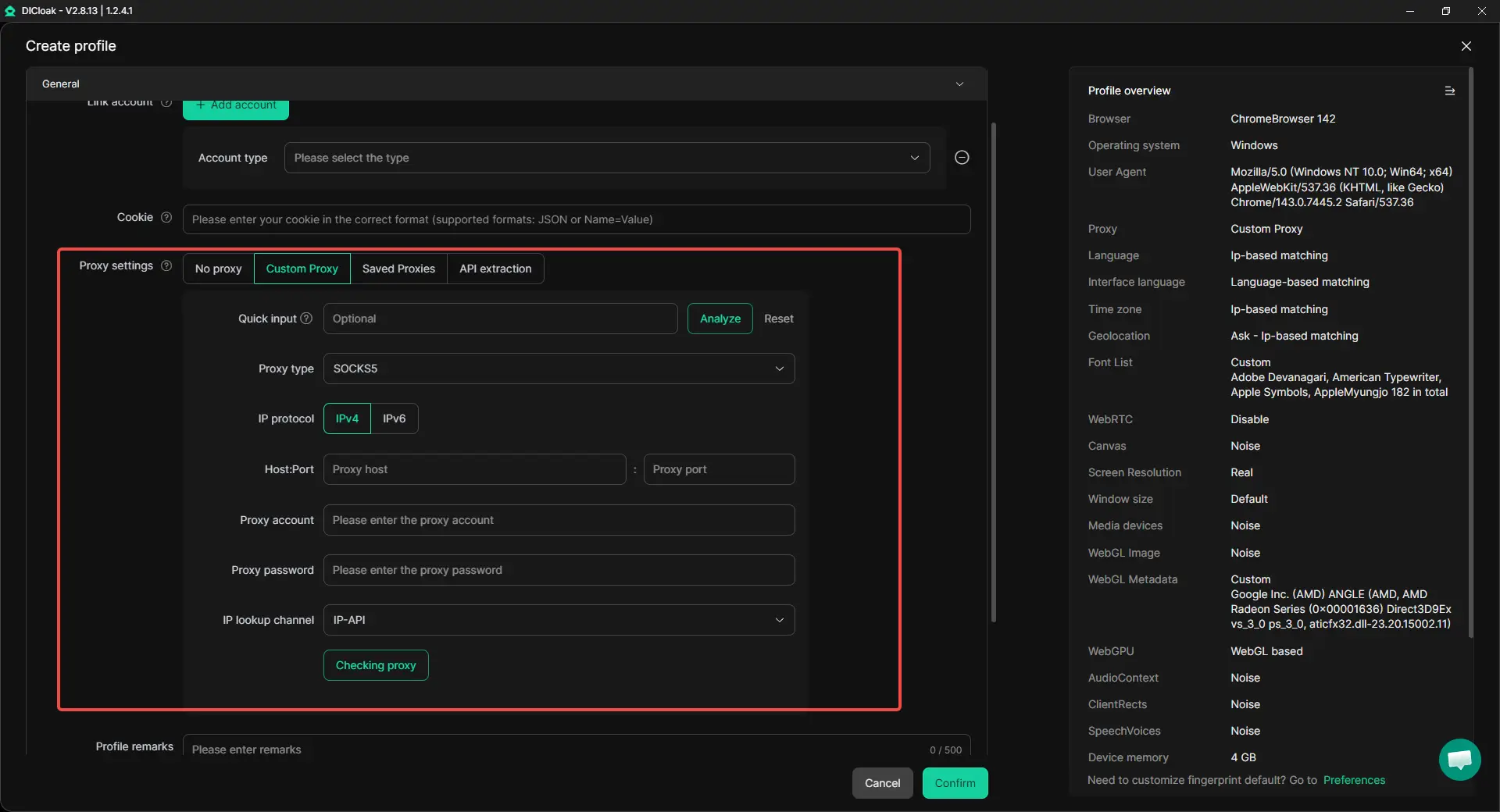
Set a stable proxy for each profile
A proxy works better when it stays tied to one account environment. Users can set a separate proxy for each DICloak profile, so each Snapchat account has a more consistent access setup. This is safer than switching between random free proxies or changing networks too often.
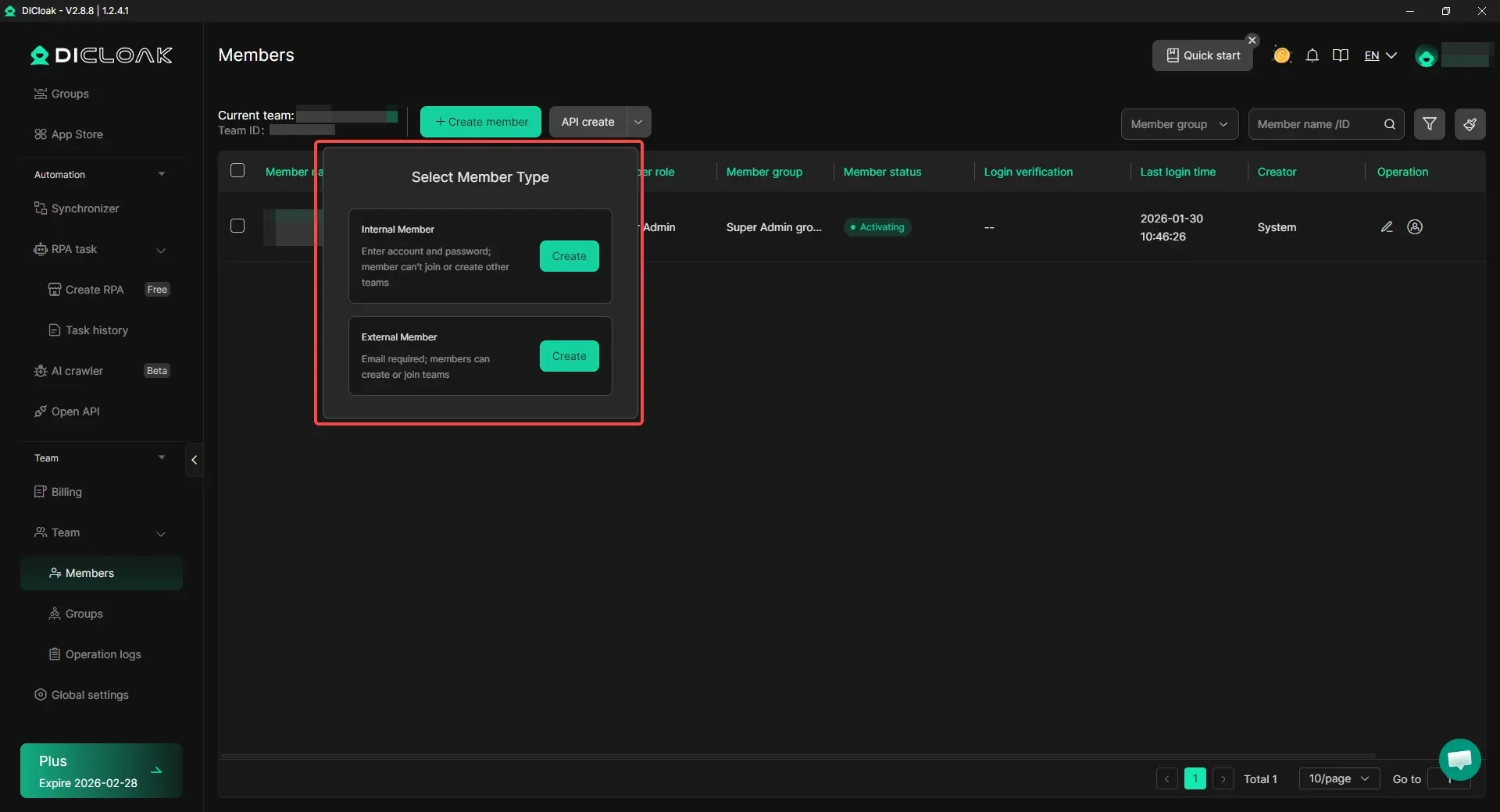
Work with team members more safely
For teams, sharing passwords in chat can be risky. With DICloak, users can share profiles, set permissions, and manage access without exposing account details too often. This is useful when several people need to handle Snapchat-related tasks for one project.
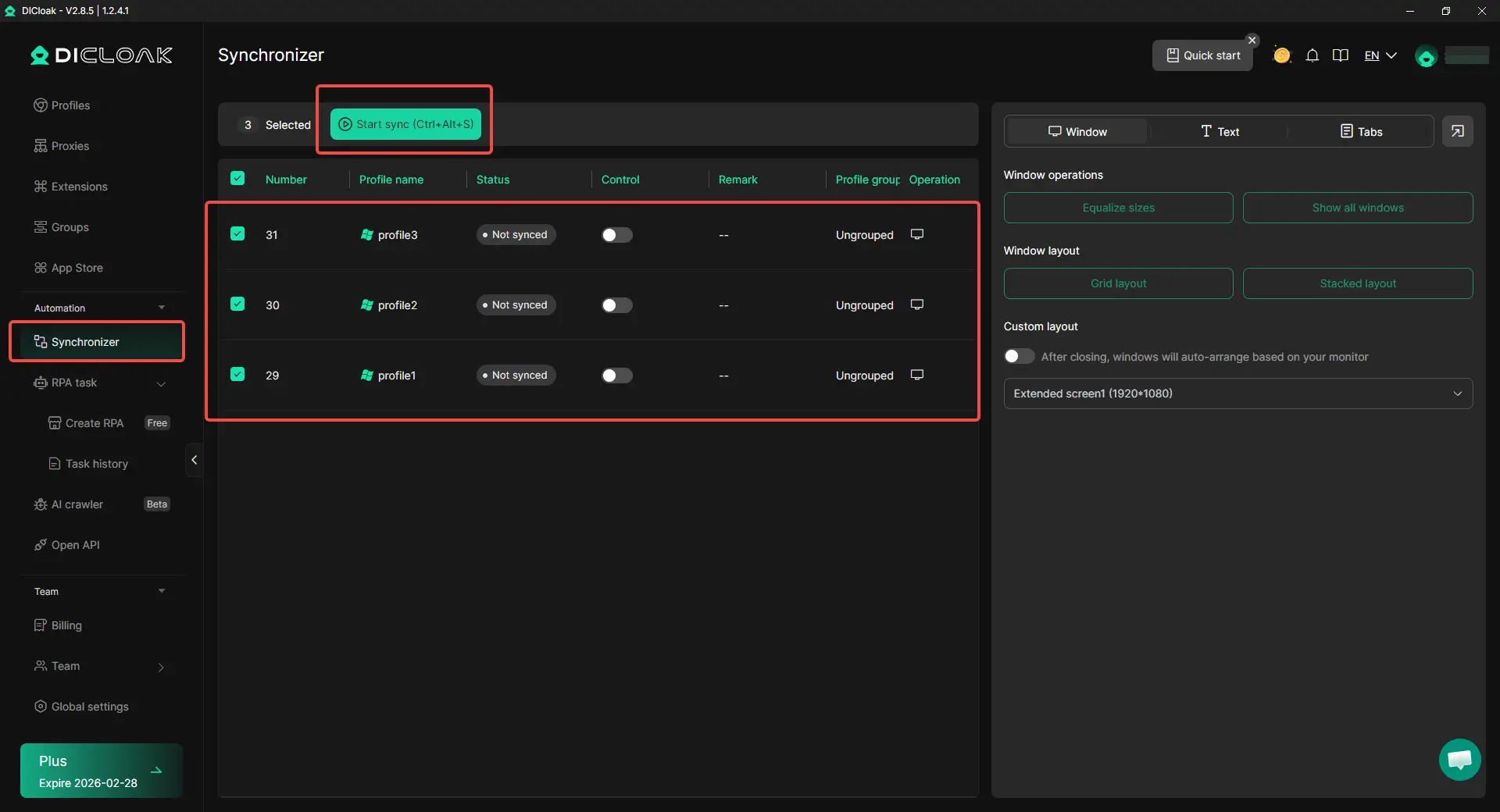
Use Synchronizer for repeated tasks
For routine browser actions, users can use the Synchronizer to save time across multiple profiles. This can help with account checks, profile opening, and repeated browser steps.
Frequently Asked Questions About Snapchat Unblocked
Is it legal to get Snapchat unblocked?
It depends on where and how you do it. If you use your own mobile data, personal device, or Snapchat Web, it is usually fine for normal personal use. But if Snapchat is blocked by a school, workplace, or managed network, you should follow their rules. The safest way to get Snapchat unblocked is to use allowed networks and avoid breaking local policies.
Why is Snapchat blocked at school?
Schools often block Snapchat to reduce distractions, protect bandwidth, or control access to social apps during class time. Snapchat uses images, videos, chat, and calls, so it can take up network resources. If Snapchat works on mobile data but not on school Wi-Fi, the issue is likely the school network, not your account.
Can Snapchat Web help if the app is blocked?
Yes, Snapchat Web may help in some cases. If the mobile app freezes, crashes, or has cache problems, the web version can be a useful backup. You can test Snapchat Web on a personal browser to see if Snapchat unblocked access works there. If both the app and web version fail on the same Wi-Fi, the network may be blocking Snapchat.
Can I get Snapchat unblocked for free?
Yes, sometimes. You can try mobile data, a personal hotspot, Snapchat Web, app updates, cache clearing, and device permission checks without paying. These simple fixes are often enough when Snapchat is not working because of Wi-Fi, app bugs, or device settings. Free proxies are not always safe, so they are not the best first choice.
Does using a proxy make Snapchat unblocked access safer?
Not always. A stable, trusted proxy may help if the problem is only network-based. But a free or unstable proxy can make Snapchat slower, less secure, or harder to access. If your account shows a lock warning, a proxy will not fix it. For safer Snapchat unblocked access, check the network, app, device, and account status first.
Conclusion
Getting Snapchat unblocked in 2026 starts with knowing the cause. Snapchat may be blocked by school Wi-Fi, work networks, device limits, account warnings, or app errors. If it works on mobile data but not Wi-Fi, the network is likely the problem.
Start with safe fixes first. Try mobile data, a personal hotspot, Snapchat Web, app updates, cache clearing, and permission checks. For multiple account management, users can use DICloak to keep profiles, proxies, sessions, and team access more stable.
 Web Proxy Tools
 Free Tools
 Cookie Plugin
 UA Generator
 MAC Address Generator
 IP Generator
 IP Address List
 2FA Code Generator
 World Clock
 Anonymous Check
 WebRTC Leak Test
 UUID Generator
 Free Web Proxy Site
 Proxy Checker
 FB Ad Checker
 AI Web Scraping
 Free SMM Tools
 Twitter Shadowban Checker
 Instagram Name Checker
 UTM Generator
 Username Generator
 AI Hashtag Generator
 LinkedIn Headline Generator
 Social Media Image Resizer