You log in from a new network, refresh a stalled response a few times, and suddenly see unusual activity detected chatgpt instead of your chat window. This warning is usually tied to risk checks, not a random bug. OpenAI runs automated abuse and security controls across access patterns, and service-side issues can also look like account trouble when traffic is unstable on the OpenAI status page. On your side, browser state, request bursts, shared IP ranges, and extension conflicts can all raise false alarms.
You need a fast way to tell whether the problem is your device, your network path, or the platform itself. This guide gives you a practical sequence: check live incidents, isolate browser variables, reduce request patterns that look bot-like, and secure account access with clean session hygiene based on OpenAI Help Center guidance and standard rate limiting behavior. You will also get prevention steps for daily use, so you can keep normal workflow speed without tripping security checks again. Start with the trigger patterns that cause this warning most often.
Why does ChatGPT say unusual activity detected in the first place?
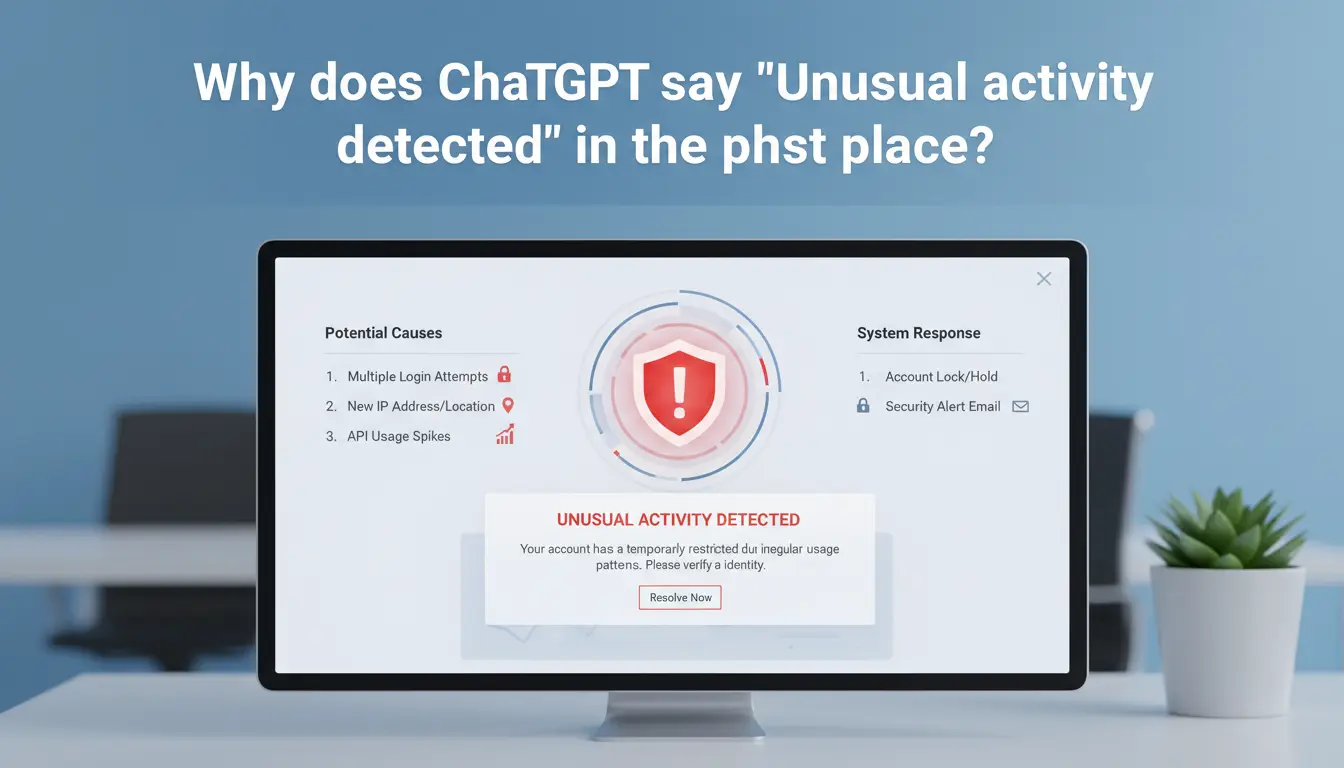
If you see unusual activity detected chatgpt, the system usually sees a pattern that looks unlike normal human use. Security systems judge patterns, not intent. That is why real users can still get blocked.
How traffic patterns can trigger automated risk checks
Very fast repeated requests from one session can look automated. This includes rapid refreshes, quick prompt retries, or opening several tabs that all send requests at once. The system also compares current behavior with your normal history. If your account suddenly jumps from light use to heavy bursts, risk checks may trigger. This is common after reconnect loops or scripts that resend failed prompts. See basic rate limiting behavior for how request bursts trigger controls.
How IP reputation and shared networks affect trust
ChatGPT also checks network trust. Shared Wi-Fi, school networks, company gateways, and public hotspots often reuse the same IP across large groups. If abuse happened on that IP before, your clean session may still inherit risk. Frequent IP switching also raises alerts. Unstable routing or rotating proxies can make one login appear to “jump” across locations in short time windows.
How browser fingerprints, cookies, and extensions can look suspicious
Your browser sends a technical profile (often called a browser fingerprint). If extensions block scripts or alter headers, session signals may conflict. Corrupted cookies after repeated sign-ins can also mismatch stored session state. Then the system sees login behavior that does not line up and shows unusual activity detected chatgpt warnings. Check live incidents on OpenAI Status and account guidance in the OpenAI Help Center.
What should you check first before trying fixes?
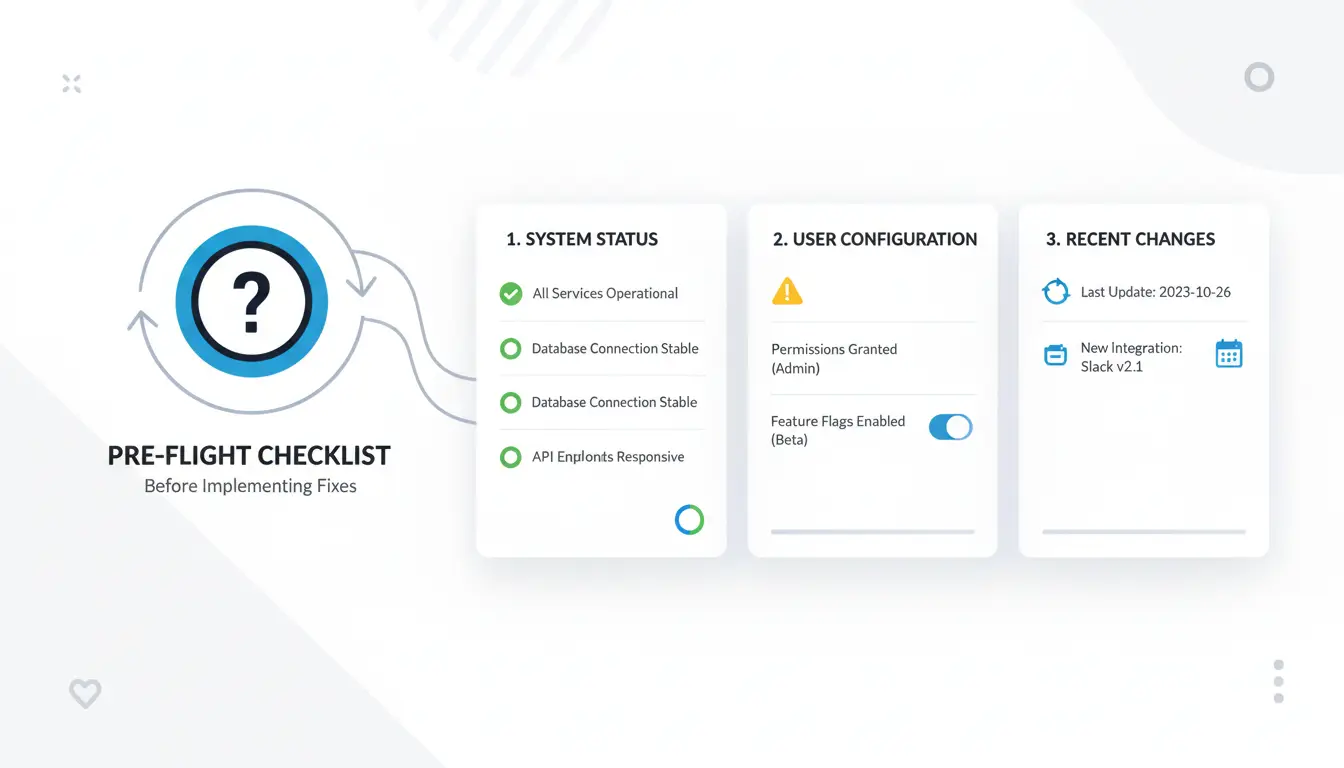
If you see the unusual activity detected chatgpt warning, run a quick triage before changing passwords or reinstalling your browser. Your goal is to find the source: platform, network path, browser state, or account behavior.
Confirm whether OpenAI services are experiencing incidents
Open OpenAI Status and check active incidents. If there is a live outage or degraded service, local fixes will not help yet. If status is green and only your account gets blocked, treat it as account or environment specific. Check OpenAI Help Center for current login and security guidance.
Review your recent login and usage behavior
Look at what happened in the last hour. Multiple failed logins, fast device switching, and rapid tab refresh loops can trigger abuse checks. Shared access can also trip flags. If two users hit one account from different locations in a short window, risk goes up. Log out old sessions you no longer use, then retry with normal request pace.
Isolate the variable: network, browser, device, or account
Change one variable per test. If you change three things at once, you cannot trust the result.
| Test |
If warning stops |
Likely cause |
| Same account, different network |
Yes |
Network/IP reputation |
| Same network, clean browser profile (no extensions) |
Yes |
Browser cache/extension conflict |
| Same setup, different account |
Yes |
Account-level flag |
| No changes, retry after 20–30 minutes |
Yes |
Temporary platform-side protection |
How to fix unusual activity detected in ChatGPT step by step
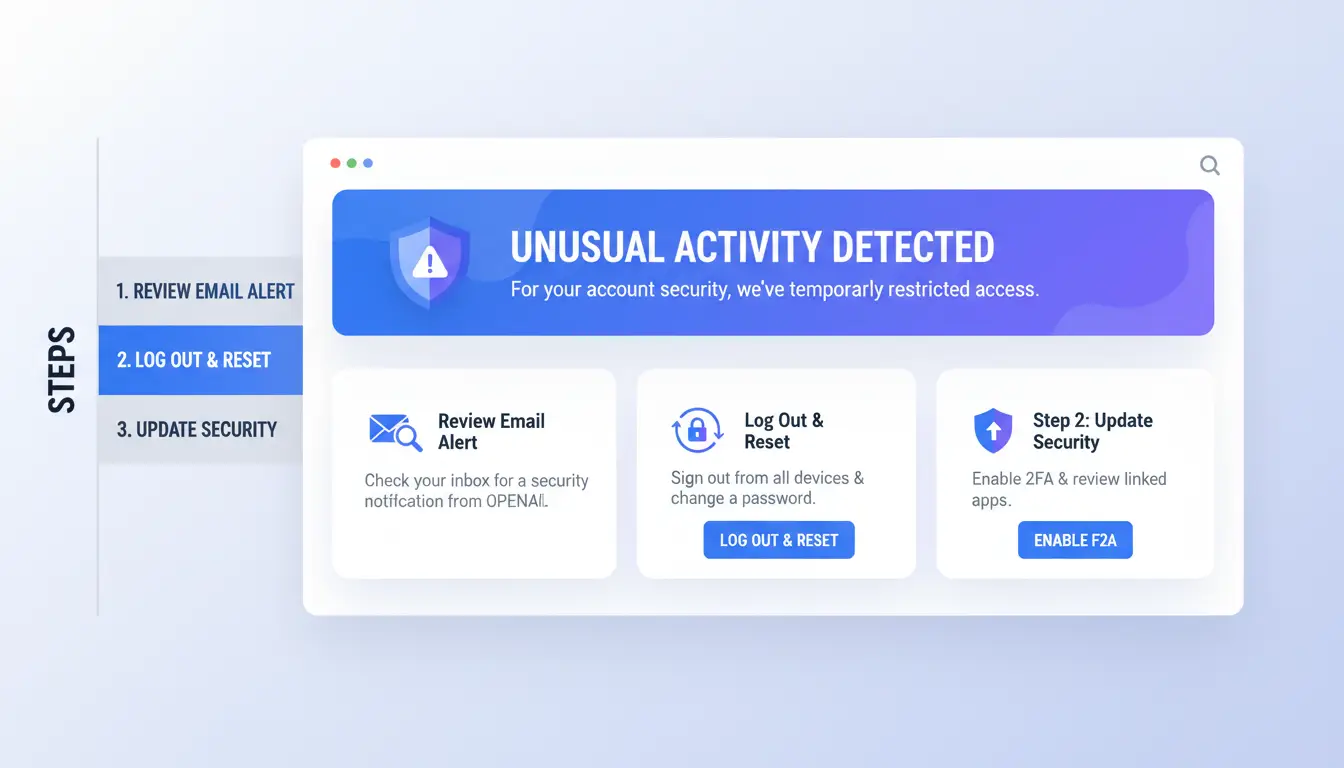
If you see the unusual activity detected chatgpt warning, work in sequence and change one variable at a time. That prevents new risk signals and helps you find the real cause faster.
Step 1-3: Sign out, clear site data, and restart a clean browser session
Sign out of ChatGPT in every open tab. Close the browser fully.
Clear cookies and cache only for ChatGPT domains if your browser supports per-site cleanup. In Chrome, you can clear cookies for a specific site. Target chatgpt.com and chat.openai.com, not your full browsing history.
Open the browser again and do one login attempt. Do not spam retries. Repeated failed attempts can look like automated traffic under normal rate limiting behavior.
Step 4-6: Test network quality and switch to a stable trusted connection
Check OpenAI status before deeper testing. If there is an active incident, wait.
If status is normal, switch to a stable private connection you trust. Public Wi-Fi and overloaded shared IP ranges can trigger checks.
If you need a proxy for your workflow, keep one clean endpoint and region for the full session. Do not rotate routes every few minutes.
| Network path |
Risk pattern seen by security checks |
Better action |
| Public/shared Wi-Fi |
Shared IP abuse history, unstable sessions |
Move to trusted home or office network |
| Rapidly changing proxy route |
Frequent IP and geo changes |
Keep one stable proxy endpoint |
| Stable private connection |
Consistent session signals |
Continue with normal usage |
Step 7-8: Disable conflicting extensions and try another browser profile
Turn off extensions that inject scripts, automate clicks, scrape pages, or modify headers. Keep them off during testing.
Create a fresh browser profile with no extensions and default settings. In Chrome, you can create a new profile. Log in once from that clean profile and test normal prompts.
Step 9: Try another device and re-test after a cooldown window
If the warning stays, try a different device on a trusted connection. This isolates device-level browser issues.
Wait 30-60 minutes before another login attempt if checks seem elevated. After access returns, use steady human-like actions: normal prompt pace, fewer rapid refreshes, fewer parallel tabs.
If the issue persists, review account safety steps in the OpenAI Help Center, reset your password, and remove unknown sessions. This sequence resolves most unusual activity detected chatgpt cases without creating new account risk.
Why does the warning keep coming back even after it was fixed once?
If unusual activity detected chatgpt keeps returning, your earlier fix probably cleared a symptom, not the root cause. The alert usually returns when trust signals keep shifting across network, behavior, and session state. Keep one stable environment per account: same proxy route, same browser profile, and one active session.
Recurring network reputation issues
Dynamic IP pools can inherit poor trust history from prior users. If your endpoint changes often, ChatGPT may treat each jump as risky behavior. Keep one clean proxy endpoint for daily use, avoid rapid region hopping, and retest after a stable period. Check live incidents on the OpenAI status page before changing local settings.
Behavior patterns that resemble automated usage
Very fast prompt bursts, constant refreshes, and nonstop tab actions can look like bot traffic. The same applies when you run overlapping sessions from different devices at the same time. Slow the request pace, close extra tabs, and avoid parallel logins. This aligns with normal rate limiting behavior used by web services.
Unstable browser setup and session contamination
Stacking extensions and privacy tweaks can create inconsistent browser fingerprints. Reused cookies from older devices can also trigger repeated checks. Use a clean browser profile, disable nonessential extensions, clear stale site data, then sign in again. If sessions look messy, review account access and sign-out steps in the OpenAI Help Center. This removes the underlying cause so unusual activity detected chatgpt stops cycling back.
What changes on iPhone, Android, and desktop when fixing this error?
If you see “unusual activity detected chatgpt,” the fix depends on device behavior. Use this quick map, then run only the checks for your platform.
| Platform |
Common trigger |
Fast fix |
| iPhone/iPad |
Safari blocks scripts; Private Relay changes exit IP |
Allow JavaScript/cookies for chat.openai.com, turn off Private Relay for a test |
| Android |
Old WebView/browser; cached token conflict; battery limits |
Update WebView and browser, clear site data, remove battery limits for browser |
| Desktop |
Extension collision; security filter rewrites traffic |
Test in a clean profile with extensions off, then check DNS/security app rules |
iPhone and iPad checks
Open Safari settings and allow JavaScript and cookies for ChatGPT. Content blockers can break login scripts and trigger risk checks. If iCloud Private Relay is on, test with it off once so your IP path stays stable. Apple documents relay routing in iCloud Private Relay support.
Android checks
Update Android System WebView and your browser in Google Play. A version mismatch can break session handoff. Then clear cookies and cache for chat.openai.com, sign in again, and remove battery/data restrictions for the browser app. See Android WebView docs.
Desktop browser checks
For unusual activity detected chatgpt on desktop, start with a clean browser profile and disable all extensions. This isolates add-on conflicts fast. If the warning disappears, turn tools back on one at a time. Then check DNS filters or security software that can alter requests. Verify incidents on OpenAI Status and account guidance in the OpenAI Help Center.
How can teams share ChatGPT access with lower unusual-activity risk?
Why shared-account workflows trigger warnings more often
Teams often trigger unusual activity detected chatgpt when one account moves across different devices, cities, and browser setups in a short time. Security systems read this as unstable behavior, even if your team is legitimate. Another trigger is session overlap. Two people send prompts at the same time, one clears cookies, another changes extensions, and the account suddenly looks hijacked. The core fix is consistency: one account should show a stable access pattern, not random shifts. You can confirm real platform incidents on OpenAI Status and check account safety rules in the OpenAI Help Center.
How DICloak helps stabilize team access patterns
You can use DICloak to give each shared account a dedicated browser profile with isolated fingerprint settings, so team members do not overwrite each other’s environment. You can also bind each profile to an independent proxy route. That keeps location and network signals stable for each account session. For team control, DICloak supports permissions, profile sharing, and action logs. This reduces silent conflicts, unclear ownership, and risky edits. If a warning appears, logs help you trace who changed what and when.
Practical setup: profile rules, access timing, and automation boundaries
Set one profile per ChatGPT account. Keep login region, browser version, and extension set stable. Avoid unmanaged multi-location logins in the same hour. Use a simple shift schedule so only one operator handles one account at a time. For repetitive clicks, use batch actions or RPA only on low-risk tasks like opening approved tabs, not high-frequency prompt posting.
| Team behavior |
Risk level |
Safer practice |
| Shared password, random device logins |
High |
Fixed profile + controlled handoff |
| Parallel sessions by multiple members |
High |
Single active operator per account |
| Unbounded automation loops |
High |
Limited RPA with time caps and logs |
If your team still sees unusual activity detected chatgpt, pause activity, review logs, and reset to one clean profile session.
What mistakes make the ChatGPT unusual activity warning worse?
If you hit an “unusual activity detected chatgpt” alert, panic-clicking usually makes recovery slower. The safest path is to follow OpenAI Help Center steps and verify live incidents on OpenAI Status.
Retry spamming after each failed attempt
Rapid retries can look like automated traffic. That can push risk scoring higher and trigger longer blocks. Use a cooldown window between attempts, then run one controlled retest. Keep request pace human, not bursty.
Changing too many variables at once
Switching browser, network, and device in one shot hides the root cause. You cannot tell what fixed the issue, and new signals may look suspicious. Change one variable per test cycle: browser state, then network path, then device. Record each result before the next change.
Using unknown browser tweaks or untrusted tools
Aggressive scripts, auto-refresh tools, and random extensions can create traffic patterns that look abnormal. Keep your setup minimal while troubleshooting.
Shared team logins are a common trigger. Tools like DICloak let you run one fingerprint-isolated profile per ChatGPT account, map each profile to an independent proxy, and avoid mixed login signals.
You can use role-based permissions, profile sharing, and operation logs to stop risky overlap between teammates. Add RPA for routine actions so people stop manual repeat clicks that can worsen unusual activity detected chatgpt flags.
When should you contact OpenAI support, and what should you include?
If unusual activity detected chatgpt keeps showing up after controlled checks, escalate. A good trigger is: same error on a clean browser profile, a stable network, and a different device. If it clears, then returns soon without any major change, support needs to review account-side signals. Check live incidents on the OpenAI status page before filing.
When self-troubleshooting has reached its limit
- You tested in a clean browser profile with extensions off.
- You tested on another device and still got the same warning.
- You used a stable connection and avoided rapid repeated requests.
- The warning returned after short recovery.
- You already reviewed steps in the OpenAI Help Center.
What evidence to prepare before opening a ticket
- Exact timestamp with timezone (example: 2026-04-10 14:32 UTC+1).
- Full error text and where it appeared.
- Device OS and browser version on each failed test.
- Your region and network type used during tests.
- Short log of attempts and outcomes (worked/failed).
- Screenshot of the error and request ID if shown.
How to avoid delays after submitting support requests
- Keep one stable setup while waiting; avoid constant environment changes.
- Reply fast to identity or security follow-ups.
- Add new failures as dated updates in the same ticket, not separate tickets.
Frequently Asked Questions
How long does the unusual activity detected chatgpt warning usually last?
Most unusual activity detected chatgpt warnings clear in 10–60 minutes after traffic slows and your IP risk score drops. Some last up to 24 hours after rapid requests, repeated logins, or frequent network switching. Contact support after 24 hours, or sooner if you cannot log in from a normal home network.
Can proxies trigger unusual activity detected chatgpt errors?
Yes. Proxies can trigger unusual activity detected chatgpt errors, especially shared datacenter IPs, free proxy lists, and fast-rotating endpoints. Those IPs often have abuse history. Use one stable endpoint, keep the same region, and avoid jumping between proxy, mobile data, and office Wi‑Fi in one session.
Does unusual activity detected chatgpt mean my account was hacked?
No. The unusual activity detected chatgpt message usually means automated risk checks saw odd traffic, not confirmed account theft. Still take safety steps: reset your password, enable two-factor authentication, and review active sessions. If you see logins from unknown devices or locations, sign out everywhere and contact support right away.
Will clearing cookies fix unusual activity detected chatgpt every time?
Clearing cookies can fix unusual activity detected chatgpt when your browser session is corrupted, expired, or stuck in a bad token loop. It will not fix every case. If warnings return after a clean login, the root cause is often IP reputation, frequent account switching, or scripted browsing behavior.
Can ChatGPT Plus users still get unusual activity detected warnings?
Yes. ChatGPT Plus users can still see unusual activity detected chatgpt warnings. A paid plan gives higher limits and extra features, but it does not bypass security checks. Detection still reviews request speed, device and location changes, and network trust. Keep your setup consistent to reduce repeat flags.
When you see an "unusual activity detected" warning in ChatGPT, the most important step is to treat it as a security and access signal, not just a random error. Reviewing recent login behavior, network changes, and account protections can quickly restore access while reducing the chance of repeated flags.
Try DICloak For Free
 Web Proxy Tools
 Free Tools
 Cookie Plugin
 UA Generator
 MAC Address Generator
 IP Generator
 IP Address List
 2FA Code Generator
 World Clock
 Anonymous Check
 WebRTC Leak Test
 UUID Generator
 Free Web Proxy Site
 Proxy Checker
 FB Ad Checker
 AI Web Scraping
 Free SMM Tools
 Twitter Shadowban Checker
 Instagram Name Checker
 UTM Generator
 Username Generator
 AI Hashtag Generator
 LinkedIn Headline Generator
 Social Media Image Resizer