A LinkedIn login not working with proxy can happen for several different reasons. The proxy may be down. Its IP may suddenly change. The location may look very different from your normal login location. Or the problem may have nothing to do with the proxy at all.
This distinction matters.
For example, imagine you normally use LinkedIn from New York. You connect through a proxy that exits in Germany and try to sign in. LinkedIn may ask you to verify the login because the location looks unusual. LinkedIn says it may show a security prompt when a sign-in comes from an unfamiliar location or device, or when it detects suspicious web activity.
That is different from a dead proxy that cannot reach LinkedIn at all. It is also different from an account restriction.
This guide explains how to tell these problems apart and fix a LinkedIn proxy login issue without making random changes that make troubleshooting harder.
Why Is LinkedIn Login Not Working with a Proxy?
A proxy changes the network path between your browser and LinkedIn. In most cases, LinkedIn sees the proxy's public IP rather than your normal public IP.
That alone does not mean LinkedIn will restrict an account. LinkedIn does not state that every proxy connection is prohibited. However, its official help pages make one thing clear: an unusual location or unfamiliar sign-in can lead to extra verification.
So when a LinkedIn login proxy error appears, start by looking at what changed.
The Proxy IP or Location Looks Unfamiliar
Location changes are one of the clearest reasons for extra LinkedIn login checks.
LinkedIn says that if it detects access from an unusual location, it may ask the member to re-authenticate. It may also send an email about the new access location.
Consider this example.
A recruiter normally signs in from Chicago. On Monday, the account uses a proxy in Chicago. On Tuesday, the proxy exits through Amsterdam. On Wednesday, it appears in Los Angeles.
Even if the password is correct, those location changes create a very different login pattern.
The result may be an email check, CAPTCHA, phone verification, or another sign-in security prompt. LinkedIn currently lists several forms of security verification, including sign-in prompts, email verification, and CAPTCHA.
This is why a proxy for LinkedIn should not be judged only by speed. Location stability matters too.
The Proxy Connection Is Unstable or Keeps Changing
A proxy can technically work while still being poor for a long login session.
This often happens with rotating proxies.
Suppose the login page loads through IP A. You enter your password. During the next request, the proxy changes to IP B. A few seconds later, another request leaves through IP C.
LinkedIn does not publicly document a rule saying that an IP change during login will always cause a challenge. Still, LinkedIn does confirm that unusual locations can trigger re-authentication. So a connection that changes locations during the same login flow can create unnecessary friction.
There is also a simpler possibility: the proxy is just unreliable.
If LinkedIn loads halfway and then stops, images fail to load, or the login page times out, test the connection before assuming the account has been blocked.
A LinkedIn proxy not working problem at the network level should be fixed before changing passwords, cookies, or account settings.

Your Proxy Settings Are Incorrect
Sometimes the problem is not LinkedIn at all.
A wrong proxy host, port, protocol, username, or password can prevent the browser from reaching LinkedIn.
Proxy authentication is part of the HTTP standard. If a proxy requires authentication and the client does not provide valid credentials, the proxy can return a 407 Proxy Authentication Required response.
Browser configuration also matters. For example, Microsoft Edge uses system network settings by default, including proxy settings, while managed environments can apply separate proxy policies. Chrome also provides its own proxy configuration interfaces for extensions and managed setups.
So before treating the problem as a LinkedIn security issue, confirm that the proxy itself is configured correctly.
How to Check If Your Proxy Is Causing the LinkedIn Login Issue
The fastest way to solve the problem is to separate a network error from an account error.
Do not change five things at once. If you replace the proxy, clear cookies, change browsers, reset the password, and change the device at the same time, you will not know what fixed the problem.
Instead, test one layer at a time.
Test LinkedIn With and Without the Proxy
Start with a simple connection test.
First, check whether linkedin.com loads through the proxy. You do not need to keep attempting the full login yet.
Then disable the proxy and test the site again from your normal connection.
There are three useful results:
- LinkedIn fails only when the proxy is enabled. The proxy or its configuration is the likely cause.
- LinkedIn loads both ways, but login fails only through the proxy. Look at the proxy IP, location, and LinkedIn security prompt.
- LinkedIn login fails with and without the proxy. The issue may be related to the browser, account, credentials, or LinkedIn itself.
LinkedIn's own troubleshooting guide also recommends testing in Incognito mode, clearing cache and cookies, and trying another supported browser when normal access is not working.
This simple comparison prevents a common mistake: blaming every login error on the proxy.
Check the Proxy IP, Location, and Connection
Next, confirm what the proxy is actually doing.
Check the public IP before opening LinkedIn. Refresh the result several times. If you bought a static connection but the public IP changes every few minutes, that is important.
Also check the country and city.
They do not need to match your home address exactly. But unexpected jumps between distant regions make the login pattern less consistent. LinkedIn specifically says an unusual access location may result in re-authentication.
For example:
A team member expects a U.S. proxy. An IP check shows the connection in Texas. Five minutes later, it shows the Netherlands.
That is worth fixing before trying LinkedIn again.
Also watch basic connection quality. If ordinary HTTPS pages often time out through the same proxy, there is little reason to troubleshoot LinkedIn first.
Check the Proxy Host, Port, and Authentication
Now verify the actual LinkedIn proxy settings.
Before testing LinkedIn again, make sure the proxy details are correct. Confirm that you are using the right server address and port, choose the correct proxy protocol, and recheck the login credentials required by the proxy.
One wrong character can stop the connection.
If the proxy uses username and password authentication, make sure both are still valid. A 407 Proxy Authentication Required response means the client has not successfully authenticated to the proxy. It is a proxy-layer error, not a LinkedIn password error.
This distinction is useful.
If the proxy asks for authentication before LinkedIn even loads, changing your LinkedIn password will not solve anything.
How to Fix LinkedIn Login Not Working with Proxy
Once the cause is clearer, fix the smallest possible part of the setup.
The goal is not to keep changing IPs until one works. The goal is to create a connection that is technically correct and stable enough to finish the LinkedIn login process normally.
Fix Incorrect LinkedIn Proxy Setting
If LinkedIn cannot load through the proxy, start at the network layer.
Re-enter the proxy host, port, and credentials. Check that the proxy protocol matches the configuration supplied by the provider.
Also make sure you know where the proxy is configured.s
For example, a user may set one proxy at the operating system level and another through a browser extension. That can make troubleshooting confusing. Edge, for example, normally relies on system proxy settings, although administrators can override this with browser policies.
After correcting the configuration, test a normal website first. Then test LinkedIn.
If basic browsing still fails, the problem is probably not your LinkedIn account.
Keep the Connection Stable During Login
Once the proxy works, avoid changing it in the middle of the login flow.
Suppose the first LinkedIn request comes from Boston. The verification page then comes from another country because the proxy rotated.
Even if this does not always trigger a problem, it gives you another variable to troubleshoot. LinkedIn already states that unusual locations can result in re-authentication.
For this reason, a stable session is usually easier to diagnose than a constantly rotating one.
If your proxy service offers sticky sessions, use a session long enough to complete login and any required verification.
Do not keep pressing “change IP” every time LinkedIn asks for an extra check. First find out what the check actually means.
Resolve Cookie and Session Conflicts
Not every LinkedIn login not working with proxy case is caused by the IP.
Old browser data can also create login problems.
A useful example is a browser that still holds an old LinkedIn session after a password change. You connect through a new network, open LinkedIn, and get sent back to the sign-in page again.
LinkedIn recommends several browser troubleshooting steps. These include signing in through Incognito mode, clearing cache and cookies, and testing another browser. LinkedIn also notes that clearing browser cache and cookies can help resolve site issues.
Start with Incognito mode because it gives you a quick test without immediately deleting all stored browser data.
If LinkedIn works there, the problem may be related to the existing browser session.
If you decide to clear all cache and cookies, remember that LinkedIn warns this can sign you out of other websites as well.
Also keep your browser updated. LinkedIn currently supports the current and previous major releases of Chrome, Edge, Firefox, and Safari on desktop. Older versions may cause access or feature problems.
Complete LinkedIn Security Verification
A verification page does not automatically mean the account is banned.
LinkedIn may ask for extra verification when a sign-in comes from an unfamiliar device or location, or when it detects suspicious web activity. Possible checks include app prompts, email verification, CAPTCHA, and phone verification.
If you recognize the login, complete the security check through LinkedIn.
For example, if LinkedIn sends a sign-in prompt to a mobile device where the account is already logged in, confirm the request there. LinkedIn's official instructions tell users to approve recognized sign-in requests through the app and reject requests they did not initiate.
During this process, keep the network stable.
Changing the proxy again before completing verification can make it harder to understand whether the original problem has been solved.
What to Do If LinkedIn Restricts Login After Using a Proxy
A security check and an account restriction are not the same thing.
This is important because many users see a verification screen and immediately assume their LinkedIn IP blocked the account.
That conclusion can be wrong.
LinkedIn lists several possible reasons for account restrictions, including content violations, profile violations, identity violations, and automated-tool violations. A restriction after a proxy change does not prove that the proxy itself caused it.
Tell a Security Check From an Account Restriction
First, read the message on the screen.
A normal security check may ask you to:
- Confirm a sign-in
- Enter a code
- Complete CAPTCHA
- Verify by phone
- Re-authenticate after an unusual location change
LinkedIn documents these as security measures used during sign-in.
A restriction is different. LinkedIn may tell you that account access has been restricted and may require identity verification or another recovery process.
Do not treat these two situations the same way.
If it is only a security prompt, complete the prompt.
If the account is restricted, stop repeatedly testing new proxies and follow the recovery steps LinkedIn provides.
Recover Access Through LinkedIn's Official Verification Process
When LinkedIn asks for account recovery or identity verification, use the official process shown on the account.
LinkedIn provides identity recovery options for members who cannot access an account or whose account has been restricted. Depending on the case and region, the process may involve identity verification.
At this stage, changing the IP is not the solution.
For example, suppose an account already displays an identity verification screen. Trying ten different proxies will not remove the verification requirement. It may only add more login attempts.
Complete the official process first.
If the account has been permanently restricted, LinkedIn also provides a support path for questions about the restriction.
Check for Unsupported Automation or Browser Extensions
A proxy is not the only third-party tool that can affect LinkedIn use.
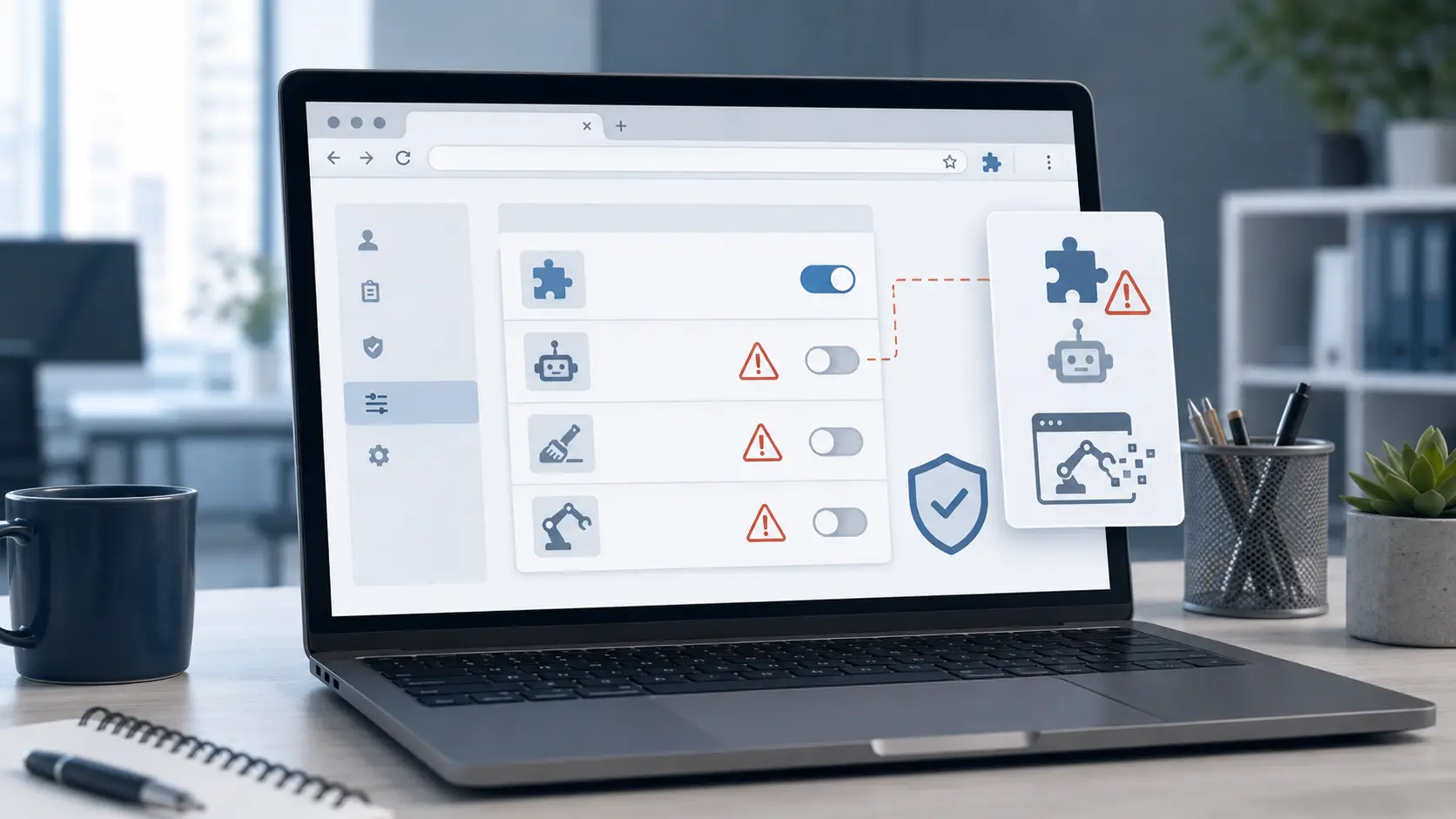
LinkedIn explicitly says it does not permit third-party software, bots, browser plug-ins, or extensions that scrape data, modify the appearance of LinkedIn, or automate activity on the site.
This matters when troubleshooting.
Imagine LinkedIn starts showing unusual-activity warnings after you install a browser extension. At the same time, you also changed your proxy.
It would be easy to blame the IP.
But the extension may be the more important variable.
LinkedIn tells users restricted for automated activity to review and disable software or extensions that automate LinkedIn activity.
So when troubleshooting a restriction, disable unsupported automation first. Do not assume replacing the proxy will solve a policy-related restriction.
Which Proxy Setup Works Better for Stable LinkedIn Access?
There is no single proxy type that LinkedIn officially recommends.
LinkedIn's public guidance focuses on account security, unusual locations, supported browsers, and prohibited automation. It does not publish a rule saying residential proxies are always better than datacenter proxies, or that one proxy type guarantees successful login.
For troubleshooting, the better question is simpler:
Which connection gives you the most stable and predictable login environment?
Static vs. Rotating Proxies for LinkedIn
For ordinary login stability, a static connection is easier to troubleshoot.
The reason is not that LinkedIn officially “approves” static proxies. It does not publish such a rule.
The advantage is consistency.
A static proxy normally keeps the same exit IP for a longer period. A rotating setup can change the exit IP based on time, requests, or session rules.
Because LinkedIn may ask for re-authentication after detecting an unusual location, avoiding unnecessary location changes during login removes one possible source of friction.
A rotating proxy may still have valid uses outside normal account login. But if the task is simply signing into LinkedIn and keeping the session active, constant IP rotation adds little value.
If you already use a rotating service, a sticky session is usually easier to work with than changing the exit IP on every request.
Residential vs. Datacenter Proxies
Do not choose between residential and datacenter proxies based on marketing claims alone.
LinkedIn does not publicly state that one of these categories is guaranteed to work better.
Instead, compare the things that directly affect troubleshooting:
- Does the connection stay online?
- Does the IP stay stable?
- Does the expected location remain the same?
- Does proxy authentication work correctly?
- Can normal HTTPS websites load without timeouts?
A stable datacenter connection can be easier to troubleshoot than a residential connection that keeps rotating. A stable residential connection may also work well for a legitimate use case.
The label by itself does not fix a LinkedIn proxy login issue.
For LinkedIn login, reliability and consistency are more useful troubleshooting signals than the word “residential” or “datacenter” on a sales page.
Why Proxy Location Consistency Matters
Location deserves its own check because LinkedIn directly mentions it in its security guidance.
If LinkedIn sees an unusual access location, it may require the user to re-authenticate and may send a warning email about the new location.
That does not mean you must always connect from one exact city.
Travel happens. Remote work happens. Corporate networks can route traffic through another region.
The problem is unnecessary inconsistency.
For example, using a U.S. exit in the morning, a Singapore exit at lunch, and a German exit in the evening creates more location changes than using one stable network.
If you need a proxy for LinkedIn, choose the location based on a real operational need and keep it reasonably consistent.
How to Keep LinkedIn Proxy and Browser Sessions Consistent
Once the login problem is fixed, the best setup is usually the least complicated one.
Do not keep changing settings just because you can.
A stable network, an updated browser, valid cookies, and a normal login flow are much easier to maintain than a setup where the IP and browser state change every day.
Keep the Proxy, Location, Cookies, and Browser Profile Aligned
Think of the login environment as a group of related parts.
The proxy provides the network connection. The browser stores cookies and session data. The browser profile stores local browsing state.
If one part changes constantly while everything else remains the same, troubleshooting becomes harder.
For example, suppose a work account has been used for months in one browser profile. Its cookies are already stored there. The user then starts opening the same account in several fresh browser profiles while also changing proxy locations.
If LinkedIn asks for verification, there are now several possible causes to investigate.
A simpler setup makes problems easier to isolate.
Keep the browser profile used for that normal LinkedIn workflow consistent. Keep the proxy configuration correct. Avoid clearing cookies unless there is a reason to troubleshoot them.
LinkedIn itself recommends clearing cache and cookies when a browser problem occurs, but that is a troubleshooting step, not something that needs to be done before every login.
Avoid Unnecessary IP and Browser Changes
One of the most useful troubleshooting habits is also one of the simplest: stop changing things that are already working.
If LinkedIn works with a stable proxy today, there is little reason to switch to another country tomorrow.
If the current supported browser works, there is little reason to move the same session between several browsers.
And if LinkedIn asks for a normal security check, complete that check before rebuilding the whole setup.
LinkedIn may use extra verification when it sees an unfamiliar device, unusual location, or suspicious web activity. Keeping the legitimate login environment consistent reduces the number of variables you introduce yourself.
So when LinkedIn login is not working with a proxy, do not start by looking for a more complicated setup.
Start with the basics.
Confirm the proxy works. Check its location. Verify the proxy credentials. Keep the connection stable. Test the browser session. Then read the exact LinkedIn message before deciding what to change.
That process is slower than randomly switching IPs for five minutes, but it is much faster than spending hours fixing the wrong problem.
How DICloak Simplifies Proxy-Related LinkedIn Login Challenges
Once the proxy itself is working, the next challenge is keeping the whole login setup consistent. This becomes harder when you manage several LinkedIn accounts or switch between different client workflows.
DICloak is an antidetect browser built around separate browser profiles. Each profile can keep its own browser data, fingerprint settings, and proxy configuration. This makes it easier to avoid mixing cookies, sessions, and proxy settings between accounts. DICloak also supports common proxy protocols such as HTTP, HTTPS, and SOCKS5, so proxy settings can be managed directly inside each profile.
Managing Multiple LinkedIn Accounts Without Proxy Conflicts
Managing several LinkedIn accounts from one browser can become confusing very quickly. One account may use a U.S. proxy, while another belongs to a client in Europe. If both accounts share the same browser session, cookies and login data can easily get mixed.
DICloak solves this by keeping each account inside a separate browser profile. One profile can have its own proxy, cookies, and local browser data without affecting another profile. This is especially useful for agencies or social media teams that work with several client accounts from the same device.
For example, a recruiter may manage one company account with a New York proxy and another client workflow with a London proxy. Instead of changing the browser proxy every time, each setup can stay inside its own profile. That makes the workflow much easier to organize and also reduces configuration mistakes. The same profile-based approach is one of the main features DICloak recommends for managing multiple social media accounts.
Ensuring Secure and Consistent Access with Unique Browser Profiles
A working proxy is only one part of a stable LinkedIn login setup. The browser profile also stores important session data, including cookies and local settings.
DICloak creates isolated profiles with separate fingerprint and proxy settings. Instead of rebuilding the browser profile every time you log in, you can return to the same profile and keep the same working configuration.
This can help in a simple troubleshooting case.
Suppose a LinkedIn account works normally after you fix a proxy authentication error. If you keep using the same DICloak profile, you do not need to re-enter a different proxy or move the session into another browser. The profile keeps the account's browser data in one place, which makes future login problems easier to diagnose.
It also makes proxy management clearer. If one profile stops connecting, you can test that profile's proxy without changing the settings used by every other account.

Automating Repetitive LinkedIn Actions Safely and Efficiently
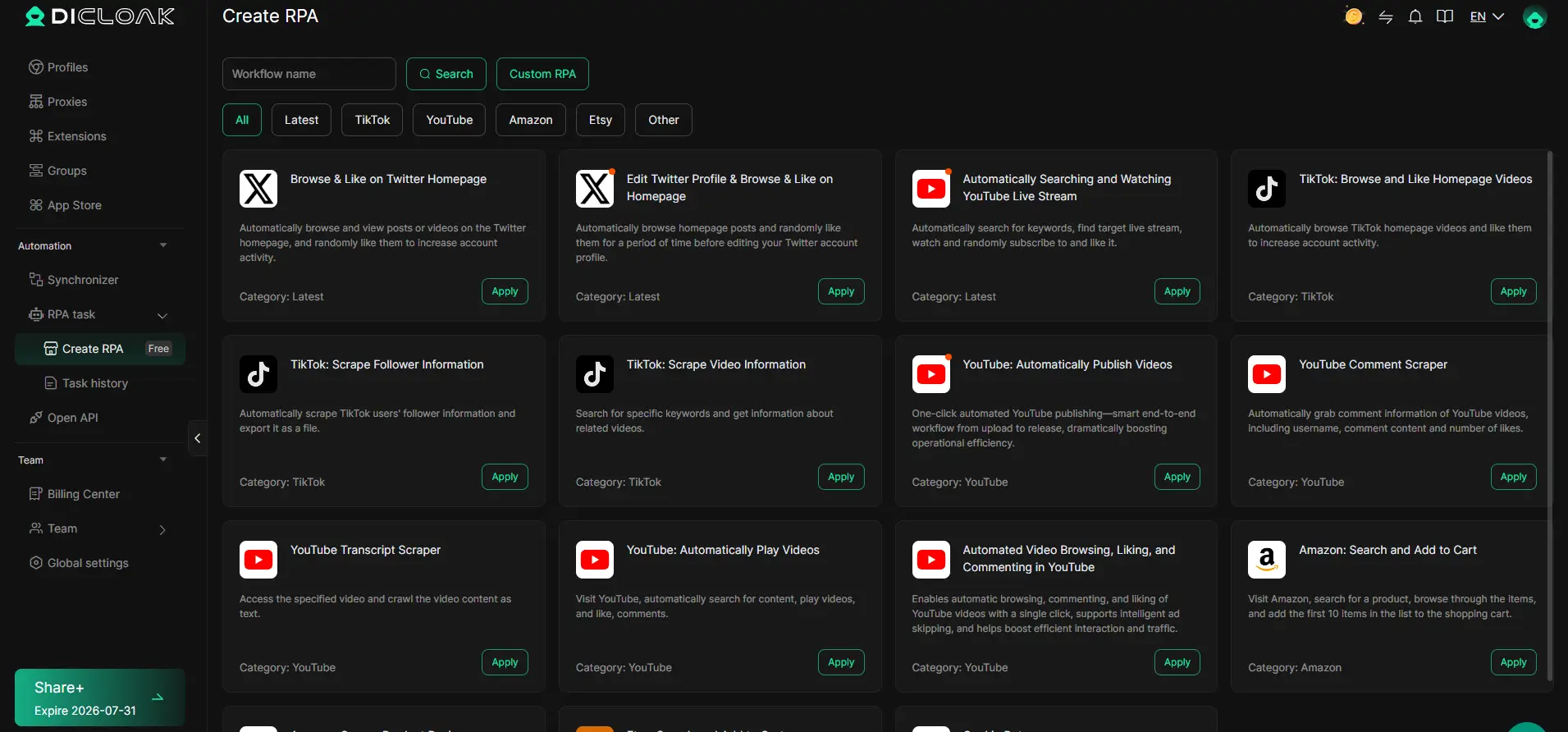
DICloak also includes RPA automation and a Multi-Window Synchronizer for repetitive browser workflows. The RPA feature can automate browser-based steps, while the Synchronizer can repeat the same action across several open profiles.
For LinkedIn work, the useful part is reducing repetitive setup and navigation rather than constantly rebuilding each account environment by hand. For example, a team may use automation for internal workflow steps such as opening assigned pages, checking profile status, or moving through the same browser process across several client profiles.
DICloak's social media workflow also supports automation tools designed to reduce repetitive manual work across multiple profiles.
The important point is to keep automation within the platform rules that apply to your use case. DICloak can make profile and proxy management more efficient, but it does not replace LinkedIn's own account, login, or automation policies.
For teams dealing with a LinkedIn login not working with proxy, the main value is simpler control. Each LinkedIn workflow can keep its own browser profile and proxy settings, while repetitive browser tasks can be managed from the same tool instead of switching between browsers, proxy extensions, and separate devices.
FAQs About LinkedIn Login Not Working with Proxy
Q1: Why is my LinkedIn login not working with proxy?
A LinkedIn login not working with proxy can happen because the proxy IP is unstable, the location changes too often, or the proxy settings are incorrect. LinkedIn may also ask for extra verification when a login comes from an unfamiliar location or browser session. Check the proxy connection first before changing your LinkedIn password or account settings.
Q2: Can LinkedIn detect when I am using a proxy?
LinkedIn can see the public IP address used to connect to its service and may notice unusual login locations or changes in network activity. However, a LinkedIn proxy login issue does not always mean the proxy was detected or blocked. The problem may also come from an unstable connection, incorrect proxy settings, or a new browser session.
Q3: How can I test if my proxy is causing a LinkedIn login problem?
If your LinkedIn login is not working with proxy, first check whether LinkedIn loads normally without the proxy. Then enable the proxy and confirm its IP, location, connection speed, and authentication details. If LinkedIn works without the proxy but fails when the proxy is enabled, the proxy connection or configuration is likely the problem.
Q4: Is a static or rotating proxy better for LinkedIn login?
A static proxy is usually easier to manage for normal LinkedIn login because the IP stays more consistent. A rotating proxy may change the IP during an active session, which can create extra login checks or connection problems. If you are trying to solve a LinkedIn login proxy error, keeping the same IP during login and verification makes troubleshooting much easier.
Q5: What should I do if LinkedIn keeps blocking or rejecting my proxy?
If your LinkedIn login is not working with proxy even after checking the settings, stop changing IPs repeatedly. Test another reliable proxy, keep the location consistent, and check whether LinkedIn is asking for security verification rather than blocking the proxy itself. If the account has already been restricted, follow LinkedIn's official recovery or verification process instead of trying different proxies to get around the restriction.
 Web Proxy Tools
 Free Tools
 Cookie Plugin
 UA Generator
 MAC Address Generator
 IP Generator
 IP Address List
 2FA Code Generator
 World Clock
 Anonymous Check
 WebRTC Leak Test
 UUID Generator
 Free Web Proxy Site
 Proxy Checker
 FB Ad Checker
 AI Web Scraping
 Free SMM Tools
 Twitter Shadowban Checker
 Instagram Name Checker
 UTM Generator
 Username Generator
 AI Hashtag Generator
 LinkedIn Headline Generator
 Social Media Image Resizer