Is sharing a YouTube account safe for team collaboration in 2026? It can be, but only when the team shares controlled channel access instead of passing the main Google password between editors, managers, agencies, and contractors. YouTube already lets multiple people manage one channel through five permission levels without accessing the owner's Google Account, and its own guidance describes this as safer than sharing passwords. However, native permissions do not cover every team workflow. This guide explains the real risks of sharing one login, how to choose the right access method for each team member, and when a controlled browser Profile may be a better fit for full-session collaboration.
Why Would a Team Need to Share a YouTube Account?
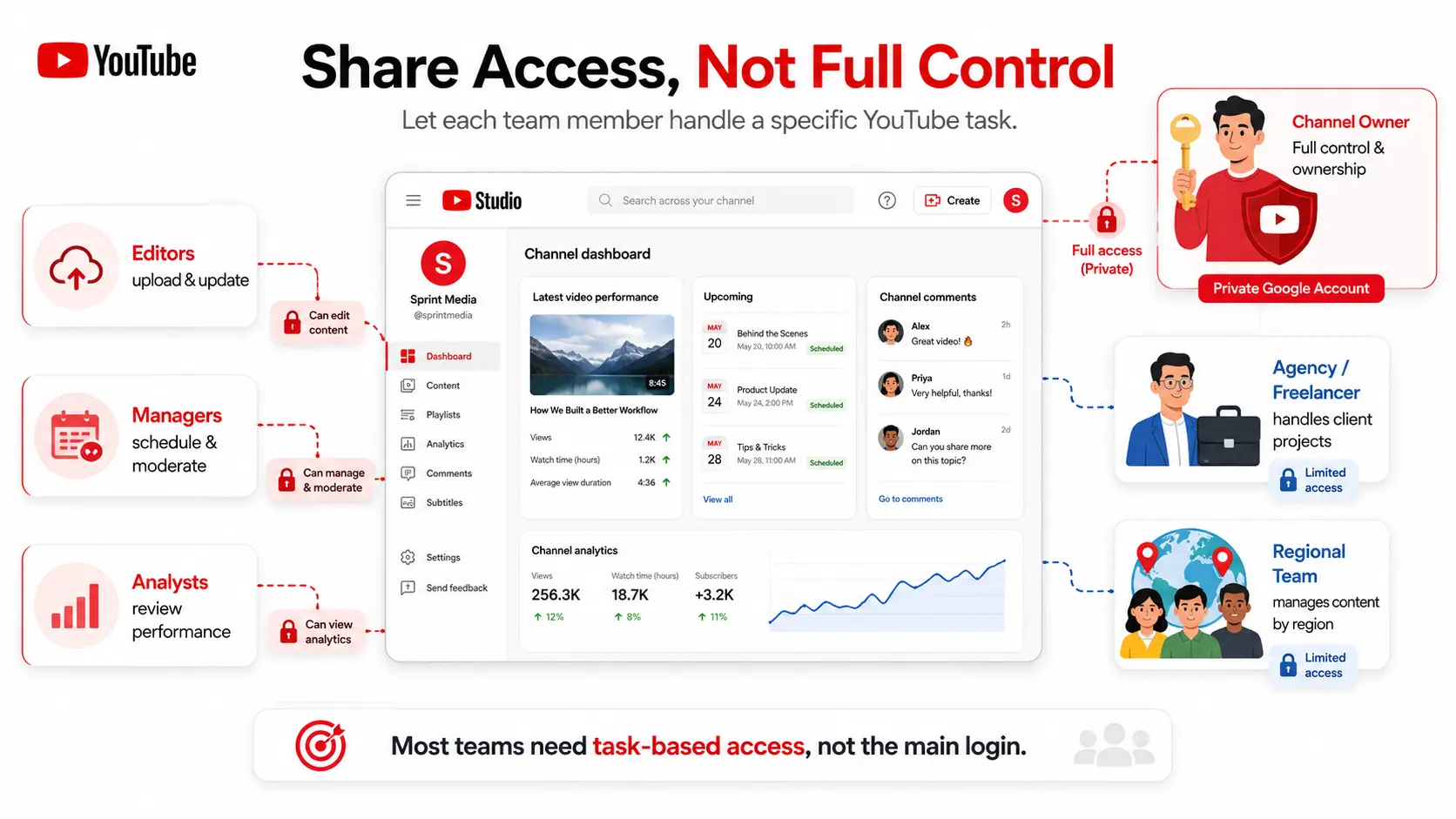
Teams share YouTube access because channel work is often split across several people. The goal is not to share full ownership, but to let each person complete a specific task.
Common cases include:
- Editors upload videos and update titles, descriptions, or thumbnails.
- Managers schedule content and manage comments.
- Analysts review channel performance.
- Agencies and freelancers handle client channels.
- Regional teams manage content for different markets.
Without direct access, every small change must go through the channel owner. This can slow down publishing and create unnecessary back-and-forth. Still, not everyone needs account access. A scriptwriter or thumbnail designer can often work without entering YouTube Studio.
YouTube access should match the task. Most team members do not need the main Google login or full channel control.
What Are the Real Risks of Sharing One YouTube Login With a Team?
Sharing one YouTube login with a team may feel convenient, but it often creates three practical problems: people can work in the wrong channel, receive more access than they need, and disrupt the whole workflow when the password changes. These risks are especially common for agencies, creators, and brands that rely on several people to manage content every week.
The Wrong Content Can Go Live on the Wrong Channel
An editor managing several channels may upload a client video to the wrong account, use the wrong thumbnail, schedule it at the wrong time, or reply to comments as another brand. These mistakes are easier to make when several channels are open under one shared login, and they are harder to investigate because the owner may see what changed without knowing who made the change. For multi-channel teams, account confusion is often a more realistic risk than account theft.
A Simple Editing Task Can Expose the Whole Google Account
A team member or external partner may only need to upload a draft, update a title, or replace a thumbnail, yet the main Google login can expose far more than YouTube Studio. Depending on the account setup, that access may also include other channels, private analytics, revenue data, Gmail, Drive files, and security settings. The issue is not whether the person is trustworthy. The issue is that the access is much broader than the task requires, so full Google account access should not be used for work that only needs a few YouTube actions.
One Password Change Can Interrupt the Whole Team
Shared passwords also make offboarding harder. When a team member leaves, changes roles, or finishes a project, the owner may need to change the password to remove access. That can log out everyone else, trigger new verification checks, and delay uploads or livestream work. The password may also remain saved in an old browser, spreadsheet, or chat message, making it difficult to know whether access has truly ended. When everyone depends on the same password, removing one person can interrupt the entire channel workflow.
These risks do not mean teams should avoid collaboration. They show why each person needs an access method that matches the work they actually do.
Which YouTube Access Method Should Each Team Member Use?
YouTube Channel Permissions should cover most routine team work, while the main Google password should rarely be shared. A shared browser Profile is more suitable when the task needs a complete logged-in session that YouTube's roles cannot provide. The right choice depends on what the person must do, not their job title.
Invite Team Members Through YouTube Channel Permissions
Channel Permissions are the best starting point for editors, analysts, managers, and other team members who work mainly in YouTube Studio. Each person uses their own Google account, while the channel owner selects a role based on the work they need to complete. YouTube currently provides roles such as Manager, Editor, Editor (Limited), Viewer, and Viewer (Limited), allowing teams to separate content work, analytics access, and revenue visibility.
For example, an analyst may only need Viewer access, while an editor may need to upload videos and update metadata. Editor (Limited) can be more suitable when the person needs editing tools but should not see revenue data. Channel Permissions should be the default whenever the required task can be completed through an assigned role because they provide clearer access control without exposing the main Google login.
Share the Main Google Account Password
Sharing the main Google password gives a team member access as the account owner rather than as a limited YouTube user. This may expose Gmail, Drive, recovery settings, other YouTube channels, and any Google services connected to the same account. Google also advises users not to share their passwords, so this method is a poor fit for regular editing, analytics, comment management, or agency work.
There may be rare tasks that only the account owner can complete, but the owner should usually handle those actions directly instead of sending the password to the team. Once several people know the same login, it becomes difficult to remove one person without changing access for everyone. Sharing the main Google password provides the widest access and the weakest control, so it should not be treated as a normal collaboration method.
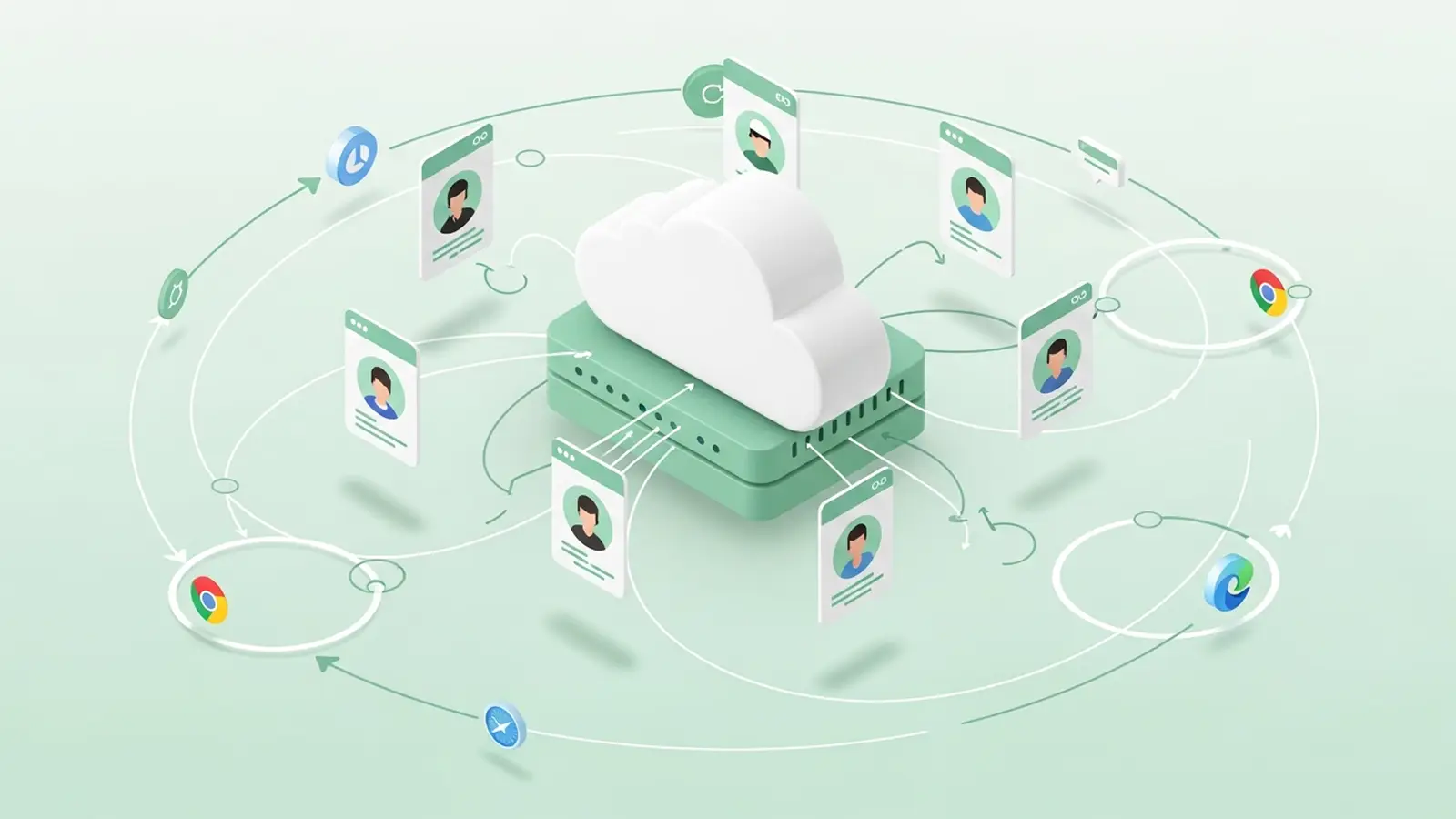
A shared browser Profile can help when a team member needs a complete YouTube session rather than limited Studio access. Instead of sending the password, the account owner logs in inside a dedicated Profile, and the authorized team member works through that saved session. This can be useful for an agency that keeps each client channel in a separate workspace or for a task that cannot be completed through Channel Permissions.
This method still gives the user broad control inside the open session, so it should only be used for people who truly need it. Each YouTube account should have its own clearly named Profile, and access should be limited to the members responsible for that channel. A browser Profile can reduce password sharing and session mix-ups, but it does not replace clear permissions, trusted team members, or a process for removing access when the work ends.
For most teams, the order is simple: use Channel Permissions first, use a shared browser Profile when a full session is necessary, and avoid sharing the main Google password for daily work.
How to Share a YouTube Account Safely With DICloak
When a team needs a full YouTube session, a shared browser Profile can reduce password handoffs and keep the channel in one controlled workspace. With DICloak, the owner can decide who opens the Profile, which channel they can access, and when that access ends.
1. Install DICloak and Choose a Team Plan
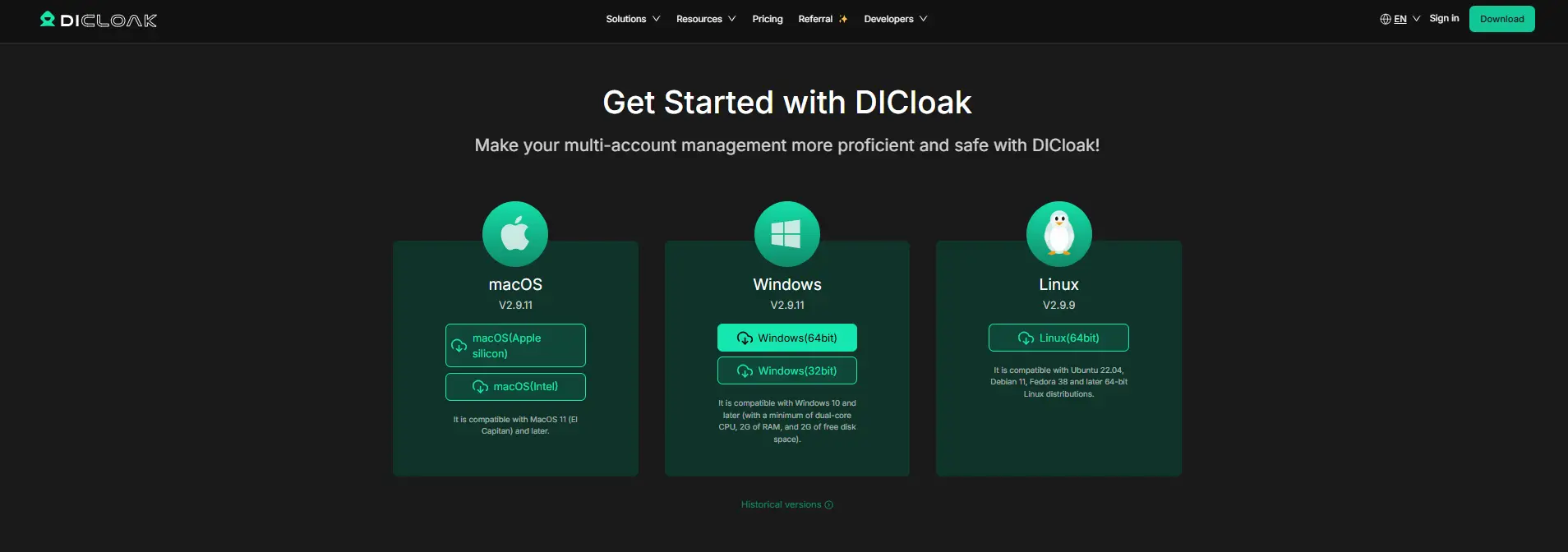
Create a DICloak account, install the app, and choose a plan based on the number of browser Profiles and team members you need. A small creator team may only need a few seats, while an agency managing several client channels may need broader team access.
2. Create a Profile for the YouTube Channel
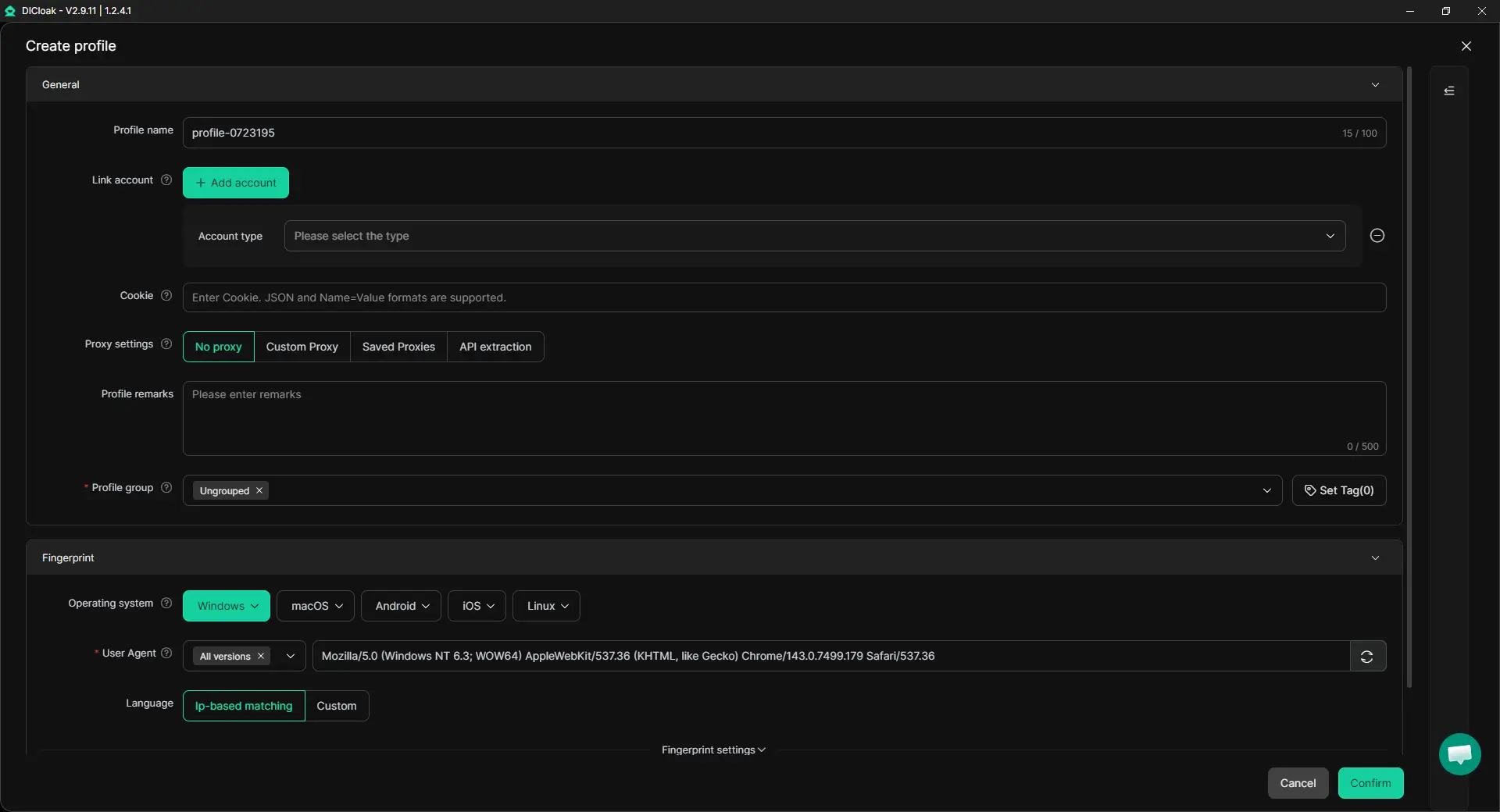
Create a separate browser Profile for each YouTube channel or client account, then give it a clear name such as Client Name – Channel Name – Owner. You can also configure a proxy for the Profile based on the account's normal location and network setup. Each Profile keeps its own cookies, login session, browser data, and proxy settings, which helps teams keep client workspaces separate and reduces channel mix-ups.
3. Enable Multiple Sessions When Needed
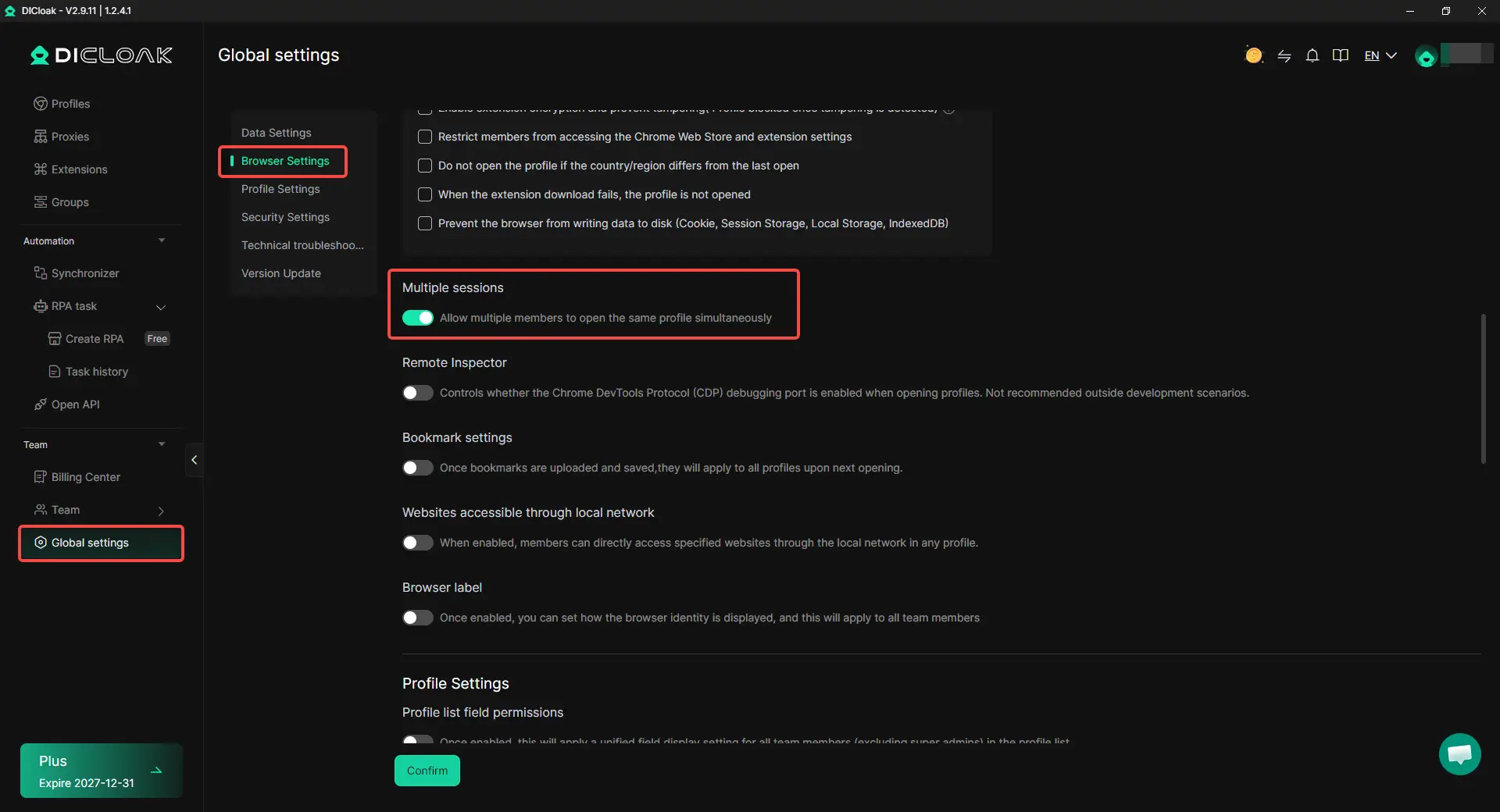
Go to Global Settings and enable Multiple sessions when more than one authorized member needs to open the same Profile. Use this only when the team has a clear task split. One member may prepare video details while another checks comments, but two people changing the same settings at once can still cause conflicts.
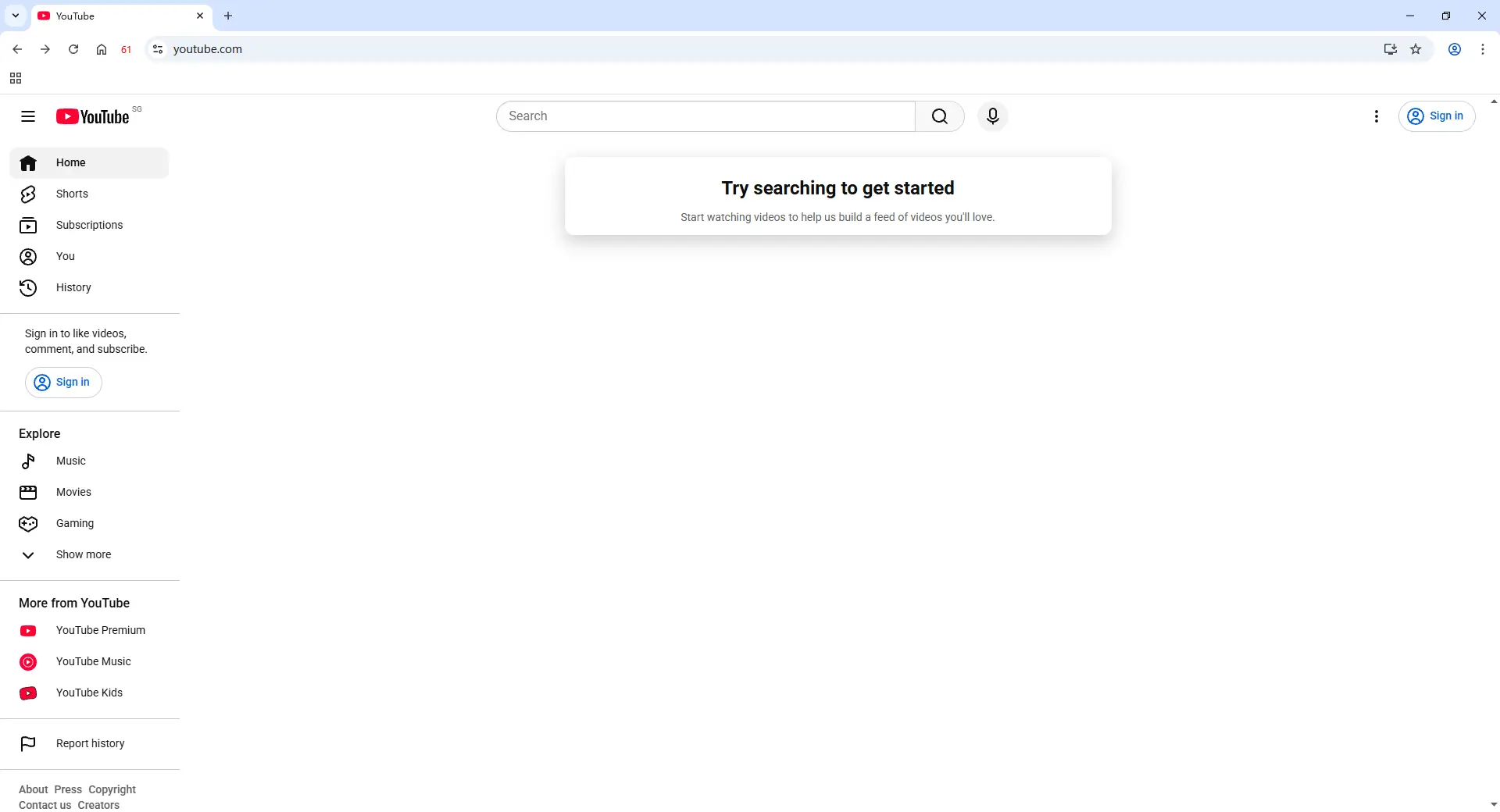
4. Log In to YouTube
Launch the Profile and sign in through the channel owner or an authorized manager. Complete any required verification inside that Profile. Once the session is saved, assigned members can reopen it without receiving the Google password through email, chat, or a shared document.
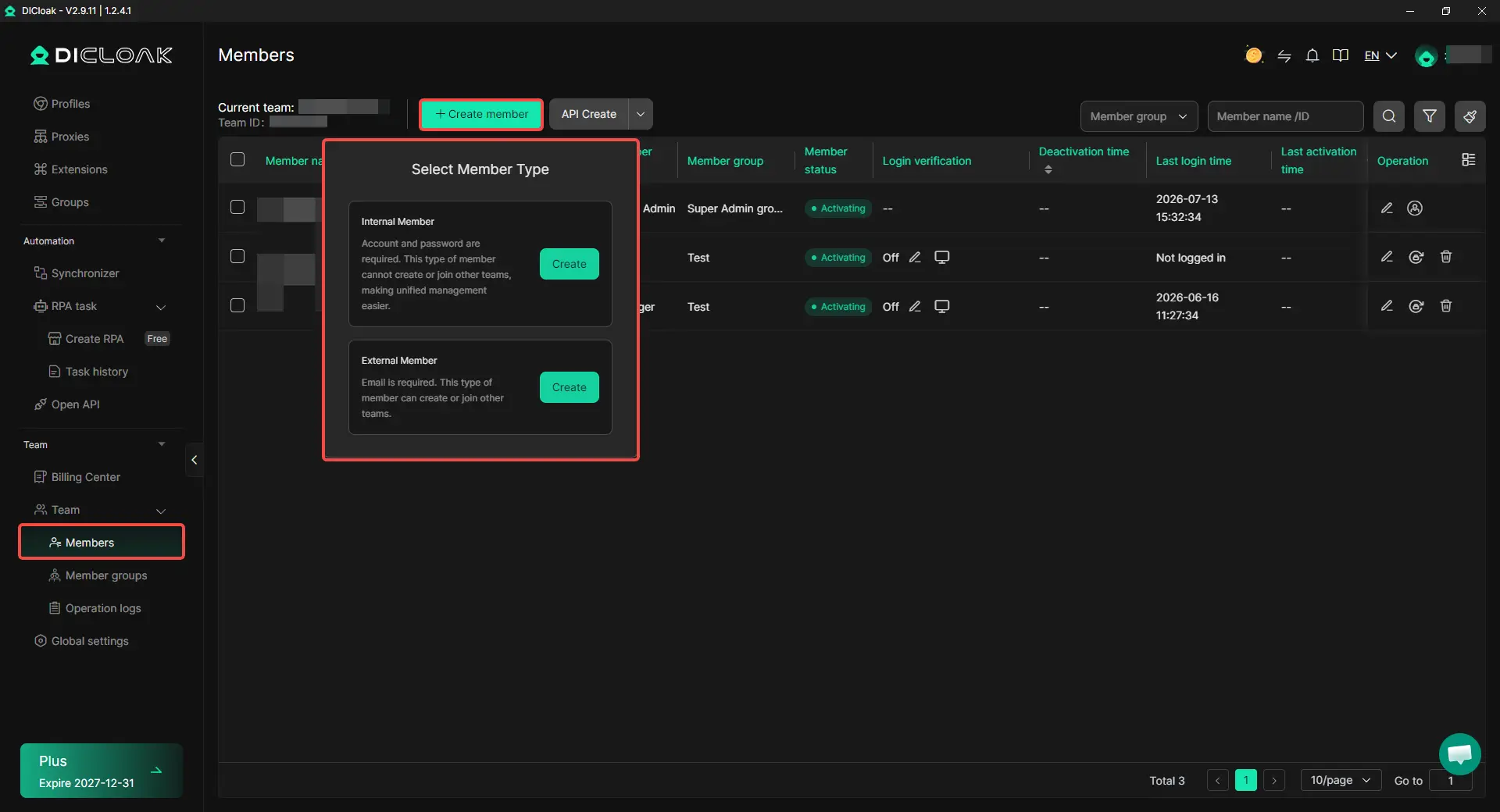
5. Add Team Members and Assign Profile Access
Invite the people who need to work on the channel, then assign only the relevant Profile or Profile group. An editor may receive access to one channel, while a channel manager may need several Profiles under the same client. A short-term contractor should only keep access for the project period. Profile access should match the work being done. Team members working on one client should not automatically see other client accounts.
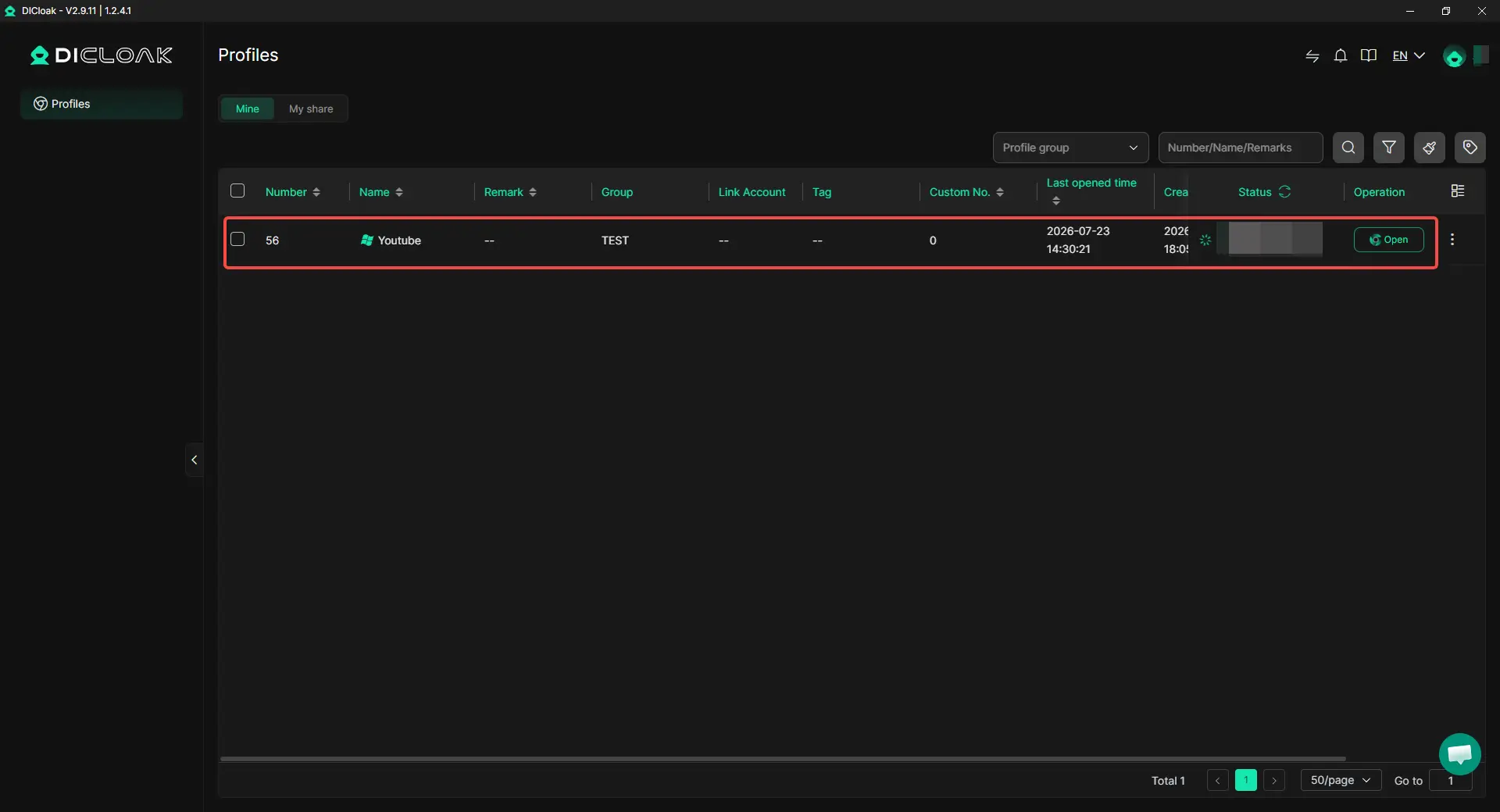
6. Open the Shared YouTube Session
After accepting the team invitation, the member can open the assigned Profile from their own DICloak app and continue working in the saved YouTube session. This allows authorized members to upload videos, update content, and complete other approved tasks without repeatedly asking the owner for login details.
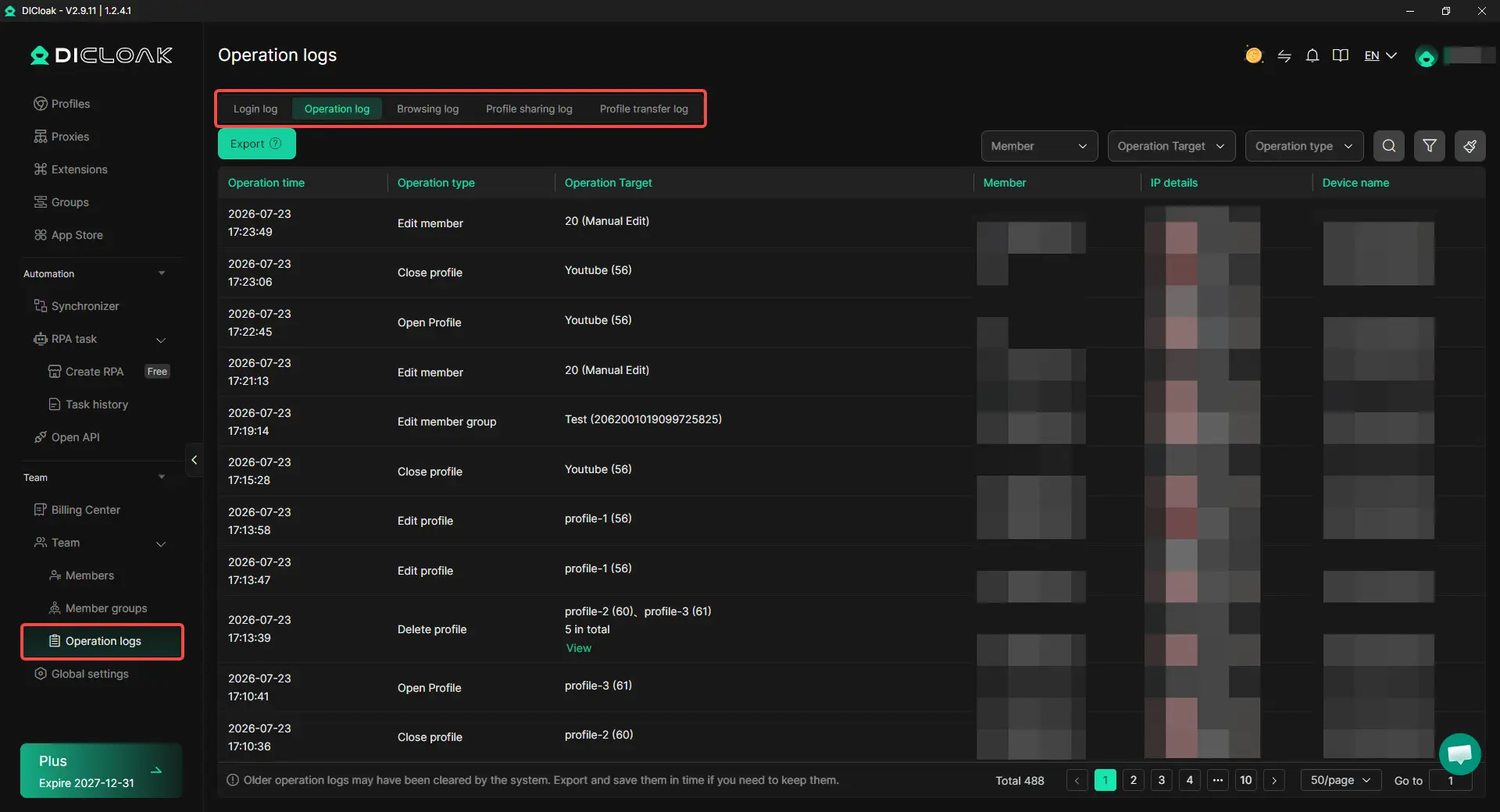
7. Review Activity and Remove Access
Use operation logs when the team needs to review a handoff or investigate an unexpected change. When a member leaves or a project ends, remove their Profile access and review scheduled videos, unfinished drafts, and connected tools.
How Can Teams Avoid Mistakes When Sharing a YouTube Account?
Teams can reduce mistakes by keeping ownership private, assigning clear responsibility, and removing access as soon as the work ends. Most account-sharing problems come from unclear roles and old access, not from a lack of tools.
Keep the Main Owner Account Private
The main owner account should stay with the business owner or a trusted company administrator. Editors, agencies, and contractors usually do not need access to recovery settings, Gmail, Drive files, or other channels linked to the same Google account. Daily work should be handled through limited access or a controlled browser session, while ownership changes and recovery tasks stay with the account owner.
Make It Clear Who Manages Each Channel
Each channel should have a clear owner, assigned team members, and defined tasks. This matters most for agencies and brands that manage several channels at once, since unclear responsibility can lead to the wrong video, thumbnail, comment, or schedule being used on the wrong account. Clear channel names, separate workspaces, and one person responsible for final approval can prevent many of these mistakes.
Remove Access When Work Ends
Access should end when the project, contract, or role ends. Teams should remove channel permissions, shared browser access, and third-party tool access, then review scheduled videos, unfinished drafts, and recent changes before completing the handoff. Leaving old access active “just in case” makes it harder to know who can still enter the account and who is responsible for later changes.
Frequently Asked Questions About Sharing a YouTube Account With a Team
Can multiple people manage the same YouTube channel without sharing a password?
Yes. YouTube Channel Permissions let several people manage one channel through their own Google accounts, with roles such as Manager, Editor, Editor (Limited), Viewer, and Viewer (Limited). This is usually the best option for routine work because the owner can control each person's access without exposing the main Google account.
Can a YouTube Editor see revenue or delete the channel?
A standard Editor can view channel data and manage videos, but cannot delete the channel, manage permissions, or delete published content. Editor (Limited) has similar editing access but cannot view revenue data, making it more suitable for external editors who do not need financial information.
Can two team members work on the same YouTube channel at the same time?
Yes, multiple people can access the channel through their own assigned permissions. However, teams should avoid having two people edit the same video, stream, or settings at the same time, since one person may overwrite or conflict with the other person's work. Clear task ownership matters even when the platform allows several users to access the channel.
Should an agency add every client channel to one Google account?
It may seem convenient, but placing every client channel under one staff account can make channel switching, access removal, and responsibility harder to manage. Each client should keep ownership of its channel, while agency members receive only the access needed for their work. When a task requires a full logged-in session, an antidetect browser like DICloak can keep each client in a separate browser Profile and limit Profile access to the assigned team members.
Is sharing a browser Profile safer than sharing the main Google password?
A shared browser Profile can reduce direct password handoffs and keep each YouTube session in a separate workspace, but it still provides broad access inside the open account. With DICloak Antidetect Browser, teams can assign specific Profiles, manage member access, and remove that access when a project ends.
Conclusion
Sharing a YouTube account can support team collaboration, but the access method matters. YouTube Channel Permissions should cover most editing, analytics, and management tasks, while the main Google password should rarely be shared. When a team needs a full logged-in session, a separate browser Profile can provide a more controlled workspace without sending the password to every member.
The safest setup is based on tasks, not trust alone. Give each person only the access they need, keep the owner account private, separate client workspaces, and remove access when the work ends. In 2026, safe YouTube collaboration means sharing controlled access to the channel, not sharing full control of the Google account.
 Web Proxy Tools
 Free Tools
 Cookie Plugin
 UA Generator
 MAC Address Generator
 IP Generator
 IP Address List
 2FA Code Generator
 World Clock
 Anonymous Check
 WebRTC Leak Test
 UUID Generator
 Free Web Proxy Site
 Proxy Checker
 FB Ad Checker
 AI Web Scraping
 Free SMM Tools
 Twitter Shadowban Checker
 Instagram Name Checker
 UTM Generator
 Username Generator
 AI Hashtag Generator
 LinkedIn Headline Generator
 Social Media Image Resizer