You might think clearing cookies or switching browsers is enough to protect your privacy, but that misses the real leak, your device’s WebGL Fingerprint. Most sites now use WebGL fingerprinting to map your graphics card, driver quirks, and even tiny rendering differences. It’s invisible to the average user, but for account managers, marketers, or anyone running multiple profiles, it’s the detail that often trips up even careful setups.
The risk isn’t obvious until accounts start getting flagged or locked without warning. Changing your proxy or user agent won’t help if your WebGL browser fingerprint keeps matching across sessions. Some platforms even use these fingerprints to link seemingly unrelated logins, making traditional anti-detection tricks unreliable.
What actually matters is how your device’s WebGL output, shaders, extensions, and GPU noise, gets packaged and tracked. Skip this layer, and you’ll see random restrictions or sudden bans that don’t match anything you can spot in your cookies or IP history. The catch: not all anti-detect tools or browser profile managers let you control or randomize WebGL details. Relying on default setups leaves a clear trail.
Understanding what a WebGL Fingerprint reveals, and how sites use it to connect activity, changes how you approach safe account management. Here’s where most people miss the mark.
What Is a WebGL Fingerprint and Why Does It Matter in 2026?
A WebGL fingerprint is a unique technical snapshot of your device’s graphics output, sites use it to link browser sessions even when you clear cookies or swap IPs. In 2026, platforms rely on WebGL data because it sticks to the physical device, making it a central piece for tracking and account security. If you skip managing this layer, you’re leaving a clear, persistent trail that can link your logins together.
How WebGL Fingerprints Are Created
WebGL fingerprints come from how your browser renders graphics using the device’s GPU. The process isn’t random, small hardware or software differences create distinct outputs. Here’s what shapes them:
- GPU model and driver version: Even two laptops from the same brand can produce slightly different WebGL outputs if their drivers or hardware differ.
- Browser rendering engine: Chrome, Firefox, and Edge each handle WebGL contexts in their own way, affecting the fingerprint.
- Supported extensions and shaders: The mix of available WebGL features decides what gets exposed and how the browser draws test shapes.
Why WebGL Fingerprints Are Hard to Fake
What makes these fingerprints tricky is the stack of dependencies. Hardware, drivers, browser engines, and even OS patches all shape the output. If you try to mask your device, you’re not just changing a single variable, a mismatch in any layer can expose you. For example, a user running a virtual machine to spoof their GPU might fool basic checks, but most platforms now run multiple WebGL tests, including shader complexity and extension support. If your reported GPU model is common but your shader output doesn’t match known profiles, your session stands out and gets flagged. The risk isn’t just theoretical, sites often cross-check these details against large device databases, catching outliers in seconds.
The hardest part is that subtle hardware quirks, like how a GPU handles floating-point math, leave tiny traces that can’t be masked by browser settings alone. Skip managing these, and you’ll see bans or restrictions that look random on the surface but actually trace back to fingerprint mismatches.
What sites learn from your WebGL output goes far beyond device type or browser version. They can map your session to a physical device, even across different accounts. That’s why understanding what information gets exposed through WebGL is the next step.
What Information Can Sites Learn from Your WebGL Fingerprint?
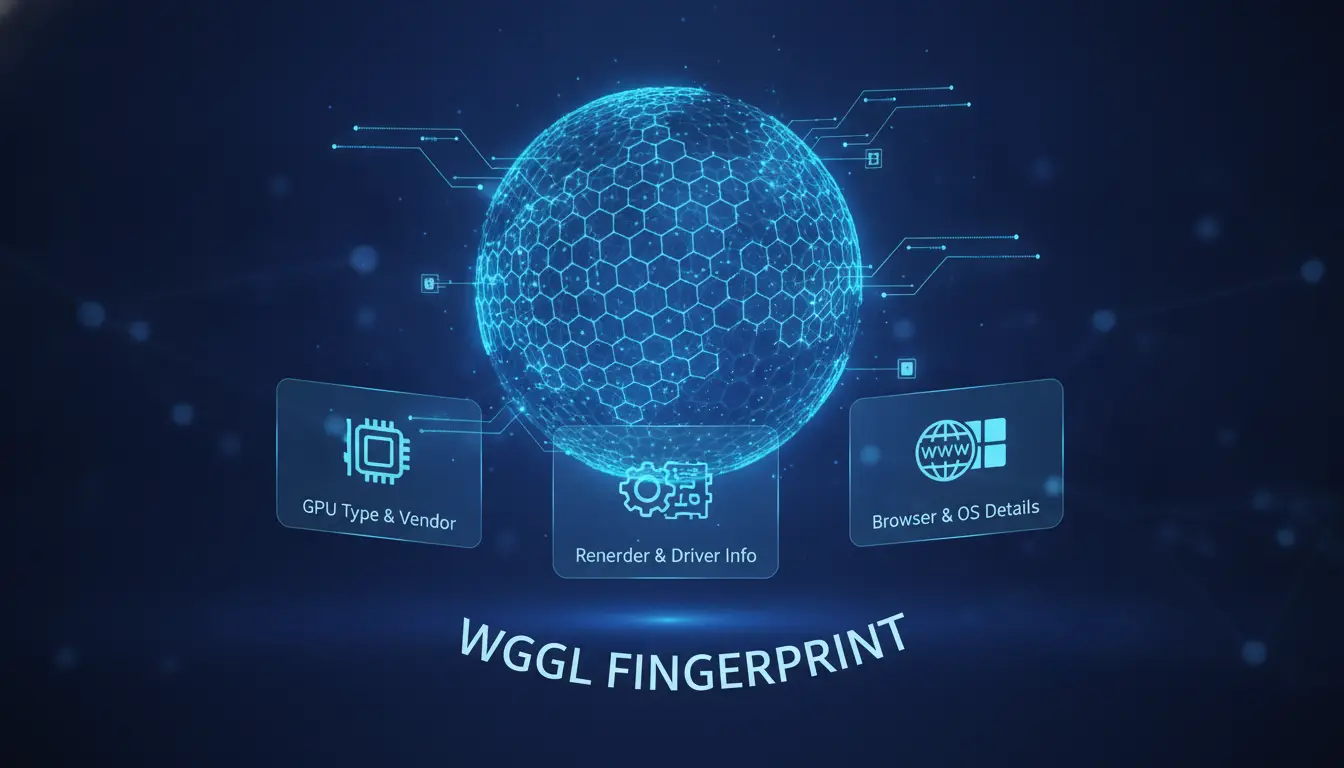
Sites don’t just see your browser version or IP, they get a snapshot of your hardware, graphics setup, and even the quirks in how your device renders images. This is why even after clearing cookies or switching proxies, platforms can still spot repeat logins using the same WebGL fingerprint.
Browser and Device Details Exposed
WebGL fingerprinting reveals the GPU model, driver version, operating system, and browser type. These details come straight from how your browser handles graphics tasks, not from settings you can easily toggle.
Unique Rendered Outputs
Most people think hardware info is the main risk, but the real exposure comes from unique rendering outputs. When a site runs WebGL, your browser draws a hidden image using complex shaders and canvas code. Tiny differences, like how your GPU handles floating point math or anti-aliasing, create a signature that’s nearly impossible to spoof with simple user-agent changes.
For example, two laptops with the same GPU and OS might still produce different WebGL outputs if one has updated drivers or minor hardware tweaks. This output is hashed into a value that sites log and compare. If you run multiple accounts from the same device, these signatures link together, even if you use different browsers or profiles. The failure mode: accounts get flagged not because of IP overlap, but because the rendered image hash matches across sessions. That’s why changing browsers or using a fresh profile won’t hide you, if the underlying hardware stays the same, your WebGL output will, too.
How This Data Is Used for Tracking
- Cross-site tracking: Sites share or compare fingerprint hashes to find repeat visitors, even across unrelated domains.
- Account linking: Platforms use WebGL outputs to connect accounts that share a graphics signature, flagging them as controlled by one person.
- Fraud detection: Sudden changes in WebGL output can trigger suspicion, if your account’s fingerprint shifts between logins, platforms may treat it as a sign of account sharing or bot activity.
If you’re managing more than one account, these detection layers matter. The next risk is not just being recognized, it’s being linked and flagged for restriction, even when your proxy setup looks fine.
Why WebGL Fingerprint Detection Is a Real Risk for Multi-Account Users

Sites don’t need your real name or email to link accounts when your device’s WebGL output matches across logins. For anyone running multiple accounts, or sharing devices within a team, this is the layer that quietly ties everything together and triggers bans without warning.
How Platforms Use WebGL Fingerprints to Detect Multiple Accounts
Platforms often match accounts by comparing GPU fingerprint data, like shader output and extension lists, across sessions. If two accounts log in with the same browser profile or device, automated systems can connect them and trigger bans or shadowbans, sometimes within minutes.
Common Mistakes That Trigger Detection
The most common trap is reusing a device or browser profile, assuming proxies or cookie wipes are enough. Imagine you run five accounts for a marketplace. You clear cookies and rotate proxies, but forget that every browser instance uses the same underlying hardware. The WebGL fingerprint stays identical. When those accounts log in, even from different locations, platforms see the same GPU details and flag them as related. This isn’t just theory: sellers and affiliate teams report accounts dropping in waves after changing nothing but a posting pattern, because the hardware fingerprint gave them away. Another risk is using a browser profile manager that doesn’t actually randomize or isolate GPU-level data. Some tools claim isolation but still let the WebGL fingerprint leak, so all your “separate” profiles look identical under the hood. If you get hit, you’ll see mass restrictions with no clear pattern in your activity logs, just a sudden spike in bans that don’t line up with your proxy or session changes.
Why Teams and Shared Devices Face Higher Risk
- More than one operator logging in from the same device, even at different times, means every account shares a fingerprint.
- Shared office computers or remote desktop setups make audit trails easy for platforms to trace.
- Even careful teams slip: just one missed profile reset or operator mistake can link dozens of accounts instantly.
WebGL detection isn’t the only tracking method, but it’s the one most likely to tie “unrelated” accounts the moment a technical detail lines up. Next, it’s worth seeing how this stacks up against other fingerprinting methods that platforms deploy.
How WebGL Fingerprinting Compares to Other Browser Fingerprinting Methods
WebGL fingerprinting stands out because it’s harder to mask and links device-level graphics details, making it much tougher for multi-account users to blend in. Compared to canvas or audio fingerprints, WebGL exposes more hardware-specific noise, so skipping control here creates a clear trail.
WebGL vs. Canvas Fingerprinting
| Fingerprinting Method |
What It Collects |
Spoof Difficulty |
Impact if Ignored |
| WebGL |
GPU info, shader output, extensions |
High |
Device-level tracking, hard to escape |
| Canvas |
Rendered image hash, font data |
Medium |
Browser-level tracking, easier to mask |
The key difference, WebGL fingerprinting pulls deeper hardware data than canvas, so sites can connect your activity even if you change browser or profile.
WebGL vs. Audio and Other Fingerprints
Audio fingerprinting grabs system sound details but rarely links accounts as tightly as WebGL. Other methods, like font or timezone checks, are easier to randomize. When sites combine WebGL with audio and canvas, they can spot patterns across devices that simple anti-detect setups miss.
Platforms now use multi-layer detection, so skipping WebGL control is the fastest way to get flagged, especially for people running several accounts. If you only mask cookies or IP, expect bans that don’t match the usual warning signs.
This is why reducing WebGL fingerprint risk matters more now than ever.
How to Reduce WebGL Fingerprint Risk When Managing Multiple Accounts
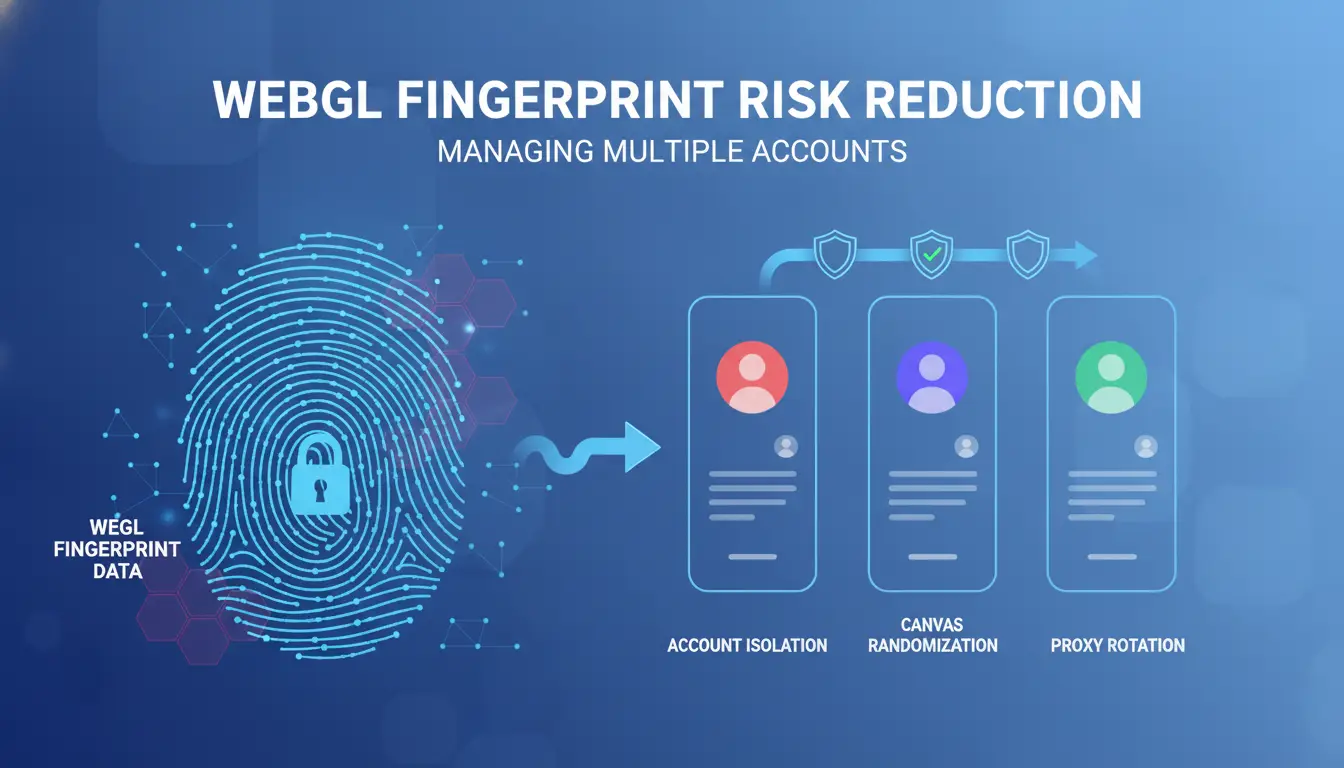
Managing multiple accounts means you need to dodge WebGL fingerprinting traps, otherwise, bans show up for no clear reason. You can’t just rely on cookie clearing or proxy rotation. The real fix is to change how your setup handles browser profile isolation, session control, and fingerprint leaks.
Checklist: Preparing a Safer Multi-Account Environment
- Create a separate browser profile for each account. Shared profiles leak GPU and WebGL details, letting platforms connect logins.
- Pair every profile with a unique proxy. If you re-use proxies, even perfect WebGL isolation won’t help, IP overlap triggers platform checks.
- Start sessions from a clean state each time. If a session resumes from a previous login, fingerprint mismatches become obvious and can flag your accounts.
Keeping browser profiles isolated and starting fresh with each session is what actually reduces fingerprint-based bans, not just randomizing settings.
Common Pitfalls to Avoid
- Copying cookies or browser profiles between accounts. This shortcuts setup, but sites catch identical WebGL outputs and link accounts fast.
- Mixing personal and work accounts in the same browser. Even one accidental overlap can trigger a chain reaction, platforms don’t care why histories match.
- Letting browser extensions run across profiles. Extensions can inject or modify WebGL output, leaving a trace that’s impossible to clean retroactively.
If you see accounts getting banned even after changing IPs, these mistakes are usually the cause.
When to Use Specialized Tools
- Use an antidetect browser only when you need full control over WebGL parameters, most basic profile managers don’t touch GPU details.
- Automate workflow for teams handling 10+ accounts. Manual setup is slow and prone to mistakes; automation lets you enforce consistent isolation.
- Test your WebGL output regularly. If your fingerprint matches across accounts, you need to reset profiles or switch tools.
These steps help you spot trouble before bans pile up. Next up: see how teams scale safe workflows.
How Teams Use DICloak to Manage WebGL Fingerprint Risk in 2026
Setting Up Isolated Browser Profiles with Custom Fingerprints
Teams use DICloak to build separate browser profiles, each with its own WebGL fingerprint and device settings. Isolation stops accounts from sharing fingerprint traces that platforms use to link activity.
Integrating Proxies for Consistent Account Environments
Operators can assign a unique proxy to each profile, keeping IP and fingerprint data consistent. This reduces mismatches, if you reuse proxies or forget to pair fingerprints, platforms often detect and restrict accounts within hours.
Team Collaboration and Permission Controls
- Share profiles without exposing fingerprint settings
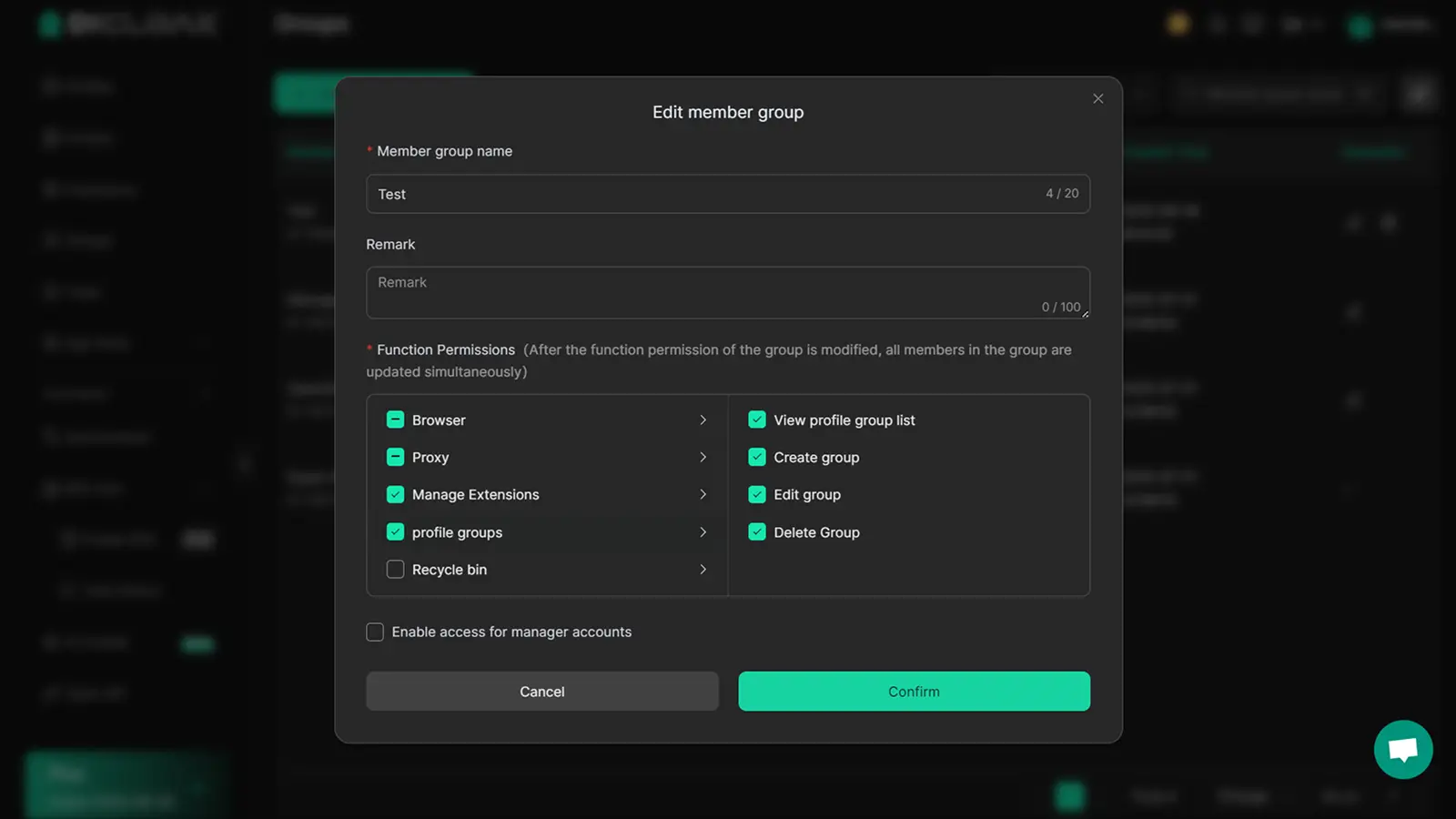
- Set permission levels so only trusted users edit parameters
- Review access logs to catch mistakes before accounts overlap
DICloak does not guarantee accounts pass all WebGL fingerprint checks, careful operational hygiene stays essential.
What WebGL Fingerprinting Cannot Detect or Control: Limits and Myths
WebGL fingerprinting has strict boundaries, sites only see your browser’s rendering traits, not everything about you. Overconfidence leads to mistakes that basic fingerprint isolation can’t fix.
What WebGL Fingerprinting Misses
WebGL doesn’t track your login times, typing speed, or how you move the mouse. Real platforms combine browser fingerprints with behavioral signals, so changing your WebGL output alone won’t hide unusual account patterns.
Why No Tool Is a Silver Bullet
Spoofing WebGL may lower detection risk, but no tool covers all leaks.
- If your usage style stays identical across accounts, platforms often spot the connection anyway.
- Mix browser fingerprinting with smart operational habits, never rely on automation or randomization as your only defense.
Step-by-Step: Testing Your Own WebGL Fingerprint Before Launching Accounts
If you skip testing your setup, you risk accounts linking or getting banned for reasons you can't see in cookies or IP logs. The only way to catch these mismatches is to run your own fingerprint check before launching real accounts.
Finding a Reliable WebGL Fingerprint Test Tool
- Open a trusted fingerprint test site (like browserleaks.com or deviceinfo.me).
- Run the test on your browser profile, look for detailed WebGL output, not just “unique” or “anonymous” tags.
- Compare the shader, vendor, and renderer strings. If these match across profiles, your setup leaves a visible trace.
- Save the result. If the site shows identical hashes for different profiles, you’re not isolated.
Checking for Profile Isolation and Consistency
- Launch two browser profiles with different settings.
- Run the test tool on both, write down their WebGL hashes.
- Compare results side by side. If the hashes overlap, you’ve got a problem.
- For teams: test on multiple devices. If results repeat, your tool isn’t randomizing enough.
What to Do If You Find a Problem
- Adjust profile settings, change GPU emulation, WebGL parameters, or proxy. Retest.
- If changing settings doesn’t work, rebuild the browser profile from scratch.
- Keep testing after each change. The goal is unique, non-overlapping hashes.
- If you keep seeing repeats, switch tools or ask support. Hash overlap means platforms can link your accounts and flag them together.
Frequently Asked Questions About WebGL Fingerprint
Can I completely hide my WebGL fingerprint from websites?
No, you cannot make your WebGL Fingerprint totally invisible to websites. Most browsers need some WebGL support for normal web features. You can lower your fingerprint’s uniqueness by using tools that spoof or randomize WebGL data, but complete hiding is not possible. Instead, focus on blending in with the crowd to reduce tracking risk.
Is disabling WebGL in my browser a safe solution?
Disabling WebGL might seem safer, but it can break websites that rely on graphics or animations. Some sites may even block you if they detect WebGL is off. Also, having WebGL disabled can make your browser stand out, making your fingerprint even more unique. For most users, leaving WebGL on is better for both privacy and usability.
How often should I change my WebGL fingerprint when managing accounts?
Changing your WebGL browser fingerprint too often can look suspicious to websites. If a site sees your fingerprint jump around, it might flag your account or link your profiles. Consistent fingerprints help you appear as a regular user. Only change your fingerprint when starting with a completely new account or profile.
Does using a proxy alone protect against WebGL fingerprinting?
No, using a proxy only hides your IP address. WebGL fingerprinting works by looking at your device’s hardware and browser features, not your network location. Even with a proxy, your device’s graphics information can still be collected. You need separate tools or browser settings to manage your WebGL fingerprint.
Are there free tools to check my WebGL fingerprint?
Yes, several free sites let you view your WebGL detection details. Tools like browserleaks.com or deviceinfo.me show how your browser looks to websites. Check your fingerprint across different browsers or profiles to spot differences. Always use well-known, trustworthy tools to avoid privacy risks.
Safeguarding your online privacy often requires a proactive approach, especially when it comes to browser-based identification methods. Consider evaluating privacy tools that can mask or randomize browser fingerprints to help reduce tracking risks. Try DICloak For Free
 Web Proxy Tools
 Free Tools
 Cookie Plugin
 UA Generator
 MAC Address Generator
 IP Generator
 IP Address List
 2FA Code Generator
 World Clock
 Anonymous Check
 WebRTC Leak Test
 UUID Generator
 Free Web Proxy Site
 Proxy Checker
 FB Ad Checker
 AI Web Scraping
 Free SMM Tools
 Twitter Shadowban Checker
 Instagram Name Checker
 UTM Generator
 Username Generator
 AI Hashtag Generator
 LinkedIn Headline Generator
 Social Media Image Resizer