Sharing a Facebook login may seem like the fastest way to keep posts, ads, and customer messages moving across a team. However, one shared login gives everyone the same account identity, makes access harder to track, and often leaves recovery in the hands of one owner. Meta's current terms also state that users must not share their passwords or give others access to their personal Facebook accounts.
The wider security risk should not be ignored. So, is sharing a Facebook account safe for team collaboration in 2026? This guide explains safer ways to assign Facebook access, manage remote teams, and keep separate client workspaces organized.
Why Do Teams Want to Share a Facebook Account?
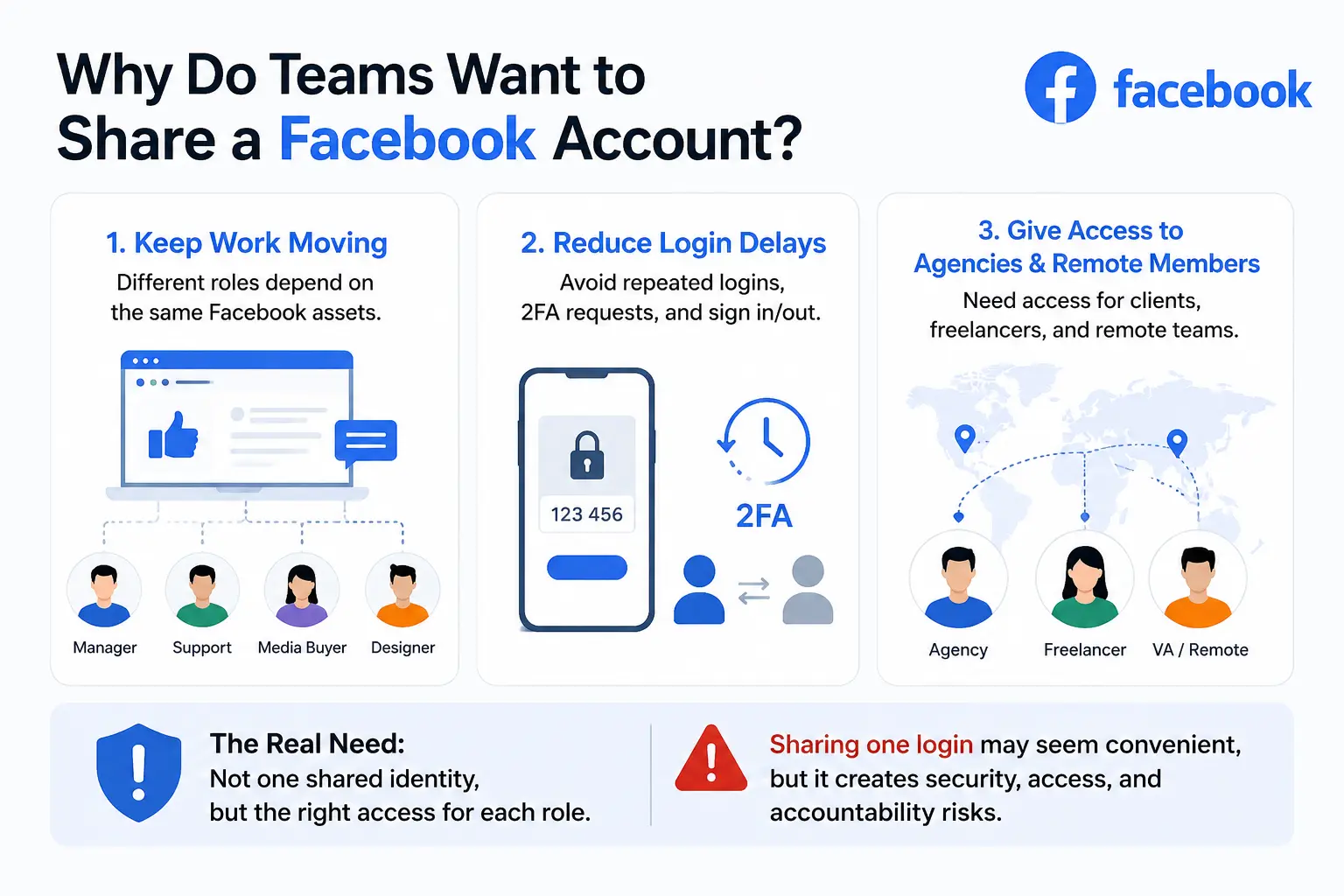
Teams usually share Facebook access for three practical reasons: to keep daily work moving, reduce login delays, and give remote members access. They want smoother collaboration, even though sharing one login may not be the best way to achieve it.
- Keep Page and customer work moving. A social media manager may publish posts, while a support agent answers Messenger messages. A media buyer manages campaigns, a designer uploads creative files, and a manager reviews results or approves content. When several roles depend on the same Facebook assets, waiting for one account owner can slow down the whole workflow.
- Reduce repeated logins and 2FA requests. The account owner may need to send verification codes or approve new devices whenever another person logs in. Team members may also have to sign in and out as tasks move between people. Sharing one login can appear to remove these delays, but it also makes the workflow depend on one password and one recovery method.
- Give agencies and remote members access. An agency may manage Facebook assets for several clients. A virtual assistant may only handle messages, while a freelancer works on one short campaign. Remote teams also need to continue work across different locations and time zones. Their real need is not to share one personal identity. It is to give each person access to the work they are responsible for.
Most teams consider account sharing because they want faster handoffs and fewer interruptions. However, a convenient login setup can create larger security, access, and accountability problems.
Is Sharing a Facebook Account With Your Team Safe?
Sharing one personal Facebook login with several team members is not a safe long-term setup. It can conflict with Meta's account rules and create problems with permissions, activity tracking, login checks, and account recovery. The setup may feel convenient at first, but the risks become clear when someone makes a mistake, leaves the team, or loses access.
One Shared Login Gives Everyone the Same Identity
When several people use one Facebook account, their actions appear under the same account identity. If an ad budget changes, a post goes live early, or a customer receives the wrong reply, the team may struggle to confirm who was responsible.
A shared login also gives every user access to whatever the account owner can see. A content editor may only need to publish Page posts, but the same login could expose ad accounts, business settings, private messages, or payment details. This is more access than most team roles require.
Removing one person is also difficult. A former employee or freelancer may still know the password or keep an active browser session. Changing the password can remove that access, but it may also interrupt everyone else who still needs to work.
Different Devices Can Trigger Extra Login Checks
Facebook may request extra verification when one account is opened from new devices, browsers, or locations. Team members may be asked to confirm a login, enter a 2FA code, reset the password, or sign in again after a session expires.
These checks do not always mean the account has done something wrong. They can still slow down daily work. A support agent may be unable to answer messages, or a media buyer may lose access while a campaign needs attention.
Sharing one login does not remove login friction. It often moves the problem to the account owner, who must keep approving devices and sending verification codes.
One Owner Can Become a Single Point of Failure
A shared Facebook workflow often depends on one person controlling the password, email address, phone number, and 2FA method. If that person is unavailable, the rest of the team may not be able to complete a login check or recover the account.
The risk is greater when the same personal account is the only administrator for important business assets. If that account loses access, the team may also have trouble reaching its Pages, ad accounts, or client work.
Teams should not build an important Facebook workflow around one person's availability. Access should be assigned so that trusted members can complete their own tasks, while recovery control remains with more than one responsible administrator.
Sharing one Facebook login may solve an immediate access problem, but it creates weak permission control and too much dependence on one account owner.
How Can You Share Facebook Access With a Team?
Here are some safer ways to give each person access to the Facebook Page, ad account, or business asset they need.
Method 1: Assign Page Access to Individual Team Members
Page access works well when a team member only needs to manage one Facebook Page. This may include publishing posts, replying to comments, handling Messenger conversations, or viewing Page performance.
Each person signs in through their own Facebook account, so the Page owner does not need to share a password. The owner can also limit access based on the person's job. A community manager may need content and message tools, while an analyst may only need to view results.
This method is usually the best choice for small teams with clear roles. Giving a content editor direct Page access is more controlled than letting that person use the owner's full personal account. Before adding someone, decide what they must do inside the Page. Do not give wider access simply because it is faster to set up. Each collaborator should also enable two-factor authentication on their own login.
Method 2: Add Employees or Agencies Through Meta Business Suite
Meta Business Suite is a better fit when the team manages several Pages, ad accounts, Instagram assets, or client projects. It allows the business to add people without sharing the owner's personal Facebook password.
Internal employees can be added as individual team members and assigned the assets needed for their role. For example, a media buyer may receive access to one ad account, while a social media manager receives access to the related Facebook Page and Instagram account.
External agencies should usually be added through Partner access when they manage assets through their own business setup. This creates a clearer boundary between the client and the agency. It also makes access easier to review or remove when the contract ends.
Full control should stay with a small number of trusted people. Most employees, virtual assistants, freelancers, and agency staff only need access to specific assets or tasks. Giving every collaborator full control creates more risk than convenience.
Meta Business Suite is the stronger long-term option when a business needs role-based access, separate logins, and clearer control over who can manage each asset.
Method 3: Share a Dedicated Browser Profile
Official permissions solve who can manage a Facebook business asset, but they do not always solve browser workflow problems. Agencies and remote teams may still manage several client accounts in one normal browser, making it easy to open the wrong session, mix browser data, or work in the wrong client window.
A dedicated browser profile keeps one Facebook account or client workspace separate from the others. It can preserve the relevant login state, bookmarks, extensions, and work pages inside one browser profile.
With an antidetect browser like DICloak, a team can create separate browser profiles for different Facebook accounts or client workspaces. The required profile can then be shared with selected team members through profile sharing and team permissions.
This method is most useful when:
- An agency manages several authorized Facebook accounts.
- Each client needs a separate browser workspace.
- Team members need the same bookmarks, extensions, or work pages.
- Managers want to assign specific browser profiles to specific employees.
- The team wants to reduce wrong-account actions caused by mixed sessions.
| Method |
Best For |
Password Sharing Needed |
Permission Control |
| Individual Page access |
Content, messages, and Page reporting |
No |
High |
| Meta Business Suite |
Employees, agencies, ads, and multiple assets |
No |
High |
| Dedicated browser profile |
Separate accounts and client workspaces |
Not always |
Controlled through the antidetect browser |
How to Share Facebook Accounts With Your Team Safely Using DICloak
With DICloak, teams can keep each Facebook account in a separate browser Profile and share that Profile with selected members. Meta permissions should still control access to Pages, ad accounts, and other business assets.
1. Download and Install DICloak
Visit the official DICloak website and download the software. After installation, create an account and sign in. Choose a plan based on your team size and the number of browser Profiles you need to share.

2. Create and Configure a Browser Profile
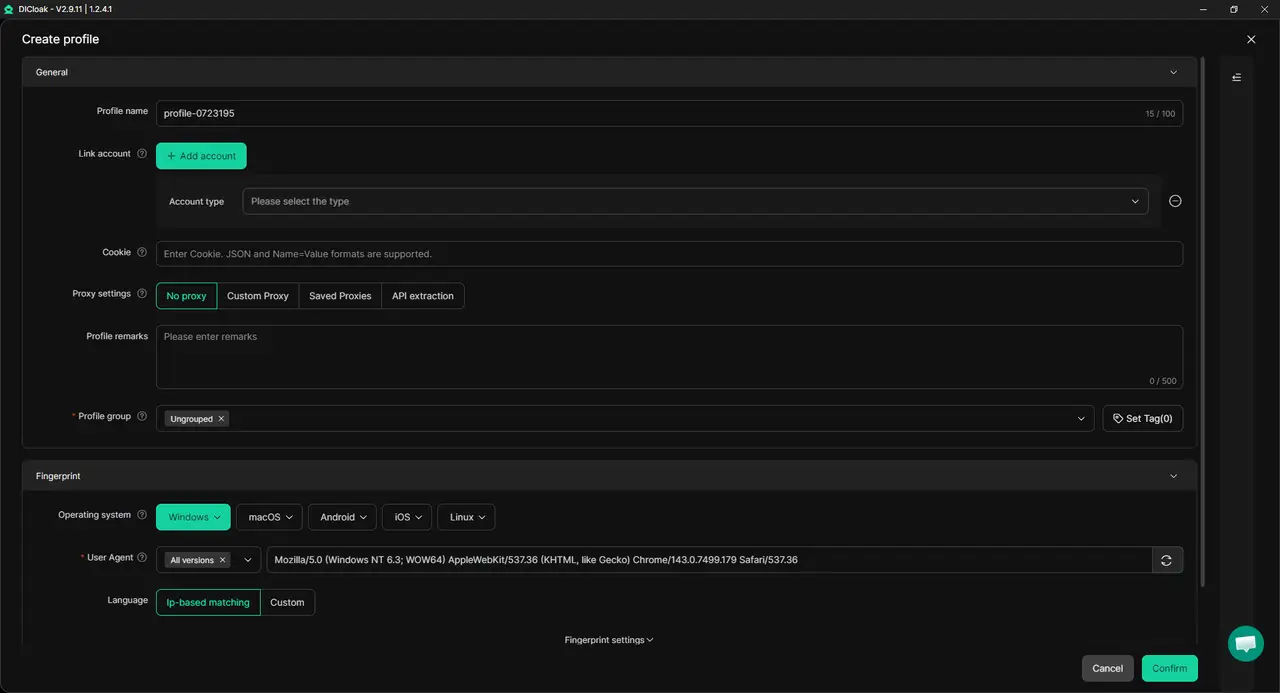
Create a new Profile for the Facebook account you want to share. Configure its browser fingerprint to match the account's normal device and working region. Keep the fingerprint settings stable after the account is in use. Unrelated Facebook accounts should use separate Profiles so their cookies, sessions, and browser data do not mix.
3. Add a Proxy if Needed
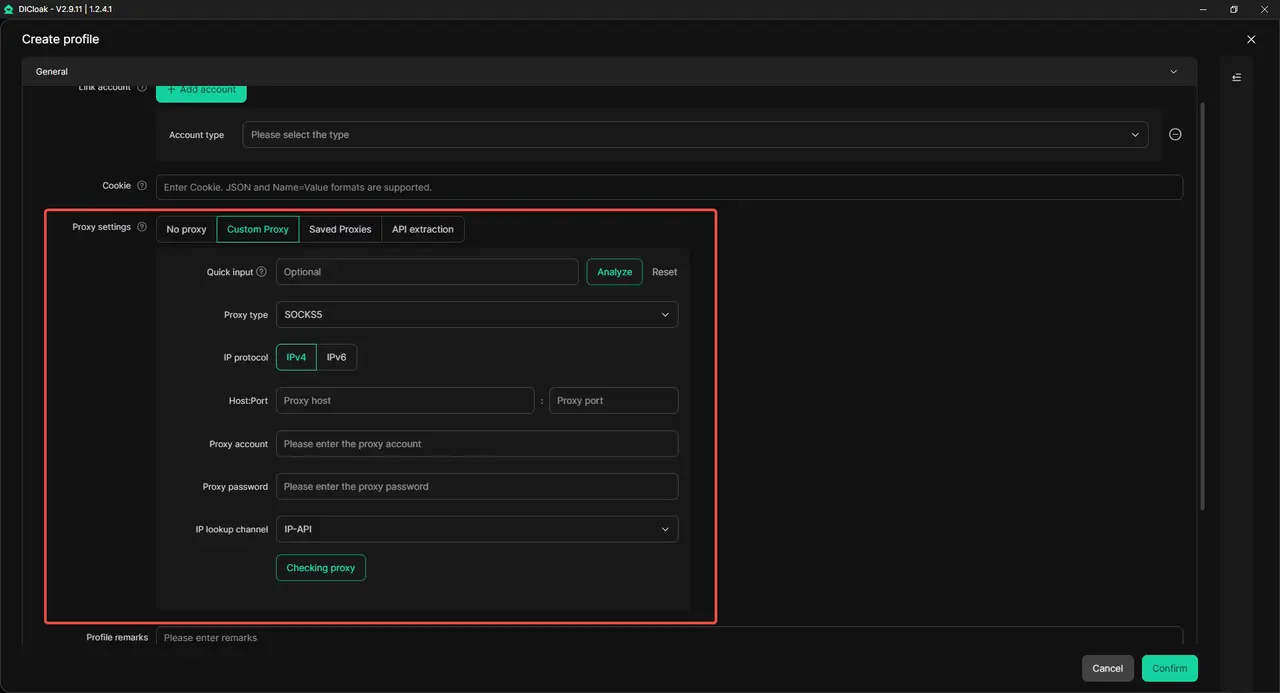
You can add a user-configured proxy when the account needs a stable network setup. Test the connection before opening the Profile. A proxy is optional and should match the account's normal working location.
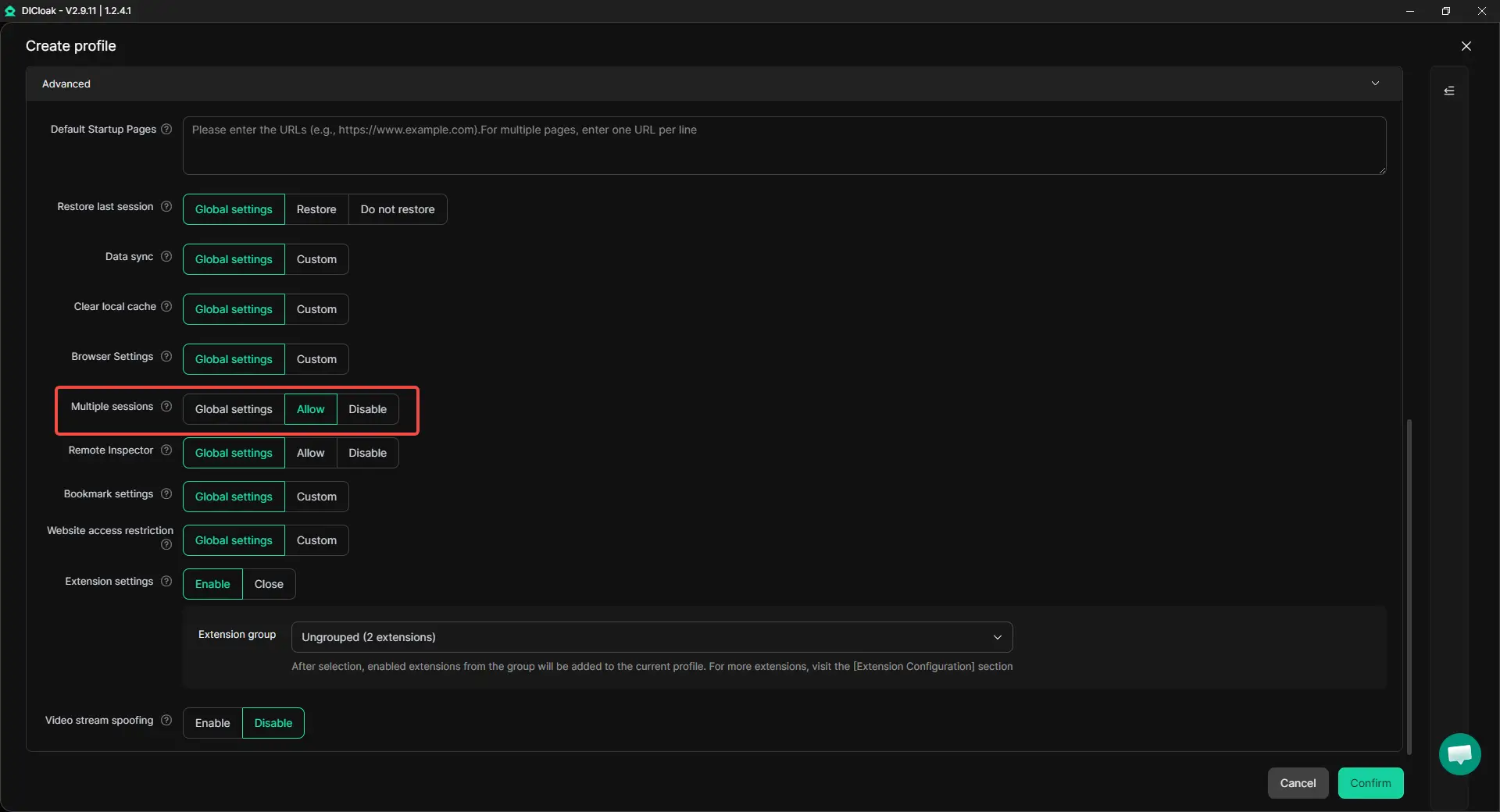
4. Enable Multiple Sessions if Needed
Go to Global Settings and enable Multiple sessions when more than one authorized member needs to open the same Profile. Use this setting only when necessary. Two people working in the same Facebook account can create duplicate replies or conflicting changes.
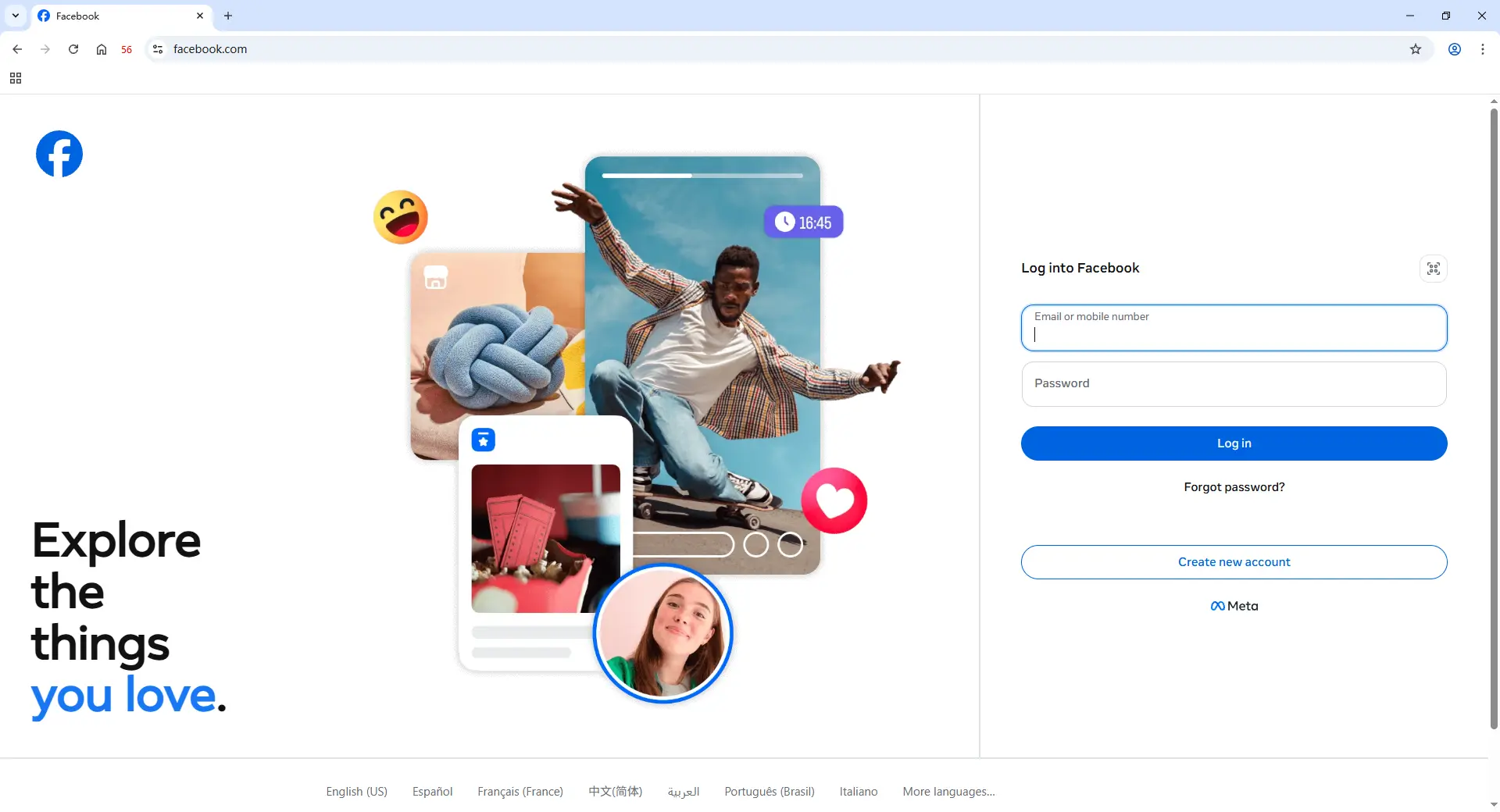
5. Log In to Facebook
Open the new Profile and sign in to the correct Facebook account. Complete any login verification requested by Facebook. Check that the required Page, ad account, or business asset is available before sharing the Profile.
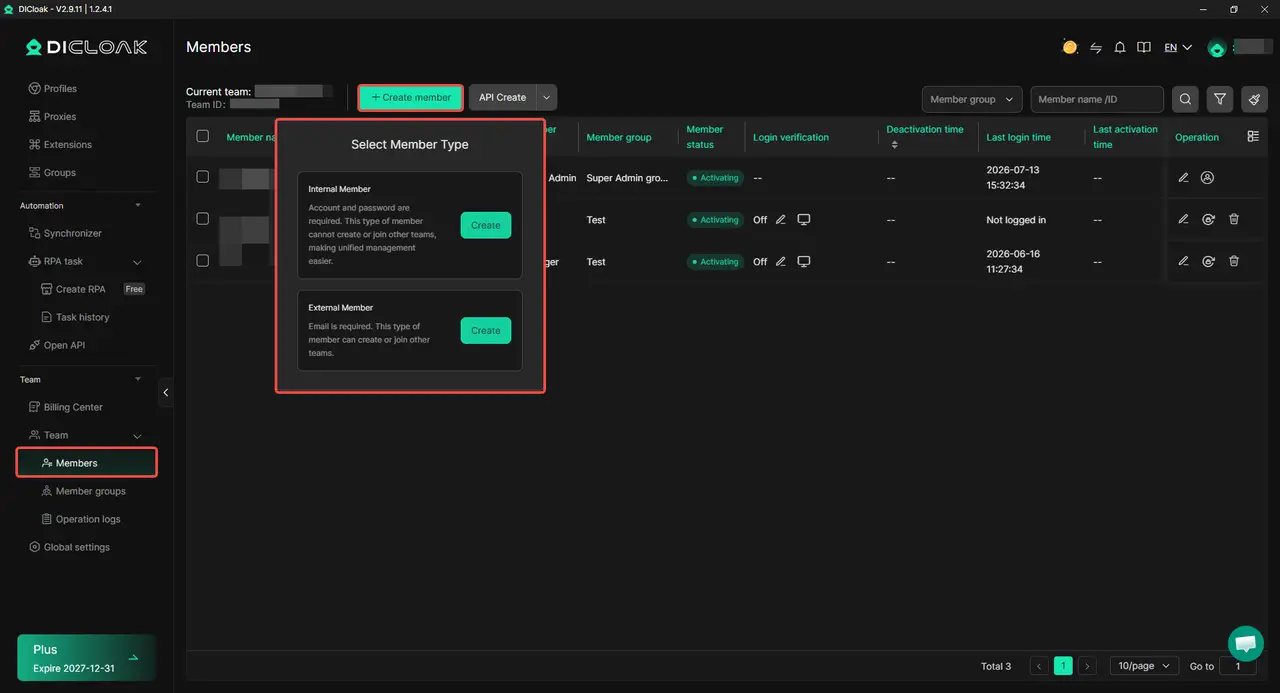
6. Invite Your Team Members
Add employees, virtual assistants, freelancers, or agency staff to your DICloak team. Assign each person only the Profiles needed for their work. A content editor may receive the Page Profile, while a media buyer receives the advertising Profile.
7. Open the Shared Profile
The assigned Profile will appear in the member's DICloak installation. They can open it and continue from the saved Facebook workspace. Ask the member to check that the correct account and business assets are visible.
8. Remove Access When Work Ends
When a member leaves the project, remove their DICloak Profile access and revoke their permissions inside Meta. Operation logs can also help review how shared Profiles were managed by the team.
What Should You Check Before Sharing Facebook Access?
Before sharing Facebook access, check three things: who needs access, how the account can be recovered, and how access will be removed later. A setup is risky when everyone depends on one password or one owner.
- Give each person only the access they need. Match access to the person's job. A content editor may need Page tools, while an analyst may only need reports. Full control should stay with a few trusted people. Check whether each member needs to view, edit, approve, manage billing, or add other users.
- Protect login and recovery methods. Each member should use their own login and 2FA when possible. Avoid sending passwords or verification codes through group chats. Keep at least two trusted people able to handle recovery, and make sure the business controls the main email address and recovery details.
- Plan for handoffs and departures. Use clear names for accounts and browser Profiles. Avoid having two people edit the same campaign or sensitive setting at the same time. When someone leaves, remove their Page, ad account, partner, browser workspace, device, and connected tool access.
Frequently Asked Questions About Sharing a Facebook Account With a Team
Can employees manage a Facebook Page without knowing the owner's password?
Yes. Employees can receive Facebook access or task access to a Page and sign in through their own accounts. Task access can cover content, messages, ads, and insights through tools such as Meta Business Suite. The owner does not need to share a personal Facebook password.
Should an agency be added as a person or a partner?
An established agency should usually receive partner access through its own business portfolio. This lets the company assign only the required Pages, Instagram accounts, ad accounts, or other business assets. Adding every agency employee directly may be suitable for a short project, but partner access is easier to manage when several agency members work on the account.
Should every team member receive full control?
No. Full control should be limited to trusted people who need to manage settings and access. A content editor, support agent, analyst, or media buyer may only need partial or task access. Someone with full control may be able to add or remove other users, remove the owner, or delete the Page.
What should you do when a team member leaves?
Remove the person's Page, ad account, business portfolio, and Partner access as soon as their work ends. Also review active browser sessions, shared devices, connected tools, and recovery details. Meta allows people with full control to edit or remove Page access, so the company should always know who still holds that level of permission.
Can multiple team members use the same Facebook account at the same time?
They can, but simultaneous access may cause duplicate replies, conflicting edits, or unexpected session checks. Teams should assign clear roles and avoid having several people change the same Page, campaign, or account setting at once. When a shared browser workspace is required, an antidetect browser like DICloak can help selected members open the same Profile.
Conclusion
Sharing a Facebook account with a team may seem convenient, but one shared login creates weak permission control, unclear accountability, and recovery problems. The safer approach is to give each person access to the Page, ad account, or business asset they actually need through Meta's official permission tools. For teams that manage several authorized Facebook accounts or client workspaces, separate browser Profiles, profile sharing, and team permissions with DICloak can help keep work organized. The clearest conclusion is that safe Facebook collaboration depends on separate identities, limited access, stable workspaces, and a clear process for removing access when the work ends.
 Web Proxy Tools
 Free Tools
 Cookie Plugin
 UA Generator
 MAC Address Generator
 IP Generator
 IP Address List
 2FA Code Generator
 World Clock
 Anonymous Check
 WebRTC Leak Test
 UUID Generator
 Free Web Proxy Site
 Proxy Checker
 FB Ad Checker
 AI Web Scraping
 Free SMM Tools
 Twitter Shadowban Checker
 Instagram Name Checker
 UTM Generator
 Username Generator
 AI Hashtag Generator
 LinkedIn Headline Generator
 Social Media Image Resizer