Trying to Pass Pixelscan Browser Fingerprint Checks is never just about changing a few settings and hoping for the best. Most readers have run into the same problem: Pixelscan flags their browser, even after swapping proxies or tweaking user agents. The real frustration comes when you think you’ve covered the basics, cleared cookies, switched devices, even masked your IP, only to see the “Fingerprint Detected” warning pop up again.
The catch is, Pixelscan isn’t just looking for simple differences. Its fingerprint test checks dozens of signals, like WebGL, screen resolution, timezone, system fonts, and even how your browser handles canvas and audio APIs. You can pass a Pixelscan test for one account, then fail on another because a single parameter doesn’t match the expected pattern. Relying on common tricks, or using old browser extensions, barely works anymore.
What actually moves the needle is understanding which browser fingerprint parameters Pixelscan checks most aggressively, and how you can adjust them without breaking your workflow. Tools like DICloak let you build isolated browser profiles, assign custom fingerprints, and bind proxies per account, so you avoid the obvious detection triggers and manage your sessions in bulk. If you skip these steps, you’ll see more bans and restrictions, especially when handling multiple accounts or team logins.
Getting past Pixelscan’s checks takes more than luck. Next up: what to check before you start tweaking your browser.
Why Passing Pixelscan Browser Fingerprint Checks Matters More Than Ever in 2026
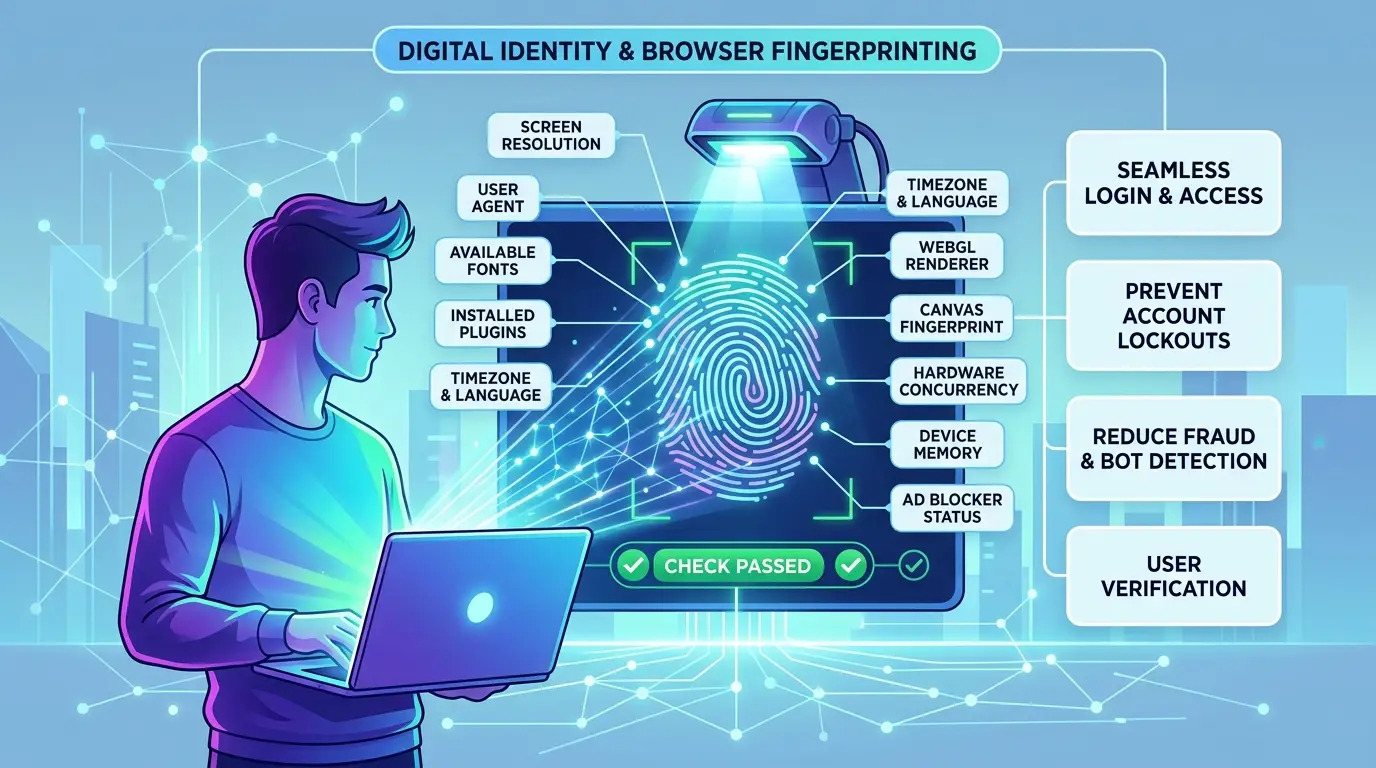
If you fail a Pixelscan fingerprint check in 2026, you’re not just dealing with a blocked login, you risk losing accounts, getting flagged for fraud, or seeing your whole setup burned overnight. Sites now use Pixelscan checks as a gatekeeper for trust, and even small mismatches can trigger bans or silent blacklisting.
What Failing a Pixelscan Check Actually Means for Your Accounts
A failed check often leads to instant trouble: your account may get banned without warning, or you’re forced into phone or document verification. Sometimes, you’ll hit a wall where your actions are limited, shadowbanned, even though you can still log in. Long-term, repeated fingerprints or obvious mismatches link your accounts together, making it easy for platforms to wipe out all your logins at once.
How Pixelscan Fingerprint Checks Are Used by Websites and Platforms
Pixelscan browser fingerprinting sits at the heart of most anti-fraud and anti-bot defenses. E-commerce stores, ad networks, social platforms, and even crypto sites rely on these checks to spot fake signups, abusive bots, or account farms. Passing gets you treated like any other normal user. Failing marks your device as suspicious, and sometimes you won’t know until you get locked out later. The catch, sites now cross-reference Pixelscan results across multiple accounts, so a single mistake can break your whole operation. If you’re running automations, the risk goes up because scripts and bots often trigger extra checks.
Who Needs to Pass Pixelscan: Key Scenarios in 2026
Anyone juggling multiple accounts in 2026, affiliate marketers, e-commerce sellers, social media managers, airdrop hunters, or data scrapers, needs to pass Pixelscan checks every time. Teams that share profiles, or run bulk operations, can’t afford a single weak fingerprint. One bad result can get dozens of accounts restricted or banned, taking down your workflow and wasting your investment.
Sites aren’t just blocking old tricks, they’re raising the bar with each update. Understanding exactly which fingerprint elements Pixelscan checks (and why) is now the starting point for building accounts that last.
What Pixelscan Actually Checks: The Fingerprint Elements That Matter Most
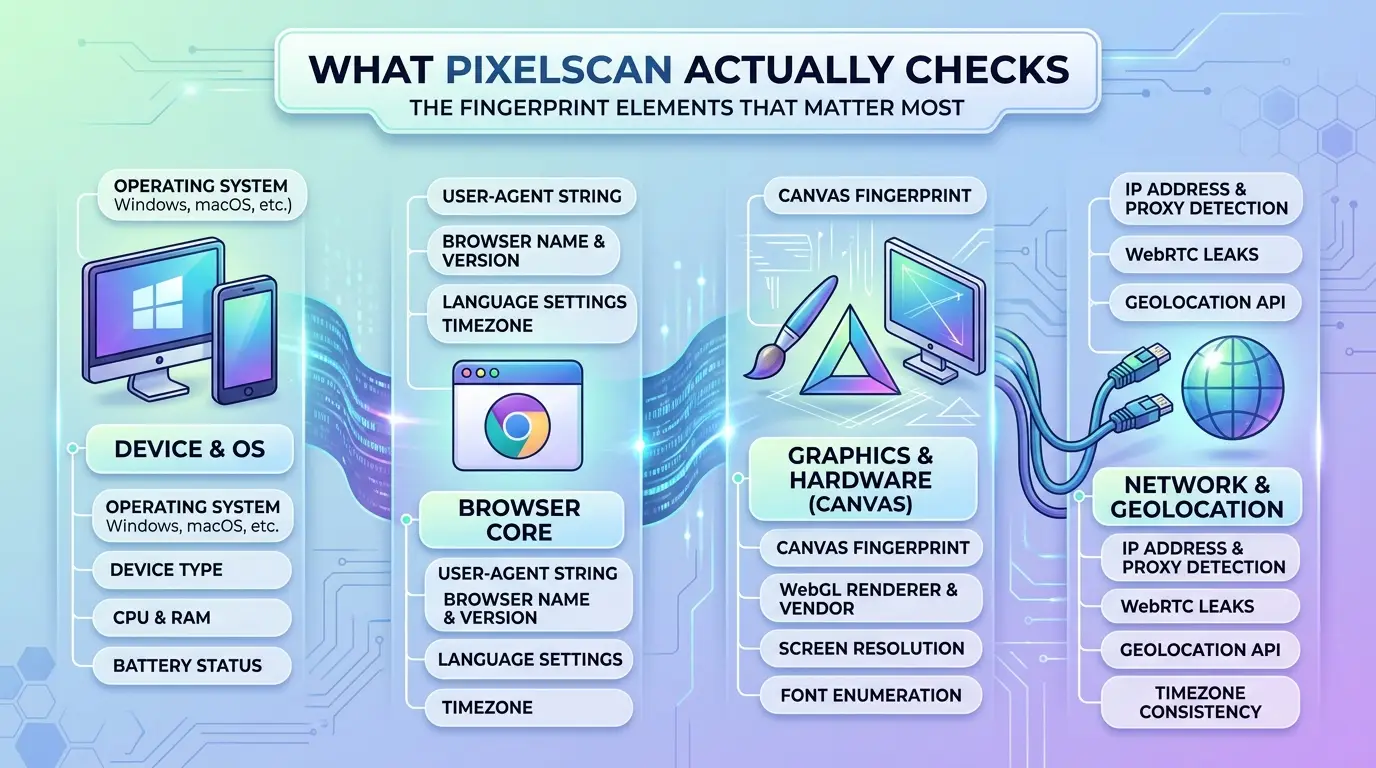
Pixelscan doesn’t just scan your browser for a few obvious traits, it looks across dozens of fingerprint parameters and cross-checks them for subtle signs of mismatch or automation. If your goal is to pass Pixelscan Browser Fingerprint Checks, you need to know which details actually trigger detection and which ones are mostly noise. Missing just one critical element can get your session flagged, even if everything else looks right. Here’s what Pixelscan focuses on most.
Core Fingerprint Components Pixelscan Analyzes
Pixelscan goes deep on the technical side, running checks across canvas, WebGL, audio, installed fonts, and even minor rendering quirks. It records your user-agent string, operating system, screen resolution, browser language, and time zone. If any of these don’t line up, like a Windows user-agent on a Mac screen layout, you’re at higher risk for detection. Most failures happen when you use a random browser profile generator that doesn’t sync these parameters cleanly.
| Parameter |
Common Mismatch |
Detection Risk |
| Canvas/WebGL |
Synthetic rendering |
High |
| Fonts |
Missing system fonts |
Medium |
| User-Agent |
OS/browser mismatch |
High |
| Screen |
Wrong resolution/aspect |
Medium |
| Language |
Locale not matching system |
Medium |
Network and Location Checks: IP, Proxy, Timezone, WebRTC
Pixelscan ties your browser fingerprint to your network signals. The system checks your IP address, proxy configuration, time zone, and WebRTC leak status. If your IP is from Germany but your browser says you’re in Brazil, the mismatch stands out. Time zone errors are a classic fail, many tools forget to sync the browser’s timezone to the proxy’s location, so you get flagged instantly. WebRTC leaks can expose your real IP even behind a proxy, and Pixelscan runs active tests to catch this. Using a proxy without syncing your browser’s fingerprint and time zone is one of the most common rookie mistakes. What trips up most users is not handling these network signals in sync, Pixelscan catches even tiny mismatches and flags your session for review. You can use an antidetect browser like DICloak to bind proxies, sync time zones, and isolate each profile, lowering your risk.
Behavioral and Environmental Signals
Pixelscan looks for signs of automation or unnatural behavior, headless browsers, strange plugin signals, missing desktop features, or unusual mouse activity. If your session loads too fast or skips typical human actions, you’ll get flagged. Headless mode is a dead giveaway; so are browser extensions that leave fingerprints. Even tiny differences, like not having common plugins or using a barebones setup, can trigger detection. In practice, running a browser with full environment simulation and normal user input is safer than trying to strip everything down.
Why Most People Fail Pixelscan Checks: Common Mistakes and Hidden Triggers
Most failures on Pixelscan aren’t about missing one setting, they come from small mismatches or lazy shortcuts that stack up and tip off the system. Even if you use an antidetect browser or a proxy, these “easy to miss” details are why teams keep seeing red flags instead of a clean pass.
Mismatch Between IP, Timezone, and System Locale
Pixelscan looks for harmony between your IP address, browser timezone, and system language. If your proxy is in Germany but your timezone shows New York, or your system locale is set to Chinese while your IP is in France, that’s an instant red flag. Even a one-hour offset between local time and IP-based geo-location can trigger deep checks. Some tools auto-set the browser’s timezone but skip the OS clock or system region, Pixelscan compares all three. To fix this, always align your OS locale and browser language with your proxy’s country, and double-check that the system clock matches the IP’s expected time zone. If you log in from the same machine but switch proxies without correcting these, you’ll get flagged for “impossible travel” or “suspicious session.”
Fingerprint Noise: Over-Modification and Inconsistency
Trying to change every browser parameter at once backfires. Pixelscan spots fingerprints that look “too random” or don’t match real user statistics. If your WebGL, audio, and canvas data all look like they came from different devices, that’s an obvious fake. Stick to realistic, consistent settings.
Proxy Quality and Leak Issues
Low-end proxies or reused IPs almost always fail. Pixelscan checks for DNS or WebRTC leaks, where your real IP or old sessions leak through. Even a single leak can ruin an otherwise clean setup.
Quick Checklist: Common Triggers That Cause Failure
- Proxy and system timezone/locale mismatch
- System clock not synced to proxy location
- Browser language doesn’t match proxy country
- Over-randomized fingerprint parameters
- WebRTC or DNS leaks exposing real IP
- Proxy IPs found on blacklists or flagged as datacenter
- Canvas, WebGL, or font data inconsistent with device type
The real pitfall is skipping these basics, Pixelscan punishes sloppy setups much harder than the obvious cheats.
If you want to stop failing Pixelscan checks, you need to control every detail that ties your “browser identity” to your network and device. Next up: step-by-step fixes that actually work in 2026.
Step-by-Step: How to Pass a Pixelscan Browser Fingerprint Check in 2026
Passing a Pixelscan check in 2026 means getting every browser and network detail to look real, not just random. One missed setting, and you’ll see an instant fail. Here’s the exact process that works now, not last year’s shortcuts.
Prepare Your Proxy and Network Settings
Start with a top-tier, residential proxy, datacenter or “premium” types get flagged fast. The IP should match your target country and city. Next, set your device timezone and system clock to match the proxy’s location. For geolocation, force your browser to report the same region as your IP or Pixelscan will see a mismatch. If your proxy changes IP mid-session, Pixelscan will catch it, only use stable proxies. 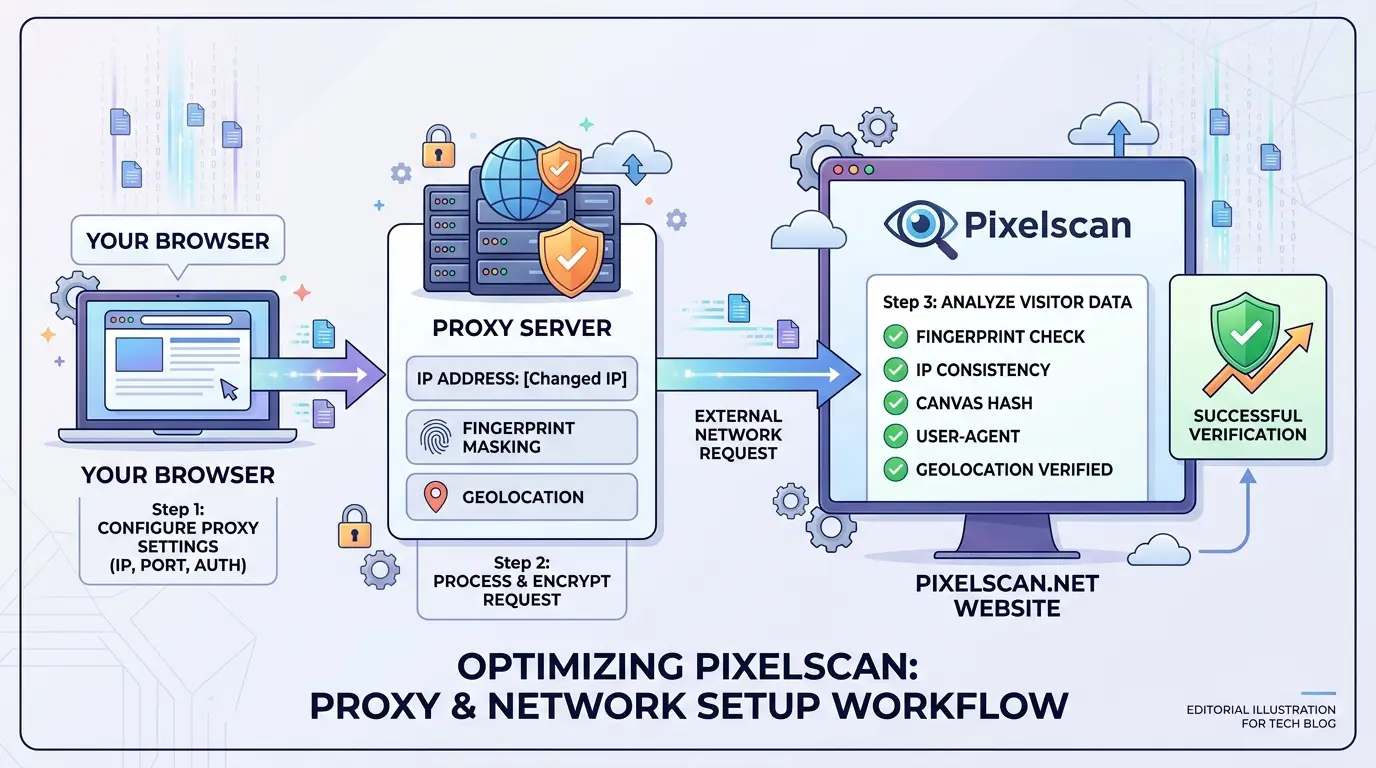
Configure Browser Fingerprint Parameters
Randomizing every parameter fails more often than it works. Instead, tune your browser to match the hardware and network story your proxy tells. Pick a user-agent string that fits the proxy location, don’t use an outdated or rare browser version. Canvas, WebGL, and Audio fingerprints should be consistent with your OS and device type; mismatched or missing values get flagged. Set your language and timezone to match the proxy city. Screen size should fit typical hardware for your target area, no 8K displays for rural IPs. You can use an antidetect browser like DICloak to set these parameters per profile and avoid the “template” fingerprints Pixelscan already blocks.
Test and Adjust: Running Pixelscan and Fixing Issues
Run your setup through Pixelscan and review every section. A green check does not guarantee you’re undetectable, the goal is a clean report with no “suspicious” or “mismatch” flags. If you see issues, change only one parameter at a time and retest. For example, if your WebGL shows “unknown” or your timezone doesn’t match your proxy, fix those first. Keep a log for each test, since repeating the same setup should always return the same result, if not, something is leaking. The hardest failures are “almost passes” that only break at scale, if you plan to run hundreds of accounts, you need zero mismatches every time.
Next, if you need to pass Pixelscan checks across many accounts or for a whole team, the workflow changes. Batch management and automation bring in new risks and tradeoffs.
How to Pass Pixelscan Checks at Scale: Multi-Account, Team, and Automation Workflows
Scaling up from a single browser to dozens, or running accounts across a team, makes passing Pixelscan fingerprint checks much harder. Each new account, device, or team member adds another chance for fingerprint overlap, inconsistent setup, or accidental linkage that can trigger detection. If you want to keep large account fleets stable in 2026, you need a workflow that keeps every session isolated, fingerprints consistent, and mistakes to a minimum.
Why Multi-Account and Team Use Increases Detection Risk
Running multiple accounts from one device, or letting different people handle logins, raises the chance of IP or fingerprint overlap. Pixelscan links accounts if even one parameter, like screen resolution or proxy, is reused. Human error is the real killer: skipping a proxy, forgetting to reset cookies, or mixing up browser profiles can turn one slip into a mass ban. The bigger your operation, the faster small mistakes scale into big problems.
Workflow Strategies for Consistent Fingerprints Across Accounts
The only reliable way to avoid cross-linking is to create isolated browser profiles for each account and assign unique proxies. Tools that automate fingerprint setup and test each configuration before going live help catch errors early. You need regular fingerprint checks, schedule them weekly, not just at setup. For teams, lock down who can edit profiles, and log every change. That’s how you spot and fix leaks before Pixelscan does.
How DICloak Helps Teams and Power Users Pass Pixelscan Checks
You can use DICloak to build isolated browser profiles, set custom fingerprints, and bind proxies for every account. For team workflows, DICloak offers profile sharing, permission controls, and operation logs, so mistakes are tracked and risks are contained. RPA automation covers repetitive setup, making it easier to scale without losing fingerprint consistency. Failing to automate profile isolation is the fastest way to get flagged across all accounts.
Fixing a Failed Pixelscan Test: Troubleshooting and Recovery Steps
When Pixelscan flags your browser profile, quick action matters. You need to spot what triggered the failure and fix it before risking bans.
Diagnosing the Failure: Reading Pixelscan’s Flags and Warnings
Pixelscan shows 'inconsistent', 'suspicious', or 'masked' statuses when fingerprint elements like IP, timezone, or WebGL don’t match. Check the exact flag, an 'inconsistent' warning often means your proxy and browser timezone differ, while 'masked' hints at over-modification. Always map each flag to a specific browser parameter before you change anything.
Quick Fixes for the Most Common Problems
Match your proxy IP with timezone, plug WebRTC leaks, and avoid stacking too many fingerprint tweaks. Tools like DICloak let you set up isolated profiles, assign custom fingerprints, and automate fixes for each account.
When to Start Over: Recognizing Unfixable Fingerprint Issues
If you see multiple red flags, reset your setup. Use DICloak’s batch profile creator and operation logs to avoid repeating past mistakes.
Pixelscan Recovery Checklist:
- Match IP and timezone
- Rerun WebRTC leak tests
- Simplify fingerprint mods
- Reset profile if flagged again
- Log changes for team review
Pixelscan vs Other Fingerprint Checkers: What Makes Passing Pixelscan Harder?
Most browser fingerprint checkers look similar at first glance, but passing Pixelscan is a whole different challenge. Pixelscan digs deeper, flags edge cases, and actively updates its tests, so a setup that passes CreepJS or BrowserScan can still get flagged here without warning.
Key Differences Between Pixelscan and Other Tools (CreepJS, BrowserScan, etc.)
| Feature/Checker |
Pixelscan |
CreepJS |
BrowserScan |
| Detection Depth |
Very high |
Moderate |
Moderate |
| Test Module Count |
35+ |
~20 |
~15 |
| Real-Time Updates |
Yes |
Rarely |
No |
| Known “Backdoor” Flags |
Yes, hidden |
Few |
None |
| Pass/Fail Strictness |
Strict |
Medium |
Low |
| Report Detail Level |
Full parameters |
Key flags |
Basic |
Table: Feature comparison for major browser fingerprint checkers. Source: public tool documentation.
Pixelscan doesn’t just check for obvious mismatches, it runs cross-checks between parameters and scans for hidden “backdoors” like timezone/locale leaks or subtle WebGL mismatches. Even a small slip, like a reused canvas hash, can trigger a fail. CreepJS and BrowserScan are easier to pass, but don’t flag as many corner cases.
What Passing Pixelscan Means for Real-World Account Safety
Passing Pixelscan is the gold standard, if your setup clears it, most platforms won’t flag you for suspicious fingerprints. Many bans happen when people trust a “pass” on easier tools, only to get caught hours later.
When to Use Multiple Checkers in Your Workflow
Use Pixelscan as your main stress test, but check with CreepJS or BrowserScan to catch basic issues faster. Relying on one checker alone gives a false sense of security, layer your tools to avoid surprises.
Best Practices for Consistent, Undetectable Browser Fingerprints in 2026
Passing Pixelscan checks once isn’t enough, what matters is keeping your setup stable so you don’t trip new triggers as workflows change.
Keep Browser and System Settings Stable
Frequent tweaks to browser or OS settings are a red flag for detection engines. Document your profile setup and stick to it. Use the same device, OS emulation, and browser version across sessions. If you change hardware or software, update your records and re-test before logging in.
Test Regularly and Update Proxies/Fingerprints as Needed
Schedule Pixelscan checks every week. Rotate proxies if you see repeated failures, or tweak fingerprints only when detection flags appear. Don’t change settings blindly, track each adjustment.
Avoid Over-Optimization: The Balance Between Stealth and Realism
Trying to make your fingerprint “too perfect” can backfire. If your setup looks unnatural, like missing language quirks or rare hardware, Pixelscan flags it. Pass Pixelscan by aiming for normal, not flawless.
Document and Share Safe Workflows for Teams
Write down each safe routine. Share these guides with your team. Use tools like DICloak to enforce profile consistency.
Quick Checklist:
- Stick to one browser profile per account
- Avoid frequent device/OS changes
- Test with Pixelscan weekly
- Only tweak settings after a failed test
- Share routines and logs with your team
Frequently Asked Questions About Pass Pixelscan Browser Fingerprint Checks
Does passing a Pixelscan browser fingerprint check guarantee my account won't get banned?
Passing a Pixelscan browser fingerprint check lowers your risk of getting banned, but it does not guarantee safety. Platforms use more than just browser fingerprints for detection. They may also look at your IP address, activity patterns, or cookies. Always combine fingerprint checks with careful account behavior and good proxy hygiene for best results.
How often should I test my setup with Pixelscan to stay safe?
Test your setup with Pixelscan regularly, especially after any change. Update checks after swapping proxies, updating your browser, or changing fingerprints. Even small updates can trigger new detection flags. Frequent Pixelscan testing helps you catch and fix issues before they put your accounts at risk.
Can I pass Pixelscan checks using only a proxy?
No, using only a proxy is usually not enough to pass Pixelscan test. Proxies hide your real IP, but they do not change your browser fingerprint. You also need a consistent, natural fingerprint that matches your proxy’s location and looks real to avoid Pixelscan detection.
What should I do if Pixelscan flags my browser as 'inconsistent' even after following all steps?
If Pixelscan still says your browser is inconsistent, double-check every fingerprint detail like timezone, language, fonts, and screen size. Look for small mismatches. Try creating a new browser profile from scratch. Sometimes, hidden extensions or old data can break your setup.
Is it safe to use the same fingerprint setup for multiple accounts?
No, reusing the same fingerprint for many accounts is risky. Platforms can link accounts by matching fingerprints. For best safety, use unique fingerprints and separate browser profiles for each account. This helps you avoid Pixelscan detection and lowers the chance of a mass ban.
If you’re ready to ensure your browsing remains private and undetectable, now is the time to test solutions that shield your fingerprint from advanced detection tools. Take the initiative to safeguard your digital identity by trying out a solid antidetect browser today. Try DICloak For Free
 Web Proxy Tools
 Free Tools
 Cookie Plugin
 UA Generator
 MAC Address Generator
 IP Generator
 IP Address List
 2FA Code Generator
 World Clock
 Anonymous Check
 WebRTC Leak Test
 UUID Generator
 Free Web Proxy Site
 Proxy Checker
 FB Ad Checker
 AI Web Scraping
 Free SMM Tools
 Twitter Shadowban Checker
 Instagram Name Checker
 UTM Generator
 Username Generator
 AI Hashtag Generator
 LinkedIn Headline Generator
 Social Media Image Resizer