A single public Facebook post can show up in Google search results for years, even if you delete it later. That’s how a job candidate in 2024 lost an offer after a recruiter dug up an old comment through Google Search. Most users who look up how to make fb private are trying to avoid this type of headache: old photos, likes, or comments leaking to strangers, future employers, or even automated scraping tools. The problem isn’t just about your profile picture or the latest post, Facebook’s privacy controls are scattered across profile settings, timeline, tagging, and even old app connections.
Trying to guess “how to make Facebook private” by toggling a single setting almost always leaves traces behind. The “View As” tool misses some details, and even if you hide your friends list, your likes or group memberships might still be public. Worse, a forgotten third-party app can keep reading your info until you cut it off directly.
This guide gives a step-by-step plan for how to set Facebook to private, with screenshots and concrete checks most people miss. You’ll see exactly which settings to change, what most users forget to lock down, and how to make FB account private enough that even search engines and old contacts can’t see your past activity. Start by checking who can see your current profile.
What Does It Mean to Make Your FB Private?
Wanting to know how to make FB private means locking down who can see your profile, posts, and activity. But “private” on Facebook does not mean invisible. Instead, it’s about limiting how much of your life is open to strangers, friends of friends, or even search engines. The real process is a mix of settings, some can be hidden, some always show.
What Can and Can't Be Made Private on Facebook?
Not every part of your Facebook can be hidden. Your name, profile picture, and cover photo always stay public. Anyone searching your name can see these, even if they’re not friends. Other details, like your birthday or contact info, can be set to “Only Me” so only you can view them.
Your posts and story updates can be limited by choosing your audience, public, friends, or custom lists. Photos can be locked down, but if you’re tagged in a public album, that tag is visible unless you remove it. Likes, groups, and friends lists have separate controls, but some group memberships always show. Even your comments on public pages are visible to anyone.
Here’s a quick table showing which parts you can and can’t fully hide:
| Feature |
Can Be Private? |
Control Exists? |
| Name, Profile Photo |
No |
No |
| Birthday, Email |
Yes (Only Me) |
Yes |
| Friends List |
Mostly |
Yes |
| Posts, Stories |
Yes |
Yes |
| Group Membership (Public) |
No |
No |
| Likes on Pages |
Partially |
Yes |
| Comments on Public Pages |
No |
No |
Source: Facebook Help Center
Why Privacy Matters for Your Facebook Account
Keeping a public profile means anyone can pull details from your page. This can lead to unwanted messages, scams, or even someone cloning your account. If you don’t know how to set Facebook to private, your photos and posts could end up in search results or be seen by people you blocked.
Stronger privacy settings help keep your info in your hands. Friends-only posts, a hidden friends list, and locked-down old posts make it harder for strangers to learn about you. If you want to check how to make your FB account private, always start with the audience for your posts and double-check app permissions. Missing a single setting can leave your info open to everyone.
What to Check Before You Change Your Facebook Privacy Settings
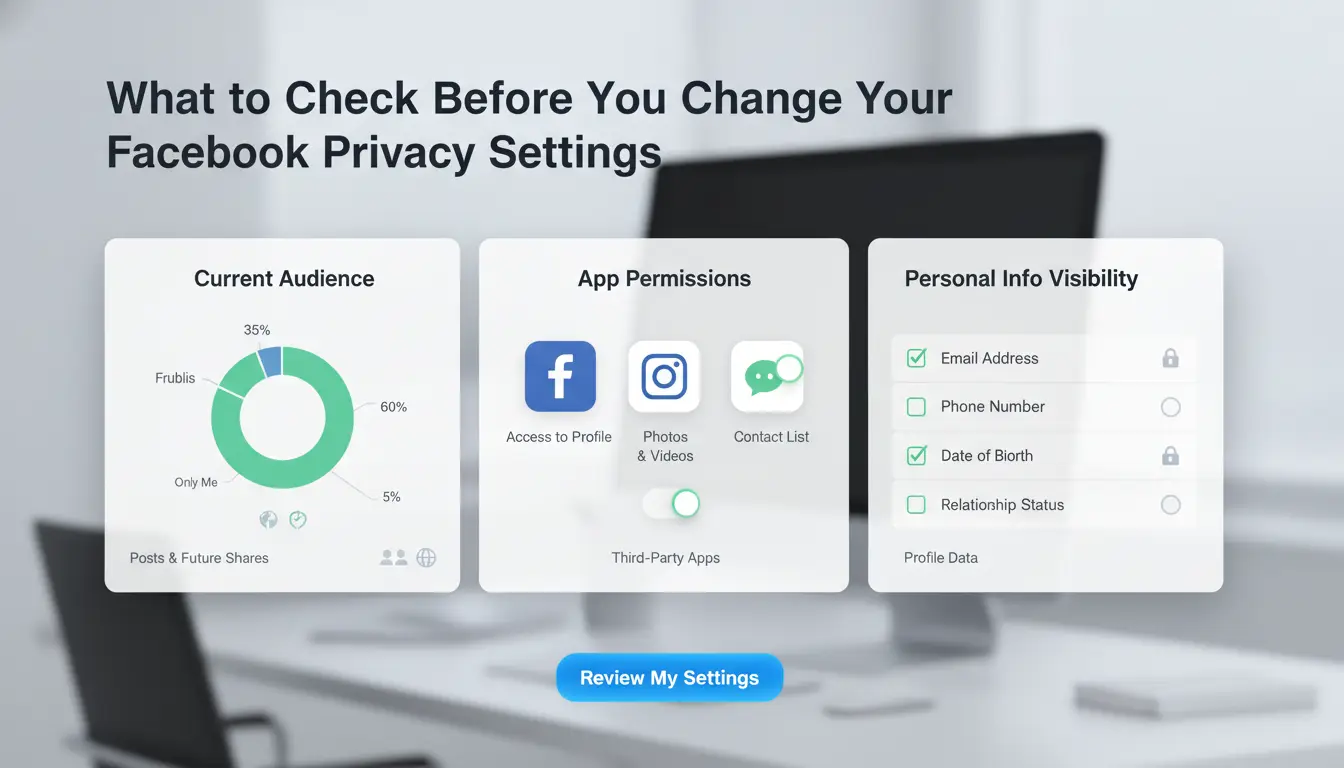
Before you start changing settings, pause to see where your Facebook info is already exposed. People often search “how to make fb private” and rush to hide posts, but miss spots that still leak data. Going step by step helps you avoid gaps and keeps your account safer for the long run.
Which Information Is Already Public
Open your Facebook profile in a browser, then click the three dots near your cover photo. Choose "View As" to see what your public page looks like to strangers. Notice your profile photo, cover image, and some basic info always show unless you remove or change them. Check which posts show up, some old posts might be set to "Public" even if you use stricter settings now. Your friends list, page likes, and group memberships can also appear unless you lock them down.
Don’t forget that comments on public pages or groups stay visible, even if your own timeline is private. If you want to know exactly how to set Facebook to private, you’ll need to check each of these areas, not just your profile settings.
Common Mistakes That Leave Your FB Less Private
Many people hide their timeline but skip the "About" section, which can list your workplace, school, or city. Privacy settings for tags and old posts are in a different menu, missing these steps means friends can tag you in posts that show up for others. Another common mistake is forgetting about apps and websites you’ve logged in with Facebook. These third-party connections can keep reading your profile data until you remove them. Go to Settings > Apps and Websites to see which services have access and revoke anything you don’t trust.
The most common privacy leaks happen when users don’t check third-party app access and old post visibility.
How to Back Up Your Data Before Making Changes
Before you edit privacy settings, it’s smart to download your Facebook data. This way, you keep a record of posts, photos, and messages in case something gets hidden or deleted. Go to Settings > Your Facebook Information > Download Your Information. Choose which data you want, then click "Create File." Facebook will send a link when it’s ready. If you care about keeping memories or proof of old activity, always back up before changing settings. This step matters whether you’re learning how to make Facebook private for the first time or tightening up an old account.
How to Make Your Facebook Profile Private: Step-by-Step
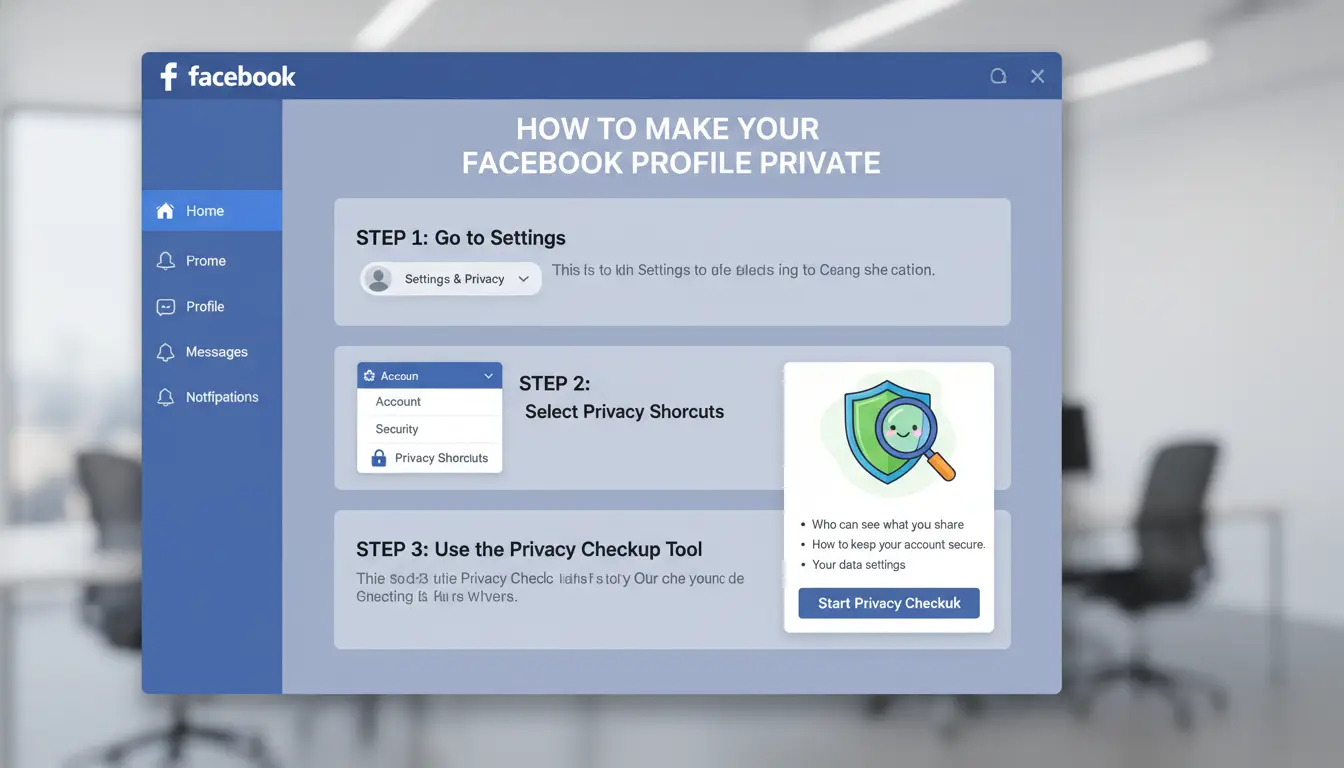
Locking down your Facebook profile isn’t just about flipping one privacy switch. If you want to know how to make FB private the right way, you’ll need to check several areas that Facebook splits across menus. Follow these steps to cover the gaps people usually miss.
Step 1: Run Facebook’s Privacy Checkup Tool
Open Facebook and click your profile picture. Go to “Settings & privacy” and choose “Privacy Checkup.” This tool guides you through some basics, like who can see your posts or profile details. It also points out apps connected to your account. But it won’t cover everything, some settings (like who can find you by phone number or see your old posts) are outside its reach. Always double-check things manually after running it.
Step 2: Set Your Profile and Cover Photos to Private
Not everything on your Facebook can be fully hidden. Profile and cover photos always show some info (like your current photo and cover). But you can go into each photo album and change past photos to “Only Me.” For full privacy, limit who can comment or like these pictures by adjusting the audience on each image. Old profile photos might still have public likes or comments unless you set them to “Only Me.”
Step 3: Limit Who Can See Your Posts and Stories
Set your default post audience to “Friends” or “Only Me” so new posts aren’t public. To do this, go to Settings > Privacy > “Who can see your future posts?” For older posts, use the “Limit Past Posts” option, this changes all previous posts to friends-only in one click. Don’t forget stories: in the “Stories” section, set your audience to “Custom” if you want tighter control.
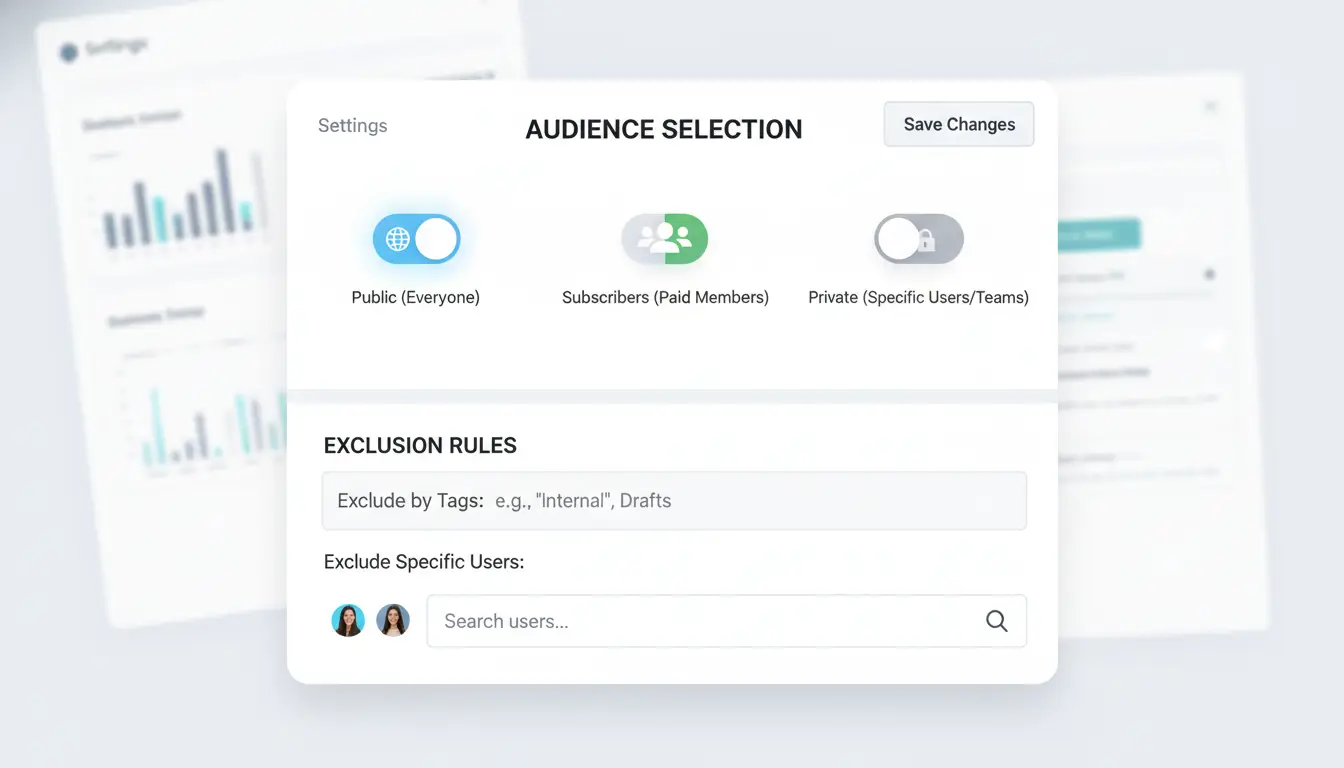
Step 4: Hide Your Friends List and Activity
Go to your profile, click the “Friends” tab, and choose the pencil icon to edit privacy. Set “Who can see your friends list?” to “Only Me.” For likes and follows, scroll down to “Likes” on your profile and use the pencil to hide individual categories (like music, movies, or books). This helps block strangers from seeing who you interact with.
If you follow these steps, you’ll cover the most visible gaps in Facebook’s privacy settings. Most people searching for how to make Facebook private miss at least one of these spots.
How to Control Who Can Find and Contact You on Facebook
Keeping control over who can reach you on Facebook matters as much as hiding your profile details. If you only adjust visibility but ignore how people find or message you, strangers and old contacts can still access or bother you. Getting this right is a key part of how to make fb private in a way that actually works.
How to Limit Friend Requests and Who Can Look You Up
Go to Facebook’s Settings & Privacy, then “Audience and Visibility.” Under “How People Find and Contact You,” change “Who can send you friend requests?” to “Friends of friends.” Now, random users can’t add you.
Next, set both “Who can look you up using the email address you provided?” and “Who can look you up using the phone number you provided?” to “Only me.” This blocks people from finding you if they know your contact info.
For anyone searching “how to make Facebook private,” missing these settings leaves big gaps. Even if your timeline is locked down, your phone or email can leak your account.
How to Block or Restrict Specific People
Some users want to control certain people, not just the public. Blocking someone means they can’t see your profile, tag you, or message you at all. Restricting is softer, they can only see your public posts, and you stay Facebook friends.
You can block a person by going to their profile, clicking the three dots, and choosing “Block.” To see who you’ve blocked, check Settings > Blocking. It’s smart to review this list now and then, especially if you’ve had issues with harassment or spam.
How to Stop Search Engines from Linking to Your Profile
Facebook lets search engines like Google show your profile in results by default. That’s a big privacy hole. To fix it, go to Settings > Audience and Visibility > “How People Find and Contact You,” and turn off “Do you want search engines outside of Facebook to link to your profile?”
If you skip this, someone can still Google your name and land on your Facebook even if you hide everything else. For more details, see Facebook’s Help Center.
How to Keep Your Facebook Private When Using Multiple Devices or Sharing Access
Logging into Facebook from more than one phone or computer can quietly expose your profile, even if you think your settings are locked down. Each device tells Facebook something about you: location, browser type, and even how you move between apps. If you want to know how to make fb private, you need to watch not just profile settings, but also the way you log in and who can access your account.
Risks of Logging In from Multiple Devices or Locations
Facebook tracks every login. If you sign in from a device you rarely use, or from a city you weren’t in yesterday, Facebook flags it. Sometimes it just asks for extra verification, but in other cases, it may freeze your account or send alerts to your friends. This is part of how Facebook detects account theft, but it also means your privacy can break if you share your password or forget to log out on an old device.
Someone with access to one of your logged-in devices could see your private messages, friend lists, or even change your privacy settings. This is why knowing how to set Facebook to private is not just about the website, it’s about your devices too.
How to Use Proxies Safely for Facebook Privacy
Proxies can mask your location when you log in. They help if you want to check your profile from work or while traveling, or if you manage accounts for a team. But a random free proxy is risky. Facebook can spot patterns, like ten accounts using the same proxy, and might restrict you or mark your login as suspicious. Only use trusted proxies, and don’t share one proxy across many accounts. Cloudflare explains how proxies work and where problems start.
Best Practices for Teams or Shared Facebook Access
If you need to share access with someone, don’t just hand over your password. Use Facebook’s “Page Roles” or “Business Manager” for pages and ads. This lets you set what others can do, and you can remove them quickly if needed. For personal accounts, check “Where You’re Logged In” in your security settings. Remove old devices and sessions you don’t recognize. If you want to make FB account private, regular audits of your devices are just as important as adjusting privacy settings.
How DICloak Helps Social Media Marketers and Teams Keep Facebook Accounts Private
Making Facebook private isn’t just about settings, it’s about how accounts are accessed. Many marketers manage multiple Facebook accounts, sometimes for clients, sometimes for campaigns. If those accounts share a browser, device, or network, privacy risks multiply. Even after you learn how to make FB private, hidden links between accounts can still leak. This is where tools like DICloak step in.
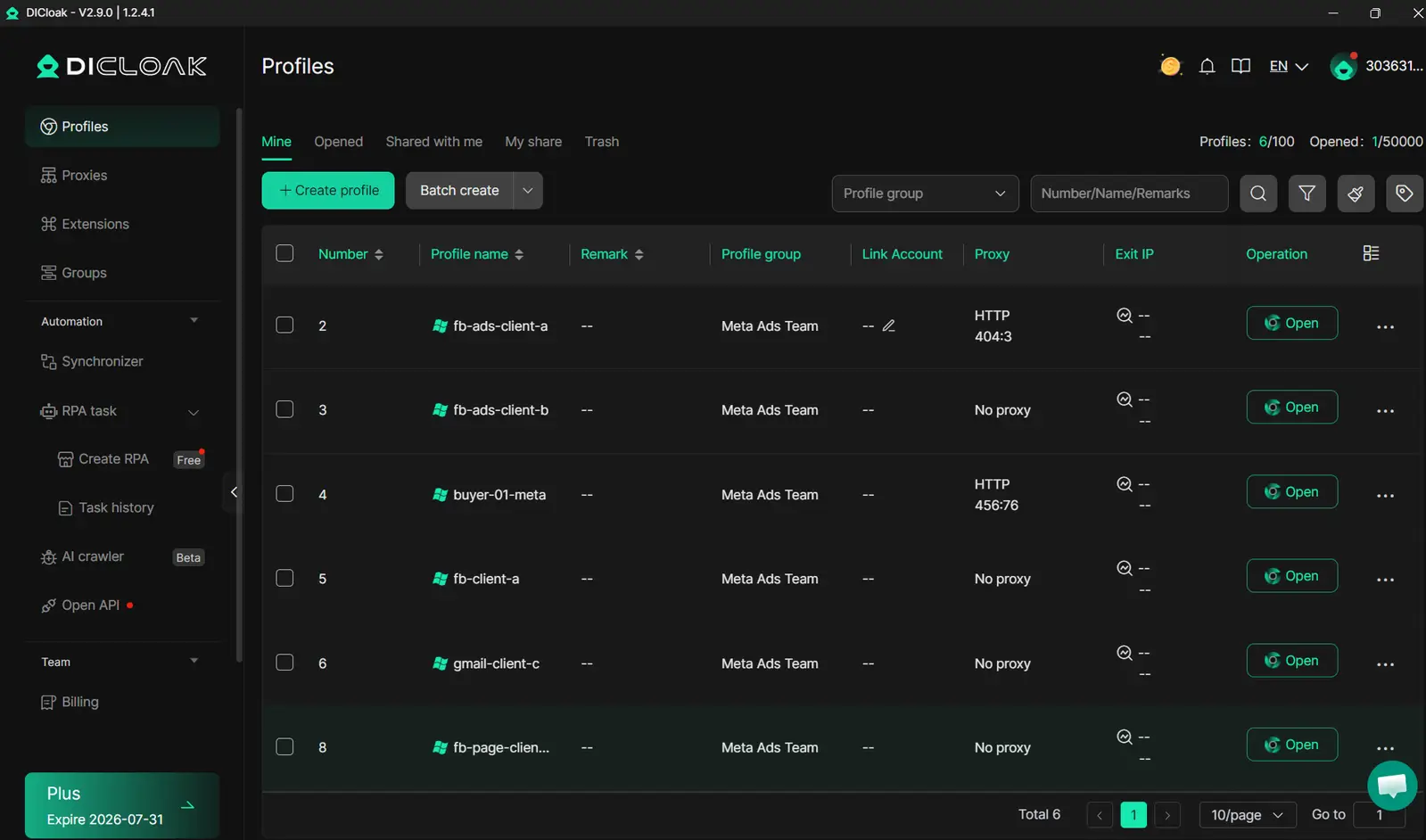
How DICloak Creates Isolated, Private Environments for Each Account
You can use DICloak to run every Facebook account in its own browser profile, each with a unique fingerprint and proxy. That means Facebook sees each login as coming from a different user, not a grouped team. This isolation stops Facebook from linking accounts based on device or network clues, helping you avoid privacy leaks even if you’re working with dozens of accounts. Learn more about browser fingerprints at Wikipedia.
How DICloak Enables Safe Team Collaboration
For teams, DICloak lets you share account profiles without exposing credentials. Permission controls limit who can access each account. Operation logs track every change and login, so you always know who did what and when. These features match the needs of agencies managing client accounts or brands with multiple social media managers.
How DICloak Automates Privacy-Safe Workflows
DICloak can automate privacy checks, like reviewing app permissions or session history, so you don’t miss steps when setting Facebook to private. Automated workflows cut manual mistakes that often expose accounts. This fits anyone searching for how to make Facebook account private and keep it protected in real-world use.
How to Review and Maintain Your Facebook Privacy Over Time
Locking down your Facebook privacy isn’t a one-time job. The platform changes its rules, adds features, and sometimes resets your settings. If you want to keep your profile private, you need to set up a routine for checking what’s visible and what’s slipped open. Here’s how to make fb private for the long run, covering reminders, spotting new risks, and recovering after a slip.
How to Set Reminders for Privacy Reviews
Most users forget to check their privacy settings after the initial setup. But Facebook tweaks its controls often, and old settings can get exposed. Setting a monthly or quarterly reminder in your phone calendar works well. You can also use tools like Google Calendar or Todoist to schedule a recurring task.
If you want more structure, try adding a checklist in your notes app, covering profile visibility, tag review, app connections, and timeline privacy. The most effective habit, always review your settings after a Facebook update or any notice about new features. This step catches surprises before they become leaks.
How to Spot New Privacy Risks After Facebook Updates
Facebook rarely announces every privacy change in detail. Watch for update notes in the Facebook Newsroom, or check the “What’s New” section in your app store. After each update, use the “View As” tool to see what strangers can view. Then test your settings by opening your profile in a private browser window.
Look for new sharing defaults, public group posts, or apps with fresh access. If you see anything you didn’t expect, dig into the settings under “Privacy Shortcuts” and “Apps and Websites.” Recent updates often reset app permissions or change who can tag you.
How to Recover If Your Privacy Was Compromised
If you discover your info was exposed, act fast. Remove unwanted app connections under “Apps and Websites.” Change your password and turn on two-factor authentication. Review your recent activity log for odd posts or likes.
Next, use the “Download Your Information” tool to see what data is public. If you need extra help, check Facebook’s Help Center for recovery steps. To make FB account private again, walk through every privacy setting and reset any that were changed.
Frequently Asked Questions
How do I make my FB account completely private?
To make your FB account as private as possible, go to Settings > Privacy and limit who can see your posts, friends list, and contact info. Set your profile so only friends can find or contact you. Some details, like your name and profile photo, always stay public. Follow every privacy option for maximum control.
Can people still find me if I set Facebook to private?
Even if you use all privacy settings, people may still find you by name or email. To limit this, go to Privacy Settings and restrict who can look you up and send friend requests. You can’t hide completely unless you deactivate your account, but privacy settings will make you much harder to find.
Does making my FB private affect my Messenger privacy?
Making your FB private does not automatically make Messenger private. Messenger uses some of your Facebook settings, but it also has its own privacy controls. To fully protect your privacy, adjust Messenger settings like message requests, active status, and who can contact you, in addition to learning how to make fb private.
How often should I review my Facebook privacy settings?
Check your privacy settings every few months and after major Facebook updates. Facebook sometimes changes privacy options, so regular reviews keep your account secure. Set reminders to go through each setting, especially if you’re learning how to make Facebook private for the first time or updating your information.
Is it safe to use proxies for Facebook privacy?
Using proxies can hide your location and help protect privacy, but poor setup can trigger Facebook’s security checks or even lock your account. If you’re searching for how to make fb private, focus on Facebook’s built-in privacy tools first, and only use proxies if you know how to configure them safely.
Making your Facebook account private is essential to protect your personal information and control who can see your posts and profile. By regularly reviewing your privacy settings and being mindful of what you share, you can maintain better control over your online presence. Try DICloak For Free
 Web Proxy Tools
 Free Tools
 Cookie Plugin
 UA Generator
 MAC Address Generator
 IP Generator
 IP Address List
 2FA Code Generator
 World Clock
 Anonymous Check
 WebRTC Leak Test
 UUID Generator
 Free Web Proxy Site
 Proxy Checker
 FB Ad Checker
 AI Web Scraping
 Free SMM Tools
 Twitter Shadowban Checker
 Instagram Name Checker
 UTM Generator
 Username Generator
 AI Hashtag Generator
 LinkedIn Headline Generator
 Social Media Image Resizer