You hit play on a YouTube video, but there’s no built-in button for repeat. Maybe you want a song to loop while you work, keep a tutorial running, or let a playlist play all night. Figuring out how to loop a youtube video isn’t obvious, even though it’s a common need.
Most people try right-clicking or hunting through the YouTube app, only to find the loop option missing or unreliable, especially on mobile. Some end up searching for third-party tools or browser extensions, but those come with their own risks and overhead. If you only want to repeat a single video, it’s easy to get stuck in a cycle of clicking back to the start instead of letting it play on repeat.
The details matter here: YouTube’s loop option works differently on desktop versus mobile, and looping a playlist isn’t the same as looping a single video. Even small changes, like using YouTube in a browser tab versus the app, can change what menu options you see. What looks simple can get confusing fast, especially if you want to know how to repeat a YouTube video without extra software.
If you want clear steps for each device, plus what to do when the usual tricks don’t show up, read on for direct, up-to-date methods that actually work.
What Actually Happens When You Loop a YouTube Video
Looping a YouTube video means the same video will play again from the start every time it finishes, no clicks or reloads needed. But this replay only repeats the current video, not every element on the page, and not always in the way new users expect.
How YouTube's Loop Feature Works
- When you turn on Loop for a single video, only that video restarts automatically. No menus or recommendations are refreshed between repeats.
- Playlist looping is different: the Loop button on a playlist cycles through all videos in order, then starts over. If you select Loop on an individual video inside a playlist, it only repeats that one clip.
- Loop works the same whether you use right-click menu (desktop) or the mobile app’s extra options, but controls may be hidden or change position based on device.
What Looping Does Not Cover
The Loop function only repeats playback of the video file itself. Ads can still play before or during each loop, so if the video is monetized, you’ll see (or hear) the ad every time the video starts over. YouTube might also insert recommendations or pop-ups between repeats, especially after several loops or if you’re not signed in.
Device and account settings add their own limits. For example, on some smart TVs, the Loop option disappears completely. On mobile, battery-saving features or background playback restrictions can break continuous looping. If your internet drops mid-loop, YouTube may reload the page and drop your repeat setting. If you expect looping to run hands-free for hours, keep an eye out for these interruptions, YouTube is designed to keep users active, not for endless passive play.
In edge cases, like looping in an embedded player on another site, the Loop option may not appear at all. If you’re using a browser extension or automation tool to force looping, updates to YouTube’s interface can break those methods without warning.
Ready for actual steps? Start with how to loop a YouTube video on desktop, this works for most browsers and gets you the core function with the fewest clicks.
How to Loop a YouTube Video on Desktop: Step-by-Step
You don’t need extra software or browser extensions to repeat a YouTube video on your computer, YouTube’s built-in loop feature is fast once you know where to look. If the loop option disappears or doesn’t show up, there’s a fix for that too. Follow these steps for a clean repeat cycle, and avoid the usual pitfalls that trip up new users.
Using YouTube's Built-In Loop Option
- Right-click on the video itself (not the surrounding area). You’ll see a menu appear; “Loop” is usually the fourth option. Click “Loop”, the video will restart automatically each time it ends.
- If “Loop” doesn’t show up, try right-clicking again. Sometimes the first right-click triggers YouTube’s custom menu, but the second click brings up the browser menu, only YouTube’s menu includes the loop feature.
- To loop a playlist, click the playlist icon under the video, then click the “Loop” button. This repeats the whole playlist, not just one video.
- If your video is embedded on another site, open it directly on youtube.com for the loop option.
Common Mistakes and Troubleshooting
- If “Loop” isn’t in the menu, check if you’re signed in or using a guest browser session. Private/incognito tabs sometimes block YouTube’s menu scripts.
- Some browser extensions or ad blockers can remove YouTube’s custom menu, disable these and reload the page to restore the loop option.
- If you’re watching in full-screen mode, exit full-screen before right-clicking. The menu won’t appear otherwise.
- Loop fails if the video is age-restricted or region-locked, YouTube disables custom options for protected content. Switch to a public video to test.
Keyboard Shortcuts and Extensions
- YouTube doesn’t have a native keyboard shortcut for looping. If you want to repeat with one key, install a browser extension like “Looper for YouTube” from the Chrome Web Store. Set a shortcut inside the extension settings.
- Extensions can force looping even when the built-in menu is missing, but they sometimes conflict with other YouTube scripts. If the extension stops working, disable other video-related plugins and restart your browser.
- For quick repeat, hit the “R” key if your extension supports it. If nothing happens, check the extension’s settings or update it.
Once you’ve got looping working on desktop, switching to mobile brings a different set of steps, especially since the menu layout changes and some options move into hidden menus.
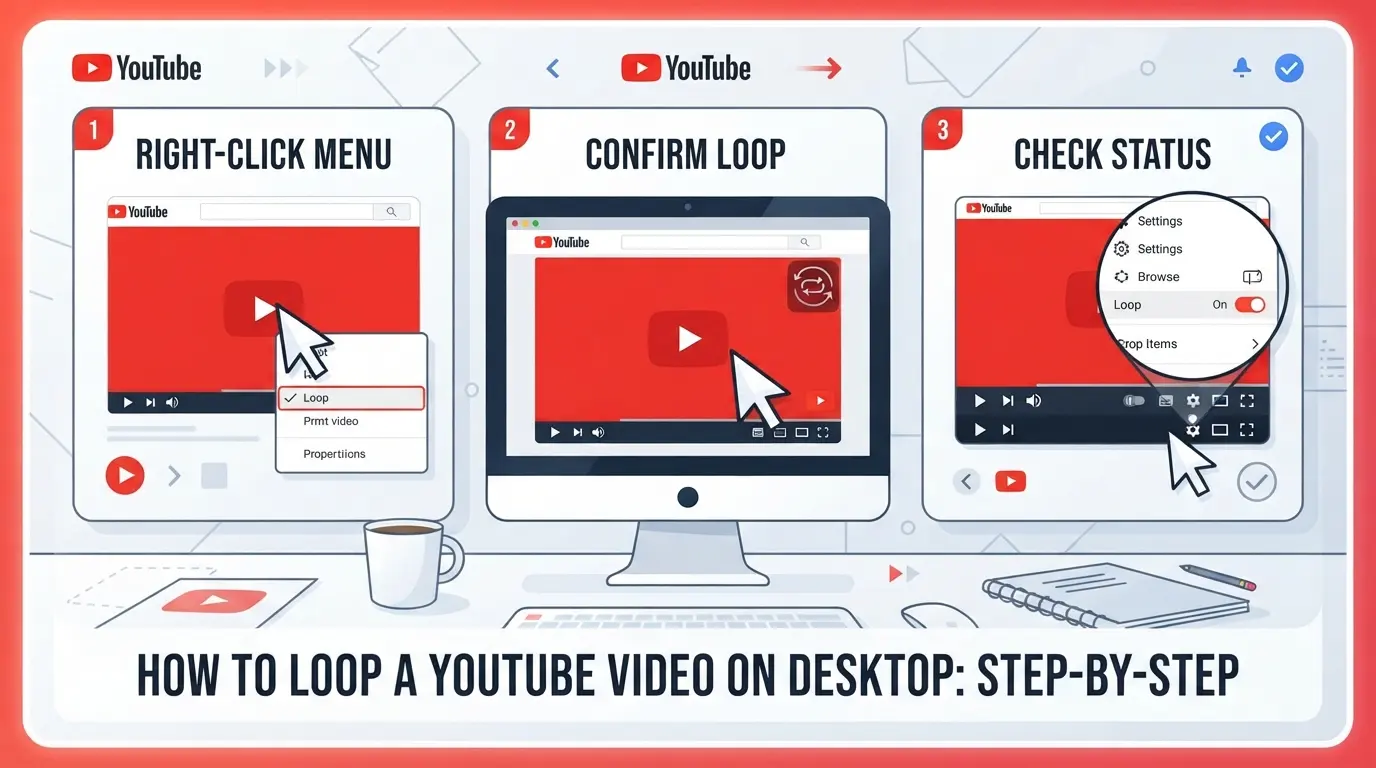
How to Loop a YouTube Video on Mobile Devices (Android & iOS)
Looping YouTube videos on your phone isn’t as obvious as on desktop. Here’s how to repeat a video with just the YouTube app or your mobile browser, no third-party tools needed.
Looping Videos in the YouTube Mobile App
- Open any video in the YouTube app.
- Tap the screen to reveal controls, then tap the three-dot menu in the upper right.
- Tap “Loop video.” If you don’t see it, update the app, older versions or some regional accounts might not show this yet.
- For playlists, tap the playlist, then tap the loop icon under the title. If the icon is gray, tap once for playlist loop, twice for repeating only the current video.
Looping Videos in Mobile Browsers
- Go to youtube.com in Chrome or Safari.
- Tap the “AA” icon (iOS Safari) or three-dot menu (Android Chrome), then choose “Desktop Site.” This step is essential, mobile sites rarely show the loop menu.
- Long-press the playing video, then tap “Loop.” If you get the iOS share sheet instead, try another browser, this menu can be missing depending on your device.
- If the loop option still won’t appear, try the app or build a playlist as a workaround.
Third-Party Apps and Tools
- Search your app store for “YouTube loop” apps, but read ratings and privacy warnings first.
- Most third-party tools need you to paste a URL and watch ads.
- Some collect extra data; avoid granting notification or background permissions unless you need them.
- If the app asks for your Google login, skip it, this is a red flag for privacy.
The next section covers how to keep playlists or multiple videos looping, useful when the single video loop isn’t enough.
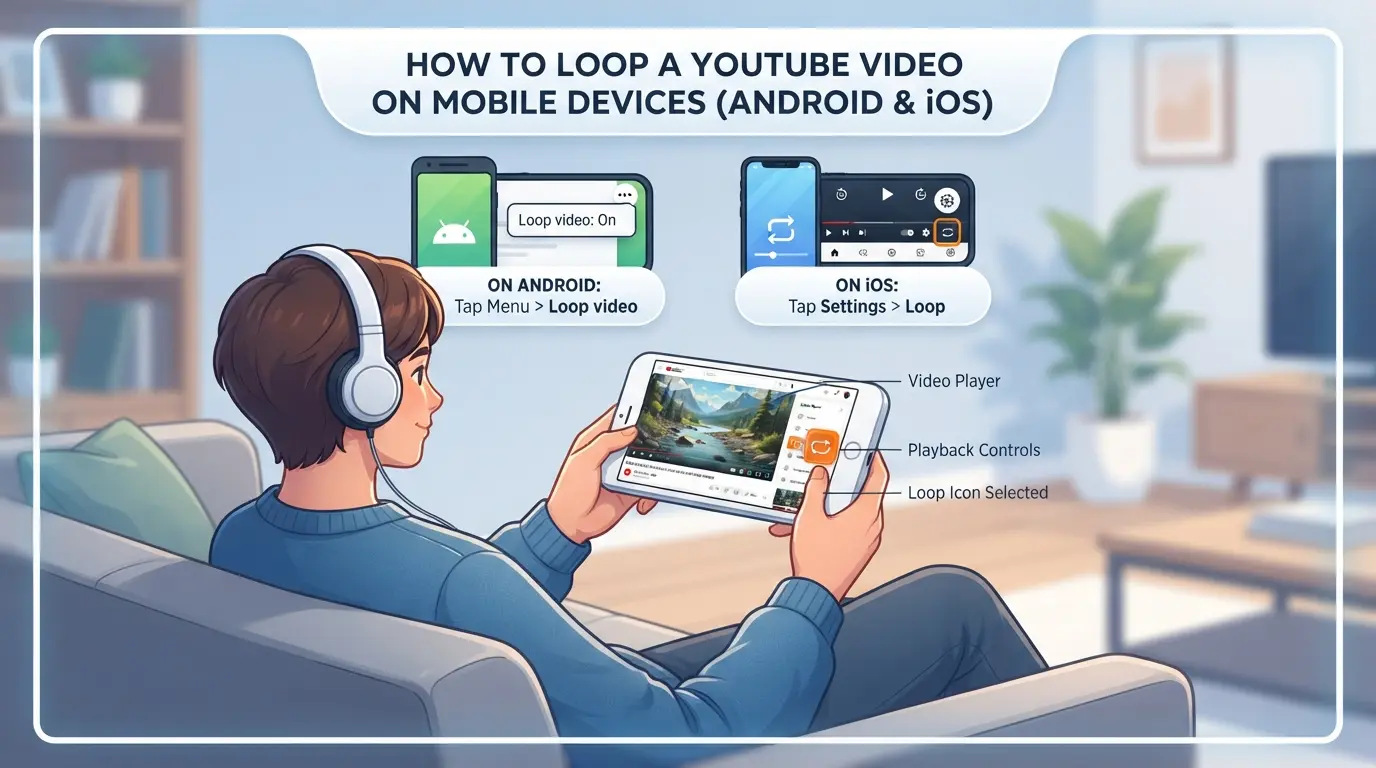
How to Loop a YouTube Playlist or Multiple Videos
Yes, you can loop a YouTube playlist or a set of videos, but the steps and results are not the same as looping a single video. Here’s what actually works, what breaks, and how to avoid the usual dead ends if you need to repeat more than one video.
Looping Playlists in YouTube
- Open your playlist in the YouTube web player.
- Click the Loop icon (two arrows forming a circle) below the playlist panel, this repeats the entire playlist, not just one video.
- If you click the loop icon again, it will switch to looping only the current video, watch for the single-arrow overlay.
- If you don’t see the loop icon, refresh the page, or check if you’re in a YouTube Music playlist (the button may be missing in some app views).
Playlist looping only repeats the order you see, if you shuffle, it repeats the shuffled sequence. 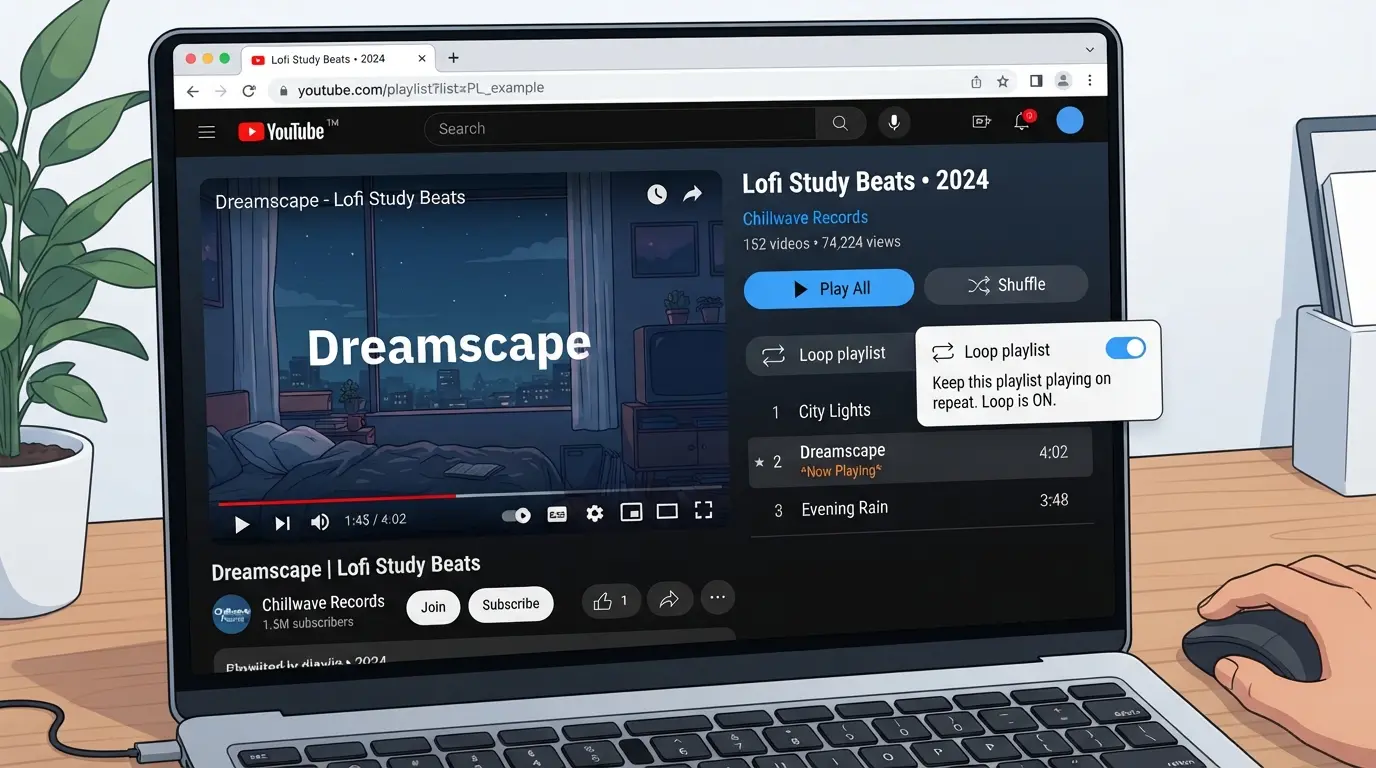
Batch Looping with Browser Extensions
- Search for a browser extension like “Looper for YouTube” that supports playlist or multi-video looping.
- Install and reload your YouTube tab, most extensions add a new “Loop” button below the video.
- Set how many times to repeat each video or the whole playlist.
- Double-check extension permissions and reviews, some inject ads or break after YouTube updates.
If your playlist has private or region-locked videos, extensions may skip or freeze on those.
Common Issues with Playlist Looping
- YouTube inserts ads between videos, even on loop, these can’t be skipped by the repeat function.
- If you edit the playlist while it’s looping, playback may restart from the top or skip to the next video unexpectedly.
- Changes in playlist order (like toggling shuffle) only apply after the next full loop.
- Autoplay must be on for smooth looping, if it’s off, playback will stop at the last video.
For paid YouTube Premium accounts, background play works, but looping behavior is the same as free accounts. If you’re troubleshooting why a playlist won’t loop, check for missing videos or app restrictions before blaming your browser.
When Looping YouTube Videos Gets Risky: Account, Device, and Privacy Issues
Account and Device Limitations
Looping a YouTube video for hours can trigger account flags, especially if you're logged in and repeat the same video nonstop. Devices also take a hit, expect battery drain or overheating if you leave a phone, tablet, or laptop running on repeat for too long.
Privacy and Data Usage Risks
Leaving videos on loop eats up data and can expose you to tracking, especially if you use third-party tools.
- If you rely on browser extensions or unknown apps to loop videos, you risk leaking your viewing history or even login details.
- Stick to YouTube’s built-in loop feature or trusted browser functions to avoid privacy headaches.
When YouTube May Restrict Looping
YouTube sometimes detects automated looping or “unnatural” viewing patterns. In 2026, repeated requests from the same IP or browser profile can trigger temporary viewing limits, pause recommendations, or even restrict playback. If autoplay stops or you see a warning, take a break, pushing further could affect your account’s good standing.
How Social Media Teams Can Safely Loop YouTube Videos Across Multiple Accounts with DICloak
If you run marketing across multiple YouTube accounts, looping the same video for campaign engagement can quickly run into account and browser overlap problems. After seeing device and privacy risks in the last section, the next step is clear: you need every account to operate in a clean, isolated browser profile. DICloak doesn’t touch YouTube’s playback or loop setting, but it does let teams organize and separate the browser sessions, network connections, and access controls for multi-account workflows. That’s the real gap most teams miss , not just “how to loop a youtube video,” but how to do it across accounts without stacking up risk.
Isolated Browser Profiles and Fingerprint Configuration for YouTube Accounts
Operators can create a new DICloak browser profile for each YouTube account, making sure login sessions stay separated and browser storage doesn’t cross over. Every profile holds its own settings: operating system, User Agent, time zone, geolocation, and language , all configurable to fit the account’s history or campaign location. If a team runs accounts from different regions, these fingerprint signals can be set per profile, so browser profiles fit the account’s background instead of forcing one-size-fits-all. The scope is browser profile only; it doesn’t change anything inside YouTube itself.

Proxy Configuration for Separate Account Sessions
For workflows that need a steady network connection per account, operators can add and test their own proxy to each DICloak profile. You enter the proxy’s host, port, and credentials, then check if the connection actually matches the expected country and time zone before opening the session. This keeps the network layer consistent with the account’s region, cutting down on accidental overlap or mixed signals during campaign looping. Proxy selection and quality are up to the operator , DICloak only stores and applies the settings for each profile.

Team Collaboration and Permission Control for Multi-Account Operations
Admins can organize team members into groups and set which browser profiles, functions, and fields are visible and accessible in DICloak. For example, one group might get permission to loop videos in assigned YouTube profiles, while another can only view campaign results. Permissions are set inside DICloak and don’t replace YouTube’s own account controls, but this makes team handoffs and role separation easier to manage without risking account cross-access.

Setting up these controls puts the groundwork in place for more advanced looping, automation, and workflow tweaks in larger teams.
Advanced Looping Tips: Automation, Scheduling, and Workflow Optimization
If you need to repeat YouTube videos for marketing, study, or background music, automation saves time and reduces manual clicks.
Using Automation Tools for Looping
Automation software like RPA bots or macro tools can replay videos by detecting “end of playback” events and reloading the page or clicking “replay.” Scheduling tools let you define start/stop times for looping sessions, helpful for study rooms or coordinated promotion. The main win is removing human error: once set, the loop stays consistent, even overnight.
Workflow Optimization for Teams
- Assign repeat tasks to specific accounts for campaign tracking
- Use batch scripts to launch multiple browser sessions at set times
- Sync video loops with other social content drops
Common Pitfalls in Automation
Automation can trigger platform flags if not tuned right. To keep things safe:
- Randomize intervals between repeats
- Limit the number of simultaneous sessions per IP
- Monitor for unexpected logouts or playback errors
Quick Reference Table: Looping Methods for YouTube Videos in 2026
If you just need the fastest way to repeat a YouTube video, this table compares all practical options by platform, so you can pick and move on.
Looping Methods by Platform
| Method |
Works On |
Steps Required |
Key Limitation |
| Right-click "Loop" |
Desktop Browser |
2 (right-click, select) |
Not on all videos, no mobile |
| Mobile App "Repeat" |
Mobile App (2026) |
3 (tap video, menu, tap) |
Only for single videos |
| Playlist Loop |
All devices |
2 (add to playlist, loop) |
Only for playlists, not singles |
| Extension/Third-party |
Desktop Browser |
Varies (install, setup) |
Security risk, not for mobile |
Most users can just use the built-in loop, only use extensions if you need advanced features or automation.
If you want to know how to loop a YouTube video without extra tools, the desktop right-click menu is still fastest in 2026.
Frequently Asked Questions About how to loop a youtube video
Can I loop a YouTube video without logging in?
Yes, you can loop most public YouTube videos without logging in. Simply right-click on the video and select "Loop." This works on desktop browsers for most videos. However, some videos with age restrictions, private settings, or copyright blocks may not show the loop option if you are not logged in.
Why does the loop option disappear on YouTube?
The loop feature might disappear due to browser compatibility issues, video type, or updates to the YouTube platform. For example, some browsers or mobile apps don’t support right-click menus. Also, live streams, YouTube Shorts, or some embedded videos may not offer the loop function.
Is looping a YouTube video safe for my account?
Looping a video manually is generally safe for your account and does not violate YouTube’s rules. But using automated scripts or extensions to repeat videos many times can trigger YouTube’s spam filters. This could result in warnings or account flags, especially if the looping is excessive or unnatural.
Can I loop a YouTube video on smart TVs or streaming devices?
Some smart TVs and streaming devices support looping, but the feature depends on the app version and manufacturer. On YouTube’s official smart TV app, the loop option is often missing. However, some devices let you repeat a YouTube playlist by playing it in order, which acts like a loop.
Are there risks in using third-party looping tools?
Yes, there are risks. Some third-party websites and browser extensions may collect your viewing data or ask for unnecessary permissions. Only use trusted tools that don’t require you to log in or give access to your YouTube account. Avoid providing personal information to unknown sites to keep your data safe.
Now that you know several ways to replay your favorite videos, consider which method fits your viewing habits best, whether it's using built-in features, browser extensions, or third-party tools. Taking a moment to set up your preferred option can make continuous playback smooth and hassle-free. Try DICloak For Free
 Web Proxy Tools
 Free Tools
 Cookie Plugin
 UA Generator
 MAC Address Generator
 IP Generator
 IP Address List
 2FA Code Generator
 World Clock
 Anonymous Check
 WebRTC Leak Test
 UUID Generator
 Free Web Proxy Site
 Proxy Checker
 FB Ad Checker
 AI Web Scraping
 Free SMM Tools
 Twitter Shadowban Checker
 Instagram Name Checker
 UTM Generator
 Username Generator
 AI Hashtag Generator
 LinkedIn Headline Generator
 Social Media Image Resizer