You go to check out on Amazon, but instead of a confirmation, you get a red alert: amazon payment declined. The card worked last week. Your bank app shows no blocks. You double-check the numbers, still nothing. Now you’re stuck, wondering if it’s a glitch, a fraud flag, or something wrong on your end.
Not every payment failure is your fault. Amazon’s system can flag cards for reasons that have nothing to do with your balance or your bank. Sometimes the issue is as simple as a typo in your billing address. Other times, even a minor change, like logging in from a new device, can trigger the system to stop the payment.
If you only retry with the same card, you may keep hitting the same wall. The real fix starts with checking for common account issues, then working through each possible cause one by one. That way, you avoid wasting hours on hold with your bank, or worse, missing time-sensitive purchases because you guessed wrong about the problem.
Start by confirming whether Amazon actually charged your card or just placed a hold. Here’s how to check and what to do next.
What Causes an Amazon Payment to Be Declined in 2026?
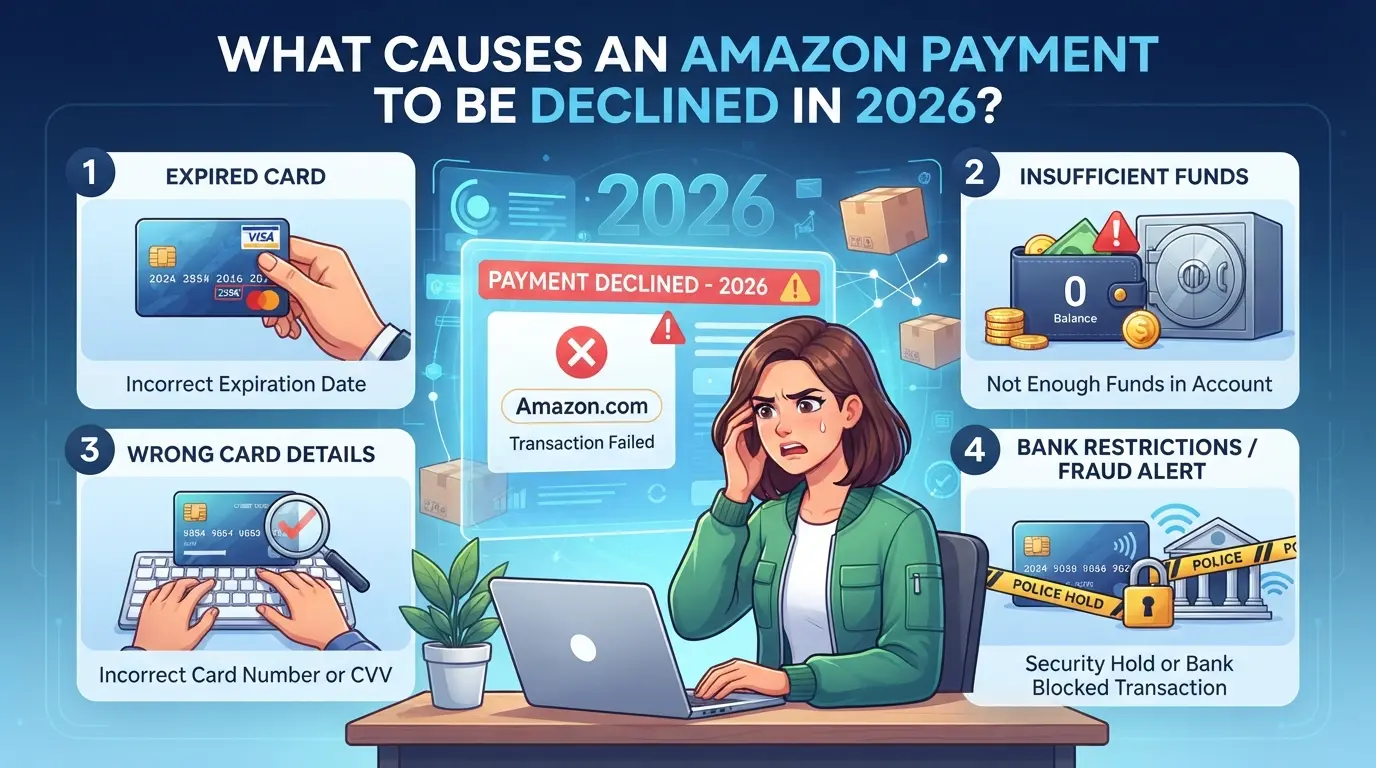
Most payment failures on Amazon fall into three main groups: problems with your card or bank, issues inside your Amazon account, or security triggers tied to your device or network. Pinpointing the right category saves you from guessing and speeds up your next step.
Card and Bank Issues
Expired cards, blocked accounts, or hitting a daily spending limit will all stop your payment before Amazon even touches your order. If your card worked yesterday but fails now, check for recent card re-issues, fraud holds, or a low balance.
Amazon Account or Order Problems
Even if your card is fine, Amazon’s risk system can flag your payment for review. The most common reason in 2026: your account triggers an identity check or order review. That means Amazon wants you to confirm details, like your billing address, phone, or even a one-time password, before it will charge you. This often happens when your shipping address changes, you use a new browser, or you try to place a high-value order from a device Amazon doesn’t recognize. If you see a yellow banner asking for more info, that’s the system pausing your payment, not your bank. Some users get stuck in a loop here: they update their details, but the system still blocks checkout because it’s waiting for identity verification, not just billing corrections. Ignoring these prompts and retrying the same payment won’t fix it, instead, you risk your account getting temporarily restricted until you follow Amazon’s instructions. If you see a repeat decline with no clear card error, stop and check your Amazon account notifications, most people miss the warning buried in their account dashboard.
Technical and Security Triggers
- Swapping between devices or browsers during checkout often triggers a security block.
- Logging in from a location Amazon hasn’t seen before (like a new country or public Wi-Fi) can auto-reject your payment.
- Using the same card across multiple Amazon accounts, especially on the same browser profile, raises flags, leading to instant declines.
If you keep running into these problems, it’s usually not a bank error. Amazon’s system is designed to catch even small changes that look risky. Next, you’ll want a clear step-by-step process to fix the issue and get your order through.
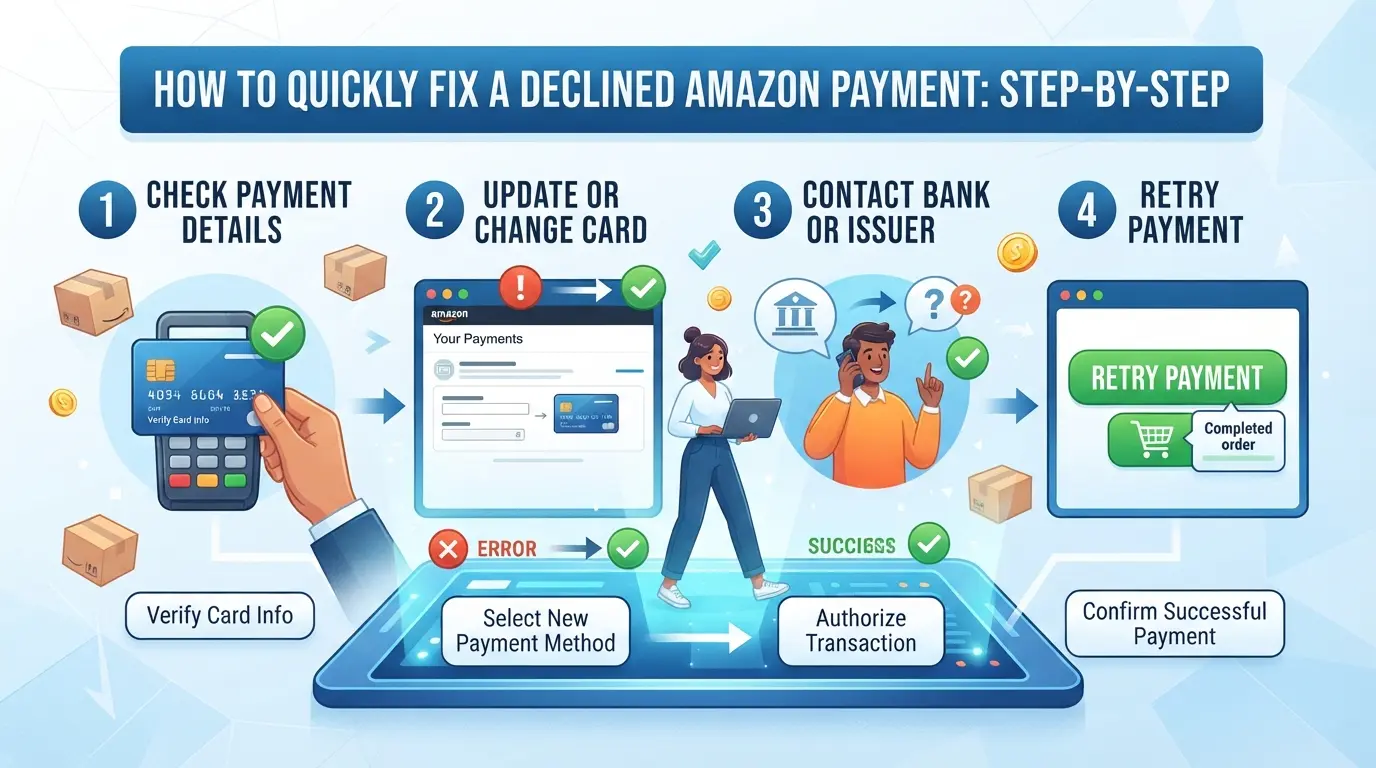
How to Quickly Fix a Declined Amazon Payment: Step-by-Step
Fixing a declined Amazon payment means solving the problem fast so your order goes through, no waiting for guesses or generic advice. Here’s the exact process you should follow when your payment gets blocked.
Check and Update Your Payment Method
- Go to Your Orders > “View order details” for the declined purchase.
- Select “Change payment method.” Double-check card number, expiration date, and billing address. Even a one-digit typo can cause a decline.
- If details are outdated, update them or add a new card. Use one in your name with a matching billing address, mismatches trigger most declines.
- Save and retry payment. If you see the same error, your card may be blocked by your bank, not Amazon.
Contact Your Bank or Card Issuer
- Call the number on the back of your card, use the phone linked to your bank account to avoid extra verification steps.
- Ask if the last Amazon charge attempt was blocked or flagged as suspicious. Banks often auto-block online purchases that look unusual, especially large ones or orders shipped to new addresses.
- Request a temporary unblock or “pre-authorization” for Amazon if the agent confirms a block. Some banks need you to approve the charge in your mobile app; others require a live confirmation.
- If your card has plenty of funds but keeps failing, ask if there are any limits or fraud holds. Banks rarely tell you about these unless you ask directly.
Retry the Payment or Choose a Different Method
- Back in your Amazon order, click “Retry payment.” You’ll see this button only if the order is still pending, if it’s canceled, you must reorder.
- If your main card still fails, pick another payment type (credit, debit, or even a gift card). Amazon saves most payment options for easy switching.
- Only retry twice per card, multiple failed attempts can freeze your account for up to 24 hours.
- If all cards fail, try a different device or browser. Sometimes, Amazon flags device changes as fraud risk, especially after several declines.
Most buyers get stuck in a loop of retrying the same card without checking for bank blocks or card errors. If you update your payment info and call your bank before retrying, you cut hours of wasted time and reduce the risk of your account being flagged for suspicious activity.
If your payment keeps failing even after these steps, the next section explains why some Amazon payments get declined over and over, and what to check before you try again.
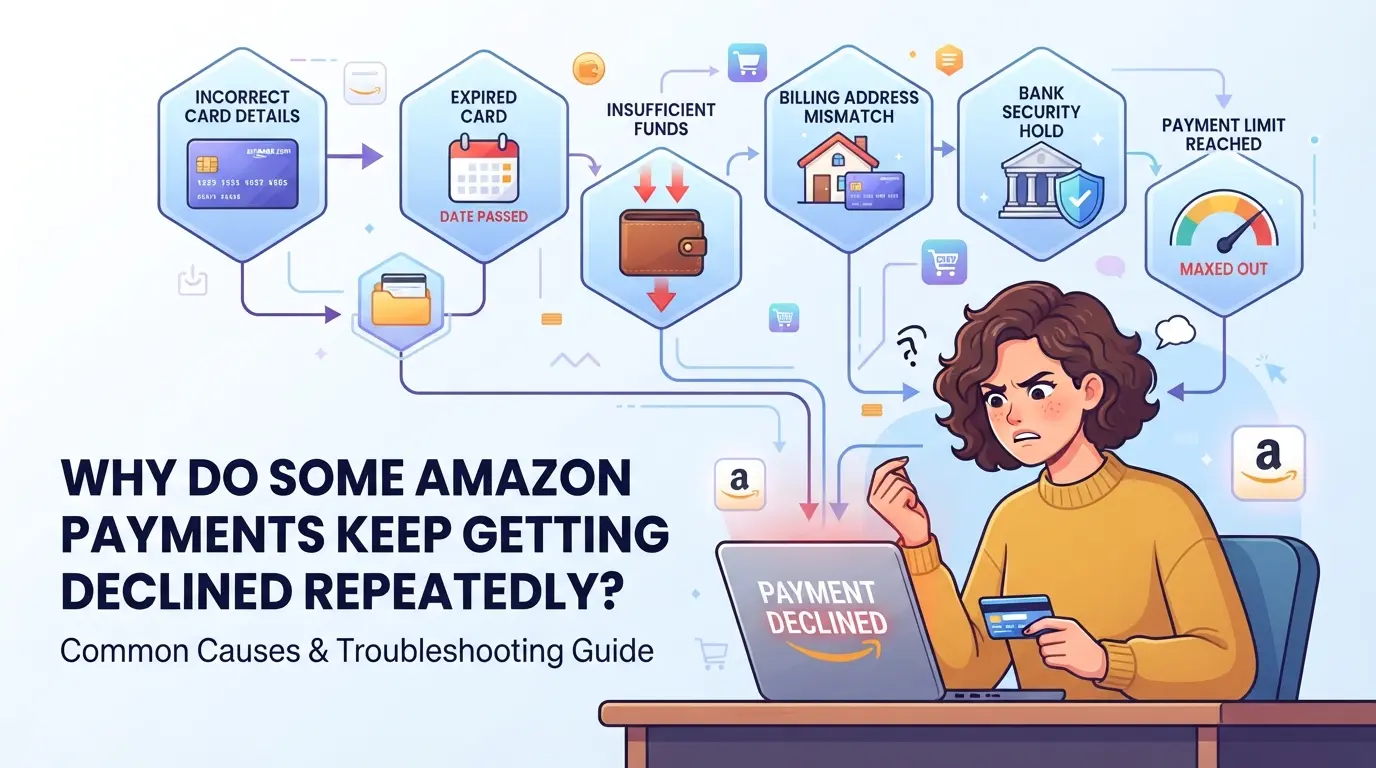
Why Do Some Amazon Payments Keep Getting Declined Repeatedly?
If your Amazon payment keeps failing after you’ve double-checked your card info and balance, you’re likely running into deeper security or risk controls, not just a simple typo or expired card. Amazon’s system is built to spot patterns or changes that look risky, and it sometimes blocks orders even when your card works elsewhere. Fixing one thing isn’t always enough; you need to understand what’s actually triggering the ongoing declines.
Fraud Detection and Account Security Flags
Amazon looks for signs of suspicious activity before it processes any payment. If you switch devices, log in from a new location, or try to order something that looks unusual for your account, the system can flag it. Even a normal card can get blocked if Amazon thinks the request doesn’t match your usual behavior.
Multiple Accounts or Shared Devices
Using the same computer or phone for several Amazon accounts, whether it’s family members, business partners, or multiple seller profiles, raises a red flag. Amazon tracks device fingerprints and network details. When it spots multiple logins from the same hardware, it can link those accounts together. This isn’t just a privacy issue; it means if one account is flagged for risky payments or policy violations, the others may get swept into extra checks or even blocked from making payments. For example, if your sibling’s gift order gets declined for a mismatch between shipping and billing addresses, your own next purchase attempt from the same laptop might also get flagged, even if your card is valid. Teams who manage several seller accounts from one desktop often hit this wall, Amazon’s system treats the overlap as suspicious, which can cause every payment attempt to get declined in a loop. The more often accounts switch or share the same device and browser profile, the higher the risk that all of them run into trouble, not just the one with the original issue.
Payment Method Reputation and Platform Trust
- Prepaid or virtual cards get flagged more than standard bank cards. Amazon rates these as higher risk, so repeated use can trigger declines.
- If your payment method has been linked to a previous failed payment or dispute (even on another account), Amazon may block it everywhere.
- Cards issued outside your country or used on lots of accounts often lose trust. When that happens, even a working card can’t get through until you switch to a new, “clean” payment source.
Before you try another payment, consider whether your setup or habits might be triggering these checks. Jumping straight to another card without fixing the real cause usually leads to the same decline.
What to Check Before You Try Another Amazon Payment
Before you hit "retry," a few quick checks can keep you from running into another amazon payment declined error with the same card or account.
Payment Method Validity
Make sure your card is still active and hasn’t expired, banks will quietly block expired cards, even if they renew your account number. Double-check your available balance or credit. If you’re using a debit card, even pending holds or small test charges can cause a payment to fail. Prepaid cards often get blocked for address mismatches or unsupported transaction types.
Account and Order Details
- Account is fully verified (email and phone confirmed)
- Shipping address matches your payment card’s billing address
- No recent changes to your account or password
Device and Network Consistency
If you switch devices or networks too often, Amazon’s risk system can freeze payments, especially after failed attempts.
- Use the device you’ve shopped with before
- Avoid public Wi-Fi or shared networks
- Don’t log in with fresh browser profiles just before paying
If you’ve covered these, you’re ready to try again, or start looking at longer-term fixes.
How to Prevent Amazon Payment Declines in the Future
If you want your Amazon payments to go through without trouble next time, focus on keeping your account details current and your activity consistent. Skipping these basics is what gets most buyers stuck with another "amazon payment declined" message.
Keep Payment Methods Up to Date
Expired cards cause more failed payments than any other issue. Set a monthly reminder to check your card expiration dates and update any that will expire soon. Every three months, review your list of linked cards and remove any you no longer use. Missing this step is the easiest way to trigger a decline right when you need a fast purchase.
Maintain Consistent Account Behavior
- Use the same device for most logins
- Don’t share accounts or payment info with others
- Avoid sudden changes in shipping or billing addresses
Monitor for Suspicious Activity
If Amazon flags unexpected activity, your payment can get blocked even with a valid card.
- Turn on order and login alerts in your account
- Check for any emails about failed payments
- Respond fast to any fraud warning or account notice
Managing Amazon Payments Safely for Sellers and Multi-Account Teams
Sellers and teams running multiple Amazon accounts often trigger payment declines by reusing cards or mixing account details. The safest way to avoid these problems is to keep each account fully separated, including payment methods, devices, and access rights.
Separate Accounts and Payment Methods
Using the same card or billing address on more than one Amazon account can cause instant account linkage. Amazon’s fraud system often flags shared payment info, this is the fastest way to lose all linked accounts at once.
Consistent Device and Network Use
Amazon tracks device fingerprints and network history. When teams use shared computers or switch networks, the system may spot mismatches and decline payments, even if everything else is correct. Set up each account on its own device profile and stick to one network per account.
Team Access and Permission Controls
- Give payment access only to trusted team members
- Log and review every change to payment settings
- Lock down who can add or remove cards to cut accidental errors
Tight controls stop simple mistakes from turning into account-wide payment declines.
For teams juggling several Amazon seller accounts, payment declines can sometimes trace back to shared browsers, reused device fingerprints, or network overlap, issues that simple card checks won't catch. If your workflow includes switching between accounts across team members or devices, separating each session at the browser and network layer is the safer move. DICloak gives operators and admins a way to set up clear boundaries between accounts, workflows, and team access, so mistakes like cross-session cookie leaks or accidental payment attempts from the wrong profile are less likely to happen.
Isolating Each Amazon Account with Separate Browser Profiles and Fingerprint Settings
Operators can create a dedicated browser profile in DICloak for every Amazon account they handle. Each profile stores its own browser profile and supports configuration of signals like User Agent, language, time zone, and WebRTC. This means teams avoid mixing up cookies, local storage, or fingerprint data between accounts. The scope is limited to browser profile and environment separation, platform account status or payment results remain outside this control. 
Assigning User-Owned Proxies to Each Profile for Network Separation
When a workflow calls for network separation, operators can set up a custom HTTP or SOCKS5 proxy for each profile. This keeps the network path for one Amazon account distinct from another, which matters if your team manages accounts tied to different regions or payment setups. Operators are responsible for adding and testing their own proxies, DICloak only stores and applies the configuration for each profile. 
Controlling Team Access and Permissions for Payment Security
Admins can group team members and set which browser profiles each group can access inside DICloak. By restricting access to only relevant Amazon profiles, teams reduce the risk of someone updating the wrong payment details or triggering a review on an account they shouldn’t touch. Permissions only apply within DICloak; they don’t affect what team members can do on Amazon itself. 
Keeping these controls tight helps teams limit operational mistakes, if a payment decline keeps recurring, sometimes the root cause isn’t the card or account, but how sessions and permissions are set up across your tools.
When to Contact Amazon Support or Your Bank About Payment Declines
Signs You Need to Escalate
If you see repeated declines with no clear reason, or if your Amazon account lands on hold or asks for extra verification, it’s time to stop guessing and get help.
How to Contact Amazon Customer Service
Go straight to the Amazon “Contact Us” page or use the in-app chat. Have your order number, payment method, and any error messages ready, this speeds up the process and reduces back-and-forth.
What to Ask Your Bank or Card Issuer
- Is there a block or flag on my card for Amazon transactions?
- Did you reject a recent payment attempt?
- Can you confirm my billing address and card status are up to date?
Frequently Asked Questions About amazon payment declined
Why was my Amazon payment declined even though my card works elsewhere?
Amazon may decline payments for reasons beyond your card status. If your account shows unusual activity or you use a new device, Amazon can block payments to protect against fraud. Even if your card works in stores, amazon payment declined can happen due to mismatched billing info or security triggers.
Can I use a proxy to fix Amazon payment declined issues?
A proxy can help stabilize your network connection, especially for sellers managing multiple accounts. However, a proxy won’t fix payment declines caused by card errors, incorrect account details, or security flags. Make sure your payment method is valid and your account information matches your card records.
Will using multiple Amazon accounts on one device cause payment problems?
Yes, using several Amazon accounts on the same device or sharing payment methods can lead to payment failures. Amazon tracks device and payment overlaps to prevent linked accounts. This can trigger security reviews, risking account suspension or declined payments even if your card is valid.
How long does it take for Amazon to resolve a payment decline?
Resolution time depends on the issue. Simple mistakes like an expired card or wrong billing address can be fixed in minutes after updating your info. If Amazon flags your account for review or needs to confirm with your bank, it may take several days before payments go through.
Is it safe to retry a declined Amazon payment multiple times?
It’s safe to retry only after fixing what caused the decline. If you keep trying without changing anything, Amazon may lock your account or trigger extra security checks. Always check your card details and update your account before making another attempt to avoid further payment problems.
If your payment isn’t going through, double-check your card details and account balance, then contact your bank or Amazon support if the issue persists. Taking these steps can help you resolve the problem and complete your purchase smoothly. Try DICloak For Free
 Web Proxy Tools
 Free Tools
 Cookie Plugin
 UA Generator
 MAC Address Generator
 IP Generator
 IP Address List
 2FA Code Generator
 World Clock
 Anonymous Check
 WebRTC Leak Test
 UUID Generator
 Free Web Proxy Site
 Proxy Checker
 FB Ad Checker
 AI Web Scraping
 Free SMM Tools
 Twitter Shadowban Checker
 Instagram Name Checker
 UTM Generator
 Username Generator
 AI Hashtag Generator
 LinkedIn Headline Generator
 Social Media Image Resizer