You can delete browser history in seconds, but most people only realize what got missed when an old search or login pops up at the wrong time. Relying on the default “clear browsing history” button is supposed to wipe your tracks, yet autofill, cached data, and synced devices often leave a trail you didn’t expect.
Just clearing the obvious history isn’t enough if privacy or account safety is the goal. Many browsers hold onto hidden data: cookies, local storage, and third-party auto-logins can all survive a basic delete. If you skip the right steps, someone else on your device, or even a synced device you forgot, can find traces you thought were gone.
The real issue is workflow: do you need a quick cleanup before sharing a laptop, or a full wipe that covers synced accounts, cookies, and hidden storage? The steps are different, and the risk of missing something goes up fast if you don’t know where browsers actually keep your info. Even a “remove browser history” action often skips things like download logs or site permissions.
If you want to erase web history safely, start by matching your cleanup method to your real privacy risk. Here’s how to do it right.
Why Deleting Browser History Matters More Than You Think in 2026
People often think clearing browsing history is just about saving space or hiding a few recent sites. In 2026, the real reason is privacy, sites and trackers are far better at connecting your habits, devices, and accounts than they were even two years ago.
How browser history exposes your habits and accounts
Web history isn’t just a list of URLs. It holds page titles, visit times, search terms, and even page previews. Any site or user with access can map your browsing patterns or guess your logins in minutes.
Modern tracking: Why history deletion is not enough for privacy
Standard history cleanup leaves more behind than most realize. Even after you clear your browser’s visible history, tracking companies use browser fingerprinting to link your device and identity. Fingerprinting means details like screen size, fonts, and installed extensions get combined into a unique ID, so clearing visible history won’t break this link. In 2026, cross-device syncing makes things harder: if your browser ties history across your phone and laptop, erasing history in one place won’t clear it everywhere. A common failure happens when someone wipes their desktop browser, but forgets the tablet is still logged in, old data stays in the cloud, ready to sync back or be accessed by someone else. The false sense of privacy from a basic delete often leaves more risk than skipping the cleanup entirely, since users may act as if their trails are gone when they’re still exposed.
When deleting history is critical for shared or team devices
On workstations or shared devices, missing a cleanup can lead to fast problems:
- Password autofill and cookies can let the next user access private accounts.
- Download logs or form data might reveal sensitive project info.
- Cross-profile traces can break workflow separation, risking leaks between client or team accounts.
If you only care about a clean start for one person, a simple clear is fine. But for shared environments, skipping a deep wipe is how account leaks and “accidental” logins happen. Knowing exactly what gets deleted, and what stays, is the only way to know your data is really gone before you hand over the keyboard.
Ready to see what actually vanishes when you clear your browser history? The next section breaks down exactly what stays and what goes during a cleanup.
What Actually Gets Deleted When You Clear Browser History?
Hitting "clear history" deletes more than a list of visited sites, but it rarely wipes everything tied to your activity. Browsers only remove some types of data by default, others stick around unless you target them on purpose.
History, cookies, cache, and autofill: What's the difference?
History is your list of visited web pages, usually stored in a database file. Cookies hold login states and site preferences, saved as small files. Cache contains saved images and scripts to load sites faster. Autofill keeps saved form data and passwords. Most browsers only remove history and cache by default, cookies and autofill often require extra steps.
Hidden traces: What standard deletion misses
Even after you delete browser history, local storage and site data usually remain. For example, if you log into a service and then clear your history, the site can still recognize you next time because its cookies and local storage are untouched unless you select those options. Session files and indexedDB data can also persist, letting sites restore your state or even auto-login you. Download logs, site permissions (like camera or mic access), and some cached content may not be erased.
The biggest gap: browser fingerprinting details like installed fonts, device hardware IDs, and time zone are never cleared, sites can still recognize returning users even after a full wipe of history, cache, and cookies. If you only run the default cleanup, expect device-level traces to survive, especially if you use browser extensions or third-party plugins. Failing to clear all storage types means a "clean" browser still leaks clues about past sessions. Trying a privacy cleanup right before handing over your laptop? You might leave enough behind for someone to reopen logged-in sessions or recover browsing patterns from the remaining storage.
Cloud sync and multi-device history: What you need to know
- Deleting history on one device may not remove it from others if sync is active.
- Synced browser profiles can quickly restore deleted data the next time you connect.
- If you forget to check sync status, your "deleted" history could pop back up on tablets or phones.
Knowing what’s actually erased, and what isn’t, helps you choose the right steps for a real cleanup. Next, see the exact process for every major browser in 2026.
Step-by-Step: How to Delete Browser History on Every Major Browser in 2026
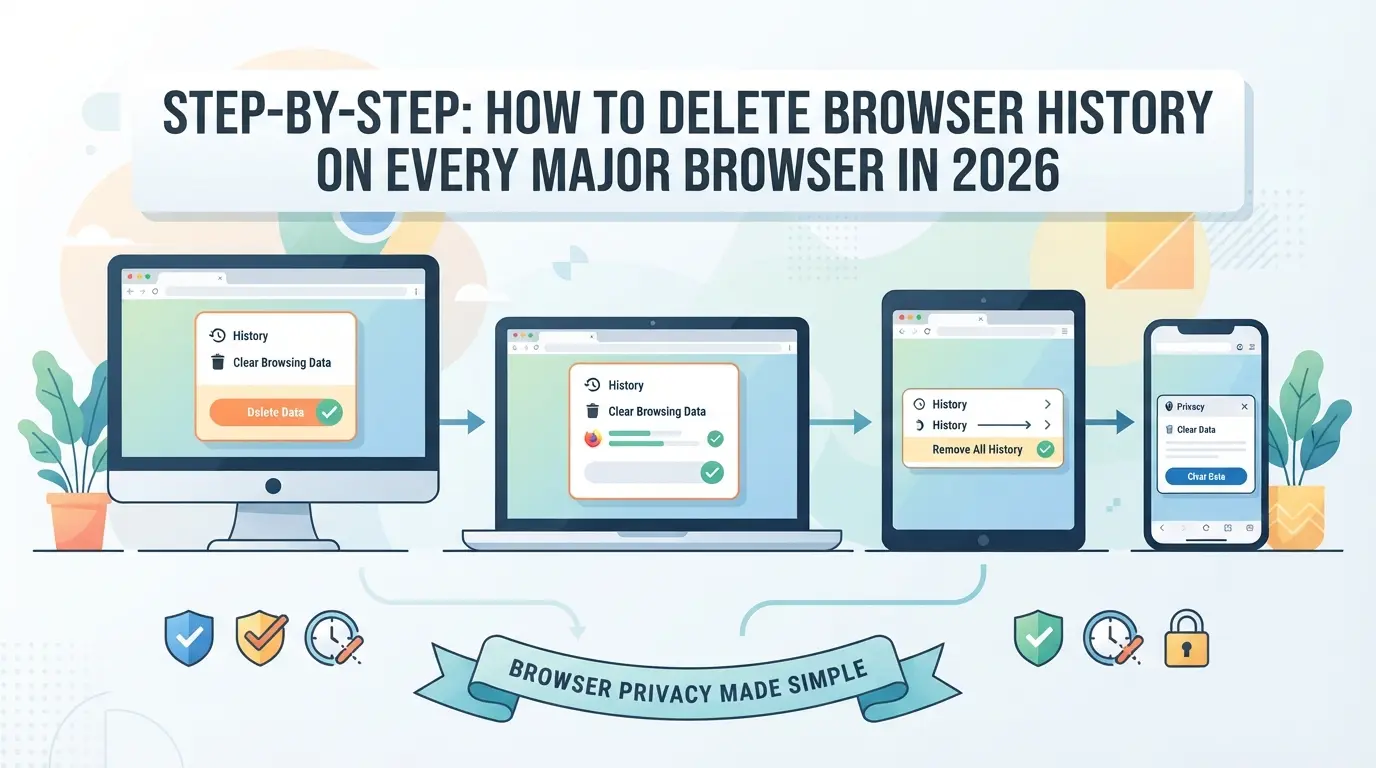
You can wipe your browsing traces in under a minute, if you know where the right settings are. Below, each browser’s steps are up to date for 2026. Missing one step often leaves history, cookies, or synced data behind, so check each result once you finish.
Chrome (Windows, Mac, Android, iOS)
- Open Chrome’s menu (three dots) and select “History” > “Clear browsing data.”
- Pick a time range. For a full wipe, select “All time.”
- Check “Browsing history.” For deeper cleanup, also check “Cookies” and “Cached images and files.”
- Hit “Clear data.” If you’re signed in, repeat this on every device to cover synced data.
Firefox (Windows, Mac, Android, iOS)
- Click the menu (three lines), pick “History,” then “Clear recent history.”
- Choose a range, “Everything” erases all records.
- Expand “Details” to include cookies and cache. Click “OK.”
- On mobile, use the app menu, tap “Settings,” and find the “Delete browsing data” option.
Edge (Windows, Mac, Mobile)
- Click the three-dot menu, go to “Settings,” and select “Privacy, search, and services.”
- Under “Clear browsing data,” choose what to delete and the time range.
- Hit “Clear now.” If sync is on, repeat the process on each device for full coverage.
Safari (Mac, iPhone, iPad)
- On Mac, open “Safari” > “Clear History.” Pick a time range and confirm.
- For a deeper clean, go to “Preferences” > “Privacy” and “Manage Website Data.”
- On iPhone/iPad, open Settings > Safari, then tap “Clear History and Website Data.”
- If iCloud sync is active, clear history on each device.
Other browsers and privacy-focused apps
- Opera: Menu > History > “Clear browsing data.”
- Brave: Menu > “Clear browsing data.” Choose data types and time range.
- Most privacy browsers offer a one-tap wipe feature, check app settings for “Quick Delete” or “Private Clean.”
The step most people miss: clearing synced or cloud-stored data. If you only wipe one device, your browsing traces may still exist on others. Next, see where people get tripped up and how to avoid leaving history behind, especially on shared or synced devices.
Common Mistakes When Deleting Browser History (and How to Avoid Them)
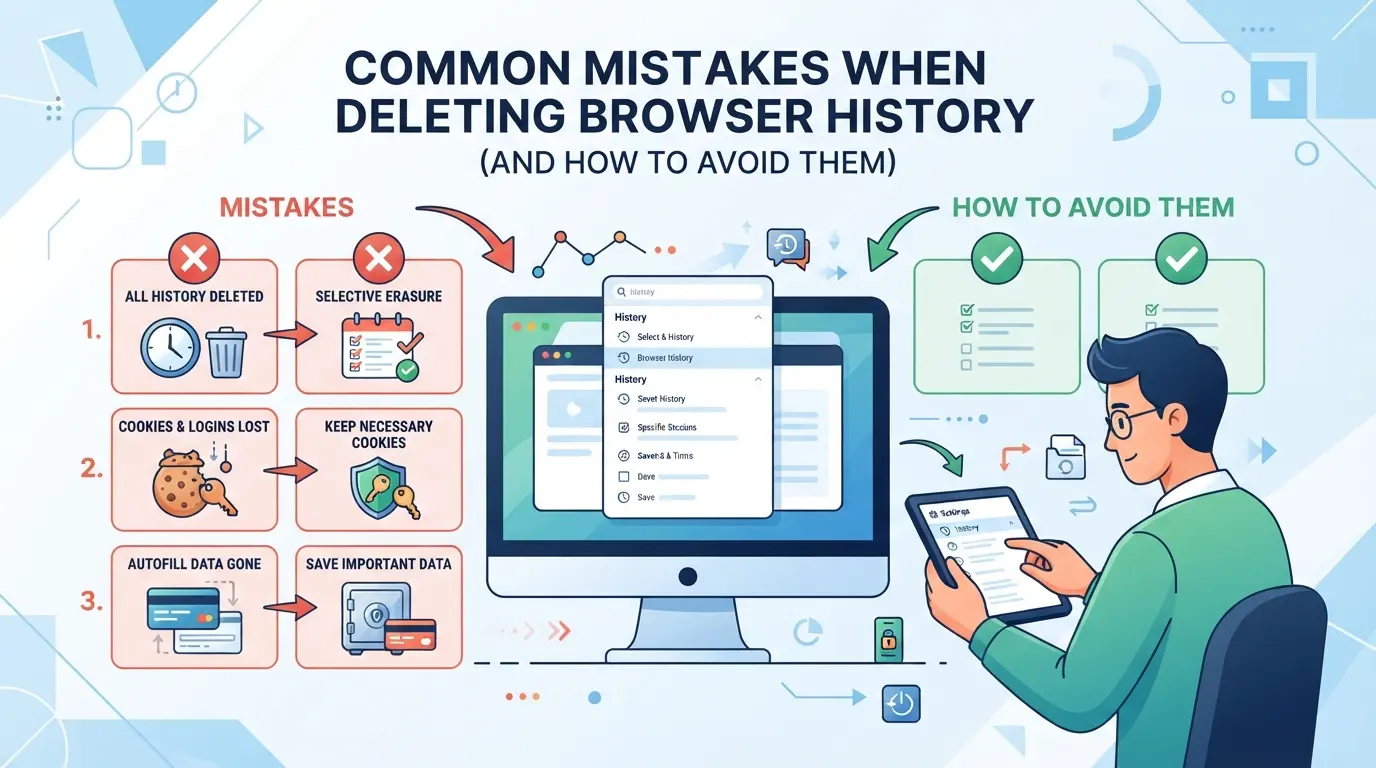
Most people miss hidden traces when they think they’ve wiped their activity, leading to false security or even new privacy risks. Here’s what actually goes wrong and how to fix it.
Only deleting history, not cookies or site data
Wiping just your history leaves cookies, cached files, and local storage behind, these can keep auto-logins active and let sites track you. Always use your browser’s “clear browsing data” tool, and check every box: cookies, cache, site data, and not just “history”.
Forgetting about synced devices and cloud backups
- Turn off browser sync before you clear history.
- Delete data from every synced device, not just one.
- Check for cloud backups that might restore old data.
Leaving traces in autofill, downloads, or extensions
Download lists, autofill (like saved searches or emails), and browser extensions can all hold revealing info. Clear your download history, remove saved form entries, and review extension storage, especially if you’re switching accounts.
Assuming history deletion erases all tracking
Erasing history doesn’t block tracking, browser fingerprinting and extension leaks can still connect you to past sessions.
- Run a fingerprint check at coveryourtracks.eff.org after cleanup
- Disable or remove unused extensions
- Use a clean browser profile for sensitive tasks
Ready for safer workflows? Next, see how teams and multi-account users can avoid these gaps entirely.
Safer Workflows for Teams and Multi-Account Users: Beyond Just Deleting Browser History
Just wiping your history won’t keep work, personal, and shared accounts truly separate, especially if you’re using one device for everything. For anyone managing multiple logins, the real fix is to set up isolated browser sessions and profiles that never cross.
Why browser profiles and separate sessions matter
Profiles split data at the source: each one keeps cookies, logins, and settings apart. Using guest mode or incognito can help for quick tasks, but they don’t store changes, so nothing mixes, but nothing saves. 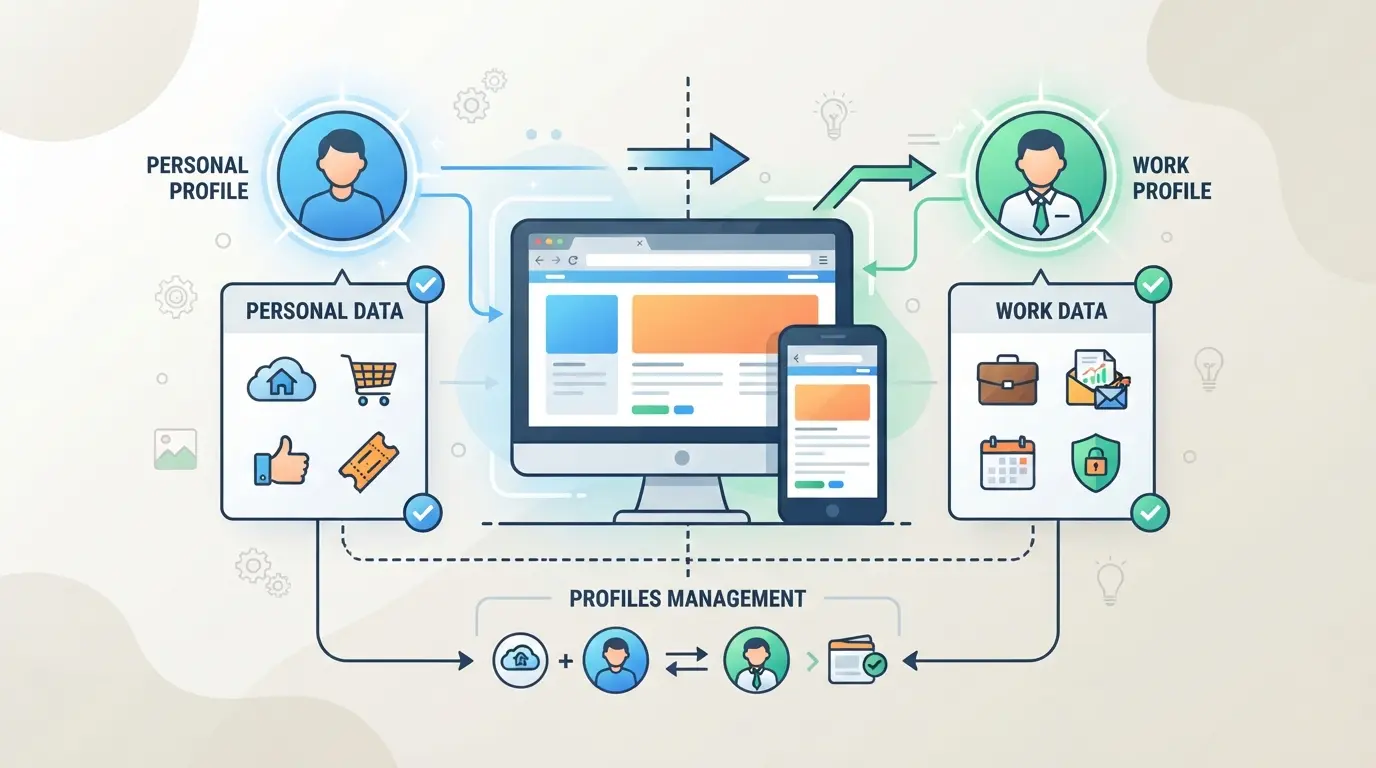
Team workflows: Risks of shared logins and device reuse
Teams often share browsers or let several people use the same computer, but that’s where leaks happen. For example, one person logs into a client account, someone else forgets to switch profiles, and suddenly work and personal data blend, now audit trails are a mess, and even logout doesn’t clear all traces. Relying on a single profile for team work is the fastest way to lose track of who did what, or to let session cookies cross between clients. The safer play is to give each user or account its own locked-down profile, even if it means more setup.
When deleting history is not enough for compliance or sensitive work
- Regulatory audits can demand full activity logs, erased history isn’t proof of safe handling
- Sensitive industries (finance, healthcare) often require profile-level separation, not just cleared traces
- Some browsers keep site permissions and autofill data even after history is gone, check for hidden leftovers
A quick delete covers surface-level privacy, but anyone dealing with shared devices, compliance, or multi-account operations needs stricter separation. Next, see how true browser isolation and proxy use make account management safer, especially at scale.
How to Manage Multiple Platform Accounts with Isolated Browser Profiles and Proxies in DICloak
For teams or professionals who handle multiple platform accounts, basic steps like delete browser history don’t address the need for strict separation and organized workflows. When logging into different accounts for clients, campaigns, or projects, using the same browser or device, even after clearing history, can leave behind overlapping cookies, cached data, or fingerprint signals. This is where dedicated browser profile tools like DICloak fit: they let you isolate sessions, network identities, and team access, cutting down on accidental cross-contamination that history clearing alone can’t prevent.
Creating isolated browser profiles and configuring fingerprints
Operators can create a separate browser profile in DICloak for each platform account or workflow. Each profile acts as its own environment, storing login sessions, cookies, cache, and settings apart from others. Operators can configure fingerprints, such as operating system, browser version, time zone, screen size, and language, for each profile, keeping these signals consistent every time they launch. This approach means one account’s data or identity signals won’t bleed into another’s, even if used on the same machine. Keeping each workflow in its own isolated profile is the single biggest step to prevent accidental leaks between accounts. The scope here is limited to browser-profile isolation and fingerprint settings; it does not change platform-level or device-level records.

Assigning user-owned proxies to each profile for network separation
Some workflows need more than just local separation, they require each profile to use a different network path. Users can assign their own HTTP, HTTPS, or SOCKS5 proxy to any DICloak browser profile, entering the connection details and testing connectivity before launching. This lets an operator run one account through a proxy tied to a specific region or IP, while another profile uses a different proxy or the local connection. DICloak does not supply or sell proxies, so quality and source are up to the user; it only stores and applies the operator’s settings for each profile. The proxy configuration is part of the browser profile’s network setup, not a guarantee of privacy or platform access.

Team Permissions for Assigned Browser Profiles
Managing who can access, view, or edit each account profile is just as important as technical isolation. Inside DICloak, admins can group team members and set what each group can see or do within the workspace. For example, client account operators might have access only to their assigned profiles, while admins can view and adjust all groups. Field visibility and action permissions can be locked down so members only see what they need, cutting the chance of accidental exposure or missteps. These controls apply to browser profile access in DICloak, they do not override permissions inside the connected platforms themselves.

For teams who need more than a one-click history wipe, this layered setup keeps each account, network, and team workflow organized and separated. The next section covers what to do when even isolated profiles aren’t enough to protect your privacy.
When Deleting Browser History Is Not Enough: Advanced Privacy and Security Tips
Clearing browser history only removes surface traces, sites and trackers can still link sessions through cookies, device fingerprints, or cross-account leaks. For real privacy, cover these gaps:
Clearing cookies, site data, and local storage regularly
Just deleting browser history leaves tracking cookies and local storage behind, which sites use to reconnect your identity. Always clear both cookies and site data, most browsers hide these in “Advanced” or “All time” options.
Using browser profiles or containers for separation
- Create separate profiles for each account type (personal, work, client).
- Use containers to keep logins and cookies from crossing between sites.
- Prefer profiles over incognito mode, incognito leaves traces once closed.
Rotating proxies and reviewing device access
Switch proxies often to avoid building a trackable pattern. Check active sessions/devices in account settings, remove anything you don’t recognize.
Regularly reviewing browser and extension permissions
Extensions with broad permissions can leak data.
- Audit installed extensions monthly
- Remove unused or suspicious extensions
- Limit permissions to “needed on click” only
Frequently Asked Questions About delete browser history
Does deleting browser history remove all traces of my activity?
No, when you delete browser history, only your list of visited websites is erased. Other data like cookies, cached files, local storage, and device fingerprints may still stay on your device. To fully clear your tracks, you need to delete cookies, cache, and other site data through your browser’s settings.
Can deleted browser history be recovered by someone else?
Yes, in some cases. Even after you clear browsing history, forensic tools can sometimes recover fragments from your hard drive. If your browser syncs data to the cloud (like Google Chrome with a Google account), your web history might remain online. Full deletion and factory resets are more secure against recovery.
How do I delete browser history on all my devices at once?
You need to clear browsing history separately on each device you use. Check your browser’s sync settings: if history is synced through a cloud account, deleting it from one device may remove it everywhere. Always confirm that each device has no leftover records or synced data.
Is it safe to use browser incognito mode instead of deleting history?
Incognito or private mode stops your browser from saving new history, cookies, or search entries during a session. However, it does not erase existing data or protect you from tracking by your internet provider, employer, or websites. For better privacy, clear your history and cookies regularly.
What is the safest way to manage multiple accounts without leaving history traces?
Use separate browser profiles or different browsers for each account. This keeps cookies, logins, and site data apart. For extra privacy, use proxies or proxys and carefully control who can access each profile or device. This reduces the risk of mixing data or leaving account traces.
Taking proactive steps to manage your digital footprint can make a significant difference in safeguarding your privacy. Consider using specialized tools that simplify the process and offer improved protection for your online activity. Try DICloak For Free
 Web Proxy Tools
 Free Tools
 Cookie Plugin
 UA Generator
 MAC Address Generator
 IP Generator
 IP Address List
 2FA Code Generator
 World Clock
 Anonymous Check
 WebRTC Leak Test
 UUID Generator
 Free Web Proxy Site
 Proxy Checker
 FB Ad Checker
 AI Web Scraping
 Free SMM Tools
 Twitter Shadowban Checker
 Instagram Name Checker
 UTM Generator
 Username Generator
 AI Hashtag Generator
 LinkedIn Headline Generator
 Social Media Image Resizer