A single wrong click when updating Facebook Page roles can lock out your team or let the wrong person take over, just ask the small business owner whose ad spend vanished after an ex-employee kept admin rights. The way you handle how to add administrator to facebook page is not just about clicking a button. Facebook’s process has changed several times, and missing a step with “how to give admin access on Facebook page” or forgetting to review page roles can trigger security problems or block your marketing campaigns. Even experienced social media managers get caught when Facebook doesn’t send the invite, or when a new admin cannot see the business page at all.
Most guides skip what actually goes wrong: Facebook’s invite might not show up, the “add admin to Facebook business page” button can be grayed out if you have the wrong permissions, and sometimes the new admin gets stuck in “pending” for days. These snags cost time and can put your brand at risk, especially if you’re managing accounts for clients or multiple brands.
This step-by-step guide breaks down every detail, from the exact screens you’ll need, to what to check if the admin role doesn’t appear, and what to do if access fails. You'll also see the risks of admin sharing, and practical team management tips to keep control. Here’s how to get admin access set up the right way, without getting locked out or making your page vulnerable.
What Should You Check Before Adding an Administrator to Your Facebook Page?
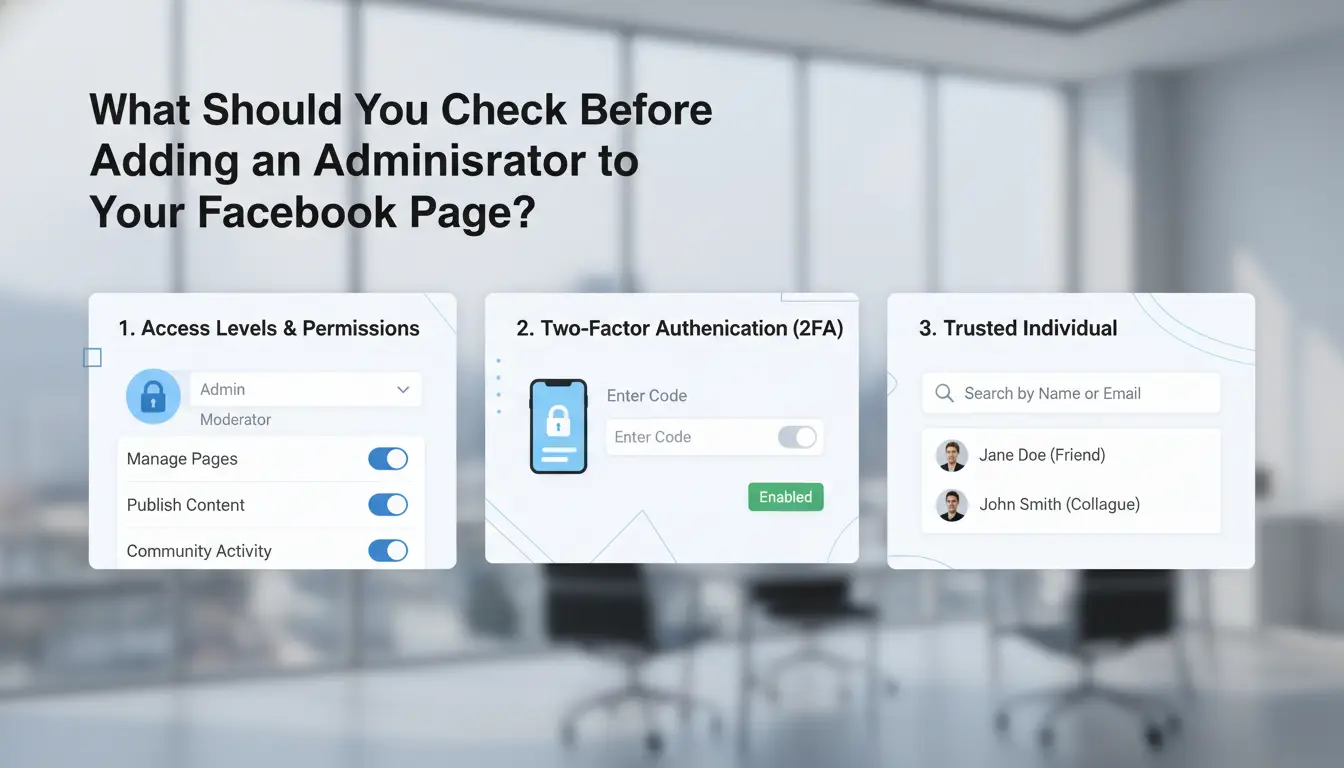
Giving someone admin access to your Facebook page sounds simple, but skipping key checks can lock you out or put your brand at risk. Before moving ahead with "how to add administrator to Facebook page," look closer at permissions, requirements, and common mistakes that cost teams control.
What Permissions Does an Admin Actually Get?
Admins have more power than any other role, full access to settings, posts, comments, messages, ads, even the ability to remove other admins or delete the page. Giving admin rights is not just about posting; it’s handing over the keys. Some tasks only need Editor or Moderator roles, which limit what the person can change. Always match the role to the real job, not just convenience.
| Role |
Can Post? |
Can Change Settings? |
Can Remove Other Admins? |
| Admin |
Yes |
Yes |
Yes |
| Editor |
Yes |
No |
No |
| Moderator |
No |
No |
No |
Source: Facebook Help Center
Who Can Add an Admin and What Are the Requirements?
Only current admins or page owners can assign new admins. The person you add must have a Facebook account and must have liked the page (for classic Pages) or be invited by email (for new Pages Experience). If you see the “add admin to Facebook business page” option grayed out, you likely don’t have high enough permissions or are not logged in as your main profile. Double-check your access before starting the "how to assign Facebook page roles" process.
Common Mistakes That Lead to Account Issues
Adding an admin to the wrong Facebook profile is easy to do, especially if someone uses multiple accounts. Granting admin to someone you barely know or a temporary contractor can backfire if they remove your access or misuse the page. Use strong passwords and review your admin list often. For safer team management, consider tools with account isolation and permission logs, as seen in Meta Business Suite.
What Are the Different Facebook Page Roles and Which One Should You Choose?
Adding someone as an admin to your Facebook page sounds simple, but the choice you make here controls who can change settings, post as your brand, and even remove other team members. Before you search for "how to add administrator to facebook page," you need to know what each role can actually do, and what could go wrong if you pick the wrong one.
Admin vs. Editor vs. Moderator: What’s the Difference?
Most people jump straight to giving admin rights, but here’s where problems start. Facebook has several page roles, each with different levels of control. The table below breaks down what matters most:
| Role |
Change Settings |
Post/Comment |
Remove Others |
Run Ads |
Risk Level |
| Admin |
Yes |
Yes |
Yes |
Yes |
Highest |
| Editor |
No |
Yes |
No |
Yes |
Medium |
| Moderator |
No |
No |
No |
No |
Low |
Source: Facebook Help Center
Admins can do everything, including adding or removing others. Editors can post and run ads but can't change key settings. Moderators can only manage comments and messages.
When Should You Assign Admin Rights Instead of Other Roles?
Not every team member needs to be an admin. Give admin access only to people who must change settings, manage roles, or handle ownership. For content creation or running ads, "Editor" or "Advertiser" is usually safer. Giving admin rights too freely puts your page at risk, one bad actor can lock you out.
If you’re working with an agency or freelancer, use "Editor" or "Moderator" to limit what they can do. This approach keeps control with the owner but lets others handle daily tasks.
How to Change or Remove Page Roles Safely
To update roles, go to your Facebook page settings, then "Page Roles." Remove old admins before adding new ones. Always tell your team when you change access. If you need to know how to assign Facebook page roles or how to give admin access on Facebook page, the steps are in Facebook’s own role management guide. For bigger teams, consider tracking changes in a shared document.
How to Add an Administrator to Your Facebook Page: Step-by-Step Instructions
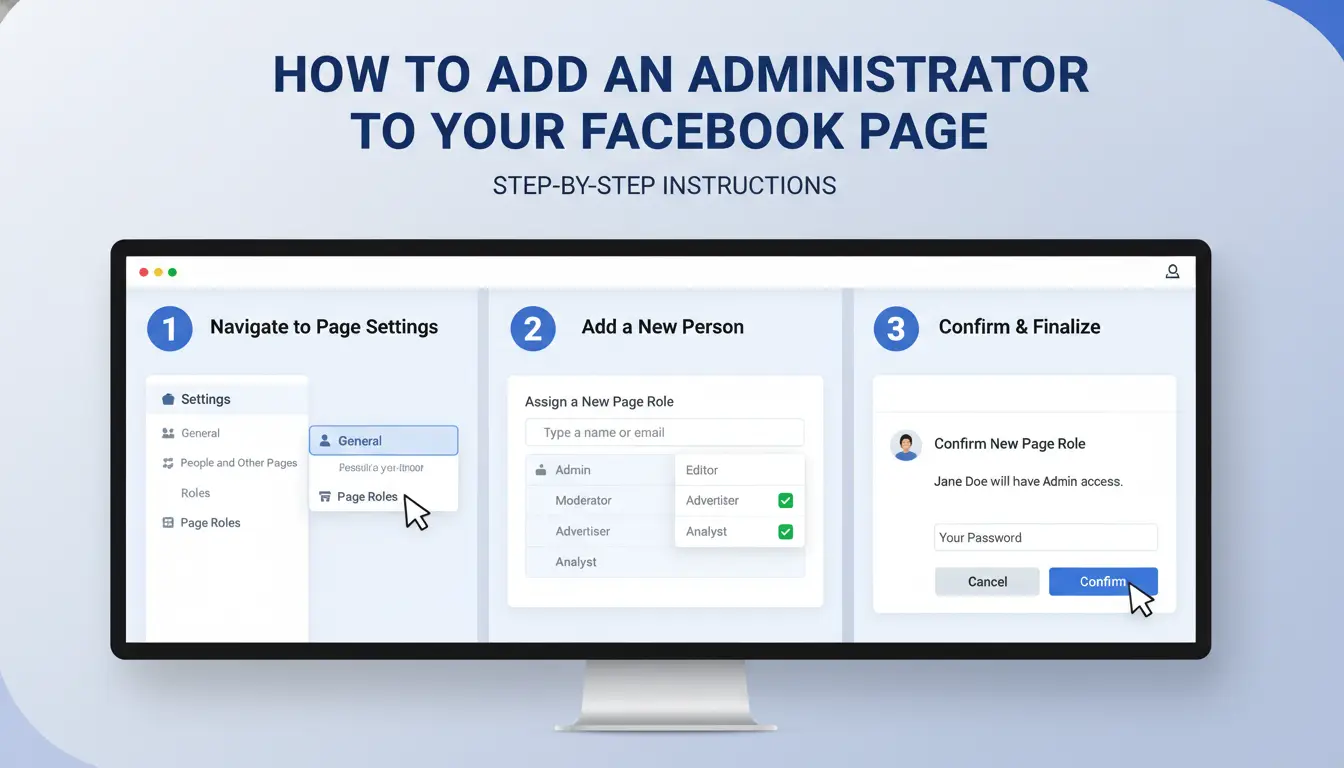
Adding an admin to your Facebook page seems simple, but one missed step can leave someone locked out or unable to manage the page properly. Use this walkthrough to get it right using Facebook’s 2026 interface. This covers every menu and common pitfall, so you can confidently add admin access, even if you run multiple business pages.
Step 1: Access Your Facebook Page Settings
Start on your business page. Look for the menu on the left, if you don’t see “Settings,” click “More” or the gear icon. On the new Facebook layout, these options may be under “Professional Dashboard.” Accessing the right menu is key to avoid confusion between your profile and page settings.
Step 2: Go to Page Access or Page Roles
In settings, choose “Page Access” or, in older layouts, “Page Roles.” These sections control who can manage your page and what level of access they get. If you see a “New Pages Experience” banner, you’re on the latest version, Facebook calls admin invitations “Page Access” now. Older guides may use “Page Roles,” but the steps work the same.
Step 3: Add a New Admin by Name or Email
Click “Add New” or “Assign Access.” Enter the name or email of the person you want to add. Make sure you pick the right profile, choosing the wrong one is the most common mistake. Select “Admin” as the role. Send the invite. To “add admin to Facebook business page,” you must already have admin rights yourself.
Step 4: Confirm and Finalize the Admin Invitation
The invited admin needs to accept the invite in their notifications or email. Sometimes, invites go to “Requests” instead. Only after they accept will they appear as an admin. Double-check under “Page Access” that their name is listed as “Admin”, not “Pending.”
Troubleshooting: What to Do If You Can’t Add an Admin
If you can’t select “Admin,” you may not have full admin rights. The button may be grayed out. Try refreshing, using a different browser, or clearing cookies. If the invite never arrives, confirm the email and ask the invitee to check spam or notifications. For stubborn problems, use the Facebook Help Center for support, most page access issues are covered there.
What Risks Should You Watch Out for When Granting Admin Access?
Adding a new admin to your Facebook page isn’t just about convenience. If you use the wrong steps or trust the wrong person, you could lose control of your page. The risks are real, one mistake can lock you out for good. Before you follow any “how to add administrator to Facebook page” guide, you need to understand these dangers and how to avoid them.
How Admin Access Can Lead to Page Takeover or Loss
Every admin has full control. That means any admin can remove other admins, including you. If a new admin goes rogue, they can take over the page, kick you out, or even delete the page. These stories are common in Meta’s official help forums, where page owners report losing years of work because they trusted the wrong person or missed a warning sign.
It’s not just about sabotage. Sometimes, a team member leaves on bad terms or a hacked account gets admin rights. Either way, recovery is hard. Facebook’s support is slow, and if you’re locked out, you may never regain access.
How to Vet and Trust the Person You Add
Never add an admin without checking who they are. Look at their profile, does it have a real photo, long history, and mutual contacts? Beware of brand-new profiles or people who pressure you to rush. For teams, use “how to assign Facebook page roles” to give only the access they need. Granting full admin is only for trusted partners.
If you’re working with clients or agencies, always have a contract and clear rules. Some scams involve fake agencies promising fast growth, then taking your page.
How to Limit Damage If Something Goes Wrong
If you lose access, act fast. Use Facebook’s “Report a Problem” or visit their Business Help Center. Contact all other admins and ask them to remove the bad actor. If no one can help, prepare proof of ownership, like business documents and old page screenshots.
For teams, tools like DICloak for Social Media Marketing can keep admin activity traceable, so you know exactly who did what and when.
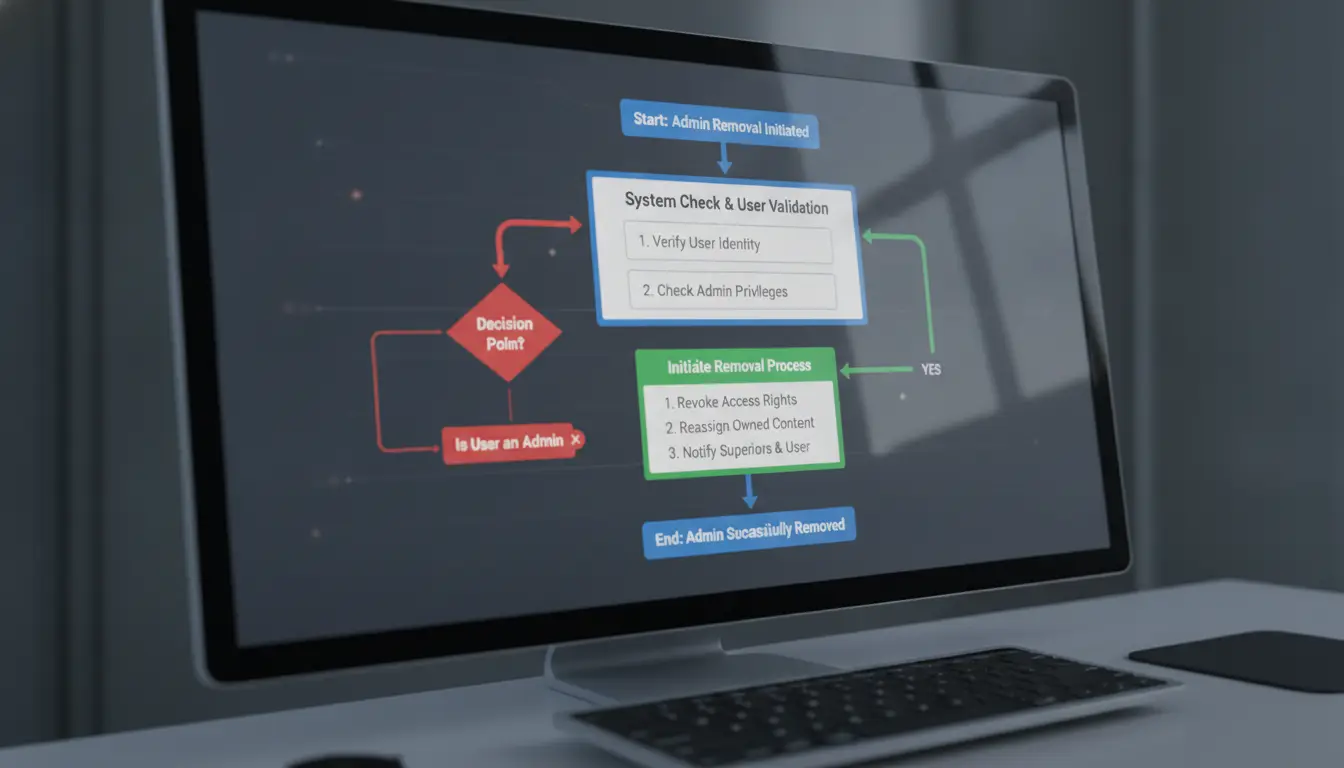
How to Manage Multiple Admins and Team Access Safely on Facebook Pages
Managing a Facebook Page with several admins gets tricky fast. Handing out admin rights without a plan risks lockouts, messy edits, or even losing your page. If you want to know how to add administrator to Facebook page the safe way, you need a structure that fits agencies, client work, or growing teams.
How to Organize Admins and Assign Roles for Teams
Start by mapping out who really needs full admin rights. For agencies, don’t give everyone top-level access, use Facebook’s Business Manager to control who can add, edit, or remove others. Inside Business Manager, click “Page Roles” to decide who’s an Admin, Editor, or Analyst. This is the best way to add admin to Facebook business page without handing over too much control. For big teams, set up roles before inviting anyone. Use the “how to assign Facebook page roles” menu to match permissions to each person’s job. Don’t share logins, invite people using their own Facebook accounts.
Best Practices for Monitoring Admin Activity
Pages get messy when you can’t see who changed what. In Business Manager, check the “Page History” for a log of who made edits or posts. Turn on notifications for admin changes, this way, you’ll know right away if someone new is added or an existing admin is removed. For client pages, agree in advance who can approve edits or run ads. If you want more control, you can use DICloak to log activities by team member across multiple accounts.
How to Remove or Change Admins Without Disrupting Your Page
Removing an admin shouldn’t take your page offline. Remove or downgrade roles one at a time, and always keep at least two trusted admins in case someone leaves suddenly. Before you switch roles, check pending invites, sometimes the “how to give admin access on Facebook page” feature glitches, and access hasn’t actually been set. Make role transitions during low-traffic hours to avoid mistakes. Never remove yourself as admin until you’ve confirmed another trusted person has full access.
How DICloak Helps Social Media Teams Manage Facebook Admin Access More Securely
Adding administrators to a Facebook page often triggers account linking issues or ban risks, especially when multiple people work from the same device or IP. The usual “how to add administrator to facebook page” guides skip the real technical snags, like Facebook flagging shared sessions or mismatched fingerprints. Here’s how DICloak solves those pain points for teams.
How DICloak’s Browser Profiles Prevent Account Linking and Bans
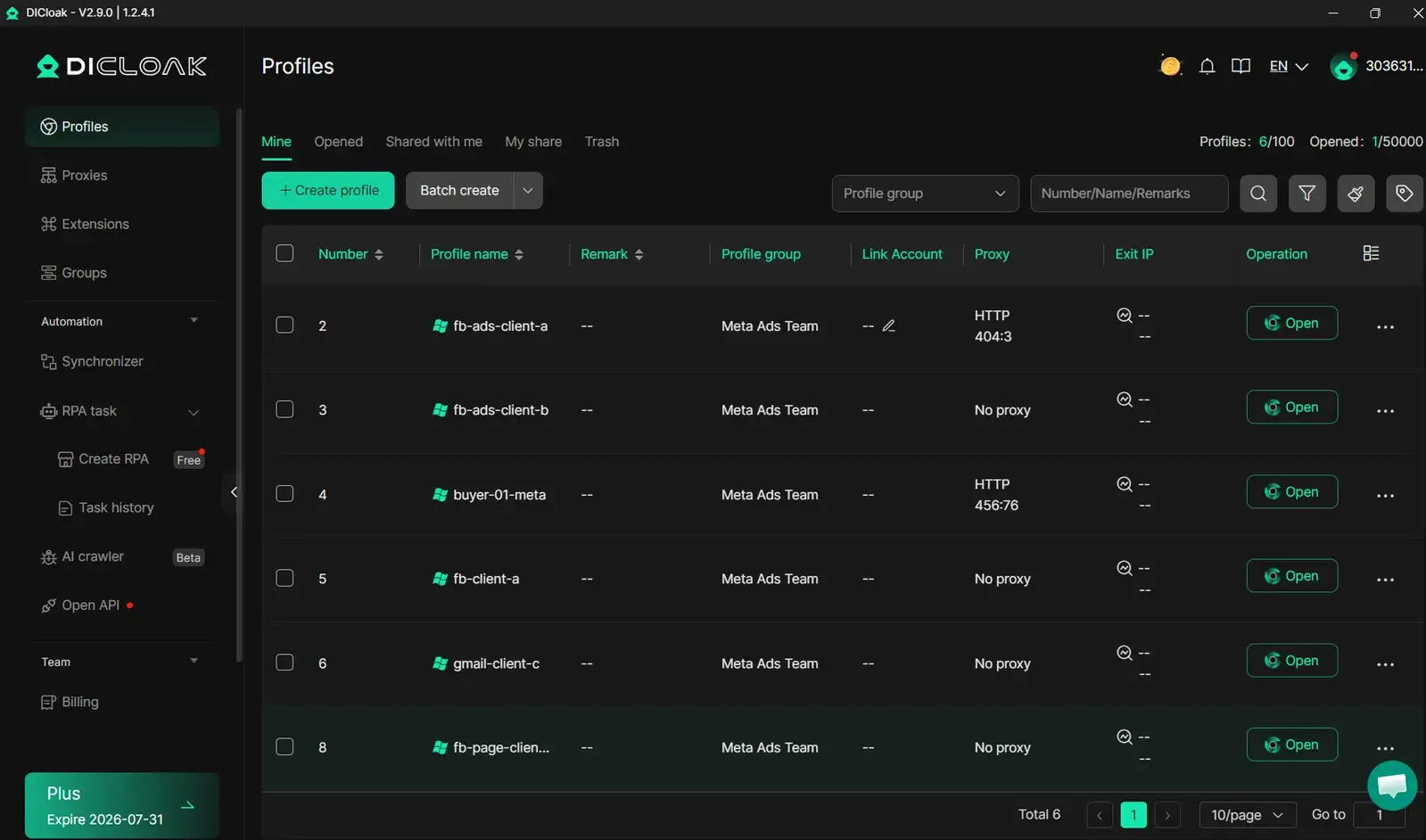
You can use DICloak to isolate each admin’s activity by giving them a unique browser profile and fingerprint. This makes it harder for Facebook to detect links between accounts. Custom proxy settings add another layer, helping prevent bans when you add admin to Facebook business page.
How Team Collaboration Tools Simplify Role Management
Tools like DICloak let you share browser profiles with permission controls. You decide who gets access to which account and what they can do. Operation logs track admin actions, so you can audit who made changes or handled sensitive steps when assigning Facebook page roles.
When to Use Automation and Bulk Tools for Facebook Page Management
DICloak’s automation helps teams handle repetitive admin tasks, like bulk invites or role assignments, without manual errors. This is especially useful for agencies managing hundreds of pages.
Why DICloak Is a Smart Choice for Agencies and Growing Teams
Isolated environments reduce lockout risk and make collaboration safer. With DICloak, teams confidently solve “how to give admin access on Facebook page” without exposing accounts. See DICloak features Facebook Page roles guide
When Should You Revoke Admin Access or Change Page Roles?
Adding a new administrator to your Facebook page is only half the story. Knowing when and how to remove admin rights or adjust roles keeps your page secure, especially for teams or agencies managing multiple brands. Here’s how to spot the right moment, avoid drama, and keep your admin list tight.
Signs It’s Time to Remove or Change an Admin
Some red flags mean you need to act fast. If you see posts you didn’t approve, settings changed without notice, or messages sent that don’t match your style, someone could be misusing admin rights. Sudden changes in ad spending or new page roles appearing are warning signs too. Even if everything looks normal, always update roles when a team member leaves or changes jobs. Forgetting this step leaves your business page exposed.
How to Revoke Access Without Causing Conflict
Awkward removals can start drama or even legal headaches. Tell the person why the change is happening, don’t just kick them out. Use Facebook’s “Page Roles” settings to remove or downgrade their access, and take screenshots of each step for your records. If you’re not sure how to assign Facebook page roles or need to add admin to Facebook business page, Facebook’s official help center gives step-by-step screens. Clear communication and documentation protect both your brand and your relationships.
How Often Should You Review Page Roles?
A simple rule: check your admin and editor list every quarter. For agencies or active teams, once a month is safer. Schedule these checks, don’t wait for a problem. Remove anyone who doesn’t need access. This habit matters as much as knowing how to add administrator to Facebook page, regular reviews are the single best way to avoid hidden risks. If you manage accounts for clients, make this part of your handoff checklist each time roles change.
What to Do If You Lose Access to Your Facebook Page or Get Locked Out
Losing access to your Facebook Page can happen in seconds, a password reset, a hacked owner account, or just a missed admin invite. If you’re stuck outside your business page, you need a clear plan to get back in and stop it from happening again. Here’s what works when standard “how to add administrator to Facebook page” guides don’t cover emergencies.
Immediate Actions to Take If You’re Locked Out
Start with Facebook’s built-in recovery tools, like the “Forgot Password” option. If your profile still controls the page, resetting your password can restore access fast. If the main admin account was removed or hacked, use the “Report Compromised Account” process and submit any proof you have, screenshots of ownership, business documents, or past billing receipts.
Don’t wait for an email reply from Facebook support. Open a support ticket using a trusted profile. Sometimes, you’ll need to reach out from another admin’s account or even ask a partner to submit on your behalf. Stay ready to verify your identity and business ties.
How to Prevent Future Lockouts and Account Loss
Most lockouts happen because only one person holds full admin rights. The best way to avoid this is by always keeping at least two trusted admins. Use “how to add administrator to Facebook page” step-by-steps to double-check that each admin invite is accepted and not left “pending.” Regularly review your access list: go to Page Settings → Page Roles and see who is listed. Remove old staff, and confirm each active admin still has access.
Always set up at least one backup admin who can react fast if you’re locked out, this is the single biggest way to keep control. If you handle pages for clients, document every access change and remind owners not to share their login outside approved team members.
Frequently Asked Questions
Can I add an admin to my Facebook page if they are not my Facebook friend?
Yes, you can add an admin to your Facebook page even if they are not your friend. When learning how to add administrator to Facebook page, you just need their email address or Facebook profile link. They will get an invitation and must accept it before becoming an admin. This works for both personal and business pages.
Why can’t I add someone as an admin on my Facebook page?
If you can’t add admin to Facebook business page, check your role, you must be an admin yourself. The person you want to add must have an active Facebook account, and sometimes Facebook restricts new or suspicious accounts. Double-check their email or profile link, and make sure you’re using the correct steps to assign Facebook page roles.
Is it safe to give admin access to an agency or freelancer?
Giving admin access is safe if you trust the person or agency. When you learn how to give admin access on Facebook page, assign only the role they need, not full admin unless required. Monitor their activity regularly, and remove access right away if you notice anything unusual. Always use Facebook’s Page Roles section to control permissions.
How many admins can a Facebook page have?
There is no official limit on the number of admins a Facebook page can have. However, adding too many admins can raise security risks. For best results, only add people you trust and remove old admins. When working on how to add administrator to Facebook page, review your admin list often to keep your page secure.
What should I do if an admin removes me from my own Facebook page?
If you’re removed as an admin, act fast. Use Facebook’s recovery tools by visiting the Help Center and reporting the issue. If you have business verification, contact Facebook support for help regaining access. Keep a record of your page ownership and add trusted admins to prevent being locked out in the future.
Adding an administrator to your Facebook page is a straightforward process that helps simplify page management and improves security by distributing responsibilities. By following the outlined steps, you can ensure your page remains well-managed and accessible to trusted team members. Try DICloak For Free
 Web Proxy Tools
 Free Tools
 Cookie Plugin
 UA Generator
 MAC Address Generator
 IP Generator
 IP Address List
 2FA Code Generator
 World Clock
 Anonymous Check
 WebRTC Leak Test
 UUID Generator
 Free Web Proxy Site
 Proxy Checker
 FB Ad Checker
 AI Web Scraping
 Free SMM Tools
 Twitter Shadowban Checker
 Instagram Name Checker
 UTM Generator
 Username Generator
 AI Hashtag Generator
 LinkedIn Headline Generator
 Social Media Image Resizer