Proxy Helper is a popular browser extension for managing proxies in Chrome-based browsers. It gives users a quick way to change IP settings, switch proxy types, and control browser traffic without changing the whole system network. For beginners, it looks simple and convenient. But for users who handle account management, automation, scraping, or other advanced tasks, it is important to understand both how Proxy Helper works and where its limits begin.
What is Proxy Helper?
A Proxy Helper is a browser extension that helps users set up and manage a proxy inside the browser, usually without changing the whole computer’s network settings. In simple terms, it acts like a small control panel for proxy use. On the Chrome Web Store, the Proxy Helper extension describes itself as a tool to set proxy settings for Chrome and support common proxy types such as HTTP, HTTPS, SOCKS4, SOCKS5, and PAC scripts. Similar browser tools also focus on quick proxy switching and profile-based proxy control.

Browser-Level Control vs. System-Wide Routing
- Granular Isolation: Proxy Helper tunnels only Chromium traffic. Your banking apps and OS telemetry remain on your home IP, preventing "dirty" datacenter IPs from flagging your sensitive personal accounts.
- Instant Provisioning: Toggle between different proxy profiles in seconds without navigating through Windows or macOS network menus.
- Split Tunneling: Use bypass lists to ensure local scripts and localhost (127.0.0.1) remain accessible while your browser traffic is routed globally.
- Multi-Profile Management: Necessary for practitioners running different proxies across Chromium-based browsers like Brave, Microsoft Edge, and Opera.
What exactly is the Proxy Helper extension and how does it work?
Proxy Helper is a specialized Chromium extension that overrides the browser's internal proxy API. It acts as a dedicated routing engine for HTTP, HTTPS, SOCKS4, and SOCKS5 protocols. It is designed to intercept browser requests and encapsulate them into the proxy tunnel before they hit the OS network stack.
What are the known limitations for professional users?
Professional practitioners must account for several technical vulnerabilities:
- WebRTC Leaks: Proxies often fail to mask WebRTC (Real-Time Communication) local IP leaks, which can expose your true home IP even behind a proxy.
- DNS Resolution: Unless configured correctly, your DNS requests might still route through your ISP’s servers rather than the proxy tunnel.
- Extension Collisions: Running Proxy Helper alongside other networking tools like SwitchyOmega causes conflicting routing instructions, often resulting in a "dead" connection.
- Hardware Fingerprinting: A proxy only masks your IP. It does nothing to hide your Canvas, WebGL, or Audio signatures, which platforms use to link multiple accounts to a single machine.
How to install and configure Proxy Helper in your browser?
- Open the Chrome Web Store and search for "Proxy Helper."
- Click Add to Chrome and confirm the permissions.
- Navigate to the Extensions menu (puzzle icon) and Pin Proxy Helper to the toolbar.
Step-by-step setup for HTTP and SOCKS5 servers
- Right-click the Proxy Helper icon and select Options.
- In the Proxy Server section, select your protocol. SOCKS5 is the preferred choice for stealth operations as it supports both TCP and UDP protocols.
- Enter the IP address and the Port number provided by your proxy dashboard.
- Ensure no trailing spaces exist in the fields and click Save.
How to verify if your proxy is actually active?
Never trust the extension's "On" toggle. Use Pixelscan or similar diagnostic suites to run the following checks:
- IP Blacklist Check: Confirm the proxy isn't already flagged by major anti-fraud databases.
- WebRTC Leak Test: This is critical. If your local internal IP (e.g., 192.168.x.x) is visible, the proxy is leaking.
- DNS Leak Test: Ensure the DNS server matches the proxy’s country of origin.
- Cookie Converter: If you are migrating accounts, use the converter tool to ensure your session data is formatted correctly for the new profile.
How do you set up proxy authentication and bypass lists?
For private proxies, authentication is mandatory. In the Proxy Helper Options, navigate to the Authentication tab.
Configuring bypass lists for local or trusted sites
Bypass lists enable "split tunneling" within the browser. Enter domains (one per line) that should load via your regular connection.
- Localhost: Always include
127.0.0.1 and localhost so your automation bots or local scripts can still communicate with the browser.
- Internal Metadata: If you are running on AWS or GCP, bypass internal metadata services (e.g.,
169.254.169.254) to prevent routing conflicts.
Handling common authentication pop-up errors
If Chrome repeatedly prompts you with a "Sign In" box despite entering credentials in the extension, the extension is failing to inject the header.
- Fix: Use the inline format in the proxy server field if supported:
username:password@IP:Port
- Alternatively, re-enter the credentials in the Authentication tab and ensure you are not using "Global Mode" if the proxy requires domain-specific triggers.
What are PAC scripts and when should you use them for automation?
PAC (Proxy Auto-Configuration) scripts are JavaScript-based logic files that allow the browser to dynamically select a proxy based on the URL being requested.
Automating proxy selection by domain
Using a FindProxyForURL function, you can automate complex workflows. For example:
This logic allows you to route social media traffic through a residential IP while keeping search engine traffic on a faster datacenter IP.
Importing remote vs. local PAC files
- Remote PAC: Enter the URL provided by your proxy provider. This is ideal for rotating proxy pools where the provider manages the logic server-side.
- Local PAC: Upload a
.pac file. This gives you total control over the routing logic without relying on external server uptime.
Why is Proxy Helper not working? Common fixes and troubleshooting.
Solving the "No Internet" and connection failure errors
- Protocol Mismatch: Ensure you haven't entered a SOCKS5 IP into an HTTP field.
- IP Whitelisting: If your provider uses IP-based authentication, ensure your current home IP is whitelisted in their dashboard.
- Node Rotation: If using rotating proxies, the specific node you are assigned may have gone offline. Force a rotation in your provider's settings.
Fixing extension conflicts and DNS cache issues
If you’ve recently changed proxy settings but the browser is still using the old IP or failing to resolve domains, you must clear the internal cache.
- Go to:
chrome://net-internals/#dns
- Click Clear host cache.
- Restart the browser to flush the routing table.
Which proxy types deliver the best results with this extension?
Choosing between Residential, Datacenter, and Mobile IPs
- Residential: Essential for account management (Gmail, LinkedIn, Amazon). They carry the highest trust scores as they appear as legitimate home users.
- Datacenter: Best for high-speed scraping of non-protected sites. They are fast and cheap but easily detected by advanced anti-bot systems.
- Mobile: The "Gold Standard" for high-stakes tasks like TikTok farming or airdrop participation. They share IPs across thousands of users, making it nearly impossible for platforms to ban them without collateral damage.
Static vs. Rotating IPs for multi-account management
- Super Sticky Sessions: When managing logged-in accounts, use "sticky" sessions. NodeMaven, for instance, offers sessions up to 24 hours. This prevents "session hijacking" flags caused by an IP changing mid-operation.
- Rotating IPs: Best for web scraping or market research where you need to hit a target thousands of times without triggering rate limits.
When is a simple extension not enough for your workflow?
Proxy Helper is a "dumb" pipe; it changes your IP but leaves your hardware signature exposed. Sophisticated platforms use Canvas, WebGL, WebGPU, and Audio fingerprints to identify your device regardless of your IP. If you are scaling beyond a few accounts, you need total profile isolation.
Practical Section: Scaling with DICloak
For professional operators managing 100+ accounts, Proxy Helper is a security risk. You need an antidetect solution like DICloak to provide a unique, clean hardware profile for every profile.
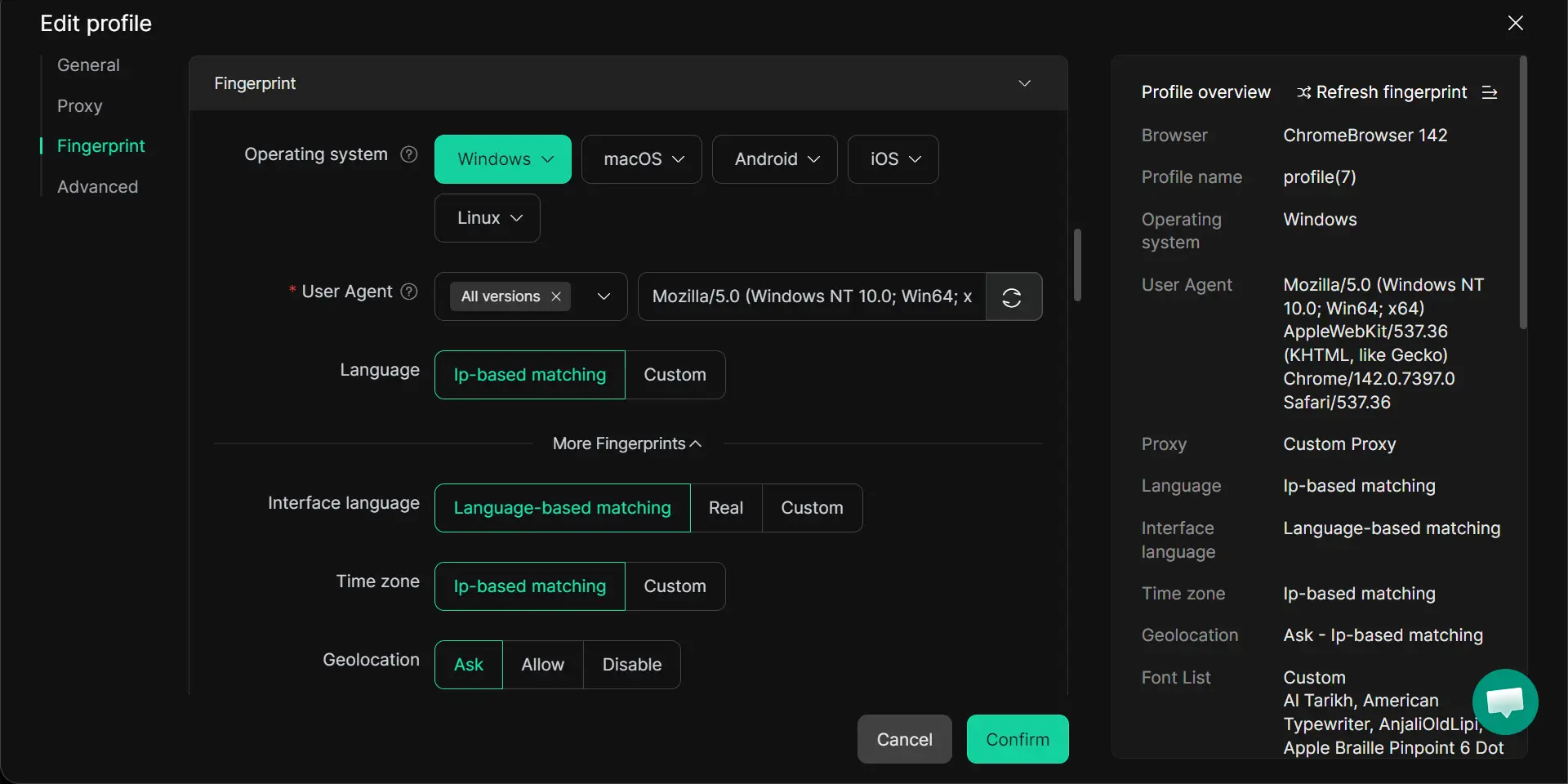
- Fingerprint Masking: DICloak creates isolated profiles with unique customized fingerprint parameters to prevent account linking.
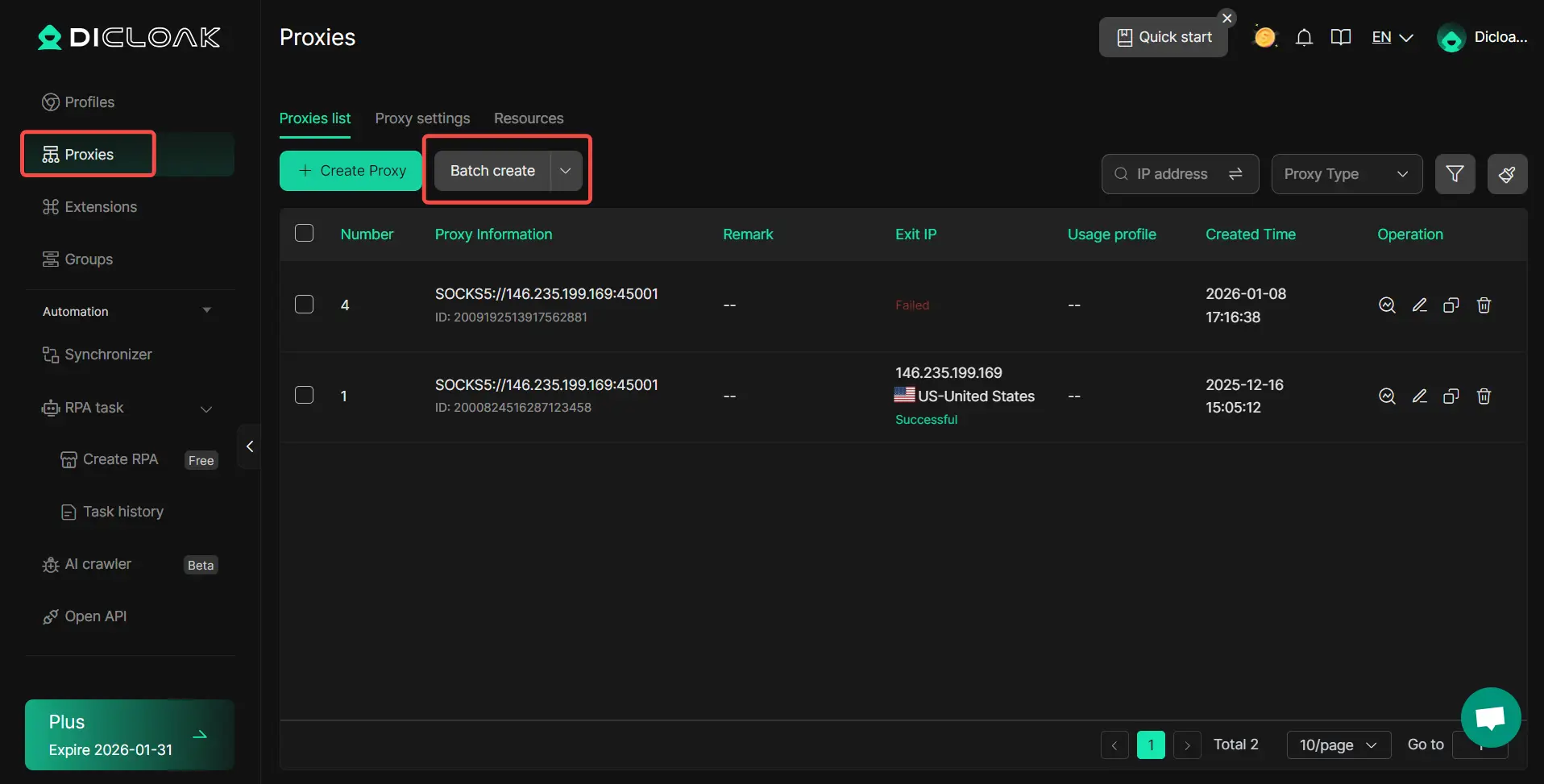
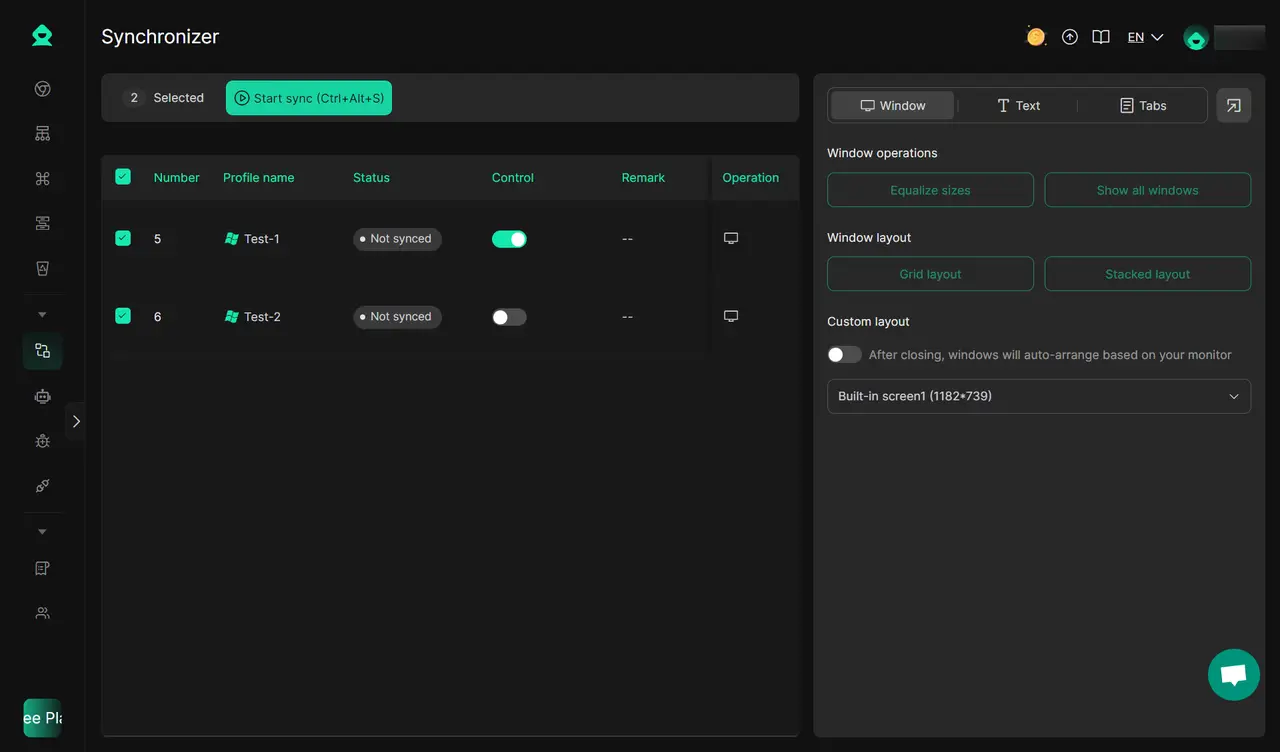
- Synchronizer & RPA: Use the Synchronizer to mirror actions across multiple windows. For airdrop farming, use RPA (Robotic Process Automation) to simulate real user behavior with random delays and human-like interactions to avoid detection.
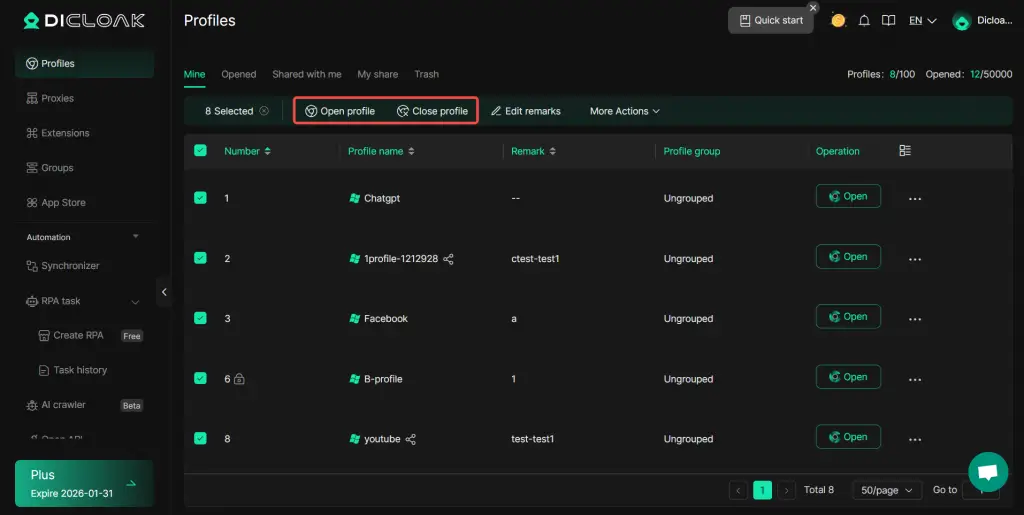
- Bulk Operations: Open or share hundreds of profiles with unique cookies and session data in a single click, a feat impossible with a standard browser and Proxy Helper.
FAQs
Does Proxy Helper work on Firefox or Safari?
No. Proxy Helper is strictly for Chromium-based browsers. For Firefox, you would need an extension specifically built for the Gecko engine.
Can I use Proxy Helper for web scraping?
Yes, but use Rule List Mode. This allows you to assign different proxies to specific domains, ensuring you don't burn your high-value residential IPs on low-value data.
How do I fix the "Authentication Required" loop?
This is usually a typo or a lack of IP whitelisting. Double-check your credentials and ensure your proxy provider hasn't rotated you to a node that doesn't support browser-based auth.
Is Proxy Helper safe for managing crypto wallets?
No. Browser-level isolation is insufficient for high-value wallet management. It does not mask underlying OS or hardware signatures (Canvas/WebGL), which sophisticated exchanges and DeFi platforms use to link and flag "sybil" accounts. Use a hardened profile like DICloak.
What is the difference between Global Mode and Rule List Mode?
Global Mode routes every single request in Chrome through the proxy. Rule List Mode uses logic (similar to a PAC script) to only proxy specific sites while letting the rest run on your local IP.
 Web Proxy Tools
 Free Tools
 Cookie Plugin
 UA Generator
 MAC Address Generator
 IP Generator
 IP Address List
 2FA Code Generator
 World Clock
 Anonymous Check
 WebRTC Leak Test
 UUID Generator
 Free Web Proxy Site
 Proxy Checker
 FB Ad Checker
 AI Web Scraping
 Free SMM Tools
 Twitter Shadowban Checker
 Instagram Name Checker
 UTM Generator
 Username Generator
 AI Hashtag Generator
 LinkedIn Headline Generator
 Social Media Image Resizer