Scrolling through Instagram for just 30 minutes can mean flipping past hundreds of posts, reels, and ads, far more than most people realize. But staying glued to the screen, swiping again and again, gets tiring fast. That’s why the demand for instagram auto scroll tools keeps rising across social media forums and productivity groups. Users want a way to keep Instagram reels auto scroll running hands-free, whether they’re gathering market research, tracking trends, or just avoiding thumb fatigue.
But there’s a catch. While some browser extensions or phone apps promise to auto scroll Instagram feeds or stories, many work in unreliable ways or break Instagram’s own rules. Users often find their accounts suddenly flagged for “unusual activity,” or see their feeds stutter and freeze after a few minutes. Even some paid tools don’t play well with Instagram’s constant updates, putting accounts at risk for temporary blocks. Reports on platforms like Reddit and XDA Developers show how quickly things can go wrong, especially when using scripts or unofficial mods.
So what actually works, and what’s safe? This guide breaks down how the Instagram auto scroll feature works, why most shortcuts fail, and which safer methods let you scroll without getting your account in trouble. From manual tweaks to automation tools built for steady use, you’ll see what really matters before you hit the next reel.
What Instagram Auto Scroll Actually Does and Why It Matters
Instagram auto scroll changes how users move through feeds and reels. Instead of swiping with your finger each time, auto scroll lets the app or a tool move to the next post or video for you. This sounds simple, but it changes how people experience content and how much time they spend on the platform. For regular users, it means less tapping and a more relaxed browsing session. For marketers, it can increase the chances that content gets seen by more people, especially if the feature makes it easier to watch more reels or posts in a row.
How Instagram Auto Scroll Works on Reels and Feed
Manual swiping is what most users do, slide left or up to go to the next post or reel. With the Instagram auto scroll feature, the app or an add-on tool flips to the next item after a set time. On Instagram reels, auto scroll means you can watch short videos one after another without touching the screen. Regular feeds can also support this, but reels are where auto scroll shines. Most official versions only let you auto scroll reels, while third-party scripts may try to add auto scroll Instagram support everywhere, but these can break or get accounts flagged. If you want to avoid risky scripts, use tools that are tested for Instagram reels auto scroll and updated often, as discussed on forums like Reddit and XDA Developers.
Why Instagram Introduced Auto Scroll
The main goal is to keep users watching. Instagram wants people to spend more time in the app, so auto scroll lowers the effort, viewers don’t have to lift a finger. Passive viewers, in particular, are more likely to keep watching if the content keeps playing. For marketers, this means smart use of the Instagram auto scroll feature can boost reach and impressions, as people glide through content with less friction. The real shift is that auto scroll turns Instagram into a more TV-like, hands-free experience, raising both engagement and risk if misused.
How to Enable or Disable Instagram Auto Scroll Step by Step
Instagram auto scroll can save time, but the feature isn’t always easy to find or control. Some users get it after an update, while others never see it at all. Here’s how to turn auto scroll on or off, what to check if the option is missing, and a few tips for smoother results.
Step-by-Step: Enabling Auto Scroll on Instagram
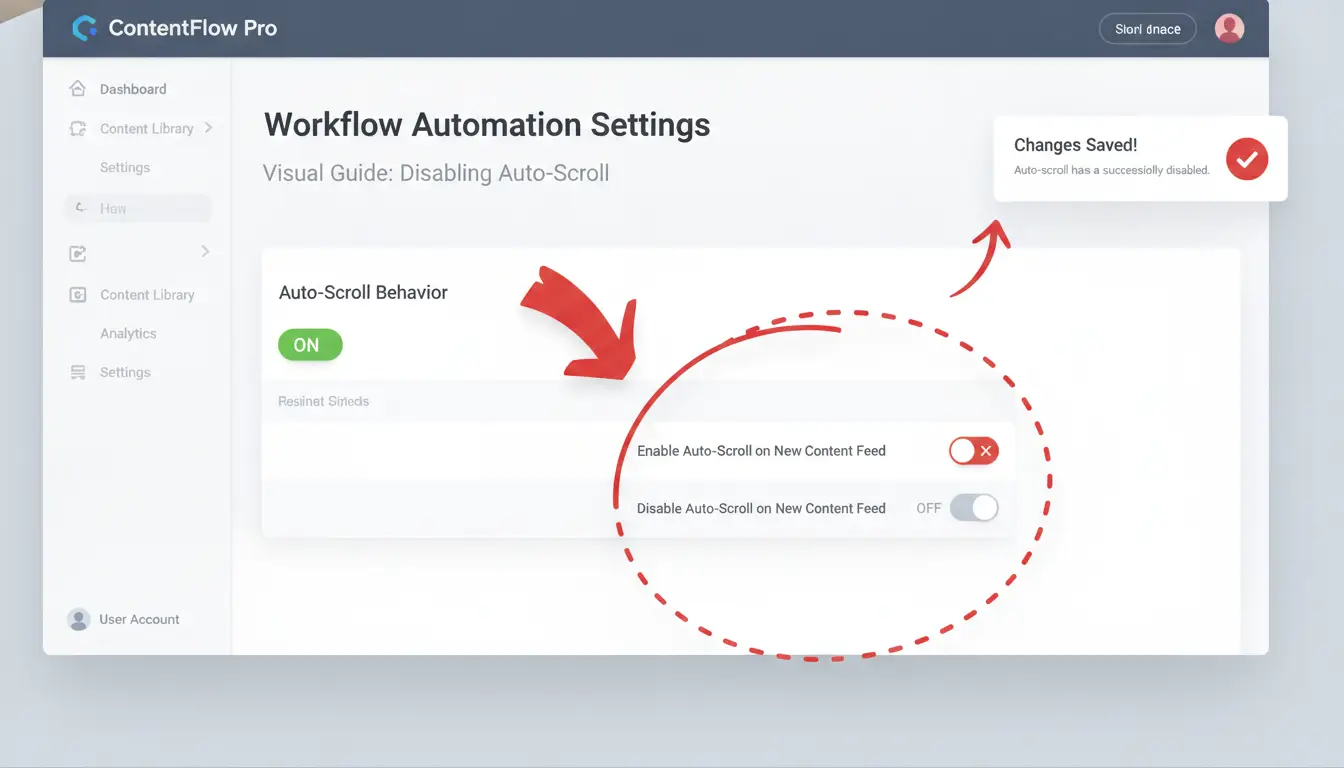
Open the Instagram app and go to your profile. Tap the menu (three lines in the top right), then scroll down to Settings and Privacy. Look for a section called “Reels and Feed.” If “Auto Scroll” is available, you’ll see a toggle switch, turn it on to activate automatic scrolling for reels or your main feed.
Many people report that the instagram auto scroll feature only appears on certain devices or after specific updates. If you don’t see the toggle, try updating the app from the Google Play Store or Apple App Store. Sometimes clearing the app cache or restarting your phone helps. Still missing? Instagram rolls out new features in waves, so your account or region might not have it yet. Checking Instagram’s official blog or the Instagram subreddit can confirm if others have the same issue.
How to Turn Off Auto Scroll and Restore Manual Control
If auto scroll is active and you want to pause or stop it, go back to the same menu. Under “Reels and Feed,” turn off the auto scroll toggle. This works for both reels and your main feed if the option was there to begin with.
For reels, you may also tap and hold the screen while a video is playing, this sometimes pauses the auto scroll, letting you watch or interact at your own pace. On the main feed, swiping up once usually resets the scrolling to manual.
If you use tools or extensions to auto scroll Instagram, be careful, unofficial add-ons often break after updates and can risk account safety, as seen in XDA Developers reports. Sticking to built-in features is usually safer than third-party scripts.
Why Instagram Auto Scroll May Not Work: Common Issues and Fixes
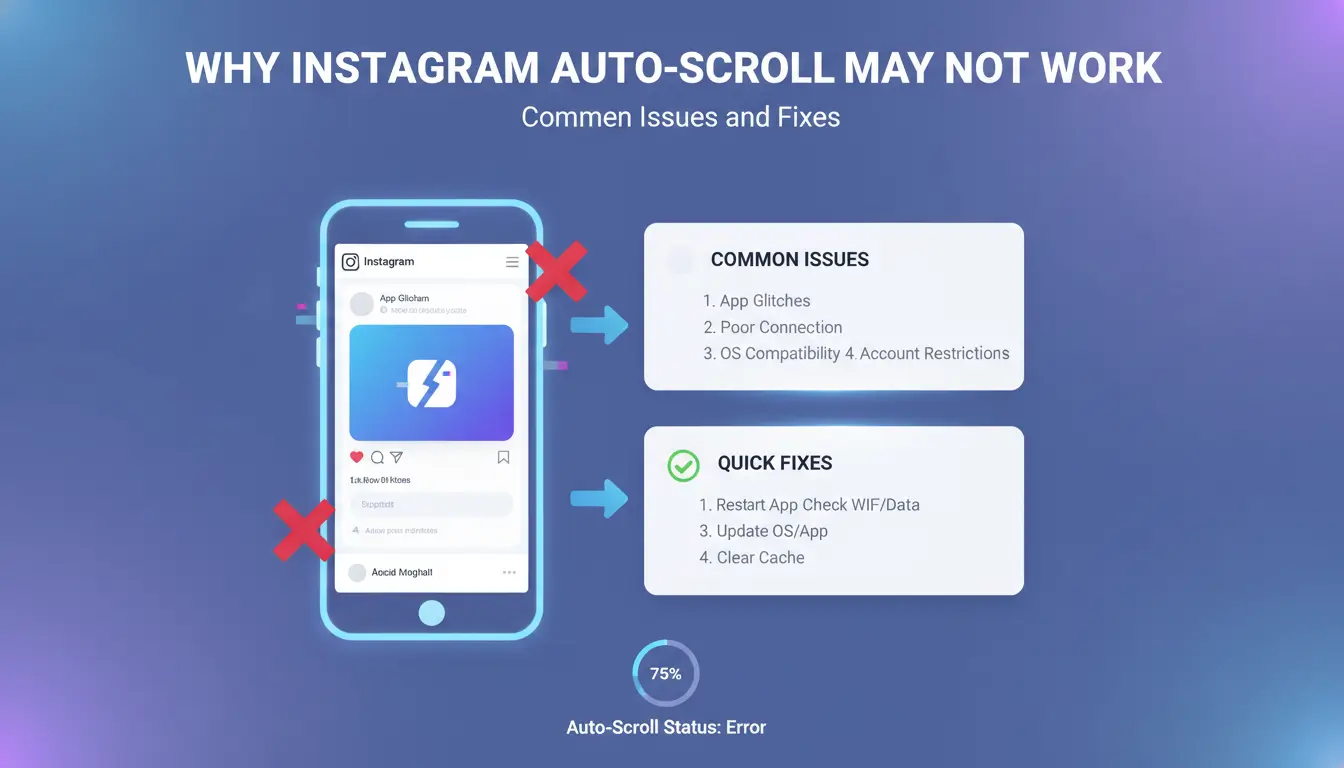
Instagram auto scroll is not guaranteed to work for every user. Sometimes the feature disappears, or it never shows up at all. Many users get stuck waiting for the auto scroll Instagram option, especially for reels or feed browsing. Below are the main reasons, plus direct fixes that actually help.
Device and App Version Limitations
Instagram reels auto scroll only works on certain devices and operating system versions. If your phone is too old or the app is not updated, you may never see the Instagram auto scroll feature. For example, Android phones running below version 9 or iPhones before iOS 13 often miss new options. Keeping your app updated is the single best fix, Instagram rolls out features to the latest app versions first. Check your device and update Instagram from the Google Play Store or Apple App Store. Some users notice that auto scroll only appears after updating both their OS and the Instagram app. 
Regional Rollouts and Account Restrictions
Not all regions get Instagram auto scroll at the same time. Instagram often tests features like auto scroll in select countries before global release. For example, users in the US or Western Europe usually get new features weeks ahead of others. If you’re in Asia or South America, delays are common. Account type also matters. Business accounts, new accounts, or those flagged for “unusual activity” might not have access to auto scroll Instagram. Switching to a standard personal account sometimes helps. Reports on Reddit confirm that rollouts are staggered, and restrictions can block features even for long-term users.
Troubleshooting: What to Try If Auto Scroll Is Missing
If Instagram auto scroll is missing, start by reinstalling the app. Delete it, restart your device, and install it fresh. This clears app cache and forces Instagram to check for updates. If the feature still won’t appear, contact Instagram support through the app’s Help menu. They can confirm your account status or advise if auto scroll Instagram is available in your region. Avoid unofficial mods or scripts, these often trigger blocks or account issues, as seen on XDA Developers.
How Auto Scroll Changes Instagram Engagement for Creators and Brands
Impact on View Rates and Attention Spans
The Instagram auto scroll feature means more users see your Reels without tapping or swiping. This drives up passive view counts but comes with a catch, people spend less time on each post. Instead of pausing, they let content roll by, giving you only a few seconds to grab attention. Creators now see shorter watch times, so a strong hook in the first two seconds is no longer optional, it's the difference between a scroll and a stop.
Does Auto Scroll Affect the Instagram Algorithm?
Auto scroll Instagram tools change how the platform measures engagement. The algorithm now tracks not just likes and comments, but whether someone pauses or rewatches. Posts that can stop thumbs, like quick reactions or catchy intros, often reach more people. Instagram reels auto scroll means your content might get more impressions, but only posts that spark fast interest get boosted in feeds, as explained by Instagram’s official blog.
Adapting Content Strategy for Auto Scroll
To make your videos stand out with Instagram auto scroll, start strong. Use bright visuals, text on screen, or a question in the first seconds. Test short formats, as auto-scrollers skip slow intros. Compare old vs new strategies:
| Strategy Type |
Old Feed |
Auto-Scroll Feed |
| Hook Timing |
3–5 seconds |
1–2 seconds |
| Video Length |
30+ seconds |
10–15 seconds |
| Engagement Prompt |
Mid-video |
Opening seconds |
Risks and Mistakes When Using Instagram Auto Scroll with Multiple Accounts
Running instagram auto scroll on multiple accounts might seem like a shortcut, but it creates hidden risks that can ruin all your profiles at once. Instagram’s detection systems watch for patterns that don’t look like normal use. Even minor slip-ups, like using the same device or browser for every account, can link your accounts together and lead to bans. Here’s where most problems start, and how to avoid them.
Why Multi-Account Browsing Gets Risky with Auto Scroll
Instagram links accounts using device fingerprints and IP addresses. If you run auto scroll Instagram tools on several profiles from the same computer or phone, those accounts start to look connected. When you use the Instagram auto scroll feature for hours, the repeated swiping and timing patterns stand out. Accounts that move in sync, scrolling through reels at the same speed, from the same device, are easy targets for detection. Reports on Reddit show users getting flagged after just a few sessions, especially when using browser extensions or scripts that don’t randomize actions. The biggest risk is losing not just one, but every account tied to that device or IP.
Common Mistakes That Lead to Account Restrictions
Many people switch between accounts on the same browser without proper isolation. This leaves traces, cookies, cached data, session fingerprints, that Instagram can link together. Using the same browser or device for all accounts makes it easy for Instagram to spot suspicious behavior. Relying on unofficial mods or free auto scroll scripts also boosts the risk, as most lack safeguards against these linkages. Once Instagram flags one account, the rest often get caught in the sweep.
Safer Workflow Tips for Marketers and Teams
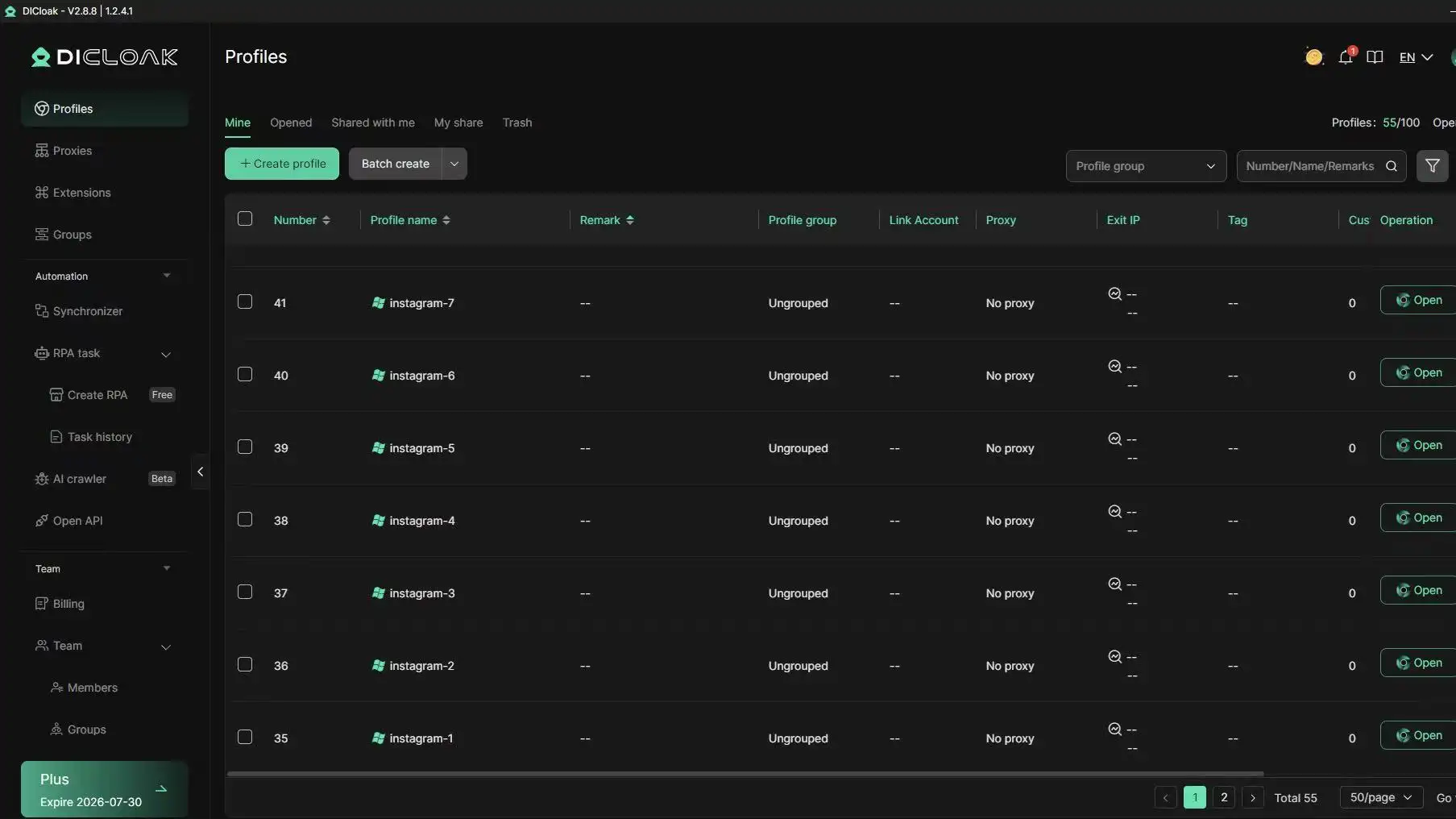
Isolate each account by opening it in a unique browser profile. Use a separate proxy for every account, so Instagram sees different IP addresses. Tools like DICloak let you create truly separate environments, each with its own fingerprint and proxy, reducing cross-linking. For teams, this setup is safer and easier to manage, especially when running Instagram reels auto scroll across many profiles.
How DICloak Makes Multi-Account Instagram Auto Scroll Safer and More Efficient
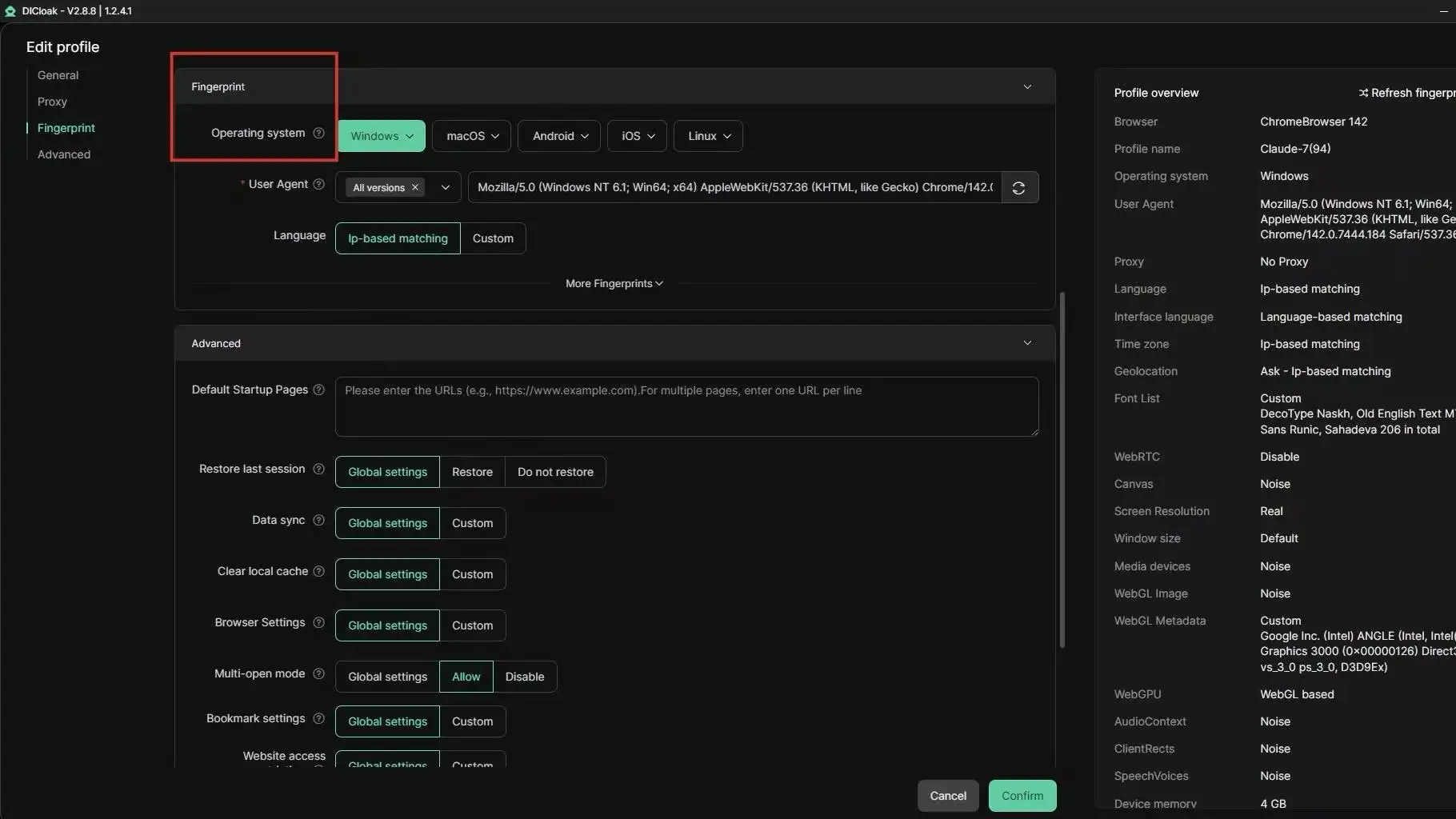
Running instagram auto scroll across several accounts often gets users flagged or banned, especially when browser fingerprints and IPs overlap. Marketers trying to automate likes or scroll through Instagram reels on multiple profiles face a real risk: Instagram’s systems link accounts fast, even when scripts claim to keep you safe. Tools like DICloak let you avoid these traps by giving each Instagram account its own private browser profile and settings.
Isolated Browser Profiles and Custom Fingerprints
With DICloak, you can assign a unique browser fingerprint to every account. This stops Instagram from seeing a pattern or linking your profiles. Each login stays separate, so bans on one don’t spread to others. That’s the backbone for safe auto scroll Instagram use at scale.
Flexible Proxy Integration for Each Instagram Account
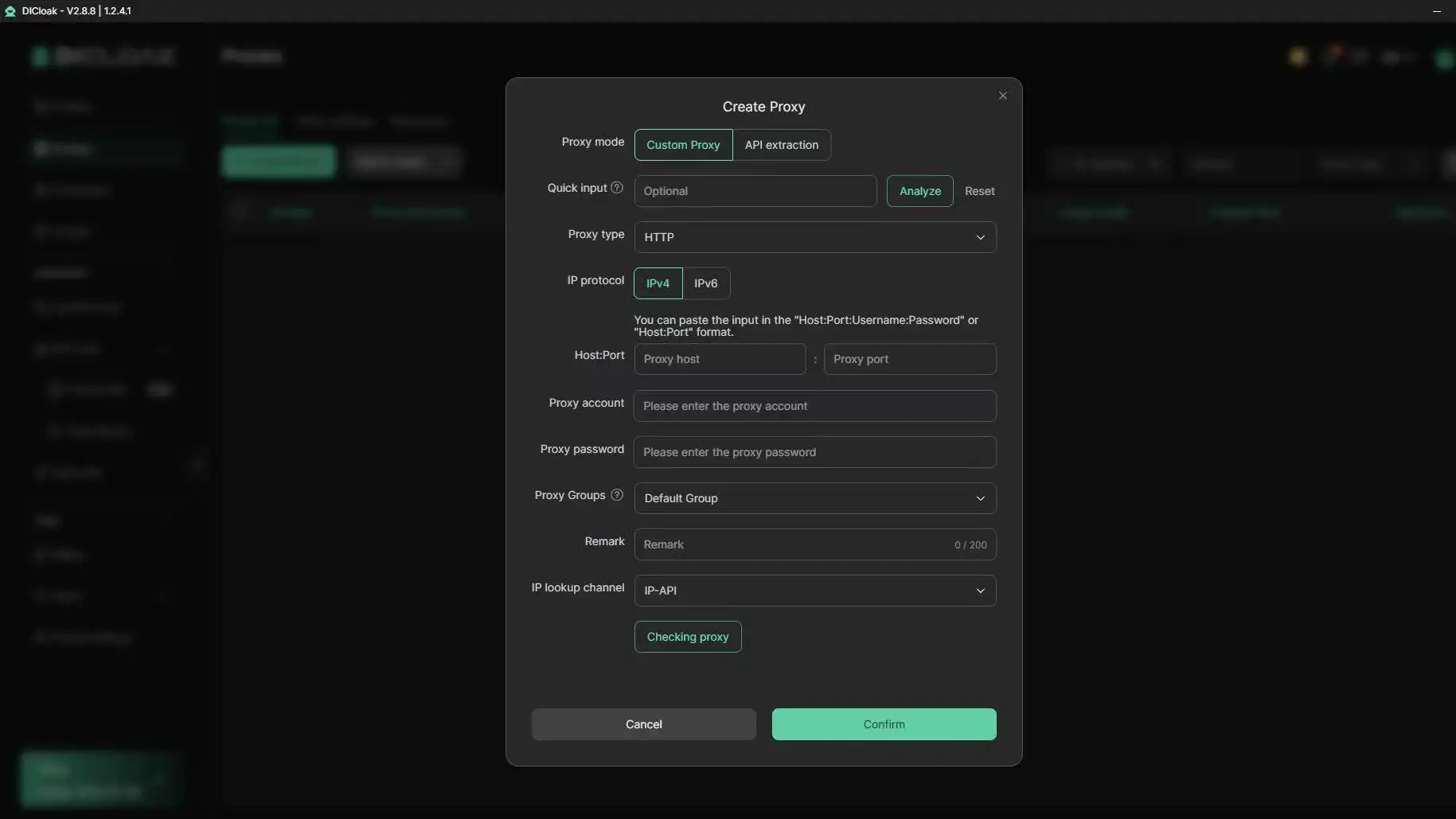
You can set a different proxy for every profile, keeping your real location private and mixing up account activity. DICloak makes swapping proxies easy, so you avoid network blocks and manage your proxy pool without downtime.
Automation Tools for Bulk Engagement and Workflow
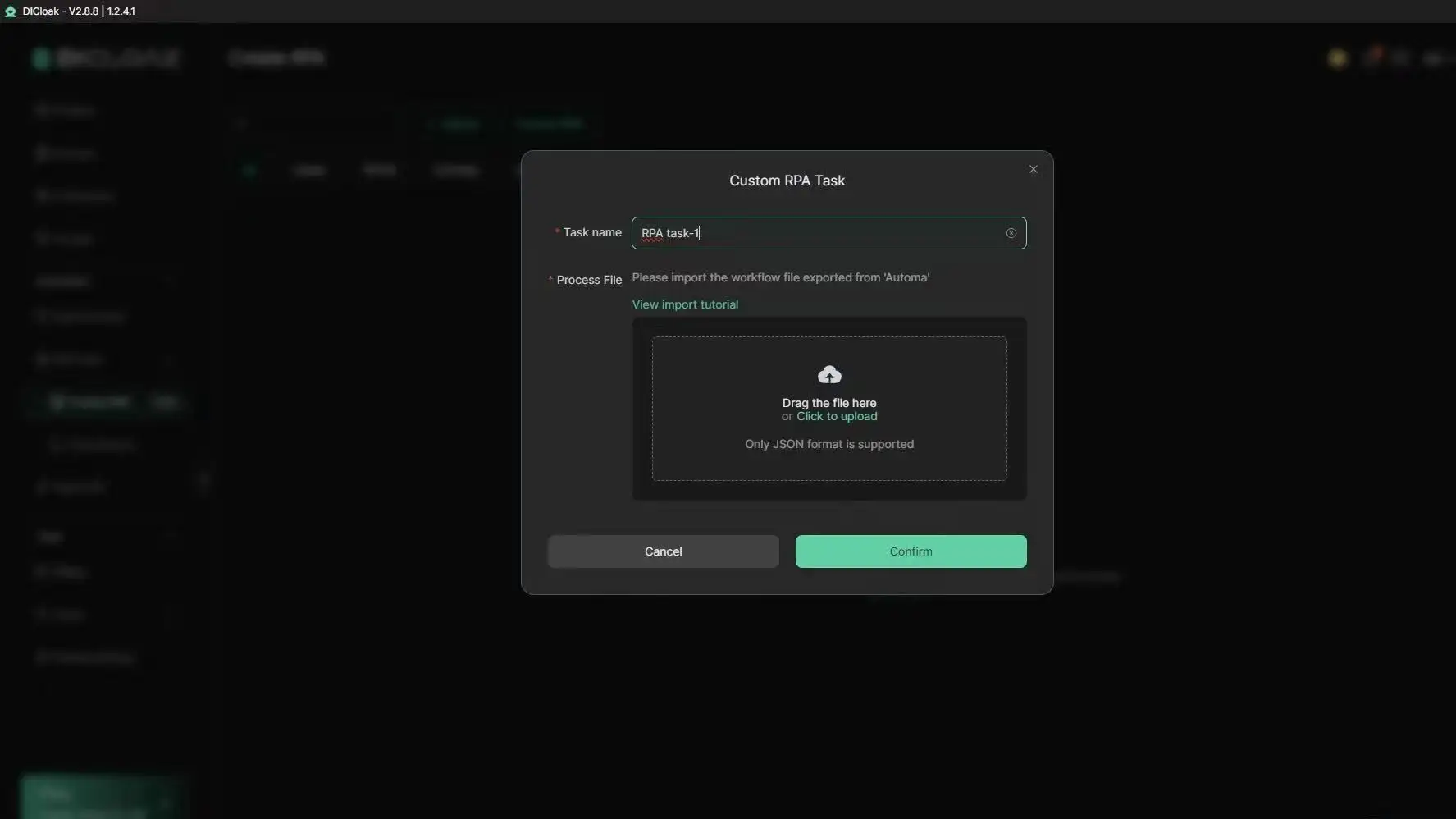
DICloak’s RPA lets you set up auto scroll, likes, and comments across accounts. You can synchronize actions, making bulk engagement look natural, key for anyone using the Instagram auto scroll feature to grow or test content.
When to Use Instagram Auto Scroll and When Manual Browsing Is Better
Auto Scroll for Passive Browsing and Content Discovery
Instagram auto scroll is best when you want to scan your feed, explore reels, or collect ideas with little effort. Marketers often use auto scroll Instagram tools to spot trends, review lots of posts, or keep an eye on competitors. This approach saves time, especially during research or when you need to keep multiple accounts active. For example, running Instagram reels auto scroll for a few minutes can make a new profile look more natural. Some tools even let you set scrolling speed or target certain feed types. Just remember, heavy automation can trigger warnings if patterns look too robotic.
Manual Browsing for Targeted Engagement and Account Safety
Manual browsing is safer when you care about account health. Liking, commenting, or following should be done by hand, especially on newer or high-value profiles. Manual control helps avoid risky patterns, such as rapid-fire actions or repeating the same moves across accounts. Many users on Reddit warn that auto scroll Instagram scripts can trigger blocks if not used carefully. Manual actions let you react to what you see and slow down if Instagram starts acting strange.
Choosing the Right Workflow for Your Team
Balancing automation and manual review keeps things steady. Teams often start with Instagram auto scroll for broad research, then switch to manual when making real connections. As Instagram updates its systems, it’s smart to test new features with caution. Don’t rely on one method, mixing both gives you better results and lowers risk.
Practical Tips for Instagram Auto Scroll: Efficiency, Privacy, and Account Longevity
Auto scrolling on Instagram sounds easy, but most issues come from simple things users skip. To get smooth scrolling and keep your account safe, you need to tune both your device and your habits, not just install another plugin.
Optimizing Device and App Settings
Start by running the latest version of the Instagram app. Outdated apps often break auto scroll features or trigger “unusual activity” warnings. Check for updates weekly in the Google Play Store or App Store. If your feed lags or freezes, clear your app cache and restart your phone. For Android, go to Settings → Apps → Instagram → Storage → Clear Cache.
Silent notifications can drain battery and slow down auto scrolling. Go to your notification settings and turn off alerts you don’t need. For privacy, review the permissions Instagram asks for, limit access to your camera and microphone unless you’re posting content. This cuts down on background data use and keeps your account details more private.
Maintaining Natural Activity Patterns
Instagram pays close attention to repeated actions. If you set up an “instagram auto scroll” tool to scroll for hours, you’ll get flagged fast. Mix in manual swipes with any automation. For example, scroll a few reels yourself, tap pause, then let the tool run for short bursts. Don’t combine auto scroll Instagram features with mass liking or commenting scripts. That combo is what most users on Reddit report as the main reason for temporary bans.
Switch up your activity times. Avoid running Instagram reels auto scroll all day or overnight, use it in short, timed sessions.
Long-Term Account Health for Marketers
Marketers managing several accounts should check security settings monthly. Use tools that allow separate profiles and proxy support. For teams, you can use DICloak to isolate accounts in their own browser profiles, share access safely, and keep a log of all actions.
Stay alert for Instagram updates. When a new feature rolls out, pause your auto scroll routines until you confirm nothing triggers extra checks. Testing changes with a backup account before using them on your main one can prevent big losses.
Frequently Asked Questions
Is Instagram auto scroll available for all users?
Instagram auto scroll is not yet available to everyone. It rolls out gradually, starting with the latest app versions and newer devices. Some features, like Instagram reels auto scroll, may only work for personal accounts and not business accounts. Make sure your app is updated and your account is eligible for new features.
Does auto scroll affect my Instagram engagement or reach?
Instagram auto scroll can change how people interact with your posts. It often increases view rates and watch time because users see more content quickly. However, the Instagram algorithm may prioritize posts that hold attention longer. Engagement like likes and comments might stay the same or drop if users scroll past quickly.
Can I use Instagram auto scroll on desktop or web?
Instagram auto scroll feature is mostly available in the mobile app. The desktop and web versions do not support native auto scroll. If you need auto scroll Instagram on desktop, browser extensions or scripts may help, but they often lack smooth performance and can risk your account security.
Is it safe to use auto scroll with multiple Instagram accounts?
Using instagram auto scroll with several accounts can trigger detection by Instagram, especially with third-party tools. This might lead to account restrictions or temporary bans. To stay safe, always use the official app features and avoid logging in and out too quickly or automating excessive actions.
Are there automation tools for Instagram auto scroll?
Instagram offers limited built-in auto scroll options, mainly for reels. Third-party apps claim to automate scrolling, but they risk violating Instagram rules. DICloak provides automation for Instagram auto scroll with safer workflow options, but always check compatibility and avoid tools that ask for your password.
Conclusion
Instagram auto scroll offers a convenient way to browse your feed hands-free, boosting efficiency and simplifying content consumption. By leveraging tools designed for smooth scrolling, users can tailor their experience to suit their browsing habits and save time.
Try DICloak For Free
 Web Proxy Tools
 Free Tools
 Cookie Plugin
 UA Generator
 MAC Address Generator
 IP Generator
 IP Address List
 2FA Code Generator
 World Clock
 Anonymous Check
 WebRTC Leak Test
 UUID Generator
 Free Web Proxy Site
 Proxy Checker
 FB Ad Checker
 AI Web Scraping
 Free SMM Tools
 Twitter Shadowban Checker
 Instagram Name Checker
 UTM Generator
 Username Generator
 AI Hashtag Generator
 LinkedIn Headline Generator
 Social Media Image Resizer