You send a prompt, wait 30 seconds, and still get a blank reply while a client deadline gets closer. That is the real cost of a chatgpt outage: lost momentum, delayed decisions, and teams guessing what broke. The hard part is that not every failure is global. Sometimes OpenAI has an incident, which you can confirm on the OpenAI Status page. Other times, the issue sits in your browser session, network route, or account state, even when public reports on Downdetector for OpenAI look normal.
This guide gives you a clear path to act fast: verify whether the outage is platform-wide, run practical checks on your side, and switch to backup workflows so writing, coding, and support tasks keep moving. You will also learn which error signals to track in the OpenAI Help Center and API error code guide, so you can separate temporary service problems from local setup issues. Start with the one check that saves the most time: confirm the outage scope before changing anything.
Is ChatGPT down right now? How to confirm a real outage in 2 minutes

If you suspect a chatgpt outage, check public signals before changing settings. Match at least two live sources within the same 10–15 minute window to avoid false alarms.
Check the official ChatGPT status page and active incidents first
Open OpenAI Status and look for active incidents on ChatGPT. “Degraded performance” means partial issues, like slow replies or failed loads. “Major outage” means core features are down for most users. Read the latest update time, not just the incident title. A resolved incident from an hour ago may not explain your current error.
Cross-check with third-party outage trackers and real-time user reports
Use Downdetector for OpenAI to see if report volume is rising right now. Then check live user posts on X search for ChatGPT down or Reddit r/ChatGPT. Watch for regional spikes. If reports cluster in one country, your issue may be route-specific, not a global chatgpt outage. Ignore posts without timestamps or screenshots of current errors.
Run a fast sanity check on your account, browser, and device
Do a quick A/B test: same prompt in mobile app and desktop browser. If one works, the platform is likely up. Then test another browser profile, another network, or another account session. If all fail with similar errors, a real outage is more likely. If only one setup fails, fix local cache, extensions, or session state.
ChatGPT outage or your setup? A practical checklist to isolate the cause
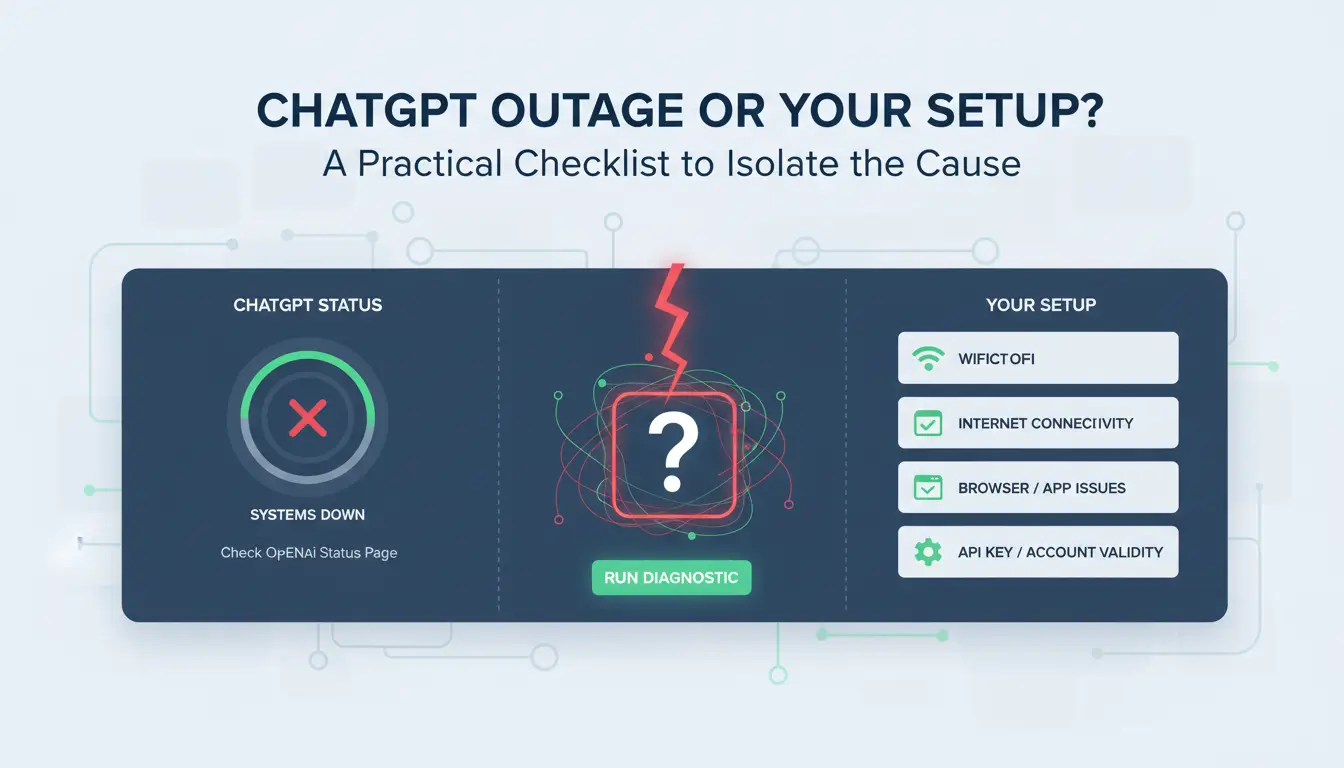
If ChatGPT fails, run one scope check before changing anything. Open OpenAI Status and Downdetector for OpenAI. If both show active incidents, wait and retry later. If they look normal, test your side.
Browser and app fixes that solve many false outage symptoms
Hard refresh the tab (Ctrl/Cmd+Shift+R). If errors stay, clear site data for chat.openai.com only. Then disable extensions that modify scripts, cookies, or requests.
Sign out, close all ChatGPT tabs, sign in again, and test in a private window. If private mode works, your saved session or extension set is the likely cause.
Network checks: DNS, firewall policies, and proxy behavior
Unstable DNS or filtered routes can look like a chatgpt outage.
Switch to another network, such as a mobile hotspot, and retry. If it works, your local route or firewall policy blocks traffic. If you use a proxy, test another endpoint in the same region, then test with proxy off. Change one variable per test so results stay clear.
Check service-side error hints in the API error code guide.
Account and access factors: plan limits, region, and organization controls
Open the OpenAI Help Center and confirm login state, billing state, and workspace rules. Team admins can block tools, models, or regions.
If one account fails while another works on the same device and network, treat it as an account-level restriction, not platform downtime.
What common ChatGPT outage errors actually mean (and what to do next)
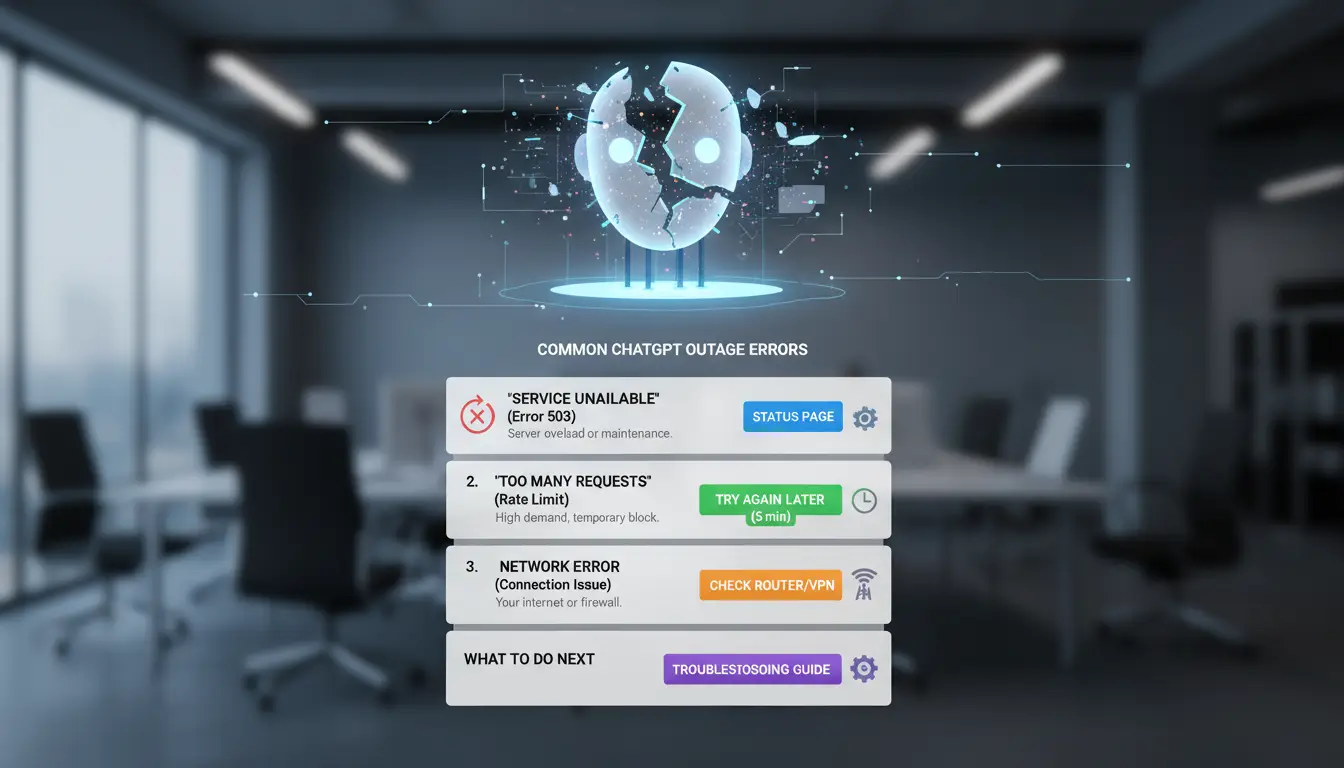
“At capacity,” “Something went wrong,” and blank response failures
These errors usually point to temporary server load, a dropped session, or a failed response stream during a chatgpt outage. Check OpenAI Status before changing local settings. If status shows an incident, wait 5–10 minutes, then retry once with the same prompt. If status looks normal, open a new chat, shorten the prompt, and hard refresh your tab. Random rapid retries often make recovery slower by creating extra failed requests.
“You are being rate limited”: request limits vs true outage
This message often means your account or IP sent too many requests in a short window, not a platform-wide outage. Use this quick check:
| Signal |
Likely cause |
Next action |
| Only your account fails |
User-level throttling |
Pause requests, reduce burst size, retry later |
| Errors spike across reports |
Service incident |
Confirm on Downdetector and status page |
| API fails but UI works |
API-side congestion |
Queue jobs, add backoff, retry with delay |
Use exponential backoff (for example 10s, 20s, 40s) instead of constant retries.
429/5xx errors, login loops, and ChatGPT UI vs API mismatch
A 429 usually means rate limit. 5xx usually means server trouble. Login loops often come from stale cookies or auth token issues. API and web app can fail at different times, so check both paths. Test one request in ChatGPT UI and one in API. Then log timestamp, error code, model, region, and request ID from the API error code guide. Send that bundle to the OpenAI Help Center for faster support.
What should you do during a ChatGPT outage to keep work moving?
During a chatgpt outage, run a 15-minute continuity drill, then switch to offline-safe work. Check OpenAI Status and Downdetector for OpenAI before changing tools, so you do not waste time on local fixes.
Prioritize tasks by AI dependency and switch to fallback paths
- Split work into two queues:
- Low dependency: editing, outlining from existing notes, ticket tagging, QA checks, meeting summaries from recorded notes.
- High dependency: new draft generation, code synthesis, long-form rewrites.
- Move high-dependency items to a recovery queue with owner, due time, and input files ready.
- Use backup paths now: internal templates, saved snippets, and manual drafting in your doc editor.
- If you use API workflows, watch OpenAI API error codes to separate rate limits from service faults.
Prevent data loss while retries are failing
- Save every prompt and output attempt outside the chat window.
- Keep one running log: timestamp, task ID, prompt version, and failure message.
- Store drafts in versioned files (v1, v2, v3) so you can resume fast after service returns.
- Copy partial outputs immediately; session refresh can erase unsaved text.
Set internal and client communication rules during downtime
- Send short updates every 30-60 minutes: scope, affected tasks, current fallback, next check time.
- Use ETA bands (“update in 30 minutes,” “delivery moved by 2-4 hours”) instead of exact restore times.
- During a chatgpt outage, confirm what will ship today and what moves to the recovery queue.
How can you reduce future ChatGPT outage impact before it happens again?
A chatgpt outage causes less damage when backup steps are decided early. Build a lightweight resilience system once, then run the same playbook each time. Keep one shared page with prompts, switch rules, and response owners.
Build a fallback stack for writing, research, and analysis tasks
Save 10-15 proven prompt templates by task type. Keep plain-text versions in your docs tool, so work continues if chat fails. Add one backup path for each core task.
| Task |
Primary path |
Fallback path |
Switch trigger |
| Writing draft |
ChatGPT |
Saved prompt + local editor |
No response after 3 retries |
| Research summary |
ChatGPT + web search |
Source docs + manual notes |
OpenAI Status shows degraded |
| Quick analysis |
ChatGPT |
Spreadsheet formulas + checklist |
Repeated API/UI errors for 10 minutes |
Set proactive monitoring and alert triggers
Subscribe to OpenAI Status updates and watch Downdetector for OpenAI. Send alerts to your team chat and email. Trigger fallback work when status is degraded or when two local checks fail at the same time. Keep links to the OpenAI Help Center and API error code guide in the alert message.
Create outage runbooks for partial vs full service failures
Use a short decision tree. Partial failure: slow replies or upload issues. Full failure: login fails or repeated 5xx errors. Assign one incident lead, one comms owner, and one backup operator. Run a 15-minute drill each month. After each chatgpt outage, log what blocked work and update one weak step.
How can teams sharing one ChatGPT account avoid lockouts during outages?
Why shared logins become riskier when ChatGPT is unstable
During a chatgpt outage, teams often retry logins from different cities, devices, and browsers within minutes. That pattern can trigger extra checks or temporary blocks, even after service recovers on the OpenAI status page. The bigger risk is session conflict. One teammate refreshes, another logs out, a third resets credentials. Those actions can look like account takeover behavior during incident windows, especially when reports on Downdetector spike.
How DICloak stabilizes access with isolated profiles and proxy binding
Treat outages as high-risk login windows. You can use DICloak to keep access patterns stable when one account is shared. Create one browser profile per workflow, such as support, content, or QA, instead of one profile per person. This keeps cookies, sessions, and fingerprint settings separate.
Tools like DICloak let you bind each profile to fixed proxy settings and consistent fingerprint parameters, so login signals do not jump between environments.
| Outage-period risk |
DICloak control |
| IP keeps changing |
Proxy binding per profile |
| Browser fingerprint mismatch |
Isolated profile fingerprint settings |
| Session collisions |
Separate workflow profiles |
| Unsafe password sharing |
Team access inside shared profiles |
How to set team rules in DICloak: permissions, logs, and automation
You can use role-based permissions so only approved members can open or edit a profile. Keep credential edits limited to one admin role. Let operators run tasks without seeing raw passwords.
Enable operation logs to track who opened a profile, changed settings, or exported data. During a chatgpt outage, this audit trail helps you spot mistakes fast. For repeated recovery actions, use batch operations or RPA in DICloak to run the same safe steps each time, instead of ad-hoc manual retries.
When should you escalate a ChatGPT outage issue to support?
Escalate a chatgpt outage only after quick local checks fail and the issue blocks work for more than 15–30 minutes. If OpenAI Status shows an active incident, waiting is usually faster than opening duplicate tickets.
Collect the right evidence before opening a ticket
Send facts support can act on right away:
- UTC timestamp of each failed attempt
- Full error text and HTTP code (if you use API)
- Screenshot of the error screen
- Request ID from API responses
- Steps that reproduce the issue in under one minute
Add environment details without secrets: browser version, OS, network type, workspace/account ID, model name, and whether another device shows the same failure. Use the API error code guide to label errors correctly.
Use the right channel: Help Center, status updates, and API dashboards
Use OpenAI Help Center for account-specific failures, billing lockouts, and repeated errors with evidence. Use OpenAI Status for service-wide incidents and recovery progress. Use your API usage/error dashboard to confirm if failures are request-level or account-level. Check Downdetector for OpenAI only as a signal, not proof.
Decide whether to wait, reroute, or temporarily switch providers
| Situation |
Action now |
Escalate? |
| Public incident confirmed, low business impact |
Wait and monitor status page |
No |
| No public incident, reproducible failures, key workflow blocked >30 min |
Open ticket with evidence + request IDs |
Yes |
| Deadline in <2 hours, failures continue |
Reroute tasks or temporary provider switch |
Yes, keep ticket open |
After recovery, test one normal request path, then roll back temporary routing.
How long does a ChatGPT outage usually last, and what affects recovery?
A chatgpt outage can clear fast, or linger in pockets after the main fix. Use OpenAI Status as the primary signal, then cross-check user reports on Downdetector OpenAI.
Typical recovery windows for minor, major, and cascading incidents
| Incident type |
Usual recovery window |
What you should do |
| Minor (single component error) |
15–60 minutes |
Retry every 5–10 minutes; avoid repeated logouts |
| Major (multi-service impact) |
1–4 hours |
Pause non-urgent work; switch to backup tasks |
| Cascading (follow-on failures after initial fix) |
4+ hours with uneven return |
Track status updates and retest key flows in cycles |
“Monitoring” means the provider sees recovery signals but still watches for relapses. “Resolved” means incident response is closed, not that every user is stable yet.
Why recovery can be uneven by region, model, or account tier
Backend rollout is often staged. One region or model can recover while another still fails. Cache state, stuck sessions, and rate controls can also delay your account. Treat “resolved” as a checkpoint, not a green light for full load. Verify by running three checks: fresh login, one known-good prompt, and one workflow with file upload or tool call.
Post-outage checks before resuming normal operations
Use this recovery checklist after any chatgpt outage:
- Re-test 3–5 business-critical prompts and compare outputs to pre-incident behavior.
- Re-run failed automations and API calls using the API error code guide.
- Process queued work in small batches to catch silent failures early.
- Review logs, note failure patterns, and update your incident playbook in the OpenAI Help Center.
Frequently Asked Questions
How often does a ChatGPT outage happen in a typical month?
In a typical month, you may see several short slowdowns and fewer full outages. A brief degradation can mean slower replies, login errors, or missing chat history for a few minutes. A full chatgpt outage blocks most users. Incident frequency changes as OpenAI rolls out updates, adds capacity, and handles traffic spikes.
Does ChatGPT Plus reduce my chance of being affected by a ChatGPT outage?
ChatGPT Plus can lower wait times during heavy traffic, so you may get access faster when free users see capacity limits. But Plus does not protect you from a platform-wide chatgpt outage. If core systems fail, paid and free tiers can both lose access until engineers fix the incident.
Can proxy misconfiguration look like a ChatGPT outage?
Yes. A bad proxy setup can look exactly like a chatgpt outage. Common signs include high latency, repeated timeouts, or routes blocked by firewall rules. DNS mismatch can also send requests to stale endpoints, causing login loops or blank pages. Test by bypassing the proxy and using a clean DNS resolver.
Can the API be healthy while the ChatGPT web app has an outage?
Yes. The API and ChatGPT web app run on different service layers. The API can stay healthy while the website has a chatgpt outage caused by frontend files, auth sessions, or web-only deployments. The reverse can also happen: the UI loads, but API requests fail due to gateway or quota-service issues.
What is the fastest way to get alerts for a new ChatGPT outage?
Subscribe to OpenAI’s official status page alerts first (email, SMS, or webhook). Then use one secondary source, like Downdetector or your own uptime check, to confirm impact quickly. This two-source setup helps you detect a new chatgpt outage fast and avoid false alarms caused by local network or device problems.
The ChatGPT outage highlights how heavily teams and individuals now rely on AI tools, and why even short disruptions can affect productivity, customer support, and decision-making. The key takeaway is to pair AI convenience with backup workflows, status-page monitoring, and alternative tools so your work can continue smoothly when service interruptions happen. Try DICloak For Free
 Web Proxy Tools
 Free Tools
 Cookie Plugin
 UA Generator
 MAC Address Generator
 IP Generator
 IP Address List
 2FA Code Generator
 World Clock
 Anonymous Check
 WebRTC Leak Test
 UUID Generator
 Free Web Proxy Site
 Proxy Checker
 FB Ad Checker
 AI Web Scraping
 Free SMM Tools
 Twitter Shadowban Checker
 Instagram Name Checker
 UTM Generator
 Username Generator
 AI Hashtag Generator
 LinkedIn Headline Generator
 Social Media Image Resizer