A common support failure on shared phones is simple: one person leaves Facebook signed in, the next person opens the app, and account recovery starts after suspicious login checks. Facebook allows saved login info and one-tap sign-in, but it also gives controls to remove saved sessions, review active devices, and add stronger checks through Facebook login settings, Security and Login controls, and two-factor authentication guidance. If you are searching for How to log in to Facebook automatically, the real goal is not just speed. You need fast access that does not hand your account to the next user on the same phone or browser.
You will learn the exact setup path for three cases: your personal phone, your desktop browser, and a shared device. You will also see what to turn off, what to review after each login, and how to lower lockout risk when sessions expire or cookies get cleared (see how browser cookies affect sign-in). For team environments that handle multiple social accounts on one machine, tools like DICloak can separate browser profiles and permissions to reduce cross-account mix-ups. Start with the phone flow, since that is where most auto-login mistakes happen.
What should you check before enabling Facebook auto login?
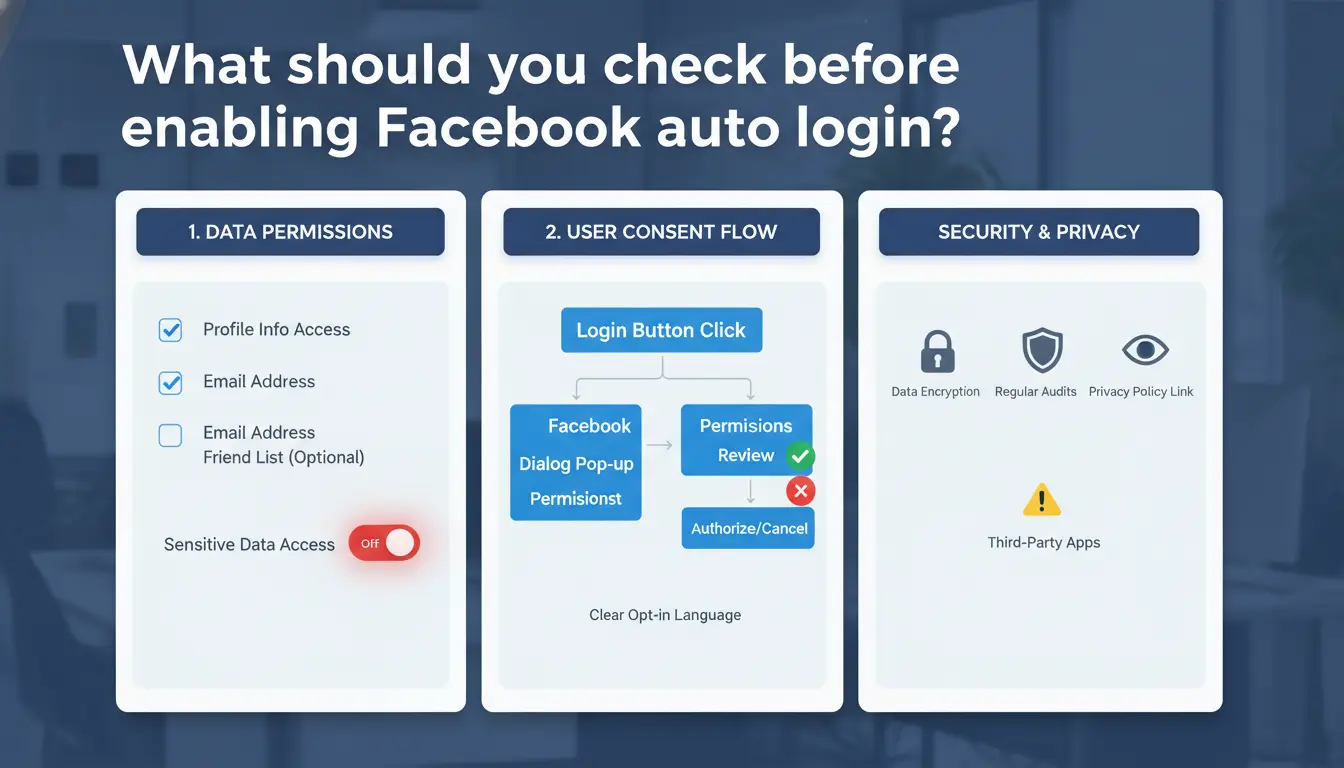
For How to log in to Facebook automatically, reliability starts before you tap “Save login info.” If manual sign-in fails even once, auto login will also fail, then trigger extra security checks.
Confirm your login method and account status first
Open Facebook and sign in by typing your email or phone plus password. If that fails, fix it before enabling auto login. Use the official Facebook password reset flow and confirm your recovery email and phone are current in Accounts Center.
Check your security prompts too. If two-factor authentication is on, a new browser, cleared cookies, or changed IP can still ask for a code. That is normal behavior, not a broken auto-login setup.
Review browser and app settings that block saved sessions
Auto login depends on saved cookies and local app data. If your browser blocks cookies, or you clear browsing data on exit, Facebook cannot keep your session. Review cookie rules in your browser settings and confirm you are not using private/incognito mode, since those sessions are temporary.
On mobile, keep app storage permission enabled and avoid “auto clean” tools that erase app data. Some ad blockers or strict privacy extensions block Facebook scripts and break session storage. If sign-in keeps resetting, disable those tools one by one and test again.
Decide whether your device is private or shared
Auto login is usually fine on a personal phone or personal laptop with a lock screen. Shared devices are different. If other people can open your browser profile, they can open your Facebook account.
Before saving login info, check: device lock enabled, browser profile not shared, no guest sessions, and no public computer use. If your team manages multiple social accounts on one machine, you can use DICloak to separate browser profiles and permissions, which lowers account mix-ups.
How to log in to Facebook automatically on mobile (iPhone and Android)
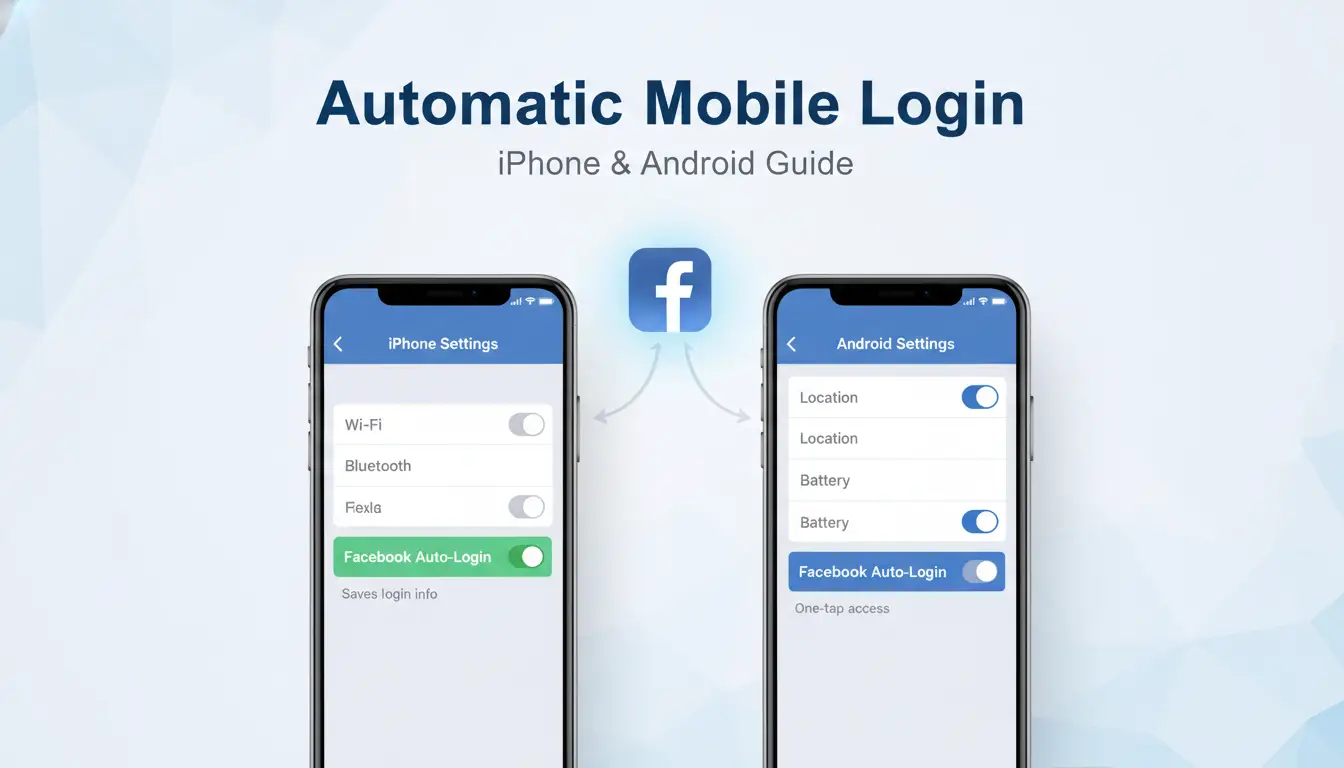
If you searched How to log in to Facebook automatically, focus on session stability, not just speed. You want fewer password prompts without leaving your account open to anyone who picks up your phone.
Enable saved login in the Facebook app
Open Facebook, go to Menu > Settings & privacy > Settings > Password and security. Check login alerts and active sessions. Then sign out and sign in once, so Facebook can store the session on that device.
If Facebook asks to trust this device, approve it only on your personal phone. Do not approve shared phones. Keep two-factor authentication on, then allow the app to remember the session after successful verification.
Set phone-level permissions that support auto login
On iPhone, keep iOS updated and allow background app activity for Facebook. On Android, allow storage and background activity so the app can keep session files.
Battery saver settings can force app shutdown on some Android brands, which may clear session tokens and cause repeated sign-ins. In Android settings, set Facebook battery use to “Unrestricted” (wording varies by device). Also keep date and time on automatic sync; bad clock settings can break secure login checks.
Use password managers and biometrics for faster secure access
Use AutoFill on iOS with iCloud Keychain, or use Google Password Manager on Android. If a session expires, AutoFill inserts credentials in seconds.
Turn on Face ID or fingerprint unlock for your password manager and device lock. This is safer than keeping a fully open app session all day. You still get fast access, but someone holding your unlocked phone cannot easily open saved credentials.
If you need a deeper login reliability check, review Facebook Help Center account login guidance.
How do you enable automatic Facebook login in desktop browsers?
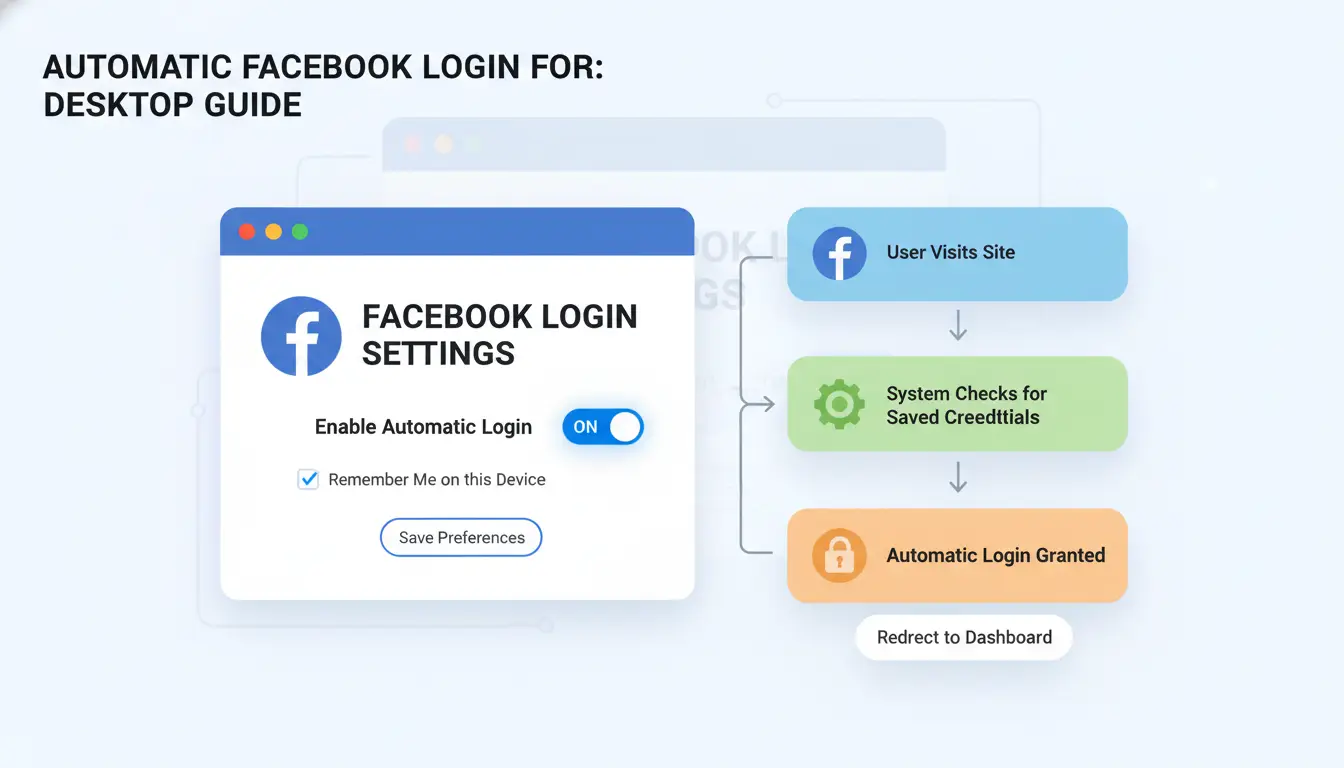
If you are searching How to log in to Facebook automatically, focus on two things: keep session cookies, and keep one correct saved password. In Chrome, Edge, and Firefox, open Settings > Privacy and make sure cookies are allowed for Facebook. In Safari, go to Settings > Privacy and turn off “Block all cookies.” Keep your browser updated, since old builds can break login sessions.
Turn on 'remember me' behavior with cookie retention
Facebook auto-login works through session cookies, as explained in MDN’s cookie guide. If your browser deletes cookies on exit, Facebook will ask for login again.
- Chrome: Settings > Privacy and security > Third-party cookies > do not clear on close
- Edge: Settings > Cookies and site permissions > Manage and delete cookies > disable clear on exit
- Firefox: Settings > Privacy & Security > Cookies and Site Data > uncheck delete on close
- Safari: Settings > Privacy > allow cookies, and avoid private windows for persistent login
Save credentials securely in your browser or password manager
Use one save location per account to avoid overwrite issues.
| Option |
Good for |
Common issue |
Fix |
| Browser vault (Chrome Password Manager, Firefox Password Manager) |
Personal device |
Old password saved twice |
Remove old entries, keep one |
| Dedicated manager (1Password, Bitwarden) |
Multi-device sync |
Wrong autofill on similar logins |
Match exact URL and username |
If you need How to log in to Facebook automatically on one computer with several social accounts, keep each account in a separate browser profile.
Prevent common desktop session conflicts
Extensions that block trackers can block Facebook cookies. Test by pausing ad-block/privacy extensions, then sign in again. Private or incognito windows do not keep long sessions. If issues continue, create a clean browser profile, log in there, and check if the problem disappears. If it works in the clean profile, your main profile has a cookie or extension conflict.
Why does Facebook auto login stop working, and how can you fix it?
If you are searching for How to log in to Facebook automatically, the issue is usually session data, trust signals, or device conflicts, not your password. Fast fixes work when you match the symptom to the cause, then re-login in the right order.
Fix repeated logout loops
A logout loop often means damaged cookies or app cache. In a browser, clear only Facebook site data instead of wiping all browsing data. In Chrome, open Site settings for facebook.com and remove stored data for that site. On phone apps, clear cache (not full app data) in system settings.
Then do a clean re-login:
- Close all Facebook tabs or force stop the app
- Log in once on your main device
- Approve “save login” and “trusted device” prompts
- Wait 2-3 minutes before opening another device
This refreshes device tokens tied to your session. If your browser blocks cookies, auto login can fail; check cookie behavior.
Handle suspicious login alerts and security checkpoints
Facebook may challenge login after a new IP, device, browser fingerprint, or unusual location. Complete the checkpoint from a known device and network, then review active sessions in Meta Accounts Center.
If alerts keep repeating, remove unknown sessions, turn on two-factor authentication, and avoid rapid device switching within minutes.
Resolve multi-device conflicts
Password changes, 2FA resets, or “log out of all devices” actions can sign out phone, laptop, and tablet at once. That breaks auto login until each device gets a fresh trusted session.
Use one primary device to re-establish access, then add other devices one by one. For teams handling multiple accounts on one machine, you can use DICloak to separate browser profiles and reduce session overlap. This keeps one account’s login state from breaking another.
Is automatic Facebook login safe? Risks and smart safety settings
If you are searching How to log in to Facebook automatically, treat speed as a tradeoff. Auto login is low risk on a personal phone with a strong lock screen, app lock, and two-factor authentication. Risk jumps on shared or borrowed devices. Facebook details session control in its security features, and account recovery steps in the Help Center.
Biggest security risks of staying signed in
Staying signed in means anyone who unlocks your device can open your account. The worst cases are lost phones, family tablets, and office computers with saved browser profiles. Session theft is another risk on unsafe public networks. A stolen session token can let someone act as you without your password. The OWASP session management guide explains this in plain terms. For teams handling several social accounts on one machine, you can use DICloak to separate browser profiles and member permissions, which lowers cross-account access mistakes.
Best protection settings to keep enabled
Turn on two-factor authentication, login alerts, and trusted contacts in Facebook settings. Keep your phone screen lock active, then add app lock or biometrics for Facebook. Face or fingerprint checks stop quick shoulder-surf takeovers after someone learns your PIN. Set your browser to require device unlock before auto-fill. If your browser offers profile-level lock, enable it.
When to disable auto login immediately
Turn off auto login after travel, after lending your device, or after any unknown login alert. Go to Password and Security, review “Where you’re logged in,” and sign out of sessions you do not recognize. Use “log out of all sessions” if anything looks wrong. If you need How to log in to Facebook automatically again later, re-enable it only on your own locked device.
How can teams manage multiple Facebook logins with less risk?
If your team searches for How to log in to Facebook automatically, treat auto-login as a controlled process, not a speed hack. The main risk is not slow access. It is mixed sessions, surprise checkpoints, and lost account control after one rushed action. Meta can challenge logins when behavior changes fast across devices, networks, or browser fingerprints, as described in Facebook login approvals and alerts and browser fingerprinting basics.
Why team logins often trigger security checks
When three teammates open one account from different cities in one day, Facebook can flag that pattern. The same issue happens when one person resets a password while another still uses an old session cookie. Permission sprawl makes this worse. If everyone has full access, one mistaken logout, reset, or 2FA change can lock out the rest of the team.
Use DICloak to isolate accounts and standardize access
You can use DICloak as a control layer for shared Facebook operations. Build one browser profile per Facebook account, then keep each profile tied to its own proxy endpoint. This keeps login patterns stable per account instead of mixing activity in one browser. Use profile isolation so cookies, local storage, and login states stay separate. That lowers cross-account mix-ups on shared machines. For teams handling social campaigns, this setup matches DICloak’s social media workflow for multi-account operations.
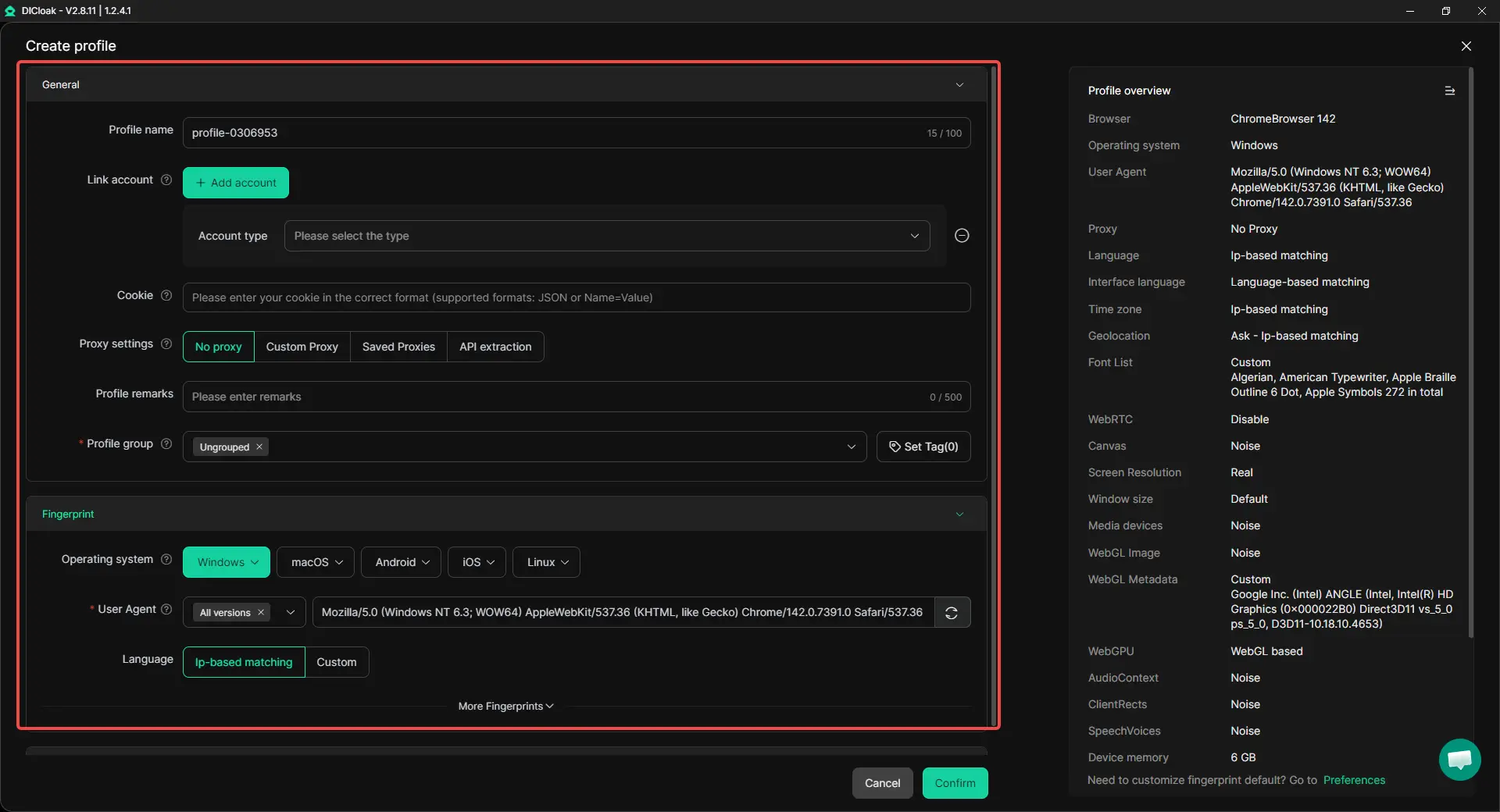
Reduce human error with controlled collaboration and automation
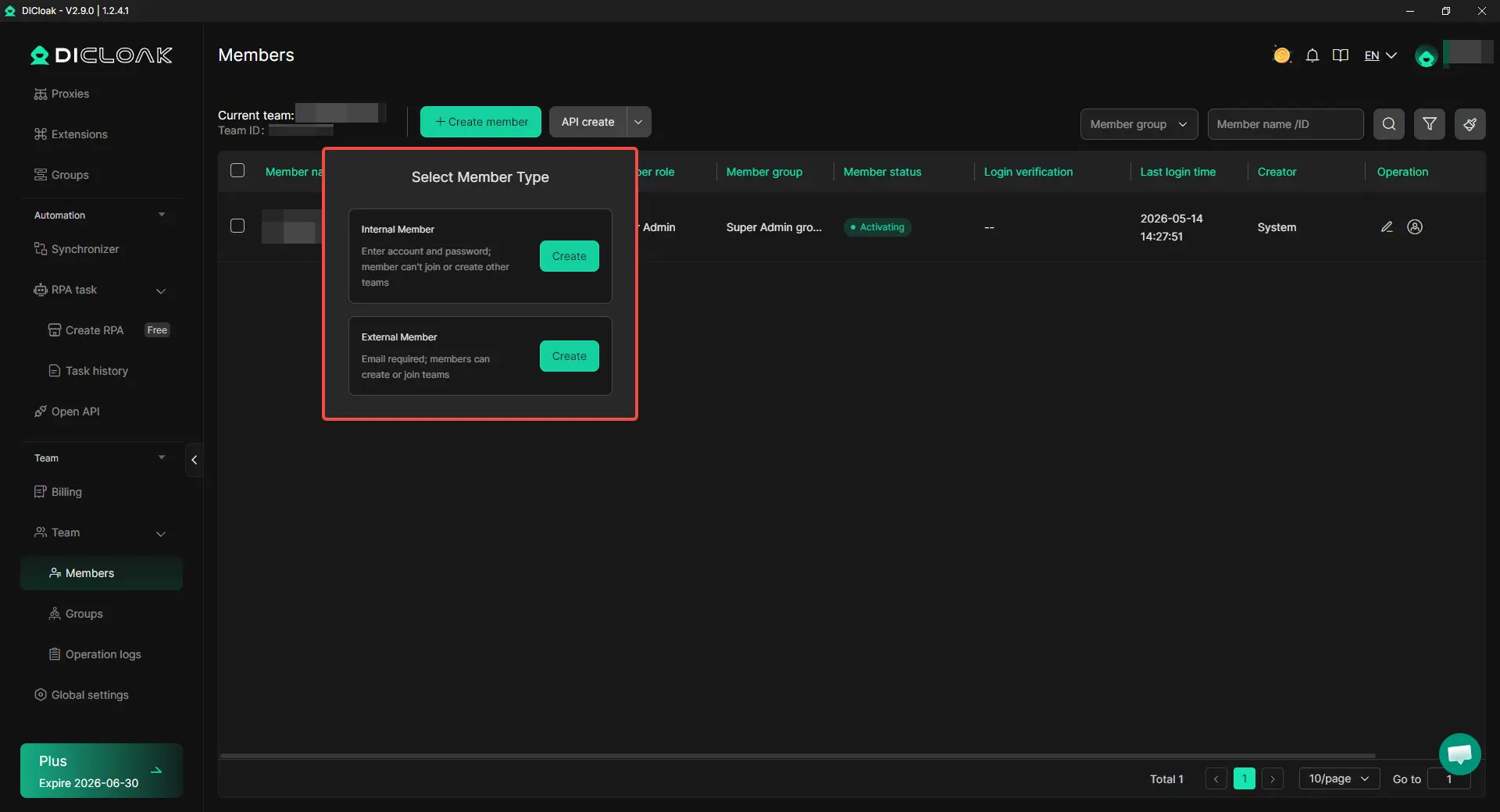
Set role-based access before daily work starts: editor, operator, and admin. Give reset and security settings only to admins. Turn on profile sharing rules and operation logs, so you can trace who changed what and when. Use batch actions or RPA only for repeat login-adjacent tasks, like opening assigned profiles at shift start. Keep security steps manual for account recovery and password changes.
What are the most common mistakes that break Facebook auto login?
If you are learning How to log in to Facebook automatically, most failures come from session loss, stale credentials, or behavior that triggers checks, not from one bad click.
Privacy settings that silently erase sessions
Auto-delete cookies on browser close can force login every restart; this breaks saved sessions described in cookie-based sign-in behavior. Strict tracking protection can also block Facebook session storage. Private mode is another trap: it discards login state when you close the window.
Credential and device hygiene mistakes
Saved passwords in phone, browser, and password manager can conflict after a password change. Then auto login loops between old and new credentials. Delayed OS or browser updates can also break token handling and trigger repeated verification, especially after major security patches.
Behavior patterns that look suspicious to Facebook
Fast location jumps, device hopping, and scripted clicks often trigger Facebook security checks. For teams, tools like DICloak let you bind one isolated browser fingerprint and dedicated proxy to each Facebook account, reducing cross-account linkage and reauthentication.
Tools like DICloak let you share profiles with role permissions and operation logs, so teammates work without exposing master credentials or resetting each other’s sessions.
What is the best alternative if you do not want full Facebook auto login?
If you search How to log in to Facebook automatically, a safer default is quick re-entry, not permanent sign-in. Use device unlock plus saved credentials, then require a check each time risk is higher.
Quick-login alternatives with better security balance
Use biometric unlock (Face ID or fingerprint) and password manager autofill. You sign in fast, but sessions are not always open. Use trusted-device prompts or login approvals from Facebook Security. That keeps convenience without leaving a live session on shared browsers.
Session timeout strategy for personal vs work accounts
| Account type |
Suggested session style |
Reauth rhythm |
| Personal phone |
Longer session on your own locked device |
Recheck after app updates or password change |
| Work/client account |
Short session |
Reauth each work block or daily |
See Meta login alerts and session controls.
Simple decision checklist: convenience vs account safety
Before enabling permanent login, ask: Is this device shared? Can others unlock it? For most users, How to log in to Facebook automatically should mean: biometric unlock + autofill + short work sessions.
Frequently Asked Questions
Can I use How to log in to Facebook automatically if two-factor authentication is enabled?
Yes. You can still use How to log in to Facebook automatically with two-factor authentication turned on. Facebook may ask for a code when you sign in from a new phone, browser, location, or after clearing cookies. Mark your personal phone and laptop as trusted devices to reduce repeated code prompts.
Does changing my Facebook password turn off auto login on other devices?
Usually, yes. When you change your Facebook password, Facebook often logs out other devices and removes saved sessions for safety. Auto login may stop on your tablet, old phone, or web browsers until you enter the new password again. After that, you can enable saved login again on each trusted device.
Why does How to log in to Facebook automatically work in the app but not in my browser?
If How to log in to Facebook automatically works in the app but fails in your browser, browser data is often the issue. Deleted cookies, strict privacy settings, ad blockers, and security extensions can block saved sessions. Also check that you are using the same browser profile, not Incognito, Guest mode, or another profile.
How often should I review active sessions if I stay logged in to Facebook automatically?
Review active sessions at least once a month; weekly is better if you stay logged in on several devices. In Facebook settings, check device type, city, and last activity time, then log out unknown sessions. Do an immediate review after travel, password resets, or any “new login” security alert to protect your account.
Can automatic Facebook login increase account lock risk when I travel frequently?
Yes. Frequent travel can trigger security checkpoints because your login locations change quickly. Auto login may fail or request extra verification when Facebook detects unusual patterns. Use the same main phone and browser, avoid fast proxy country switches, and complete checkpoint prompts right away to keep access stable and lower lock risk.
Setting up automatic Facebook login can save time and make daily access much smoother, but it should always be paired with strong security habits like device locks, trusted browsers, and two-factor authentication. The best approach is to balance convenience with privacy so your account stays easy to reach without increasing risk.
Try DICloak For Free
 Web Proxy Tools
 Free Tools
 Cookie Plugin
 UA Generator
 MAC Address Generator
 IP Generator
 IP Address List
 2FA Code Generator
 World Clock
 Anonymous Check
 WebRTC Leak Test
 UUID Generator
 Free Web Proxy Site
 Proxy Checker
 FB Ad Checker
 AI Web Scraping
 Free SMM Tools
 Twitter Shadowban Checker
 Instagram Name Checker
 UTM Generator
 Username Generator
 AI Hashtag Generator
 LinkedIn Headline Generator
 Social Media Image Resizer