Many people search for how to disable Instagram account when they need a short break from social media. Maybe you want fewer distractions, more privacy, or time away from comments and messages. The good news is that you can temporarily disable Instagram account without deleting it forever.
When you disable your Instagram account, your profile, photos, comments, and likes are hidden until you log back in. Instagram’s Help Center says temporary deactivation can be managed through Accounts Center, and your account can be restored by logging in again.
This guide explains how to disable Instagram account on mobile and desktop in 2026. It also covers what happens after deactivation, how to reactivate your account, and what to do if you only want to hide your profile without fully disabling it.

What Does It Mean to Disable an Instagram Account?
Before you learn how to disable Instagram account, it helps to know what “disable” really means. Disabling, or deactivating, is a temporary action. Your account is not deleted. Instagram says that when you temporarily deactivate your profile, your photos, comments, and likes are hidden until you reactivate it by logging back in.
Disable vs. delete Instagram account
To disable Instagram account means to hide it for a while. This is useful if you need a break but may come back later. Deleting is different. A deleted account is meant to be removed permanently after the deletion process is complete. So, if you are unsure, temporary deactivation is the safer first step.
Can followers still see your profile?
No, your followers cannot see your profile while your account is disabled. Your posts, likes, and comments are hidden from Instagram until you log back in. For example, if someone searches your username during this time, your profile may not appear like a normal active account.
Will your messages and comments remain visible?
Your comments and likes are hidden when you temporarily disable Instagram account. Direct messages can be different because past chats may still appear in another person’s inbox. This is why deactivation is good for hiding your profile, but it may not remove every past interaction from other people’s view.
What to Know Before You Disable Your Instagram Account
Now that you know what deactivation means, it is worth checking a few things before you disable Instagram account. Temporary deactivation is easy to reverse, but it can still affect how people find you, how linked services work, and how fast you can disable the account again later.
Will you lose followers or account data?
In most cases, you will not lose followers just because you temporarily disable Instagram account. Your profile, photos, comments, and likes are hidden until you log back in. Instagram says your profile and activity become visible again after you reactivate the account by logging back in.
For example, if you disable your account for a short break, your followers should still be there when you return. But people cannot view your profile while it is disabled.
How often can you disable your Instagram account?
Instagram limits how often you can deactivate an account. Instagram’s Help Center says users can only temporarily deactivate their account once a week.
So, do not disable and reactivate your account again and again in a few days. If you think you may need Instagram soon for work, messages, or a business page, wait until you are sure.
Why you should back up your Instagram data and check linked services first
Before you deactivate Instagram account, download a copy of your data if you care about old photos, videos, comments, or messages. Meta’s Accounts Center also allows users to manage connected accounts and linked experiences across Instagram, Facebook, Meta, WhatsApp, and Threads.
This matters if you use Instagram to log in to other apps or manage linked services. A quick backup and account check can prevent stress later.
How to Disable Your Instagram Account on Mobile
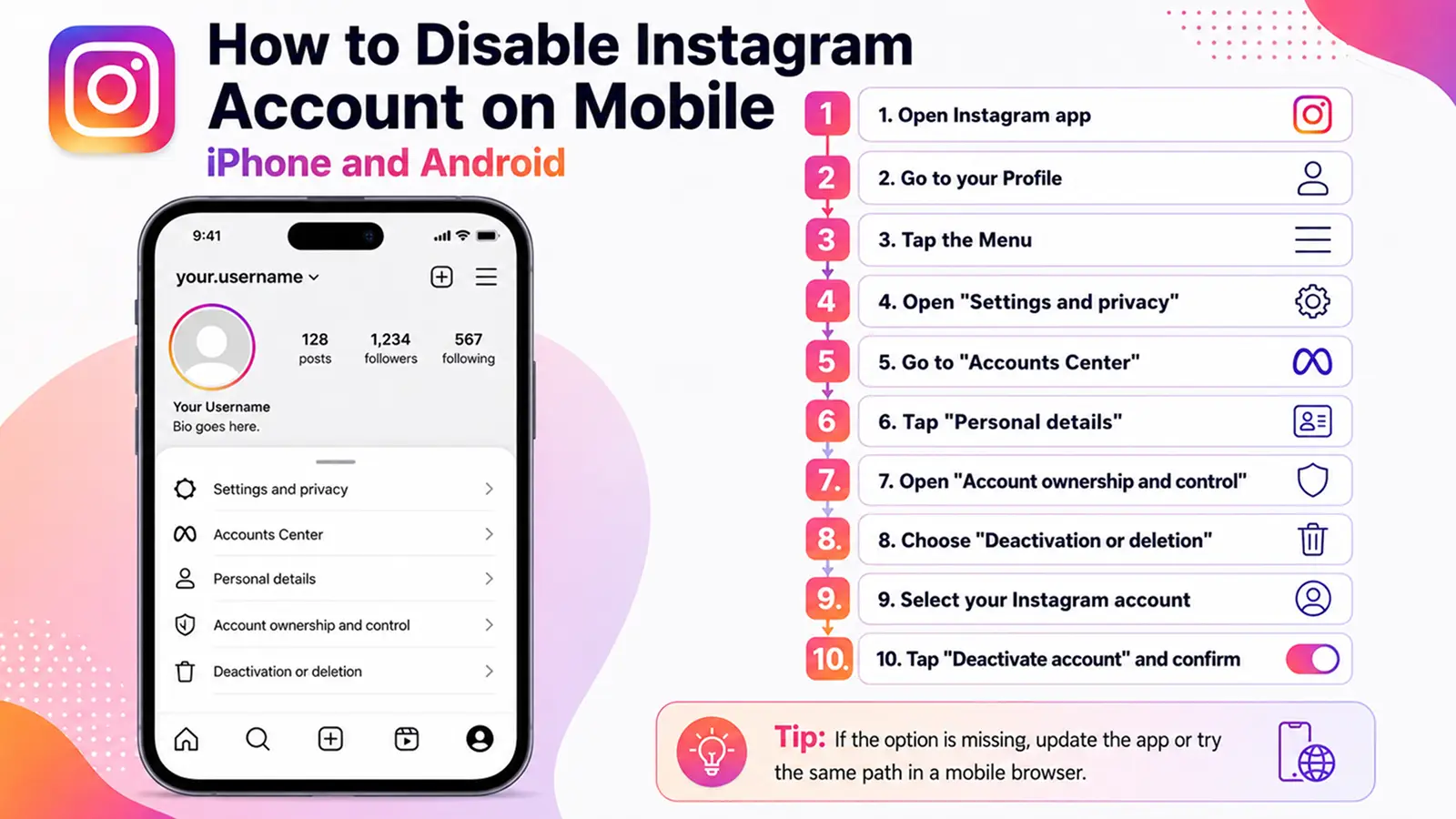
After you back up your data and check linked services, you can disable your account from the Instagram app. The steps are almost the same on iPhone and Android because Instagram now sends most account controls through Accounts Center. Instagram’s Help Center says you can temporarily deactivate your profile from Accounts Center under Personal details and Account ownership and control.
Step-by-step guide for iPhone users
To disable Instagram account on iPhone, open the Instagram app and go to your profile. Tap the menu icon, then tap Settings and privacy. Next, go to Accounts Center, then Personal details. Tap Account ownership and control, then choose Deactivation or deletion. Select the account you want to disable, choose Deactivate account, and follow the prompts.
Step-by-step guide for Android users
To disable Instagram account on Android, follow the same path. Open Instagram, go to your profile, tap the menu, and open Settings and privacy. Then go to Accounts Center > Personal details > Account ownership and control > Deactivation or deletion. Choose your Instagram account, select temporary deactivation, enter your password if asked, and confirm.
Common errors and how to fix them
If you cannot find the deactivation option, update the app first. You can also try the same steps in a mobile browser. If Instagram asks you to log in again, use the account you want to deactivate. If the button is not available, remember that Instagram may only allow temporary deactivation once a week.
How to Disable Your Instagram Account on a Web Browser
If the mobile app does not show the option, you can also disable Instagram account on desktop. This is useful when the app layout changes, the button is missing, or you simply prefer using a larger screen. The web steps also use Accounts Center, so the path is close to the mobile method.
How to find Instagram account settings on desktop
Go to Instagram.com and log in to the account you want to disable. From the left menu, click Profile, then choose Edit profile. Next, click See more in Accounts Center. Current guides also point users to Accounts Center > Personal details > Account ownership and control to find the deactivation option.
How to choose the deactivation option
In Accounts Center, open Personal details. Then click Account ownership and control and choose Deactivation or deletion. Select your Instagram account, then choose Deactivate account. Make sure you do not choose permanent deletion unless you really want to remove the account.
How to confirm your account disable request
Instagram may ask you to enter your password and choose a reason before you confirm. After the request is complete, your profile, photos, comments, and likes are hidden until you log back in again. If the page does not load, try another browser, clear cache, or search “deactivate” inside Instagram settings. Some users find the web method easier when the app option is hard to find.
How to Reactivate a Disabled Instagram Account
After you disable your account, you may want to come back later. The good news is that reactivation is usually simple if you disabled the account yourself. Instagram says your profile, photos, comments, and likes stay hidden until you reactivate the account by logging back in.
How to log back in and restore your account
To reactivate disabled Instagram account, open the Instagram app or go to Instagram.com. Enter your username, email, or phone number, then type your password. In most cases, logging in will restore Instagram account access and make your profile visible again.
For example, if you disabled your account for a weekend break, you can usually return by logging in with the same account details. You do not need to create a new account.
What to do if reactivation does not work
If Instagram reactivation not working, first check your password and internet connection. Then update the app, try a web browser, or reset your password. Instagram’s Help Center also has login recovery tips for users who cannot access their account.
If Instagram disabled your account for a rule issue, that is different from temporary deactivation. In that case, Instagram says you may be able to request a review by logging in and following the on-screen steps.
What happens to your followers after reactivation
Your followers should still be there after normal Instagram account reactivation. Your profile and posts become visible again once you log back in. Still, some followers may have unfollowed during your break if they could not find your profile, so check your account after reactivation and update your profile if needed.
How to Hide Your Instagram Account Without Disabling It
If you are not ready to disable your account, you still have other privacy options. Sometimes users search how to disable Instagram account because they only want fewer messages, fewer views, or less public attention. In that case, you may be able to hide Instagram account without disabling it.
Switch to a private account
The easiest option is to make your account private. When your Instagram account is private, only approved followers can see your posts and stories. Instagram’s privacy help says users can control who sees their posts, who comments, and who follows them.
For example, if you want a quiet break but still want close friends to see your posts, a private account may be better than full deactivation.
Remove followers or limit interactions
You can also remove followers you do not want. Instagram says private accounts can remove people from their follower list. This helps if you only want to block certain people from seeing your content.
You can also limit who can comment, message, or interact with you. This is useful if your main problem is unwanted attention, not the whole account.
Use Quiet Mode or activity controls
If you only need fewer distractions, try activity controls before you disable Instagram account. Instagram lets users turn Activity Status on or off, so others may not see when you are active.
You can also use privacy and activity settings to reduce notifications, hide online status, and manage how others interact with you. These small changes can give you more space without hiding your whole profile.
How DICloak Helps Manage Multiple Instagram Accounts More Safely
If you manage several Instagram accounts for clients, brands, or social media marketing, a normal browser can get messy fast. Cookies, login sessions, browser signals, and team access may all mix together. With DICloak, you can keep each Instagram account in a cleaner browser profile and make daily account work easier to manage.
Keep different Instagram accounts in separate browser profiles
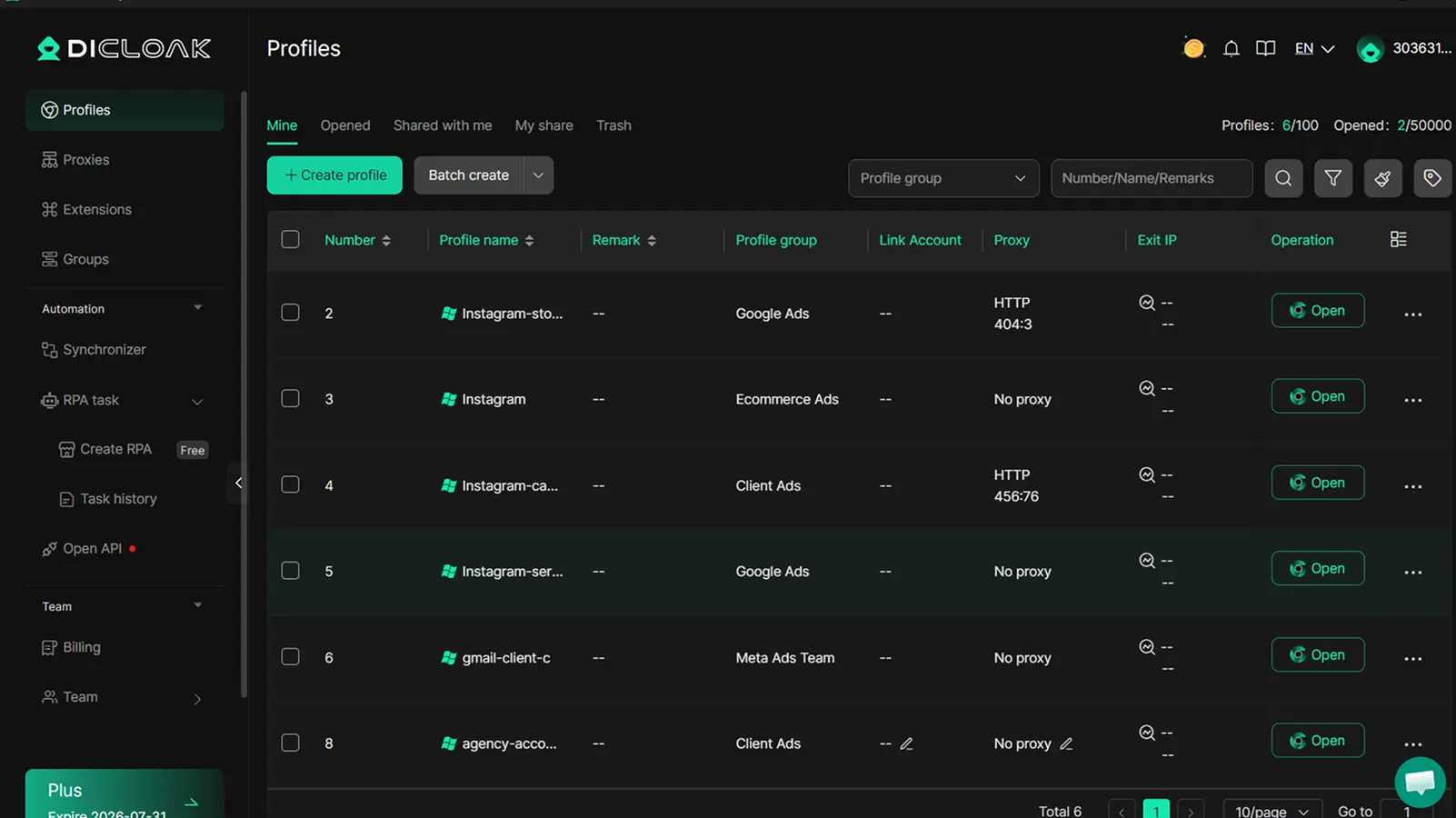
You can use DICloak to create a separate browser profile for each Instagram account. Each profile keeps its own cookies, login session, and browser fingerprint. For example, one profile can be used for a brand account, while another can be used for a client account. This helps keep account activity organized and separated.
Configure custom proxies for more consistent account environments
You can also configure a custom proxy for each profile in DICloak when needed. This is useful if different Instagram accounts need different regions or more stable access environments. A consistent setup can help reduce confusion caused by sudden changes in IP, location, or browser signals.
Manage team access without exposing main login details
For teams, sharing account access can create extra risk. You can use DICloak to share browser profiles with team members and control who can access which profiles. This helps social media marketers and small teams manage Instagram work without sending main passwords around. It also makes multi-account work easier to track and less chaotic.
Frequently Asked Questions
Can I disable my Instagram account without deleting it?
Yes.If you want to disable your Instagram account without deleting it, choose temporary deactivation instead of permanent deletion.
How long does Instagram take to disable my account?
In most cases, Instagram disables your account soon after you confirm the deactivation request. After that, your profile and content are hidden until you log back in again.
Can I disable Instagram from the app?
Yes. You can disable Instagram from the app through Accounts Center > Personal details > Account ownership and control > Deactivation or deletion. If the option does not appear, update the app or try Instagram from a web browser.
How often can I disable my Instagram account?
Instagram usually limits temporary deactivation to once per week. So, before you disable it, make sure you really want to take a break for a few days.
Can I delete my Instagram account after disabling it?
Yes. You can disable your account first, then choose permanent deletion later if you decide not to return. Just remember that deleting is different from disabling, and permanent deletion is much harder to reverse.
Disabling your Instagram account can give you a cleaner break without deleting your profile forever. By understanding the steps, backing up your data, and choosing the right privacy settings, you can stay in control of your Instagram account in 2026. For users managing multiple Instagram accounts, keeping each profile organized and separated also matters. Try DICloak For Free.
 Web Proxy Tools
 Free Tools
 Cookie Plugin
 UA Generator
 MAC Address Generator
 IP Generator
 IP Address List
 2FA Code Generator
 World Clock
 Anonymous Check
 WebRTC Leak Test
 UUID Generator
 Free Web Proxy Site
 Proxy Checker
 FB Ad Checker
 AI Web Scraping
 Free SMM Tools
 Twitter Shadowban Checker
 Instagram Name Checker
 UTM Generator
 Username Generator
 AI Hashtag Generator
 LinkedIn Headline Generator
 Social Media Image Resizer