In 2026, ad account access is no longer a small admin task. Digital ad revenue reached $294.6 billion in 2025, and more teams now work across Meta, Google Ads, TikTok Ads, client dashboards, tracking tools, and store backends. When one main login is shared by a media buyer, analyst, finance teammate, and freelancer, the team may move fast at first, but campaign changes, billing access, and handoffs soon become harder to control.
To assign team permissions for ad account management without sharing passwords, teams need more than a shared login or a quick role change. The cleaner approach is to separate what people can do inside the ad account from how they access the right client workspace. This guide explains how to set platform permissions first, then manage browser workspaces without exposing the owner’s password.
Can You Assign Team Permissions for Ad Account Management Without Sharing Passwords?
Yes, a team can manage ad accounts without everyone using the owner’s main password. But in real work, the hard part is not only “who can log in.” It is how to let a media buyer edit campaigns, let an analyst check reports, let finance review billing, and still keep account control clear.
This is where many teams get stuck. Sharing one login feels easier when the team is small, but it becomes messy when clients, freelancers, payments, and campaign changes are involved. A more reliable setup usually starts by separating two things: what each person is allowed to do inside the ad platform, and how the team manages access to the right account workspace.
What Are the Risks of Sharing One Ad Account Login With a Team?
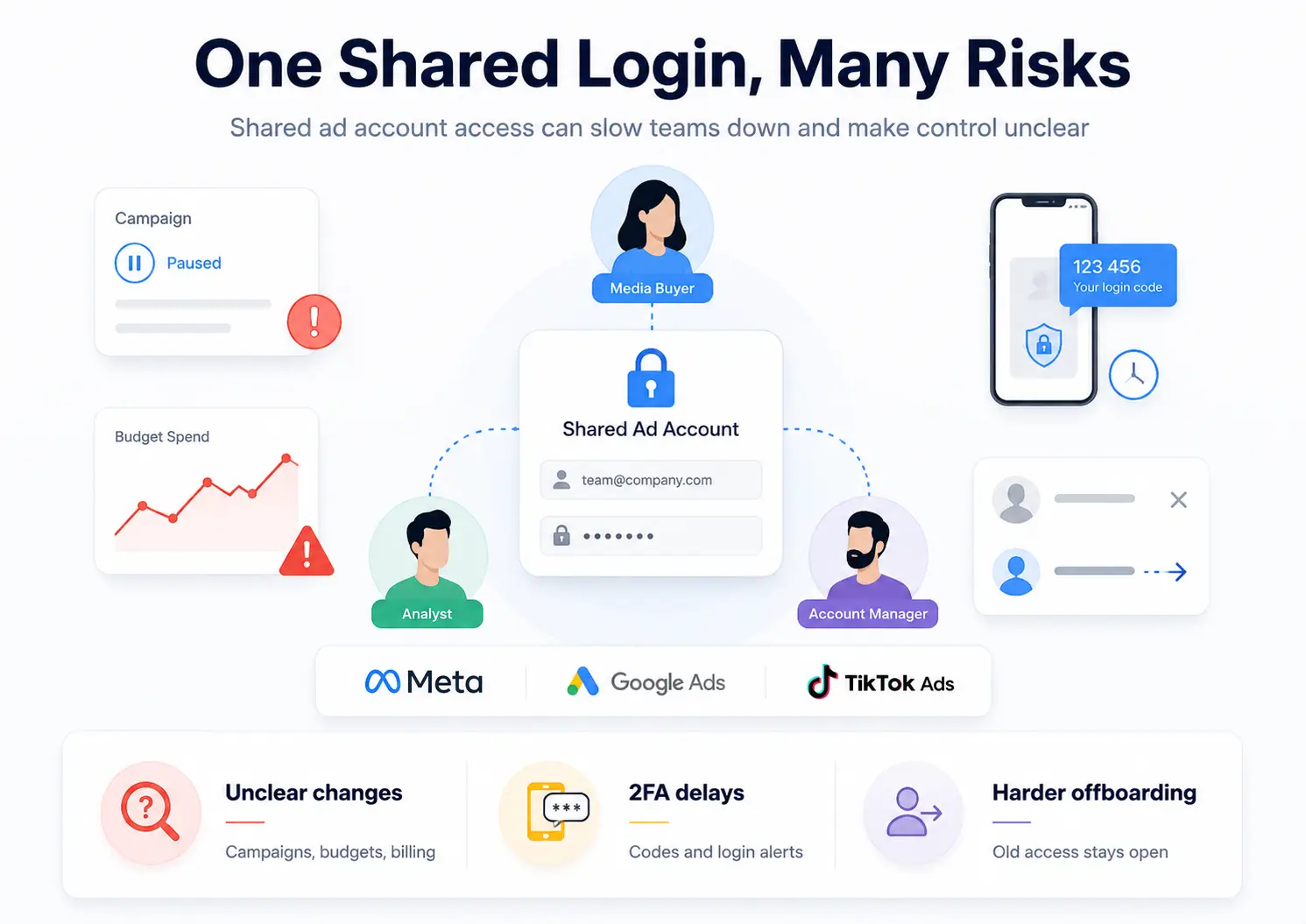
Sharing one ad account login is not just a password risk. In daily ad work, it makes responsibility unclear when campaigns, budgets, billing settings, or client accounts are changed.
Many small teams start this way because it feels faster. One owner shares the login with a media buyer, a freelancer, or a finance teammate, and everyone can start work right away. The problem appears later, when the account has more spend, more clients, more people, and more urgent changes.
You lose control over who changed campaigns, budgets, or billing settings
When everyone uses the same login, the account may show the same user behind many actions. If a campaign is paused by mistake, a budget is raised too high, or a payment setting is touched, the team may need to ask around instead of checking a clear access record.
This creates real pressure during busy ad work. A client may ask why yesterday’s campaign stopped. A manager may need to know who changed the daily budget. A finance teammate may ask why a payment method was updated. If the team used one shared login, the answer is often unclear.
Two-factor verification and login alerts can slow the team down
Shared logins also create small delays that become annoying fast. A media buyer may need a verification code, but the code goes to the owner’s phone. A freelancer may log in from another location and trigger a login alert. A teammate may get blocked at the login step before they can check an urgent campaign issue.
This is not only a security problem. It becomes an operations problem. If the person with the code is asleep, in a meeting, or no longer working with the team, simple ad account tasks can turn into a long message chain.
Offboarding becomes harder when a freelancer or agency leaves
The biggest risk often appears after the work ends. If a freelancer, VA, or agency had the main login, removing them is not as simple as ending the contract. The team may need to change passwords, check billing access, review client assets, and make sure old login details are no longer useful.
This is why shared logins age badly. They may work for a short task, but they do not scale well when people join, leave, switch clients, or handle different parts of the same ad account. The better question is not “who can use the password?” It is “what should each person be allowed to do?”
How Do You Assign Ad Account Access the Official Way on Meta, Google Ads, and TikTok?
The official way to assign ad account access is to invite each team member through the platform’s own permission system. This lets them use their own login instead of sharing the owner’s password.
Meta: assign people through Business Portfolio or Ads Manager
For Meta Ads, use Business Portfolio, Business Suite, or Ads Manager settings to add people and assign ad account roles.
1. Go to your Meta Business Portfolio or ad account settings.
2. Open People or Ad Account Roles.
3. Invite the team member with their active work email or Facebook account.
4. Assign the specific ad account they need.
5. Choose the right role: Admin, Advertiser, or Analyst.
6. Review the asset permissions and send the invitation.
For most teams, admin access should stay limited. A media buyer may only need Advertiser access to create and edit ads. An analyst may only need view access to check reports.
Google Ads: invite users from Access and Security
For Google Ads, access is managed by email invitation. Each person should use their own Google account.
1. Open your Google Ads account.
2. Go to Admin.
3. Click Access and security.
4. Click the plus button to add a new user.
5. Enter the team member’s Gmail or Google-associated email.
6. Choose an access level, such as Admin, Standard, Read-only, Billing, or Email-only.
7. Send the invitation.
Standard access may be enough for a media buyer who needs to edit campaigns. Read-only access is better for analysts or clients who only need reports. Admin access should be reserved for people who truly need to manage users, billing, or account-level settings.
TikTok: assign members and assets to Business Center
For TikTok Ads, use Business Center to invite members and assign them the right assets.
1. Open TikTok Business Center.
2. Go to the member or user management area.
3. Invite the team member by email.
4. Choose their role, such as Admin or Standard.
5. Assign only the ad accounts, pixels, shops, catalogs, or other assets they need.
6. Save the permission settings.
This matters when one team handles several clients, markets, or ad accounts. A member should not automatically get access to every asset in the Business Center just because they help with one campaign.
Official platform access solves the first layer of team permission management: what each person can do inside the ad account. But many teams still need to solve another problem after that: how to manage shared browser sessions, client workspaces, and daily handoffs without going back to one shared login.
Why Browser Fingerprints Still Matter After You Set Ad Permissions
Ad permissions only control what someone can do inside Meta, Google Ads, or TikTok Ads. They do not control the browser profile, cookies, session, proxy, or fingerprint used to open the account.
This is the part many ad teams miss. A media buyer may have the correct platform role, but the daily workspace can still be messy. The same browser may hold several client logins, old sessions, tracking tools, store backends, and saved accounts. So the team is not only managing ad permissions. They are also managing account environments.
Permissions stop inside the platform
Platform roles are useful, but they have a clear limit. They decide whether someone can edit campaigns, view reports, manage billing, or invite users.
They do not separate browser-level data. Cookies, local storage, saved sessions, extensions, proxy settings, and fingerprint details still live in the browser profile. If several ad accounts share the same browser space, the team can still run into wrong-account work, repeated logins, or confusing handoffs.
One browser can quietly mix client work
This usually starts small. One client’s ad account is open in one tab. Another client’s Shopify backend is saved in the same browser. A third client’s tracking tool is still logged in from last week.
Nothing looks broken at first. But when the team moves fast, someone may open the wrong saved account, check the wrong dashboard, or use a session that belongs to another client. The permission setting may be correct, but the workspace is still not clean.
Freelancers should not need the owner’s full browser
Freelancers and short-term operators often need access to a narrow part of the workflow. They may need to upload creatives, check reports, test a landing page, or confirm tracking.
That does not mean they should use the owner’s full browser setup. A cleaner workflow separates the platform role from the browser profile. The platform role controls what they can do in the ad account. The browser profile controls which account environment they can open.
Once this difference is clear, the next question becomes simple: how can a team share the right browser workspace without exposing passwords or mixing client environments?
How Can Teams Manage Ad Account Workspaces Without Sharing Passwords with DICloak?
Official ad platform permissions should still control what a member can do inside Meta, Google Ads, or TikTok Ads. With DICloak Antidetect Browser, teams can manage the browser workspace layer: profiles, cookies, sessions, fingerprint settings, password visibility, and member access.
This is useful when ad work also depends on tracking tools, landing page builders, store backends, reporting dashboards, or shared client tools. Instead of sending the owner’s password, the team can prepare a workspace first, protect the login data, and then share only the profile each member needs.
Step 1: Turn on data sync for shared login states
Start with the settings that help a shared profile keep its login state. In many workspaces, cookies are the first data type to sync. If the account still appears logged out for members, Local Storage and IndexedDB may also need to be synced.
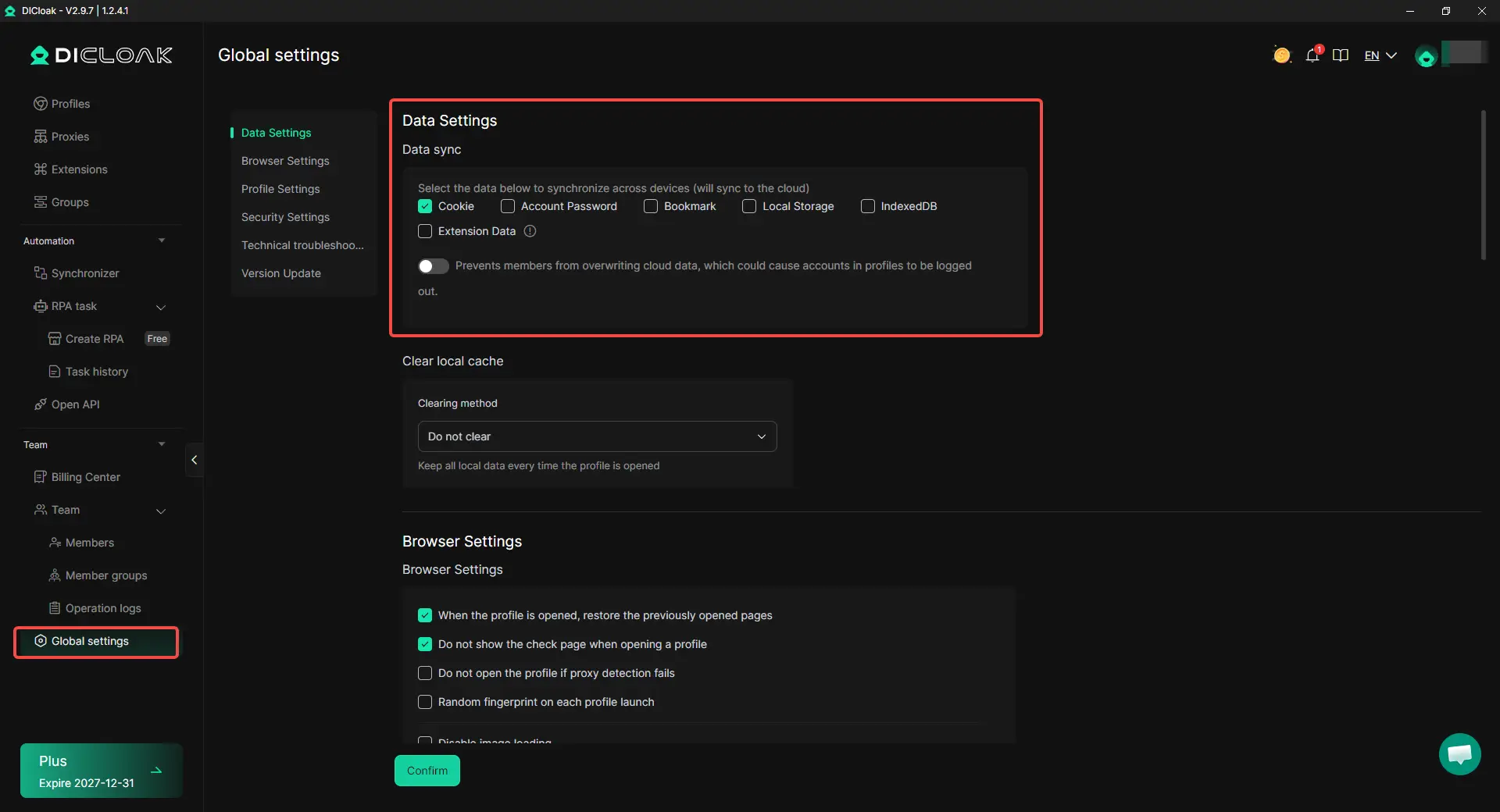
This step matters because a shared profile is not useful if every member has to ask the owner for a new login code. The goal is to make the workspace ready before the team starts using it.
Step 2: Set password and browser protection before adding members
Before members enter the workspace, set the basic protection rules. With DICloak, admins can block members from viewing website passwords, disable save-password prompts, and protect extension settings from unwanted changes.
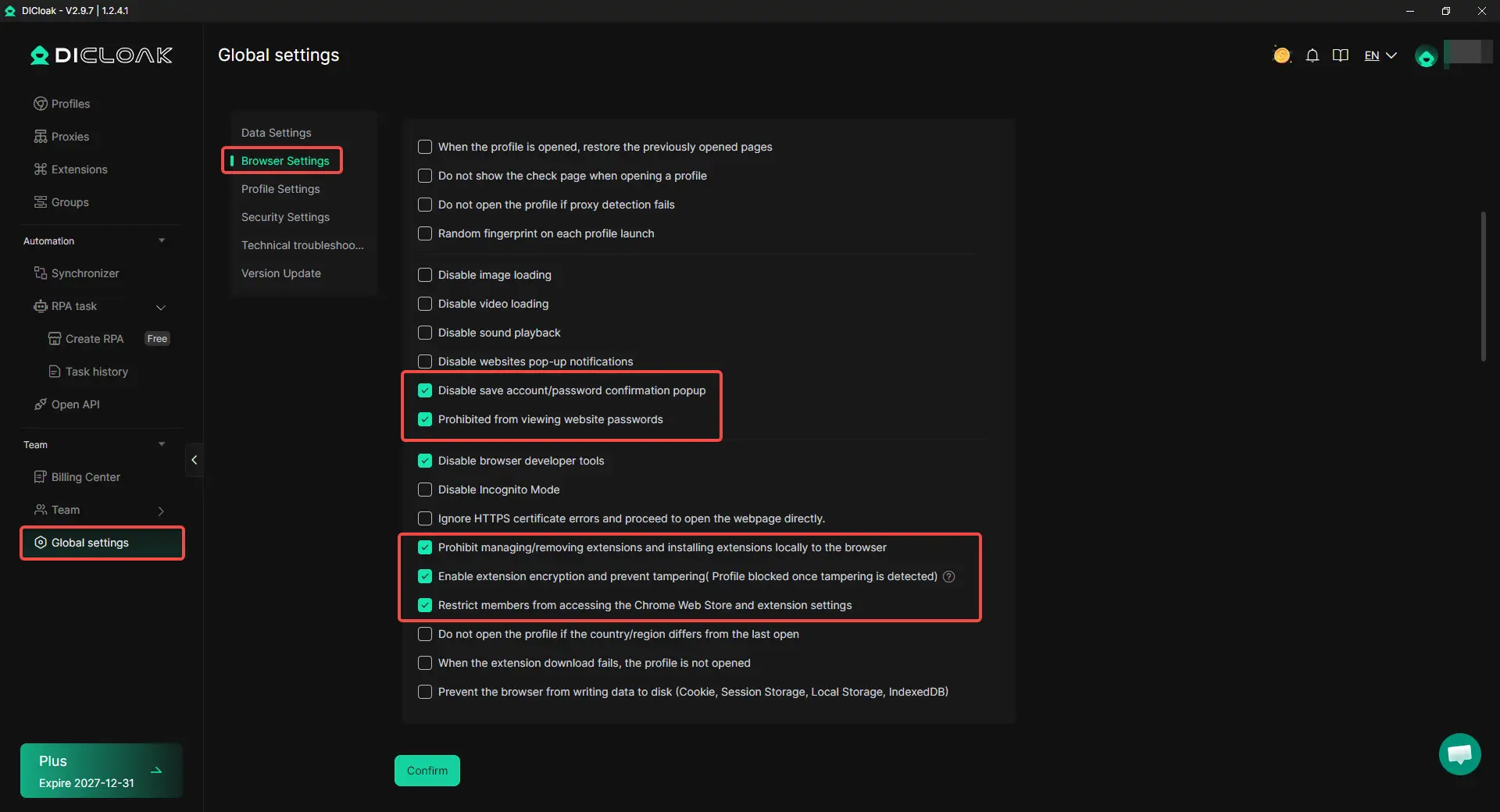
This is also where tools like Cookie Editor and Web Element Hider can help. Cookie Editor can be used to manage cookies inside a profile. Web Element Hider can hide selected page content or sensitive operations when a member only needs limited task access.
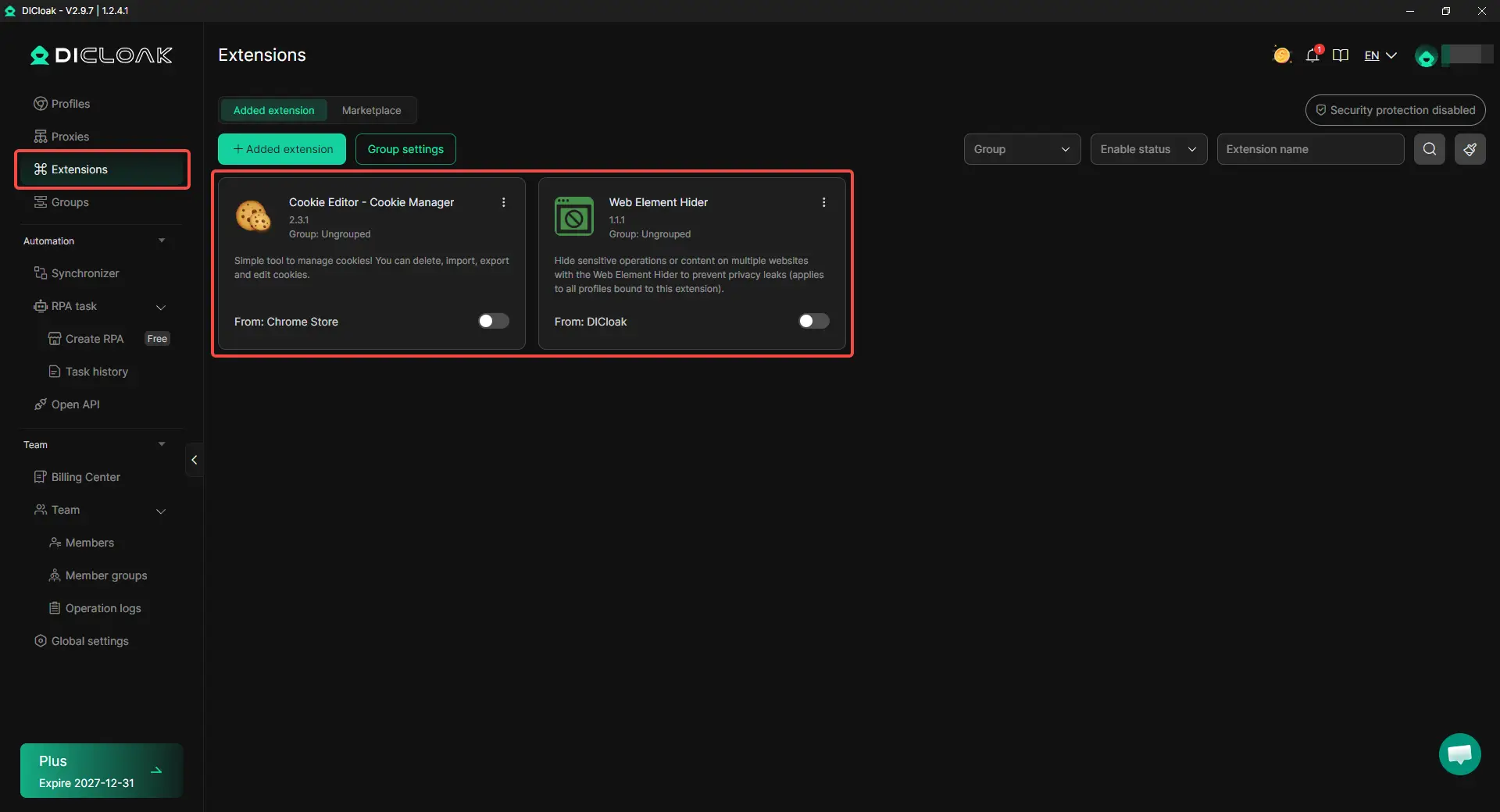
Step 3: Build the browser profile for each client or project
Next, create one browser profile for each client, ad account, or project. Each profile can keep its own cookies, session data, extensions, proxy settings, startup pages, and fingerprint settings.
After the profile is created, open it, log in to the needed account or tool, then close and reopen the profile to check whether the login state stays active. This avoids a common team problem: the admin thinks the profile is ready, but members open it and find the account logged out.
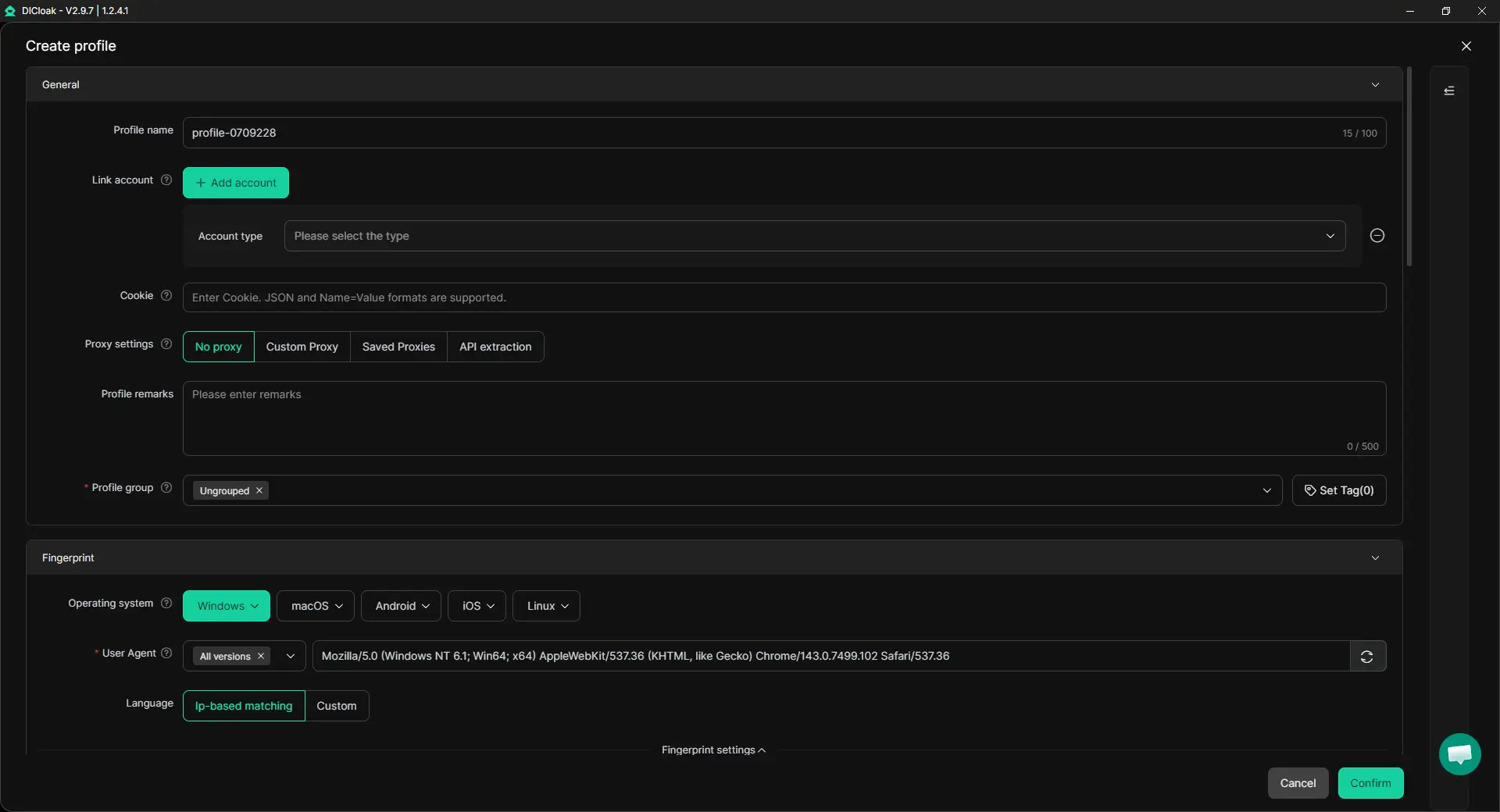
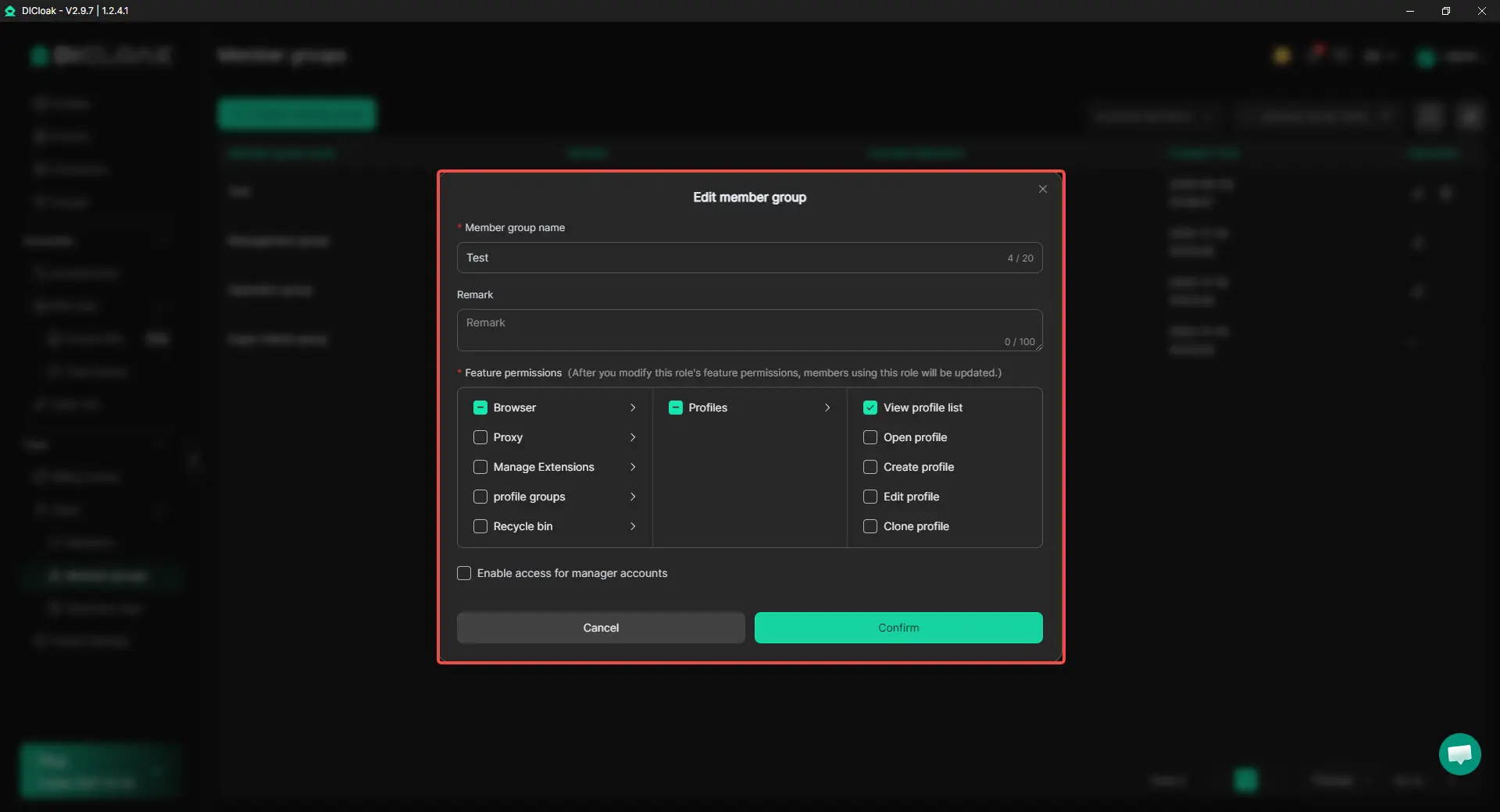
Step 4: Create members and set group permissions
After the workspace is ready, create members and place them into the right groups. Internal staff, external operators, media buyers, analysts, and finance teammates should not all receive the same access.
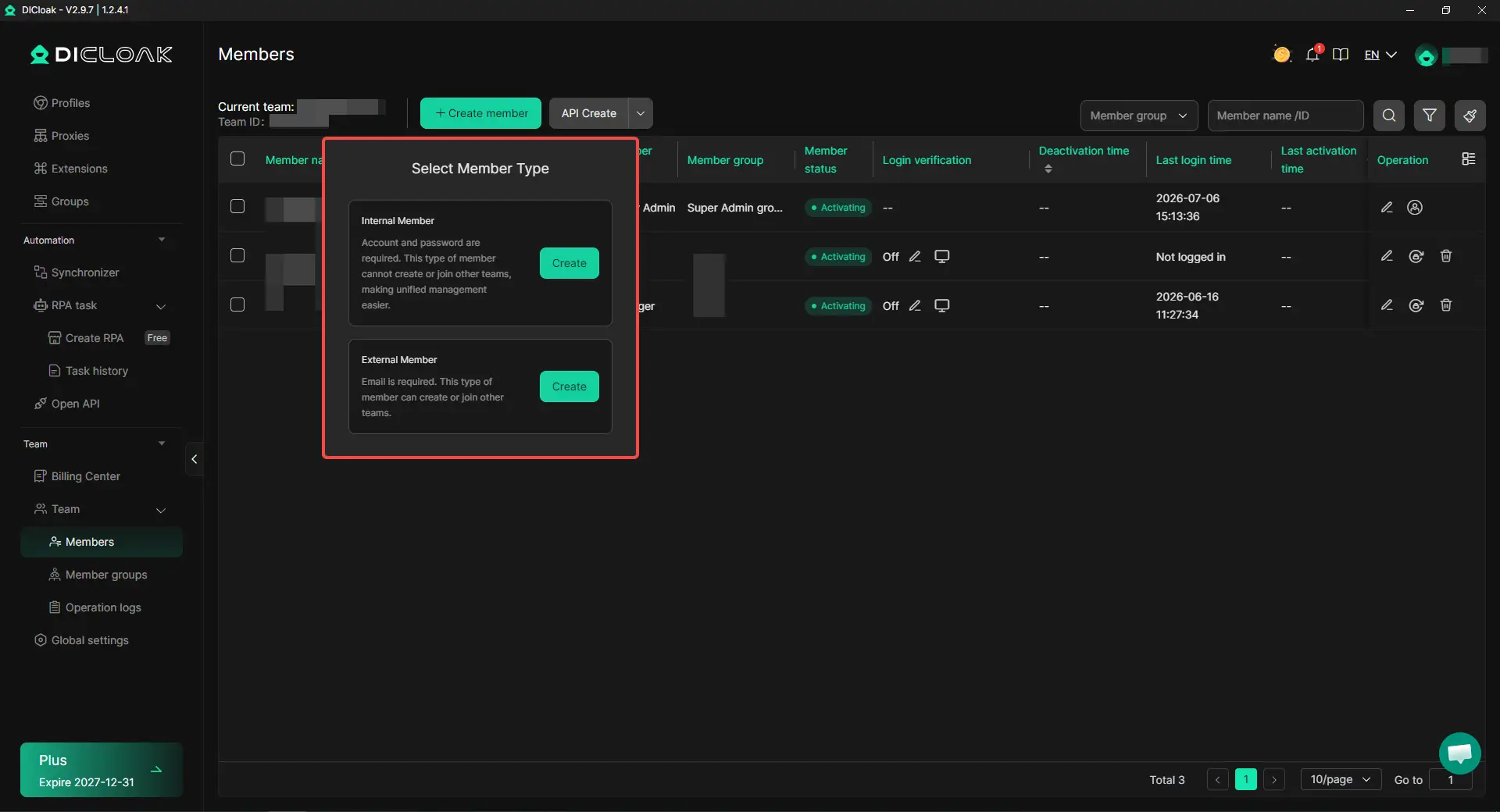
At this stage, group permissions should match real work. For example, some members may only need to open assigned profiles. Trusted admins may manage profile settings or update shared login data. Regular members should not need the ability to view saved passwords.
Step 5: Share the right profile and test member access
Once the profile, login state, and member permissions are ready, share the correct profile with the correct member or group. A media buyer may receive the profiles for the clients they manage. An analyst may only need reporting workspaces. A finance teammate may only need billing-related tools.
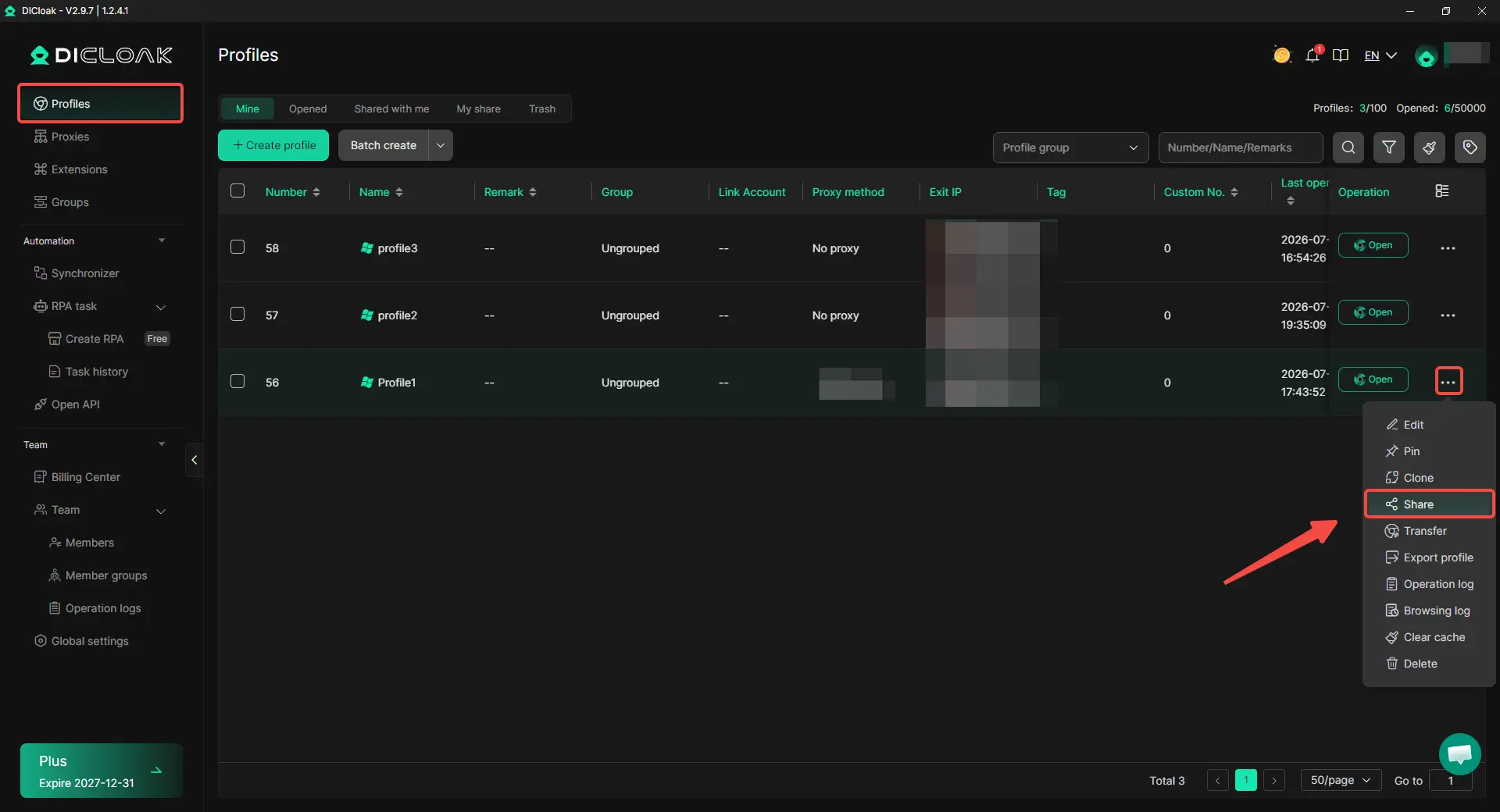
After sharing, test the member side. Check whether the profile opens, whether the account stays logged in, and whether password visibility is limited as expected. When a project ends or a member changes roles, review both layers again: remove the platform permission inside the ad account, and remove access to the related browser profile.
What Should You Check When Onboarding or Removing Ad Account Team Members?
Adding someone is only half of permission management. The bigger risk is forgetting to remove old platform access, billing access, or shared browser profile access after the work changes.
Before adding a new member, match the role to the exact task
Do not start with “Should this person be Admin?” Start with the work they need to do. A media buyer may need campaign edit access. An analyst may only need reports. A finance teammate may only need billing records.
Before adding a member, check:
- What task will this person handle?
- Which ad account or asset do they need?
- Do they need edit access, view access, or billing access?
- Do they need a shared browser profile, or only platform access?
- Who owns this access internally?
If your team uses DICloak, this is also the time to decide which browser profile they should receive. Do not share every client profile just because someone joins the team.
After a project ends, remove both platform access and workspace access
Offboarding should cover more than the ad platform. Many teams remove someone from Meta, Google Ads, or TikTok Ads, but leave the shared browser workspace open. That means the person may no longer have a platform role, yet still has access to an old client profile, saved session, or billing-related tool.
When a member leaves a project, start with the ad account. Check their platform role, Business Manager, Business Center, MCC access, and any billing or finance permissions. Then move to the workspace layer: which browser profiles can they still open, and can they still use saved login data?
With DICloak, teams can adjust profile access at the member or group level. This is useful when one person leaves but the rest of the team still needs the same client workspace. You do not have to rebuild the whole setup; you only need to close the access that no longer matches the person’s work.
Review admin, billing, and profile access on a fixed schedule
Permission problems usually build up quietly. One person gets temporary Admin access. A freelancer keeps an old client profile. Financial permission stays open after the invoice work is done.
A simple monthly review is enough for many teams. Check who has Admin access, who can touch billing, and who can open each client profile. If something looks unclear, remove it first and add it back only when there is a real task.
Operation records can also help during handoffs. When several people worked on the same client workspace, records make it easier to check who opened or managed a profile before access is removed.
The goal is not to make permission management complicated. It is to make access easy to give, easy to understand, and easy to remove when the work is over.
Frequently Asked Questions about Assigning Team Permissions for Ad Account Management Without Sharing Passwords
Can I assign team permissions for ad account management without sharing the owner’s password?
Yes. The safest normal workflow is to invite each team member through the ad platform’s own permission system, such as Meta Business Portfolio, Google Ads Access and security, or TikTok Business Center. Each person should use their own login, and their role should match their real task. For example, a media buyer may need campaign editing access, while an analyst may only need report access. Password sharing should not be the default because it makes campaign changes, billing access, and offboarding harder to control.
Should every media buyer get Admin access to an ad account?
No. Most media buyers need campaign control, not full account ownership. They may need to create ads, edit campaigns, adjust budgets, and check performance, but that does not always mean they should manage users, payment methods, or business assets. Admin access should usually stay with owners, senior managers, or trusted operators who are responsible for account structure and permission changes. This keeps daily ad work flexible without giving every campaign operator full control.
What is the difference between ad platform permissions and browser profile access?
Ad platform permissions control what a person can do inside the ad account, such as editing campaigns, viewing reports, or managing billing. Browser profile access controls which workspace the person can open, including cookies, sessions, proxy settings, saved logins, extensions, and fingerprint-related settings. This difference matters for teams that manage many clients or tools. With an antidetect browser like DICloak, teams can share the right browser profile with the right member without turning that browser workspace into one mixed login area.
How can a team share a logged-in ad tool without showing the password?
For shared tools, the better approach is to prepare a browser profile first, then control what the member can see or use inside that profile. With DICloak, teams can use saved credentials, Cookie Editor, cloud data sync, and password visibility controls so members can work in an assigned profile without receiving the raw password. If cookies alone do not keep the login state active, Local Storage and IndexedDB may also need to be synced. This is useful for shared tracking tools, reporting dashboards, landing page builders, or client workspaces.
What should I remove when a freelancer, agency, or team member leaves a project?
You should remove both platform access and workspace access. Inside the ad platform, check their role, Business Manager or Business Center access, billing permissions, and assigned assets. On the workspace side, remove access to shared browser profiles, saved login states, and any project-specific tools they no longer need. If your team manages profiles with DICloak, review member groups and profile sharing after each project handoff. Old access is easy to forget, so offboarding should always include both the ad account and the browser workspace.
Conclusion
To assign team permissions for ad account management without sharing passwords, teams should use official platform roles first. Meta, Google Ads, and TikTok Ads let each member use their own login and receive only the access they need, such as campaign editing, report viewing, billing access, or admin control. This keeps ad account ownership clearer and reduces problems with shared passwords, unclear changes, 2FA delays, and offboarding.
For real team work, platform permissions are only one layer. Ad teams also need to manage browser profiles, cookies, sessions, proxies, fingerprints, saved logins, and client workspaces. With an antidetect browser like DICloak, teams can prepare separate browser profiles for each client or project, control password visibility, share only the needed workspace, and review access when members or projects change. The best setup is simple: platform permissions control what people can do inside the ad account, while browser workspace controls manage how they access the right account environment.
 Web Proxy Tools
 Free Tools
 Cookie Plugin
 UA Generator
 MAC Address Generator
 IP Generator
 IP Address List
 2FA Code Generator
 World Clock
 Anonymous Check
 WebRTC Leak Test
 UUID Generator
 Free Web Proxy Site
 Proxy Checker
 FB Ad Checker
 AI Web Scraping
 Free SMM Tools
 Twitter Shadowban Checker
 Instagram Name Checker
 UTM Generator
 Username Generator
 AI Hashtag Generator
 LinkedIn Headline Generator
 Social Media Image Resizer