Switching between cookie manager tools might sound simple, until you break a login, lose session data, or find your edit cookies extension isn’t updating values the way you expect. Choosing the best Cookie editors isn’t just about which one looks cleanest or has a few more buttons. The real headache hits when a browser cookie editor works for single edits but falls apart during bulk changes, profile switching, or in workflows that need steady session data.
What most people miss is that not all cookie editors handle advanced needs well. Some extensions don’t show the full cookie set, or they skip hidden flags. Others claim “one-click import” but mangle formatting or fail with modern browser security rules. You’ll often run into plugins that haven’t been updated in years, so they silently break on new browser versions, leaving you guessing why sessions won’t stick.
The safest approach is to focus less on the “top rated” list and more on how each tool fits your actual browser profile and multisession routine. That means checking which editors support structured export/import, which can handle WebExtension restrictions, and which ones don’t leak or overwrite cookies in the background. The best Cookie editors for 2026 aren’t just about UI, they’re about control, reliability, and not leaving you stranded when you’re juggling dozens of logins.
Below is what to check first before you pick a cookie editor.
Why Cookie Editors Matter More Than Ever in 2026
Cookie editors have become essential for anyone who manages more than one browser session, switches accounts, or handles platform logins at scale. The main shift is that browser session control, privacy, and even account recovery now depend on granular cookie access, not just simple password management. If you skip a cookie editor, you give up the chance to fix session bugs, prevent tracking leaks, or recover stuck logins without resetting everything.
What Cookies Control in Modern Browsers
- Session State: Cookies store login status and let you move between tabs without losing access. Lose the cookie, lose your session.
- Personalization: They keep track of language, theme, and site preferences, changing them alters how sites respond to you.
- Account Switching: Editing cookies is the fastest way to swap between accounts without logging in and out repeatedly.
The Growing Risks and Opportunities with Cookie Editing
Modern browsers and platforms now use cookies for much more than just “remember me” features. A single misplaced edit can trigger a forced logout, lock your account, or cause a platform to shadowban you by flagging suspicious session changes. For power users and teams, cookie editors have become the go-to tool for repairing broken sessions or cloning setups across devices, but this flexibility brings real risks. For example, importing cookies from another device may help you bypass a forgotten 2FA prompt, but if you miss a required session token, you’ll get stuck in a loop where the site keeps asking you to verify, then kicks you back to login. On the other hand, careful cookie editing lets you spot and remove tracking IDs or suspicious entries that leak cross-site data, giving you more privacy than default browser settings allow. The tradeoff is clear: cookie editors give you control, but a single mistake can break crucial workflows or make recovery harder than before. Knowing where that line is, and recognizing when you need to edit vs. reset, matters far more now than in past years.
The next problem to watch for is how easy it is to make a session-breaking mistake. That’s where the real risk starts to show up.
When Editing Cookies Gets Risky: What Can Go Wrong?

Cookie editors are powerful, but sloppy editing is where most disasters start. Break one session cookie or miss an expiration detail, and you might lose access, get logged out, or flag your account for review.
Common Cookie Editing Mistakes That Break Sessions
Overwriting, deleting, or misreading cookie fields usually means instant session loss. Set a cookie with the wrong path or forget its expiration date, your login vanishes next reload. Extensions built for old browser versions often quietly fail, so sessions break with no error message. Check plugin notes and test edits in a disposable profile before going live.
How Platforms Detect Suspicious Cookie Change Patterns
Platforms run background checks on every session. Rapid cookie swaps, inconsistent device fingerprints, and mismatched IPs often trigger automated reviews or restrictions.
- If you import cookies too fast or from scattered sources, platforms spot the jump, forcing password resets or locking accounts.
- The safer move: edit only in small batches, keep IP and fingerprint consistent, and monitor platform alerts after edits. If your device fingerprint shifts whenever you use a cookie editor, platforms link the event to "possible bot activity," which is nearly impossible to appeal on mainstream social tools.
Security and Privacy Mistakes to Avoid
Leaving cookies on a public or shared computer risks leaking login sessions. Copying or exporting full cookie dumps without checking which fields contain auth tokens exposes account control to anyone who scans the export file. Clear cookies and browser histories after editing, especially on machines outside your direct control.
What Makes a Cookie Editor Actually Worth Using in 2026?

Most users focus on UI and ratings, but these miss what matters long-term: a cookie editor’s real value comes from how well it handles browser changes, protects your sessions, and gives you reliable control over bulk operations. If you’re tired of plugins that break after a browser update, or that silently expose your data, the checklist below will save you time and risk.
Browser Compatibility and Manifest V3 Support
If you’re juggling Chrome, Firefox, or Edge, extension support isn’t enough, Manifest V3 rules now block many legacy editing actions. The fastest way to check fit: does the editor support your browser’s latest API requirements, and does it handle permission prompts without locking you out? Many “edit cookies extension” options quietly break with new browser builds; always test import/export on your main browser before trusting a tool.
Essential Editing, Export, and Import Features
- Can you filter and bulk-edit cookies without crashing the browser?
- Does it support JSON, plain text, and standard cookie string formats for import/export?
- Can it handle session or secure cookies, or does it skip them without warning?
Data Security, Privacy, and Open-Source Transparency
Most editors claim “privacy-first” but leave code unverified. If you can’t audit the source or see recent code reviews, you’re guessing. Editors that log data or sync with a remote server raise real risk, especially if you manage sensitive accounts. Open-source status plus recent code audits give you the strongest practical assurance the tool won’t leak or mishandle your cookies.
- Is the editor truly open-source, with public code and recent commits?
- Does it keep all operations local, without sending cookie data to external servers?
- Are there published code audits or user reports on privacy, not just marketing claims?
If you can’t check these, it’s safer to skip the tool, even if it looks popular. The next section breaks down actual safe usage steps and common mistakes most people make after picking their editor.
How to Safely Use a Cookie Editor: Preparation, Steps, and Mistakes to Watch
Jumping into a browser cookie editor without setup gets most people in trouble, break one setting, and you’re locked out or leaking logins. Here’s how to prep, edit, and check your work so nothing slips through.
Preparing Your Browser and Backing Up
- Check extension permissions , If a cookie manager asks for “all data on all sites,” pause. Only install from trusted update channels.
- Back up cookies , Before changing anything, export your current cookie set from your browser or the editor itself. Don’t skip this: lose your session cookies, and you’ll be logging in again everywhere.
- Update your editor , If you’re running a tool from 2022, update it first. Outdated editors may mislabel cookies or fail under new Chrome/Firefox builds.
Careful Editing: Adding, Modifying, and Deleting Cookies
- Test with small changes, Edit one value, reload your page, then observe. If nothing works, undo and retest.
- Avoid bulk actions unless needed, Mass “clear all” or “import” often deletes essential cookies. Reliable editors warn before destructive actions.
- Track each edit, Write down the name and value you changed. That way, if a session breaks, you know what to check.
Validating Changes: Checking Your Session Safety
- Open a new incognito window , Try logging in as normal. If you’re auto-logged out or see warning banners, one of your cookies failed.
- Use browser dev tools to view set-cookie responses after your edit. If the site resets session cookies upon reload, your edit wasn’t safe.
- Spot-check cross-domain behavior, Some platforms bind sessions across subdomains. If you edit site.com but miss app.site.com, you might force another device logout without warning.
Cut corners here, and you’re troubleshooting broken logins for hours. Next, see which tools actually pass these practical checks and deliver stability in daily account workflows.
Which Cookie Editors Actually Work Best? Top Picks for Different Needs in 2026
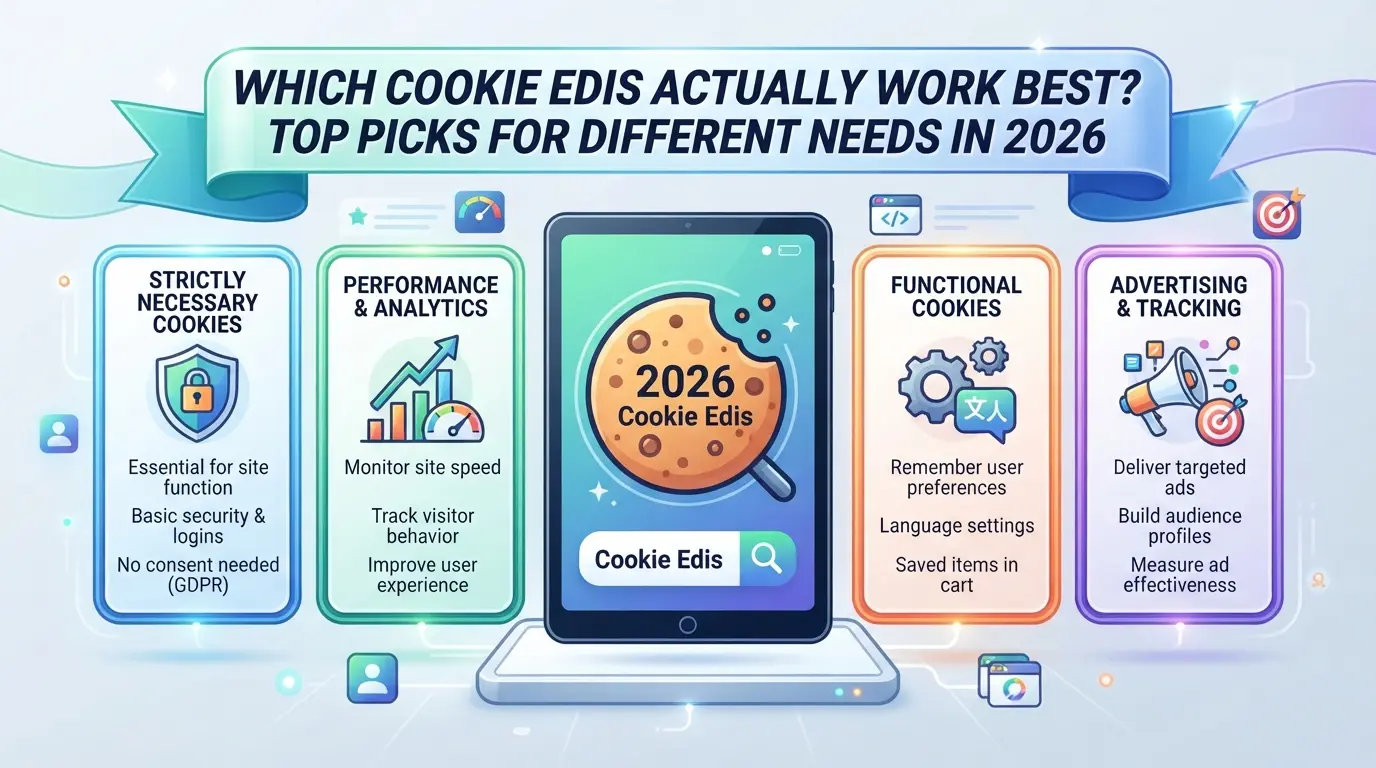
If you want a cookie editor that won’t break your workflow in 2026, skip the hype and focus on fit. Mainstream plugins still cover daily edits, but power users and those needing privacy or bulk workflows should look at niche tools. Here’s how the best choices stack up.
Mainstream Extension Picks (Chrome/Firefox/Edge)
| Extension |
Browsers |
Maintained |
Notable Gaps |
| EditThisCookie |
Chrome/Edge |
Yes |
No per-profile isolation |
| Cookie-Editor |
Chrome/Firefox/Edge |
Yes |
Occasional UI bugs |
| Cookie Quick Manager |
Firefox |
Yes |
Firefox only |
Most users stick with Cookie-Editor for Chrome/Edge or Cookie Quick Manager on Firefox. Updates stay regular, but none support full multi-session isolation.
Advanced and Power-User Tools
Command-line editors like cookies.txt or proxy-based tools let you script, inspect, and bulk edit cookies. These work for automated scraping or custom flows, but break if browser updates change storage APIs. They’re not beginner-friendly, expect to debug syntax and session collisions.
Editors Focused on Privacy, Security, or Transparency
Open-source options like Cookie Quick Manager or Cookiebro (for Firefox/Chrome) avoid cloud sync and keep all edits local. If you want to minimize leaks, stick with tools that store nothing outside your browser.
Comparison Table: Features, Consistency, and Update Frequency
| Tool |
Multi-Account |
Open Source |
Last Update (2026) |
| Cookie-Editor |
No |
No |
May |
| Cookie Quick Manager |
No |
Yes |
March |
| Cookiebro |
No |
Yes |
June |
No mainstream editor handles bulk multi-account workflows reliably. For anything beyond single profile edits, manual tools start to feel limiting fast.
Safer Multi-Account and Multi-Session Workflows: Where Cookie Editors Fall Short and Why Profile Isolation Matters
When Editing Cookies Isn’t Enough: Platform Linkage and Device Fingerprints
Even the best Cookie editors can’t unlink accounts if your device fingerprint or network data overlap. Platforms now check browser versions, canvas IDs, and IPs, so copying cookies alone won’t break the connection.
How Profile Isolation and Dedicated Browsing Environments Reduce Risk
Running each account in a separate browser profile does what cookie editing can’t: it keeps local storage, cache, and device signals from crossing. When you use the same user profile or forget to swap proxies, platforms can match sessions within seconds, leading to bulk locks or bans. Profile isolation means every account gets its own IP, timezone, and language settings. If you skip this, even a perfect cookie transfer can trigger “multi-account” flags, since the backend sees identical fingerprints hitting from different accounts. The real edge is in making each session look and behave like a genuine, standalone user, not just a recycled login.
Workflow Example: Integrating Cookie Editing and Profile Isolation
- Start a new profile, set a unique proxy and fingerprint before editing cookies
- Import cookies only after profile isolation is set up
- Never reuse browser profiles between unrelated accounts
For Teams Moving Beyond Cookie Editors: Isolated Profiles and Proxy Control with DICloak
Some teams run into real limits with even the best Cookie editors—especially when each operator juggles several platform accounts, or when session leaks and fingerprint overlap become daily problems. If you also manage team browser profiles for platform accounts, it’s worth knowing how DICloak fits into this kind of workflow. Editing cookies is one step, but separating browser profiles and network conditions is what actually keeps sessions apart when the stakes get higher.
Creating Isolated Browser Profiles with Separate Fingerprint Settings
Operators who handle multiple platform accounts can create a new browser profile for each session in DICloak. For every profile, you can adjust key fingerprint settings—like User Agent, time zone, language, and hardware signals—so no two sessions share the same browser profile. This setup means each account’s cookies stay inside its own isolated profile, reducing accidental crossover during team work. The scope is limited to browser-profile access; it does not change the connected platform.

Configuring Separate Proxies for Each Profile
When profiles need distinct network routes, operators can assign a different user-supplied proxy to each DICloak profile. Enter proxy details—host, port, user, password—and run a quick check to verify the connection. This step makes sure each platform account session uses the right network path before logging in. DICloak does not provide proxies; operators manage their own proxy sources and compliance.

Is Manual Cookie Editing Still Worth It? When to Use, When to Avoid, and Safer Alternatives
Manual cookie editing still works for quick fixes or single-account tests, but falls short when you handle high-value accounts or must keep workflows separate. Pushing a basic cookie editor into multi-account operations raises real risks that outgrow the tool’s safety net.
Best-Fit Scenarios for Cookie Editors
| Scenario |
Editor Use Safe? |
Why Use/Not Use |
| Fix single login issue |
Yes |
Quick to patch, no long-term separation needed |
| Restore expired session |
Yes |
Manual insert often solves sudden logouts |
| Multi-account ops |
No |
Cross-session bleed, harder to track changes |
For one-off repairs or testing, a simple edit cookies extension works well. Anything bigger? The risk scale jumps fast.
When Profile Isolation or Browser Separation Is a Must
If you’re juggling frequent account switches or run tasks at scale, manual cookie tools end up causing overlap, misplaced sessions, or accidental wipes. True session isolation should move to real browser profile separation, manual edits can’t cover these gaps.
Summary Table: Use Cases, Tools, and Recommended Safety Level
Before you grab a simple cookie manager, map your workflow first. If you need repeatable, clean isolation, stick to browser profiles or tools built for multi-session separation, this moves your security from “quick fix” to “defensible setup.”
Frequently Asked Questions About best Cookie editors
Are cookie editors safe to use for sensitive account management?
Cookie editor tools can be safe if you use secure extensions, work in isolated browser profiles, and avoid reusing cookies across risky environments. Always check permissions, use up-to-date tools, and separate workflows for each account. Poorly managed cookie edits can expose you to session hijacking or unauthorized access.
Can using a cookie editor get my accounts banned or restricted?
Yes, if your edits make accounts look suspicious. For example, changing session cookies while switching IPs or devices can trigger security alerts. Platforms often flag unusual login patterns or mismatched device signals. Using browser cookie editors with proper session isolation minimizes these risks.
What’s the difference between editing cookies and using a separated browser profile?
Editing cookies only changes login or session data for one account. Using a separate browser profile or container creates a fully isolated environment. This prevents device-level links, so sites can’t connect multiple sessions or accounts based on device fingerprints or storage.
Can I transfer cookies across browsers or devices safely?
Transferring cookies with export/import features is possible, but it risks detection. Many websites check for browser or environment changes. If you move cookies from Chrome to Firefox, or between phones, you may trigger security flags or forced logouts. Always test transfers carefully.
How do proxy settings affect cookie-based session management?
A stable proxy keeps your IP consistent for each session, reducing mismatched signals. If your IP changes often or proxies are unreliable, sites may see suspicious activity and restrict access. Combine cookie manager tools with dedicated proxies for each browser profile to keep session signals aligned.
Now that you’re familiar with the top options for managing browser cookies, consider which editor best suits your workflow and privacy needs. Testing a tool firsthand is the most reliable way to determine if it integrates smoothly into your browsing habits. Try DICloak For Free
 Web Proxy Tools
 Free Tools
 Cookie Plugin
 UA Generator
 MAC Address Generator
 IP Generator
 IP Address List
 2FA Code Generator
 World Clock
 Anonymous Check
 WebRTC Leak Test
 UUID Generator
 Free Web Proxy Site
 Proxy Checker
 FB Ad Checker
 AI Web Scraping
 Free SMM Tools
 Twitter Shadowban Checker
 Instagram Name Checker
 UTM Generator
 Username Generator
 AI Hashtag Generator
 LinkedIn Headline Generator
 Social Media Image Resizer