WhatsApp is no longer just a personal chat app. Meta reported in April 2025 that more than two billion people use WhatsApp every day, and millions use it to communicate with businesses. WhatsApp now also supports two accounts on one phone across Android and iOS, making it easier to separate personal and work messages.
However, agencies, virtual assistants, sales teams, and cross-border businesses often manage far more than two accounts. Extra tabs and repeated QR scans quickly lead to mixed sessions, unclear account ownership, and weak team access control. To manage multiple WhatsApp accounts without getting them linked, each account needs its own browser workspace, stable settings, recoverable phone number, and assigned operator. This guide explains which methods work, where common setups begin to fail, and how to build a more organized WhatsApp multi-account workflow in 2026.
Can You Use Multiple WhatsApp Accounts on One Device?
Yes. WhatsApp supports two accounts on one phone, but each account needs its own phone number. This setup is enough for one person who wants to separate personal and work chats.
The limit appears when you manage several business accounts. An agency, VA, or sales team may need multiple WhatsApp Web sessions open on one computer. At that point, basic account switching is no longer enough because each session must stay separate and easy to identify.
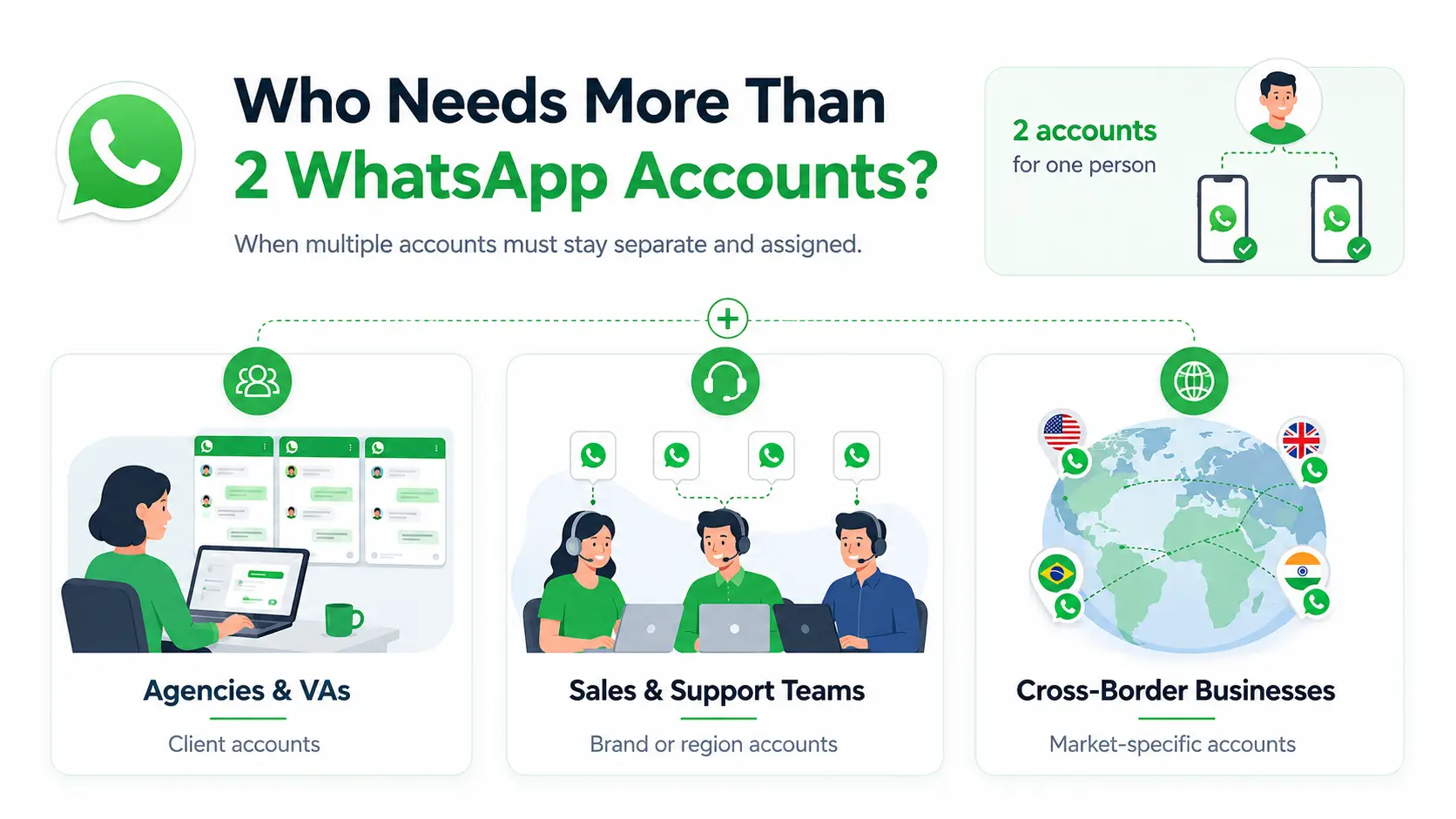
Who Needs More Than WhatsApp’s Native Two-Account Setup?
WhatsApp’s native setup is usually enough when one person manages two numbers. You need a more structured setup when several independent accounts must stay logged in, belong to different clients or regions, or be assigned to different team members.
Agencies and Virtual Assistants
Agencies and VAs often manage WhatsApp Business accounts for several clients. Logging each client into the same browser can quickly create confusion. A team member may open the wrong session, reply as the wrong brand, or lose several logins after clearing browser data.
The real challenge is not opening more accounts. It keeps every client account separate, clearly named, and assigned to the right person.
Sales and Customer Support Teams
Sales and support teams may use different numbers for separate brands, products, regions, or departments. One account may handle new leads, while another supports existing customers. In larger teams, several employees may also take responsibility for different accounts during the same shift.
Basic account switching becomes difficult when operators must check which number they are using before every reply. These teams need a setup where each WhatsApp account has a clear purpose, owner, and working session.
Cross-Border Businesses
A cross-border business may run separate WhatsApp accounts for the United States, Brazil, Europe, or other markets. Each account can have its own phone number, language, working hours, and regional operator.
These accounts should not be treated as interchangeable logins. A US sales account may follow a different workflow from a Brazilian support account. Keeping each session tied to its correct market helps reduce login mistakes, mixed customer conversations, and unclear team responsibility.
If you only manage two accounts for yourself, the native feature may be enough. If you manage several independent business accounts across clients, teams, or markets, you need a method built for separate and long-term account workspaces.
What Are the Common Ways to Run Multiple WhatsApp Accounts?
You can run multiple WhatsApp accounts through official multi-account features, separate apps, browser sessions, or virtual environments. Each method works at a different scale, but every independent account still needs its own phone number.
1. WhatsApp’s Native Multi-Account Feature
WhatsApp allows one person to add and switch between two accounts in the official app. This is the simplest option for separating personal and work messages.
Best for: One person managing two numbers
Limitation: It is not built for several client, regional, or business accounts
2. WhatsApp and WhatsApp Business
You can use the regular WhatsApp app for one number and WhatsApp Business for another. This gives each account its own app and message space.
Best for: Freelancers and small business owners
Limitation: It still supports only a small account setup
3. WhatsApp Desktop and WhatsApp Web
One account can run in the desktop app while another stays open in a browser. This is a quick way to keep two accounts available on the same computer.
Best for: Occasional desktop use with two accounts
Limitation: Adding more accounts creates more windows, repeated QR scans, and session confusion
4. Multiple Browsers or Browser Profiles
Different WhatsApp Web accounts can be opened in Chrome, Firefox, or separate browser profiles. Each browser profile keeps its own cookies and login session.
Best for: A few accounts that need to stay logged in
Limitation: Account naming, network settings, and team access must still be managed manually
5. Emulators and App Cloning Tools
Android emulators and app cloning tools can create extra WhatsApp app instances. However, they often require more setup and system resources.
Best for: Temporary testing or mobile-only use cases
Limitation: They can be slow, difficult to maintain, and unsuitable for larger teams. Unofficial WhatsApp versions may also create security and account risks.
The main challenge is not opening another account. Problems begin when several accounts must stay logged in, remain easy to identify, and be assigned to different team members. This is where basic browser and app methods become harder to manage.
How Businesses Can Manage More Than Two WhatsApp Accounts
Native account switching may work for one or two accounts. When businesses manage several WhatsApp accounts across clients, regions, or team members, they need a clearer way to separate sessions and control access.
A dedicated multi-account setup becomes useful when you need to:
- Keep more than two WhatsApp accounts active on one computer
- Assign different accounts to different team members
- Manage separate accounts for several clients, brands, or regions
Different browsers, desktop apps, and emulators can open more sessions. However, they become harder to manage as the number of accounts grows. Operators may lose track of which window belongs to which number. Browser data may be cleared by mistake, and team members may receive access to accounts they do not manage.
With DICloak, each WhatsApp Web account can run in its own browser Profile. The Profile keeps its cookies, local storage, saved session, browser settings, and proxy configuration separate from other account workspaces.
Why Use DICloak for Multiple WhatsApp Accounts?
With DICloak, teams can keep each account organized, maintain a consistent setup, and assign access to the right operator.
- Separate account sessions: Each WhatsApp or WhatsApp Business account opens in its own browser Profile instead of sharing one browser workspace.
- Saved proxy settings: A user-configured proxy can be saved inside the matching Profile when an account needs a separate network setup. This helps the team reopen the account with the same recorded configuration.
- Clear account organization: Profiles can be named by client, phone number, brand, market, or account purpose. Operators can identify the correct account before opening WhatsApp Web.
- Controlled team access: Profile sharing and team permissions allow employees or VAs to access only the accounts assigned to them.
- Simpler account handoffs: When responsibilities change, Profile access can be reassigned or removed without giving every team member access to every client account.
For agencies, sales teams, and cross-border businesses, the goal is not simply to open more WhatsApp windows. The goal is to keep each account in a clear workspace and make sure the right person uses the right session.
How to Manage Multiple WhatsApp Accounts With DICloak
With DICloak, each WhatsApp Web account can run in its own browser Profile. This keeps account sessions, network settings, and team access organized in one workspace.
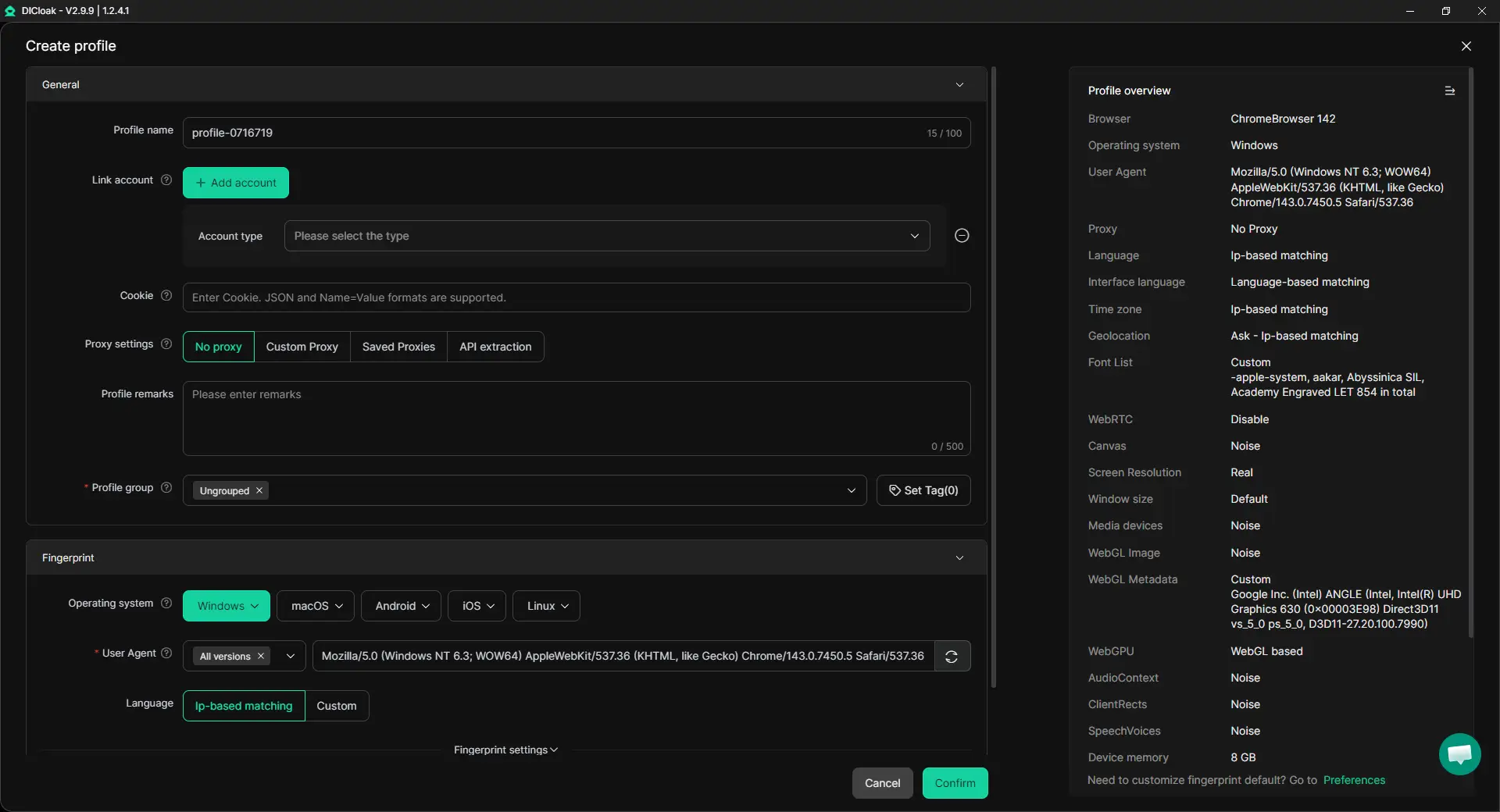
1. Create One Profile for Each Account
Create a separate Profile for every WhatsApp or WhatsApp Business account. Name it by client, brand, region, or purpose, such as “US Sales” or “Brazil Support.” Each Profile keeps its own cookies, local storage, and login session.
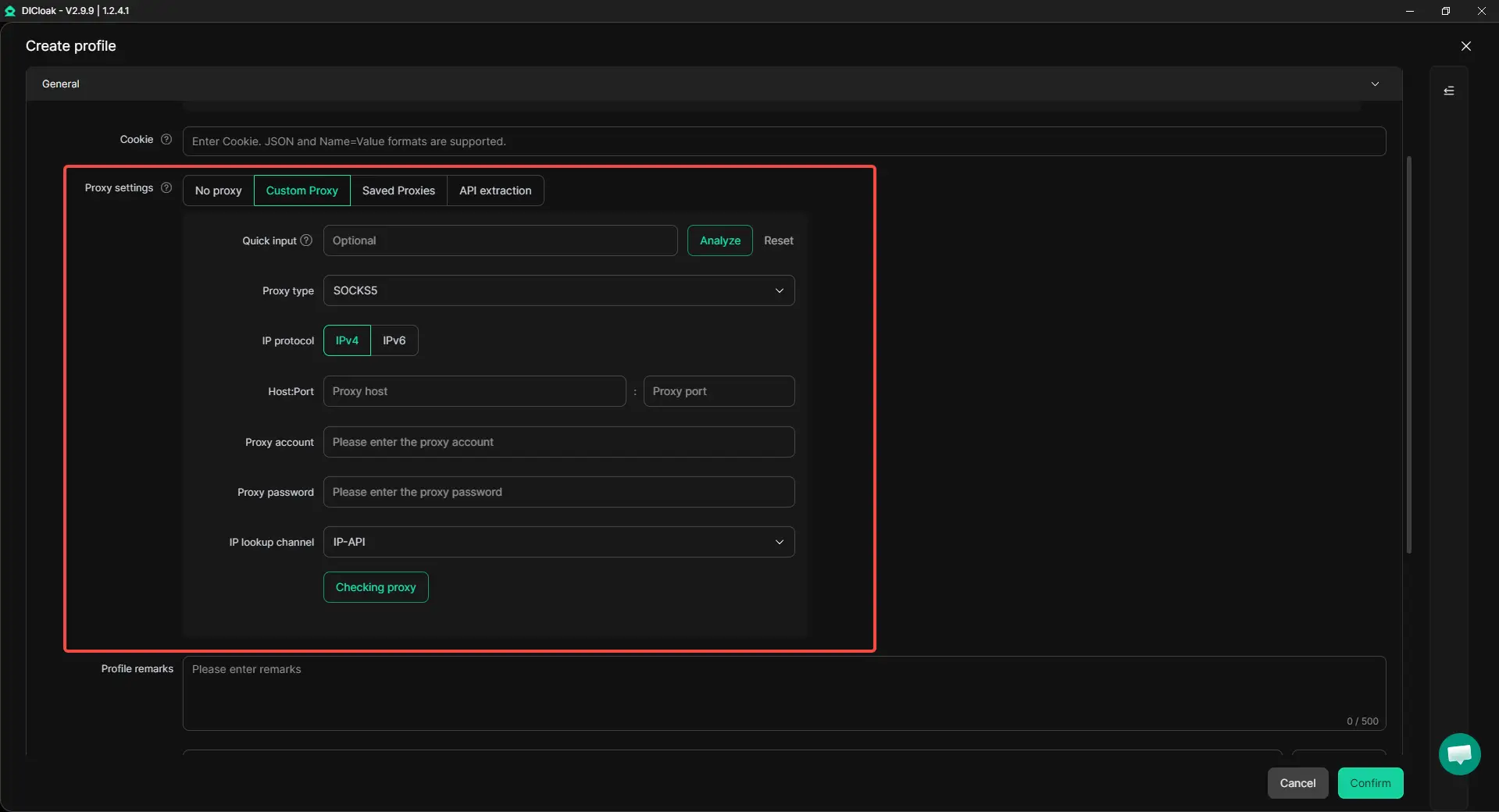
2. Add a Proxy When Needed
Configure a proxy inside the matching Profile when the account needs a separate network setup. Choose a location that fits the account’s normal operating region. Not every WhatsApp account needs a proxy, but the assigned setup should remain clear and consistent.
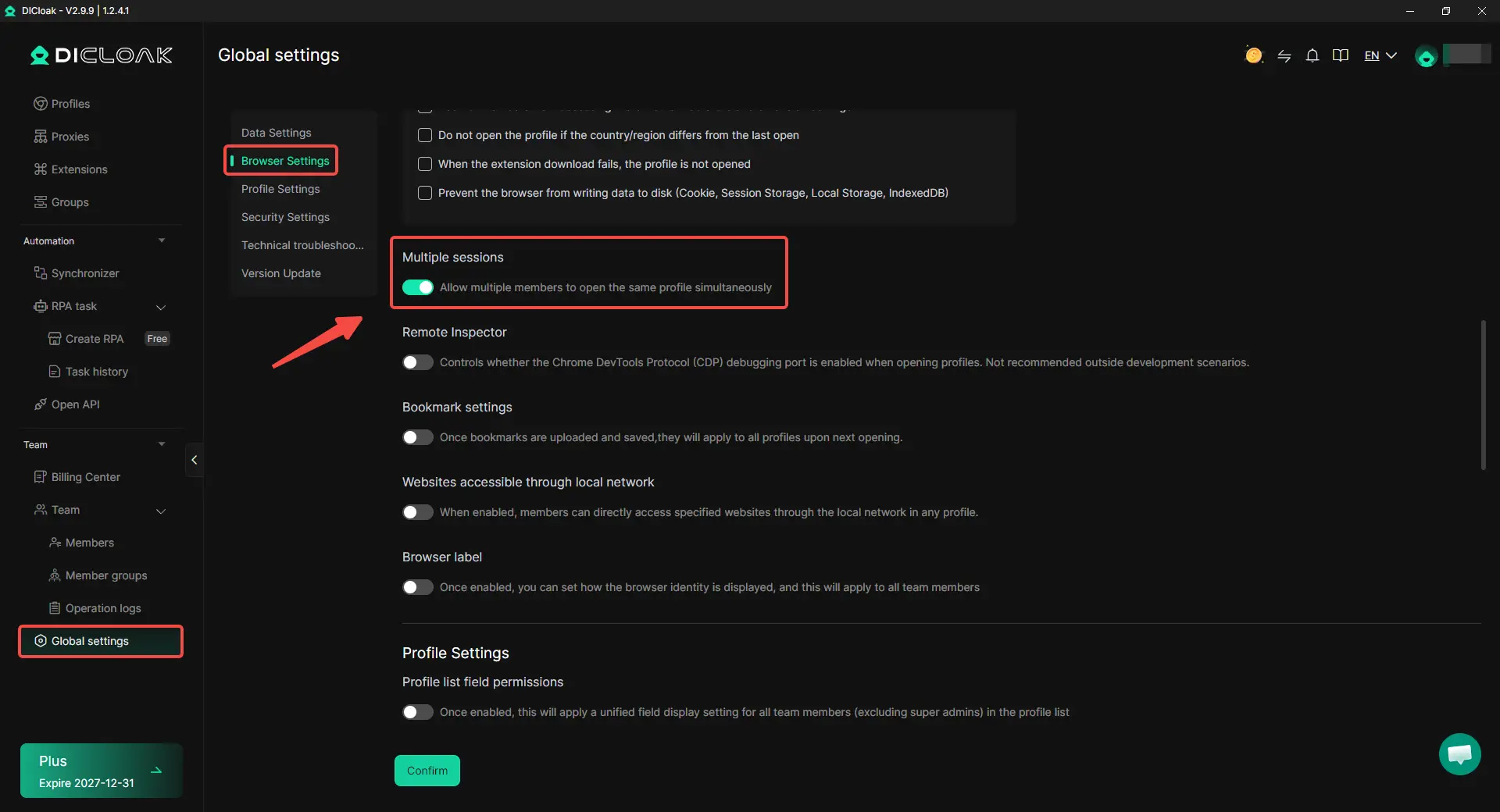
3. Enable Multiple Sessions for Shared Access
Turn on Multiple sessions only when several team members need to open the same Profile at the same time. This can help customer support teams share one WhatsApp account.
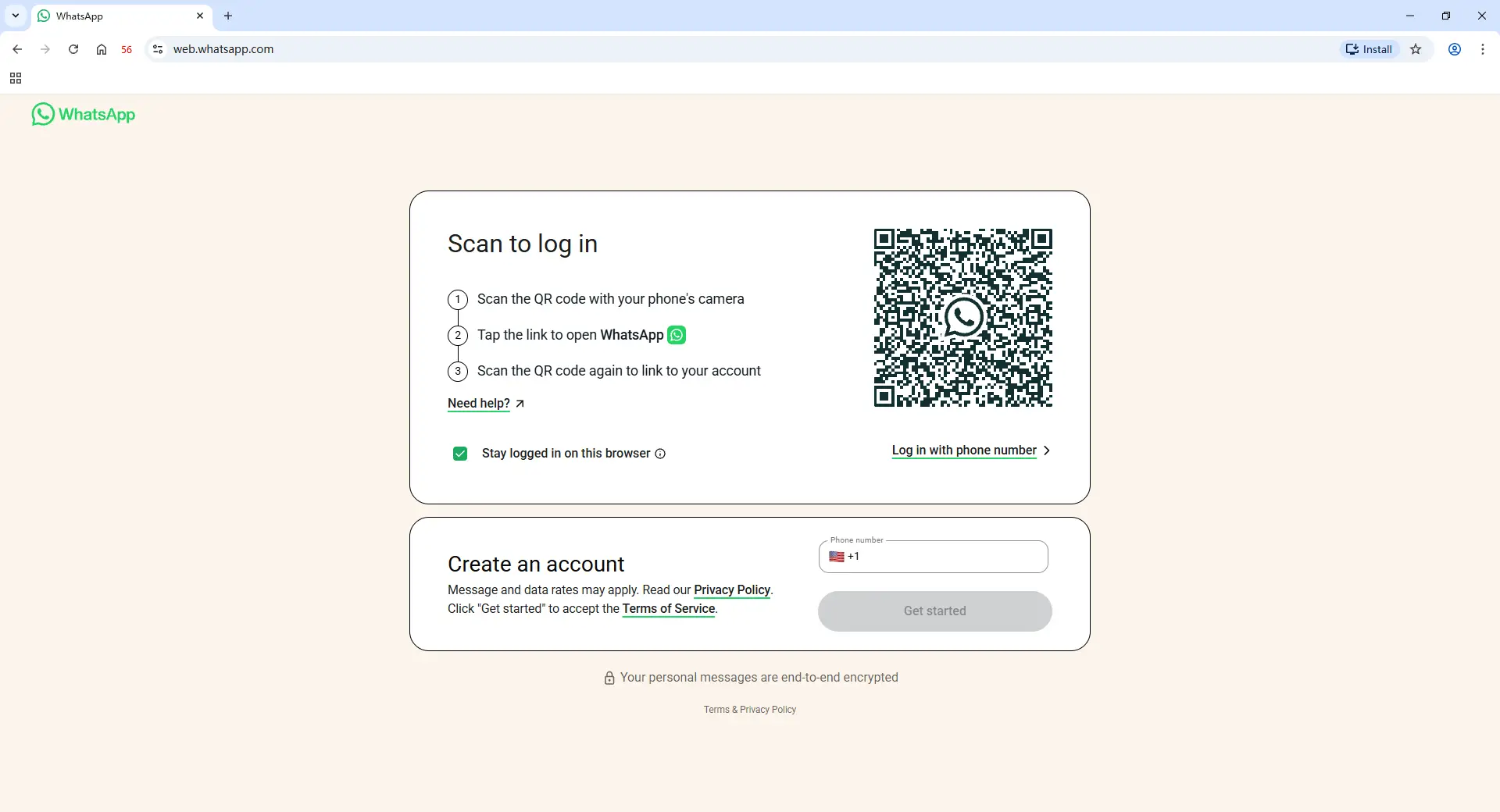
4. Connect the Matching WhatsApp Account
Open the Profile, visit WhatsApp Web, and scan the QR code with the phone linked to that account. Check the Profile name before scanning so the correct WhatsApp account is connected to the correct workspace.
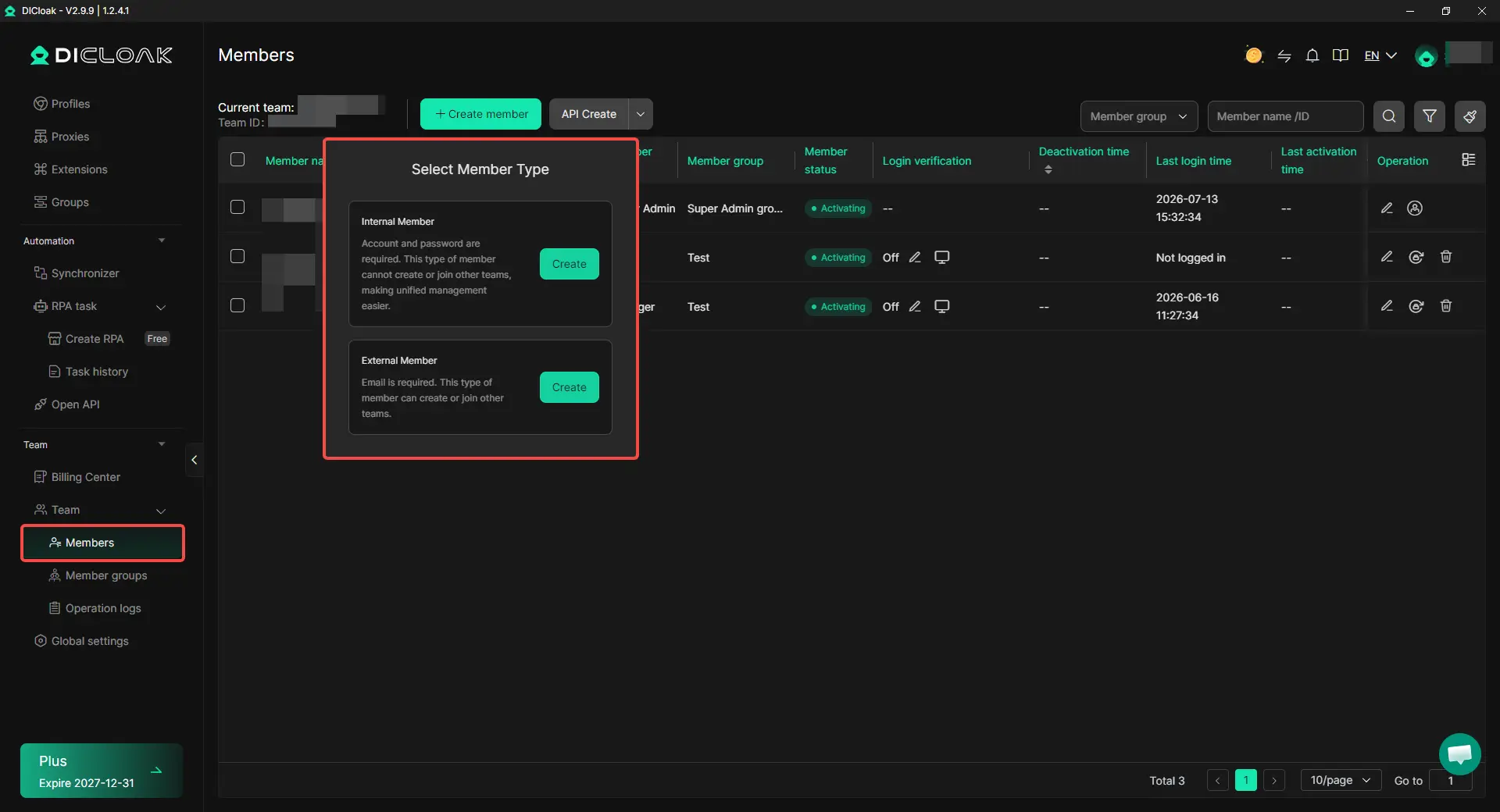
5. Share the Profile With the Right Team Member
Use profile sharing and team permissions to give employees or VAs access only to the accounts they manage. This helps agencies keep client accounts separate and prevents every team member from accessing every WhatsApp workspace.
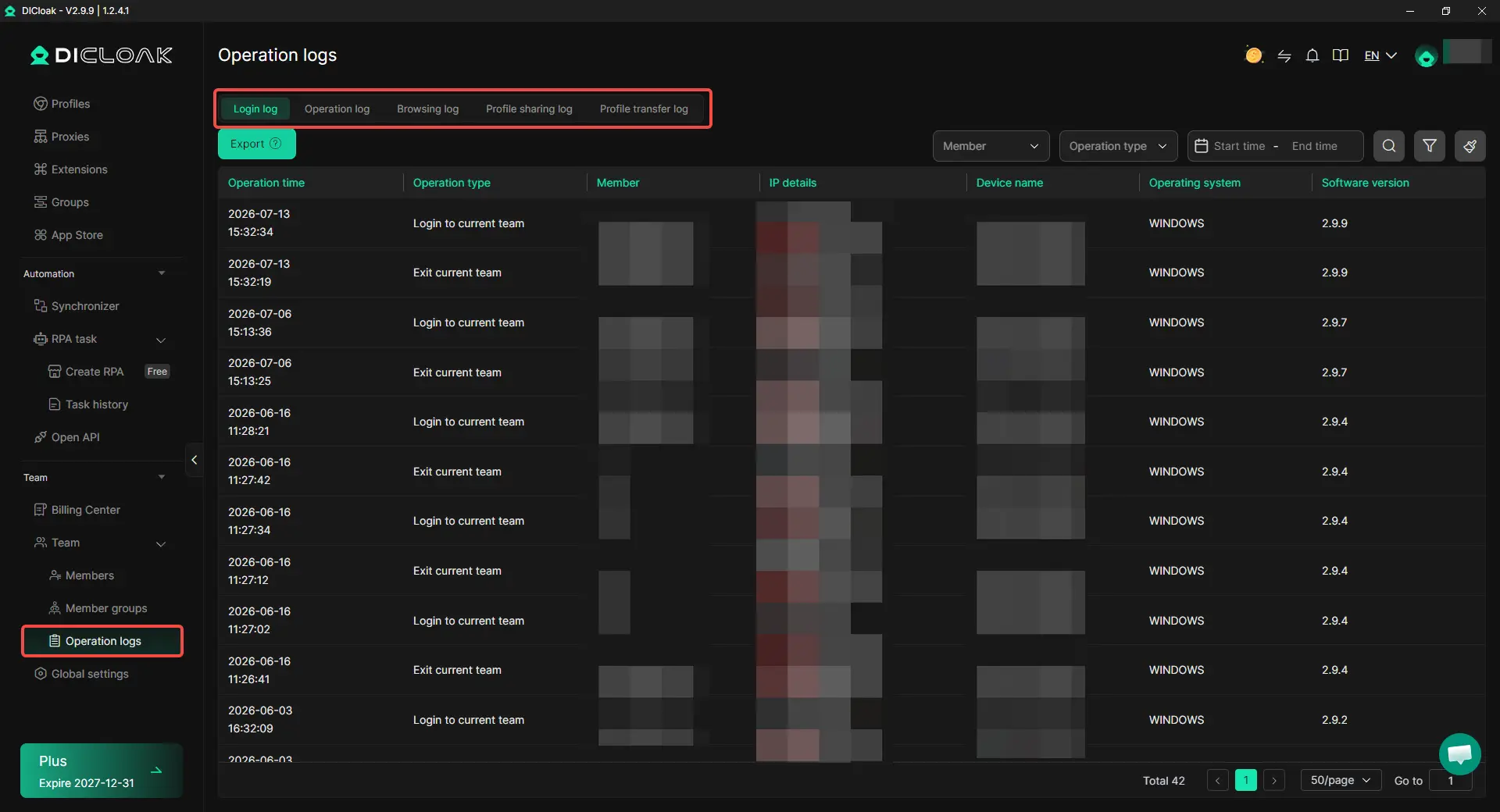
6. Review Activity and Reassign Access
When an employee changes roles or leaves the team, remove or reassign their Profile access. Use operation logs to review recent Profile activity when an unexpected change or account issue occurs.
Common Mistakes When Managing Multiple WhatsApp Accounts
Most multi-account problems come from unclear ownership, mixed sessions, and careless team handoffs. A stable setup depends on keeping every account easy to identify, recover, and assign.
- Using a number you cannot recover: Avoid temporary SMS numbers that may expire or be reassigned. Keep the SIM or eSIM active, and record who controls OTP codes and the two-step verification PIN.
- Using one browser Profile for several accounts: Logging different WhatsApp accounts into the same Profile can mix session data and make account handoffs harder. Keep one Profile for each independent account.
- Changing too many settings at once: If an account logs out, do not change the proxy, browser Profile, phone, and network together. First check the primary phone, SIM status, browser data, Linked Devices, and recent team changes.
- Giving every member access to every account: Broad access can lead to replies from the wrong brand, client data exposure, unclear responsibility, and former employees keeping access.
- Failing to assign a clear account owner: Each account should have one person responsible for the phone number, verification codes, daily operation, and recovery process.
Frequently Asked Questions About Managing Multiple WhatsApp Accounts
Can I use multiple WhatsApp accounts on one phone?
Yes. WhatsApp supports two accounts on one phone, but each account needs its own phone number. This works well for one person separating personal and work chats. Using two officially supported accounts on the same device does not automatically mean the accounts have violated WhatsApp rules.
Does every WhatsApp account need a separate phone number and proxy?
Every independent WhatsApp account needs its own registered phone number, but every account does not always need a separate proxy. A proxy is more relevant when remote teams or cross-border businesses need a recorded network setup for each account. When used, the proxy should match the account’s normal operating region and remain stable rather than changing without a clear reason.
Can I open several WhatsApp Web accounts on one computer?
Yes, but each account should use a separate browser Profile. Opening accounts in different tabs inside the same Profile does not create separate browser workspaces. With an antidetect browser like DICloak, each WhatsApp Web account can keep its own cookies, local storage, saved session, and proxy configuration.
Can several team members manage the same WhatsApp account?
Yes. WhatsApp Linked Devices allows one account to connect to up to four additional devices, which can work for a small support team. For teams managing several independent client accounts, Profile sharing and team permissions with DICloak can help assign each saved workspace to the correct operator without giving every member access to every account.
How can teams avoid opening or replying from the wrong WhatsApp account?
Give each WhatsApp account its own clearly named browser Profile, then label it by client, brand, region, or purpose. With DICloak, teams can share only the Profiles each member is responsible for and remove or reassign access when roles change. Clear Profile names, limited permissions, and regular access reviews reduce account mix-ups during daily work.
Conclusion
Managing multiple WhatsApp accounts without getting them linked starts with choosing the right setup for your account volume and team workflow. WhatsApp’s native feature is enough for two accounts used by one person, while agencies, VAs, sales teams, and cross-border businesses need separate browser Profiles, stable network settings, clear account ownership, and controlled team access. With DICloak, each WhatsApp Web account can stay in its own Profile and be shared only with the responsible operator.
 Web Proxy Tools
 Free Tools
 Cookie Plugin
 UA Generator
 MAC Address Generator
 IP Generator
 IP Address List
 2FA Code Generator
 World Clock
 Anonymous Check
 WebRTC Leak Test
 UUID Generator
 Free Web Proxy Site
 Proxy Checker
 FB Ad Checker
 AI Web Scraping
 Free SMM Tools
 Twitter Shadowban Checker
 Instagram Name Checker
 UTM Generator
 Username Generator
 AI Hashtag Generator
 LinkedIn Headline Generator
 Social Media Image Resizer