In today’s fast-paced world, staying connected is more important than ever. WhatsApp Web login allows you to bring your WhatsApp chats to your computer, making it easier to manage messages, share files, and stay in touch with friends, family, or colleagues—all from a larger screen. Whether you're at work, at home, or on the go, accessing WhatsApp on your computer adds convenience and efficiency to your daily communication.
But, as with any tool, using WhatsApp Web can come with a few challenges—technical glitches, security concerns, or even confusion over how to set it up properly. In this guide, we’ll walk you through the WhatsApp Web login process, troubleshooting tips, and key security practices to ensure you have a smooth and safe experience. Ready to make the most of WhatsApp Web? Let's dive in!
What is WhatsApp Web?
WhatsApp Web is a version of WhatsApp that runs inside a web browser on your computer.
With WhatsApp Web login you link your phone’s WhatsApp to your computer. This link lets you send and receive the same messages on your desktop.
You don’t need to install any extra software. Just open a browser (like Chrome, Firefox, Safari, or Edge) and go to web.whatsapp.com.
Once your phone and computer are linked, all your chats, photos, and files show up on your computer. For example: if you get a long message, typing back on a full keyboard is fast. If you need to send a work document, you can drag it from your computer and send it directly. (clariti.app)
Many people like WhatsApp Web when they work on a laptop or desktop. It helps them stay focused. You don’t need to hold your phone all the time. It’s also useful when the phone sits in another room, or when you type long messages.
In short, WhatsApp Web gives you the power of WhatsApp on a bigger screen. It mirrors your phone’s account in a browser. For many users, WhatsApp on web login is a simple, handy, and smart way to stay in touch while using a computer.
The WhatsApp Web Login Process
Here is how you can use WhatsApp Web login — step by step. It shows what to do on computer and phone.
Step‑by‑Step Guide to WhatsApp Web Login
Opening WhatsApp Web on Your Browser
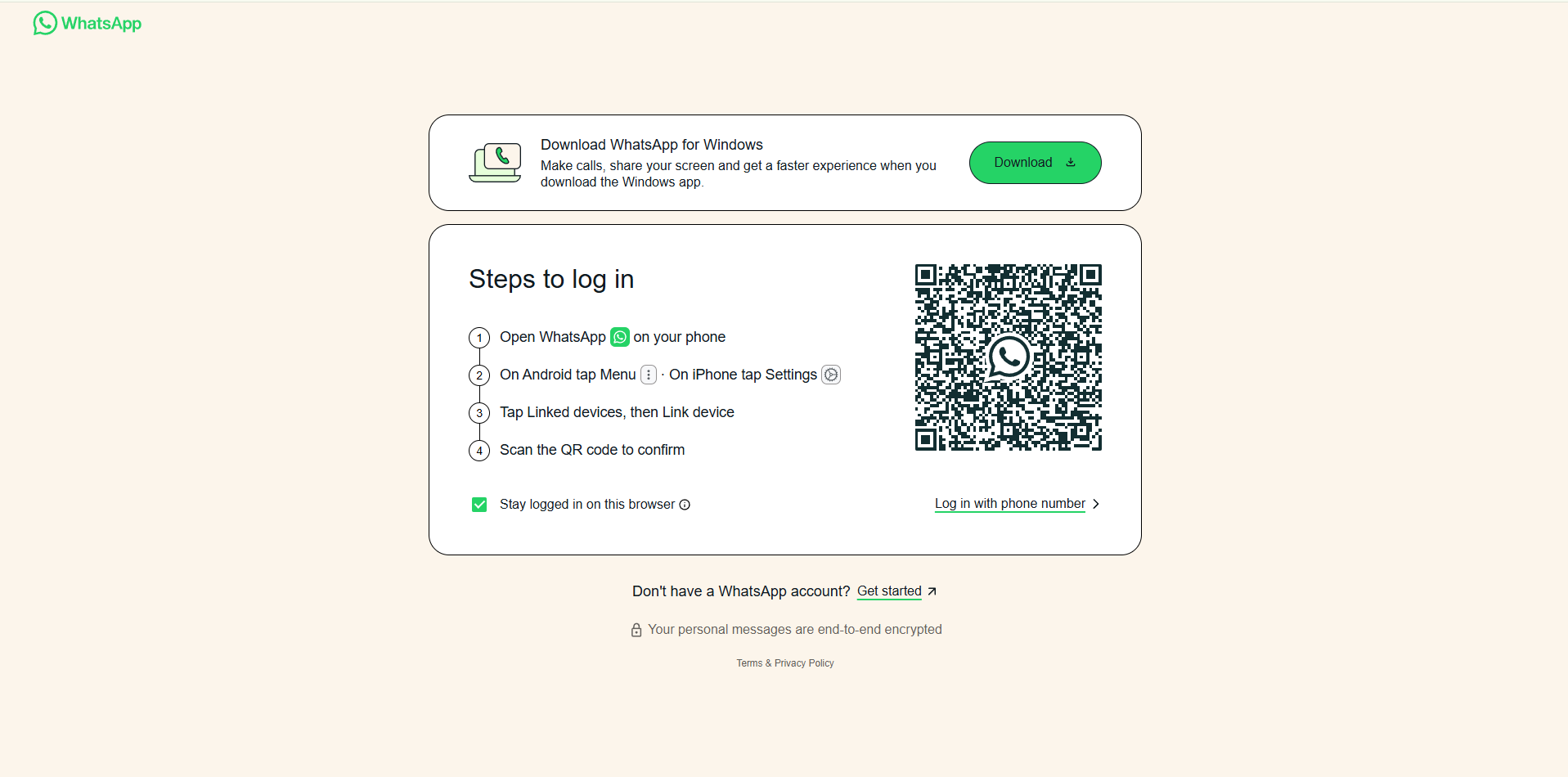
First, open a web browser on your computer. It can be Chrome, Firefox, Safari, or Edge. Then go to web.whatsapp.com.
You will see a page with a big QR code. This code is the key to link your phone’s WhatsApp account to your computer.
Scanning the QR Code
Next, take your phone and open the regular WhatsApp app. If you use Android, tap the menu (three dots); on iPhone tap Settings. Then choose Linked Devices (or Link a Device).
Your phone’s camera will open. Point it at the QR code on the computer screen. When the QR code is read, your account links to WhatsApp Web. All your chats and media load on the computer.
Accessing Your Account on Different Devices
Once you finish scanning, you can see all your chats, photos, files — the same as on your phone. You can type with a full keyboard. You can send work documents or large files directly from your computer. This is useful if you send many messages or long text. For example, someone working on a project at home may find it faster to reply on PC. Using WhatsApp Web login makes this easy and fast.
You can use a laptop, desktop, or even a tablet (in desktop‑browser mode). As long as browser and phone are connected, you are set.
Alternative Methods for Accessing WhatsApp Web
Some users search for a way to use WhatsApp on web login without scanning a QR code. Recently, there is a new official feature: “Link with Phone Number”. This lets you sign in by entering your phone number instead of scanning a code.
If this option appears for you, you simply open your browser at web.whatsapp.com, pick “Link with Phone Number,” enter your number, then check the code in your phone’s WhatsApp. After that you are logged in.
But note, this method is not yet fully available for everyone. Some people may still need the QR code. And some third‑party “workarounds” advertise QR‑free login. These are often not safe. For best security and account safety, always use official login methods.
This section walks you through exactly how to do WhatsApp Web login, both with the traditional QR code and the newer phone‑number method (where available). Next, I can write the part about keeping logged in, security tips, and troubleshooting — to help readers avoid common problems.
Troubleshooting Common WhatsApp Web Login Issues
Even though WhatsApp Web login is usually easy, sometimes users run into problems. Below are some common issues and how you can fix them.
Common Problems Users Face
QR Code Scanning Issues
Sometimes when you try to scan the QR code, your phone’s camera does not read it. The code may look fine on the screen, but scanning does not work. Some users report that their phone “sees” the code but then nothing happens.
Other times, the QR code may not show up at all, or appear broken. That can happen if the browser fails to load the web page properly, or if some browser extension (for dark mode or ad‑blocking) changes how the QR code looks.
Connection Problems
If your phone or computer has a weak or unstable internet connection, the login might fail. For example, after scanning, you may see an error telling you to check your network.
Sometimes even after successfully logging in, the chat does not sync. Messages don’t load, or new messages don’t appear. This may happen if one of the devices loses connection.
Device Synchronization Errors
Because web and phone must stay connected, sometimes sessions break. For instance, if the mobile app is closed, or the phone goes offline, the web version may stop working.
Some users also report that even after scanning the QR code, web login never completes — the page reloads or shows an error. This may happen if browser cache or cookies are corrupted, or if some browser settings block necessary site functions (like background sync or JavaScript).
Solutions and Tips for Troubleshooting
Checking Internet Connection
Always check that both your phone and computer have good internet. If possible, connect both to a strong Wi‑Fi instead of weak mobile data. Try opening another website to confirm the connection works. This simple check often solves login or syncing problems.
If one device is on Wi‑Fi and the other uses mobile data, switching both to the same stable Wi‑Fi often helps. Many experts recommend restarting the router or switching networks if loading or sync fails.
Restarting Devices and Clearing Browser Cache
If QR code scanning fails or login fails after scanning, try this: close the browser, clear its cache and cookies, then reopen it. Sometimes a broken cache blocks the QR code or prevents proper site loading.
Also restart your phone and computer. Reopen the browser, go to web.whatsapp.com, and scan again using the built‑in scanner in the official app. This simple restart often fixes hidden glitches.
If the problem persists, try a different browser. For example, some users found that a QR code would not scan in one browser but worked in Chrome or Edge.
These troubleshooting steps help solve many common issues when using WhatsApp Web login or WhatsApp on web login.
Security and Privacy Considerations When Using WhatsApp Web Login
Using WhatsApp Web is very handy. But we must also care about safety. Here are how you can keep your chats safe — and what risks to watch out for — when you do WhatsApp Web login or WhatsApp on web login.
Best Practices for Safe WhatsApp Web Login
Managing Active Sessions
When you use WhatsApp Web, your phone links to your browser. That link stays active until you log out. It is a good habit to check active sessions often. On your phone open WhatsApp → go to Linked Devices. There you see all computers or browsers logged in.
For example, if you logged in at work, and next day you use another computer, you might forget to log out. Later, someone else may open that browser and read your messages. To avoid this risk, remove sessions you don’t use. This simple step helps keep your account private.
Logging Out Remotely
If you used WhatsApp Web on a public or shared computer, you might forget to log out before leaving. Luckily, you can log out remotely from your phone. In WhatsApp go to Settings → Linked Devices → pick the session → tap “Log Out.”
Imagine this: you used a library computer to reply to a friend. After leaving, you realize you forgot to log out. With remote logout you end the session from home immediately. That keeps your chats safe from strangers.
Understanding Security Risks
Protecting Personal Data
When someone gets access to your active WhatsApp Web session, they can read all your chats, see your photos, files — everything. That is a real risk if you use shared devices. Many security guides advise against using WhatsApp Web on public computers, or at least log out and clear browser data afterward.
Also, if you link your devices and forget them, or if your computer is lost or stolen — your data becomes exposed. That’s why checking the “Linked Devices” list often is important.
Recognizing Phishing Attempts
Because WhatsApp is so popular, attackers sometimes try phishing tricks. They may send fake messages claiming there is a problem with your account, or invite you to click links. If you click, they might steal your data or login details. Security experts recommend never entering your phone number or verification code on websites outside official domain, and never install unknown browser extensions while using WhatsApp Web.
For example, if you get a message pretending to be from WhatsApp support, asking you to “re‑login via browser” — that may be fake. Always check the domain: real login must be at web.whatsapp.com. And avoid third‑party tools that claim to give “free WhatsApp Web login” or skip the phone check — these are risky. Security analysts warn these can lead to account hacks.
Using WhatsApp Web login is great for convenience. But like any online tool, it needs care. Manage your sessions, log out when done, and stay alert for odd messages or login prompts.
Comparing WhatsApp Web Login and Desktop Login
While both WhatsApp Web and WhatsApp Desktop are great for accessing WhatsApp on a computer, they come with several differences and limitations:
1. Single Account Limitation
WhatsApp Web allows you to log in to only one account per browser. This means if you need to access multiple accounts, you would have to switch between different browsers or use incognito mode. This can be inconvenient for users who manage more than one account.
WhatsApp Desktop, however, behaves similarly, but you need to download and install the app. Each desktop app also supports only one account per installation, making it necessary to install separate apps for each account.
2. Device Synchronization
With WhatsApp Web login, your phone must stay connected to the internet for the web version to work. If your phone loses connection or is turned off, you won’t be able to send or receive messages on the web.
WhatsApp Desktop, on the other hand, provides more stability. Once your phone is synced, the desktop app can continue working even if your phone is offline for a short time. This makes the desktop version more reliable for long-term usage.
3. Multi-User Collaboration
Neither WhatsApp Web nor WhatsApp Desktop provides a built-in way for teams to collaborate directly within the app. If you're working on a team project, there's no feature to assign chats to different users or share tasks.
While both platforms allow you to communicate with others, they lack the functionality for organized collaboration that’s commonly found in other business tools.
4. Limited Features
Both WhatsApp Web login and WhatsApp Desktop offer basic messaging features such as sending text, images, and files. However, neither of them offers advanced business tools like lead management, customer follow-up, or automated responses. These features are essential for businesses and sales teams.
The WhatsApp Desktop app may offer a more stable experience for regular users, but it still doesn’t include features specifically designed for business communication, which limits its use in professional environments.
Why choose DICloak Antidetect Browsers for your business?
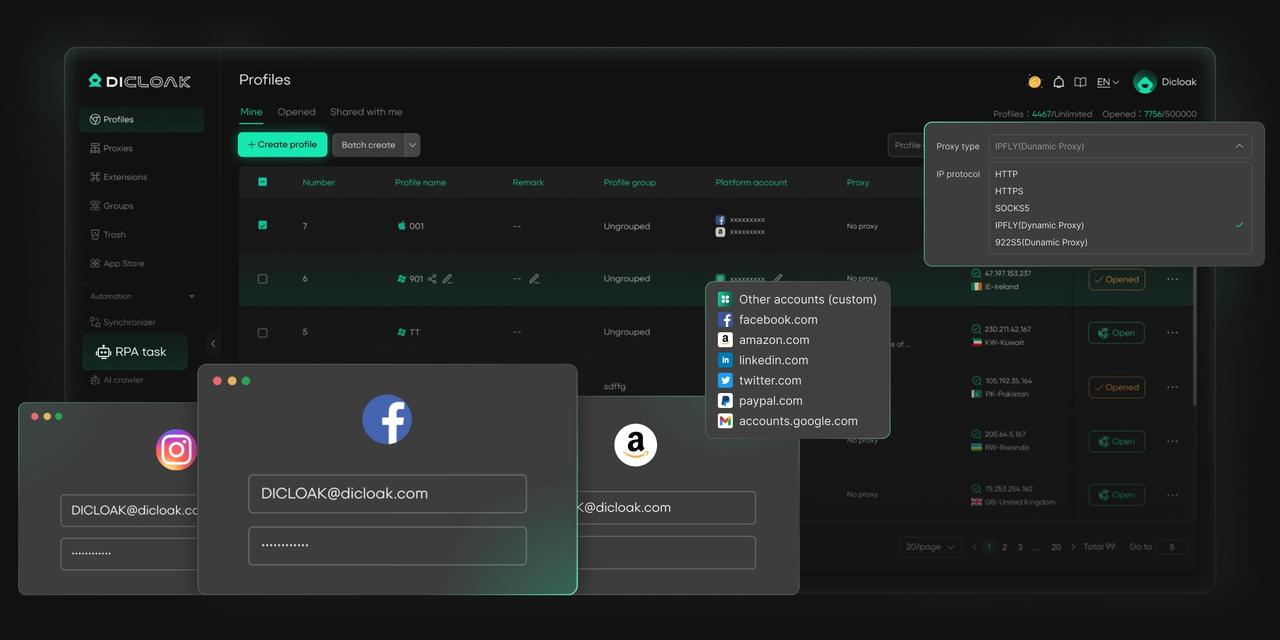
⚡The DICloak Antidetect Browser has become a global favorite for its unparalleled ability to efficiently and securely manage multiple accounts. Designed for professionals in social media management, affiliate marketing, traffic arbitrage, e-commerce, account farming, airdrops, and more, DICloak offers powerful features like RPA automation, bulk operations, and a window synchronizer. Additionally, it allows you to customize fingerprints and integrate proxies for each profile, ensuring top-level security and operational efficiency. It’s the ultimate tool for seamless, secure, and scalable operations.
What Makes DICloak Stand Out?
✅ Manage 1,000+ Accounts on One Device:
Stop wasting money on extra hardware! DICloak allows you to manage multiple accounts on a single device, cutting costs and boosting efficiency.
✅ Guaranteed Account Safety, No Ban Risks:
Every account gets its own isolated browser profile with custom fingerprints and IPs, drastically reducing the risk of bans. Your accounts, your control!
✅ Flexible Proxy Configuration for Maximum Performance:
Seamlessly integrate with all major proxy protocols (HTTP/HTTPS, SOCKS5) and manage your proxy pool with bulk operations. No more struggling with IP management—DICloak has you covered.
✅ Streamlined Team Collaboration for Better Results:
Easily manage your team with advanced tools like profile sharing, permission settings, data isolation, and operation logs. Your team works smarter, not harder.
✅ Automate the Grind with RPA:
DICloak's built-in RPA saves you hours of manual work. Automate repetitive tasks, streamline workflows, and focus on what really matters—growing your business.
✅ Powerful Bulk Tools to Scale Your Operations:
Create, import, and launch multiple browser profiles in one click. DICloak makes scaling your business as easy as it gets.
✅ Compatible with All Major Operating Systems:
Based on the Chrome core, DICloak supports simulating Windows, Mac, iOS, Android, and Linux operating systems. No matter what platform you need, DICloak has you covered.
🔗 Ready to Get Started?
Visit the DICloak website to explore more details and choose the plan that’s right for you. Start for free today and experience the power of secure, efficient, and scalable multi-account management!
Conclusion
WhatsApp Web allows you to access your WhatsApp account on a computer using a QR code, but it requires your phone to stay online. WhatsApp Desktop offers better stability and offline use once synced.
Both options support only one account at a time and lack advanced features for businesses. WhatsApp Web is ideal for occasional use, while WhatsApp Desktop is better for frequent use.
Always log out of WhatsApp Web on public computers to protect your privacy. If issues occur, check your internet connection, clear your browser cache, or restart your devices.
FAQ
What is WhatsApp Web login?
WhatsApp Web login allows you to access your WhatsApp account on a computer by linking it to your phone through a QR code. It provides a convenient way to chat, send files, and use WhatsApp on a larger screen without needing to install extra software.
How do I fix issues with WhatsApp Web login?
Common issues include problems with scanning the QR code, slow internet connection, or device synchronization errors. To resolve these, check your internet connection, clear your browser cache, or restart your phone and computer.
Can I use WhatsApp Web login without my phone being connected?
No, your phone must stay connected to the internet for WhatsApp Web login to work. If your phone loses connection, your web session will stop syncing, and you won’t be able to send or receive messages until the phone reconnects.
How do I ensure my privacy while using WhatsApp Web login?
Always log out of WhatsApp Web after using it on public or shared computers. You can also remotely log out from your phone if you forget to do so. Regularly check your active sessions to ensure no unauthorized devices are logged in.
What’s the difference between WhatsApp Web login and WhatsApp Desktop login?
Both allow access to WhatsApp on a computer, but WhatsApp Web login is browser-based, while WhatsApp Desktop requires installing an app. The desktop version offers more stability, better notifications, and offline support, while WhatsApp Web login is more flexible but requires your phone to stay connected.
 Web Proxy Tools
 Free Tools
 Cookie Plugin
 UA Generator
 MAC Address Generator
 IP Generator
 IP Address List
 2FA Code Generator
 World Clock
 Anonymous Check
 WebRTC Leak Test
 UUID Generator
 Free Web Proxy Site
 Proxy Checker
 FB Ad Checker
 AI Web Scraping
 Free SMM Tools
 Twitter Shadowban Checker
 Instagram Name Checker
 UTM Generator
 Username Generator
 AI Hashtag Generator
 LinkedIn Headline Generator
 Social Media Image Resizer