ChatGPT is no longer just a personal productivity tool. OpenAI reported 900 million weekly users in April 2026, while more than 5 million people now use its business products across different industries. As more teams depend on ChatGPT for writing, research, customer support, and client work, shared access has become a real workflow problem.
A small agency may have a few daily users and several employees who only need occasional access. Paying for every person can be costly, but sending one password to the whole team can expose chats, files, settings, and account control. To share ChatGPT accounts securely with your team, you need to choose between Shared Links, Projects, ChatGPT Business, remote access, and a controlled browser Profile with DICloak. This guide compares these methods and explains when each one makes sense.
Why Do Teams Want to Share ChatGPT Accounts?
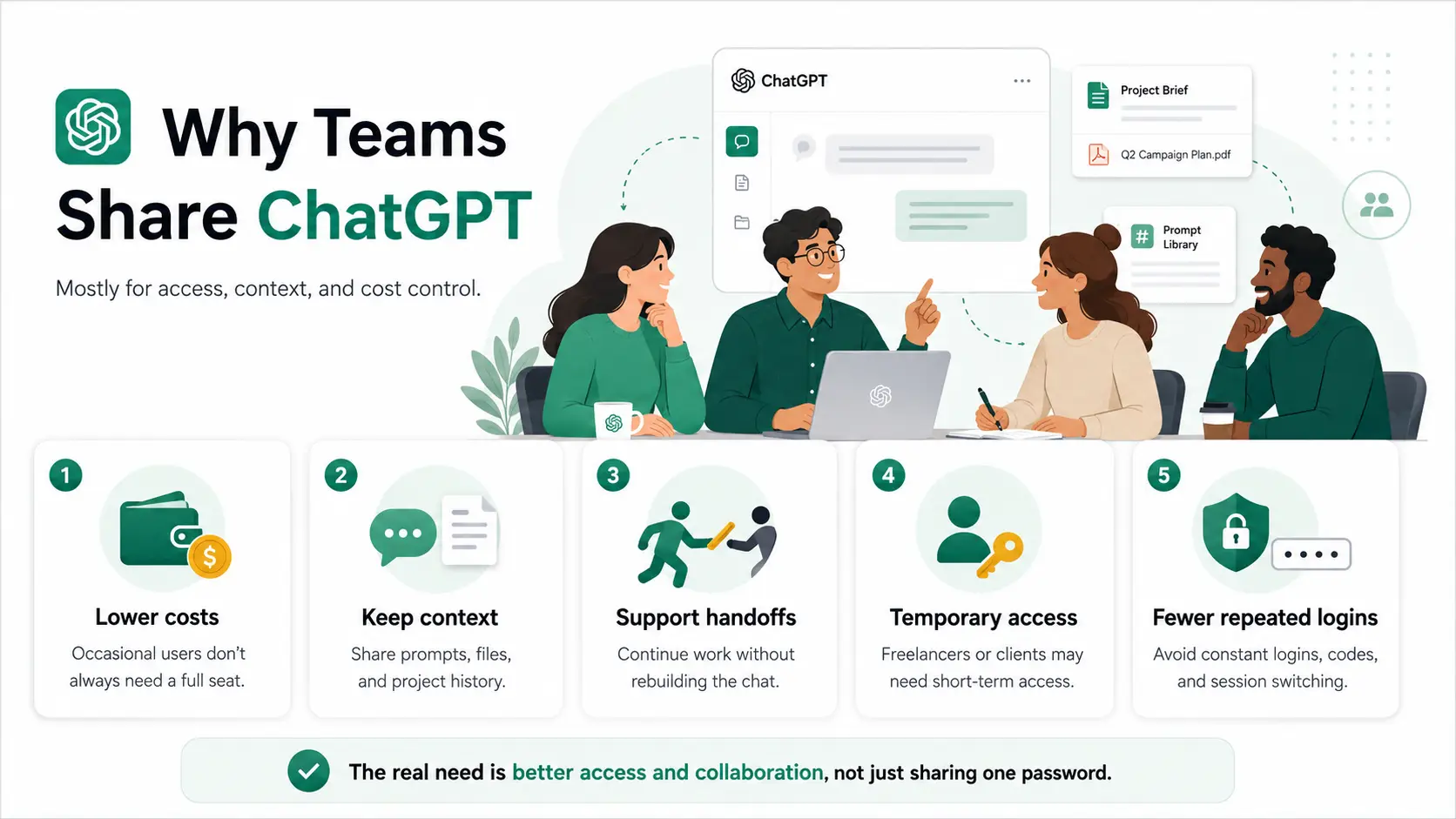
Teams usually want to share ChatGPT for practical reasons, not simply to pass one password around. The main goals are to reduce costs, keep project context available, and give the right people access when needed.
- Lower costs for occasional users: A team may have only a few daily users, while designers, managers, assistants, or contractors use ChatGPT only a few times each week. Paying for a full seat for every low-frequency user may not feel cost-effective.
- Keep chats and project context together: Teams often need access to the same files, prompts, client details, brand rules, and previous feedback. Sending only the final answer can remove the context needed to continue the work.
- Support handoffs between team members: Writers, editors, support agents, and project managers may need to continue a task started by someone else instead of rebuilding the full conversation.
- Give temporary access: Freelancers, virtual assistants, and clients may need access for one project or a short period, but they may not need a permanent team seat.
- Reduce repeated login work: Teams may want to avoid sending passwords, requesting verification codes, or logging in and out whenever another person needs access.
Most teams are therefore trying to solve an access and collaboration problem, not only a pricing problem. The next question is whether sharing one ChatGPT account is allowed and what risks it may create.
What Is ChatGPT’s Account-Sharing Policy, and How Much Does It Cost?
OpenAI treats personal ChatGPT accounts as single-user accounts. You may use your account on several devices, but you should not share the login with employees, friends, or contractors. Plus and Pro are individual plans, while Business and Enterprise are designed for team access.
How Much Does ChatGPT Cost for a Team?
At the time of writing in July 2026, the main paid options relevant to teams are:
| Plan |
Current price |
Designed for |
Main consideration |
| ChatGPT Plus |
$20 per month |
One individual user |
Not a shared team seat |
| ChatGPT Pro |
$100 per month |
One high-usage individual |
Higher usage does not make it a multi-user plan |
| ChatGPT Business |
$25 per user monthly |
Teams with managed member access |
Requires at least two standard seats |
| ChatGPT Enterprise |
Custom pricing |
Larger organizations |
Requires contacting sales |
ChatGPT Plus costs $20 per month. Pro offers higher-usage plans, while Business charges per user and Enterprise uses custom pricing.
For mixed-use teams, the real issue is not only price. A few employees may use ChatGPT daily, while others only need occasional access. Teams should also consider chat privacy, ongoing access, and how easily a member can be removed.
What Are the Risks of Sharing One ChatGPT Login?
Sharing one login removes the access boundary between team members. The main risks include:
- Shared access to chats and files: Anyone using the account may see conversations, uploaded documents, saved preferences, and account settings.
- Mixed or deleted work: Team members may change instructions, delete chats, or mix information from different clients and projects.
- No individual access control: You cannot limit what each person can view or remove one contractor without changing access for everyone.
- Possible account restrictions: Sharing credentials goes against OpenAI’s account-sharing policy and may lead to verification requests, access interruptions, or account restrictions.
What Are the Main Ways to Share ChatGPT With a Team?
Teams can share ChatGPT through official workspaces, shared chats or projects, direct login access, remote access, or a shared browser Profile. For long-term collaboration, official member access is the clearest choice. Other methods should be judged by password exposure, access control, cost, and how easily access can be removed.
| Method |
Best for |
Main advantage |
Main limitation |
| ChatGPT Business |
Long-term internal teams |
Separate member accounts and admin controls |
Charges per user |
| Shared Links or Projects |
Sharing results and project context |
No shared login required |
Access and collaboration limits vary |
| Direct password sharing |
Informal access |
Easy to start |
Poor privacy and access control |
| Remote Desktop |
Accessing ChatGPT on one company device |
Login stays on one computer |
Gives broad device access and can be slow |
| Shared browser Profile |
Controlled access to an authorized session |
Reduces direct password sharing |
Does not change OpenAI’s account policy |
1. Use ChatGPT Business for Regular Team Access
ChatGPT Business is designed for teams that need separate member accounts under one managed workspace. Each person keeps their own chat history, while selected chats, projects, and other resources can be shared when needed.
This is usually the best fit when several employees use ChatGPT every week and the company needs centralized billing, member removal, and clearer ownership. The main drawback is cost, especially when many team members only need occasional access.
2. Share Chats or Projects Instead of the Full Account
A Shared Link works well when a teammate only needs to view one completed conversation. It gives access to that conversation without exposing the rest of the account.
For ongoing work, a Shared Project is more useful. Members can work with the same chats, files, and project instructions without using one shared login. This often works well for content planning, research, reporting, and client projects where shared context matters more than account access.
3. Share the ChatGPT Password Directly
Sending the login through email, Slack, or Telegram is the simplest method, but it offers the least control. Everyone may gain access to the same chats, files, settings, and account recovery options.
OpenAI treats personal accounts as single-user accounts, so direct password sharing is a poor choice for teams handling company or client information.
Third-party group-buy accounts create an even larger problem. Unknown users may share the same history and usage limits, so they should not be used for business work.
4. Access One Device Through Remote Desktop
Remote Desktop keeps the ChatGPT session on one company computer. Team members connect to that device instead of logging in from their own browsers.
This avoids sending the ChatGPT password to every person, but it creates a different risk. Members may gain access to other files, applications, or browser tabs on the same computer. Performance can also become slow when several people depend on one device.
Remote Desktop may work for rare support tasks, but it is usually too broad and inconvenient for daily team collaboration.
5. Share a Dedicated Browser Profile With DICloak
Some teams need controlled access to an authorized ChatGPT session without giving every member the password or access to an entire remote computer.
Using DICloak, an admin can create a separate browser Profile for a specific ChatGPT workspace, client, or department. The Profile keeps its own Cookies and session data. It can then be shared with assigned team members through Profile sharing and team permissions.
This setup is useful when an agency manages several authorized client workspaces or when a temporary contractor only needs one assigned browser workspace. Access to the Profile can be removed when the project ends.
How to Share ChatGPT Accounts With Your Team Using DICloak
Using DICloak, you can create a dedicated browser Profile, keep the ChatGPT login session inside it, and share that Profile with selected team members. This reduces direct password sharing and keeps access easier to manage.
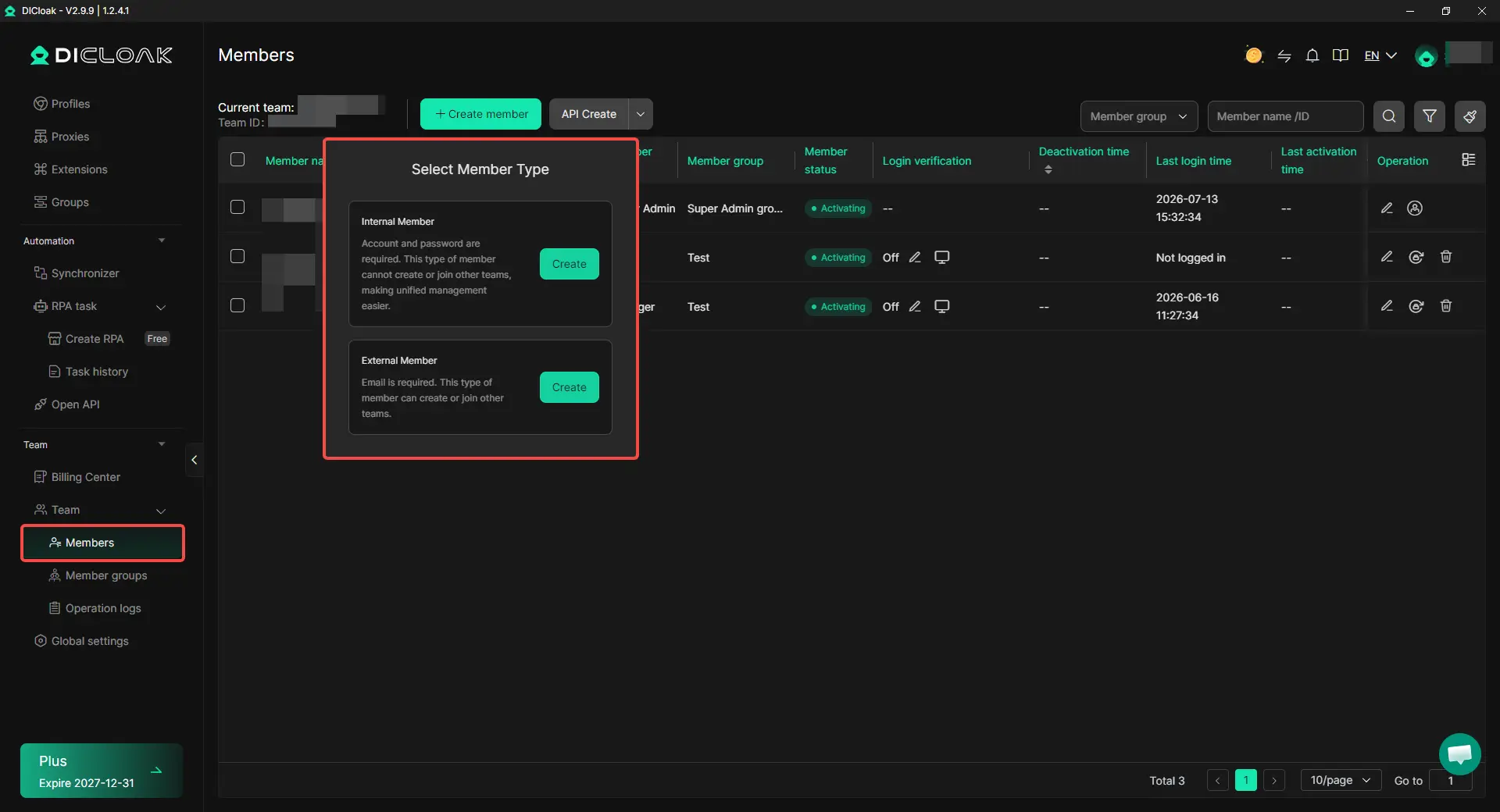
1. Install DICloak and Add Team Members
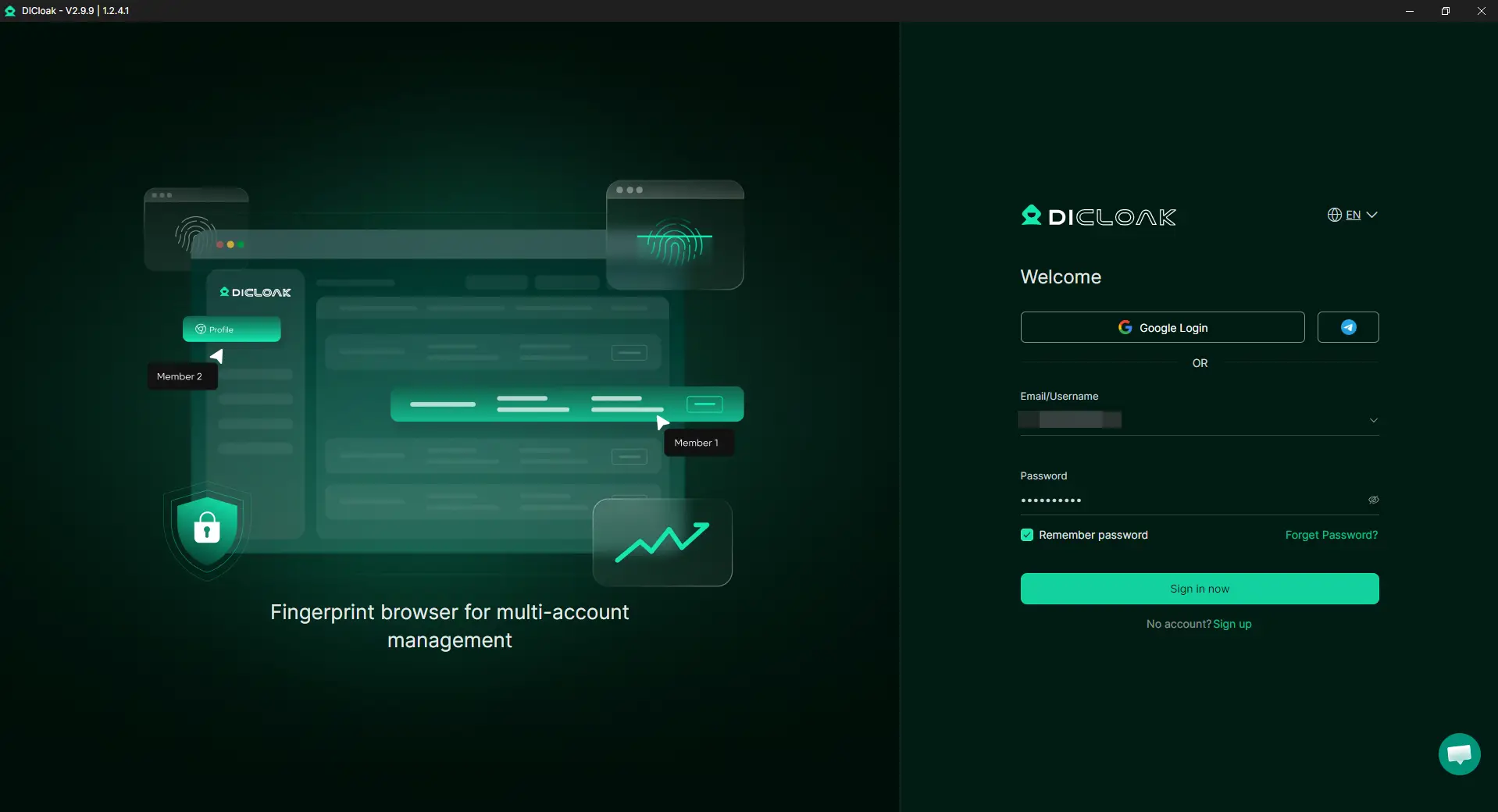
Install the DICloak application and create a DICloak account. Each person should use their own member account instead of sharing the main admin login.
2. Choose the Right DICloak Plan
Choose a plan based on your team size and access needs. The Base Plan suits smaller teams, while Share+ is better for larger teams that need unlimited members.
3. Create a ChatGPT Browser Profile
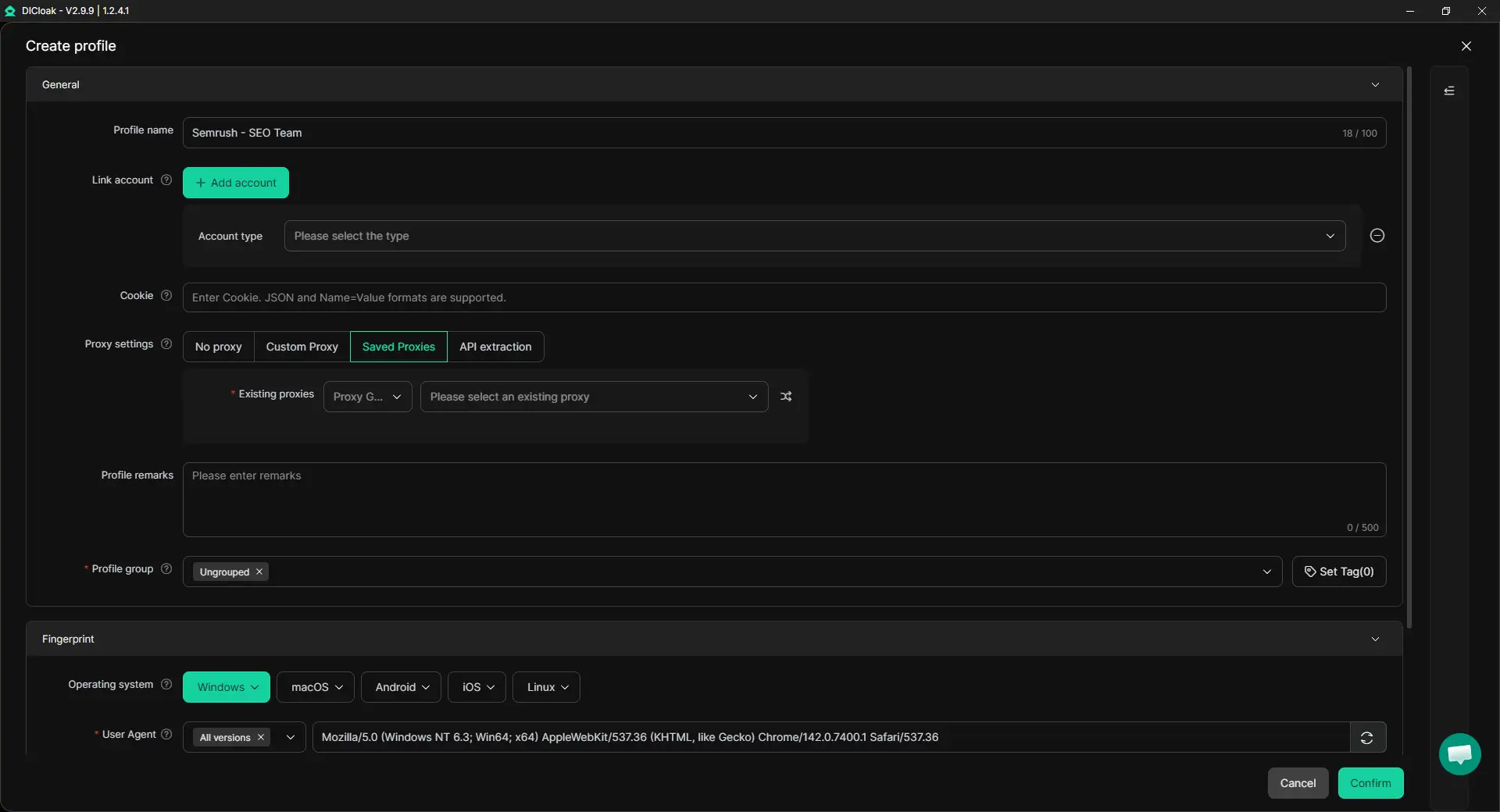
Create a new Profile and give it a clear name, such as:
- ChatGPT – Marketing
- ChatGPT – Client A
- ChatGPT – Research
The Profile keeps its own Cookies, local storage, and login sessions separate from other workspaces.
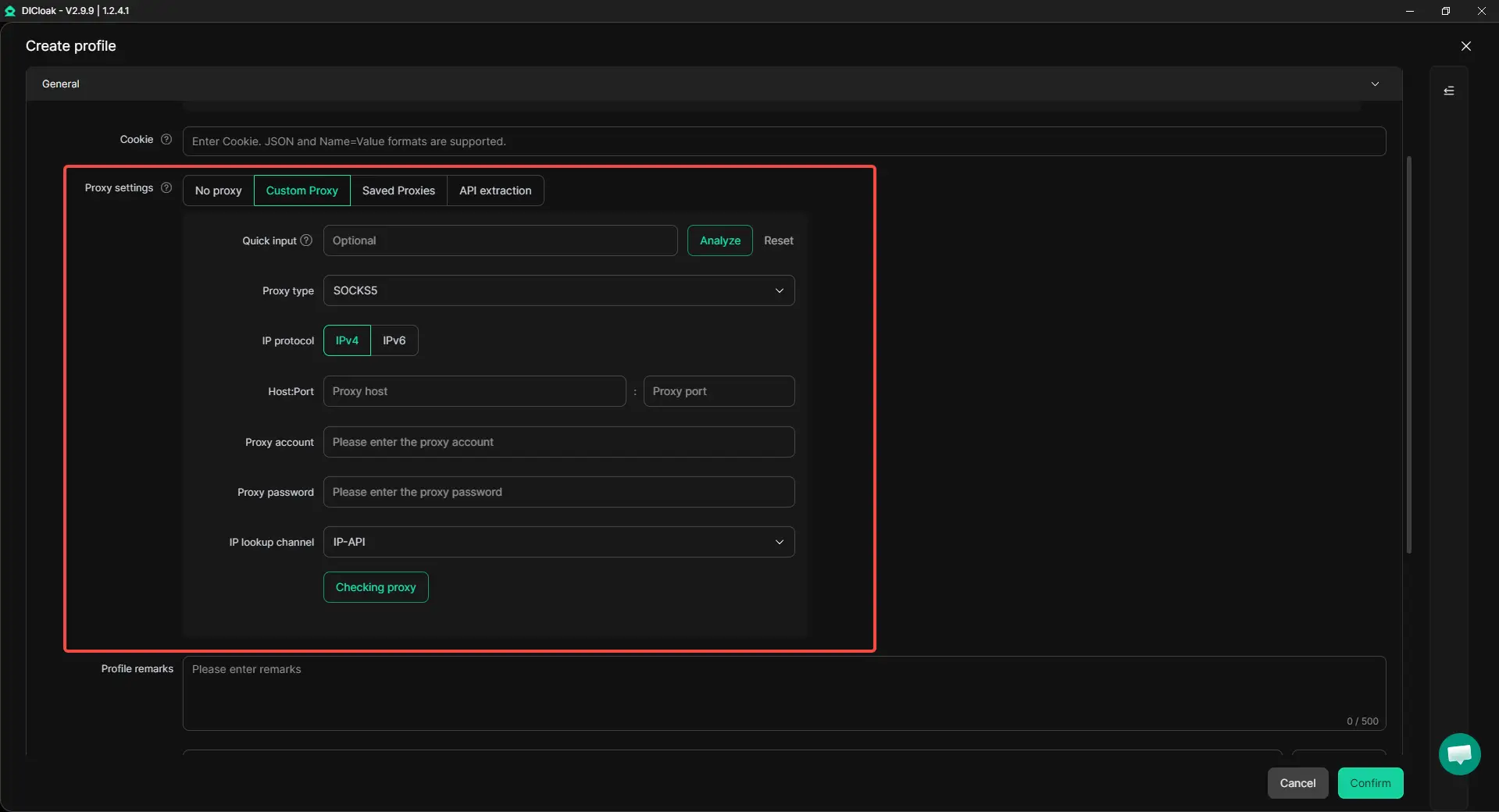
3. Configure Your Own Proxy
With DICloak, users can add and manage their own proxy inside each Profile. Enter the proxy host, port, username, and password, then test the connection before opening the Profile. Use a stable proxy that matches the account’s normal operating region. Avoid changing the proxy location often, since frequent network changes can make login access less consistent.
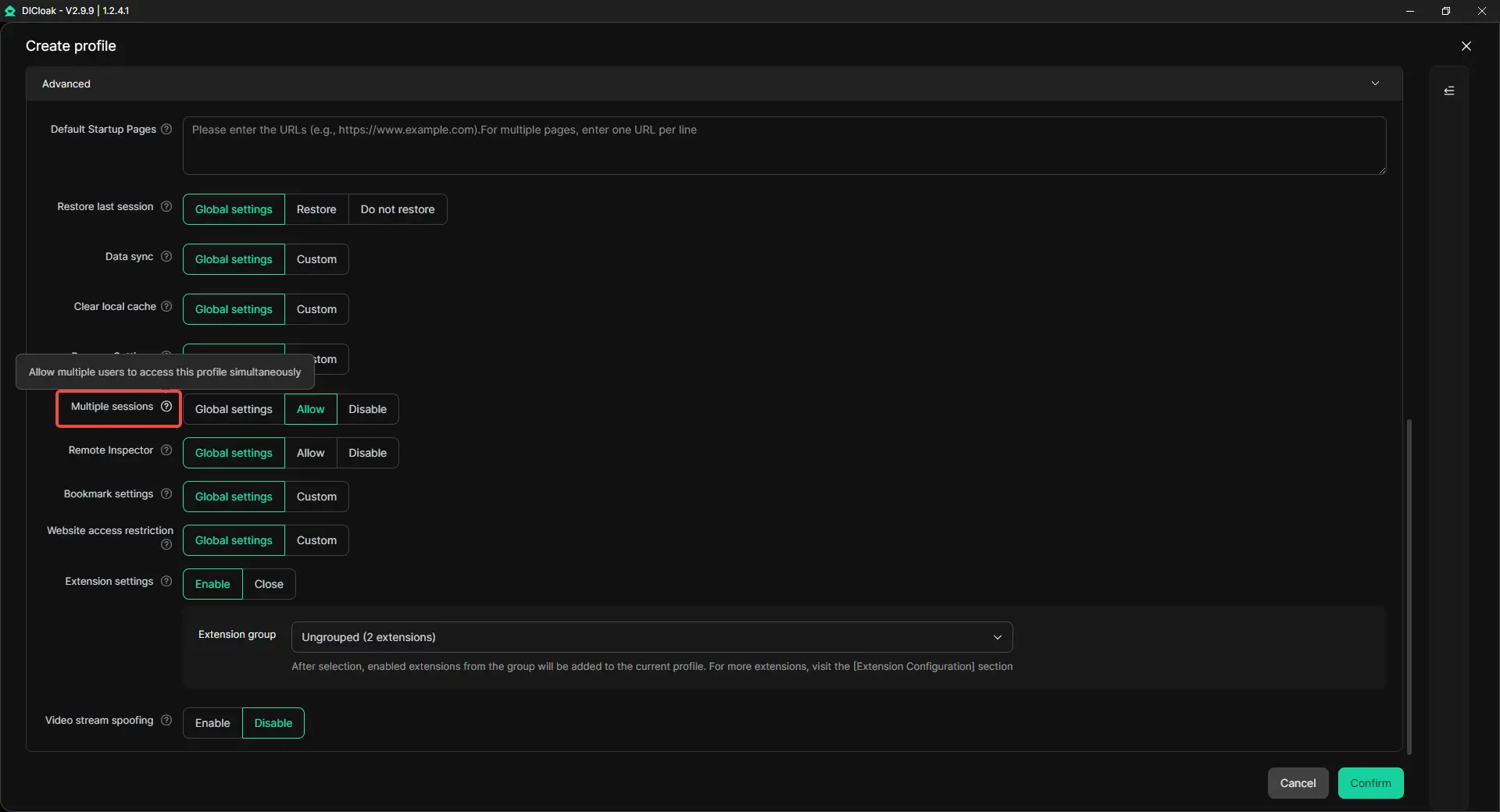
4. Enable Multiple Sessions if Needed
Turn on Multiple sessions when more than one authorized member needs to open the Profile at the same time. Use this only when concurrent access is necessary. Team members should avoid editing the same chat or project at the same time.
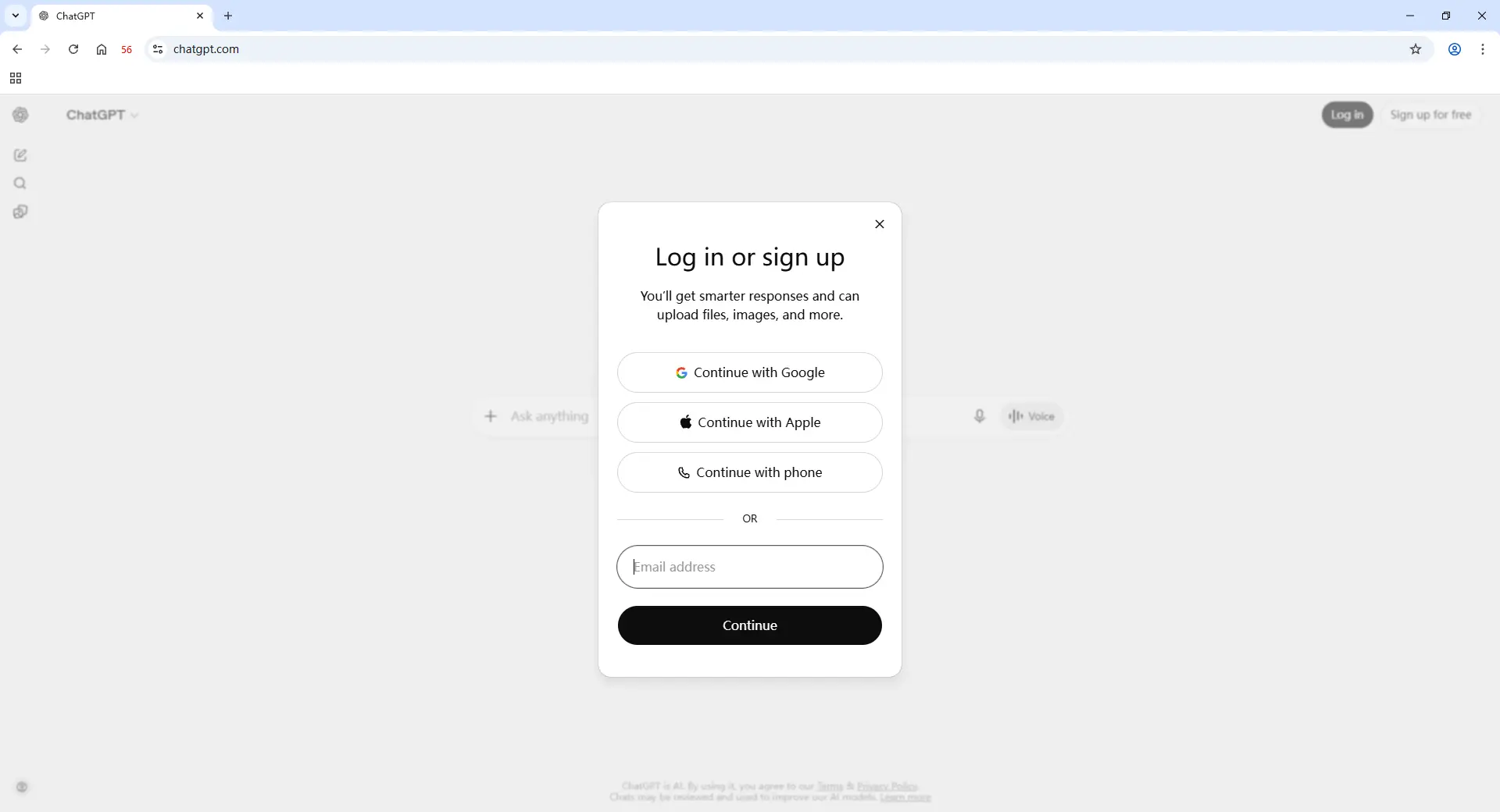
5. Log In to ChatGPT
Open the Profile, visit the official ChatGPT website, and sign in. The session stays saved inside the Profile, so assigned members do not need to receive the password directly.
6. Share the Profile and Control Access
Share the Profile with selected members or groups through team permissions. A contractor working on one client should only receive access to that client’s Profile. Test the shared Profile before starting work. When the project ends, remove the member’s access and review any related ChatGPT Project permissions or Shared Links.
Advanced Controls for Shared ChatGPT Accounts
Shared access should not mean full access to every password, setting, or browser tool. Using DICloak, admins can add extra controls to reduce misuse inside a shared ChatGPT Profile.
- Hide the password: Members can open the saved session without viewing the actual login password.
- Protect Cookies and sessions: Admins can block developer tools and prevent members from installing unapproved browser extensions that may access session data.
- Block packet capture tools: Access can be restricted when software such as Wireshark or Fiddler is running, helping protect login and network data.
- Restrict website access: A URL whitelist can limit the Profile to approved websites, such as ChatGPT, so members cannot use the same Profile for unrelated browsing.
- Hide sensitive page elements: The Web Element Hider can conceal selected parts of the page, such as billing details, subscription information, or account settings.
These controls are most useful when contractors or external team members need task access but should not have full control of the account or browser Profile.
Frequently Asked Questions About Sharing ChatGPT Accounts Securely With Your Team
Can multiple people use the same ChatGPT Plus or Pro account?
ChatGPT Plus and Pro are personal plans intended for the individual who created the account. One user may access the account from several devices, but OpenAI does not allow login credentials to be shared with employees, friends, or contractors. Teams should use separate accounts, Shared Projects, or a managed Business workspace instead.
How can I share ChatGPT with my team without sharing the password?
Use a Shared Link when someone only needs to view one answer, or a Shared Project when several people need the same chats, files, and instructions. ChatGPT Business is better for regular employees who need their own managed access. For an authorized browser session, a shared Profile with DICloak can reduce direct password exposure.
Are ChatGPT Shared Links safe for confidential client work?
Shared Links are not suitable for sensitive client data because anyone with the link can view and forward the conversation. They do not offer granular permissions or an expiration date. Use them for non-sensitive results, and use an invite-only Shared Project or managed workspace when the content includes private files, customer data, or internal plans.
Can my team access the same ChatGPT session without seeing the password?
Yes. With DICloak, you can save an authorized ChatGPT session inside a separate browser Profile and share that Profile with selected team members. They can open the assigned session without receiving the actual password, while the admin keeps control over Profile access and can remove members when the work ends.
What is the safest way to give a freelancer temporary ChatGPT access?
Give the freelancer access only to the Project, output, or browser Profile required for the task. Avoid sharing the full personal login or unrelated client work. When the project ends, remove their Project, workspace, and Profile access, delete unused Shared Links, and transfer any important chats or files to a company-controlled owner. Project owners can change permissions or remove collaborators when access is no longer needed.
Conclusion
The best way to share ChatGPT accounts securely with your team is to match the access method to the real need. Use Shared Links for finished results, Shared Projects for ongoing context, and ChatGPT Business for managed team access. When teams need to share an authorized browser session, a dedicated Profile with DICloak can reduce password exposure and make member access easier to control. Secure sharing depends on limited permissions, separate workspaces, clear ownership, and fast access removal, not simply keeping everyone logged into one personal account.
 Web Proxy Tools
 Free Tools
 Cookie Plugin
 UA Generator
 MAC Address Generator
 IP Generator
 IP Address List
 2FA Code Generator
 World Clock
 Anonymous Check
 WebRTC Leak Test
 UUID Generator
 Free Web Proxy Site
 Proxy Checker
 FB Ad Checker
 AI Web Scraping
 Free SMM Tools
 Twitter Shadowban Checker
 Instagram Name Checker
 UTM Generator
 Username Generator
 AI Hashtag Generator
 LinkedIn Headline Generator
 Social Media Image Resizer