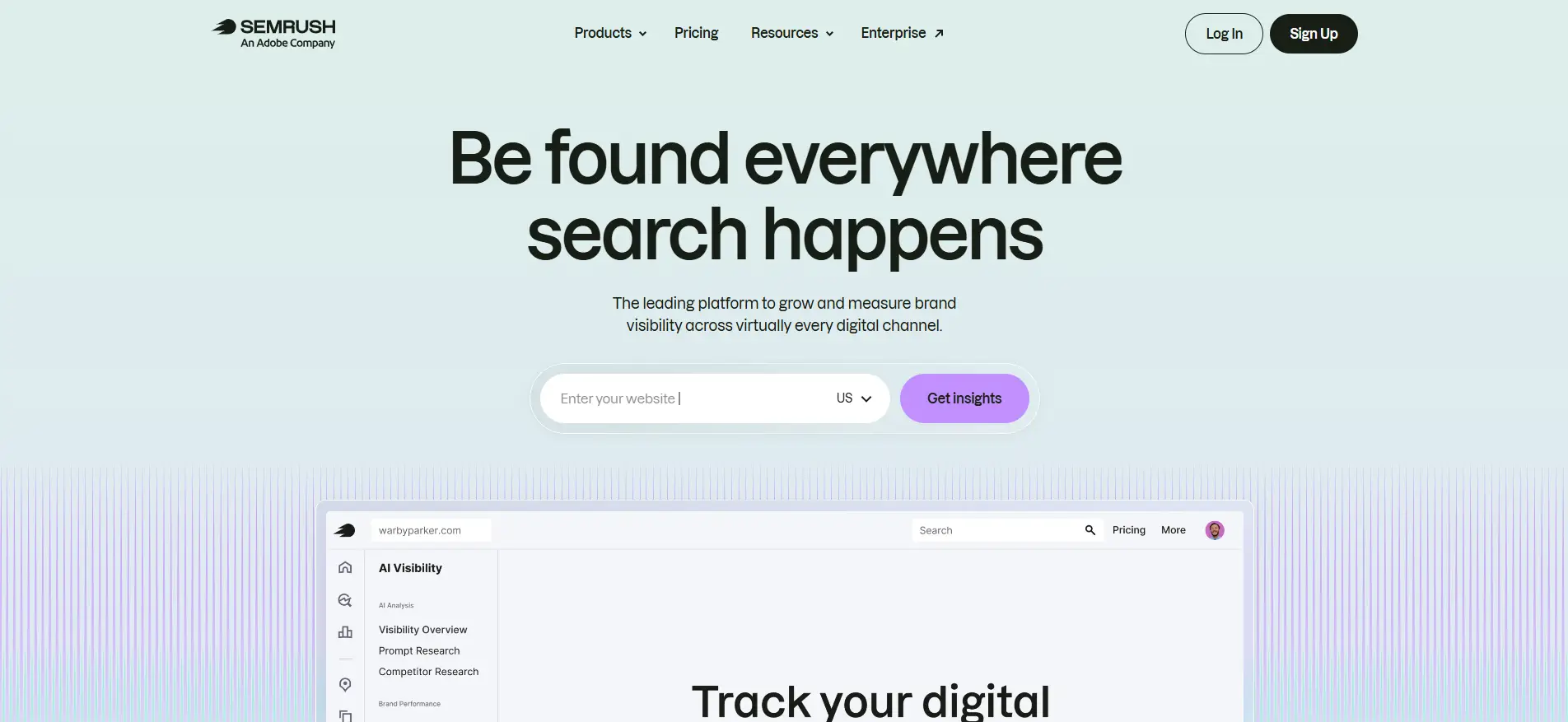
Semrush starts at $139 per month for its plan, while adding another user starts at $45 per month. For a five-person team, four extra seats can add at least $180 to the monthly bill, yet those users still work within the limits of the main subscription.
That cost pressure explains why many small agencies and remote teams look for the best way to share a Semrush account securely with their team. But simply sending one password to everyone creates a different problem, since Semrush requires each authorized user to use their own login credentials. This guide compares paid user seats, asset sharing, direct password sharing, and controlled browser profiles so you can choose a method that fits your budget without losing control of access, sessions, and team handoffs.
What Are the Semrush Subscription Plans and Sharing Limitations?
Semrush paid plans include one user seat by default. Adding teammates requires extra paid seats, and those users usually share the usage limits of the main subscription rather than receiving a separate pool of credits. Semrush also does not allow several people to share one authorized user account.
| Semrush plan |
Monthly billing |
Users included |
Extra user cost |
| SEO |
$139/month |
1 |
Starts at $45/month |
| Starter |
$199/month |
1 |
$45/month for SEO access |
| Pro+ |
$299/month |
1 |
$80/month for SEO access |
| Advanced |
$549/month |
1 |
$100/month for SEO access |
An added user receives separate login credentials but still works within the usage limits of the main subscription. Semrush requires each authorized user to be a unique person and does not permit two or more people to share one authorized user account. Repeated access from different locations, devices, or IP addresses beyond the subscription limits may lead to account restrictions. In practical terms, a higher plan provides more features and larger limits, but a team still needs paid users or Semrush’s built-in sharing options to collaborate.
What Are the Common Ways to Share a Semrush Account?
Teams can share Semrush through additional user seats, asset-level permissions, direct credential sharing, group-buy services, or a shared antidetect browser profile. These methods differ in cost, access control, account exposure, and how easy they are to manage when the team changes.
1. Add Semrush Users with Separate Logins
The account owner purchases an extra user seat and invites each member through their email address. Every member uses separate credentials but works under the main subscription.
Best for: Full-time SEO specialists and regular internal users.
Pros
- Each member has a separate login
- Supports simultaneous team access
- Easier to add or remove users
- Fits Semrush’s official user system
Cons
- The cost rises with every added user
- Members may still share the main subscription limits
- Some toolkits may require separate per-user licenses
- It may be expensive for occasional users
2. Share Specific Semrush Assets
Instead of opening the whole account, users can share selected reports, folders, keyword lists, Site Audit campaigns, and other supported assets with View or Edit permission.
Best for: Clients, writers, reviewers, and contractors with limited tasks.
Pros
- No need to expose the main account
- Access can be limited to specific work
- Viewers cannot edit shared assets
- Useful for client reporting and content collaboration
Cons
- Not every Semrush workflow supports asset sharing
- Some edit permissions depend on the recipient’s plan
- It does not provide full access to all tools
- Managing many separate assets can take time
3. Share Semrush Email and Password
The account owner sends the login details to team members, who then sign in from their own browsers and devices.
Best for: It may look convenient for very small teams, but it is not recommended as a long-term workflow.
Pros
- No additional seat cost
- Quick to start
- Requires no extra software
Cons
- The main password is stored across several devices
- 2FA requests still depend on the account owner
- Members create separate Cookies and Sessions
- Repeated or overlapping logins may cause verification or Session conflicts
- Removing access may require a password reset
- Multiple people may not share one authorized Semrush user account
4. Use a Group-Buy or Shared Account Service
Group-buy services sell access to one Semrush account to many unrelated users. Access is usually provided through a third-party website, extension, or shared login.
Best for: Not suitable for teams handling client or company data.
Pros
- Low upfront price
- May provide short-term access to paid tools
Cons
- The account is shared with strangers
- Client projects and research may be visible to others
- Usage limits can be consumed quickly
- Access can disappear without warning
- The team has no control over the main account
- It may conflict with Semrush account rules
5. Use a Shared Antidetect Browser Profile
An administrator creates a dedicated browser profile, logs in to Semrush, and shares that profile with selected team members. The working Session, Cookies, and browser settings stay inside the managed profile instead of being rebuilt in each member’s personal browser.
Best for: A small number of authorized operators who need occasional or scheduled access to one Semrush workspace.
Pros
- Reduces direct password distribution
- Keeps the working Session inside one managed profile
- Separates Semrush from personal browser data
- Profile access can be granted or removed by an administrator
- It may cost less than buying several seats for occasional users
Cons
- It does not increase Semrush usage limits
- Concurrent use must be controlled
Sharing a Semrush account with your team through DICloak only takes a few steps.
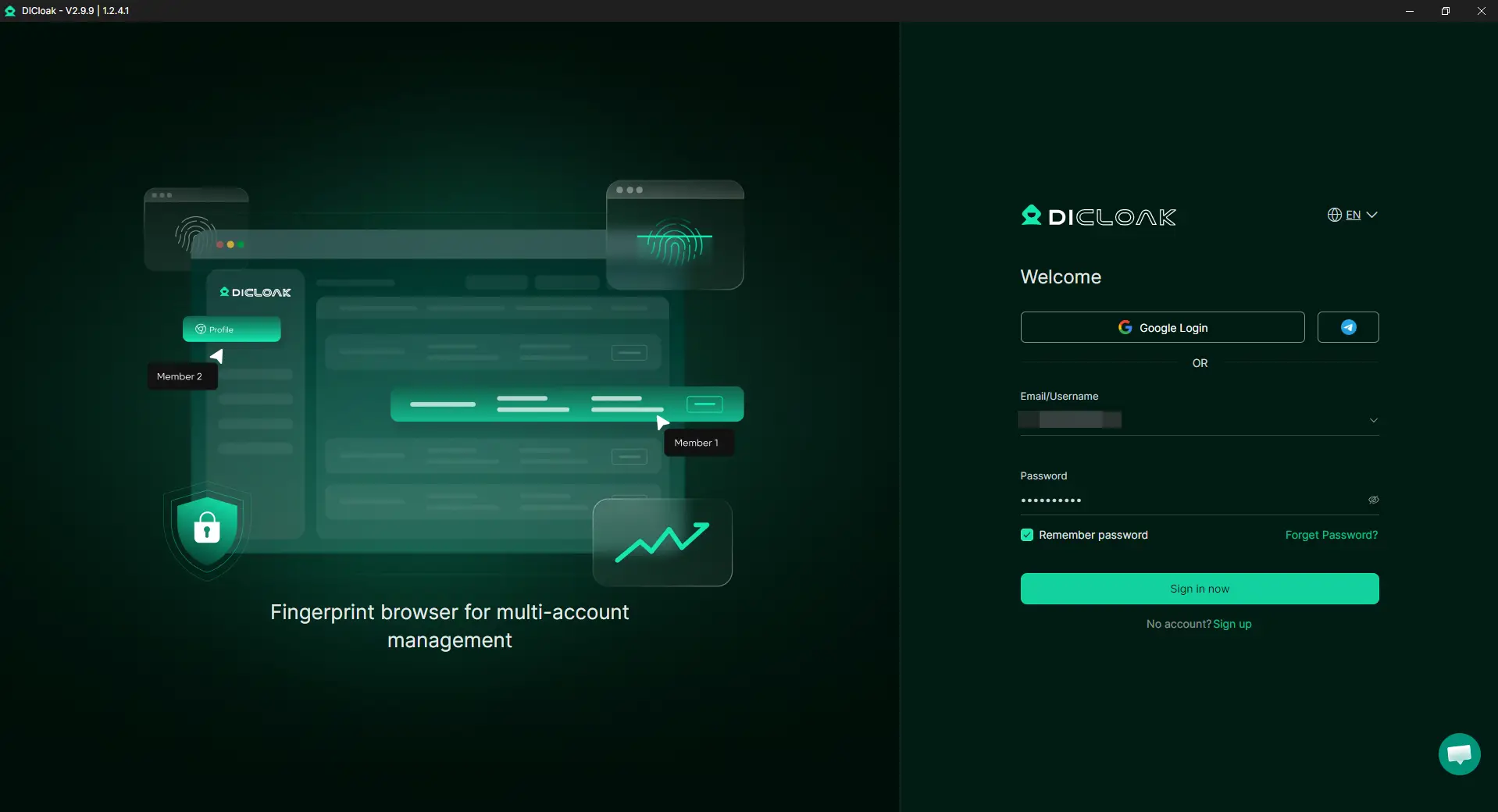
Step 1: Download and Install DICloak
Visit the official DICloak website and download the application for Windows, macOS, or Linux. After installation, open the app, create an account, and sign in.
Step 2: Choose a Team Plan
Choose a DICloak plan based on your team size and the number of profiles you need to share. Make sure the plan includes enough member seats for everyone who will use the Semrush profile.
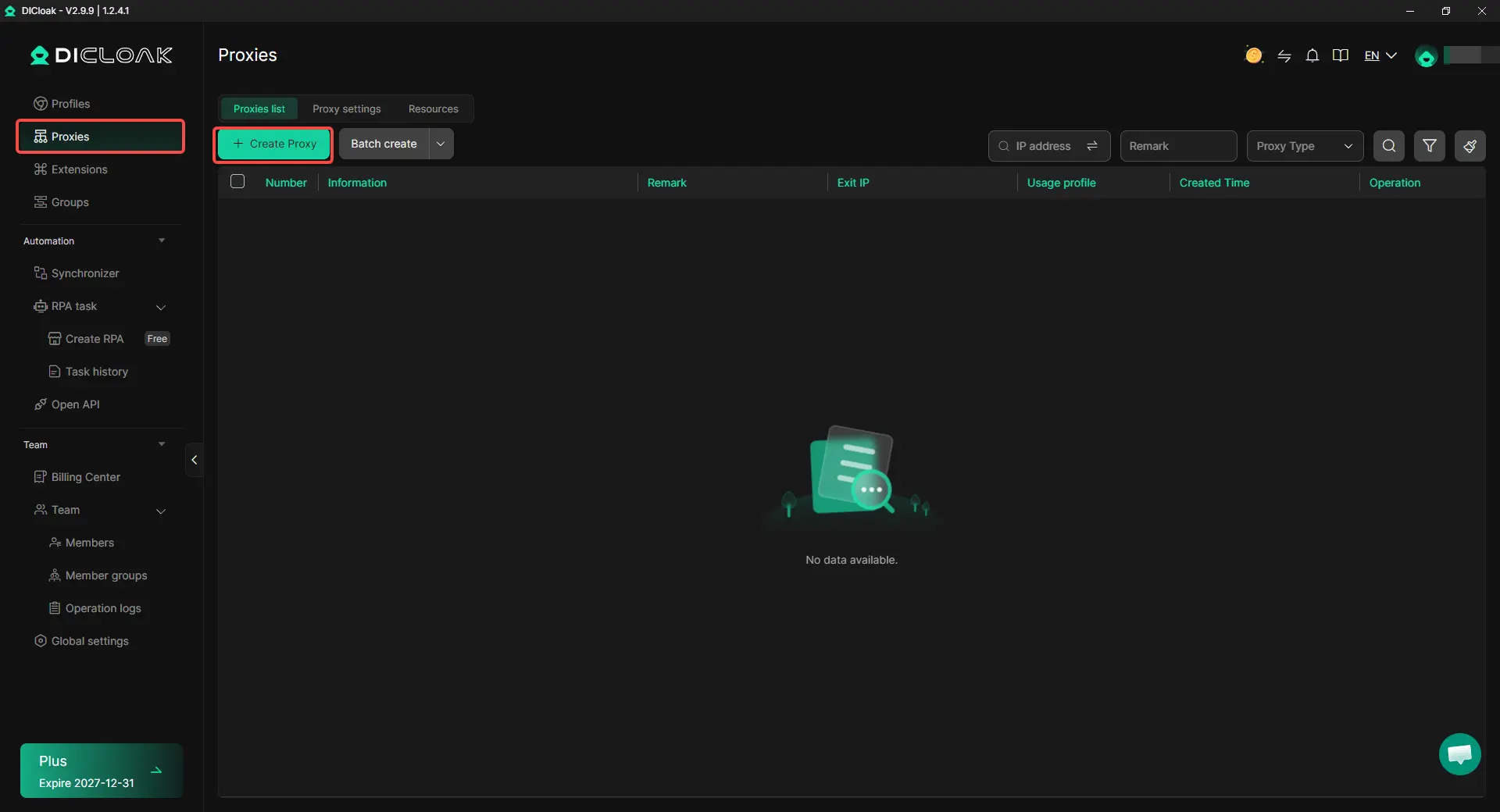
Step 3: Configure Your Own Stable Proxy
Add your own stable proxy to keep the Semrush profile connected through one consistent network location. Choose a region that matches your normal work location and avoid changing it often. DICloak does not sell proxies, but it partners with several third-party proxy providers.
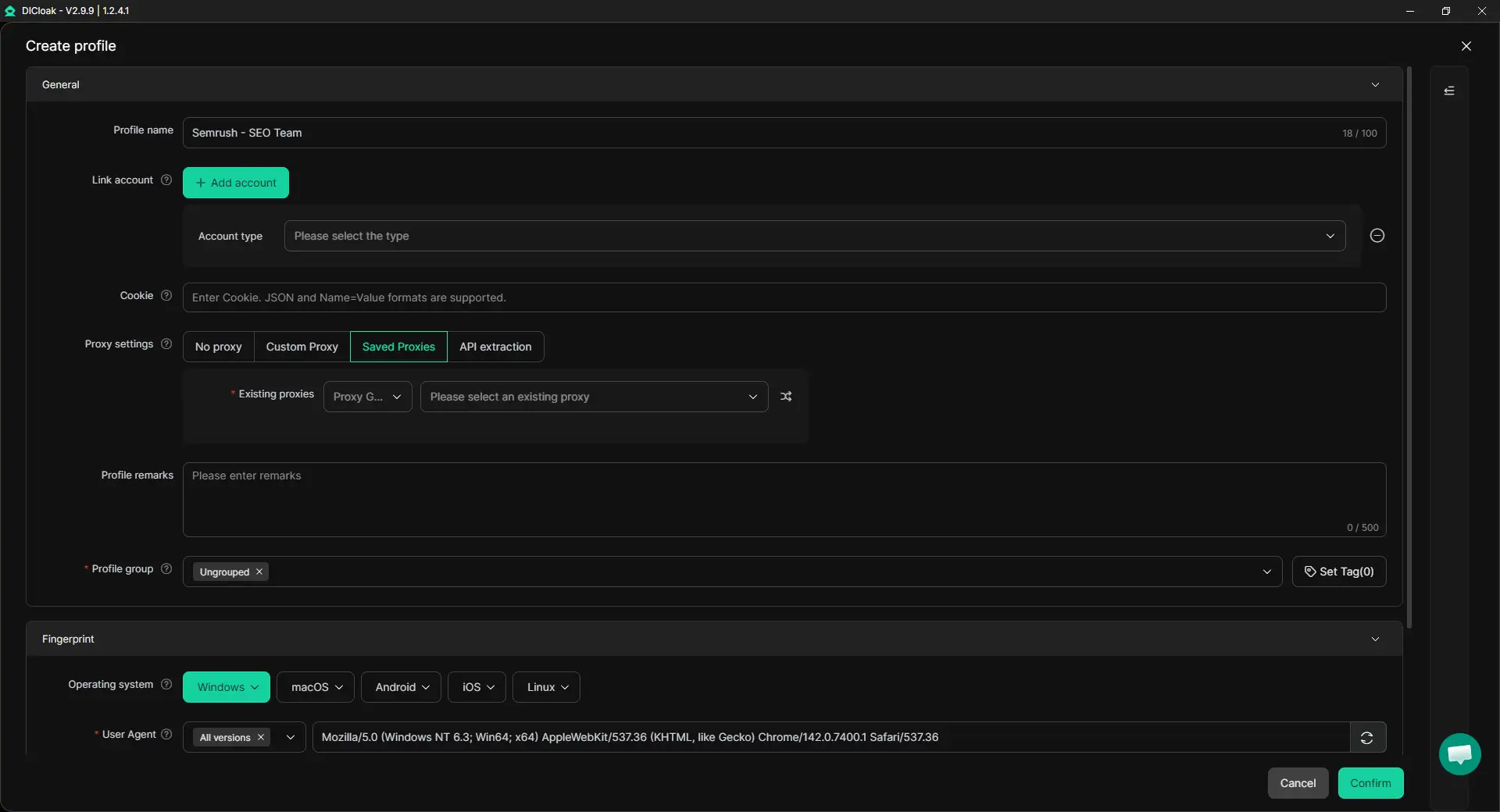
Step 4: Create a Semrush Browser Profile
Go to the Profiles page and create a new browser profile. Give it a clear name, such as Semrush - SEO Team, and apply the proxy you configured.
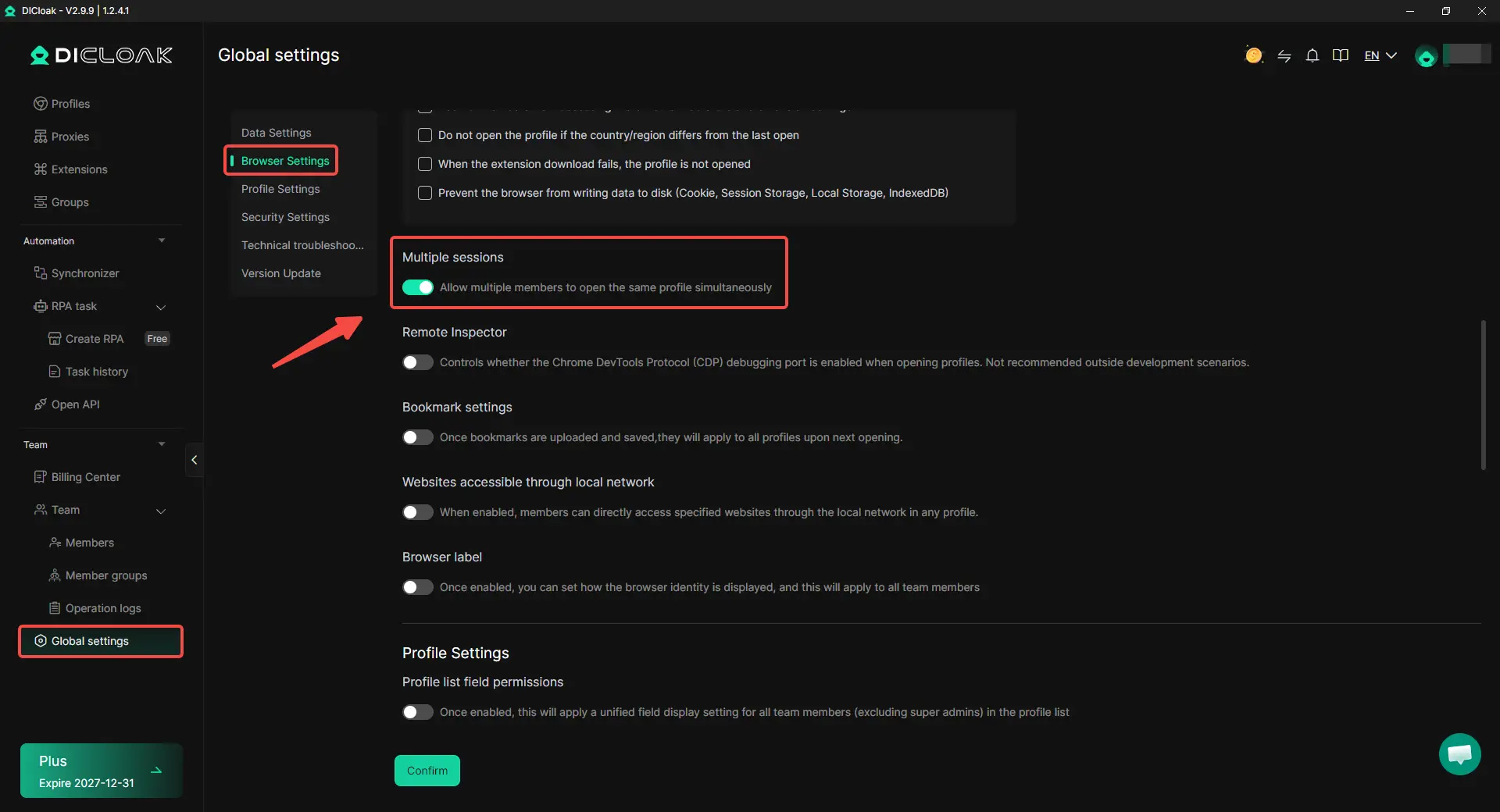
Step 5: Enable Multi-Open Mode
Go to Global Settings, find Multiple sessions, and select Allow. This setting lets multiple DICloak team members open the same browser profile at the same time. However, Semrush does not support simultaneous access to one user login by multiple people. The team should coordinate access and use the Semrush account one person at a time.
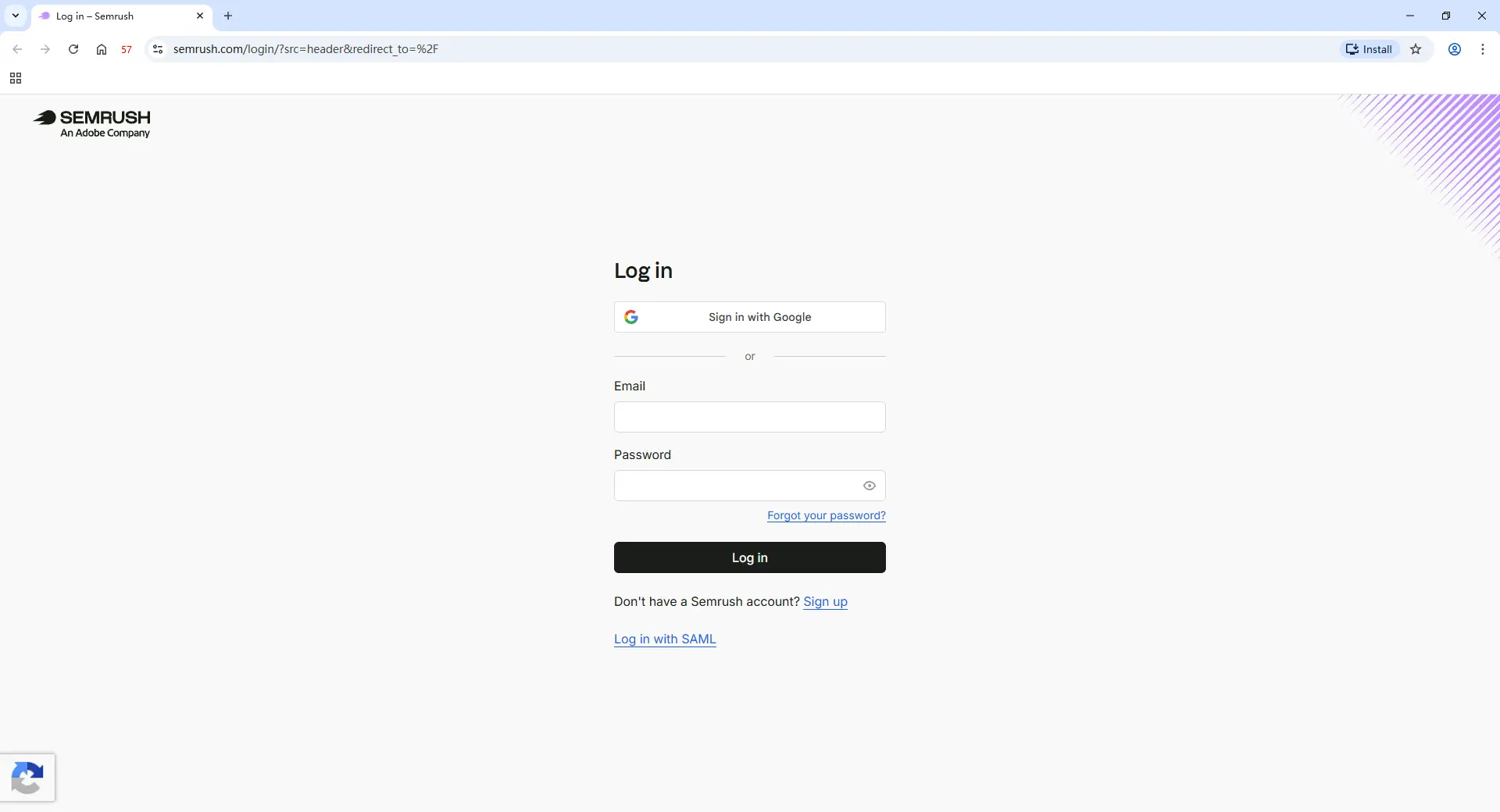
Step 6: Log In to Semrush
Launch the browser profile and open the Semrush website. Sign in with the account credentials and complete any email verification or 2FA request. After login, close the profile. The Cookies and login session will be saved inside the profile for future use.
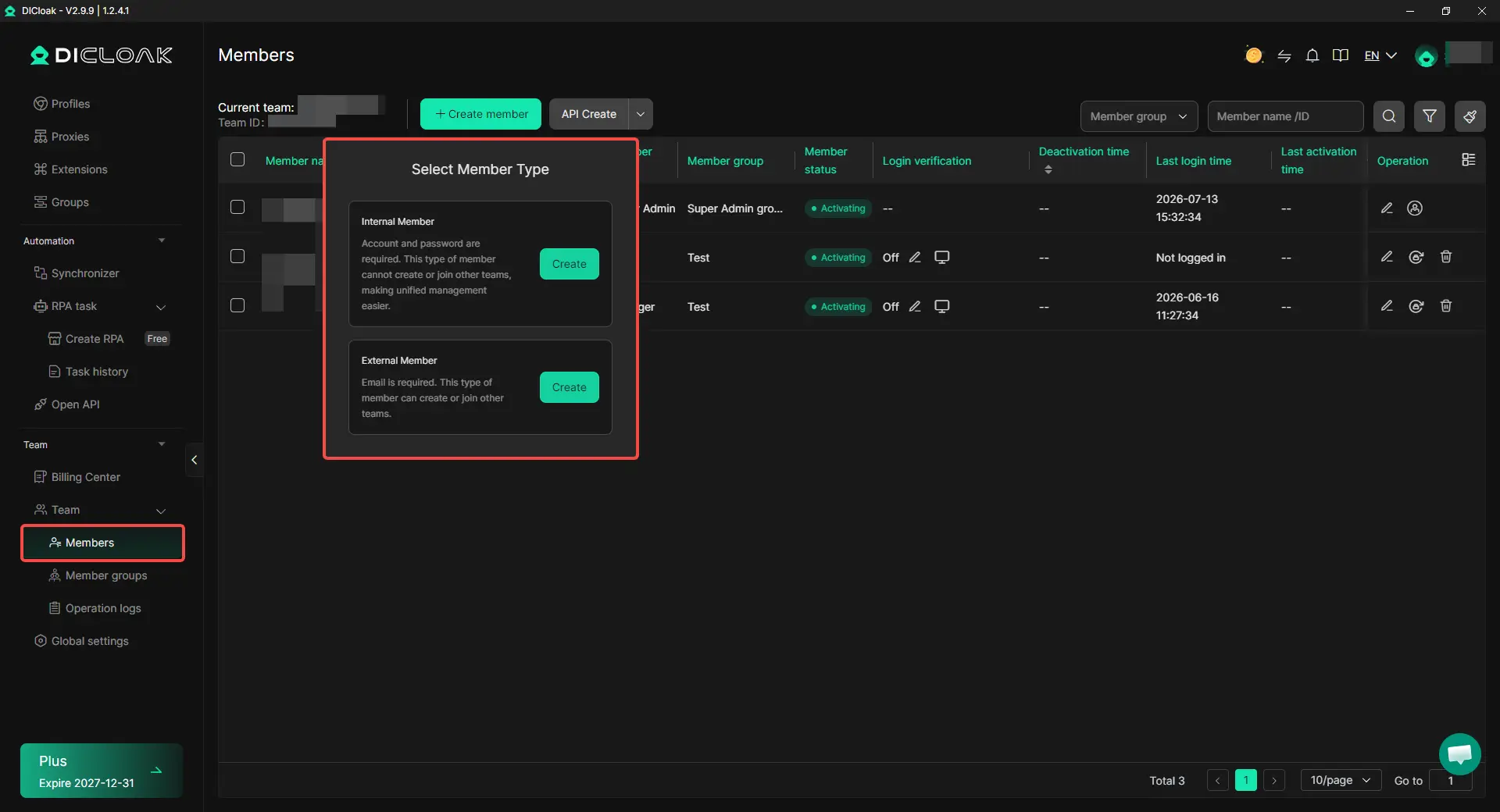
Step 7: Add Your Team Members
Go to the team section and invite the members who need access to Semrush. Once they join your DICloak team, assign the Semrush profile to them. Only share the profile with members who need to work inside the account. There is no need to share the DICloak administrator login.
Step 8: Open the Shared Semrush Profile
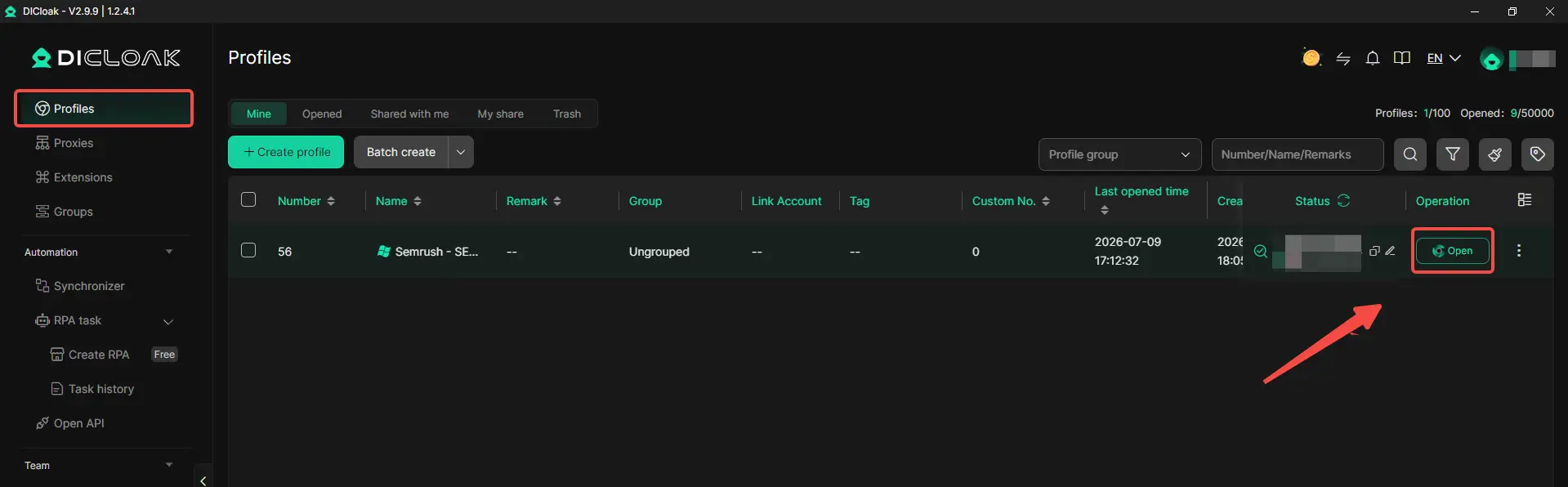
After accepting the invitation, team members will see the shared profile in their DICloak application. They can launch it from their own computers and enter the saved Semrush session without typing the account password again.
Advanced DICloak Controls for a Shared Semrush Account
Beyond profile sharing, DICloak provides extra controls that help account owners reduce password exposure, protect login data, and limit what team members can access inside the shared Semrush workspace.
- Hide the Password: Use DICloak’s built-in password manager to let authorized members open the Semrush account without seeing or copying the actual password. The account owner can keep control of password changes, recovery details, and 2FA.
- Prevent Cookie and Session Theft: Block browser developer tools and stop members from installing unapproved extensions. This makes it harder for users to copy cookies, session data, or other account information from the shared profile.
- Block Packet-Capture Software: DICloak can block tools such as Wireshark or Fiddler from inspecting network traffic while the shared profile is running. This adds another layer of protection for login and session data.
- Restrict Website Access: Create a URL whitelist for the shared profile so members can only open approved Semrush pages and other websites required for the task. This prevents the profile from being used for unrelated browsing.
- Hide Sensitive Information: Use the Web Element Hider extension to conceal parts of the Semrush interface that team members do not need, such as billing details, subscription information, account settings, or user management options.
These controls help the account owner limit what shared-profile users can see and do. They do not create extra Semrush user seats or change the usage limits of the subscription.
What Should You Check When Sharing a Semrush Workspace?
A shared Semrush workspace needs clear rules for access, usage, and handoffs. Before several people begin using it, check the following points:
- Keep passwords and 2FA under one account owner. One administrator should manage the password, recovery email, and verification requests. If Semrush asks for verification, other members should pause instead of requesting multiple codes or repeating login attempts.
- Limit concurrent access. A shared profile works better with one active operator at a time. Several people opening it together may cause session conflicts, while editing the same project at the same time can lead to duplicated or overwritten work.
- Watch shared subscription limits. Team members may use the same keyword tracking, report, and crawl allowances. Check the remaining limits before large audits or research tasks, because a stable login does not increase the resources included in the Semrush plan.
- Keep sensitive accounts in separate profiles. Do not place Semrush, the main company email, payment tools, and several client accounts inside one broad workspace. Members should only receive access to the accounts needed for their tasks.
- Remove access when a role or project ends. Review profile access, Semrush users, shared assets, and paid seats when a member leaves or changes roles. Update the password when needed and transfer unfinished work to the new owner.
- Check the current Semrush rules. A shared browser workspace does not create more authorized users or increase subscription limits. Teams should review their current plan, internal access policy, and Semrush terms before using it as a long-term workflow.
Frequently Asked Questions About Sharing a Semrush Account Securely with Your Team
What is the best way to share a Semrush account securely with a team?
The best method depends on how often each person uses Semrush. Regular team members should normally have their own paid user access, while clients and reviewers may only need shared reports, folders, or projects. For a small number of authorized operators who need occasional access to the same working session, an antidetect browser like DICloak can provide a controlled browser profile without sending the Semrush password to every member.
Can several team members use the same Semrush login at the same time?
Several people may be able to open the same account, but a shared login is not designed for unlimited concurrent work. Overlapping sessions can lead to verification requests, login conflicts, or two members changing the same project at once. Teams that need regular simultaneous access should use separate Semrush users, while a shared browser profile is better treated as a scheduled handoff workspace with one active operator at a time.
Is sharing Semrush through a password manager secure enough?
A password manager protects credentials better than sending them through email or team chat, but it does not solve every sharing problem. Each member still logs in from a separate browser, and the account owner must manage 2FA, password changes, active sessions, and access removal. Password managers improve credential storage, but they do not provide the same workspace control as individual Semrush users or a shared browser profile.
Can team members access Semrush through DICloak without seeing the password?
Authorized members can use a shared DICloak browser profile after an administrator logs in and saves the Semrush session, which reduces the need to distribute the password directly. However, anyone who can open the profile may still access data and tools available inside the logged-in account. Team permissions, limited profile sharing, clear task ownership, and fast access removal are still necessary.
Does using an antidetect browser increase Semrush user or usage limits?
No. A browser profile can organize the login session and control who can open the workspace, but it does not add authorized Semrush users, keyword credits, crawl pages, reports, or other plan limits. Teams should monitor shared usage, review their current subscription rules, and purchase additional user access when several employees need independent or daily use.
Conclusion
The best way to share a Semrush account securely with a team depends on how often each person uses it. Daily users are better served by separate Semrush seats, while clients and reviewers may only need shared reports, folders, or projects. Direct password sharing is cheaper, but it creates weaker access control, more login problems, and harder offboarding. For a small number of authorized operators, an antidetect browser like DICloak can provide a controlled browser profile that keeps the session in one workspace, reduces password distribution, and makes access easier to grant or remove.
A secure Semrush sharing setup should combine the right access method with clear rules for 2FA, concurrent use, subscription limits, sensitive data, and member removal. The key conclusion is simple: the best way to share Semrush is to match each person with the access they actually need, rather than giving the whole team one shared login.
 Web Proxy Tools
 Free Tools
 Cookie Plugin
 UA Generator
 MAC Address Generator
 IP Generator
 IP Address List
 2FA Code Generator
 World Clock
 Anonymous Check
 WebRTC Leak Test
 UUID Generator
 Free Web Proxy Site
 Proxy Checker
 FB Ad Checker
 AI Web Scraping
 Free SMM Tools
 Twitter Shadowban Checker
 Instagram Name Checker
 UTM Generator
 Username Generator
 AI Hashtag Generator
 LinkedIn Headline Generator
 Social Media Image Resizer