You send a prompt, wait a few seconds, then the page shows chatgpt content failed to load and the answer never appears. That failure is usually not random. In practice, it comes from a short list of causes: a live platform incident, a broken browser session, blocked scripts, or a network path that drops requests mid-stream. You can confirm the platform side fast by checking OpenAI Status and, if needed, wider edge issues on Cloudflare Status.
This guide gives you a direct diagnostic path you can run in minutes. You will learn how to separate server-side outages from local browser faults, how to test whether extensions or cached cookies are breaking the response flow, and how to apply fixes in the right order using official steps from the OpenAI Help Center and browser cleanup guidance from Google Chrome Help. You will also get a simple decision point for when to stop local debugging and escalate to support. Start with the fastest triage checks, then move to deeper fixes only if the quick checks fail.
Why does the ChatGPT content failed to load error happen in the first place?
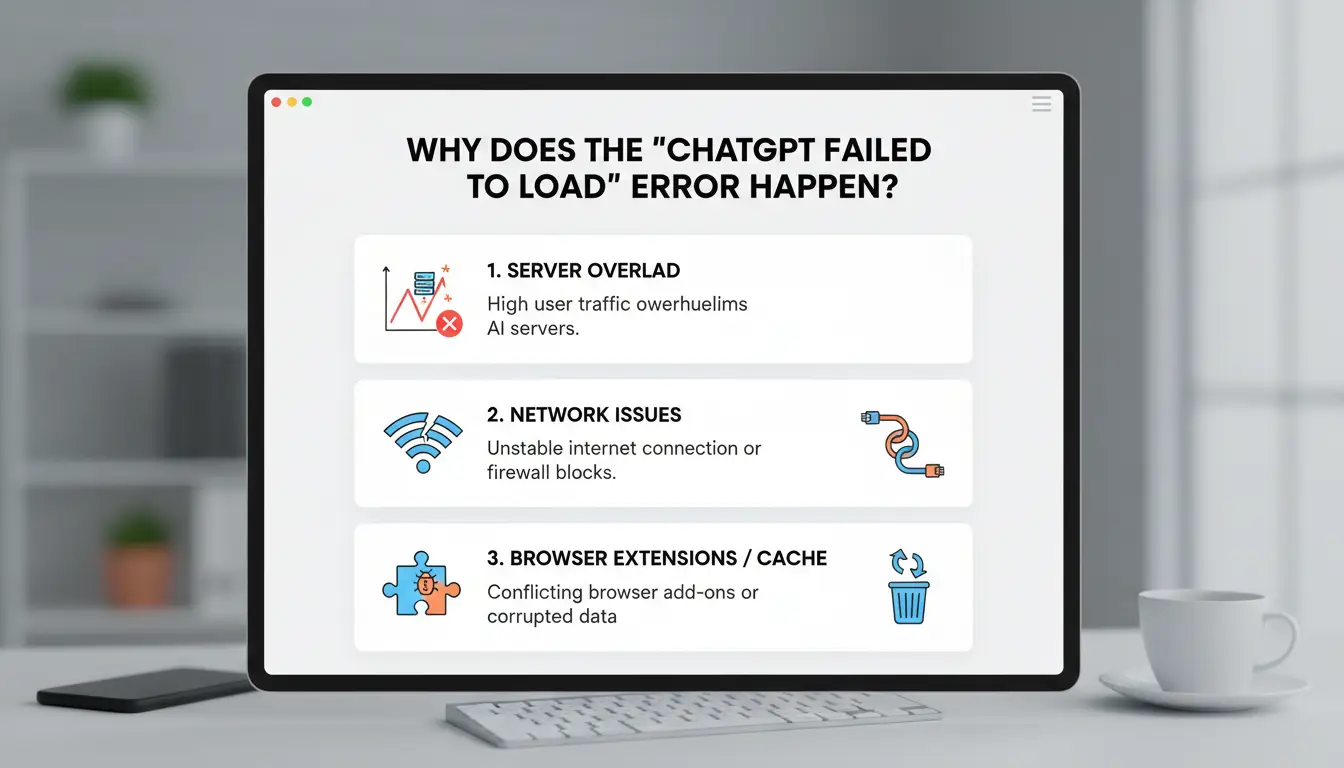
Check scope before fixing. If the issue appears across devices and networks at the same time, start with platform health, not browser cleanup.
How to tell if the problem is on OpenAI’s side vs your side
Open OpenAI Status and check incident time against your failure time. If users report errors at the same window, your local setup is likely not the root cause. If only one browser or one device fails while another works on the same account, treat it as local. A quick A/B test (same prompt, different browser) gives hard evidence in under 2 minutes.
The 5 most common technical causes behind load failures
The chatgpt content failed to load message usually maps to one of five buckets: expired login session, blocked scripts from extensions, corrupted cache/cookies, unstable proxy route, or overloaded long thread rendering. Session and auth mismatch often appear after long idle time or account switching. Cache and cookie corruption can break response rendering until you clear site data using Chrome cache guidance. Script blockers can stop required requests. Very long chats may time out or stall during UI render.
What this error does and does not mean for your chat history
This error often means temporary display failure, not automatic data loss. Wait and retry if status pages show active incidents. If status is green and only your browser fails, run local fixes, then contact support through the OpenAI Help Center with timestamps and screenshots.
What should you check first before trying advanced fixes?
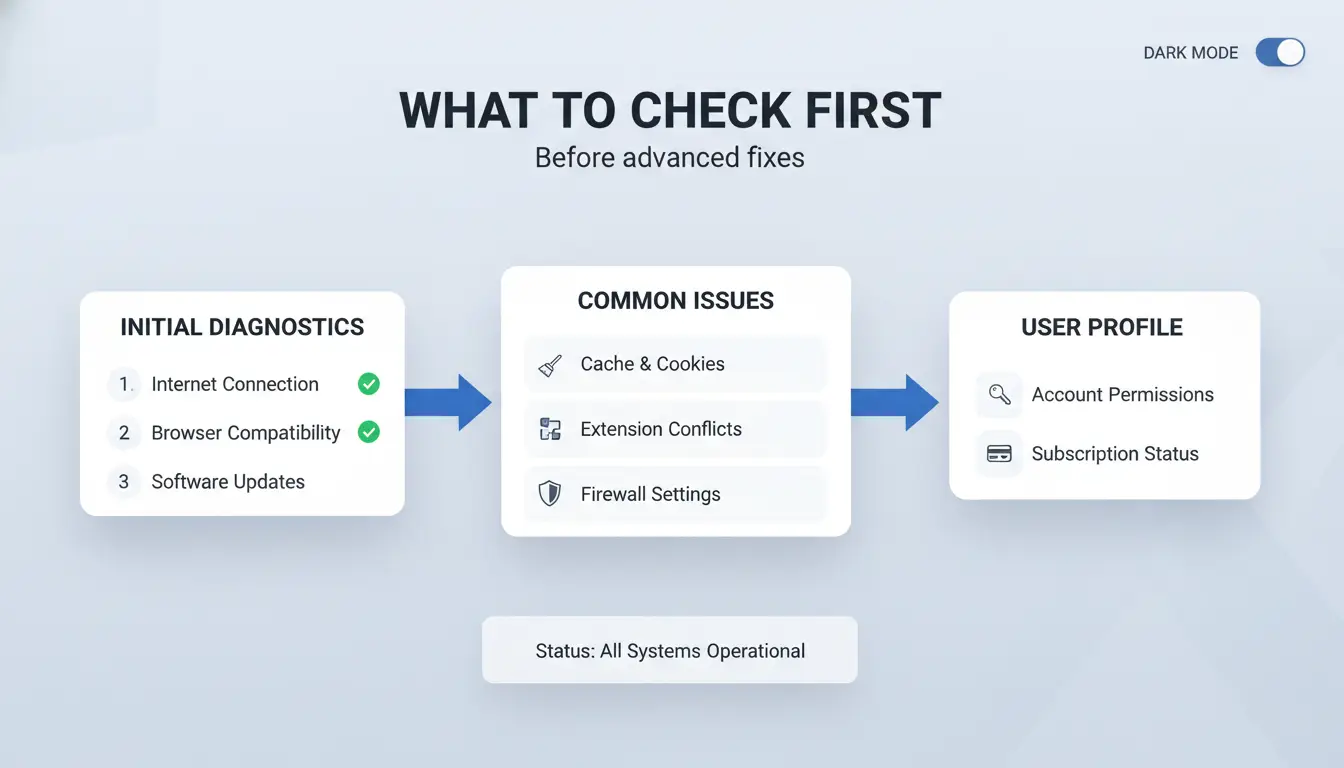
If you see “chatgpt content failed to load,” run a fast triage before clearing settings or reinstalling anything. If a hard reload plus a new chat fixes it, stop there and avoid deeper changes.
Run a 2-minute quick test: refresh, hard reload, and open a new chat
Do a normal refresh once. If the page still stalls, do a hard reload to force fresh files from the server (Chrome on Windows: Ctrl+Shift+R, Mac: Cmd+Shift+R). Then open a brand-new chat and send a short prompt like “test.” If the new thread works but the old one fails, the issue is likely thread-level state, not your whole account.
Confirm account and session health before changing browser settings
Log out of ChatGPT, close the tab, reopen it, and log back in. This resets stale session tokens. Next, test the same account on another browser or phone network. If it fails everywhere, it is likely account-side or service-side. If it fails on one device only, keep debugging that device. You can also verify active incidents on OpenAI Status.
Verify network path issues: DNS hiccups, firewall rules, and proxy conflicts
Unstable DNS can load the shell but break message content. Switch to a known public resolver and retry. If you use a proxy, disable it briefly and test again. A bad route can cause partial responses, which can trigger “chatgpt content failed to load.” If your network blocks WebSocket traffic, ask your admin to allow ChatGPT domains listed in the OpenAI Help Center.
How do you fix ChatGPT content failed to load step by step?
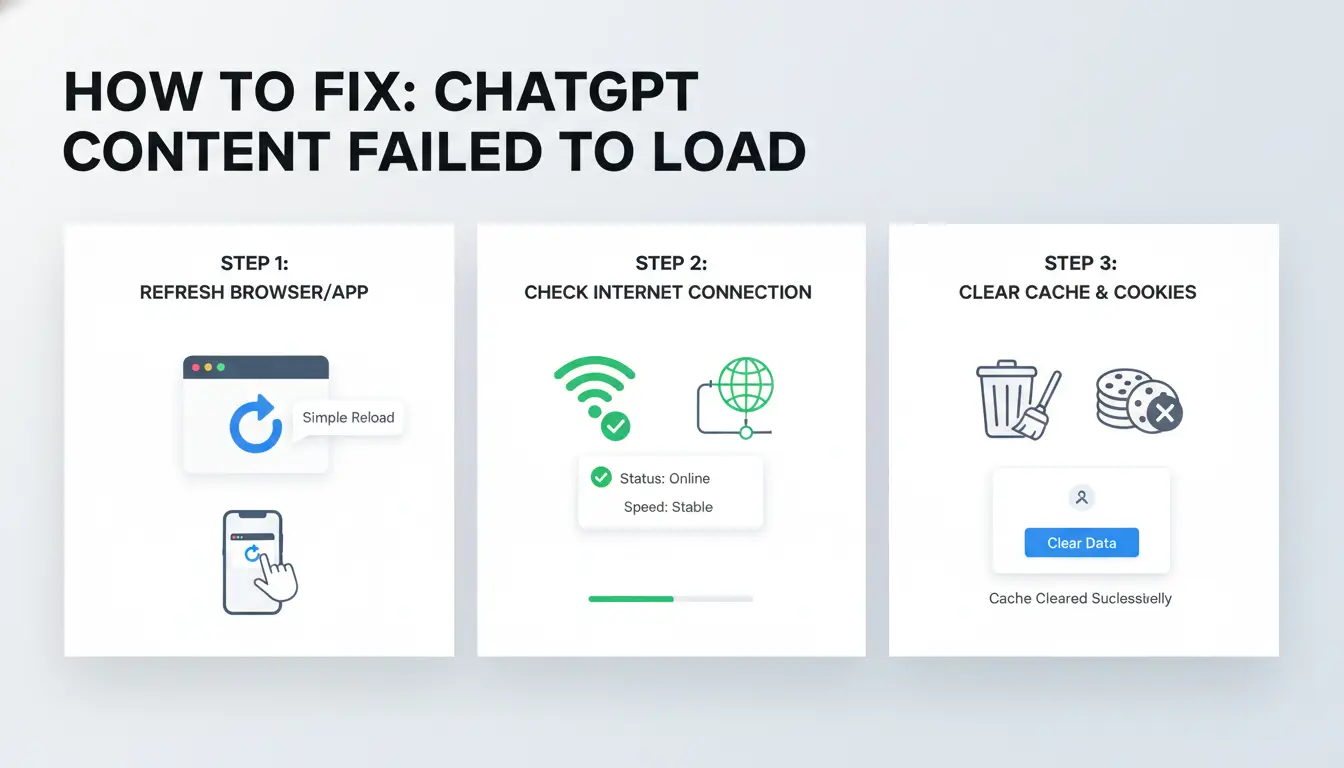
Use this order so you start with low-risk checks and only move deeper if needed. If you see “chatgpt content failed to load,” run each step, then retry the same prompt once before moving on.
Step 1–3: Clear cache correctly, disable extensions, and update browser
Clear only site data for ChatGPT, not your full browser history. In Chrome, remove cookies and cached files for chatgpt.com and openai.com using Chrome’s site data controls. Then disable extensions that rewrite pages or block scripts (ad blockers, privacy filters, user-script tools). Test again. Update your browser to the latest version, then restart it. Most local rendering failures come from stale cookies plus extension conflicts.
Step 4–6: Switch device, test incognito, and reset local browser storage
Open ChatGPT in an incognito window. This bypasses old cookies and most extensions by default. If incognito works, the issue is local profile data. Keep narrowing: re-enable extensions one by one, then remove only the one that breaks load. Check the same account on mobile and desktop. If one device works and the other fails, reset local storage on the failing browser, then sign in again.
Step 7–8: Reduce conversation load and retry with shorter context
Long threads can fail to render even when the service is up. Start a new chat and paste a short summary instead of the full thread. Split big tasks into smaller prompts (for example, 1 request per 300–500 words). If failure persists after all 8 steps, stop local debugging and contact OpenAI Help.
Why do long or older conversations fail to load more often?
When a thread grows over weeks, each reply adds more text, tool output, and hidden metadata. The app has to fetch, parse, and render all of it before you can scroll smoothly. That is why you may see chatgpt content failed to load in older chats even when newer chats open fine.
Conversation bloat: token-heavy threads, media blocks, and rendering strain
Long context windows can push the browser UI hard, not just the model. Large code blocks, pasted logs, and images increase render time and memory use. Typical heavy-thread signs: delayed scroll, blank message gaps, spinner loops, or partial history loading. If one specific chat fails but others work, treat it as a thread-level issue, not a full account outage.
Recovery options: duplicate prompt strategy, export paths, and partial reconstruction
Open the failing chat in another browser profile or private window. If it loads, quickly copy high-value prompts and outputs into a new thread. If it still fails, use account export options from OpenAI Help and rebuild from saved snippets. A practical move is “duplicate prompt”: paste the last working prompt into a fresh chat, then ask for a short recap of prior decisions to restore momentum. If OpenAI Status shows active incidents, wait and retry later.
Preventive habits for high-volume users
Split topics into separate threads by project or week. Add short summaries every 10–20 turns and start a new chat after major milestones. This reduces render strain and lowers repeat “chatgpt content failed to load” errors.
What mistakes make this error keep coming back?
If you keep seeing “chatgpt content failed to load,” the issue is often a repeat behavior, not a one-time glitch. Stop changing five things at once. Use one controlled check, then retest.
Ignoring status checks and over-troubleshooting during outages
When OpenAI Status shows degraded service, local fixes usually fail because the response is broken upstream. Reload loops, cache wipes, and device swaps can waste 20-30 minutes without changing the result.
Check status pages, wait 10-15 minutes, then retry once. If Cloudflare Status also shows an incident, pause deeper debugging until both services recover.
Using too many extensions and script blockers without testing impact
Stacked extensions can block scripts ChatGPT needs to render replies. Ad blockers, privacy filters, and script managers can conflict, even when each one works alone.
Test in a clean browser profile with extensions off. If ChatGPT works, turn tools back on one by one. Keep a minimal baseline: password manager only, plus one blocker if needed. Use Chrome extension controls to isolate the exact add-on.
Unstable account access patterns across devices and networks
Rapid switching between phone, laptop, work network, and mobile data can trigger session resets. That can make chat panes fail to load or refresh mid-response.
Stay on one device and one network during active sessions. Log out on unused devices, then sign in again on your main setup. If the error repeats, clear site data using Chrome’s cookie guide and start a fresh session.
How can teams reduce load errors when sharing one ChatGPT account? (Using DICloak)
If your team keeps seeing “chatgpt content failed to load,” the issue is often workflow, not outage. Shared logins can break sessions when people enter from different networks, devices, or browser states at the same time.
Why shared access creates extra failure risk
Concurrent use can trigger cookie overwrites. One member logs in, another refreshes, and the older session gets invalid. Rapid IP switching can also flag unusual activity, which may force re-auth and blank responses. Permission gaps add another failure point: one person clears cookies, changes language, or signs out all devices, then everyone else gets load errors.
How DICloak stabilizes account-sharing workflows
You can use DICloak to keep each operator in an isolated browser profile, so cookies and local storage do not collide. You can bind a separate proxy per profile to keep network identity stable per operator. That lowers random re-check prompts during active sessions. Operation logs help you trace who changed what and when, which shortens debugging after a “chatgpt content failed to load” event. Treat account sharing as environment control, not just password sharing.
A simple team setup: profiles, permissions, and repeatable operations
Create one profile per teammate, then share only the profile they need. Set role-based permissions so only admins can edit core settings or logout policies. For repeated actions, use batch steps or RPA in the same profile template. This cuts manual re-login loops and lowers session mismatch errors across shifts.
When should you wait, switch tools temporarily, or contact support?
Wait or act: a practical timing rule
If OpenAI Status shows an active incident, wait 15–30 minutes, then retry with a hard refresh. If status is green but chatgpt content failed to load keeps showing after cache clear, extension-off test, and private window test, treat it as a local or account-session issue and act now.
Shared logins fail fast when people sign in from mixed devices and networks. Tools like DICloak let you run isolated browser profiles with independent proxy settings, so cookies and sessions stop overwriting each other.
What to include when contacting support for faster resolution
Send one clean report: UTC timestamp, browser and version, screenshot, exact page path, and steps to reproduce from login to error. Include whether it fails in incognito and another browser. For team accounts, note who accessed the session last.
Tools like DICloak let you share profiles with role permissions and keep operation logs, so your report includes who changed what and when.
Short-term fallback workflow to keep work moving
Keep writing in local notes, save prompt templates, and move urgent work to short prompts with less context until stability returns.
What is the best long-term prevention checklist for this error?
Use this routine to cut repeat cases of “chatgpt content failed to load.” Run it once a week, not only after a failure.
Weekly browser and session hygiene checklist
- Update your browser every 7 days.
- Clear cached images/files weekly; clear cookies only for ChatGPT if errors start.
- Remove or disable extensions you do not need, then retest ChatGPT.
- Log out after long sessions, then log back in to refresh tokens.
- Keep one primary browser profile for ChatGPT to avoid mixed session data.
Conversation management rules for reliability
- Keep active threads short; start a new chat when replies slow down.
- Archive old threads every week.
- Add a short summary every 20–30 prompts so context stays lighter.
- If “chatgpt content failed to load” appears in one thread, test a new thread before deeper debugging.
Network consistency rules for individuals and teams
- Keep DNS settings stable across devices.
- Use one consistent proxy route per work environment.
- Avoid switching networks mid-session.
- For teams, standardize browser version, extensions, and login flow.
Frequently Asked Questions
Does the chatgpt content failed to load error mean my conversation is permanently deleted?
Usually, no. The chatgpt content failed to load message often means a temporary display problem, not data loss. Your chat may still exist on the server but fail to render in the app. Try refresh, logout/login, and checking chat history later. Recovery is likely if the thread title still appears in your sidebar.
Why does the chatgpt content failed to load error appear on one browser but not another?
This often points to a local browser issue. A bad cache file, blocked script from an extension, stale cookies, or an old browser version can break message loading. Test in a private window, disable extensions one by one, clear site data for ChatGPT, and update the browser to the latest stable release.
Can a proxy setup cause ChatGPT messages to fail loading?
Yes. Proxies can cause timeouts, blocked WebSocket traffic, or unstable routing between requests. That can trigger chatgpt content failed to load errors. Keep one consistent exit node, confirm DNS resolves correctly, and test HTTP/HTTPS behavior without protocol mismatch. Compare results with and without the proxy to isolate the failure point quickly.
How often should I split or archive long ChatGPT threads?
Split threads before they become hard to render or review. A practical rule: start a new thread every major topic shift, or after roughly 80–120 back-and-forth turns. If answers are very long, split sooner. Add a short summary every 20–30 turns so you can restart cleanly without losing context.
Is it safe for multiple teammates to use one ChatGPT login?
Shared logins are risky without controls. One person can overwrite context, expose private prompts, or trigger account security checks. Use separate seats when possible. If sharing is required, use a controlled browser profile, strict role permissions, and activity/audit logs. This reduces accidental deletions and helps trace who changed what.
When ChatGPT content fails to load, the most effective approach is to systematically check your connection, browser cache, extensions, and service status before assuming a larger issue. A quick troubleshooting routine can usually restore access in minutes and helps you avoid repeated interruptions when the problem appears again. Try DICloak For Free
 Web Proxy Tools
 Free Tools
 Cookie Plugin
 UA Generator
 MAC Address Generator
 IP Generator
 IP Address List
 2FA Code Generator
 World Clock
 Anonymous Check
 WebRTC Leak Test
 UUID Generator
 Free Web Proxy Site
 Proxy Checker
 FB Ad Checker
 AI Web Scraping
 Free SMM Tools
 Twitter Shadowban Checker
 Instagram Name Checker
 UTM Generator
 Username Generator
 AI Hashtag Generator
 LinkedIn Headline Generator
 Social Media Image Resizer