Juggling dozens of accounts or testing web apps across browsers? Picking the right browser emulator is where most teams get stuck. The market is crowded with tools that claim to cover every use case, but real differences show up when you try to manage cookie isolation, automate logins, or avoid cross-profile data leaks. A browser emulator that works for simple display checks can fall short the moment you need to run two social media sessions side by side, or when your QA workflow demands scriptable automation instead of just screenshots.
The catch is, not all browser emulators handle session separation, proxy rotation, or automation in the same way. Relying on a basic browser emulator online may seem quick, but these often miss features needed for serious account management or solid testing, think unstable fingerprinting or hidden sync bugs that only show up after hours of use.
What really matters is matching the tool to your workflow. If you’re running multi-account marketing, web scraping, or software QA, you need more than just a visual emulator. You’ll want isolated browser profiles, stable automation hooks, and clear handling of cookies and proxies. Skipping these details leads to failed logins, accidental cross-account bans, or test results that don’t match production.
To cut through the noise, start by looking at the core features that separate basic display tools from full-stack browser emulators. Here’s what actually matters when choosing.
What to Check Before Choosing a Browser Emulator in 2026
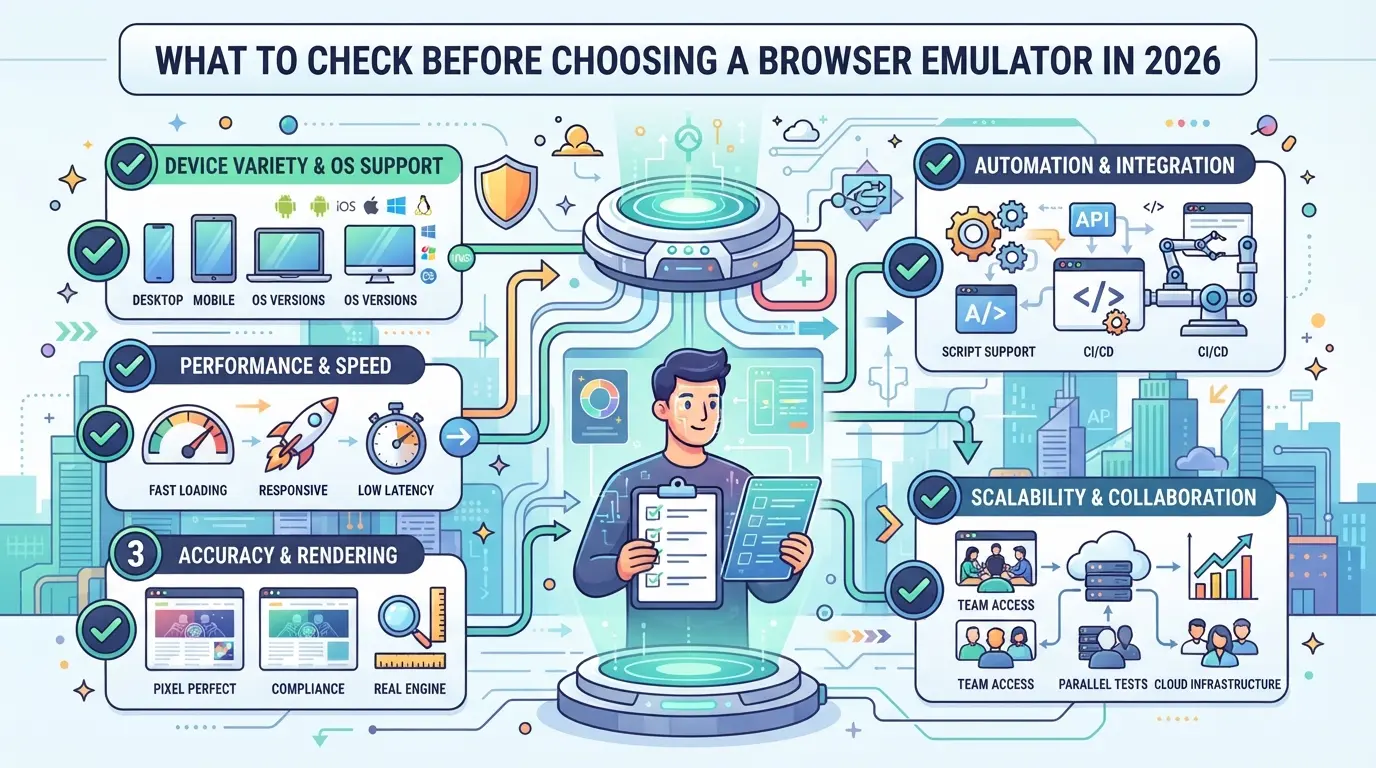
Not every browser emulator works for serious workflows, what you miss now can cost you later. Before you install or pay, check these factors to avoid wasted time, bans, or data leaks. The right choice depends on how deep the tool goes, what it protects, and where it can fail.
Why browser emulators are not all the same
Tools in this space range from basic display wrappers to advanced emulation engines. Some only fake the look of a browser, while others mimic system-level signals. That’s why two emulators running side by side can show identical pages but leave different digital fingerprints.
Key risks: detection, bans, and data leaks
The biggest risk is getting flagged by detection systems. Most sites now check for traces beyond what’s visible, a weak emulator might skip things like subtle font rendering or miss updating WebGL data. That’s how anti-fraud systems spot automation or multi-account activity, even if the interface seems normal. A common failure looks like this: you set up five accounts in parallel, thinking you’re safe, but all sessions get linked and restricted in under 24 hours. Sometimes, the issue is cookie bleed between profiles, or a missed browser variable that’s unique to your setup. Rushed emulators often log hidden errors or send crash reports home, leaking details that can tie your traffic back to one device. If you don’t test in real-world conditions, logging into live platforms, checking for mismatched browser values, or inspecting network calls, you’ll miss the small leaks that trigger bans. The main pitfall is trusting what you see on the surface instead of what gets logged, fingerprinted, or reported upstream.
Checklist: must-have features for 2026
- True profile isolation, every session should have separate storage, cookies, and cache.
- Hardware and software fingerprint control, customize or randomize browser signals, not just user agents.
- Built-in proxy management and automation hooks, so you can run account flows or web tests without leaking identifiers.
Most “browser emulator online” tools don’t cover these. If any point above is missing, expect more frequent bans, failed automations, or data leaks. Double-check which features are native and which need risky plugins.
Next, it’s worth seeing how detection actually works, surface-level privacy tools rarely survive real-world checks.
Why Some Browser Emulators Get Detected (and What Actually Matters for Privacy)
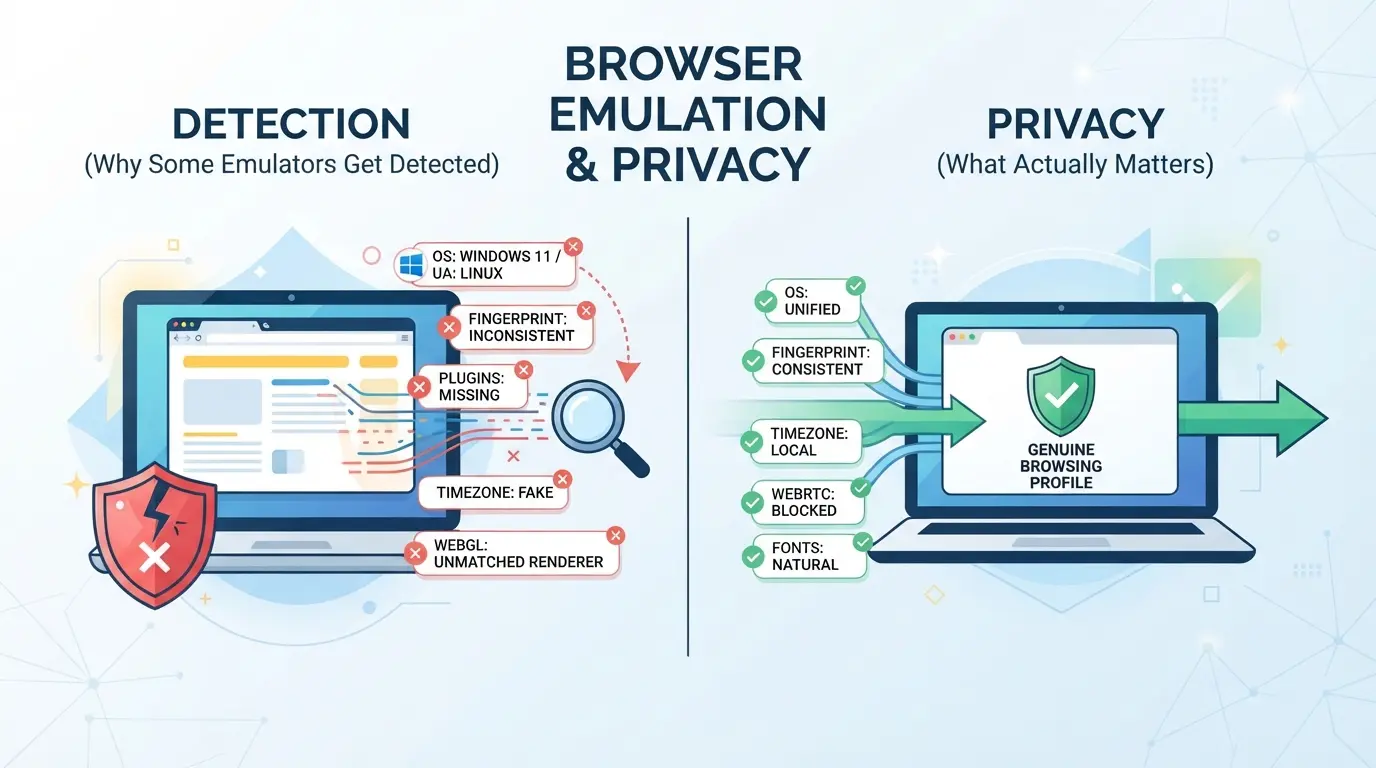
Even the best browser emulator can be caught if it leaves behind the wrong clues. Most detection today comes down to mismatched fingerprints, network leaks, or sloppy automation traces, not just whether the tool “looks real.” If your focus is privacy or staying undetected, you need to know which weak spots matter and what platforms are actually checking.
How platforms spot emulators in 2026
Most platforms don’t just look for “suspicious logins.” They cross-check dozens of tiny browser signals:
- Fingerprint mismatches, like WebGL, canvas, or audio stack details that don’t match real device data.
- Network and proxy patterns, such as reused IPs, DNS leaks, or missing real-world latency.
- Automation traces, leftover scripts, odd timing, or plugin signatures that betray emulation.
What fingerprinting means today
Fingerprinting no longer stops at the user agent or screen size. Now, sites use advanced checks, canvas fingerprinting, WebGL hashes, sensor APIs, and even small quirks in how browsers process graphics or sound. For example, a tool that spoofs the user agent string but still renders a canvas image differently than Chrome on Windows will be flagged by anti-bot systems. Many free browser emulators online break at this step: they get past the login page, but fail on secondary checks as soon as you post, scroll, or interact with dynamic content. The weakest link is usually a single detail out of sync, like a timezone offset that doesn’t match your proxy city, or a missing font that’s common on real devices in your target region. If you skip deep fingerprint matching, you may pass simple tests but get flagged after a few actions, sometimes without any visible warning.
Real privacy: what even the best emulators can and cannot do
- Full emulation can’t hide device history or account links from a reused profile.
- Strong tools lower fingerprint risks, but proxy leaks or reused cookies still expose you.
- No emulator prevents platform bans if you repeat the same risky behavior or automation pattern.
The gap between “looks real” and “acts real” is where most privacy failures happen. If you want to compare browser emulators for real-world use, focus on how they handle fingerprint details, proxy routing, and automation, not just their marketing claims.
How to Compare Browser Emulators: Features That Matter for Multi-Account and Testing Workflows
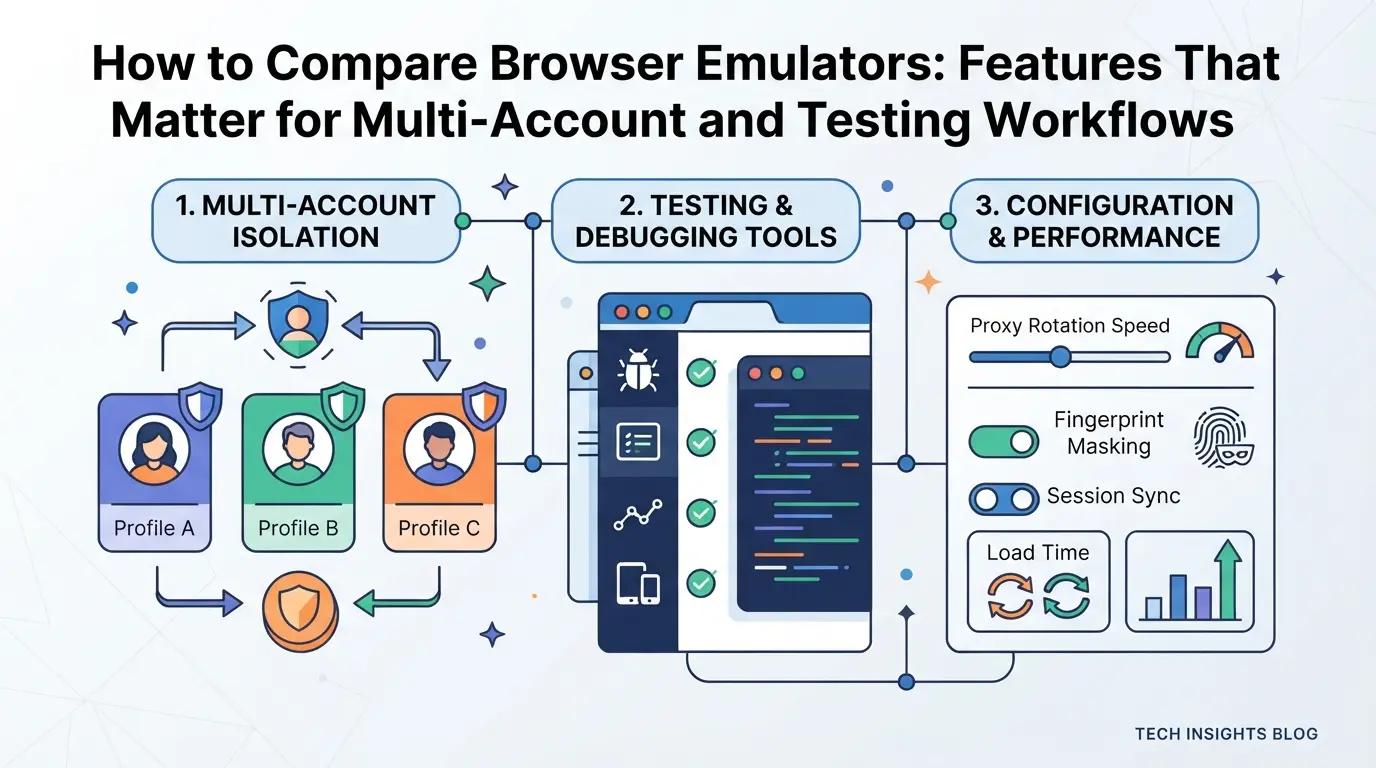
The right browser emulator isn’t defined by its look, it’s about whether it protects your sessions, keeps accounts separate, and supports the way you actually work. If you skip the details below, you risk session leaks, cross-account bans, or automation failures that only show up during real campaigns or testing.
If you’re handling multiple accounts, isolation is what keeps one login or cookie from affecting another. The biggest risk is session data leaking between accounts, which can trigger bans, especially on platforms that track browser fingerprints and cookies across sessions.
| Feature |
True Isolation (per profile) |
Shared/Weak Isolation |
| Separate cookies and localStorage |
Yes |
Often no |
| Fingerprint uniqueness |
Per profile |
Shared or random |
| Cross-profile leak risk |
Low |
High |
You want per-profile isolation: if a tool cuts corners here, even a single mistake during a login or script run can ruin all your accounts.
Proxy integration and network controls
Assigning a different proxy to each profile is what prevents platforms from linking accounts by IP. If your emulator only supports a global proxy or has unreliable switching, you’re exposed. A quick test: rotate proxies and watch for session drops or DNS leaks, if you spot those, that tool isn’t safe for real multi-account work.
Automation and workflow scaling
Built-in automation (like native scripting or task scheduling) saves hours, especially at scale. Manual scripts work for small tests, but as soon as you’re juggling 10+ accounts or repeating tasks, lack of built-in automation means wasted time and more manual errors. If your emulator can’t handle automation without breaking isolation, scale will always be a pain point.
The next step is mapping these features to real products, what actually works in practice, and where tools fall short. That’s what the next section covers.
Top Browser Emulator Options in 2026: Strengths, Weaknesses, and Best-Fit Scenarios
If you’re deciding between browser emulators this year, the gap isn’t just in price or speed, what really separates them is how well they handle profile isolation, detection risk, and workflow fit. Here’s a side-by-side look at the top choices for 2026.
Comparison table: leading browser emulators
| Name |
Key Strengths |
Weaknesses |
Price (per month) |
Best For |
| Multilogin |
Detailed profile control, automation ready |
High learning curve, cost |
$99+ |
Agencies, advanced users |
| GoLogin |
Simple setup, good UI, proxy support |
Fewer automation features |
$49+ |
Solo operators, SMBs |
| Kameleo |
Fast fingerprint switching, mobile support |
Less stable long-term |
$59+ |
Short-run tests, devs |
Table compares core features, detection risk, and pricing for leading browser emulators (2026 market data).
If your main goal is stable multi-account work, pay more attention to profile isolation than to minor UI perks, weak isolation is where most tools fall short.
When a simple emulator is enough (and when it isn’t)
For basic web testing or one-off account checks, a lightweight emulator does the job. If you start running into logouts, weird account behavior, or cross-account bans, that’s the signal you’ve outgrown entry-level tools.
Alternatives: when to consider an antidetect browser instead
If you’re managing dozens of accounts, need stronger fingerprint controls, or want to run automation at scale, a standard emulator probably won’t cut it. That’s when it’s time to look at full antidetect browsers designed for serious, high-volume workflows.
How to Reduce Risk When Running Multiple Platform Accounts: Profile Isolation, Proxies, and Automation in DICloak
If you’ve compared top browser emulator options and found that basic tools don’t solve your multi-account workflow, you’re not alone. For teams handling several platform accounts, whether for marketing, e-commerce, or testing, the real challenge is keeping each session separated, controlling network signals, and reducing human error in repeat tasks. Basic emulators rarely cover all these needs at once. That’s where advanced workflow tools come in. In DICloak, operators use three main features to tackle these problems: profile isolation with fingerprint controls, user-owned proxy setup, and repeatable browser automation.
Creating separate browser profiles and configuring fingerprints
Teams that manage many platform accounts can avoid session mix-ups by creating a separate browser profile in DICloak for each account. Each profile acts as its own browser profile, keeping cookies, storage, and browsing data separate from the others. Operators can adjust fingerprint signals for every profile, like setting the OS, user agent, timezone, and screen size, to better match the expected environment for that account. This level of separation is what most lightweight emulators miss. The fingerprint settings are flexible, but it’s up to the operator to decide which signals to configure for each use case. The scope here is at the browser profile level; nothing in DICloak changes how the target platform manages accounts or reviews sessions.

Assigning user-owned proxies to each profile
Operators who want clear network separation assign their own proxies to each DICloak profile. For example, after entering proxy details, host, port, username, and password, the operator can run a built-in check to confirm the exit IP, country, and timezone before saving the settings. This helps catch proxy setup mistakes early, so sessions don’t overlap or leak connection info. DICloak itself does not provide proxies; it only stores and applies what you enter. The responsibility for proxy selection, quality, and rotation always rests with the user or their team.

Automating repetitive workflows with RPA
Manual repetition can burn hours and lead to mistakes, especially when the same login, navigation, or data-entry steps must be run across many accounts. In DICloak, operators can set up an RPA task, a rule-based browser workflow, and select which profiles to run it on. They can schedule tasks, run them immediately, and see a full log of each run for review. This is where most teams see a major gain in consistency and traceability over basic emulators, you get a record of what ran, when, and on which profile. The RPA feature covers only approved, repeatable browser actions; it’s up to the operator to design tasks that fit the rules and review results after each run.
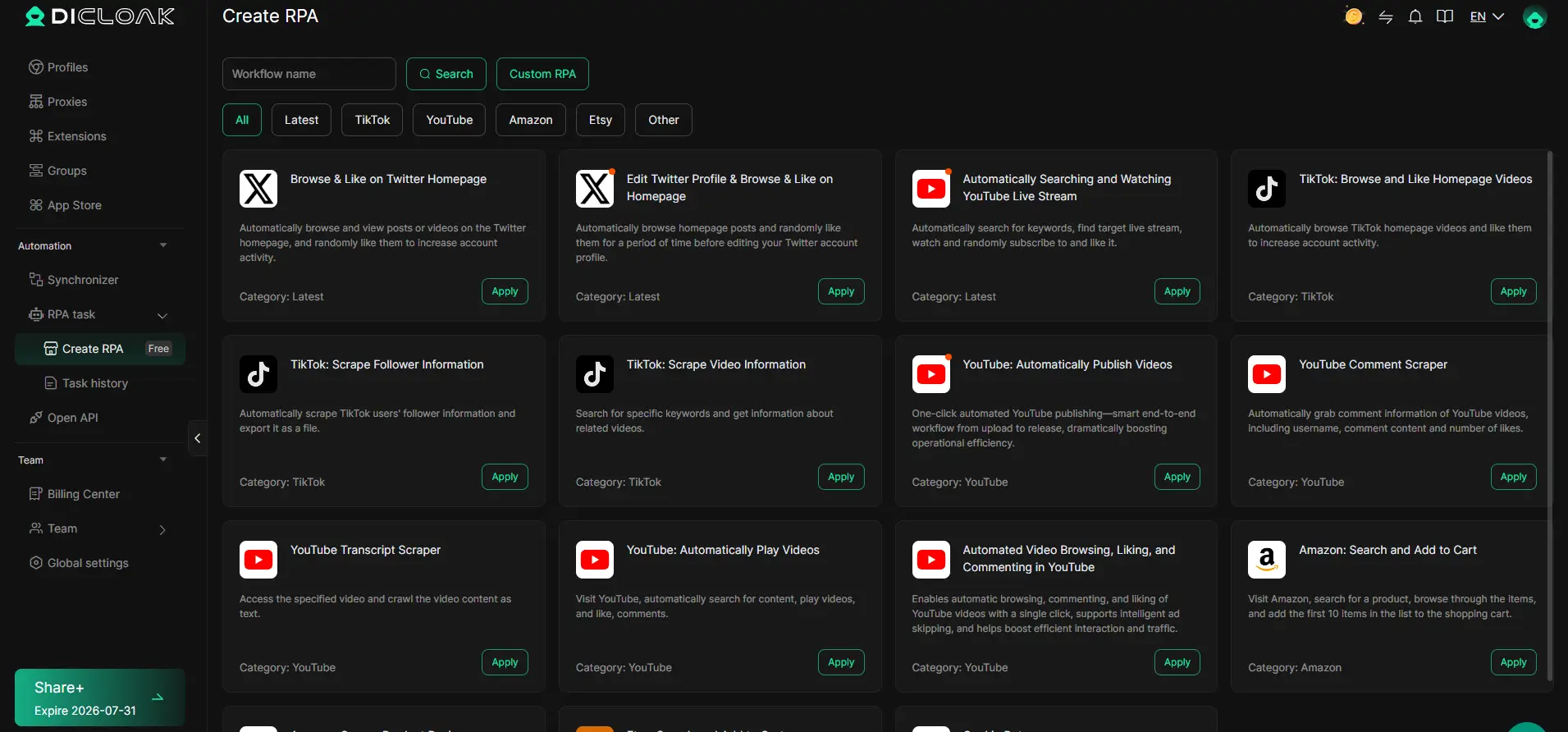
Running advanced workflows like this raises your odds of keeping platform accounts organized and reducing avoidable errors. But as you’ll see in the next section, even with these controls, most missteps come from how users set up or operate their tools, not the emulator itself.
What Most Users Get Wrong About Browser Emulators: Common Mistakes and How to Avoid Them
Most problems with browser emulators come from skipping isolation steps, using bad proxies, or leaving traces that get picked up later. Here’s where users slip up and how to fix it.
Mixing sessions and leaking fingerprints
Running multiple accounts in tabs or windows from the same emulator session is a classic mistake, sites can link your accounts by shared cookies or browser fingerprint data. Fingerprint leaks often happen when switching between profiles without a full reset or when extensions sync across sessions. If you reuse the same session, expect cross-account bans or detection within days.
Relying on weak proxies or shared IPs
- Confirm your proxy isn’t already flagged by target sites (test on a blank browser).
- Never use the same proxy for more than one identity or account.
- Check that your proxies change your IP and location, don’t trust labels, run an IP check.
Ignoring automation traces and logs
Automation tools leave patterns, mouse movements, timing, or repeated clicks, that can look fake to detection systems. Failing to check session logs means you’ll miss these weak spots.
- Review automation logs for repeat errors or timing patterns.
- Randomize delays and actions, don’t use default scripts.
- Check for browser console warnings after each run.
Next up: how to spot when a basic emulator just can’t hide you, no matter how careful you are.
When a Browser Emulator Isn’t Enough: Signs You Need an Antidetect Browser or Advanced Workflow
Warning signs: when emulators start failing
If you’re facing sudden account bans, frequent re-verifications, or find yourself stuck moving data between profiles, your current setup is likely holding you back.
What an antidetect browser adds beyond emulation
Antidetect browsers go further than simple emulators , they let you control browser fingerprints and automate repetitive tasks across real isolated profiles. For teams, features like role-based access or bulk profile import make work much smoother than juggling single-use tools.
How to transition safely to a new workflow
- Export and back up cookies and login sessions before switching.
- Run a small batch of accounts in the new tool to spot mismatches.
- Check that proxy and profile settings match your previous environment exactly.
Frequently Asked Questions About browser emulator
Is a browser emulator legal to use for testing or multi-account management?
The legality of using a browser emulator depends on your country’s laws and the platform’s terms of service. Some websites may ban or restrict automated or emulated traffic. Always review local regulations and the terms of any site you plan to test or use with multiple accounts before starting.
Can browser emulators fully hide my identity or prevent bans?
No browser emulator can promise complete anonymity or prevent account bans. Sites use advanced techniques to detect fake fingerprints, repeated patterns, or suspicious networks. The risk of detection depends on your setup, proxy quality, and how carefully you separate accounts and activity.
What’s the difference between a browser emulator and an antidetect browser?
Antidetect browsers offer stronger fingerprint isolation and more tools for managing many accounts. While a basic browser emulator can mimic browser features, antidetect browsers let you change details like device type, location, and browser fingerprints to avoid linking accounts.
How do I know if my browser emulator is being detected?
Watch for strange errors, blocked features, or warning messages from websites. Some sites may force extra logins or CAPTCHAs. You can also use fingerprint checking tools online to see if your browser looks suspicious or matches known emulators.
Can I use browser emulators on mobile devices or only desktop?
Some browser emulator tools offer mobile device emulation, but most work best on desktop. Mobile emulation often lacks full hardware support, so results may not match a real phone or tablet. For complete mobile testing, use real devices or specialized mobile emulators.
If you're ready to test websites or applications in a safe, flexible environment, the next step is to select an emulator that fits your workflow and technical needs. Evaluate feature sets, ease of use, and compatibility to ensure you get the most out of your emulation experience. Try DICloak For Free
 Web Proxy Tools
 Free Tools
 Cookie Plugin
 UA Generator
 MAC Address Generator
 IP Generator
 IP Address List
 2FA Code Generator
 World Clock
 Anonymous Check
 WebRTC Leak Test
 UUID Generator
 Free Web Proxy Site
 Proxy Checker
 FB Ad Checker
 AI Web Scraping
 Free SMM Tools
 Twitter Shadowban Checker
 Instagram Name Checker
 UTM Generator
 Username Generator
 AI Hashtag Generator
 LinkedIn Headline Generator
 Social Media Image Resizer