When Twitter isn't loading, it can feel frustrating fast. You may open X to check a post, reply to a message, or follow breaking news, but the feed stays blank. Sometimes the app opens, but images will not load. Other times, Chrome shows nothing, while your phone works fine.
The good news is that most Twitter loading problems have clear causes. It may be an X outage, a weak network, old cache, browser extensions, or an outdated app. This guide walks through the common reasons and quick fixes for 2026, so you can find the problem faster and get back to using Twitter/X with less stress.
Is Twitter Down? How to Check Outage Reports
When Twitter isn't loading, first check if X is having an outage. The problem may not be your phone, browser, or Wi-Fi. During wider outages, many users may see the same issues at once. The feed may stop updating. Posts may not open. Images, videos, and notifications may also fail.
In March 2026, X had a short outage that affected web and mobile users. Many people reported problems with posts, feeds, and notifications. This kind of case shows why you should check outage reports before changing your settings.
How to use outage tracking websites for Twitter
Outage tracking sites like Downdetector can show if Twitter not loading is a wider problem. Search for “X” or “Twitter” and look at the report graph. A sudden spike usually means many users are having trouble at the same time.
Also read the latest user comments. If many people mention “app,” “website,” “feed,” or “login,” your Twitter app not loading issue may be part of a larger outage. In that case, wait before clearing data, reinstalling the app, or changing account settings.
Signs that Twitter might be experiencing a global outage
A wider outage often affects more than one device or network. For example, if X fails on Chrome, the mobile app, and mobile data, the issue may be on X’s side.
Common signs include X not loading, the Twitter feed not refreshing, posts opening slowly, replies failing to load, and blank media. Sometimes text loads, but Twitter images not loading becomes the main problem. If many users in different regions report the same issue, it is likely not just your device.
What to do if Twitter is down in your region
If reports show an outage, avoid making big changes. Do not keep logging in and out. Do not reset your password unless X shows a clear account warning.
Try a few light checks. Open X on another device. Switch from Wi-Fi to mobile data. Refresh the page once. If the problem remains and outage reports are rising, wait for the service to recover. When reports drop, reopen X and check whether the feed, posts, images, and notifications work again.

Common Reasons Twitter Isn't Loading on Your Device
If outage reports look normal, the issue may be on your side. In many cases, Twitter isn't loading because of your network, app version, browser data, or device settings. These problems are common, and most of them are easy to check.
Internet connection issues affecting Twitter performance
A weak connection can make Twitter not loading happen often. X needs a stable network to load the feed, posts, images, videos, and replies. If your Wi-Fi is slow, the app may open, but the Twitter feed not refreshing issue may stay.
For example, X may work on mobile data but fail on office Wi-Fi. That can mean the network is slow or blocks social media traffic. If text loads but Twitter images not loading keeps happening, the network may also be blocking or slowing media files.
Problems with Twitter's servers or app updates
Sometimes X not loading is not a full outage. Only part of the service may fail. The website may work, but the app may not. Posts may load, but replies may freeze.
App updates can also cause problems. If your Twitter app not loading issue starts after an update, check the App Store or Google Play for a newer version. If many users report the same bug, waiting for the next update may be better than changing account settings.
Device-specific issues causing Twitter to malfunction
If X only fails on one device, check that device first. Low storage, old system software, bad cache, or browser extensions can all cause loading problems.
For instance, Chrome may show a blank X page while the mobile app works fine. That often points to browser cache, cookies, or an extension. If Android shows old posts but desktop works, the app cache or device storage may be the cause.
How to Fix Twitter Not Loading on Mobile Devices
After checking your network and device, move to the X app itself. On mobile, Twitter isn't loading often because the app is stuck, the cache is old, or the app version no longer works well with your phone.
Steps to restart the Twitter app and clear cache
First, close the X app fully. Do not just leave it in the background. Open it again and check whether the feed loads. If Twitter not loading continues, restart your phone. X’s help center also lists restarting the device and checking the network as basic fixes for app issues.
On Android, you can clear app data from your phone settings. This can help when the Twitter feed not refreshing issue keeps coming back. It may reset some app settings, but it will not delete your X account. On iPhone, there is no same “clear cache” button for the X app. If the app keeps freezing, remove the app and install it again from the App Store.
How to check app permissions for Twitter on Android/iOS
Permissions can also affect how X works on your phone. If Twitter images not loading, or uploads fail, check whether X has access to mobile data, photos, camera, and notifications.
On Android, open Settings, find Apps, choose X, and check Permissions and Mobile Data. On iPhone, open Settings, scroll to X, and review the allowed access. For example, if X cannot use cellular data, the app may work on Wi-Fi but fail when you leave home.
Updating the Twitter app to resolve compatibility issues
If your Twitter app not loading problem started after a system update, check for a newer X app version. Older app versions can break or lose some features over time. X also notes that some iOS devices on very old iOS versions may not update to newer X versions.
Open Google Play or the App Store and update X. Then restart the app. If X not loading still happens, uninstall and reinstall it. Before doing that, save any unsent drafts and make sure you can log back in. X warns that logging out or removing the app may clear drafts.
Troubleshooting Twitter Loading Problems on Desktop
If the X app works on your phone but the website fails on your computer, the problem is likely in your browser. When Twitter isn't loading on desktop, check extensions, cache, cookies, and browser updates before changing your account settings.
How browser extensions can interfere with Twitter
Some browser extensions can block parts of X.com. This is common with ad blockers, privacy tools, script blockers, and tracking protection add-ons. They may stop the scripts that load posts, replies, images, or videos.
For example, Chrome may show a blank X page, while the mobile app works fine. In that case, your Twitter app not loading is not the issue. The browser setup may be the problem. X’s help center also recommends trying a private browser window and turning off browser add-ons when X.com has trouble loading.
Steps to clear browser cache and cookies for Twitter
Old browser data can also cause Twitter not loading on desktop. Cache helps pages load faster, but broken or outdated data can make X reload the same bad page again.
Open your browser settings and clear cache and cookies for X.com. Then close the browser and open it again. You may need to log in again, so make sure you know your password or have access to your login method. This can help when the Twitter feed not refreshing or Twitter images not loading problem only happens on one browser.
Checking for outdated browser versions affecting Twitter
An old browser may not load X.com correctly. Modern websites change often, and older browser versions may struggle with new scripts or media features.
Update Chrome, Edge, Firefox, or Safari to the latest version. Then restart the browser and try X again. If X not loading continues, test another browser. For instance, if X fails in Chrome but works in Firefox, the issue is likely tied to Chrome settings, extensions, or stored site data.
Why Twitter Posts and Videos Aren't Loading Properly
After checking your browser, look at the content itself. Sometimes Twitter isn't loading fully, but only posts, images, or videos are affected. This often points to a network, media, cache, or file issue.
Common causes of media loading issues on Twitter
Media needs more data than text. So your feed may open, but videos may spin and images may stay blank. This is why Twitter images not loading can happen even when posts still appear.
For example, X may work on home Wi-Fi but fail on a public network. Some office or school networks also block media files. If X not loading only happens with videos or images, try another network first. Then refresh the app or browser.
How to fix slow or failed video uploads on Twitter
Video uploads can fail when the file is too large, too long, or in the wrong format. X allows non-Premium users to upload videos up to 140 seconds with a maximum file size of 512MB. Premium users can upload longer videos, with higher limits on web and iOS. X supports common video uploads such as MP4 and MOV.
If your video will not upload, shorten it, reduce the file size, or export it as MP4. A slow network can also stop the upload before it finishes. When Twitter app not loading happens during upload, restart the app and try again on a stronger connection.
Resolving issues with images not appearing in tweets
If images do not appear in tweets, check whether the issue affects all images or only one post. If all images fail, the cause may be your connection, browser cache, app cache, or privacy extension. If only one image fails, the post may have been deleted, changed, or blocked in your region.
When Twitter not loading affects images and the Twitter feed not refreshing at the same time, clear the app or browser cache. Then reopen X. If the same image problem happens on every device, wait and check outage reports again. It may be a temporary media service issue.
Advanced Fixes for Persistent Twitter Loading Problems
If posts, videos, and images still fail after the basic fixes, move carefully. At this stage, Twitter isn't loading may be linked to your network settings, connected apps, or a damaged app install. These fixes take more effort, so try them only after simpler checks.
How to reset network settings on your device
Network settings can break in small ways. Your phone may connect to Wi-Fi, but X may still fail to load. This can happen after changing DNS, using VPNs, switching SIM cards, or moving between many networks.
On iPhone or Android, reset network settings from your system settings. This usually removes saved Wi-Fi networks, Bluetooth pairings, and VPN settings. After the reset, reconnect to Wi-Fi and open X again. If X not loading was caused by a bad network setup, the feed and media may start working again.
Identifying third-party apps causing Twitter conflicts
Third-party apps can also create trouble. Some tools connect to your X account for posting, scheduling, analytics, or automation. If one of them is old or unsafe, it may cause account errors or odd loading behavior.
Review your connected apps in X settings. Go to Settings and privacy, then Security and account access, then Apps and sessions. Remove apps you no longer use. X’s help center also recommends reviewing and revoking third-party app access when needed. This is useful when Twitter not loading happens with login errors, failed posts, or repeated account prompts.
Reinstalling the Twitter app for a fresh start
If your Twitter app not loading problem only happens on one phone, reinstalling the app can give it a clean start. This can fix damaged app files, bad cache, and repeated freezing.
Before you uninstall X, save any post drafts and make sure you can log back in. X notes that logging out or removing the app may clear drafts. After reinstalling, test the feed first. Then check whether the Twitter feed not refreshing or Twitter images not loading issue is gone. If the same problem returns right away, the cause may be your account, network, or X service status rather than the app itself.
How to Avoid Future Twitter Loading Issues
After trying deeper fixes, it helps to prevent the same problem from coming back. If Twitter isn't loading often, your app, browser, storage, or network habits may need small changes.
Tips for maintaining app and browser compatibility
Keep the X app, phone system, and browser updated. Newer versions often fix bugs that affect loading, login, and media playback. X also recommends updating your browser, trying a private window, clearing cache and cookies, and turning off browser add-ons when X.com has loading problems.
For example, if Twitter not loading only happens in Chrome, update Chrome first. Then test X in Firefox or Edge. If it works there, your Chrome setup is likely the issue, not your account.
Best practices for managing device storage and cache
Do not let your phone storage get too full. Apps need free space to save fresh data. When storage is low, Twitter app not loading or freezing can happen more often.
Clear cache from time to time, but do not do it every day. Cache helps X load faster. It only becomes a problem when old data breaks the page. If the Twitter feed not refreshing issue returns often, clear cache, restart the app, and check again. For browser users, remember that X uses cookies and local storage to keep services working and save some site data.
Monitoring Twitter's server status for proactive fixes
If X not loading starts suddenly, check outage reports before changing settings. This is useful when many things fail at once, such as posts, replies, notifications, and Twitter images not loading.
For example, if X fails on both Wi-Fi and mobile data, and outage reports are rising, wait first. Do not reinstall the app or reset your password right away. When reports drop, reopen X and test the feed again. This can save time and prevent extra login checks.
A More Stable Way to Manage Multiple Twitter/X Accounts with DICloak
Most Twitter loading issues can be fixed with network checks, cache cleaning, app updates, or browser troubleshooting. But for teams managing many X accounts, the problem may come from mixed cookies, repeated logins, changing IPs, or shared browser data. This can make Twitter isn't loading, login checks, or feed errors happen more often. For multi-account users, DICloak can be used to keep each Twitter/X account in a cleaner and more stable browser setup.
- Isolated profiles with unique browser fingerprints: Users can create a separate browser profile for each Twitter/X account. Each profile keeps its own cookies, cache, local storage, login data, and fingerprint settings. This helps personal, brand, client, and campaign accounts stay separate.
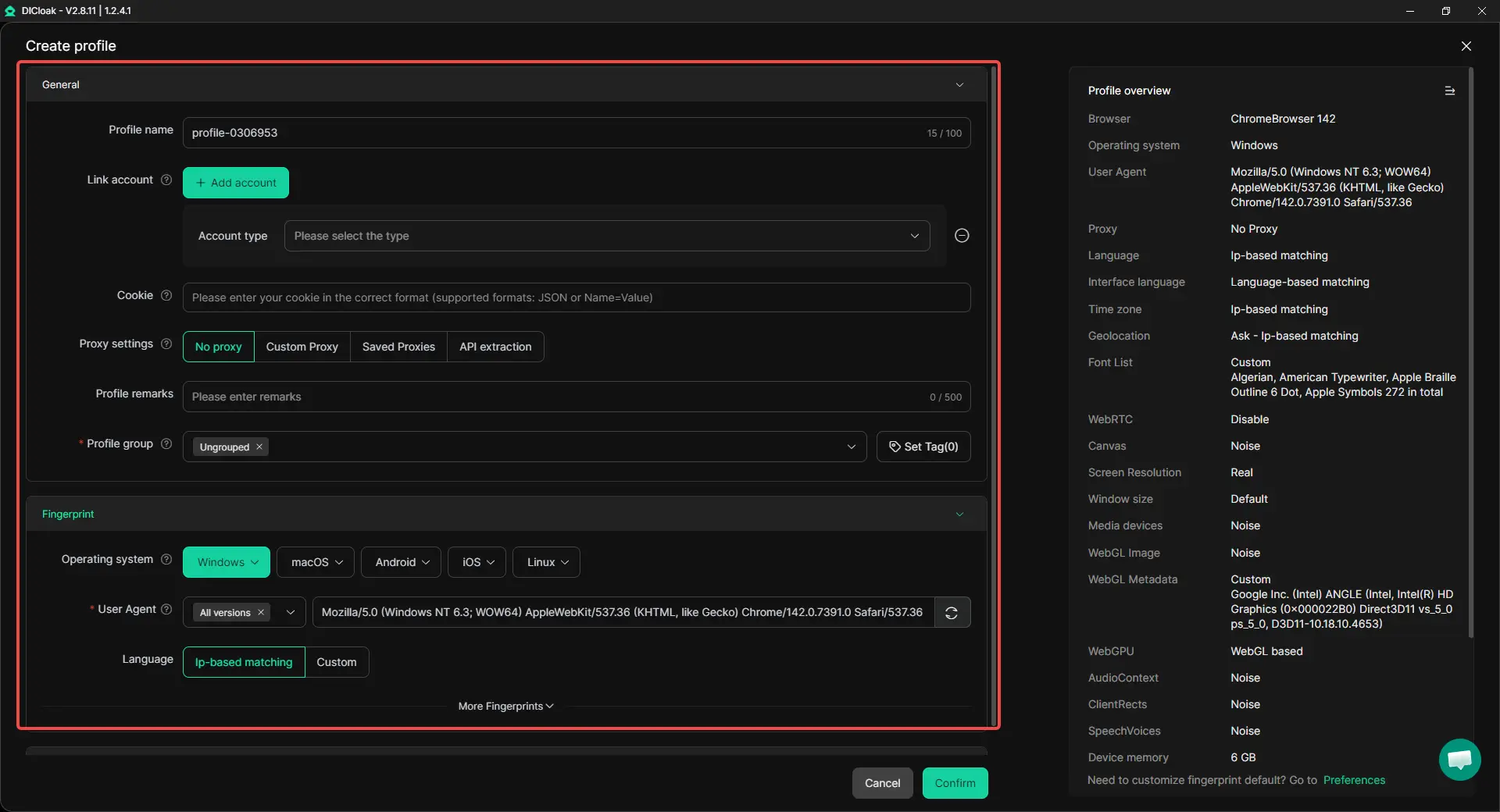
- Custom proxy configuration for each profile: Users can set a different proxy for each profile. This helps keep the account’s login region more consistent, instead of jumping between unrelated locations.
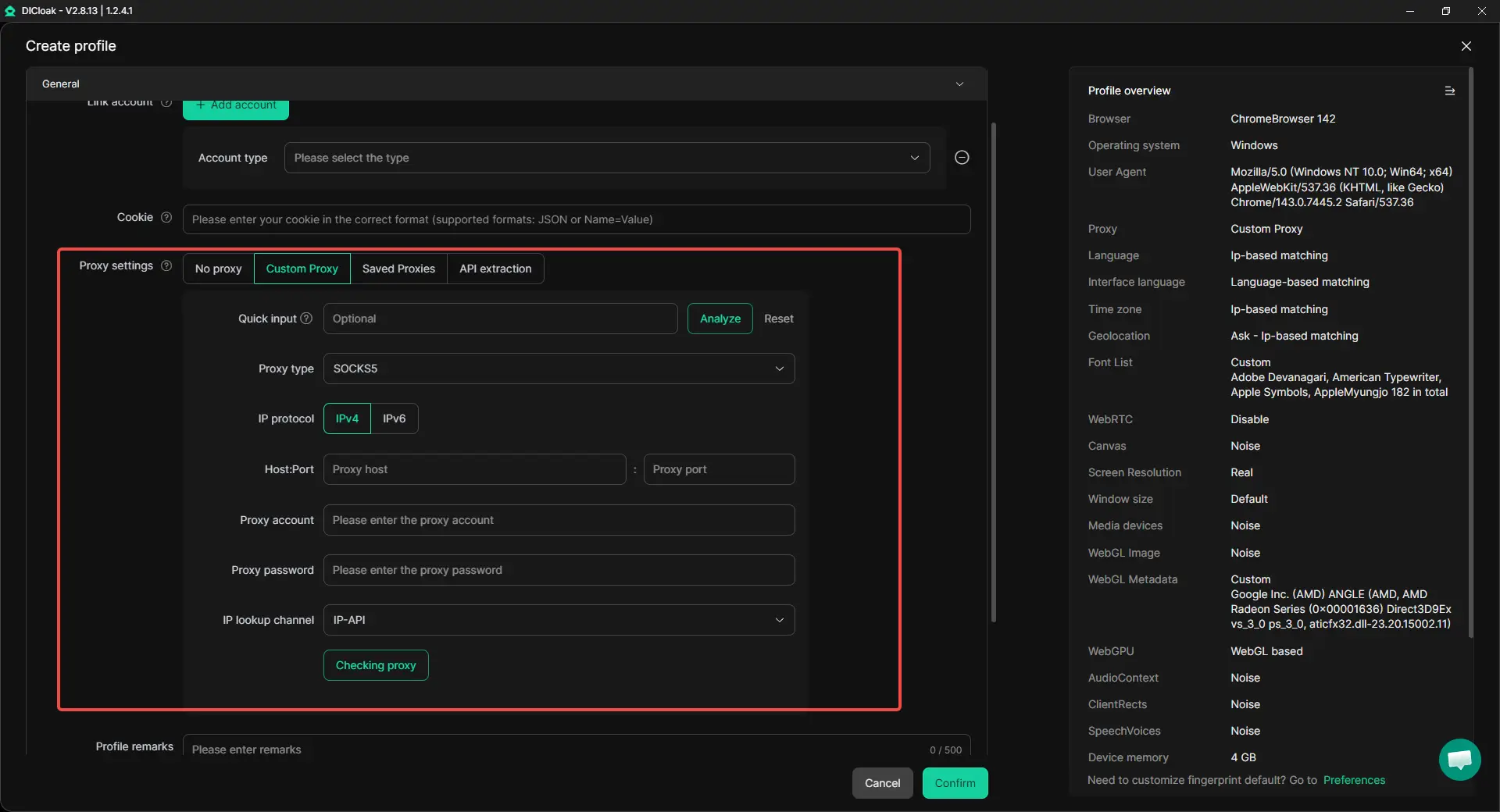
- Twitter RPA templates for basic activity: Users can apply Twitter RPA templates to browse and view homepage posts or videos, randomly like posts, or browse before editing a Twitter profile. These templates are better for light account activity and should be used in a natural way.
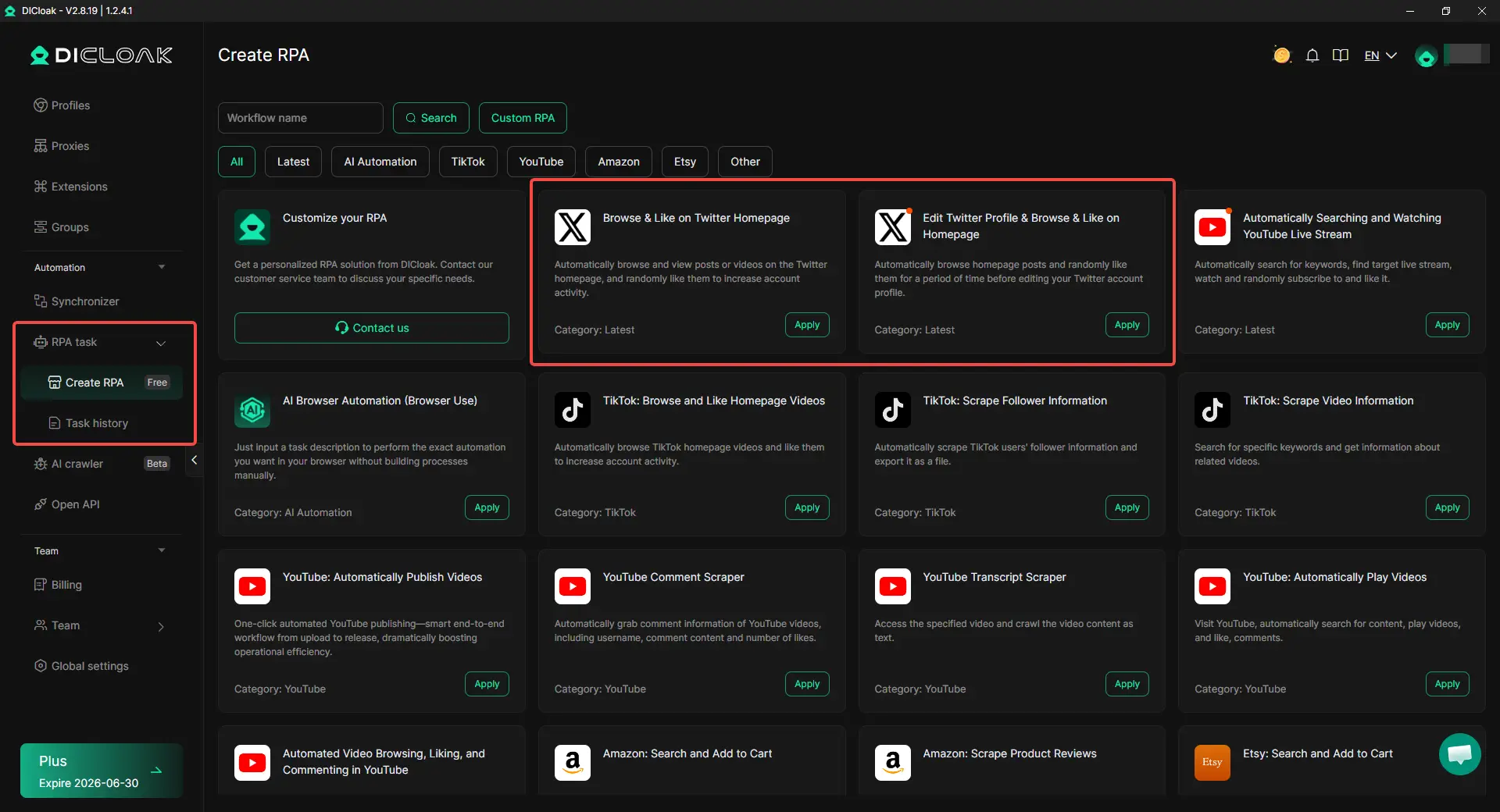
- Team sharing with access control: Teams can share browser profiles with permission settings instead of sharing raw passwords. This makes account handoff cleaner and safer.
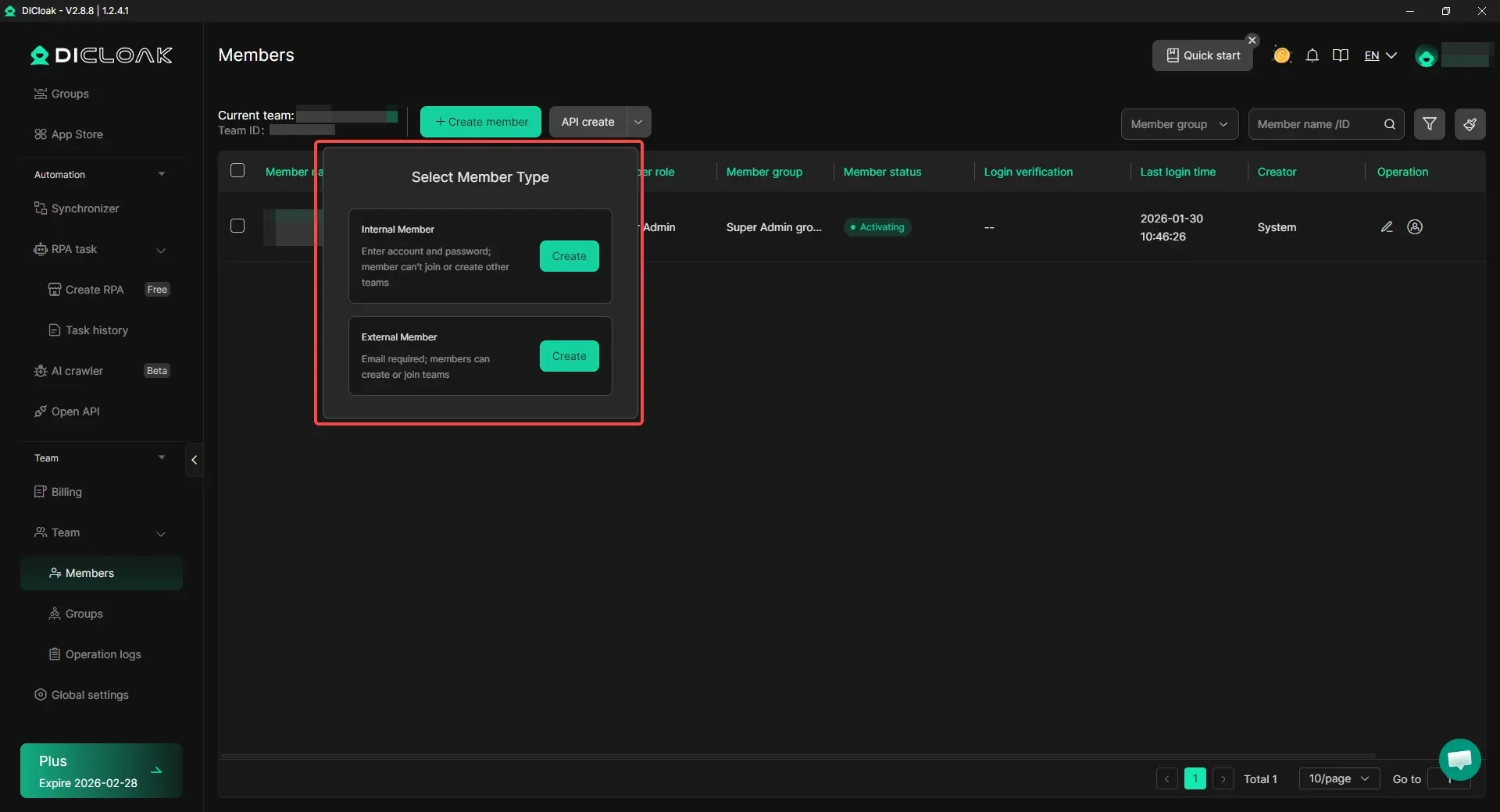
If one personal X account is not loading, start with the basic fixes first. But if X not loading or account switching issues often happen during multi-account work, a separated browser profile setup with custom proxy configuration can make daily Twitter/X management much easier.
FAQ about Twitter Isn't Loading
Why is Twitter isn't loading on my phone?
If Twitter isn't loading on your phone, check your network first. Then restart the X app. If it still fails, clear cache on Android or reinstall the app on iPhone.
Why is Twitter isn't loading on Chrome?
If Twitter isn't loading on Chrome, extensions or old browser data may be the cause. Try incognito mode. If X works there, clear cookies and cache or turn off extensions.
Why is Twitter isn't loading images and videos?
When Twitter isn't loading images or videos, the network may be slow or blocking media files. Switch networks, refresh X, and clear cache if the issue continues.
What should I do first when Twitter isn't loading?
When Twitter isn't loading, check outage reports first. If X is not down, test your network, restart the app or browser, and update X.
Can DICloak help when Twitter isn't loading?
DICloak cannot fix a normal X outage. But if Twitter isn't loading during multi-account work, users can use separate profiles, isolated data, and custom proxy configuration to keep each account environment more stable.
Conclusion
When Twitter isn't loading, the cause is not always your device. X may be down, your network may be unstable, or the app may need an update. Start by checking outage reports. Then test Wi-Fi and mobile data, restart the app, clear cache, and update your browser or X app.
If the problem only happens on desktop, check browser extensions, cookies, and old site data. If posts, videos, or images fail to load, try a stronger connection and make sure the file format or app version is not the issue. For long-term prevention, keep your app and browser updated, leave enough device storage, and check X server reports before making major changes.
For users managing many Twitter/X accounts, a cleaner browser setup can also help. With DICloak, users can keep accounts in separate profiles, use isolated data, and set custom proxy configuration for each profile. This can reduce mixed sessions and make multi-account work more stable.
 Web Proxy Tools
 Free Tools
 Cookie Plugin
 UA Generator
 MAC Address Generator
 IP Generator
 IP Address List
 2FA Code Generator
 World Clock
 Anonymous Check
 WebRTC Leak Test
 UUID Generator
 Free Web Proxy Site
 Proxy Checker
 FB Ad Checker
 AI Web Scraping
 Free SMM Tools
 Twitter Shadowban Checker
 Instagram Name Checker
 UTM Generator
 Username Generator
 AI Hashtag Generator
 LinkedIn Headline Generator
 Social Media Image Resizer