When Facebook stopped loading for over 20 million users on February 13, 2026, hundreds of posts flooded Downdetector with complaints: blank screens, login errors, endless spinning on the app, and feeds that wouldn’t refresh. It wasn’t just a one-time outage, most people searching why is my facebook not working are dealing with issues that come and go, from the app not working on their phone to Facebook crashing right after launch. The frustrating part? You could be staring at a frozen feed while your friend’s account works fine.
The real causes are rarely what users expect. Sometimes, it’s a stuck cache or an update that breaks on only a few devices. Other times, Facebook’s background checks flag your account, especially if you switch devices or use strange proxies. Account restrictions, browser fingerprint mismatches, and permission errors now trigger more problems than slow internet connections, as confirmed by Facebook’s official help page. Even small changes in browser settings or app permissions can result in login loops or failed posts.
This guide cuts through vague advice. You’ll see what actually causes Facebook to stop working, how to fix each type of error, and what to check next if simple resets don’t help. Most fixes are faster than you think, here’s what really works.
What’s Really Happening When Facebook Stops Working?
Most people type “why is my facebook not working” and expect an outage, but that’s rarely the main cause. Facebook can fail to load or glitch for several reasons, many on your side, not theirs.
Is Facebook Down for Everyone or Just Me?
Begin by checking if Facebook’s servers are actually down. Visit Downdetector or search “Facebook server status” on Twitter for real-time reports. When a real outage hits, millions mention “facebook not loading” or “facebook keeps crashing” at the same time. If only you have problems, it’s probably not a global issue.
Outages usually show as the whole website failing to open, endless spinners, or error screens. These are less common than app bugs or account problems.
The Difference Between App, Browser, and Account Problems
It matters if Facebook is broken everywhere or just on your phone. If the Facebook app not working happens only on Android but loads fine in a browser, you’re dealing with a device or app bug. Try clearing app cache, updating, or reinstalling.
If Facebook fails in all browsers and devices, your account might be restricted or flagged. This can happen if you log in from a new device, switch proxies, or trigger security checks, more details are on the Facebook Help Center. Sometimes, browser fingerprint mismatches or denied permissions block posts or logins.
The real fix is matching the error to the right cause, not just refreshing or rebooting. If nothing works, check for messages in your account, update your apps, and review any recent security emails from Facebook before searching for more advanced solutions.
Why Does Facebook Work for Others But Not for Me?
Seeing Facebook work smoothly for others while your own feed refuses to load, crashes, or keeps asking for login can feel frustrating. The real answer to "why is my facebook not working" often hides in the details of your account, device, or network, what’s broken for you may not affect anyone else nearby.
Account-Specific Issues: Bans, Restrictions, and Suspicious Activity
Most people blame slow internet or app bugs, but account issues are now a top reason for Facebook not loading or the Facebook app not working at all. Facebook uses automated systems to flag accounts that behave in ways its security team considers risky. Sudden changes, like logging in from a new country, using unknown devices, or switching proxies, can trigger these flags. If your account is restricted, you might see missing features, blocked posts, or endless login loops even when others have no problem.
Sometimes, a simple name change or joining too many groups quickly can look suspicious. If you get a warning in your notifications or email, take it seriously. Ignoring it often leads to stricter bans, where even reinstalling the app won't help. Check your account status to see if there’s a restriction.
Device and Browser Fingerprints: Why Facebook Might Block You
Facebook tracks device details and browser fingerprints to spot unusual patterns. If you use privacy tools, change browsers, or clear cookies too often, it can look like someone else is trying to access your account. This triggers security checks, sometimes even when your password is correct.
Common mistakes include switching between devices without logging out, or letting multiple people use the same account. These patterns can cause Facebook keeps crashing errors or lockouts. The most overlooked reason is that even a small change in your browser or app permissions can make Facebook treat your device as suspicious. Always review your device settings and avoid using random proxies or untrusted browsers. If nothing changes, consider checking Facebook’s help community for similar reports.
What Are the Most Common Facebook Problems and Error Messages?
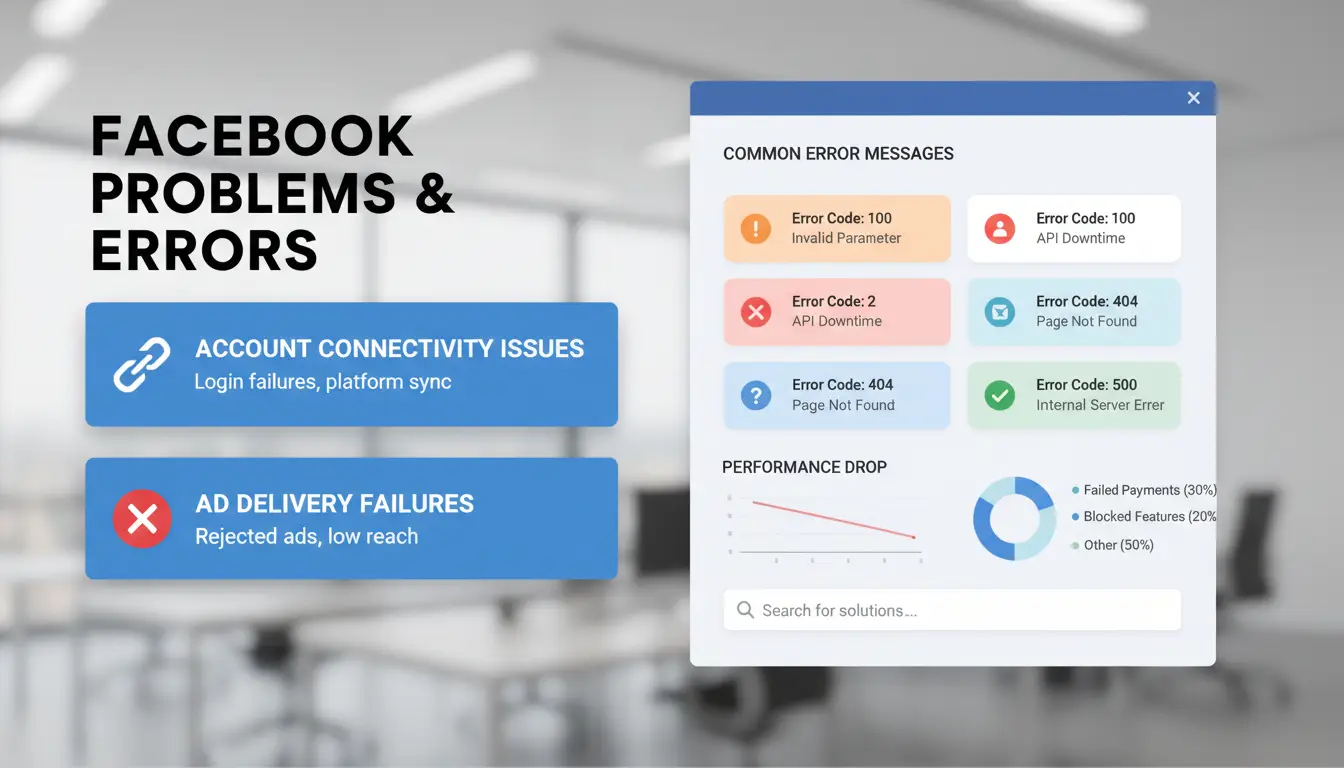
When users search "why is my facebook not working," the real issue usually falls into a few repeat categories. Below are the most frequent errors and what each message actually means, so you waste less time on random fixes.
Login Failures and Account Lockouts
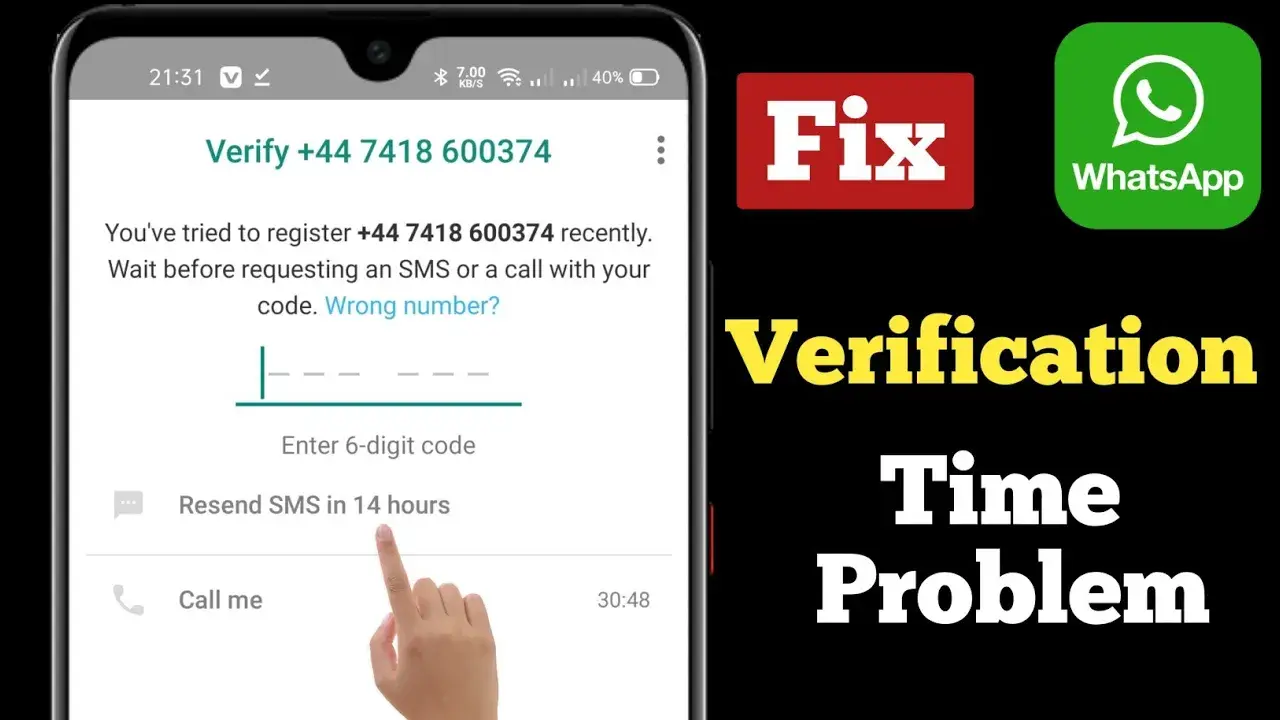
A failed login isn’t always about a wrong password. Facebook often blocks logins from new devices, locations, or when it suspects your browser settings are “off.” You might see “Suspicious Login Attempt” or get looped back to the login page without clear error text. If you get stuck in a verification loop, where codes keep coming but nothing changes, Facebook has likely flagged your account for extra checks. This happens more if you’re using privacy tools or switching between networks.
The fastest way out: clear your browser cache, check for Facebook emails about suspicious activity, and try logging in from a device you’ve used before. If you’re still blocked, wait a few hours before trying again, as too many failed attempts can trigger temporary lockouts.
News Feed Not Loading or App Crashing
When the news feed won’t load, or the Facebook app keeps crashing, it usually points to a device or software conflict. Outdated app versions, buggy updates, or full storage often break feed loading. On desktops, browser fingerprint mismatches or denied permissions can block the feed, sometimes you’ll just see a blank page or endless spinning.
iOS and Android users should always check for app updates or try reinstalling. On browsers, switching to a different profile or clearing cookies can help. If Facebook is down for everyone, Downdetector will show wide outages.
Problems Uploading Photos, Videos, or Posts
Upload issues usually mean you’ve hit file size limits, used a format Facebook doesn’t accept, or the content was flagged as suspicious. Large videos, blurry images, or posts with banned keywords get stopped with vague errors like “Cannot upload” or “Try again later.” Sometimes, Facebook’s Community Standards filter blocks a post without clear details.
To fix these, shrink media files, use standard formats (like .jpg or .mp4), and avoid links or text that might look spammy. If you notice “facebook not loading” after an upload error, refresh the page or restart your device, this clears most stuck posts.
How to Fix Facebook Not Working: Step-by-Step Solutions
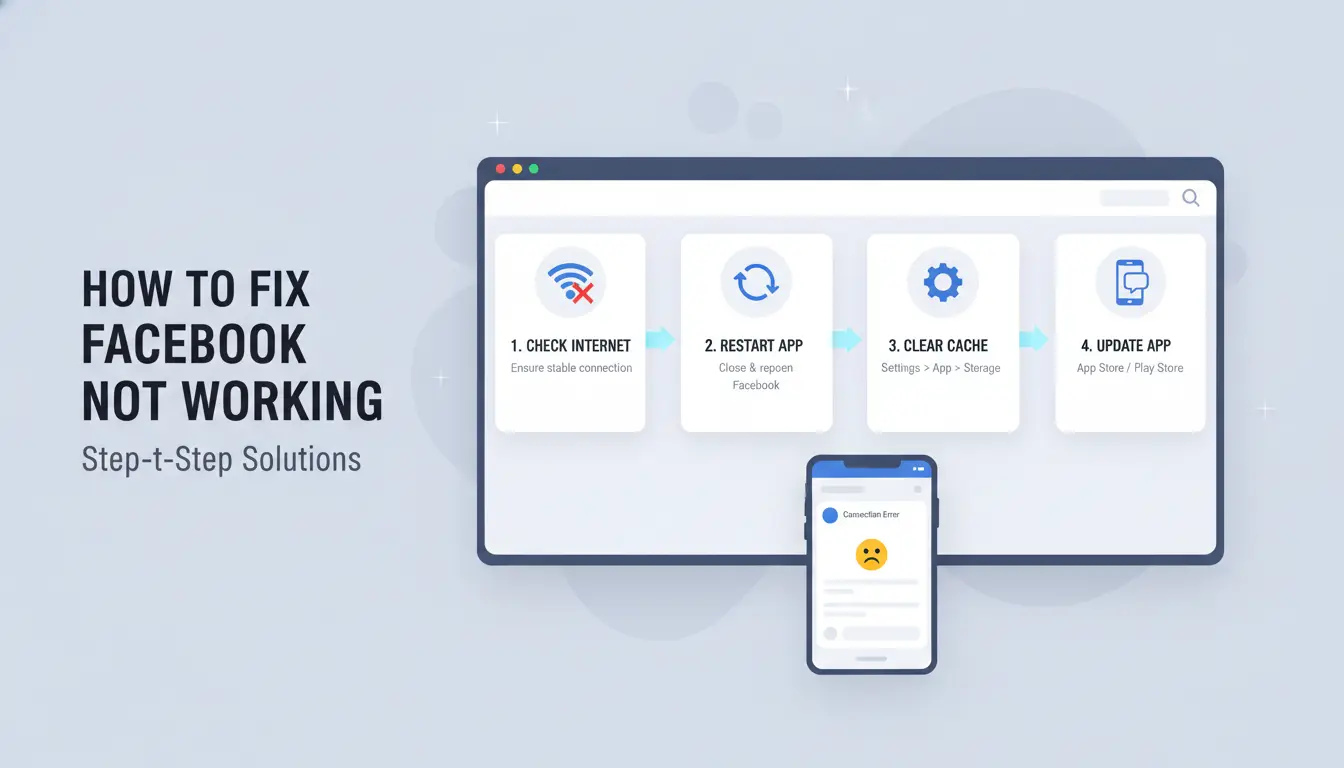
When you wonder “why is my Facebook not working,” don’t just blame slow Wi-Fi or Facebook itself. Most problems have fast fixes, but you have to check the right things in the right order. Start with these steps before digging into more complex solutions.
Quick Checks: Internet, App Updates, and Device Restarts
Begin with basics. Open a new website or another app to make sure your internet is working. If Facebook is not loading but other sites are, the problem isn’t your connection.
Next, check if your Facebook app needs an update. Go to the App Store or Google Play, search “Facebook,” and tap “Update” if it’s there. Outdated apps often cause Facebook app not working errors or random crashes.
Restart your device, this clears stuck processes that sometimes block Facebook from opening properly. For many users, one restart solves the issue within seconds.
Clearing Cache, Cookies, and App Data
If Facebook keeps crashing or won’t load posts, your cache or cookies may be corrupt. On Android, hold the Facebook app, tap “App info,” then “Storage & cache,” and tap “Clear cache.” For iPhone, delete and reinstall the app for a fresh start.
On a browser, open facebook.com, then clear only Facebook’s cookies, not all cookies. This stops old settings from breaking the login or news feed.
Checking Permissions and Privacy Settings
Apps need permission to use your data and internet. Go to your phone’s settings > Facebook > Permissions. Make sure network, storage, and location access are allowed. If not, Facebook will fail to load photos or update feeds.
Privacy settings on Facebook itself can block posts or stories. Double-check your account’s privacy options and see if any features are set to “Only Me” or disabled, which can look like Facebook not working when it’s just hidden.
When Facebook Blocks or Restricts Your Account: What to Do Next
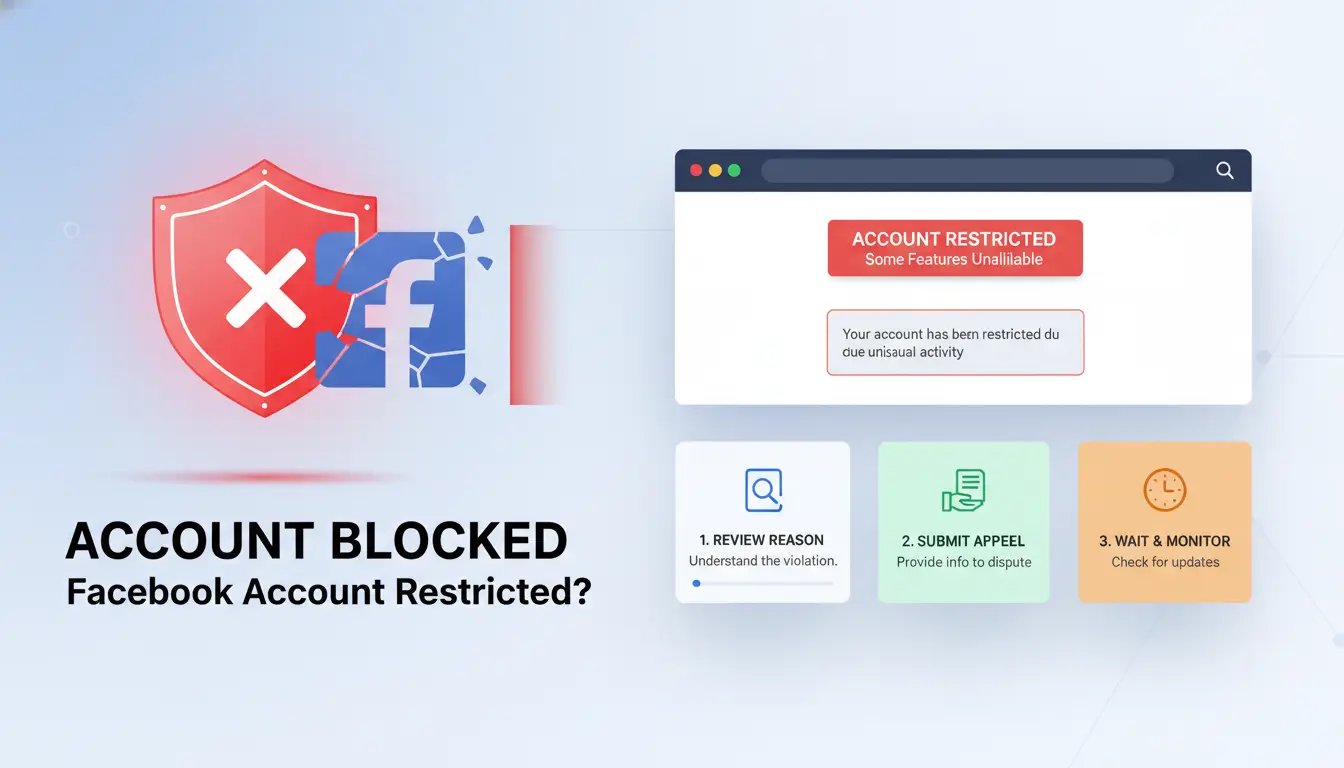
How to Tell If You’re Banned or Restricted
If your Facebook isn’t loading, posts won’t show, or the app keeps crashing, you might be facing more than a simple glitch. The real red flags are things like sudden logouts, warnings about “unusual activity,” or messages saying your account is restricted. Sometimes you see a notice right after logging in, other times you get blocked from posting or commenting. These problems often start after switching devices, using a new proxy, or changing browser settings. Facebook’s system detects when your account acts differently from usual, and that’s when restrictions kick in. If you keep asking “why is my facebook not working,” but see clear error messages about account status, you’re likely dealing with a ban or restriction, not just a technical issue.
Steps to Appeal or Recover Your Account
Facebook shows a “Submit Appeal” button or sends a link if your account gets restricted. Fill out the form with honest details, don’t rush, because mistakes can cause longer delays. Upload any documents they ask for, like an ID or proof of ownership. If your appeal is denied, check the Facebook Help Center for guidance on what went wrong. Sometimes, waiting 24–48 hours and retrying the process helps. If you can’t recover access, create a new account only after changing device, browser fingerprints, and network settings. This lowers the risk of getting flagged again.
How to Avoid Future Restrictions
Stick to one device and avoid jumping between phones or computers. Keep your login location steady, random changes get noticed. Avoid weird browser extensions or sudden permission changes, which cause Facebook not loading or the app not working. For teams or multiple accounts, you can use tools like DICloak to create separate browser profiles, isolate fingerprints, and set up consistent proxies. Maintaining device and network consistency is the single biggest step to prevent bans or restrictions.
How Managing Multiple Facebook Accounts Can Trigger Problems (and How DICloak Helps)
Why Facebook Flags Multiple Accounts on One Device
Facebook links accounts by tracking device fingerprints and IP addresses. If you log into five accounts on the same phone or browser, Facebook sees them as connected. This often triggers mass bans, login loops, or unexpected restrictions. Many users searching "why is my facebook not working" are actually facing hidden account linking issues, not just app glitches. Even minor device changes can cause Facebook not loading or the facebook app not working for all profiles.
How DICloak’s Browser Profiles and Proxies Keep Accounts Safe
You can use DICloak to run each Facebook account in a separate, isolated browser profile. Every account gets a unique fingerprint and assigned proxy, so Facebook can't connect them or flag suspicious activity. This setup sharply lowers the risk of mass bans or facebook keeps crashing across accounts. Teams can assign different proxies for each profile, making every login look like a real, independent user.
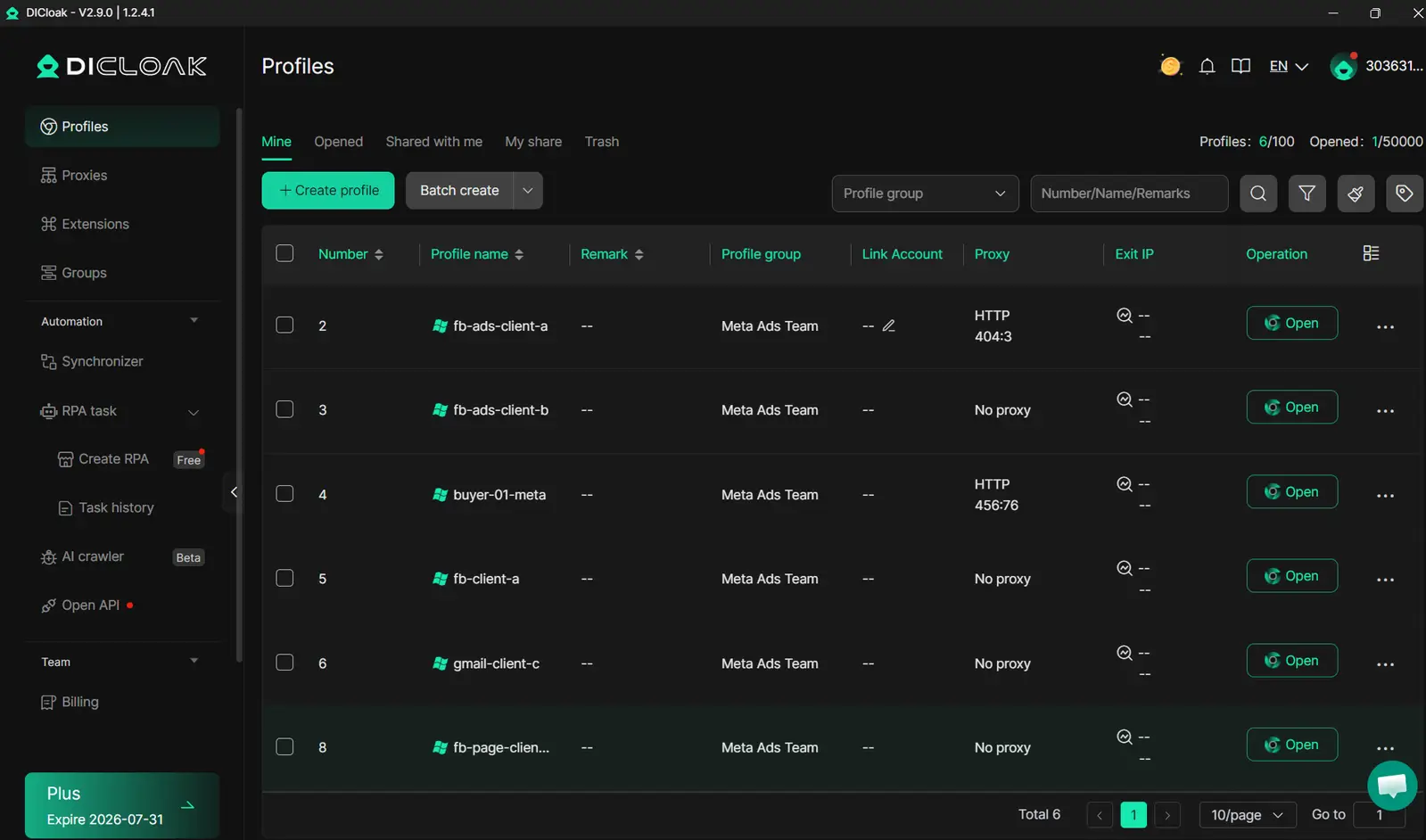
Tools like DICloak let you automate likes, comments, and posting using RPA bots that mimic human actions. Permission controls help teams avoid accidental cross-account activity. This approach makes multi-account marketing safer and cuts down errors that often trigger restrictions.
When to Seek Help: Facebook Support, Community Forums, and Next Steps
If you’ve tried every fix and Facebook still refuses to load or keeps crashing, it’s time to ask for help. Most users only search “why is my facebook not working” after hours of failed resets. Knowing where to turn next can save you a lot of stress.
Contacting Facebook Support Effectively
Submitting a support ticket is easy, but getting a real answer is harder. Go to the Facebook Help Center and look for the “Report a Problem” link. Include clear details, screenshots, error messages, device model, and steps you’ve already tried. Skip vague statements like “facebook app not working.” Instead, write exactly what you see: “Facebook not loading after login,” “Keeps crashing when opening Messenger,” or “Posts fail with error XYZ.” This helps Facebook filter your case faster.
Using Community Forums and Third-Party Resources
Sometimes, other users spot problems before Facebook does. Check the Facebook Community Forum for similar cases. Search trusted tech sites like Android Central or TechCrunch for updates on app bugs. If your issue matches a trending topic, you’ll often find workarounds that official support doesn’t share. Forums also show which errors affect certain devices or regions, especially useful if “facebook not loading” happens on your phone but not your computer.
When It’s Time to Consider a New Account or Device
If support and forums can’t fix “why is my facebook not working,” consider starting fresh. Changing devices or making a new account brings risks. You might lose access to old posts or friends, sometimes, restrictions follow you if your device fingerprint or IP stays the same. Always clear browser data and update permissions before switching devices. That way, you avoid repeating the same mistakes that caused problems in the first place.
How to Prevent Facebook Problems in the Future: Pro Tips and Best Practices
Staying ahead of common Facebook issues is easier if you follow a few habits and set up your devices right. If you’ve ever wondered “why is my facebook not working” or faced the app not loading, these steps cut down on most headaches.
Keeping Your App, Device, and Browser Updated
Outdated apps or browsers often cause Facebook to glitch, or even stop loading entirely. Updates patch security holes and fix bugs that can make Facebook keep crashing or block certain features. Set your phone, tablet, and computer to update apps automatically. On Android and iOS, you can turn on auto-updates in the app store settings. For browsers like Chrome or Firefox, enable automatic updates in the settings menu. If you use extensions, keep those updated too. A single out-of-date plugin can break Facebook’s login or messaging.
Safe Practices for Multiple Accounts and Social Media Marketing
Mixing personal and business accounts is risky. One account flagged for odd behavior can get all your profiles restricted. Always use different emails and strong, unique passwords. For those running social media campaigns, tools like DICloak help by keeping browser fingerprints and proxies separate for each account. This cuts down on accidental bans and makes it less likely you’ll be locked out for “suspicious activity.” Avoid logging in from public Wi-Fi or untrusted proxies, these trigger Facebook’s security checks.
Recognizing Scams, Phishing, and Fake Error Messages
If Facebook shows a strange login prompt, pop-up, or message, stop before clicking anything. Common scams mimic real error messages or ask for your password outside the official app or site. Always double-check the URL before entering login details. If you suspect a scam, reset your password right away and visit the Facebook Security Help Center. Learning to spot fake alerts is the fastest way to avoid account lockouts and keep your profiles safe.
Frequently Asked Questions
Why is my Facebook not working on WiFi but works on mobile data?
If Facebook is not loading on WiFi but works with mobile data, your WiFi network may have restrictions. This can happen if your router blocks certain sites or your DNS settings are wrong. Some schools, offices, or public WiFi networks also block Facebook. Try restarting your router or changing to a public DNS like Google’s (8.8.8.8).
Why does Facebook keep logging me out or asking for verification?
Facebook keeps logging you out or asking for verification if it detects device changes, suspicious logins, or security risks. This can happen if you sign in from different locations, use a proxy, or clear cookies often. Facebook may also log you out if someone else tries to access your account, to protect your privacy.
What should I do if Facebook says my account is disabled?
If your Facebook account is disabled, you need to follow the appeal process. Visit the Facebook Help Center and use the form provided. Explain why your account should be restored and attach a clear photo ID. Make sure your information matches your account details. Facebook will review and email you with their decision.
Can using proxies or privacy tools cause Facebook to stop working?
Yes, using proxies, proxys, or privacy tools can make Facebook app not working issues appear. If your IP address changes suddenly or your device "fingerprint" is inconsistent, Facebook may block access or trigger security checks. Try turning off proxies and signing in from your normal network to fix the problem.
Why can’t I upload photos or videos to Facebook even after troubleshooting?
If Facebook is not loading your uploads, check the file size and format. Large videos or unsupported file types won’t work. On mobile, make sure the app has storage and camera permissions. If you still can’t upload, your account may have temporary restrictions due to past policy violations. Check for Facebook notifications about limits.
Understanding the common causes behind Facebook not working, such as app glitches, connectivity issues, or account problems, can help you quickly resolve most disruptions. Staying updated and regularly checking for app updates, security settings, and device compatibility is essential for a smooth experience. Try DICloak For Free
 Web Proxy Tools
 Free Tools
 Cookie Plugin
 UA Generator
 MAC Address Generator
 IP Generator
 IP Address List
 2FA Code Generator
 World Clock
 Anonymous Check
 WebRTC Leak Test
 UUID Generator
 Free Web Proxy Site
 Proxy Checker
 FB Ad Checker
 AI Web Scraping
 Free SMM Tools
 Twitter Shadowban Checker
 Instagram Name Checker
 UTM Generator
 Username Generator
 AI Hashtag Generator
 LinkedIn Headline Generator
 Social Media Image Resizer