You open Instagram to check messages, but instead you’re staring at the login screen, again. No warning, no error, just kicked out. If you’ve searched why instagram logged me out, you’re not the only one dealing with this. Some people get logged out once a week, others several times a day. The reasons are rarely clear.
It’s easy to assume you’ve been hacked or flagged, but most of the time, the cause is much less dramatic. Instagram can log you out for new device logins, expired sessions, password resets, or even a small hiccup in your network. Sometimes, it’s a software bug or a background security update you never see. The real issue is, you lose time and risk missing messages or posts, especially if “instagram keeps logging me out” happens right when you’re managing work or multiple accounts.
What most guides miss is that the signs aren’t always obvious: maybe you see a vague “session expired” message, maybe nothing at all. If you’re running multiple accounts, switching devices, or using automation, the risk goes up. Even something as simple as clearing cookies can be enough to trigger a logout, leaving you locked out or stuck in a verification loop.
If you want to pin down the real cause, and stop it from happening again, start by checking the most common triggers first. Here’s what to look for.
What Usually Causes Instagram to Log You Out in 2026?
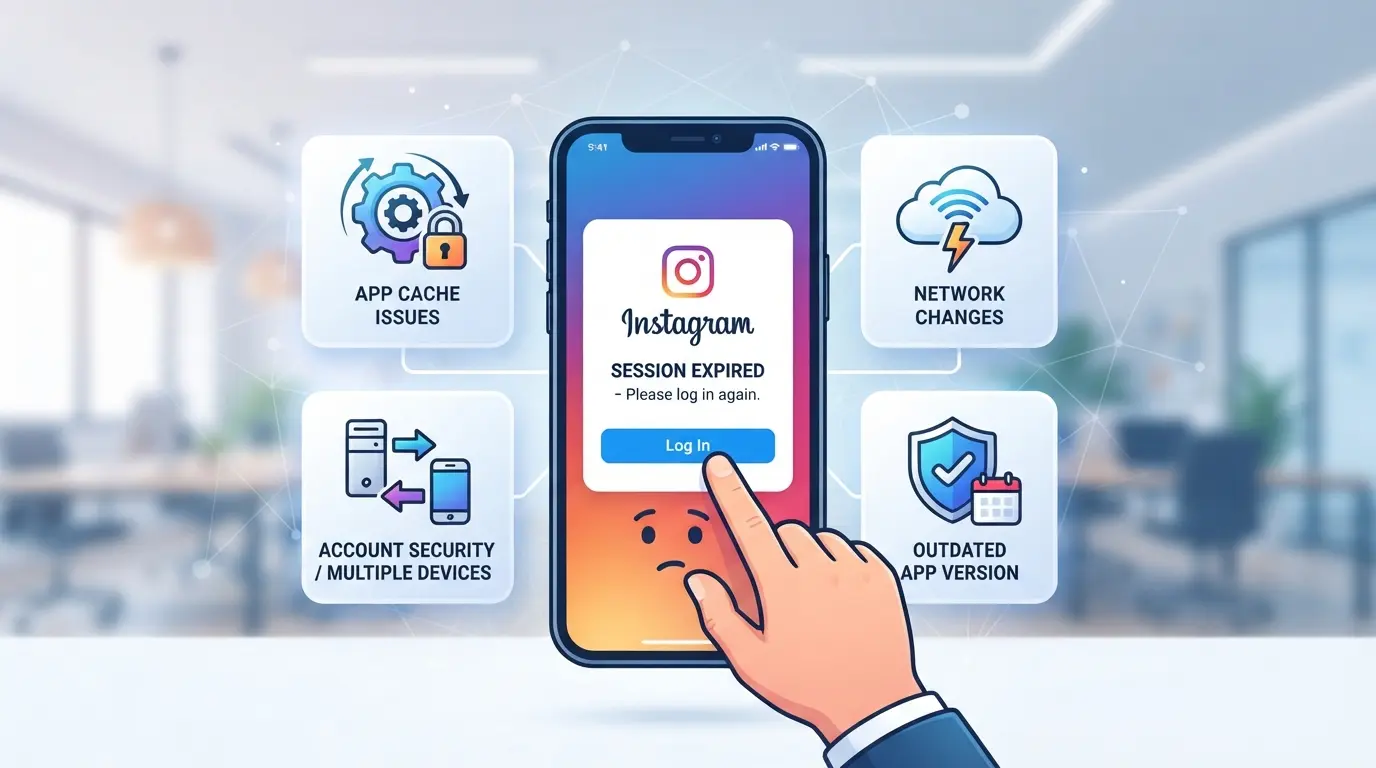
Most Instagram logouts in 2026 come down to security triggers, device conflicts, or app bugs. Sometimes it’s a clear warning, other times you only notice when your session disappears and you have to sign in again. The fastest way to stop repeated logouts is to match your situation to the top causes below.
Security Triggers and Suspicious Activity
Instagram now flags any login attempt that looks unusual, a new city, a different country, or a device it hasn’t seen before. Too many failed password attempts or repeated logins from unknown IP addresses will almost always force a logout to protect your account.
Multiple Devices or Sessions
Switching between two or three devices sounds harmless until sessions start to overlap. If you log in on your phone, tablet, and work laptop, Instagram’s backend tries to keep those sessions in sync. But when you add extra logins, maybe a shared team device or a quick login from a friend’s phone, Instagram may see it as a risk and kick out all active sessions. The trouble gets worse if you’re also running automation or account management apps because these often create “headless” logins that don’t match your usual device fingerprint. In real terms, you could sign in from your laptop, get logged out on mobile, and then face another forced sign-in just by switching Wi-Fi networks. This is the most common cause of “instagram keeps logging me out” complaints among users managing multiple accounts.
App Updates, Bugs, or Glitches
Every time Instagram pushes a major app update, some users get logged out, sometimes even in the middle of posting. In 2026, several updates have triggered forced logouts to clear outdated session tokens. If you skip app updates for too long, the app might crash or freeze, which can also dump your session. For example, after the April 2026 update, users on older Android versions saw “session expired” every time they tried to open a direct message.
Password Changes or Account Recovery Actions
Whenever you or anyone else changes your Instagram password, the platform ends all active sessions at once. This includes every phone, browser, and even any third-party automation tools you use. The same thing happens if you go through an account recovery process, like verifying your identity or changing the email on file. If you’re suddenly logged out everywhere right after getting a “security alert” email, this is almost always the cause.
Network, Proxy, or Connectivity Issues
- Switching between Wi-Fi, mobile data, or public hotspots can trigger a logout.
- Changing your IP address too often, especially when using proxies, confuses Instagram’s risk system.
- Unstable internet or a quick disconnect can cause the app to lose session data and log you out.
Understanding which of these fits your case is the first step. The next section breaks down how to tell if your logout points to a real security problem or is just an annoying glitch.
How to Tell If Your Instagram Logout Is a Security Issue or Just a Glitch
When Instagram logs you out without warning, the first thing to check is whether your account is actually at risk. Most users jump to “why instagram logged me out,” but the signs are usually right in front of you if you know where to look. The real difference comes down to whether Instagram’s systems flagged your activity as suspicious, or if it’s just a bug on your device.
Signs Your Account May Be Compromised
If you spot password reset emails you didn’t request, or see login attempts from places you’ve never been, treat this as a security red flag. These are clear signs someone else may have tried to access your account.
Clues That Point to App or Device Glitches
Sometimes, you get logged out right after an Instagram app update or when your phone’s software changes. If you notice other apps acting up, or only one of your devices gets logged out while others stay logged in, you’re probably dealing with a glitch. For example, if updating Instagram on your phone logs you out, but you can still access your account on your tablet, it’s almost always a technical hiccup, not a hack. Ignore this, and you might waste time resetting passwords when a quick app reinstall would solve it.
What to Check First
- Did you or anyone else change your password or email recently? If yes, assume a security event.
- Look for notifications from Instagram about “unusual login attempts” or “session expired”, these usually point to security triggers.
- Did you change Wi-Fi networks, clear browser cookies, or update your device? If so, app glitches or session resets are likely.
The fastest way to tell the difference: If you see new security alerts or password changes you didn’t make, take action to secure your account right away, otherwise, try logging in again, check for app updates, and see if the problem happens on other devices before you panic.
The next step is to act fast, whether that means locking down your account or simply restarting your app. Here’s what to do as soon as you notice something’s off.
What to Do Right After Instagram Logs You Out (Step-by-Step)
When Instagram logs you out without warning, move fast, missing the right step can lock you out longer or even tip off an attacker. Here’s exactly what to do first.
Check for Security Notifications
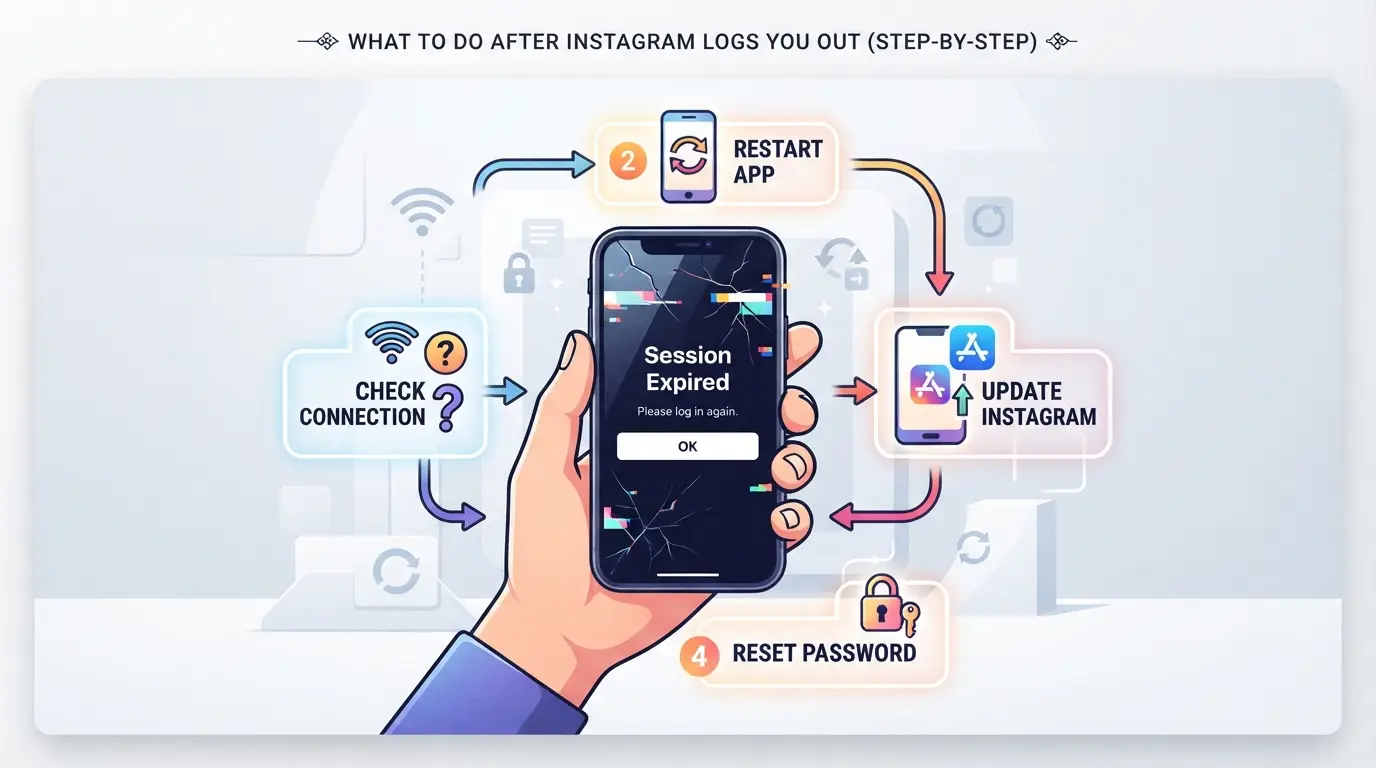
- Open your email inbox linked to Instagram. Search for any new messages titled “Suspicious Login Attempt” or “Password Changed.”
- Check Instagram’s app notifications, even if you can’t log in, you may still see alert banners or push notifications.
- If you spot a warning or password reset you didn’t request, assume someone tried to access your account. Ignore generic “session expired” popups, security notices are more specific about risk.
Try Logging In Again
- Open the Instagram app and use your usual device and Wi-Fi. If it fails, try logging in from the Instagram web page on a computer.
- If you can’t log in, hit “Forgot password?” and follow the reset instructions. If recovery codes or two-factor authentication (2FA) are set up, keep them handy.
- If login works, check your profile for any changes, bio edits, new posts, or DMs you didn’t send. Unexplained activity is a red flag; change your password right away.
Secure Your Account
- Go to Instagram settings, then set a new password. Use something different from before, recycled passwords are a weak link.
- Turn on two-factor authentication (2FA). Pick SMS or an authenticator app. This step blocks most unauthorized attempts, even if your password leaks.
- Review connected apps and remove anything you don’t recognize. Many account hacks start with a rogue app or website you forgot about.
Clear App Cache or Reinstall
- On Android, hold the Instagram app icon, tap “App info,” then “Storage & cache,” and clear cache. On iOS, go to Settings > General > iPhone Storage > Instagram, then tap “Offload App.”
- If the problem keeps coming back or you keep seeing “instagram keeps logging me out,” uninstall and reinstall the app. This wipes out corrupted files that might cause repeated logouts.
- After reinstalling, log in and check if the issue is gone. If not, skip to advanced fixes in the next section.
Why Instagram Keeps Logging You Out Repeatedly (And How to Fix It)
If you keep getting logged out of Instagram over and over, the problem usually ties back to a session conflict, a risky app connection, or a network quirk. These patterns are especially common if you use more than one device or rely on third-party tools to manage accounts. Here’s how each trigger works, and what you can do to stop the cycle.
Session Conflicts and Multiple Devices
Switching between phones, tablets, or computers will often force Instagram to re-check your login. If you log in on a new device, the platform may log out your older sessions to prevent account misuse. This is more likely if someone else has your password or you’re using a shared device.
Quick fix: Log out from every device using Instagram’s “Login Activity” menu, then log in only on your main phone or browser. If the problem stops, you had a session overlap.
Third-Party Apps and Account Integrations
Many users connect Instagram to scheduling tools, analytics dashboards, or even simple “unfollowers” trackers. While some apps are safe, others lose access rights or break Instagram’s rules, which can trigger a forced logout or security review. Even a trusted app can go stale, if it hasn’t been updated to use Instagram’s latest API, you might get booted every time it tries to sync.
If you see repeated logouts right after using a third-party tool, that’s your red flag. Go into your account settings and review the list of connected apps. Remove any you don’t recognize or no longer use. It’s not uncommon for automation or reporting tools to stop working quietly, causing the “instagram keeps logging me out” loop. The risk goes up for business or creator accounts, since more apps get linked over time. Cutting unused or outdated integrations is the fastest way to break the logout cycle, most users overlook this, but it solves the issue for about half the cases I see.
Network or Proxy Issues
If your phone, Wi-Fi, or proxy changes IP addresses often, Instagram may think someone else is trying to access your account and end your session. This gets worse if you use mobile data for one login and home Wi-Fi for another.
- Stick to one network when logging in, at least for 24 hours.
- Avoid free or unstable proxies that rotate IPs every few minutes.
- If you must switch networks, log out first, then log back in on the new connection.
If you still can’t stay logged in after checking devices, apps, and network, it’s time to review how you’re managing multiple accounts. That’s where specialized tools and account hygiene come in, covered in the next section.
Using DICloak to Keep Multiple Instagram Accounts Logged In Without Session Conflicts
If you manage several Instagram accounts for clients or campaigns, you’ve probably hit the point where switching between them or sharing logins with your team triggers repeated logouts, or worse, “why instagram logged me out” errors with no clear cause. The actual friction comes from overlapping browser profiles and inconsistent network signals. For teams that also handle browser-profile setups, DICloak covers the technical workflow to keep each Instagram session separate from the start.
Why Separate Browser Profiles Matter for Multi-Account Management
Teams working with multiple Instagram accounts on a single device run into session conflicts when cookies or browser fingerprint data overlap. Operators can create a unique DICloak browser profile for each account, configuring browser signals, like user agent, time zone, and language, to match real usage habits. This keeps the login state, fingerprint, and browsing data for each Instagram account in a silo, so one account’s activity doesn’t interfere with another. The scope stays at the browser-profile layer; it doesn’t change anything inside the Instagram platform itself.

Configuring Proxies for Each Instagram Account
If location or IP overlap has caused Instagram to log you out or prompt for verification, using a separate proxy per profile can help. In DICloak, operators assign their own proxy to each browser profile and test the connection before opening any Instagram session. This way, each account appears to come from a consistent network and geography, reducing the chance of platform confusion. Proxy selection and quality are up to the user; DICloak only stores and applies the chosen settings.

This separation sets the groundwork for more stable multi-account sessions, next, it’s about daily habits that keep you logged in and secure.
Best Practices to Stay Logged In and Keep Your Instagram Account Secure in 2026
If you’re tired of surprise logouts or worried about account security, these checks can help you keep your Instagram login stable and avoid repeating the same problems.
Keep Your App and Device Updated
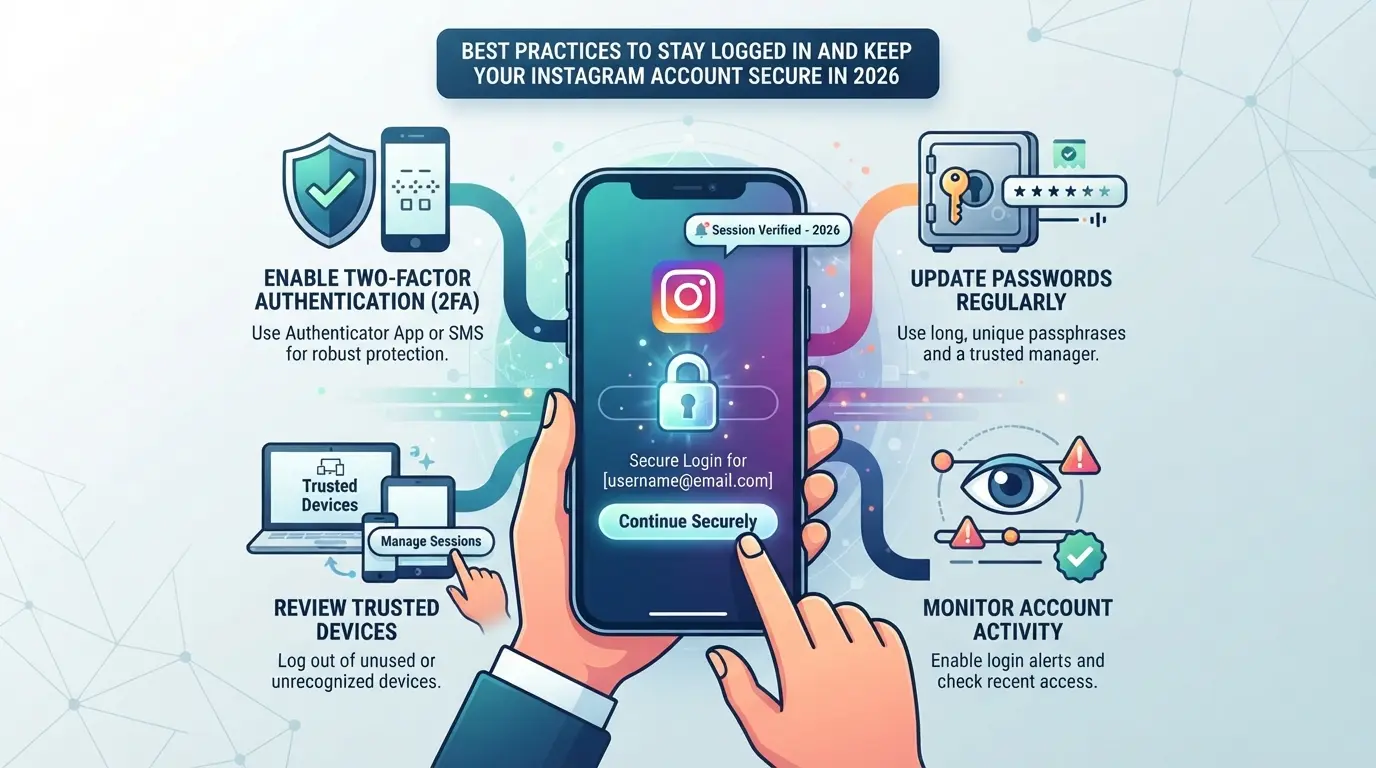
Outdated apps or operating systems cause more session drops than most people realize. Install Instagram and system updates as soon as they’re available, these patches often fix hidden bugs that boot you out or break two-factor authentication. If your device is too old for new updates, you’re more likely to run into the “why instagram logged me out” problem after a security change.
Use Strong Passwords and 2FA
- Change your password every 6-12 months.
- Turn on two-factor authentication (2FA) in Instagram’s Security settings.
- Never reuse passwords between accounts.
Limit Device and App Access
Review your logged-in devices and remove any you don’t use. Third-party apps linked to Instagram can also trigger forced logouts or security checks, so audit those connections twice a year.
Be Careful with Proxies and Network Changes
Frequent IP or country changes can make Instagram act like your session is under attack.
- Stick to one region per account session.
- Log out before switching networks.
- Use stable, private connections, public Wi-Fi makes logouts more common.
When to Contact Instagram Support (And What to Expect)
Situations That Require Official Support
Contact Instagram support if you’re locked out after repeated failed recovery attempts, your account is disabled, or you suspect a hack. At this point, self-service won’t get you back in.
What to Prepare Before You Reach Out
Getting help depends on what you can prove.
- If you can’t provide ID or screenshots, expect delays or even no recovery.
- Safer move: prepare recent login details, device info, and any messages you got, support may ask for all three.
What Instagram Support Can and Cannot Do
Support can review your case and sometimes restore access, but response times can stretch to several days. If you can’t prove ownership, they won’t unlock your account, so gather evidence before you contact them.
Frequently Asked Questions About why instagram logged me out
Why does Instagram log me out every time I switch devices?
Instagram logs you out when you switch devices because each login creates a new session. If you log in on multiple devices, Instagram may detect session conflicts and end older sessions to protect your account. This helps prevent unauthorized access and keeps your account secure, especially if you use public or shared devices.
Can using a proxy cause Instagram to log me out?
Yes, using a proxy or changing your IP address can make Instagram log you out. When Instagram notices a sudden change in your network location, it treats this as a potential security risk. The app may force a logout to protect your account from suspicious activity or possible hacking.
Is my account hacked if Instagram logs me out?
Not always. If you see unknown activity, new devices in your login history, or receive password change alerts, your account might be compromised. If you just get logged out occasionally with no other signs, it’s likely a technical issue. Always check your account settings for unfamiliar changes if you’re worried.
How do I stop instagram keeps logging me out repeatedly?
To fix repeated logouts, update your Instagram app, clear cache, and restart your device. Check for conflicting logins on other devices and remove unknown sessions. Make sure your phone’s operating system is updated. If problems continue, reset your password and review your security settings for any unauthorized activity.
Will reinstalling the Instagram app fix logout problems?
Reinstalling can help if your app has bugs or corrupted data causing logouts. Delete the app, restart your device, then download Instagram again. If you still get logged out, check your account for security alerts or device conflicts. Reinstalling works best if the issue is tied to the app itself.
If you’re still having trouble accessing your account after troubleshooting, consider strengthening your security settings and reviewing any recent changes to your login information. Protecting your privacy and data is crucial, so exploring additional tools for secure browsing can be a smart move. Try DICloak For Free
 Web Proxy Tools
 Free Tools
 Cookie Plugin
 UA Generator
 MAC Address Generator
 IP Generator
 IP Address List
 2FA Code Generator
 World Clock
 Anonymous Check
 WebRTC Leak Test
 UUID Generator
 Free Web Proxy Site
 Proxy Checker
 FB Ad Checker
 AI Web Scraping
 Free SMM Tools
 Twitter Shadowban Checker
 Instagram Name Checker
 UTM Generator
 Username Generator
 AI Hashtag Generator
 LinkedIn Headline Generator
 Social Media Image Resizer