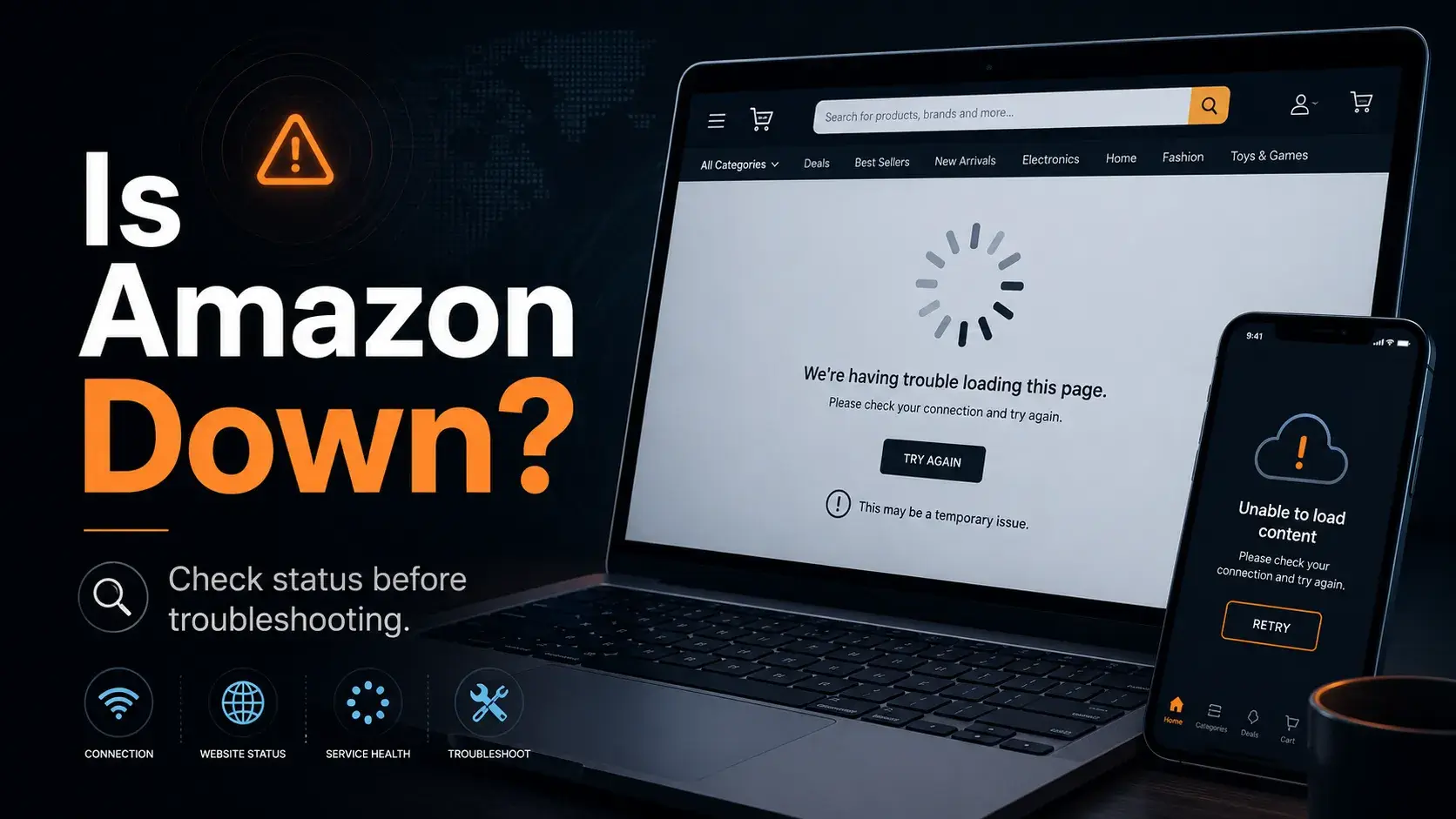
You try to load Amazon, and nothing happens. The page spins, the app freezes, or checkout will not move. Before you clear data or retry payment, the first question is simple: is amazon down?
An Amazon page that will not load does not always mean Amazon is down for everyone. It could be your local connection, a browser problem, a mobile app error, a checkout issue, or a temporary problem with one Amazon service. This guide shows you how to confirm Amazon’s status, identify what type of problem you are seeing, troubleshoot your own connection, and decide what sellers and teams should do during real platform disruptions.
How to Check if Amazon Is Down Right Now
To answer is amazon down right now, start with three checks: official notices, user reports, and your own device or network test. This keeps you from treating a local issue like a full outage.
Check Amazon’s Official Status Pages and Support Updates
Start with official Amazon channels. For AWS-related issues, the AWS Health Dashboard shows reported service events across AWS Regions, recent updates, affected services, and event severity. It is useful when an Amazon problem may be tied to cloud infrastructure, but it does not prove that every shopping, Seller Central, or Amazon Ads issue is AWS-related.
For shopper issues, check Amazon’s Help and Customer Service pages. For seller issues, check Seller Central notices, Seller Support, and seller forums. Amazon Help also runs @AmazonHelp on X, where support replies in several languages. Amazon does not always publish instant public notices for consumer-facing outages, so support channels may show signals faster than a formal amazon server status update.
Use an Amazon Down Checker to See Reports From Other Users
A third-party amazon down checker can help you see whether other users are reporting problems at the same time. Downdetector is one of the most widely used options for this type of check, and it tracks user reports for Amazon and other services.
These tools usually group reports by time, location, and issue type, such as website loading, login, checkout, or app problems. A sharp spike in reports can suggest that amazon down reports are not only coming from you. But it is still not final proof of a full platform outage. The issue may be regional, service-specific, or tied to one network provider. Use it as a signal when you check amazon status, not as the only source.
Test Amazon on Another Device, Browser, or Network
Next, run a quick comparison test. First, try Amazon in a different browser, such as Chrome, Safari, or Edge. Second, switch networks. Move from Wi-Fi to mobile data, or from mobile data back to Wi-Fi. Third, try the Amazon app if the website is not loading, or open the website if the app is stuck.
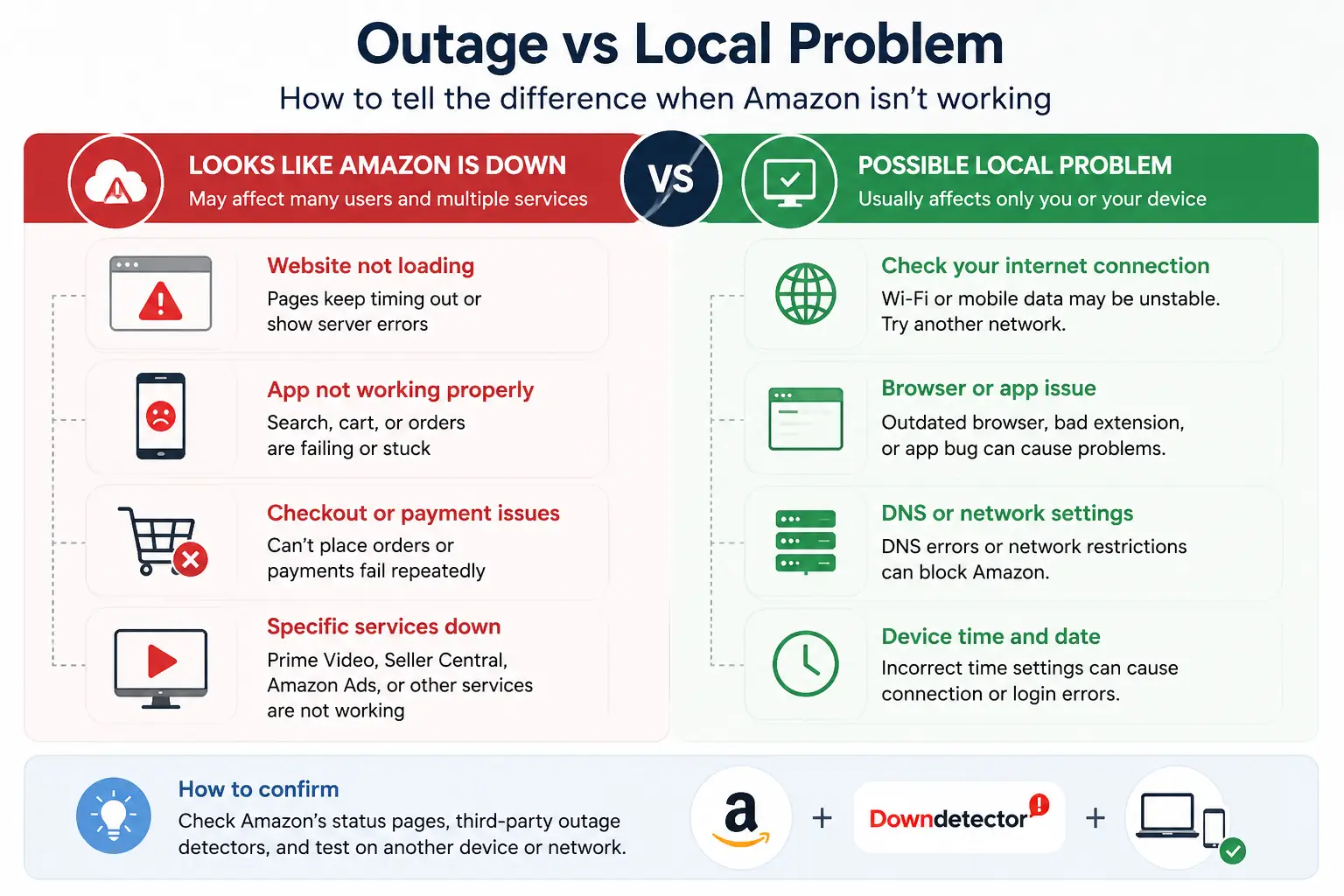
If Amazon works in one place but not another, the problem is likely local. It may be your browser, app, router, DNS, device settings, or connection. That is different from a full amazon down situation. If Amazon fails across devices and networks, and many users are reporting the same problem, a wider disruption is more likely.
What to Check When Amazon Is Not Working for You
When amazon not working only affects you, the problem is usually easier to isolate than a full outage. Start by checking where the failure appears: browser, app, network, or one Amazon service.
Browser and App Problems
A browser or app issue is likely when Amazon loads on one browser or device but fails on another. For example, the site may work in Chrome but not Safari, or the app may freeze while the desktop website works normally.
Start with a hard refresh. Use Ctrl+Shift+R on Windows or Cmd+Shift+R on Mac. Then open Amazon in a private or incognito window to bypass old cache, cookies, and some extensions. If that works, your normal browser session may be the problem. You can also try a different browser entirely.
On mobile, force-close the Amazon app and reopen it. If the issue continues, update the app and clear the app cache if your device allows it. Do not repeatedly click “Place Order” or retry payment while an error is unresolved. That can create duplicate orders or confusing payment records.
Connection and Network Issues
A network issue is more likely when other websites are also slow, or the same Amazon error appears across several devices on the same Wi-Fi. This can make it feel like amazon website down, even when Amazon is working for other users.
Restart your router first. Then switch networks. Try mobile data instead of Wi-Fi, or Wi-Fi instead of mobile data. If Amazon works on one connection but not the other, your network is probably the cause.
You can also try changing DNS. Common options are Google DNS at 8.8.8.8 or Cloudflare DNS at 1.1.1.1. If secure pages fail to load, check your device date and time settings. Incorrect time can cause certificate errors that block Amazon from loading.
Amazon Service-Specific Problems
Sometimes Amazon is not fully down, but one service is failing. The app may open while search, cart, or order history does not work. Checkout may fail while product pages still load. Seller Central may be slow while the shopping site works for buyers. Prime Video may buffer even though orders go through. Amazon Ads dashboard errors may be limited to ad management.
Before assuming everything is affected, identify which Amazon service has the problem. Check whether browsing, login, cart, checkout, orders, Prime Video, Seller Central, or Amazon Ads are working separately. Then look at the support page or notice area for that specific service. This gives you a clearer next step than treating every issue as a full outage.
What to Do During a Confirmed Amazon Outage
When there is a confirmed amazon outage, the best move is to slow down. Do not keep repeating the same action, especially if money, orders, or account changes are involved.
Avoid Repeated Checkout Attempts, Payment Retries, and Duplicate Orders
If checkout is failing during an amazon outage, do not keep clicking “Place Order” or retrying the same payment again and again. The page may show an error, but the request may still be processing in the background.
This can create duplicate orders, multiple payment authorizations, or confusing bank records. You may also receive a delayed order confirmation after the site starts working again. Before trying again, check your order history, email inbox, and payment app if they are available.
For time-sensitive purchases, take a screenshot of the error and wait a few minutes before retrying. If Amazon confirms a wider issue, it is safer to pause until the service becomes stable.
Save Screenshots and Error Details for Time-Sensitive Problems
During an amazon outage, keep simple records if the problem affects an order, return, refund, delivery, deal, account access, or seller operation. You do not need a long report. You need clear proof of what happened.
Save screenshots of the error message, the page URL, the product or order number, and the time it happened. If you are a seller, also record the marketplace, store account, affected order IDs, campaign names, or Seller Central page that failed.
This helps later if you need to contact support. It also helps your team avoid confusion. Instead of saying “Amazon was broken,” you can show exactly which action failed, when it failed, and which account or service was affected.
Watch for Recovery Updates Before Escalating to Support
When a platform-wide amazon outage is active, support teams may not be able to fix your individual case right away. They may need to wait until the main service is restored before they can review orders, payments, refunds, or account actions correctly.
Watch official support channels, seller notices, and outage reports for signs that the service is recovering. After recovery, check whether the failed action completed, reversed, or still needs attention.
Escalate to support if you see a real account-specific problem after the outage ends. This includes missing funds, duplicate charges, stuck orders, failed refunds, locked accounts, or seller actions that did not process correctly. The key is to wait for the platform to stabilize, then review what still needs action.
What Amazon Sellers and Teams Should Do During Platform Disruptions
For sellers, an Amazon disruption is not only an access problem. It can affect orders, ads, inventory, customer messages, and team decisions at the same time.
Identify Which Store, Marketplace, or Service Is Actually Affected
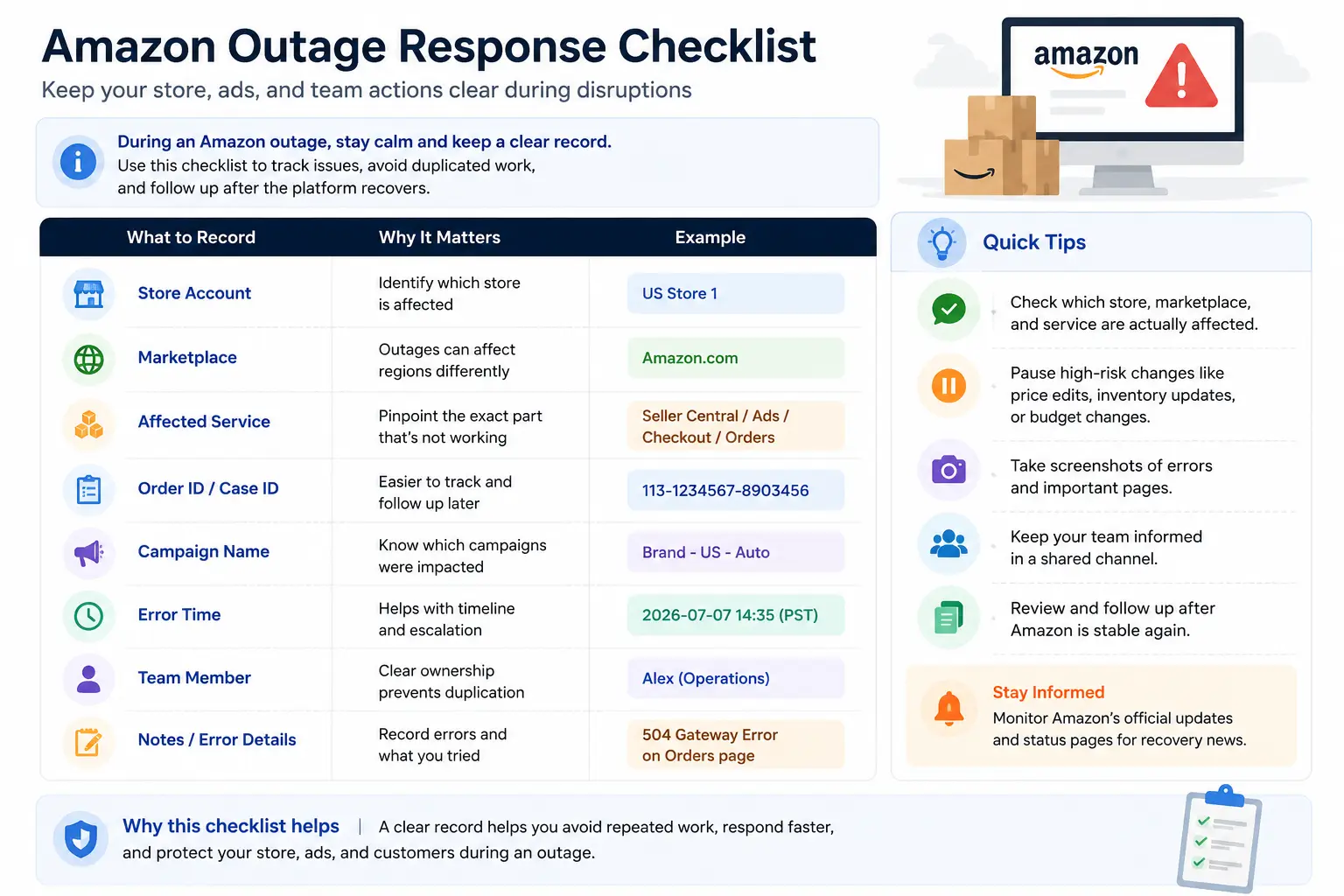
Do not assume every store or marketplace has the same problem. Start by checking where the issue appears. Is it affecting one Amazon store account, one regional marketplace, Seller Central, Amazon Ads, checkout, order management, or customer messages?
For example, your US store may load normally while your UK store is slow. Amazon Ads may show dashboard errors while Seller Central still opens. One team member may be unable to access a page while another can still review orders.
Write down the exact account, marketplace, page, and action that failed. This helps you avoid pausing work across every store when only one area is affected. It also helps your team focus on the real problem instead of reacting to vague reports like “Amazon is down.”
Pause High-Risk Changes Until the Platform Is Stable
When Amazon is unstable, avoid rushed changes that can create bigger problems later. Do not make bulk price edits, major listing updates, inventory changes, reimbursement requests, or large campaign changes unless they are urgent.
This is especially important when pages load slowly or actions do not confirm right away. A change may fail on screen but still process later. A second attempt could create duplicate edits or make your records harder to understand.
For ads, avoid sudden budget changes if the dashboard is delayed or showing incomplete data. For orders, avoid repeated manual updates when the system is not responding. The safest approach is to protect live operations first, then make larger changes after Amazon becomes stable again.
Keep a Clear Internal Record of Orders, Ads, and Account Actions
During a disruption, your team needs one shared record of what happened. Keep it simple. Record the store account, marketplace, affected page, order ID, campaign name, error message, time, and team member responsible for the action.
This matters when several people are checking different accounts at once. Without a record, one person may retry an action that another person already handled. Someone may also pause the wrong campaign, reply from the wrong store, or miss an order exception.
A clear log makes handoffs easier. It also helps after the disruption ends. Your team can review which orders need follow-up, which campaigns need checking, and which account actions still require support.
Enhancing Amazon Store Management During Outages with DICloak
When Amazon services become unstable, teams often need to check multiple store accounts, ad dashboards, and customer requests at the same time. The challenge is not only accessing Amazon, but keeping each account, session, and team responsibility organized while work continues.
Keep Each Amazon Store Account in Its Own Browser Profile
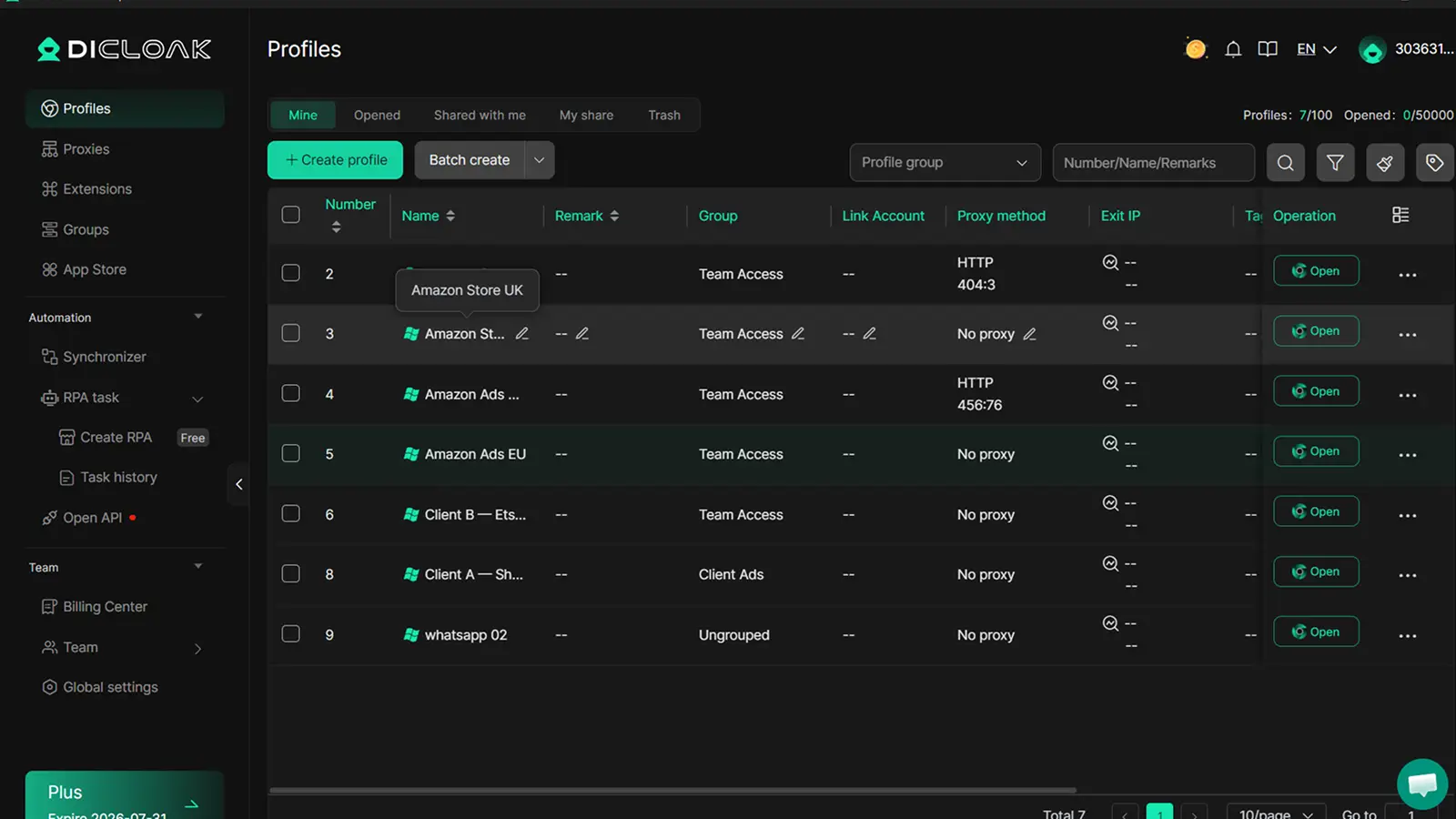
You can keep each Amazon store account in its own isolated browser profile. Each profile has its own cookies, session, and login state, so your team is less likely to mix up stores when access is unstable.
For example, an agency may manage five Amazon stores for different clients. During a Seller Central slowdown, one operator may need to check orders for Store A, while another checks messages for Store B. If both stores are open in the same browser, it is easy to click the wrong tab, use the wrong session, or take action in the wrong account.
With separate profiles, you can open the correct store workspace first, then review only that account’s orders, messages, and account notices. This does not solve an Amazon disruption, but it reduces avoidable mistakes during a stressful period.
Make Team Access and Account Ownership Easier to Track
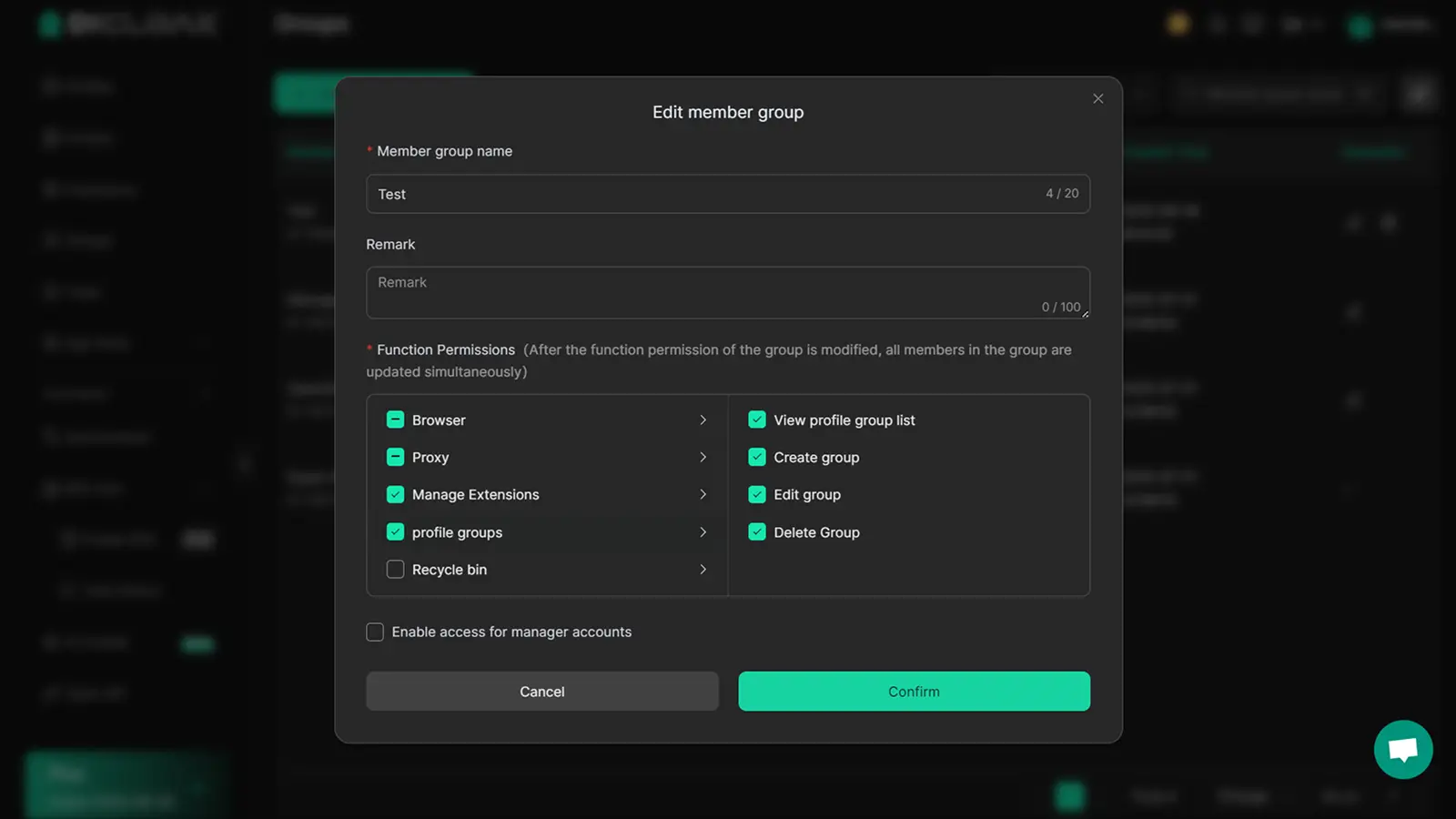
You can assign specific store profiles to specific team members with profile sharing and team permissions. This makes ownership clearer when more than one person is involved in an outage response.
For example, one team member may be responsible for customer messages, another for order exceptions, and another for Amazon Ads. If everyone has access to every store without clear ownership, someone may repeat an action, miss a handoff, or work in the wrong account.
With assigned profiles and permissions, you can keep each person focused on the accounts they are responsible for. During a disruption, this makes it easier to track who checked which store, which ad account still needs review, and which issue should be escalated after Amazon becomes stable again.
Frequently Asked Questions About Amazon Outages
Is Amazon down right now?
To know if is amazon down right now, check official Amazon support channels, Amazon Help, Seller Central notices if you are a seller, and third-party outage reports. If many users report the same issue at the same time, a wider disruption is possible. If Amazon works on another device, browser, or network, the issue is more likely local.
How can I check Amazon Server Status?
You can check amazon server status by looking at Amazon Help, Seller Central notices, Amazon Ads support updates, and the AWS Health Dashboard for AWS-related service events. You can also compare this with an outage report site to see if other users are having similar problems. Always check which service is affected, because shopping, checkout, Seller Central, and Ads can fail separately.
Why is Amazon Not Working on my phone but working on my computer?
If amazon not working only happens on your phone, the issue is usually local to the app, mobile browser, device settings, or network. Update the Amazon app, force-close and reopen it, clear the app cache, and try switching between Wi-Fi and mobile data. If Amazon works on your computer, the platform is probably not fully down for everyone.
Why is Amazon checkout not working if the website is loading?
Amazon checkout can fail even when product pages still load because checkout, payments, cart, and order processing are separate parts of the platform. A payment method may need verification, the cart may have a temporary error, or checkout may be delayed during a service issue. Do not click “Place Order” repeatedly. Check your order history before trying again.
What should Amazon sellers do when Seller Central or Amazon Ads is down?
Sellers should first identify which store, marketplace, or service is affected. Check Seller Central, Amazon Ads, orders, messages, and campaigns separately. Avoid high-risk changes such as bulk edits, price updates, refunds, or campaign budget changes while the platform is unstable. Keep a simple record of errors, affected accounts, order IDs, campaign names, and team actions for follow-up.
Managing an Amazon outage is only part of the process — keeping each Amazon store account clear and stable matters even more when you manage multiple stores or ad accounts as a team.
You can use DICloak to keep each Amazon store account in a separate browser profile, manage each Amazon Ads account independently, and assign the right profiles to the right team members without mixing sessions, stores, or account actions during busy disruption periods.Try DICloak for Free.
 Web Proxy Tools
 Free Tools
 Cookie Plugin
 UA Generator
 MAC Address Generator
 IP Generator
 IP Address List
 2FA Code Generator
 World Clock
 Anonymous Check
 WebRTC Leak Test
 UUID Generator
 Free Web Proxy Site
 Proxy Checker
 FB Ad Checker
 AI Web Scraping
 Free SMM Tools
 Twitter Shadowban Checker
 Instagram Name Checker
 UTM Generator
 Username Generator
 AI Hashtag Generator
 LinkedIn Headline Generator
 Social Media Image Resizer